

A Microsoft Account Protection email can create panic by warning that someone signed in, changed a password or will close your account. Phishing campaigns copy Microsoft colors, security language and button styles so that clicking “Review activity” feels like the responsible thing to do.
The button leads to a counterfeit sign-in page that records your email address, password and sometimes a one-time code. This guide explains how to check the sender and destination safely, how the credential theft unfolds and what to do immediately if you tried to sign in through the message.
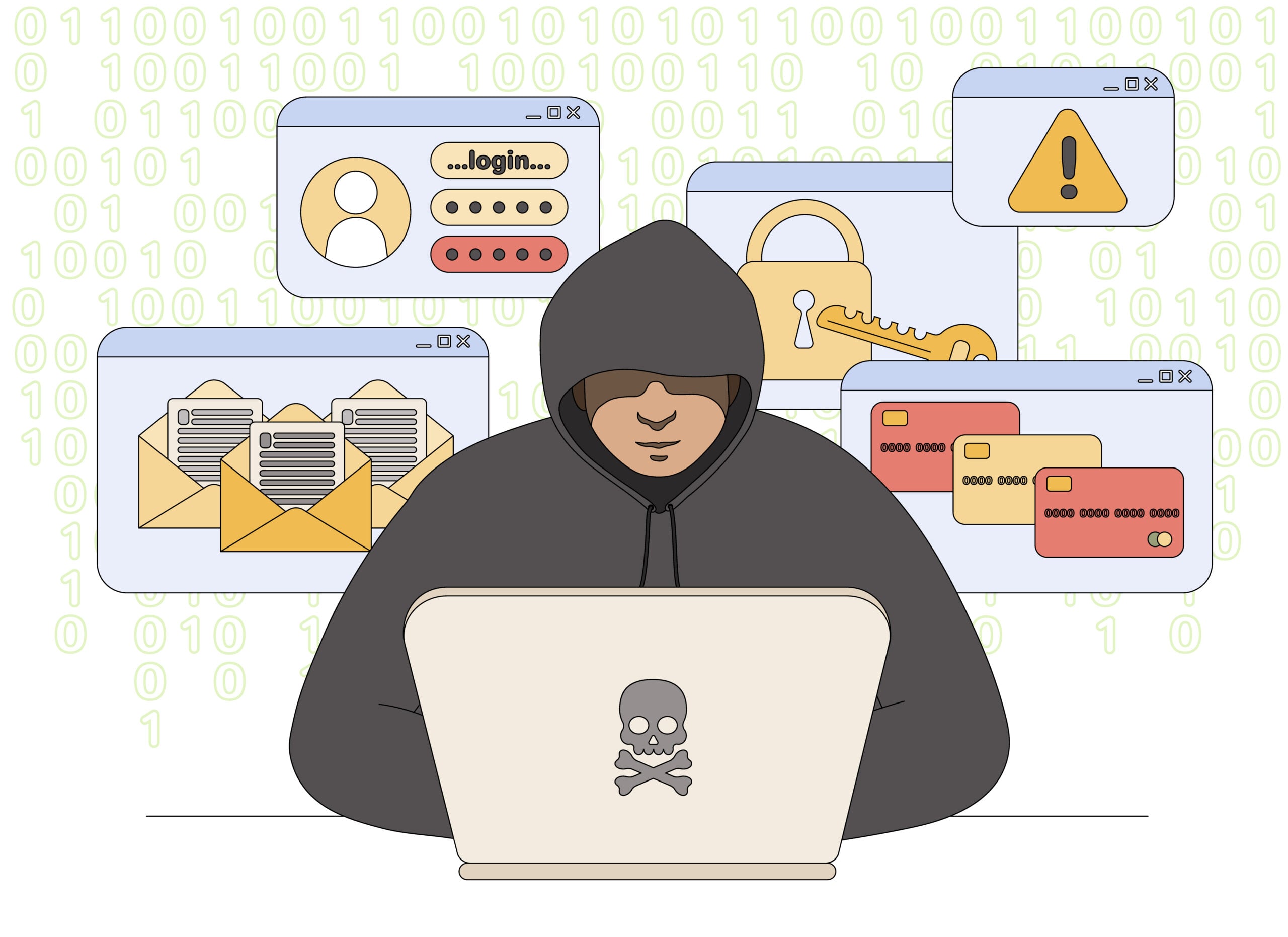
Microsoft Account Protection Email Scam Overview
Emails that appear to come from account-security-noreply@accountprotection.microsoft.com require careful handling. The domain accountprotection.microsoft.com is legitimately used by Microsoft for account notifications and security codes, but criminals can imitate the message, spoof the visible sender, or use a lookalike address.
The confirmed scam campaign uses alarming Microsoft security alerts and verification messages to lead victims to fake login pages. The goal is to steal a Microsoft password, capture a two-step verification code, approve a malicious sign-in, or gain access to email, OneDrive, Xbox, and other connected services.
An unexpected verification code is not automatically a fake email. Microsoft says it can mean someone is trying to access the account or another user entered the wrong email address. The safe response is still the same: do not reply, do not share the code, and review the account directly.
Do not decide based only on the display name or visible From line. A convincing email can be malicious, while a genuine code can be triggered by an attacker who already knows the email address and is testing a password.
The message may contain a real-looking security event, including a device, city, time or IP address, but those fields can be invented. Its purpose is to make the recipient click before checking the Microsoft account directly. Hovering over or inspecting the button often reveals that the destination is not a Microsoft-owned domain.
On the counterfeit page, the attacker can collect the password and immediately attempt a real login. If multifactor authentication is enabled, a second screen may request the one-time code or ask the victim to approve a notification. Never approve an unexpected prompt. Open the Microsoft account security dashboard from a fresh browser tab, review recent activity there and change the password if the message led you to enter credentials.
How the Microsoft Account Protection Scam Works
Step 1: A Microsoft security warning arrives
The email claims that an unusual sign-in, password change, account lock, subscription charge, or recovery request was detected. It may include a location, device, or IP address the recipient does not recognize.
The subject line creates immediate concern. A person who fears losing an email account is more likely to click before checking the sender and destination carefully.
Step 2: The sender is made to look legitimate
The message may display Microsoft Account Team or the legitimate account-security-noreply address. Basic sender fields can be forged, and lookalike domains can replace letters with similar characters.
Some phishing emails are sent through compromised accounts or services that pass ordinary spam filters. That is why the action requested by the message matters more than the logo.
Step 3: A button leads to a fake Microsoft login
The email tells the recipient to review activity, secure the account, cancel a change, or verify ownership. The button opens a page that copies Microsoft’s sign-in design.
The web address is not login.live.com, account.microsoft.com, or another expected Microsoft domain. It may use Microsoft words in a subdomain or path to hide the unrelated registered domain.
Step 4: The password is captured
The cloned page asks for the email address and password. After submission, it may claim the password is incorrect and request it again, giving the criminal a second chance to confirm the credential.
The information is transmitted to the attacker immediately. The victim may then be redirected to a real Microsoft page so the theft is less obvious.
Step 5: A real security code or approval prompt appears
The attacker tries the stolen password on Microsoft’s genuine sign-in service. If two-step verification is enabled, Microsoft sends a real code or Authenticator approval request to the victim.
The phishing page asks for that code, or the attacker repeatedly sends approval prompts until the victim accepts one. The genuine notification is protecting the account, not confirming the email that started the scam.
Step 6: The account is taken over
Once inside, the criminal may change recovery information, create forwarding rules, read private email, search for financial documents, access cloud files, or reset passwords for other services.
A compromised Outlook mailbox is especially valuable because password-reset links for many other accounts arrive there.
Step 7: The stolen account targets other people
The attacker can send phishing messages from the victim’s real address, impersonate them in business conversations, or modify payment instructions in an existing email thread.
Contacts are more likely to trust a message from a known account, allowing the same campaign to spread to coworkers, family members, and customers.
Signs the Microsoft Email Is Phishing
- The message uses a lookalike version of accountprotection.microsoft.com.
- A button leads to a non-Microsoft domain.
- You must enter a password or verification code through the email link.
- The email threatens immediate account deletion or permanent suspension.
- An attachment claims to contain security or billing information.
- The message asks you to call an unfamiliar support number.
- The greeting, account hint, or subscription details do not match your account.
- You receive repeated Authenticator prompts you did not initiate.
Microsoft says emails from its account team use the @accountprotection.microsoft.com domain. It also recommends checking message headers and confirming that the hinted account belongs to you. Even then, never share an unrequested security code.
How To Check the Alert Safely
- Do not click the email button. Open a new browser window and type account.microsoft.com yourself.
- Review Recent Activity. Check the date, location, device, browser, and result of recent sign-in attempts.
- Confirm the account hint. Make sure the partially displayed address actually belongs to you.
- Inspect the full sender and headers. A display name alone is not enough.
- Reject unrequested prompts. Never approve an Authenticator notification or share a code for an action you did not start.
- Use Microsoft Support directly. Do not call a telephone number supplied in a suspicious security email.
What an Unrequested Microsoft Code Means
Microsoft lists several possible causes. Someone may be attempting to access the account, another person may have entered the wrong email address, or a delayed code may have arrived after an earlier request.
Without the code, an attacker who only has the email address cannot complete that verification step. Do not respond to anyone who asks for it, including a caller claiming to be Microsoft support.
Check recent account activity. If an unknown successful sign-in appears, change the password and security information immediately. If only unsuccessful attempts appear, enable two-step verification and make sure the password is unique.
What To Do If You Entered Your Password
- Change the Microsoft password. Use the official account page from a trusted device.
- Sign out other sessions. Remove devices and sessions you do not recognize.
- Review recovery details. Check alternate email addresses, telephone numbers, and security methods.
- Inspect Outlook rules. Delete unknown forwarding, inbox, or deletion rules created by an attacker.
- Review sent and deleted mail. Warn contacts if phishing was sent from the account.
- Change reused passwords. Protect any other service that used the same credential.
- Check connected services. Review OneDrive, Xbox, Microsoft 365, billing, and saved payment activity.
If access has already been lost, use Microsoft’s official sign-in helper and recovery process. A third party promising to recover the account for an advance fee may be another scam.
Frequently Asked Questions
Is account-security-noreply@accountprotection.microsoft.com real?
Microsoft states that @accountprotection.microsoft.com is a legitimate domain used for account notifications. Criminals can still spoof the visible sender or use lookalike addresses, so verify the alert through your account.
Why did I get a Microsoft code I did not request?
Someone may be trying to sign in, someone may have entered the wrong address, or a code may have been delayed. Do not share it and review Recent Activity directly.
Can the From address be faked?
Yes. Basic sender information can be spoofed. Message headers, link destinations, account context, and independent verification provide stronger evidence.
Will Microsoft ask for my verification code?
Do not give an account code to a person who contacts you. Enter it only during an action you initiated on Microsoft’s official sign-in page.
The Bottom Line
The Microsoft Account Protection address can be genuine, but an email that looks like it came from that address can still be imitated or misused. An unexpected code also may indicate that someone is testing access to the account.
Do not click the message link or share a code. Go directly to the Microsoft account portal, review Recent Activity, and secure the account before responding to anything in the email.








