

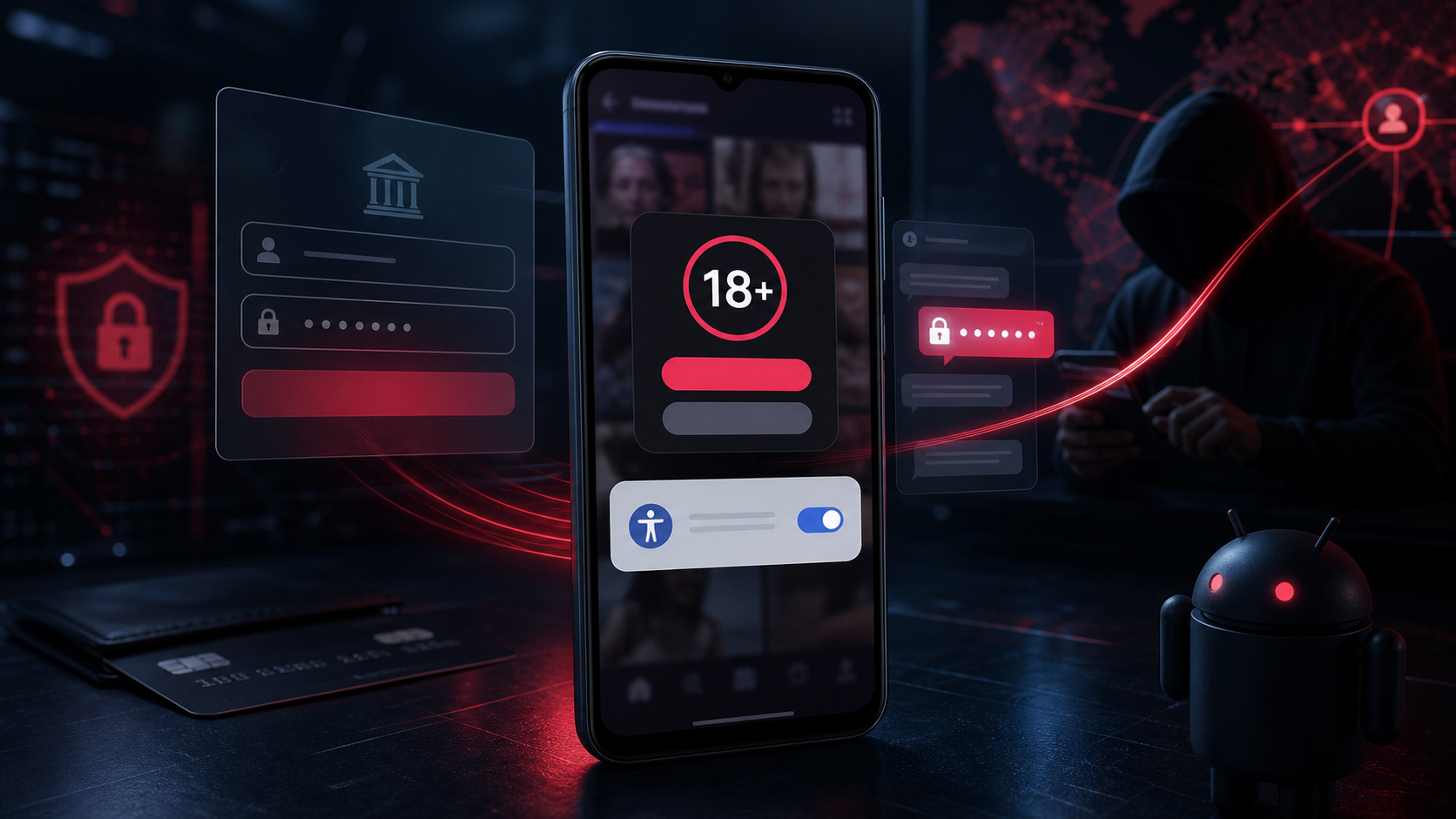
A TikTok 18+ app promises age-restricted videos, then asks for powerful Accessibility permissions. It is not TikTok. It is Rokarolla, an Android banking trojan built to watch and control the phone.
If this app is installed, stop using the device for banking or passwords. Disconnect it, revoke the dangerous permissions and remove the malware before securing your accounts from a clean device.
Overview
Rokarolla is a dangerous Android banking trojan distributed through a fake application branded as TikTok 18+. The lure suggests users must install a special app and complete age verification to see restricted content. TikTok does not require an unofficial APK for adult access.
After installation, the app shows a fake Google Play Protect scan and asks the user to grant Accessibility access. That permission is the turning point. Accessibility Services are designed to help people interact with their phones, but malware can abuse them to read screen content, press buttons, approve prompts and monitor other apps.
Security researchers have documented 137 remote commands supported by Rokarolla. The trojan can parse and control the user interface, display overlays above banking and cryptocurrency apps, record typed information and capture the device PIN or unlock pattern.
It can also harvest SMS messages, WhatsApp contacts and call information. By becoming the default SMS or phone app, Rokarolla may intercept one-time codes, send messages from the victim’s number and block incoming calls that could warn the owner about fraud.
The malware works hard to remain unnoticed. It can disable Play Protect, hide its launcher icon, mute sound and vibration, keep the screen awake and communicate with command servers over encrypted HTTPS connections. A unique bot identifier and device profile help criminals manage each infected phone.
This is not a questionable app with aggressive advertising. Rokarolla is credential-stealing, device-controlling malware. Anyone who installed the fake TikTok 18+ APK should treat banking, email, cryptocurrency and other sensitive accounts used on the phone as potentially exposed.
How the Rokarolla Android Trojan Infects a Phone
Step 1: A fake TikTok 18+ offer leads outside Google Play
The victim encounters a website, advertisement, direct message or download page promising age-restricted TikTok content. It instructs the user to install an APK from outside the official Play Store.
Step 2: The app uses fake verification screens
The application copies TikTok branding and may display an age check or a counterfeit Google Play Protect scan. These screens create a sense that the app is being verified when the security process is entirely controlled by the malware.
Step 3: Accessibility access gives the malware control
Rokarolla asks for permission to observe and control the screen. The request may be described as necessary for verification, playback or security. Once granted, the trojan can interact with buttons and forms across other applications.
Step 4: The icon disappears and protections are weakened
The malware can hide its launcher icon and attempt to disable Play Protect. It may also silence alerts or keep the display awake, making remote activity easier to conduct without attracting attention.
Step 5: Fake overlays steal financial credentials
When the victim opens a targeted banking or cryptocurrency app, Rokarolla can place a counterfeit login window above the genuine app. Usernames, passwords, PINs and card details entered into the overlay are captured.
Step 6: Messages, calls and one-time codes are intercepted
The trojan can access SMS content and manipulate phone functions. This can expose one-time passwords and suppress calls from banks, while allowing criminals to send messages that appear to come from the infected number.
Step 7: Remote operators control the infection
The phone connects to command-and-control infrastructure and receives instructions. Backup domains help the operation continue when one server is blocked. Attackers can adapt their actions to the victim’s installed apps and financial value.
What Rokarolla Can Steal and Control
- Banking and cryptocurrency logins through convincing screen overlays.
- Typed information through keylogging and Accessibility monitoring.
- The device PIN or unlock pattern observed during normal phone use.
- SMS messages and one-time codes used for account verification.
- WhatsApp contacts and call information useful for impersonation and fraud.
- Screen content and button presses across other applications.
- Phone and messaging functions after becoming a default handler.
- Security settings that can be changed to reduce warnings or obstruct removal.
Warning Signs of a Rokarolla Infection
- An unofficial TikTok 18+ app was installed from a website or message.
- Android requested permission to install unknown apps.
- The app demanded Accessibility access or full control of the screen.
- A fake Play Protect scan appeared inside the app.
- The app icon disappeared after permissions were granted.
- Banking apps show unusual login screens or repeated errors.
- SMS messages, calls or security notifications behave unexpectedly.
- Play Protect is disabled without your action.
- The phone wakes, stays active, mutes itself or drains its battery abnormally.
What to Do If Rokarolla Is Installed
Step 1: Isolate the phone
Turn on airplane mode, then disable Wi-Fi and Bluetooth. Do not open banking, email, password-manager or cryptocurrency apps. Avoid typing replacement passwords on the suspected phone.
Step 2: Revoke the permissions that protect the malware
Open Android Settings and check Accessibility, Device admin apps, Notification access, Install unknown apps and Default apps. Remove the suspicious app’s access wherever possible. Replace it as the default SMS or phone app before uninstalling.
- Disable its Accessibility service.
- Remove device-administrator privileges.
- Revoke notification, SMS, phone, contacts and storage permissions.
- Change default SMS and phone handlers back to trusted system apps.
- Disable permission to install unknown applications.
- Re-enable Google Play Protect if it was turned off.
Step 3: Restart in Safe Mode and uninstall the fake app
Safe Mode temporarily prevents most third-party apps from running. Use it if the uninstall button is blocked or the malicious screen keeps returning. Find the fake TikTok 18+ application in Settings and uninstall it.
Step 4: Scan the Android device
After removing the suspicious app, use a reputable mobile security scanner to check for additional components and unsafe applications.
Malwarebytes for Android automatically detects and removes dangerous threats like malware and ransomware so you don’t have to worry about your most-used device being compromised. Aggressive detection of adware and potentially unwanted programs keeps your Android phone or tablet running smooth.
-
Download Malwarebytes for Android.
You can download Malwarebytes for Android by clicking the link below.
 MALWAREBYTES FOR ANDROID DOWNLOAD LINK
(The above link will open a new page from where you can download Malwarebytes for Android) -
Install Malwarebytes for Android on your phone.
In the Google Play Store, tap “Install” to install Malwarebytes for Android on your device.
When the installation process has finished, tap “Open” to begin using Malwarebytes for Android. You can also open Malwarebytes by tapping on its icon in your phone menu or home screen.
-
Follow the on-screen prompts to complete the setup process
When Malwarebytes will open, you will see the Malwarebytes Setup Wizard which will guide you through a series of permissions and other setup options.
This is the first of two screens that explain the difference between the Premium and Free versions. Swipe this screen to continue.
Tap on “Got it” to proceed to the next step.
Malwarebytes for Android will now ask for a set of permissions that are required to scan your device and protect it from malware. Tap on “Give permission” to continue.
Tap on “Allow” to permit Malwarebytes to access the files on your phone. -
Update database and run a scan with Malwarebytes for Android
You will now be prompted to update the Malwarebytes database and run a full system scan.
Click on “Update database” to update the Malwarebytes for Android definitions to the latest version, then click on “Run full scan” to perform a system scan.
-
Wait for the Malwarebytes scan to complete.
Malwarebytes will now start scanning your phone for adware and other malicious apps. This process can take a few minutes, so we suggest you do something else and periodically check on the status of the scan to see when it is finished.
-
Click on “Remove Selected”.
When the scan has been completed, you will be presented with a screen showing the malware infections that Malwarebytes for Android has detected. To remove the malicious apps that Malwarebytes has found, tap on the “Remove Selected” button.
-
Restart your phone.
Malwarebytes for Android will now remove all the malicious apps that it has found. To complete the malware removal process, Malwarebytes may ask you to restart your device.











Step 5: Secure important accounts from a clean device
Use another trusted phone or computer. Contact the bank first if financial apps were used after infection, then change credentials for email, Google, social media, cryptocurrency exchanges and any account whose password was entered on the phone.
- Tell the bank that Android banking malware may have intercepted credentials and one-time codes.
- Block or replace payment cards if unauthorized activity is possible.
- Reset email and Google account passwords and revoke all active sessions.
- Regenerate backup codes and review multi-factor authentication devices.
- Move cryptocurrency assets only with guidance from the legitimate wallet or exchange provider.
- Warn contacts if suspicious SMS or WhatsApp messages were sent from your accounts.
- Ask the mobile carrier to add account protections against SIM-swap attempts.
Step 6: Factory-reset the phone if confidence cannot be restored
A factory reset is the safest option when removal fails, powerful permissions return, unknown apps remain or financial loss has occurred. Back up only personal photos and documents, not apps or full-device settings that might restore the threat.
After the reset, install system updates, download apps only from Google Play and restore them individually. Do not reinstall the TikTok 18+ APK or any file obtained from the same website or message.
How to Avoid Fake Android Apps
- Install apps only from Google Play or the verified developer’s official store listing.
- Do not trust websites offering adult, premium or modified versions of popular apps.
- Treat Accessibility requests from video, shopping or entertainment apps as a major warning.
- Keep Play Protect and Android security updates enabled.
- Read permission prompts instead of approving them automatically.
- Use a password manager, which can help expose fake overlays or unrelated login domains.
- Never install an APK because a stranger, advertisement or social-media post says it unlocks hidden content.
Frequently Asked Questions
Is TikTok 18+ a real TikTok application?
The application used in this campaign is fake. It is not an official TikTok release and is used to distribute the Rokarolla banking trojan.
Can Rokarolla steal a banking password?
Yes. It can display fake overlays above financial apps, monitor typed information and abuse Accessibility access to observe or control interactions.
Can it read text messages and one-time codes?
Yes. Its SMS capabilities can expose verification codes and help attackers approve account access or transactions.
Will uninstalling the app fix everything?
Uninstalling stops the known application, but credentials already stolen remain compromised. Scan the phone, review permissions and secure every sensitive account from a clean device. Reset the phone if you cannot be confident it is clean.
Is reading a TikTok message enough to infect Android?
Normally, no. The victim generally has to download and install the malicious APK, allow installation from an unknown source and grant powerful permissions. Do not test the file.
The Bottom Line
Rokarolla is a serious Android banking trojan hidden behind a fake TikTok 18+ app. Its Accessibility abuse, overlays, SMS interception and remote-control features can expose both the phone and the accounts used on it. Isolate the device, remove the app and secure financial and identity accounts from clean hardware.








