

A Mac can look completely normal while macOS.Gaslight copies passwords, opens a remote shell and waits for commands. This backdoor is designed to stay quiet, not announce itself with pop-ups.
If Gaslight is detected, disconnect the Mac and stop using it for email, banking or passwords. Cleaning the file is only half the job; exposed accounts and persistence mechanisms must also be addressed.
Overview
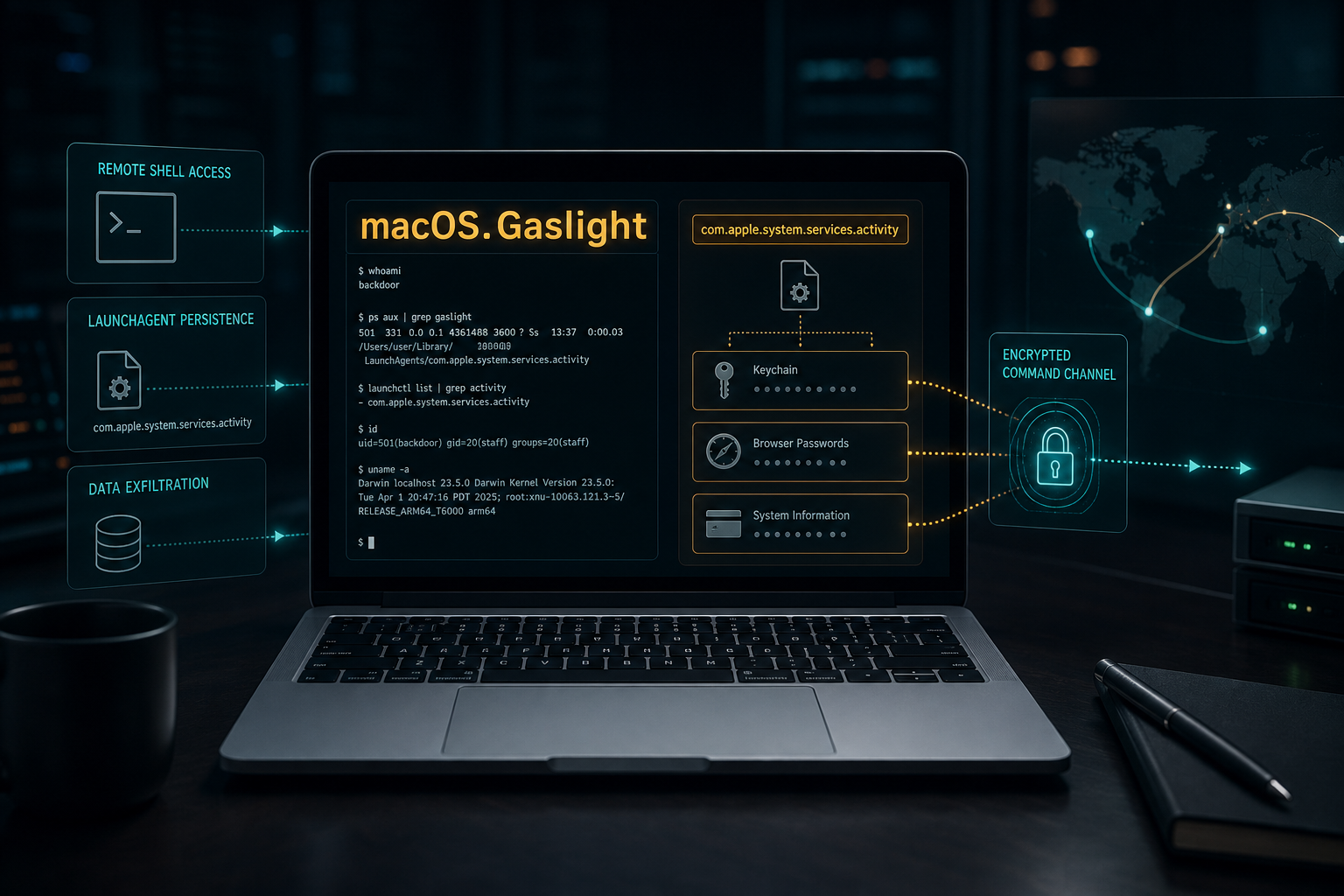
macOS.Gaslight is a backdoor and information stealer written in Rust. It targets macOS and gives its operators an interactive shell capable of running arbitrary commands and terminating processes by their process ID.
The malware can copy files from the Mac and send them out through a chat-based command channel. It steals saved browser passwords from Chrome, Brave, Firefox and Safari, copies the login Keychain database and collects terminal command histories.
Gaslight also inventories the machine. It gathers installed applications, running processes, hardware details and macOS configuration data, giving the attacker a detailed picture of the device and its user before further actions are chosen.
For persistence, the backdoor installs a LaunchAgent named com.apple.system.services.activity. That label is deliberately styled to resemble an Apple service, even though it is not a legitimate macOS component.
Its command traffic uses the Telegram Bot API, AES-GCM encryption, unique nonces and certificate pinning. Gaslight follows the Mac’s system proxy settings and can prevent sleep, allowing it to continue polling for instructions while the user is away.
Public analysis attributes the malware with high confidence to a North Korean-linked threat actor. The exact initial infection route was not established in the available research, so unexpected attachments, pirated software and fake downloads remain possible delivery paths rather than confirmed facts for every victim.
What macOS.Gaslight Can Do
- Run remote commands through an interactive shell.
- Terminate processes selected by the attacker.
- Steal files and exfiltrate them through a command channel.
- Collect browser passwords from Chrome, Brave, Firefox and Safari.
- Copy Keychain data that may contain valuable account secrets.
- Read terminal histories that can expose server names, commands and tokens.
- Inventory the Mac by listing applications, processes and system details.
- Remain persistent through a deceptive LaunchAgent.
- Prevent sleep so background command polling can continue.
How the macOS.Gaslight Backdoor Works
Step 1: A malicious file reaches the Mac
The confirmed delivery method has not been published. Mac backdoors are commonly disguised as software installers, job documents, updates, cracked applications or files delivered through targeted phishing.
Step 2: Gaslight executes quietly
The Rust-based implant starts without the obvious advertisements or browser changes associated with lower-grade unwanted software. A victim may notice nothing unusual.
Step 3: A fake Apple-style LaunchAgent creates persistence
The backdoor registers com.apple.system.services.activity so it can return after login or restart. The name is camouflage and should not be trusted because it contains “com.apple.”
Step 4: The Mac contacts the operators
Gaslight repeatedly polls for commands through the Telegram Bot API. Encryption and certificate pinning make casual traffic inspection less useful, while proxy support helps it operate on managed networks.
Step 5: Passwords and system data are collected
Browser credentials, Keychain files, terminal histories and system inventories can be gathered. This turns one infected Mac into a source of access to email, cloud services, developer systems and business infrastructure.
Step 6: Attackers issue remote commands
The operators can explore the system, copy documents, stop processes or deliver additional tools. A backdoor should therefore be treated as a possible full-device compromise.
The Fake Error Messages Inside Gaslight
Gaslight contains roughly 3.5 KB of embedded text made up of 38 fabricated errors. They imitate expired tokens, memory failures, broken database connections and corrupted data messages.
The apparent goal is to confuse AI-assisted malware-analysis systems and encourage them to stop, truncate or refuse analysis. Researchers did not demonstrate a successful bypass, so this is best described as an experimental evasion attempt rather than a proven way to defeat modern analysis tools.
Warning Signs and Indicators
- A security product detects macOS.Gaslight or a related Mac stealer.
- A LaunchAgent named com.apple.system.services.activity appears unexpectedly.
- Browser passwords, Keychain data or terminal sessions show unauthorized use.
- The Mac stays awake when it should sleep.
- Unknown processes repeatedly make encrypted outbound connections.
- Accounts receive sign-ins from unfamiliar locations after being used on the Mac.
- Files or commands appear without a clear explanation.
What to Do If macOS.Gaslight Is Detected
Step 1: Isolate the Mac
Disconnect Ethernet, Wi-Fi and Bluetooth. Do not sign in to sensitive accounts or type replacement passwords on the suspected system.
Step 2: Preserve incident information
Record the alert name, detected file path, time and LaunchAgent details. Businesses should involve their security team before deleting evidence that may show how far the attacker reached.
Step 3: Scan and clean macOS
Use the MalwareTips Mac cleanup sequence below to remove Gaslight and check for other components. A backdoor can be accompanied by additional malware.
Malwarebytes for Mac is a free on-demand scanner that removes the malware other security software tends to miss — adware, browser hijackers, and unwanted programs included. Cleaning an infected Mac with Malwarebytes has always been completely free, and it’s our go-to recommendation. Follow the steps below to scan and clean your Mac in just a few minutes.
-
Download Malwarebytes for Mac
Click the button below to download the latest version of Malwarebytes for Mac.
-
Open the Malwarebytes setup file
When the download finishes, open your Downloads folder and double-click the setup file to begin the installation.

-
Follow the On-Screen Prompts to Install Malwarebytes
The Malwarebytes for Mac Installer will guide you through a few quick screens. Click “Continue” and keep following the prompts until the installation completes.
When the installation is complete, Malwarebytes opens to the Welcome to Malwarebytes screen. Click “Get started“.
-
Select “Personal Computer” or “Work Computer”
Malwarebytes will ask what type of computer you’re installing it on. Click either Personal Computer or Work Computer, whichever applies.
-
Start the Scan
Click the “Scan” button. Malwarebytes will automatically update its detection database and begin checking your Mac for malware.
-
Wait for the Scan to Finish
Malwarebytes will scan your Mac for adware, browser hijackers, and other malicious programs. This can take a few minutes, so feel free to do something else — just check back occasionally to see the progress.
-
Quarantine the Detected Threats
When the scan is done, you’ll see a list of everything Malwarebytes found. Click the “Quarantine” button to remove all the threats at once.
-
Restart Your Mac
Malwarebytes will now remove all the malicious files it found. Some threats can only be fully removed after a reboot — if Malwarebytes asks you to restart, allow it. Once you’re logged back in, your Mac is clean.










Step 4: Inspect persistence
Review Login Items, LaunchAgents, LaunchDaemons, configuration profiles and recently installed applications. Remove only entries confirmed as malicious; deleting legitimate macOS components can damage the system.
Step 5: Secure accounts from a clean device
Assume that browser-saved passwords and secrets accessible through the Keychain may have been exposed. Reset important credentials elsewhere and revoke existing sessions.
- Change the primary email and Apple Account passwords first.
- Reset passwords stored in affected browsers and the password manager.
- Rotate developer tokens, SSH keys, cloud credentials and API keys used on the Mac.
- Revoke active sessions and unknown trusted devices.
- Enable multi-factor authentication with an authenticator or security key.
- Contact the bank if financial accounts were accessed from the infected system.
Step 6: Consider a clean macOS reinstall
A reinstall is the safer choice for Macs used for administration, finance, development or sensitive business data. Restore personal files carefully and reinstall applications from official sources.
How to Reduce the Risk of Mac Backdoors
- Install applications from the Mac App Store or verified developer websites.
- Avoid cracked software, key generators and unofficial activation tools.
- Treat unexpected job files and software-update prompts as potential lures.
- Keep macOS, browsers and security software updated.
- Review Login Items and configuration profiles periodically.
- Do not approve Gatekeeper bypasses or terminal commands copied from untrusted websites.
- Use unique passwords and hardware-backed multi-factor authentication for critical accounts.
Frequently Asked Questions
Is macOS.Gaslight an adware program?
No. It is a backdoor and information stealer that provides remote control and credential-theft capabilities.
Does Gaslight visibly slow down a Mac?
Not necessarily. Backdoors are designed to remain silent, and the absence of pop-ups or obvious performance problems does not mean the device is clean.
Is com.apple.system.services.activity legitimate?
In this infection, that LaunchAgent label belongs to Gaslight. The Apple-style name is camouflage, not proof that the file is a genuine system service.
Why does Gaslight contain fake error messages?
They appear intended to confuse AI-assisted analysis. The technique is experimental, and there is no demonstrated proof that it reliably defeats current tools.
The Bottom Line
macOS.Gaslight is a serious Mac backdoor, not a harmless suspicious file. It can steal browser passwords, copy Keychain data and execute remote commands while hiding behind an Apple-like LaunchAgent. Isolate the Mac, remove the malware and rotate exposed credentials from a clean device.








