

Night Dragon can turn an Android phone into a live surveillance device. Once installed, the malware can watch the screen, capture financial passwords and operate the phone while a fake system update hides what is happening.
This is not a harmless utility or a dramatic antivirus warning. Night Dragon is a serious remote access trojan built for theft, spying and persistent control of infected Android devices.
Overview
Night Dragon is a commercial Android remote access trojan, often shortened to RAT. It appeared in criminal channels as a more capable successor to Flying Eagle and continues the same basic strategy: persuade someone to sideload a convincing APK, request powerful Android permissions and then place the device under an operator’s control.
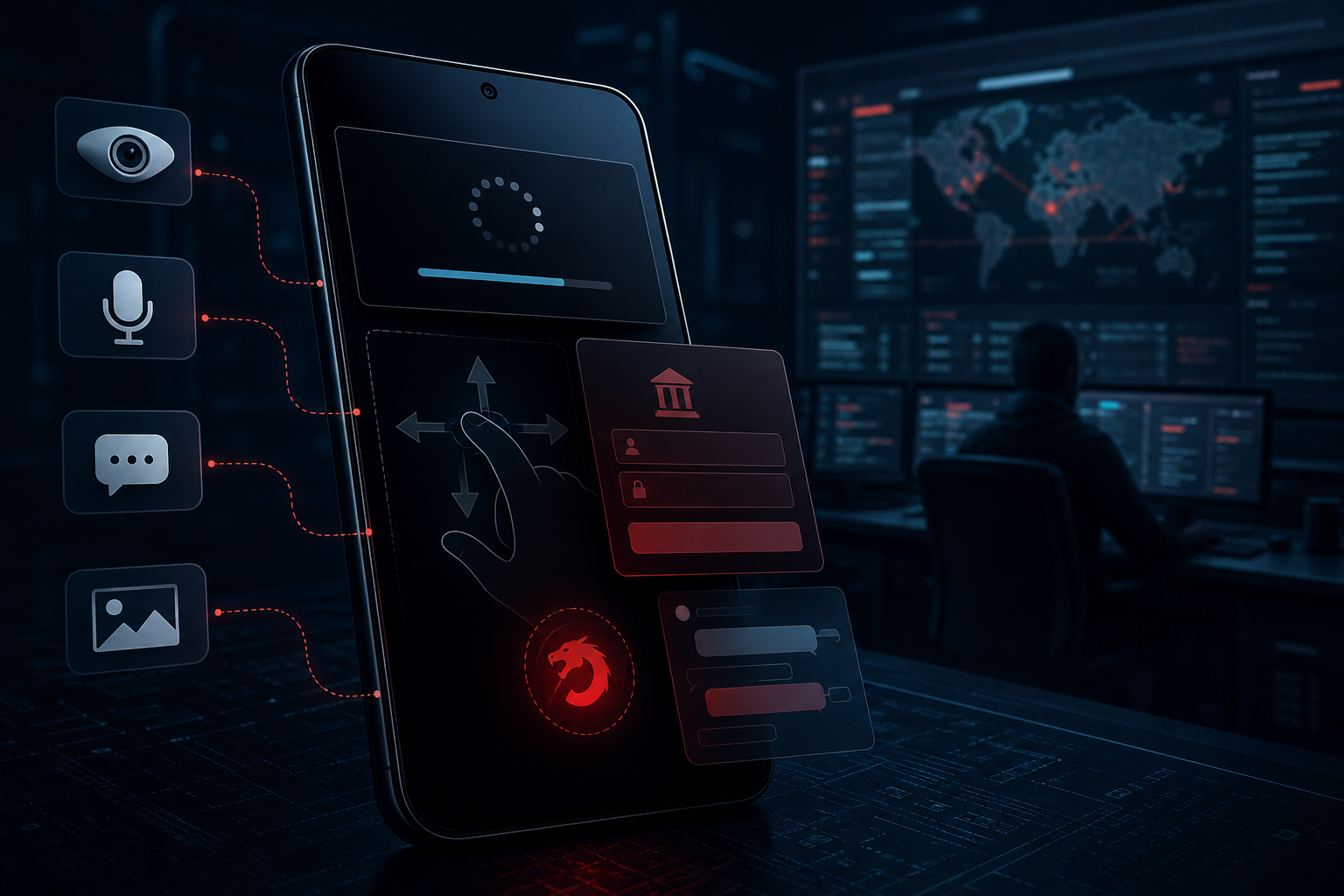
The malware is dangerous because it does not rely on a single trick. Its operator can view the screen in real time, browse files, read text messages, open the photo gallery, activate the microphone and request images from the camera. A keylogger records what the victim types, while specialized overlays can imitate financial applications and collect passwords or payment details.
Night Dragon also abuses Android Accessibility Services. That permission is intended to help people operate their phones, but malware can misuse it to press buttons, swipe, open settings and approve actions. The attacker is therefore not limited to stolen information; they may be able to interact with the device almost as if they were holding it.
Stealth features make the infection harder to notice. The app can hide its launcher icon and display a black screen or fake system-update message while commands run underneath. A victim may believe the phone has temporarily frozen or is installing an update when the attacker is actually opening apps, changing settings or collecting data.
Criminals can customize the app name, icon and installation lure, so there is no single Night Dragon icon to look for. The same malware may be presented as a government service, security update, delivery tool, finance app or another familiar-looking download. Packages and internal code can also be randomized to make each build look slightly different to scanners.
- Threat type: Android remote access trojan
- Main objective: surveillance, credential theft and remote device control
- Key permissions: Accessibility, screen capture, files, camera, microphone and SMS
- Common disguise: a customized app distributed outside Google Play
- Highest-risk targets: banking, payment, wallet and messaging accounts
How the Night Dragon RAT Infection Works
Step 1: The victim receives a convincing app link
The attack usually starts with a message, social post or private channel that promotes an app the victim supposedly needs. The theme can change, but the download is hosted outside the official Google Play store.
The sender may claim the app provides access to a government service, account verification, a security update or a useful financial feature. Urgency and authority are used to discourage the victim from checking the source.
Step 2: A customized APK is installed
The download is an Android Package Kit, or APK. Because it comes from an unofficial source, Android may ask the user to allow installations from that browser, file manager or messaging app.
Criminals can change the app’s visible name and icon before distributing it. Searching for one fixed Night Dragon filename is therefore unreliable; the installation source and requested permissions are more revealing.
Step 3: The app requests powerful permissions
Night Dragon attempts to obtain access to features such as Accessibility Services, notifications, storage, the microphone, the camera and screen capture. A deceptive prompt may claim these permissions are needed for verification or normal operation.
Accessibility access is especially serious. It can let the malware observe interface content and simulate taps or swipes, giving the attacker a path around security prompts that would otherwise require physical interaction.
Step 4: The icon disappears and a control channel opens
After installation, the malicious app may remove its icon from the launcher. It then contacts a command server and registers the phone with information that helps the operator identify and control it.
Removing the icon does not uninstall the app. The malicious package can remain active in the background, and it may still appear under Settings even when it is absent from the home screen.
Step 5: The attacker spies on the phone and captures credentials
The operator can view the screen, read SMS messages, inspect photos and files, listen through the microphone and obtain camera footage. Keylogging and financial overlays are used to collect passwords, PINs, wallet phrases and payment information.
If an account uses SMS verification, access to messages may expose one-time codes. Combined with a stolen password, that can allow the attacker to sign in or approve a transaction before the victim understands what happened.
Step 6: A fake update screen hides remote activity
Night Dragon can cover the display with a black screen or fake system-update page. Behind that cover, the attacker may open apps, change settings, transfer files or attempt financial actions.
Unexpected update screens, repeated permission prompts, unusual battery drain and a phone that seems active while untouched should be treated as warning signs, particularly after a sideloaded app was installed.
What Night Dragon Can Steal or Control
An infected phone can expose far more than one password. Modern Android devices hold identity documents, private conversations, authentication codes and access to financial services, making remote control especially damaging.
- Banking, payment and cryptocurrency-wallet credentials
- Passwords, PINs and information typed into apps
- SMS messages, including one-time verification codes
- Photos, videos, documents and downloaded files
- Live screen content and app activity
- Microphone audio and camera footage
- Contacts, device details and other account information
Warning Signs of a Night Dragon Infection
No single symptom proves the phone has Night Dragon, but several changes appearing after an unofficial app installation deserve immediate attention.
- A recently installed app disappears from the launcher
- An unfamiliar app has Accessibility or device-administrator access
- The screen turns black or shows unexplained system updates
- The camera or microphone indicator appears unexpectedly
- The phone becomes hot, slow or drains its battery unusually fast
- Mobile data use increases without a clear reason
- Banking or payment apps display unusual login screens
- Security settings change or prompts appear without your action
What to Do If You Installed a Suspicious Android App
Disconnect the phone before investigating
Turn on airplane mode and disable Wi-Fi and Bluetooth. This interrupts the attacker’s live connection and can reduce further data theft while you inspect the device.
Use a different, trusted device for banking or password changes. A phone that may be keylogged should not be used to create replacement passwords.
Revoke dangerous permissions
Open Android Settings and review Accessibility, Device admin apps, notification access, install unknown apps, VPN and screen-capture permissions. Disable access for the suspicious app before trying to remove it.
Menu names vary by phone manufacturer. If the malicious app blocks Settings or immediately closes the page, restart the phone in Safe Mode and try again.
Uninstall the suspicious package
Check Settings under Apps or Application management, including recently installed apps that have generic names or no visible icon. Clear administrator privileges first if the Uninstall button is disabled.
Also remove the downloaded APK from the Downloads folder and turn off permission to install unknown apps for the browser or messenger that delivered it.
Scan the Android device
A reputable mobile security scan can identify remaining components and other unwanted software installed with the same package.
Malwarebytes for Android automatically detects and removes dangerous threats like malware and ransomware so you don’t have to worry about your most-used device being compromised. Aggressive detection of adware and potentially unwanted programs keeps your Android phone or tablet running smooth.
-
Download Malwarebytes for Android.
You can download Malwarebytes for Android by clicking the link below.
 MALWAREBYTES FOR ANDROID DOWNLOAD LINK
(The above link will open a new page from where you can download Malwarebytes for Android) -
Install Malwarebytes for Android on your phone.
In the Google Play Store, tap “Install” to install Malwarebytes for Android on your device.
When the installation process has finished, tap “Open” to begin using Malwarebytes for Android. You can also open Malwarebytes by tapping on its icon in your phone menu or home screen.
-
Follow the on-screen prompts to complete the setup process
When Malwarebytes will open, you will see the Malwarebytes Setup Wizard which will guide you through a series of permissions and other setup options.
This is the first of two screens that explain the difference between the Premium and Free versions. Swipe this screen to continue.
Tap on “Got it” to proceed to the next step.
Malwarebytes for Android will now ask for a set of permissions that are required to scan your device and protect it from malware. Tap on “Give permission” to continue.
Tap on “Allow” to permit Malwarebytes to access the files on your phone. -
Update database and run a scan with Malwarebytes for Android
You will now be prompted to update the Malwarebytes database and run a full system scan.
Click on “Update database” to update the Malwarebytes for Android definitions to the latest version, then click on “Run full scan” to perform a system scan.
-
Wait for the Malwarebytes scan to complete.
Malwarebytes will now start scanning your phone for adware and other malicious apps. This process can take a few minutes, so we suggest you do something else and periodically check on the status of the scan to see when it is finished.
-
Click on “Remove Selected”.
When the scan has been completed, you will be presented with a screen showing the malware infections that Malwarebytes for Android has detected. To remove the malicious apps that Malwarebytes has found, tap on the “Remove Selected” button.
-
Restart your phone.
Malwarebytes for Android will now remove all the malicious apps that it has found. To complete the malware removal process, Malwarebytes may ask you to restart your device.











Secure important accounts from a clean device
Change the passwords for email, banking, payment, social-media and cryptocurrency accounts. Sign out other sessions, replace exposed recovery codes and contact financial providers if the infected phone was used for transactions.
Tell your mobile carrier if SMS codes or the phone number may have been exposed. Ask whether a SIM or account PIN should be changed, and watch for unauthorized number-porting requests.
Consider a factory reset when trust cannot be restored
If remote-control symptoms continue, the app cannot be removed or sensitive accounts were accessed, back up only irreplaceable personal files and perform a factory reset. Do not restore the suspicious APK or an unverified full-device backup.
How to Avoid Android RATs
- Install apps from Google Play or another trusted official store
- Do not enable unknown-app installation for links received in messages
- Treat requests for Accessibility access as a high-risk decision
- Check the developer, download history and permissions before installing
- Keep Android, Google Play system updates and security software current
- Use unique passwords and app-based or hardware security keys where available
- Remove apps you no longer use and review special permissions regularly
Frequently Asked Questions
Is Night Dragon available in Google Play?
The known distribution method relies on disguised, sideloaded APK files rather than a normal verified Play Store installation. A fake listing or lookalike download page should not be treated as proof of legitimacy.
Can Night Dragon infect an iPhone?
Night Dragon is designed for Android. The APK files used by the campaign do not run on iOS, although iPhone users can still face unrelated phishing and account-theft attempts.
Does deleting the app icon remove the malware?
No. Night Dragon can hide its launcher icon while remaining installed. The package must be found in Android Settings, stripped of elevated permissions and properly uninstalled.
Can a fake update screen be trusted?
A genuine Android update should be initiated and verified through Settings. An unexpected full-screen update immediately after installing an unofficial app can be a cover for malicious activity.
The Bottom Line
Night Dragon is a confirmed Android remote access trojan, not a questionable utility. It can hide on the phone, capture financial passwords, read messages, activate sensors and let a criminal operate the device remotely.
If you installed a suspicious APK and granted it Accessibility access, disconnect the phone immediately. Remove the app, run a security scan and protect financial and email accounts from a separate clean device.








