

An email says “Trojan.Win32.Generic” was found on your device and orders you to scan immediately. The message did not scan anything, and its button cannot clean a computer.
“A Critical Virus Has Been Detected On Your Device” is a credential-phishing scam. The fake security alert is designed to frighten you into entering your email password on a counterfeit login page.
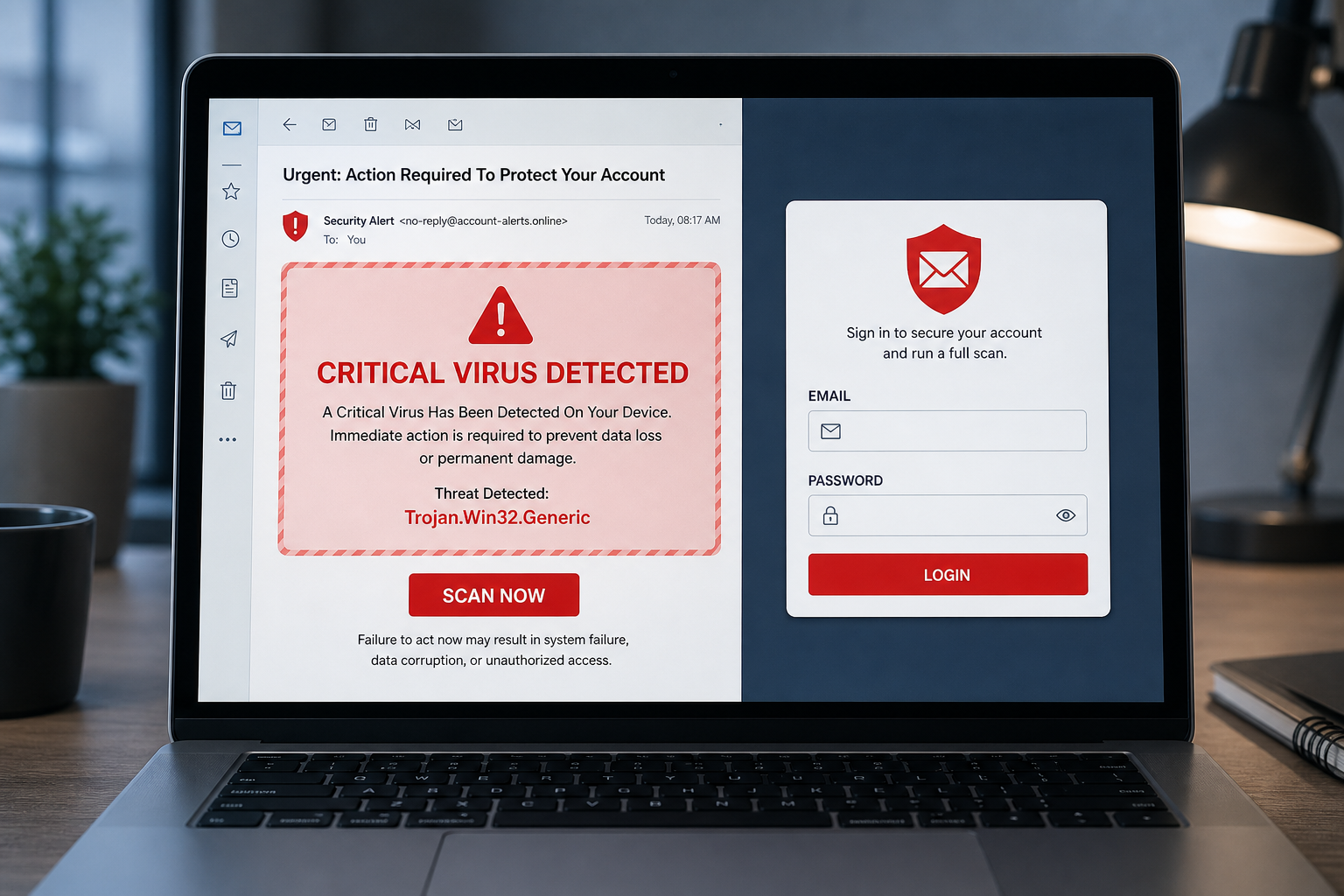
A Critical Virus Has Been Detected Email Scam Overview
The email arrives with an alarming subject such as “Email is at Risk!!!” and presents itself as a system administrator or antivirus scan. It lists a threat named Trojan.Win32.Generic, labels the risk “Critical,” adds a recent detection time, and displays a prominent “Scan Now and Remove Virus” button. These fields imitate a security report but are static text chosen by the sender.
An ordinary email cannot inspect the files, memory, processes, or security status of the device on which it is opened. The message has no access to a local antivirus engine and provides no verifiable scan log. The generic Trojan name is deliberately technical enough to sound convincing while applying equally to every recipient.
Clicking the button does not launch a legitimate scan. It opens a phishing page hosted on third-party cloud infrastructure. The page may detect the recipient’s email domain and display a blurred image resembling that provider’s sign-in screen. A generic webmail login box is placed on top and asks for an email address and password.
Credentials entered there are sent to the scammers. An email account is a powerful target because it contains private conversations and password-reset messages and is often trusted by contacts. Criminals can read invoices, impersonate the victim, reset other accounts, create forwarding rules, and send more phishing from a real compromised mailbox.
The email is not proof that the computer contains malware. The immediate confirmed danger is phishing. However, if the linked page downloaded a file or you ran anything it provided, a malware scan is appropriate as a separate precaution. Delete the message, avoid its links, and use the real security application already installed on the device if you want to check the system.
The safest response is to separate the two claims. Verify the device’s health inside Windows Security or another trusted security product opened from the Start menu, and verify the email account through the provider’s official site. The scam tries to collapse both tasks into one urgent button so the victim never notices that a supposed virus scan has become an email-password request.
How the Fake Critical Virus Alert Works
Step 1: The subject line creates panic
The message uses capital letters, exclamation marks, and urgent language to make the recipient react before thinking. It may claim that personal data will be lost or the system will fail unless action is taken immediately.
Fear narrows attention. The recipient focuses on the red warning and button rather than checking the sender, delivery path, or technical impossibility of an email performing a device scan.
Step 2: Fabricated detection details imitate antivirus results
A threat name, time, severity label, and “detected by” field make the alert look individualized. The same details can be embedded in every copy of the campaign and do not come from the recipient’s computer.
Real security alerts appear inside the installed security application or the operating system, where the user can open scan history independently.
Step 3: The Scan Now button leads away from the email provider
The button points to an unrelated website rather than a trusted security dashboard. Hosting the phishing page on a legitimate cloud platform does not make its content legitimate; criminals routinely abuse free website and storage services.
Hovering over the button may reveal a destination unrelated to the sender or any antivirus vendor.
Step 4: A counterfeit webmail page asks for credentials
The page may show familiar colors or a blurred background that resembles the victim’s email provider. A login overlay asks for a username and password to continue the supposed scan.
An antivirus scan never requires the password for your email inbox. That request reveals the real objective of the campaign.
Step 5: The password is transmitted to the scammers
Submitting the form sends the credentials to criminal infrastructure. The page may then show an error, redirect to a real login page, or claim the scan completed, leaving the victim unsure whether anything went wrong.
If the password is reused, attackers can test it against cloud storage, social media, shopping, workplace, and financial accounts.
Step 6: The compromised inbox is used for further attacks
Attackers can search messages for invoices, payment instructions, personal documents, and valuable contacts. They may create hidden forwarding rules or send believable scams from an address colleagues already trust.
Business email compromise can lead to altered payment details and significant financial loss even when the phishing page initially stole only one password.
Clear Signs the Virus Warning Is Fake
- The “scan result” arrived as an unsolicited email.
- The warning uses a generic threat name and offers no local scan history.
- A button opens a webmail login instead of the installed security program.
- The page asks for an email password to remove a computer virus.
- The sender and link domain do not belong to a known security provider.
- The message threatens immediate damage to force a rushed click.
What to Do If You Entered Your Email Password
- Change the email password immediately from the provider’s real website or app. Type the address yourself or use a trusted bookmark.
- Sign out every active session. Remove unfamiliar devices, app passwords, security keys, and connected applications.
- Enable strong multi-factor authentication. Prefer an authenticator app, passkey, or hardware key where available.
- Inspect mailbox rules and settings. Remove unknown forwarding addresses, filters, delegates, recovery emails, and recovery phone numbers.
- Change reused passwords. Prioritize financial, workplace, cloud-storage, shopping, and social accounts.
- Warn contacts and workplace IT. Tell them to ignore unusual messages sent from your account and ask administrators to review sign-in logs.
- Scan the device if you downloaded or ran a file. Entering a password is phishing; executing a download creates an additional malware risk.
How to Check a Virus Warning Safely
Close the email and open the security application directly from the operating system. In Windows Security, review Protection History and run a full scan. If you use another antivirus product, launch it from the installed applications list rather than an email link or browser advertisement.
A genuine detection record identifies the affected file or process, the action taken, and the time the local engine detected it. It remains visible after the email is closed. A message that offers only a red banner and web button has not provided local evidence.
Check the email provider separately by typing its official address or using its mobile app. Review recent sign-ins and security notices inside the account. No legitimate provider needs you to enter an inbox password on an unrelated cloud-hosted page to run a computer scan.
If you are unsure, ask a trusted technician to inspect the device without giving them remote access through a number in the warning. Fake virus campaigns often escalate into tech-support scams that request remote-control software and payment.
Why a Stolen Email Account Is So Valuable
An inbox is a map of the victim’s digital life. It reveals which banks, shops, cloud services, social networks, and workplace systems the person uses. Password-reset messages can turn one stolen email login into several account takeovers.
Attackers also gain credibility. A scam sent from a real account and placed inside an existing conversation is more convincing than an unsolicited message. That is why fast session revocation, mailbox-rule review, and warnings to contacts matter as much as changing the password.
Frequently Asked Questions
Does opening the email infect my computer?
No. Viewing the message alone does not install the named Trojan. The documented campaign steals credentials through the linked login page. Downloads and attachments create separate risks only if you interact with them.
Should I run a scan anyway?
You can open the real security application directly and run a full scan for reassurance. Do not return to the email or use its button. A scan is especially important if the page downloaded a file or you ran a command or installer.
The Bottom Line
The “Critical Virus” email is not a warning from your computer. It is a fake alert whose only reliable detection is the phishing trap behind the button.
Do not click it. If you entered a password, secure the inbox immediately, revoke sessions, inspect forwarding rules, and protect every account that reused the credential.
Here are signs that this email is a scam, even though it looks like it comes from a company you know — and even uses the company’s logo in the header:- A generic greeting is used in place of a name (eg. “customer,” “account holder,” or “dear”).
- The sender’s email address is not associated with a legitimate domain name
- The email invites you to click on a link to resolve an issue. Most reputable organizations will not ask users to disclose sensitive information (e.g. credit card numbers) by clicking on a link.
- There is a time limit or uncharacteristic sense of urgency
- Poor grammar, spelling, and sentence structure may hint that an email is not from a reputable source.








