

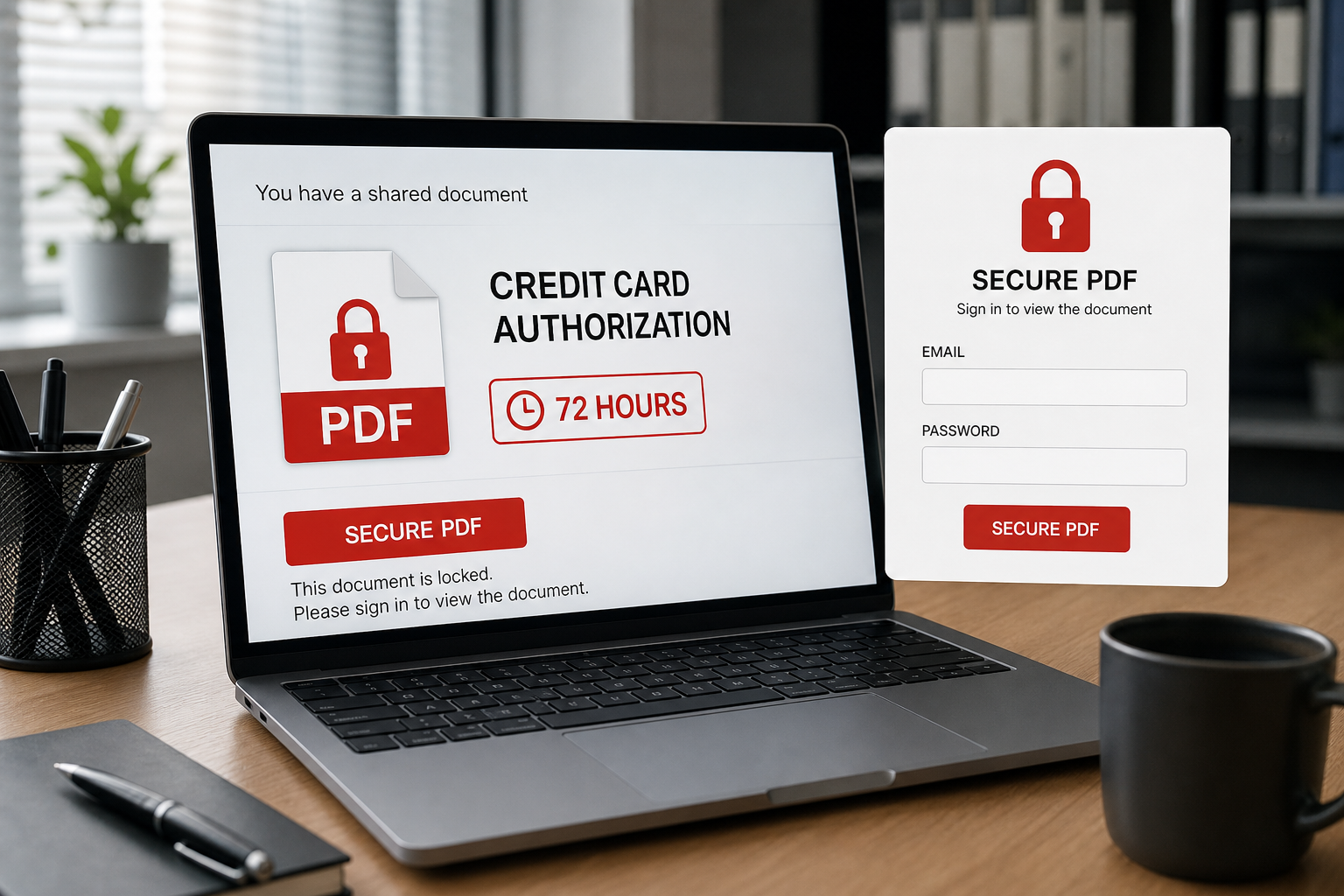
A “secured PDF” says a credit card authorization form is waiting and will expire in 72 hours. Before you can view it, the page demands your office email and password.
That login is the attack. The Secure PDF Credit Card Authorization email impersonates a shared-document notification to steal workplace credentials, not to deliver a real signed form.
Secure PDF Credit Card Authorization Email Scam Overview
The email uses a subject such as “Credit Card Authorization Form Signed” and presents itself as a secure document-sharing notice. It claims that “Gulf Group” shared a file with a name resembling “Third party CC_Authorization and Rooming list.” Links labeled “View Pdf Document,” “CC_Authorization,” and “Share Download” all steer the recipient toward the same fraudulent destination.
The lure is carefully chosen for business environments. Hotels, travel companies, suppliers, and accounts teams may routinely exchange credit card authorization forms and rooming lists. An employee processing a busy inbox can interpret the message as an ordinary customer or partner document, especially when the subject suggests that the form has already been signed.
A 72-hour expiration warning adds artificial urgency. The linked page says the PDF is password protected and asks the visitor to sign in with office email credentials. A real protected PDF may require a document-specific password supplied by the sender; it does not need the password that unlocks the recipient’s email account.
The phishing page may be hosted on a legitimate cloud or website platform. That address can look less suspicious than a newly registered domain, but the hosting provider is only infrastructure. It does not validate the person who created the page. The absence of a browser warning also does not make the login form genuine.
Once submitted, the office credentials go to the scammers. A compromised business inbox can expose reservation data, payment conversations, invoices, customer information, internal documents, and reset links. Attackers may impersonate the employee, redirect payments, send malicious documents to colleagues, or use the mailbox to enter other company systems. The message should be treated as credential phishing and deleted.
How the Secure PDF Phishing Scam Works
Step 1: A convincing shared-document email arrives
The sender uses document-signing language, a PDF filename, and a business name to make the request feel familiar. The recipient may not know whether a colleague, customer, or supplier initiated it.
The email often avoids a detailed conversation because the document title itself is expected to create curiosity and urgency.
Step 2: Several links point to one phishing destination
Buttons and text links are repeated so the recipient has multiple opportunities to click. Their visible labels differ, but hovering over them may show the same external address.
Brand-like design does not prove the destination belongs to the real document service. The domain in the browser’s address bar is the more important signal.
Step 3: The page claims the PDF is locked
A padlock icon and security language make the credential request appear responsible. The page may say that authentication protects confidential payment data.
The trick reverses the meaning of security: the fake protection notice is used to persuade the victim to surrender a more valuable secret.
Step 4: Office email credentials are requested
The form asks for an email address and password, sometimes pre-filling the recipient’s address. This is not how a third-party PDF password works and is unnecessary for viewing an ordinary attachment.
If the company uses single sign-on, the stolen credential may provide access beyond email unless other controls block the attempt.
Step 5: A fake failure or redirect hides the theft
After submission, the page may say the password was incorrect, ask for it again, or redirect to a legitimate website. A second prompt can help scammers capture the password accurately when the victim assumes the first entry contained a typo.
No document needs to appear because the entire PDF story exists only to collect the login.
Step 6: The mailbox is abused for business email compromise
Attackers can monitor payment conversations, modify invoice instructions, search for customer records, and send new phishing from the real account. Hidden mailbox rules may forward messages while the owner continues using the inbox normally.
The incident can spread through a company because colleagues trust messages from an internal address.
Red Flags in the Secure Credit Card PDF Message
- You were not expecting a credit card authorization or rooming-list document.
- The sender’s address does not belong to the claimed document service.
- All buttons lead to an unrelated cloud-hosted or website-builder domain.
- The page requests your office email password to unlock a PDF.
- A 72-hour deadline pressures you to act without confirming the sender.
- The message uses awkward terms such as “office email combination credentials.”
- No matching request exists in the real document service when opened independently.
What to Do If You Entered Credentials
- Contact workplace IT or the security team immediately. Fast action can block the session, reset the account, and prevent payment fraud.
- Change the password through the official company login. Do not use the link from the email or revisit the phishing page.
- Revoke sessions, app passwords, and connected apps. A password reset alone may not terminate every active token.
- Inspect forwarding rules, delegates, and inbox filters. Remove any setting you did not create and check deleted or sent messages for attacker activity.
- Review recent invoices and payment conversations. Contact partners through known channels if instructions or bank details changed.
- Reset reused credentials and enable phishing-resistant MFA. Passkeys or hardware security keys provide stronger protection than approval prompts alone.
- Preserve the original email. Full headers, links, timestamps, and screenshots help administrators identify other recipients and block the campaign.
How to Verify a Shared Document Safely
Contact the alleged sender through a telephone number or chat channel you already trust. Ask for the exact document title and why it was sent. Do not use a “Need Assistance” link or reply address from the suspicious notification as your verification method.
Open the real document-signing or storage service through a trusted bookmark, company application launcher, or manually typed address. If the document is genuine and assigned to your account, it should normally appear in the service’s dashboard. A page that exists only through the email link deserves extra scrutiny.
Inspect the browser address before entering anything. A cloud-storage host, free website builder, or unrelated subdomain may be technically legitimate infrastructure but still contain an attacker-created form. Your organization’s real single sign-on page should use its expected domain and authentication flow.
Ask the sender to provide a document-specific password through a separate channel when encryption is necessary. Never reuse the email account password as the key to a PDF. If a third-party page requests workplace credentials, stop and forward the message to IT or the security team.
Business Damage Can Extend Beyond the Stolen Password
A compromised mailbox can expose stored credit card authorization forms and other regulated customer information. It can also reveal the language, timing, and participants in genuine payment conversations, allowing criminals to send highly convincing invoice-change requests.
Organizations should review sign-in logs, mailbox audit events, forwarding rules, OAuth grants, and recently sent messages. Partners who exchanged sensitive documents with the account may need notification even when no fraudulent payment has been identified yet.
Frequently Asked Questions
Can a legitimate PDF be password protected?
Yes, but the password is normally document-specific and shared through a separate trusted channel. A PDF does not need your email account password. When in doubt, call the sender using a known number and open the real document service independently.
Does HTTPS mean the login page is safe?
No. HTTPS encrypts the connection to the site; it does not confirm the site’s honesty. Phishing pages can use valid certificates and reputable cloud hosting.
The Bottom Line
The Secure PDF Credit Card Authorization email turns a believable business document into a password trap. The locked PDF, sender name, and 72-hour deadline are all parts of the lure.
Never enter office credentials to unlock an unexpected document. If you did, notify IT immediately, reset the account, revoke sessions, inspect mailbox rules, and verify recent payment activity.
Here are signs that this email is a scam, even though it looks like it comes from a company you know — and even uses the company’s logo in the header:- A generic greeting is used in place of a name (eg. “customer,” “account holder,” or “dear”).
- The sender’s email address is not associated with a legitimate domain name
- The email invites you to click on a link to resolve an issue. Most reputable organizations will not ask users to disclose sensitive information (e.g. credit card numbers) by clicking on a link.
- There is a time limit or uncharacteristic sense of urgency
- Poor grammar, spelling, and sentence structure may hint that an email is not from a reputable source.

Join the discussion
0 commentsShare your experience or ask a question about this article.
Discussion
Start the conversation
Have a question or something useful to share? Add the first comment.