

A hotel front desk receives what looks like a normal request from a travel company. A guest needs a card authorization form processed.
The timing, language, and attachment fit everyday hospitality work. That familiarity is exactly what makes the message dangerous.
Overview
The lure imitates a routine hotel workflow
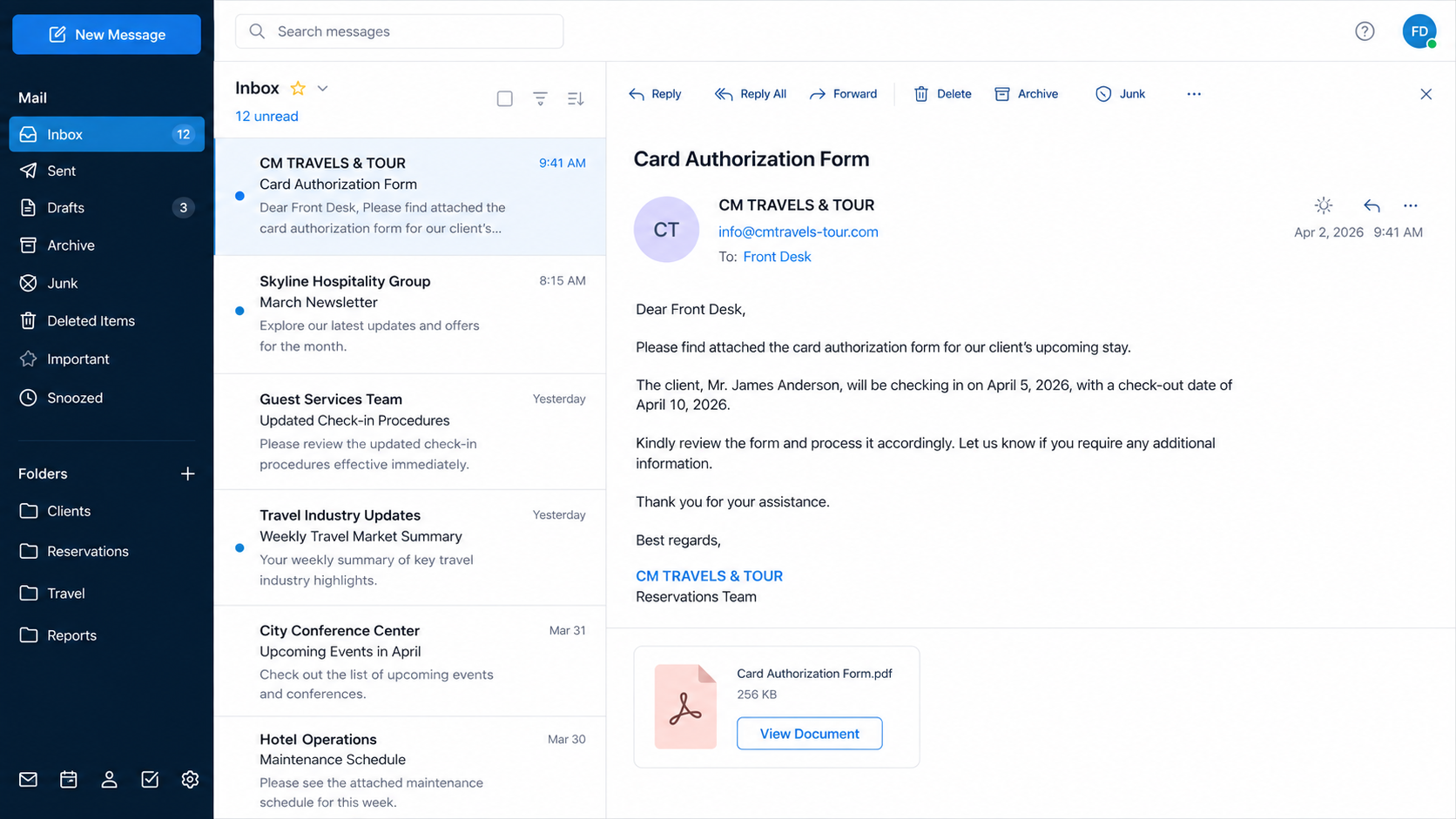
The email presents itself as a message from “CM TRAVELS & TOUR” addressed to a hotel’s front desk.
It references a client’s upcoming stay and asks staff to review a document named “Card Authorization Form.pdf.”
Hotels regularly receive third-party payment documents, so the scenario does not initially feel unusual.
The attachment graphic is actually a link. It opens a page designed to collect the employee’s email credentials.
The document page borrows Adobe branding
The destination imitates an online PDF service and suggests the employee must sign in before viewing the form.
In the examined example, the page used a Vercel-hosted domain unrelated to Adobe or the hotel’s own document platform.
Neither Adobe nor Vercel should be described as the perpetrator. Their names and infrastructure were used to make the route appear ordinary.
A genuine document share still requires independent confirmation when the sender is unexpected.
The business inbox unlocks valuable conversations
Front-desk accounts receive reservations, guest names, dates, requests, invoices, and payment discussions.
Access can help criminals impersonate staff, redirect deposits, target guests, or send stronger phishing messages internally.
Important warning signs include:
- An unknown travel company contacts a general front-desk address.
- The message gives minimal guest or booking information.
- A PDF graphic opens a website instead of a local document.
- The viewer demands mailbox credentials before showing the file.
- The web address belongs to neither the sender nor expected document provider.
- The reply-to address differs from the displayed sender.
- The email pressures staff to process a payment-related request quickly.
- No matching reservation can be confirmed in the hotel’s system.
Why Hospitality Staff Are Attractive Targets
Hotels operate around the clock and handle constant communication from guests, agencies, vendors, event organizers, and corporate travel departments.
Front-desk employees must act quickly while answering calls, greeting guests, and resolving booking problems.
A document request can arrive during a shift change, when context is limited and another employee created the reservation.
Third-party card authorization is common enough to feel legitimate but sensitive enough to demand prompt review.
Attackers exploit that balance. The story is specific to the workplace without requiring deep knowledge of one hotel.
General addresses such as frontdesk, reservations, and reception are easily collected from websites and travel listings.
Seasonal employees or new staff may not know which agencies, portals, and document formats are approved.
Shared mailboxes can also weaken accountability. Each user may assume another colleague recognized the sender.
A compromised hospitality account offers a rich contact list for follow-up fraud against guests and suppliers.
The breach may therefore affect more people than the employee who entered the password.
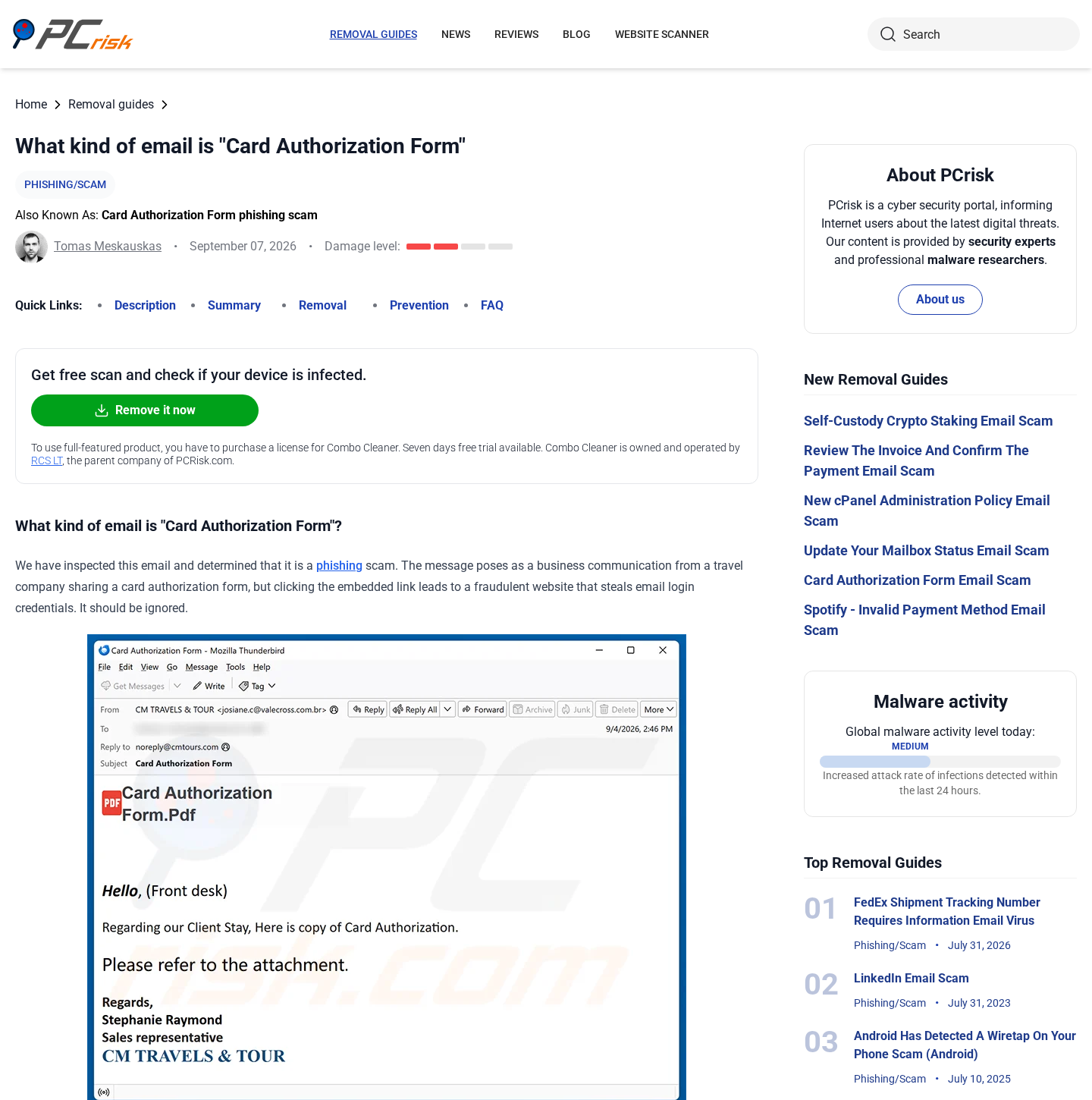
What the Fake PDF Link Is Designed to Do
The email makes the document icon look like an attachment, but clicking it launches a browser session.
A real PDF can also open online, so that behavior alone is not conclusive. The destination and login request decide the risk.
The imitation viewer may display an Adobe-like logo, document thumbnail, spinner, or blurred preview.
These elements create anticipation. The employee believes the file is already loaded and only authentication remains.
The page then asks for an email address and password, often using wording such as “view secure document.”
A sender generally does not need your mailbox password to share a file. Authentication should occur through the hotel’s approved identity system.
If the page lives on an unrelated subdomain, its form can send credentials anywhere the operator chooses.
The form may request a second password attempt. That tactic helps capture typing errors or another password the employee commonly uses.
After submission, a redirect to a genuine website reduces suspicion. Staff may report only that the document failed to open.
Meanwhile, criminals can test the password against webmail, booking tools, cloud storage, and reused corporate services.
How the Card Authorization Form Email Scam Works
Step 1: Attackers identify hotel mailboxes
Public websites, booking directories, job listings, and leaked databases reveal front-desk and reservations addresses.
The campaign targets roles, not necessarily named individuals. That keeps distribution cheap and scalable.
A travel-related display name gives the approach immediate occupational relevance.
Step 2: A believable guest-payment story is introduced
The sender mentions an upcoming stay and says a client needs third-party card authorization.
Some versions include invented dates or names. Others remain sparse because employees may fill in the missing context themselves.
The request sounds helpful rather than aggressive, avoiding the obvious panic language used in consumer phishing.
Step 3: The PDF graphic becomes a credential link
The employee selects the document expecting a form. A browser opens instead of a normal attachment preview.
Behind the graphic is a URL controlled by the attacker or placed on abused hosting infrastructure.
Link scanning may miss a newly created page before abuse reports accumulate.
Step 4: A branded viewer asks for email login
The page copies familiar document-service design and explains that secure files require authentication.
Brand recognition shortens scrutiny. Staff may focus on the promised form rather than the address bar.
The entered credentials are submitted to the phishing operator, not to the imitated service.
Step 5: Criminals test the hotel account
The operator attempts webmail access and may trigger a multifactor request while the employee still has the page open.
If access succeeds, inbox rules and forwarding can be altered to preserve visibility.
Real reservation threads reveal language, signatures, names, and timing for more convincing fraud.
Step 6: Existing conversations are hijacked
A criminal can reply inside a genuine booking, replace a payment link, or send a new authorization form to another employee.
Guests may receive believable requests for deposits, card confirmation, or identity documents from the hotel’s real address.
Suppliers and managers can be targeted with invoices or urgent file shares.
Step 7: Stolen access is monetized or resold
Business-email access has value beyond one booking. It may support wire fraud, data theft, extortion, or resale to other criminals.
Attackers can wait for a high-value event or group reservation before changing instructions.
Delayed use makes the original phishing email harder to connect with the eventual financial loss.
How Hotels Can Verify Authorization Requests
Search the property-management system for the guest name, stay dates, booking channel, and existing notes.
Do not rely on contact information inside the email. Call the guest or agency using independently recorded details.
Confirm whether the property even accepts emailed authorization forms. Many hotels require an approved secure portal.
Move suspicious messages to the security team before clicking. Preserve headers and the original link.
Employees should know the approved document platforms and exact domains used by the organization.
A login prompt on an unfamiliar host should stop the workflow, even when the page looks professionally branded.
Never enter corporate mailbox credentials into a viewer reached from an unsolicited document.
Use role-based access and separate booking systems from general email where practical.
Regular phishing exercises should include hospitality scenarios, not only generic payroll or delivery notices.
Shift handovers should record unusual payment requests so urgency cannot exploit missing context.
Payment Safety Without Blaming the Guest
Staff should treat verification as standard procedure, not an accusation. Genuine guests also benefit when hotels refuse unsafe shortcuts.
Explain that the property protects card information through an approved portal or direct process.
Never ask a guest to send a full card number through ordinary email. Mailboxes are not designed as secure payment vaults.
Authorization forms should follow the property’s current processor and retention policy, including rules for identification documents.
Employees need a known escalation route when a guest claims urgency, arrives after hours, or says another manager approved an exception.
A manager should verify unusual requests using the reservation record and a separately obtained contact number.
Group bookings, weddings, conferences, and long stays deserve extra care because their payment values and correspondence volume attract fraud.
Third-party booking platforms can complicate communication. Staff must know which messages remain inside the platform and which arrive externally.
Fraudsters may copy a real guest’s name from leaked travel information. A correct name alone cannot authenticate the payment request.
Challenge questions based on email content are weak if the mailbox or booking platform was already compromised.
Prefer controls tied to the reservation system, established telephone contact, and payment processor.
Document every exception. A written record protects the guest, employee, and property during later investigation.
Signs the Hotel Account May Already Be Compromised
Unexplained sent messages, missing replies, and unfamiliar drafts can indicate somebody else is using the inbox.
Suppliers may report payment instructions that staff cannot find because rules hid or deleted the conversation.
Guests might receive links using accurate reservation details but directing payment to a new domain.
Authentication logs can show new locations, devices, protocols, or access times inconsistent with staffing schedules.
Repeated multifactor prompts are not random annoyance. They can mean an attacker already has the password.
A rapid response should include payment review and contact notification, not only password replacement.
Investigators should compare message deletion times with suspicious logins. That timeline can reveal which guest threads the intruder opened or manipulated.
Payment teams should flag unusual refunds, remote-payment links, and bank-detail changes originating during the exposure period.
Properties using shared credentials should retire them. Individual accounts make containment and accountability much easier.
Do not erase the compromised mailbox during cleanup. Preserved evidence may be essential for guests, banks, insurers, and law enforcement.
After recovery, explain the event calmly to staff. Blame discourages early reporting, while early reporting is what limits damage.
Hotels should inventory every service reachable through single sign-on. One mailbox credential may open more applications than staff realize.
Review tokens issued near the incident, not only successful password logins. Connected applications can preserve access quietly.
Card authorization forms should never expose security codes longer than operationally necessary.
Retention rules need secure destruction as well as secure collection. Old documents expand harm after any mailbox breach.
Third-party agencies should receive the property’s approved payment instructions before emergencies arise.
A prearranged process makes it easier for both sides to reject unusual links without delaying a guest.
Require a second review for bank-detail changes or large remote charges, especially during nights and weekends.
Attackers choose those periods because fewer managers and finance employees are available for confirmation.
Keep public staff directories minimal. Detailed role and shift information helps criminals tailor convincing requests.
Security awareness should still preserve hospitality. Clear procedures let employees remain helpful without trusting unverified documents.
Review public breach notices and criminal marketplaces only through qualified investigators. Do not interact with sellers claiming to hold hotel credentials.
Insurance notification deadlines can be short. Escalate confirmed access according to the property’s incident plan instead of waiting for financial loss.
A final guest-impact review should include exposed identities, travel dates, correspondence, and any payment links sent during unauthorized access.
Company, Address, and Fulfillment Checks
Confirm the travel company independently
Search business records and the agency’s official site, then telephone a published number unrelated to the email.
Matching names are not enough. Impostors frequently borrow real company identities while using unrelated accounts.
Validate the guest and reservation
A real booking should have a traceable channel, confirmation number, dates, and authorized contact.
Discrepancies between the message and property records are operational evidence, not minor formatting errors.
Separate platforms from criminals
Adobe, Vercel, and other legitimate services can be impersonated or abused without participating in the attack.
Report suspicious pages to their abuse teams using the exact address and timestamp.
Trace the document-delivery chain
For this scam, fulfillment is the route from email to linked viewer and credential collector.
Record sender headers, redirect addresses, hosted page, form destination, and subsequent login events for incident response.
What to Do if You Have Fallen Victim to This Scam
- Contact hotel IT immediately. Fast reporting lets administrators disable sessions, preserve logs, and stop messages sent from the compromised account.
- Reset the email password. Use a trusted internal portal and choose a unique credential that was never used on another service.
- Revoke active access. End sessions, remove application passwords, review connected applications, and invalidate suspicious multifactor registrations.
- Inspect mailbox changes. Look for forwarding, deletion rules, hidden folders, unfamiliar delegates, and altered recovery information.
- Review reservation conversations. Identify guests, agencies, vendors, and colleagues whose messages or documents might have been exposed.
- Warn likely recipients. Tell them to reject changed payment links, document requests, or bank instructions sent during the compromise window.
- Secure related systems. Change reused credentials for the property-management system, payment portal, cloud storage, and staff tools.
- Scan the workstation with Malwarebytes. Check especially if the linked page downloaded a file or requested a browser extension.
- Add malicious-domain filtering. AdGuard can reduce access to known phishing hosts, while enterprise filtering should block confirmed campaign indicators.
- Preserve forensic evidence. Retain the email, full headers, URLs, browser history, screenshots, sign-in alerts, and staff timeline.
- Report the campaign. Notify the impersonated companies, host, registrar, email provider, CISA, IC3, or the appropriate national authority.
- Review payment exposure. If card data or transfers were affected, involve the payment processor, acquiring bank, insurer, and legal adviser promptly.
Is Your Device Infected? Run a Free Malware Scan
Slow performance, constant pop-ups, or strange behavior? These are classic signs of a malware infection. The fastest way to find out is to scan your device with Malwarebytes Free — one of the most trusted malware removal tools available.
The free version detects and removes the most common threats, including:
- Adware — the cause of those annoying pop-ups
- Browser hijackers — unwanted redirects and changed homepages
- Trojans and spyware — hidden programs stealing your data
- Potentially unwanted programs (PUPs) — software you never asked for
👉 Select your device below — Windows, Mac, or Android — then follow the simple steps to download Malwarebytes, scan your system, and remove any threats it finds. The scan usually takes 5 to 20 minutes.
Run a Malware Scan with Malwarebytes for Windows
Malwarebytes is one of the most popular and trusted anti-malware tools for Windows — and it’s completely free for removing infections. It catches threats that many antivirus programs miss, including adware, browser hijackers, and trojans. Follow the steps below to scan and clean your PC in just a few minutes.
Download Malwarebytes
Click the button below to download the latest version of Malwarebytes for Windows from the official source. The free version is all you need — it will scan your computer and remove adware, browser hijackers, and other malicious software at no cost.
Download MalwarebytesOfficial installer for Windows 11 and 10. Your download starts right away.Want real-time protection? See Malwarebytes Premium Malwarebytes Free for WindowsScans and removes malware at no cost
-
Install Malwarebytes
When the download finishes, open your Downloads folder and double-click the MBSetup file. If Windows shows a User Account Control pop-up, click “Yes” to allow the installation.

Follow the On-Screen Prompts to Install Malwarebytes
The setup wizard will walk you through a few quick screens:
-
Choose where you’re installing the program — “Personal Computer” or “Work Computer” — then click Next.

-
Malwarebytes will now install on your device. This usually takes under a minute.

-
When installation is complete, the “Welcome to Malwarebytes” screen will open automatically.

-
On the final screen, click Open Malwarebytes to launch the program.

-
Enable “Scan for Rootkits”
Before scanning, turn on rootkit detection so Malwarebytes can find even the most hidden threats. Click the Settings gear icon on the left side of the screen.

In the settings menu, find “Scan for rootkits” and click the toggle so it turns blue.

Done? Click “Dashboard” in the left pane to return to the main screen.
Start the Scan
Click the blue Scan button. Malwarebytes will automatically update its virus database and start checking your computer for malware.

-
Wait for the Scan to Finish
The scan checks your entire system for browser hijackers and other malicious programs, so it can take 5 to 20 minutes depending on your computer. Feel free to do something else — just check back occasionally to see the progress.

-
Quarantine the Detected Threats
When the scan is done, you’ll see a list of everything Malwarebytes found — malware, adware, and potentially unwanted programs. Click the “Quarantine” button to remove all of them at once.

Malwarebytes will now remove the malicious files and registry entries and move them safely into quarantine.

-
Restart Your Computer
Some threats can only be fully removed after a reboot. If Malwarebytes asks you to restart, click Yes. Once you’re logged back in, Malwarebytes has finished removing the threats it found.

That’s it — your Windows PC is now clean of trojans, adware, and other malware, and should be back to running smoothly.
If you are still having problems with your computer after completing these instructions, then please follow one of the steps:
- Run a computer scan with ESET Online Scanner
- Ask for help in our Windows Malware Removal Help & Support forum.
Run a Malware Scan with Malwarebytes for Mac
Malwarebytes for Mac is a free on-demand scanner that removes the malware other security software tends to miss — adware, browser hijackers, and unwanted programs included. Cleaning an infected Mac with Malwarebytes has always been completely free, and it’s our go-to recommendation. Follow the steps below to scan and clean your Mac in just a few minutes.
-
Download Malwarebytes for Mac
Click the button below to download the latest version of Malwarebytes for Mac.
Download MalwarebytesOfficial installer for macOS. Your download starts right away.Want real-time protection? See Malwarebytes PremiumMalwarebytes Free for MacScans and removes malware at no cost -
Open the Malwarebytes setup file
When the download finishes, open your Downloads folder and double-click the setup file to begin the installation.

-
Follow the On-Screen Prompts to Install Malwarebytes
The Malwarebytes for Mac Installer will guide you through a few quick screens. Click “Continue” and keep following the prompts until the installation completes.



When the installation is complete, Malwarebytes opens to the Welcome to Malwarebytes screen. Click “Get started“.
-
Select “Personal Computer” or “Work Computer”
Malwarebytes will ask what type of computer you’re installing it on. Click either Personal Computer or Work Computer, whichever applies.

-
Start the Scan
Click the “Scan” button. Malwarebytes will automatically update its detection database and begin checking your Mac for malware.

-
Wait for the Scan to Finish
Malwarebytes will scan your Mac for adware, browser hijackers, and other malicious programs. This can take a few minutes, so feel free to do something else — just check back occasionally to see the progress.

-
Quarantine the Detected Threats
When the scan is done, you’ll see a list of everything Malwarebytes found. Click the “Quarantine” button to remove all the threats at once.

-
Restart Your Mac
Malwarebytes will now remove all the malicious files it found. Some threats can only be fully removed after a reboot — if Malwarebytes asks you to restart, allow it. Once you’re logged back in, your Mac is clean.

That’s it — your Mac is now free of adware, rogue browser extensions, and other potentially harmful software.
If you are still experiencing problems while trying to remove a malicious program from your computer, please ask for help in our Mac Malware Removal Help & Support forum.
Run a Malware Scan with Malwarebytes for Android
Malwarebytes for Android automatically detects and removes dangerous threats like malware and ransomware so you don’t have to worry about your most-used device being compromised. Aggressive detection of adware and potentially unwanted programs keeps your Android phone or tablet running smooth.
-
Download Malwarebytes for Android.
You can download Malwarebytes for Android by clicking the link below.
Get Malwarebytes for AndroidOpens Google Play in a new tab.Want real-time protection? See Malwarebytes Premium for AndroidMalwarebytes for AndroidScans your phone and removes malware at no cost -
Install Malwarebytes for Android on your phone.
In the Google Play Store, tap “Install” to install Malwarebytes for Android on your device.

When the installation process has finished, tap “Open” to begin using Malwarebytes for Android. You can also open Malwarebytes by tapping on its icon in your phone menu or home screen.

-
Follow the on-screen prompts to complete the setup process
When Malwarebytes will open, you will see the Malwarebytes Setup Wizard which will guide you through a series of permissions and other setup options.
This is the first of two screens that explain the difference between the Premium and Free versions. Swipe this screen to continue.
Tap on “Got it” to proceed to the next step.
Malwarebytes for Android will now ask for a set of permissions that are required to scan your device and protect it from malware. Tap on “Give permission” to continue.
Tap on “Allow” to permit Malwarebytes to access the files on your phone.
-
Update database and run a scan with Malwarebytes for Android
You will now be prompted to update the Malwarebytes database and run a full system scan.

Click on “Update database” to update the Malwarebytes for Android definitions to the latest version, then click on “Run full scan” to perform a system scan.

-
Wait for the Malwarebytes scan to complete.
Malwarebytes will now start scanning your phone for adware and other malicious apps. This process can take a few minutes, so we suggest you do something else and periodically check on the status of the scan to see when it is finished.

-
Click on “Remove Selected”.
When the scan has been completed, you will be presented with a screen showing the malware infections that Malwarebytes for Android has detected. To remove the malicious apps that Malwarebytes has found, tap on the “Remove Selected” button.

-
Restart your phone.
Malwarebytes for Android will now remove all the malicious apps that it has found. To complete the malware removal process, Malwarebytes may ask you to restart your device.
That’s it — your Android phone is now clean — no more malicious apps, adware, or browser redirects.
If you are still having problems with your phone after completing these instructions, then please follow one of the steps:
- Restore your phone to factory settings by going to Settings > General management > Reset > Factory data reset.
- Ask for help in our Mobile Malware Removal Help & Support forum.
Stay Protected: Block Ads and Malicious Sites
Now that your device is clean, keep it that way. Most infections start with a malicious ad or a fake download button — so blocking them at the source is your best defense.
We recommend AdGuard, which blocks malicious ads, phishing pages, and dangerous redirects before they can reach you.
👉 Download AdGuard and browse safely
Frequently Asked Questions
Is every emailed card authorization form fraudulent?
No. Hotels use legitimate authorization processes. The danger here is the unexpected link and counterfeit login route.
Did CM TRAVELS & TOUR really send the message?
The display name alone cannot prove that. Verify the exact agency through independent records and known telephone numbers.
Why would a PDF require my email password?
It generally should not. Approved document systems authenticate through known organizational domains, not unrelated pages reached from surprise emails.
Are Adobe or Vercel responsible for the scam?
No evidence indicates that. Their brands or infrastructure can be impersonated and abused by unrelated attackers.
What if the hotel has no matching reservation?
Stop processing and report the message. Do not contact the sender for additional details through the suspicious thread.
Can one front-desk password expose guests?
Yes. Inbox content, connected systems, and trusted correspondence may reveal guest data or enable convincing impersonation.
The Bottom Line
The Card Authorization Form email hides credential theft inside a familiar hospitality task. Its businesslike tone is part of the deception.
Verify the booking and agency outside the email. Never surrender hotel credentials to an unexpected PDF viewer.

Join the discussion
0 commentsShare your experience or ask a question about this article.
Discussion
Start the conversation
Have a question or something useful to share? Add the first comment.