

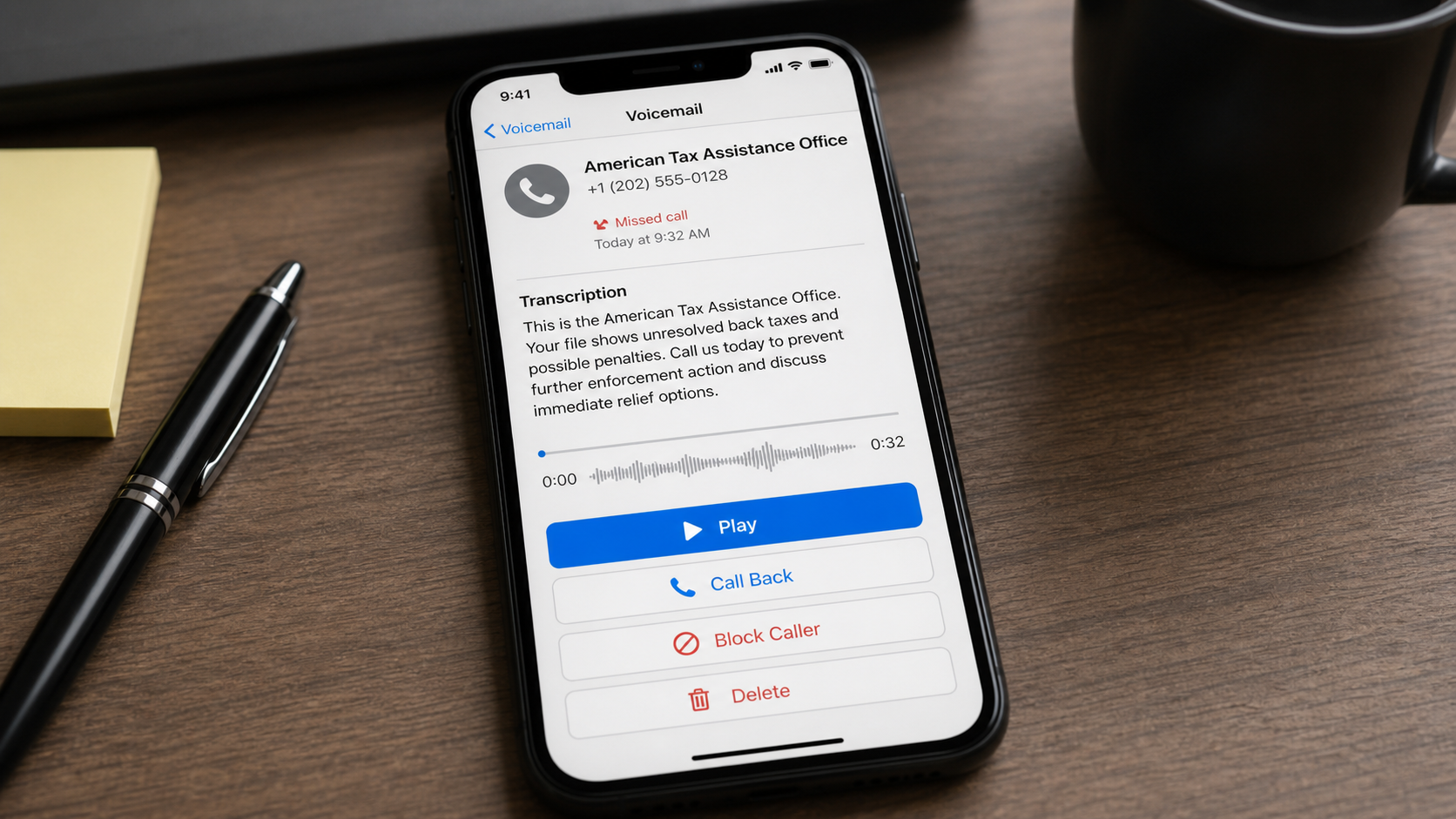
A voicemail from the “American Tax Assistance Office” may say your file shows unresolved back taxes, penalties, or enforcement action. The caller offers immediate relief and asks you to call before the opportunity expires.
The name sounds governmental, but it does not identify the Internal Revenue Service. The vague office title is used to create authority while a call center gathers personal information, sells questionable tax-relief services, or steals money outright.
Overview
The American Tax Assistance Office call belongs to a broad family of tax-debt robocalls. Related names include Tax Resolution Team, Tax Resolution Oversight Department, Tax Mediation and Resolution Agency, and National Tax Assistance Center.
These titles are chosen because they resemble agencies without making a clear, verifiable identification. A recipient may assume the call is from the IRS, Treasury, a court mediator, or an official contractor even though the message does not say who legally operates the service.
The voicemail may claim the office is reviewing a “tax file” or “case.” It often provides no taxpayer name, tax year, notice number, balance, or mailing history. That vagueness allows the same recording to be sent to millions of numbers.
The IRS says it generally contacts taxpayers by mail first and does not leave urgent, threatening prerecorded messages demanding immediate payment. It also does not require payment by gift card, cryptocurrency, or a particular transfer method.
A real tax debt should be verified through an official IRS Online Account, a mailed notice, or a number obtained directly from irs.gov. The caller’s number cannot independently prove the caller’s story.
Example of the voicemail
This is the American Tax Assistance Office. Your file shows unresolved back taxes and possible penalties. Call us today to prevent further enforcement action and discuss immediate relief options. This matter is time sensitive.
The transcript can sound slightly different because robocall systems insert names, dates, or balances. The message may be read by a person, text-to-speech software, or an AI-generated voice.
Common variations of the voicemail
- “This is the American Tax Assistance Office calling about your tax file”
- “You have unresolved back taxes and possible penalties”
- “A tax resolution program may reduce your balance”
- “Your case is eligible for an IRS hardship program”
- “This is our final attempt before enforcement action”
- “Your tax debt has been assigned to mediation”
- “Press 1 to speak with a tax resolution specialist”
- “Your relief options expire at the end of the day”
- “We can stop a tax lien or wage garnishment”
- “You have been prequalified for a fresh-start program”
Some messages are pure scams. Others function as deceptive lead generation for high-pressure tax-relief businesses. The consumer still cannot make an informed choice because the recording hides the real company and invents urgency.
Warning signs that the call is not official
- The office name is generic. It sounds federal but does not provide a verifiable agency or employee identity.
- The message is unsolicited and prerecorded. It arrives without the mailed notices normally associated with an actual IRS matter.
- The caller knows little about the taxpayer. “Your file” replaces a name, tax year, and notice number.
- Relief is guaranteed before assessment. Legitimate options depend on income, assets, debt, compliance, and documentation.
- A deadline is created by the caller. The end-of-day or final-attempt claim is designed to generate a callback.
- Payment or a Social Security number is requested immediately. Sensitive information should not be given to an unknown caller.
- The caller discourages independent verification. Pressure to remain on the line or avoid the IRS is a serious warning.
How The Operation Works
1. Automated systems call large lists of numbers
The campaign uses consumer databases, breached records, random dialing, and lists of people who previously responded to financial offers. The operator does not need evidence that each recipient owes tax.
Tax anxiety makes the subject effective even when the message is untargeted. Many people are unsure whether a filing error or old balance could exist.
2. Caller ID and authority language create credibility
The displayed number may appear local, toll-free, or associated with Washington, D.C. Caller ID can be spoofed, so location and agency-like labels are not reliable proof.
Phrases such as case review, compliance, mediation, enforcement, and final notice make an ordinary sales call sound like an official procedure.
3. The voicemail forces the recipient to identify themselves
When the recipient calls back, the operator asks for a name, telephone number, mailing address, date of birth, filing status, and Social Security number to “locate the file.”
The original voicemail did not identify a file. The victim supplies the details that allow the story to become personalized.
4. A scripted specialist discovers pressure points
The agent asks whether the person owes taxes, received notices, has wages or property, and fears a lien or garnishment. Answers are used to select the strongest threat or sales pitch.
If the person says no debt exists, the agent may claim a filing discrepancy or identity problem instead of admitting the call was random.
5. A relief program is promised prematurely
The operator mentions compromise, hardship, forgiveness, fresh start, penalty abatement, or mediation. Real programs exist, but eligibility cannot be determined from a short unsolicited call with no verified records.
A guaranteed reduction or statement that the caller has already secured approval is misleading. No private caller can promise an IRS outcome without analysis and agency acceptance.
6. Money or documents are requested
A fraudulent caller may demand immediate payment for the debt, an enrollment fee, a case-retainer, or software. A deceptive seller may collect thousands of dollars before explaining limited services or strict refund terms.
Requests for gift cards, cryptocurrency, cash, or wire transfers indicate outright fraud. Even card payments should not be made until the business identity, contract, licensing, and service scope are verified.
7. Remote access may be used to “review records”
The agent can ask the victim to install remote software so a specialist can view a tax transcript or complete an application. That access exposes personal documents, email, and online accounts.
Do not let an unsolicited caller control a device. A legitimate tax professional can explain secure document procedures and provide a verifiable engagement agreement.
8. The contact details feed more scams
Someone who confirms tax debt can be classified as a high-value financial lead. The number may be resold, producing more calls from relief companies, lenders, fake IRS agents, and recovery services.
Blocking one number may not end the campaign because spoofed numbers and multiple call centers are used.
How legitimate tax help differs
Legitimate professionals identify their business, explain fees in writing, make no guaranteed outcome, and allow time for independent verification. Enrolled agents, certified public accountants, and tax attorneys have credentials that can be checked.
Taxpayers can first review their official IRS account and notices. The IRS also provides information about payment plans, offers in compromise, and Low Income Taxpayer Clinics through its own website.
Three different outcomes can follow the same robocall
The most direct version is government impersonation. The caller claims to collect a debt or stop enforcement and demands money immediately. Threats of arrest, police action, deportation, licence loss, or same-day seizure strongly indicate fraud.
A second version is identity theft. The operator says personal information is needed to verify the taxpayer before discussing the file. Social Security numbers, dates of birth, addresses, and bank details are collected, but no meaningful service is provided.
A third version is deceptive lead generation. The robocall transfers interested people to a sales organization that may be real but conceals its identity, exaggerates government affiliation, guarantees savings, or charges for services the customer does not understand.
These outcomes are not mutually exclusive. A call center can begin as lead generation and become outright theft when a recipient reveals a large bank balance or allows remote access.
Why a real tax debt does not make the caller legitimate
Someone who actually owes taxes is more likely to believe the message, but the caller can make a correct guess without seeing IRS records. Tax-debt leads are sold, and broad mailings will reach taxpayers with open balances by chance.
Do not confirm a balance, tax year, employer, or notice number to an unknown person. Ask for the caller’s legal business name, physical address, professional credentials, written terms, and privacy policy, then verify each item separately.
Due diligence before hiring tax-relief help
- Verify whether the assigned professional is an enrolled agent, CPA, or attorney and check the relevant licensing record.
- Obtain a written engagement that identifies who performs the work, what filings are included, and every fee.
- Reject guarantees of a specific reduction or claims that everyone qualifies for an offer in compromise.
- Ask how the company evaluated income, expenses, assets, compliance, and collection alternatives before recommending a program.
- Read cancellation, refund, arbitration, and recurring-payment terms before paying.
- Do not allow a salesperson to prevent direct contact with the IRS or an independent adviser.
Legitimate representation may be valuable, but urgency should come from a documented IRS deadline, not a robocaller’s end-of-day sales timer.
What official verification should look like
Use the IRS Online Account to check balances, payments, notices, and tax records. Compare any mailed letter with the IRS directory of notices. If uncertainty remains, call the IRS using a number published on irs.gov.
Private collection agencies can be used for certain debts, but the IRS sends notice first and provides authentication information. An unexplained voicemail from a generic office is not that process.
Keep copies of genuine notices and note official conversations. A clear record makes it easier to reject later calls that invent a different balance or deadline.
What To Do If You Answered or Called Back
- End the call. You do not need the caller’s permission to verify a tax claim elsewhere.
- Do not press keys to reach an agent. Interaction can confirm the number is active and generate more calls.
- Check the IRS account independently. Type
irs.govor use an official mailed notice. Do not use links or numbers supplied by the caller. - Contact the bank if you paid. Explain the deceptive tax call, request a stop or recall where possible, and secure exposed payment methods.
- Protect the Social Security number. If disclosed, follow official identity-theft guidance, monitor credit, and consider a fraud alert or freeze.
- Change passwords if the caller viewed the device. Remove remote software, revoke unattended access, and secure email and financial accounts from a trusted device.
- Review any contract. If you enrolled with a real but high-pressure business, read cancellation and refund terms and seek independent legal or consumer advice promptly.
- Save evidence. Keep the voicemail, caller ID, transcript, receipts, emails, contracts, and remote-session details.
- Block and report the number. Report suspected IRS impersonation through official IRS or TIGTA channels and deceptive telemarketing to the FTC.
- Expect follow-up attempts. Treat anyone promising guaranteed recovery for an upfront fee as another potential scam.
If the caller obtained tax returns or wage records, remember that those documents contain several identity elements at once. Secure the email or cloud account used to transmit them, contact financial institutions shown on the forms, and follow IRS identity-theft guidance.
Do not ignore a genuine IRS deadline because the robocall was fake. Verification may reveal a separate real balance or notice. Handle that matter through official channels while keeping the unsolicited caller outside the process.
Keep monitoring for follow-up calls that reuse the information you disclosed.
Place important official tax deadlines on a calendar so future robocalls cannot replace documented dates with invented urgency.
Is Your Device Infected? Run a Free Malware Scan
Slow performance, constant pop-ups, or strange behavior? These are classic signs of a malware infection. The fastest way to find out is to scan your device with Malwarebytes Free — one of the most trusted malware removal tools available.
The free version detects and removes the most common threats, including:
- Adware — the cause of those annoying pop-ups
- Browser hijackers — unwanted redirects and changed homepages
- Trojans and spyware — hidden programs stealing your data
- Potentially unwanted programs (PUPs) — software you never asked for
👉 Select your device below — Windows, Mac, or Android — then follow the simple steps to download Malwarebytes, scan your system, and remove any threats it finds. The scan usually takes 5 to 20 minutes.
Run a Malware Scan with Malwarebytes for Windows
Malwarebytes is one of the most popular and trusted anti-malware tools for Windows — and it’s completely free for removing infections. It catches threats that many antivirus programs miss, including adware, browser hijackers, and trojans. Follow the steps below to scan and clean your PC in just a few minutes.
Download Malwarebytes
Click the button below to download the latest version of Malwarebytes for Windows from the official source. The free version is all you need — it will scan your computer and remove adware, browser hijackers, and other malicious software at no cost.
Download MalwarebytesOfficial installer for Windows 11 and 10. Your download starts right away.Want real-time protection? See Malwarebytes Premium Malwarebytes Free for WindowsScans and removes malware at no cost
-
Install Malwarebytes
When the download finishes, open your Downloads folder and double-click the MBSetup file. If Windows shows a User Account Control pop-up, click “Yes” to allow the installation.

Follow the On-Screen Prompts to Install Malwarebytes
The setup wizard will walk you through a few quick screens:
-
Choose where you’re installing the program — “Personal Computer” or “Work Computer” — then click Next.

-
Malwarebytes will now install on your device. This usually takes under a minute.

-
When installation is complete, the “Welcome to Malwarebytes” screen will open automatically.

-
On the final screen, click Open Malwarebytes to launch the program.

-
Enable “Scan for Rootkits”
Before scanning, turn on rootkit detection so Malwarebytes can find even the most hidden threats. Click the Settings gear icon on the left side of the screen.

In the settings menu, find “Scan for rootkits” and click the toggle so it turns blue.

Done? Click “Dashboard” in the left pane to return to the main screen.
Start the Scan
Click the blue Scan button. Malwarebytes will automatically update its virus database and start checking your computer for malware.

-
Wait for the Scan to Finish
The scan checks your entire system for browser hijackers and other malicious programs, so it can take 5 to 20 minutes depending on your computer. Feel free to do something else — just check back occasionally to see the progress.

-
Quarantine the Detected Threats
When the scan is done, you’ll see a list of everything Malwarebytes found — malware, adware, and potentially unwanted programs. Click the “Quarantine” button to remove all of them at once.

Malwarebytes will now remove the malicious files and registry entries and move them safely into quarantine.

-
Restart Your Computer
Some threats can only be fully removed after a reboot. If Malwarebytes asks you to restart, click Yes. Once you’re logged back in, Malwarebytes has finished removing the threats it found.

That’s it — your Windows PC is now clean of trojans, adware, and other malware, and should be back to running smoothly.
If you are still having problems with your computer after completing these instructions, then please follow one of the steps:
- Run a computer scan with ESET Online Scanner
- Ask for help in our Windows Malware Removal Help & Support forum.
Run a Malware Scan with Malwarebytes for Mac
Malwarebytes for Mac is a free on-demand scanner that removes the malware other security software tends to miss — adware, browser hijackers, and unwanted programs included. Cleaning an infected Mac with Malwarebytes has always been completely free, and it’s our go-to recommendation. Follow the steps below to scan and clean your Mac in just a few minutes.
-
Download Malwarebytes for Mac
Click the button below to download the latest version of Malwarebytes for Mac.
Download MalwarebytesOfficial installer for macOS. Your download starts right away.Want real-time protection? See Malwarebytes PremiumMalwarebytes Free for MacScans and removes malware at no cost -
Open the Malwarebytes setup file
When the download finishes, open your Downloads folder and double-click the setup file to begin the installation.

-
Follow the On-Screen Prompts to Install Malwarebytes
The Malwarebytes for Mac Installer will guide you through a few quick screens. Click “Continue” and keep following the prompts until the installation completes.



When the installation is complete, Malwarebytes opens to the Welcome to Malwarebytes screen. Click “Get started“.
-
Select “Personal Computer” or “Work Computer”
Malwarebytes will ask what type of computer you’re installing it on. Click either Personal Computer or Work Computer, whichever applies.

-
Start the Scan
Click the “Scan” button. Malwarebytes will automatically update its detection database and begin checking your Mac for malware.

-
Wait for the Scan to Finish
Malwarebytes will scan your Mac for adware, browser hijackers, and other malicious programs. This can take a few minutes, so feel free to do something else — just check back occasionally to see the progress.

-
Quarantine the Detected Threats
When the scan is done, you’ll see a list of everything Malwarebytes found. Click the “Quarantine” button to remove all the threats at once.

-
Restart Your Mac
Malwarebytes will now remove all the malicious files it found. Some threats can only be fully removed after a reboot — if Malwarebytes asks you to restart, allow it. Once you’re logged back in, your Mac is clean.

That’s it — your Mac is now free of adware, rogue browser extensions, and other potentially harmful software.
If you are still experiencing problems while trying to remove a malicious program from your computer, please ask for help in our Mac Malware Removal Help & Support forum.
Run a Malware Scan with Malwarebytes for Android
Malwarebytes for Android automatically detects and removes dangerous threats like malware and ransomware so you don’t have to worry about your most-used device being compromised. Aggressive detection of adware and potentially unwanted programs keeps your Android phone or tablet running smooth.
-
Download Malwarebytes for Android.
You can download Malwarebytes for Android by clicking the link below.
Get Malwarebytes for AndroidOpens Google Play in a new tab.Want real-time protection? See Malwarebytes Premium for AndroidMalwarebytes for AndroidScans your phone and removes malware at no cost -
Install Malwarebytes for Android on your phone.
In the Google Play Store, tap “Install” to install Malwarebytes for Android on your device.

When the installation process has finished, tap “Open” to begin using Malwarebytes for Android. You can also open Malwarebytes by tapping on its icon in your phone menu or home screen.

-
Follow the on-screen prompts to complete the setup process
When Malwarebytes will open, you will see the Malwarebytes Setup Wizard which will guide you through a series of permissions and other setup options.
This is the first of two screens that explain the difference between the Premium and Free versions. Swipe this screen to continue.
Tap on “Got it” to proceed to the next step.
Malwarebytes for Android will now ask for a set of permissions that are required to scan your device and protect it from malware. Tap on “Give permission” to continue.
Tap on “Allow” to permit Malwarebytes to access the files on your phone.
-
Update database and run a scan with Malwarebytes for Android
You will now be prompted to update the Malwarebytes database and run a full system scan.

Click on “Update database” to update the Malwarebytes for Android definitions to the latest version, then click on “Run full scan” to perform a system scan.

-
Wait for the Malwarebytes scan to complete.
Malwarebytes will now start scanning your phone for adware and other malicious apps. This process can take a few minutes, so we suggest you do something else and periodically check on the status of the scan to see when it is finished.

-
Click on “Remove Selected”.
When the scan has been completed, you will be presented with a screen showing the malware infections that Malwarebytes for Android has detected. To remove the malicious apps that Malwarebytes has found, tap on the “Remove Selected” button.

-
Restart your phone.
Malwarebytes for Android will now remove all the malicious apps that it has found. To complete the malware removal process, Malwarebytes may ask you to restart your device.
That’s it — your Android phone is now clean — no more malicious apps, adware, or browser redirects.
If you are still having problems with your phone after completing these instructions, then please follow one of the steps:
- Restore your phone to factory settings by going to Settings > General management > Reset > Factory data reset.
- Ask for help in our Mobile Malware Removal Help & Support forum.
Stay Protected: Block Ads and Malicious Sites
Now that your device is clean, keep it that way. Most infections start with a malicious ad or a fake download button — so blocking them at the source is your best defense.
We recommend AdGuard, which blocks malicious ads, phishing pages, and dangerous redirects before they can reach you.
👉 Download AdGuard and browse safely
The Bottom Line
The “American Tax Assistance Office” name is meant to sound official without clearly identifying a real government body. Its voicemail supplies fear and urgency but little verifiable case information.
Do not call back from the recording. Check tax matters through irs.gov, official mail, or a professional whose credentials you independently verify. Never provide a Social Security number, remote access, or payment to an unknown tax-relief caller.








