

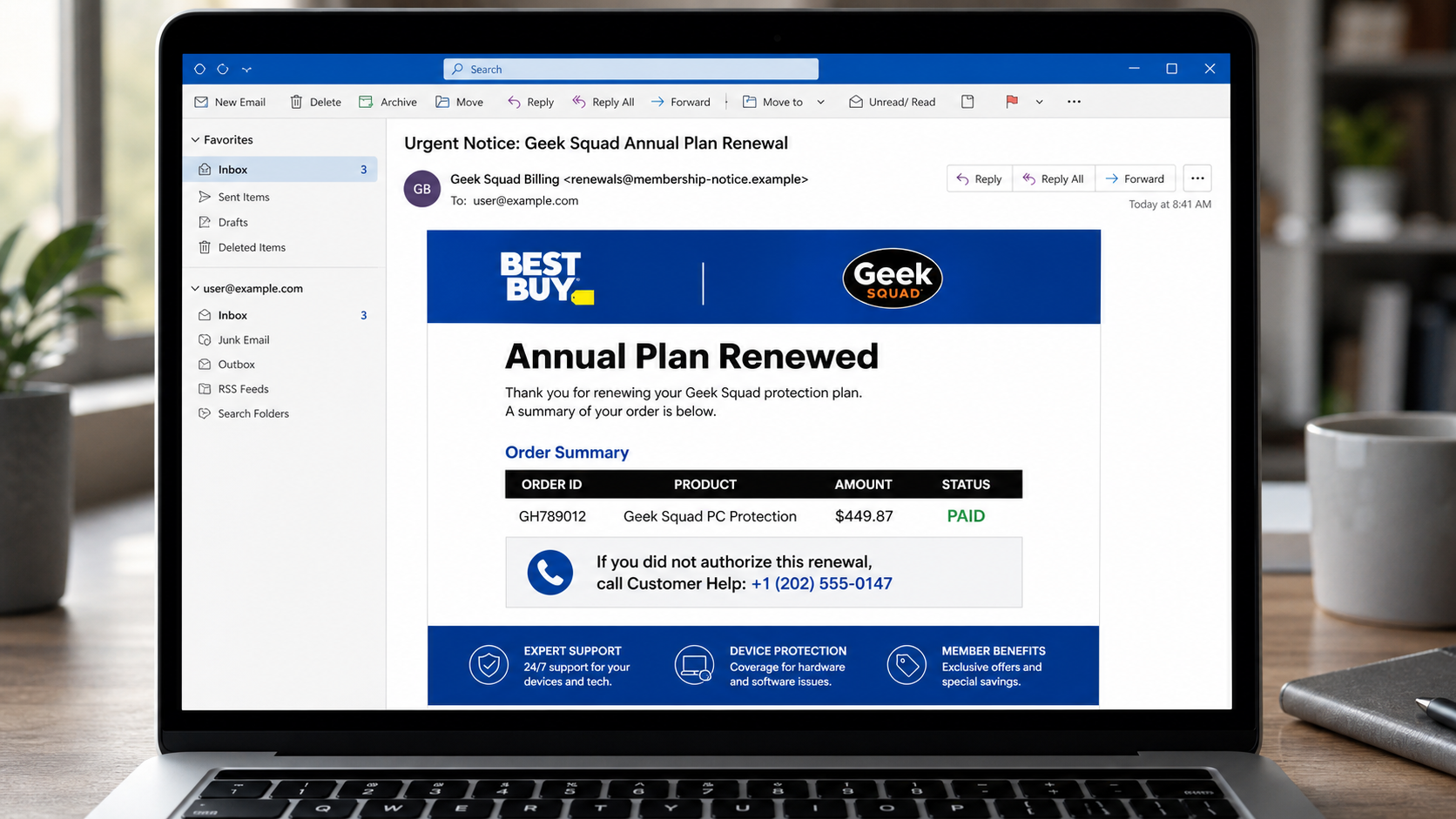
An email saying $449.87 was debited for a Geek Squad Annual Plan is designed to cause an immediate reaction. It says the PC protection renewal has been processed and provides a help-desk number for anyone who did not authorize it.
The charge usually does not exist. The phone number connects to a fake support center that uses the cancellation request to steal payment information, obtain remote access, or run an elaborate refund scam.
Overview
The Geek Squad Annual Plan Renewal scam is a callback phishing campaign. Instead of asking the recipient to type a password into a website, the email creates a billing emergency and persuades the recipient to telephone the operator.
The invoice may mention Geek Squad PC Protection, Total Tech Support, Best Buy, antivirus coverage, device maintenance, or an annual security membership. It often includes a random order number and a charge between roughly $300 and $500.
One circulating template uses an amount of $449.87 and an order ID resembling GH789012. Those details can change. The telephone number changes even more frequently, so an article or search result that lists a different number does not make the message genuine.
The Federal Trade Commission and Best Buy have both warned about fake Geek Squad renewal notices. Best Buy directs suspected Geek Squad impersonation reports to its official abuse channel, while the FTC advises recipients not to use the number in the message.
The simplest initial check is the actual financial account. If the email claims a debit, look at the card or bank account through its official app. Do not let a line of text inside an unsolicited email substitute for a real transaction.
What the fake email may say
Subject: Urgent Notice: Geek Squad Annual Plan Renewal
Amount $449.87 USD has been debited from your account for Geek Squad Annual Plan.
Your Geek Squad PC protection renewal has been processed. If this was not done by you, call the help desk immediately to cancel.
Order ID: GH789012
Product: Geek Squad PC Protection
Status: Paid
The message may arrive from an unrelated email service, a free account, a compromised business mailbox, or even a notification feature abused on another platform. The route used to deliver the text has no legitimate connection with Best Buy.
Common variations of the email
- “Geek Squad Annual Plan Renewed for $449.87”
- “Best Buy Totaltech Subscription Auto-Renewed”
- “Geek Squad PC Protection Order Confirmed”
- “Your Account Was Debited for Antivirus Services”
- “Invoice Attached: Three-Year Security Plan”
- “Cancellation Window Closes Today”
- “Call Billing Support If This Was Not You”
- “Geek Squad Membership Expiration and Renewal”
- “Norton Protection Purchased Through Geek Squad”
- “Refund Pending for an Unauthorized Renewal”
Some versions are plain text. Others use a colorful HTML invoice or attach a PDF. The telephone number may appear in an image so mail filters cannot easily analyze it. The mechanism remains the same.
Warning signs in the invoice
- You cannot find the charge. The invoice claims payment has completed, but the bank and Best Buy account show nothing.
- The sender does not belong to Best Buy. A display name such as Geek Squad Billing can hide a random domain.
- The message makes calling urgent. The operator wants contact before you verify the account elsewhere.
- The plan details are vague. The notice may show no payment method, billing address, membership history, or recognizable account information.
- The cancellation number is inside the suspicious message. Calling it asks the claimant to verify its own claim.
- The invoice is attached without context. Unexpected PDF, Word, or HTML files can contain malicious links or deceptive phone numbers.
- The price is chosen for shock. Several hundred dollars creates fear without appearing impossibly large.
How The Operation Works
1. A mass email announces an invented renewal
Scammers send the template to large address lists. They do not need to know whether each person has used Geek Squad. Best Buy’s broad customer base makes accidental matches likely.
The sender can be spoofed or compromised. A legitimate mail platform may deliver the notification, but that does not make the user-supplied invoice content true.
2. The amount creates a strong cancellation impulse
A recipient who sees $449.87 may imagine the money leaving immediately. The phrase “if this was not you” turns the telephone number into an apparent safety option.
The scammer benefits when the recipient acts before checking a statement or visiting Best Buy directly. The invoice’s deadline is a social-engineering tool, not a genuine policy.
3. The fake support agent confirms the false story
The caller reaches someone who answers as Geek Squad, Best Buy billing, cancellation support, or the refund department. The agent asks for the invoice number, which creates the illusion that they are locating a real order.
Because the operator wrote the invoice, repeating its order number proves nothing. The caller may then be asked for a name, address, card number, or bank name.
4. Cancellation supposedly requires remote access
The agent says the refund form is on a secure server or cannot be completed by telephone. They direct the victim to install AnyDesk, TeamViewer, Zoho Assist, UltraViewer, or similar software.
These are legitimate tools in normal contexts, but they give a stranger powerful access. A subscription cancellation never requires an unknown caller to view a personal desktop or online bank account.
5. The caller is told to open online banking
The scammer claims the refund must be verified against the account. While connected remotely, they can observe balances, manipulate the visible page, hide windows, or move money between the victim’s own accounts.
The victim may be told not to speak with bank staff because it would interrupt the refund. This isolation protects the fraud from outside scrutiny.
6. A fake over-refund appears on the screen
The agent intentionally enters an extra zero or edits the browser display so a $449.87 refund appears to be $4,498.70. They accuse the victim of causing the error and claim the employee will lose their job.
No excess refund was sent. The number shown on the screen may be altered HTML, or money may have been moved from savings to checking so the total balance is unchanged.
7. The victim is pressured to return real money
The scammer demands gift cards, cash in a parcel, a wire transfer, cryptocurrency, or a transfer through a payment app. These methods are difficult to reverse and avoid the safeguards of an ordinary card refund.
The caller may stay connected while the victim travels to a bank or shop. They can insist that the victim lie about the purpose of the purchase because employees are trained to identify this scam.
8. The compromised computer supports further theft
During remote access, the operator may copy documents, save passwords, install persistent access, or collect email and financial information. Ending the call does not automatically remove software or permissions.
Victims can later be contacted by fake recovery agents who promise to retrieve the first loss for another fee. A recovery approach that knows specific details may still come from the same criminal network.
Why opening the PDF is not the same as calling
A standard PDF may contain only text and a phone number. Reading it does not automatically mean the computer is infected. The primary risk begins when the recipient calls, clicks a link, enables active content, or installs software.
Nevertheless, unexpected attachments should be handled cautiously. Delete the message after reporting it, keep software updated, and scan the file if it behaved unexpectedly.
Why the telephone number should not define the scam
Fraudulent support numbers are inexpensive and disposable. A call center can replace a blocked number while reusing the same invoice, amount, script, and remote-access instructions. Different numbers in two warnings often describe the same operation.
Conversely, finding no search results for a number does not make it safe. A newly activated line may not have been reported yet. Search the wording, amount, product, sender domain, and callback pattern together.
Do not call simply to test the number. A callback confirms that your number reaches a concerned person and gives the operator an opportunity to apply pressure. Verification should happen through Best Buy and the financial account.
How to check whether any charge actually exists
Open the card or bank application directly and review both posted and pending transactions. Then sign in to Best Buy through a known address and examine purchases, memberships, and saved payment methods.
If a genuine charge appears, contact the bank and Best Buy using details from their official sites or the back of the card. Do not call the invoice number even when a real unrelated transaction creates confusion.
If no charge appears, keep in mind that the email cannot itself debit the account. A statement such as “paid” or “processed” is only attacker-written text. There is nothing to refund and no reason to install a cancellation tool.
What the fake agent learns during the call
Even before remote access, the operator can collect a full name, bank name, device type, level of concern, and whether the caller lives alone. These details help select a script and can support later impersonation.
Do not provide partial information because it seems harmless. End the call, preserve the number, and let official institutions perform any necessary verification.
What To Do If You Called or Gave Access
- End the call. Do not continue debating the invoice. A legitimate company will not punish you for hanging up and verifying independently.
- Disconnect the device if remote access is active. Turn off Wi-Fi or unplug the network cable, then close the remote application.
- Use another trusted device to contact the bank. Explain that a scammer may have viewed or controlled online banking. Ask the bank to secure the account and stop pending transfers.
- Remove remote-control software. Uninstall the tool, revoke unattended access, and check for other programs installed during the session.
- Change important passwords. Begin with email, banking, payment apps, Best Buy, and any account opened while the caller was watching. Use unique passwords.
- Enable multifactor authentication. Sign out unknown sessions and reject unexpected login prompts.
- Check all financial accounts. Look for transfers between your own accounts as well as money sent outside them. Review card purchases and new payees.
- Run a complete security scan. Update the operating system and security software first. Consider professional help if persistent access or credential theft is suspected.
- Preserve evidence. Keep the original email, attachment, caller number, remote-tool ID, receipts, gift card details, and bank records.
- Report the fraud. Contact Best Buy through its official site, report the incident to the FTC or local authority, and notify gift-card issuers immediately if cards were used.
If you only received the email and did not call, you do not need to cancel an imaginary plan. Verify the absence of a charge, report the message, and delete it.
If gift cards were purchased but the codes have not been shared, do not send photographs or read them aloud. Return to the retailer with receipts and contact the issuer through the number printed on the card. If codes were shared, report them immediately because unused value may sometimes be frozen.
After remote access, do not rely only on uninstalling the visible application. Review installed programs, browser extensions, startup entries, account sessions, and any permissions for unattended control. A trusted technician can help when the caller had administrator access or the system behaves unexpectedly.
Monitor bank, card, email, and shopping accounts for several weeks because stolen details may be used after the original callback has been forgotten.
Is Your Device Infected? Run a Free Malware Scan
Slow performance, constant pop-ups, or strange behavior? These are classic signs of a malware infection. The fastest way to find out is to scan your device with Malwarebytes Free — one of the most trusted malware removal tools available.
The free version detects and removes the most common threats, including:
- Adware — the cause of those annoying pop-ups
- Browser hijackers — unwanted redirects and changed homepages
- Trojans and spyware — hidden programs stealing your data
- Potentially unwanted programs (PUPs) — software you never asked for
👉 Select your device below — Windows, Mac, or Android — then follow the simple steps to download Malwarebytes, scan your system, and remove any threats it finds. The scan usually takes 5 to 20 minutes.
Run a Malware Scan with Malwarebytes for Windows
Malwarebytes is one of the most popular and trusted anti-malware tools for Windows — and it’s completely free for removing infections. It catches threats that many antivirus programs miss, including adware, browser hijackers, and trojans. Follow the steps below to scan and clean your PC in just a few minutes.
Download Malwarebytes
Click the button below to download the latest version of Malwarebytes for Windows from the official source. The free version is all you need — it will scan your computer and remove adware, browser hijackers, and other malicious software at no cost.
Download MalwarebytesOfficial installer for Windows 11 and 10. Your download starts right away.Want real-time protection? See Malwarebytes Premium Malwarebytes Free for WindowsScans and removes malware at no cost
-
Install Malwarebytes
When the download finishes, open your Downloads folder and double-click the MBSetup file. If Windows shows a User Account Control pop-up, click “Yes” to allow the installation.

Follow the On-Screen Prompts to Install Malwarebytes
The setup wizard will walk you through a few quick screens:
-
Choose where you’re installing the program — “Personal Computer” or “Work Computer” — then click Next.

-
Malwarebytes will now install on your device. This usually takes under a minute.

-
When installation is complete, the “Welcome to Malwarebytes” screen will open automatically.

-
On the final screen, click Open Malwarebytes to launch the program.

-
Enable “Scan for Rootkits”
Before scanning, turn on rootkit detection so Malwarebytes can find even the most hidden threats. Click the Settings gear icon on the left side of the screen.

In the settings menu, find “Scan for rootkits” and click the toggle so it turns blue.

Done? Click “Dashboard” in the left pane to return to the main screen.
Start the Scan
Click the blue Scan button. Malwarebytes will automatically update its virus database and start checking your computer for malware.

-
Wait for the Scan to Finish
The scan checks your entire system for browser hijackers and other malicious programs, so it can take 5 to 20 minutes depending on your computer. Feel free to do something else — just check back occasionally to see the progress.

-
Quarantine the Detected Threats
When the scan is done, you’ll see a list of everything Malwarebytes found — malware, adware, and potentially unwanted programs. Click the “Quarantine” button to remove all of them at once.

Malwarebytes will now remove the malicious files and registry entries and move them safely into quarantine.

-
Restart Your Computer
Some threats can only be fully removed after a reboot. If Malwarebytes asks you to restart, click Yes. Once you’re logged back in, Malwarebytes has finished removing the threats it found.

That’s it — your Windows PC is now clean of trojans, adware, and other malware, and should be back to running smoothly.
If you are still having problems with your computer after completing these instructions, then please follow one of the steps:
- Run a computer scan with ESET Online Scanner
- Ask for help in our Windows Malware Removal Help & Support forum.
Run a Malware Scan with Malwarebytes for Mac
Malwarebytes for Mac is a free on-demand scanner that removes the malware other security software tends to miss — adware, browser hijackers, and unwanted programs included. Cleaning an infected Mac with Malwarebytes has always been completely free, and it’s our go-to recommendation. Follow the steps below to scan and clean your Mac in just a few minutes.
-
Download Malwarebytes for Mac
Click the button below to download the latest version of Malwarebytes for Mac.
Download MalwarebytesOfficial installer for macOS. Your download starts right away.Want real-time protection? See Malwarebytes PremiumMalwarebytes Free for MacScans and removes malware at no cost -
Open the Malwarebytes setup file
When the download finishes, open your Downloads folder and double-click the setup file to begin the installation.

-
Follow the On-Screen Prompts to Install Malwarebytes
The Malwarebytes for Mac Installer will guide you through a few quick screens. Click “Continue” and keep following the prompts until the installation completes.



When the installation is complete, Malwarebytes opens to the Welcome to Malwarebytes screen. Click “Get started“.
-
Select “Personal Computer” or “Work Computer”
Malwarebytes will ask what type of computer you’re installing it on. Click either Personal Computer or Work Computer, whichever applies.

-
Start the Scan
Click the “Scan” button. Malwarebytes will automatically update its detection database and begin checking your Mac for malware.

-
Wait for the Scan to Finish
Malwarebytes will scan your Mac for adware, browser hijackers, and other malicious programs. This can take a few minutes, so feel free to do something else — just check back occasionally to see the progress.

-
Quarantine the Detected Threats
When the scan is done, you’ll see a list of everything Malwarebytes found. Click the “Quarantine” button to remove all the threats at once.

-
Restart Your Mac
Malwarebytes will now remove all the malicious files it found. Some threats can only be fully removed after a reboot — if Malwarebytes asks you to restart, allow it. Once you’re logged back in, your Mac is clean.

That’s it — your Mac is now free of adware, rogue browser extensions, and other potentially harmful software.
If you are still experiencing problems while trying to remove a malicious program from your computer, please ask for help in our Mac Malware Removal Help & Support forum.
Run a Malware Scan with Malwarebytes for Android
Malwarebytes for Android automatically detects and removes dangerous threats like malware and ransomware so you don’t have to worry about your most-used device being compromised. Aggressive detection of adware and potentially unwanted programs keeps your Android phone or tablet running smooth.
-
Download Malwarebytes for Android.
You can download Malwarebytes for Android by clicking the link below.
Get Malwarebytes for AndroidOpens Google Play in a new tab.Want real-time protection? See Malwarebytes Premium for AndroidMalwarebytes for AndroidScans your phone and removes malware at no cost -
Install Malwarebytes for Android on your phone.
In the Google Play Store, tap “Install” to install Malwarebytes for Android on your device.

When the installation process has finished, tap “Open” to begin using Malwarebytes for Android. You can also open Malwarebytes by tapping on its icon in your phone menu or home screen.

-
Follow the on-screen prompts to complete the setup process
When Malwarebytes will open, you will see the Malwarebytes Setup Wizard which will guide you through a series of permissions and other setup options.
This is the first of two screens that explain the difference between the Premium and Free versions. Swipe this screen to continue.
Tap on “Got it” to proceed to the next step.
Malwarebytes for Android will now ask for a set of permissions that are required to scan your device and protect it from malware. Tap on “Give permission” to continue.
Tap on “Allow” to permit Malwarebytes to access the files on your phone.
-
Update database and run a scan with Malwarebytes for Android
You will now be prompted to update the Malwarebytes database and run a full system scan.

Click on “Update database” to update the Malwarebytes for Android definitions to the latest version, then click on “Run full scan” to perform a system scan.

-
Wait for the Malwarebytes scan to complete.
Malwarebytes will now start scanning your phone for adware and other malicious apps. This process can take a few minutes, so we suggest you do something else and periodically check on the status of the scan to see when it is finished.

-
Click on “Remove Selected”.
When the scan has been completed, you will be presented with a screen showing the malware infections that Malwarebytes for Android has detected. To remove the malicious apps that Malwarebytes has found, tap on the “Remove Selected” button.

-
Restart your phone.
Malwarebytes for Android will now remove all the malicious apps that it has found. To complete the malware removal process, Malwarebytes may ask you to restart your device.
That’s it — your Android phone is now clean — no more malicious apps, adware, or browser redirects.
If you are still having problems with your phone after completing these instructions, then please follow one of the steps:
- Restore your phone to factory settings by going to Settings > General management > Reset > Factory data reset.
- Ask for help in our Mobile Malware Removal Help & Support forum.
Stay Protected: Block Ads and Malicious Sites
Now that your device is clean, keep it that way. Most infections start with a malicious ad or a fake download button — so blocking them at the source is your best defense.
We recommend AdGuard, which blocks malicious ads, phishing pages, and dangerous redirects before they can reach you.
👉 Download AdGuard and browse safely
The Bottom Line
The $449.87 Geek Squad Annual Plan notice is a callback lure, not reliable evidence of a debit. The displayed number belongs to the party making the claim and can change whenever the campaign changes.
Check the real bank and Best Buy accounts, then contact Geek Squad only through Best Buy’s official website. Never give an invoice caller remote access, and never send gift cards or cryptocurrency to correct a supposed refund mistake.

Join the discussion
0 commentsShare your experience or ask a question about this article.
Discussion
Start the conversation
Have a question or something useful to share? Add the first comment.