

An unexpected debt-collection text creates two opposite risks. Paying too quickly can send money or personal information to an impostor, while ignoring a legitimate debt can allow a real financial problem to continue.
The name Unifin does not settle the question by itself. Unifin, Inc. is a real debt-collection company, but scammers can copy a real company’s name, and legitimate collectors can also contact the wrong phone number.
Overview
An Unifin debt collector text is not automatically a scam. Unifin, Inc. operates as a debt collector and publishes an official process for consumers to verify calls, texts, emails, or letters that use its name.
Debt collectors are allowed to contact consumers by text under applicable rules. The Federal Trade Commission explains that collectors may use calls, letters, email, private social media messages, and texts, subject to consumer rights and communication restrictions.
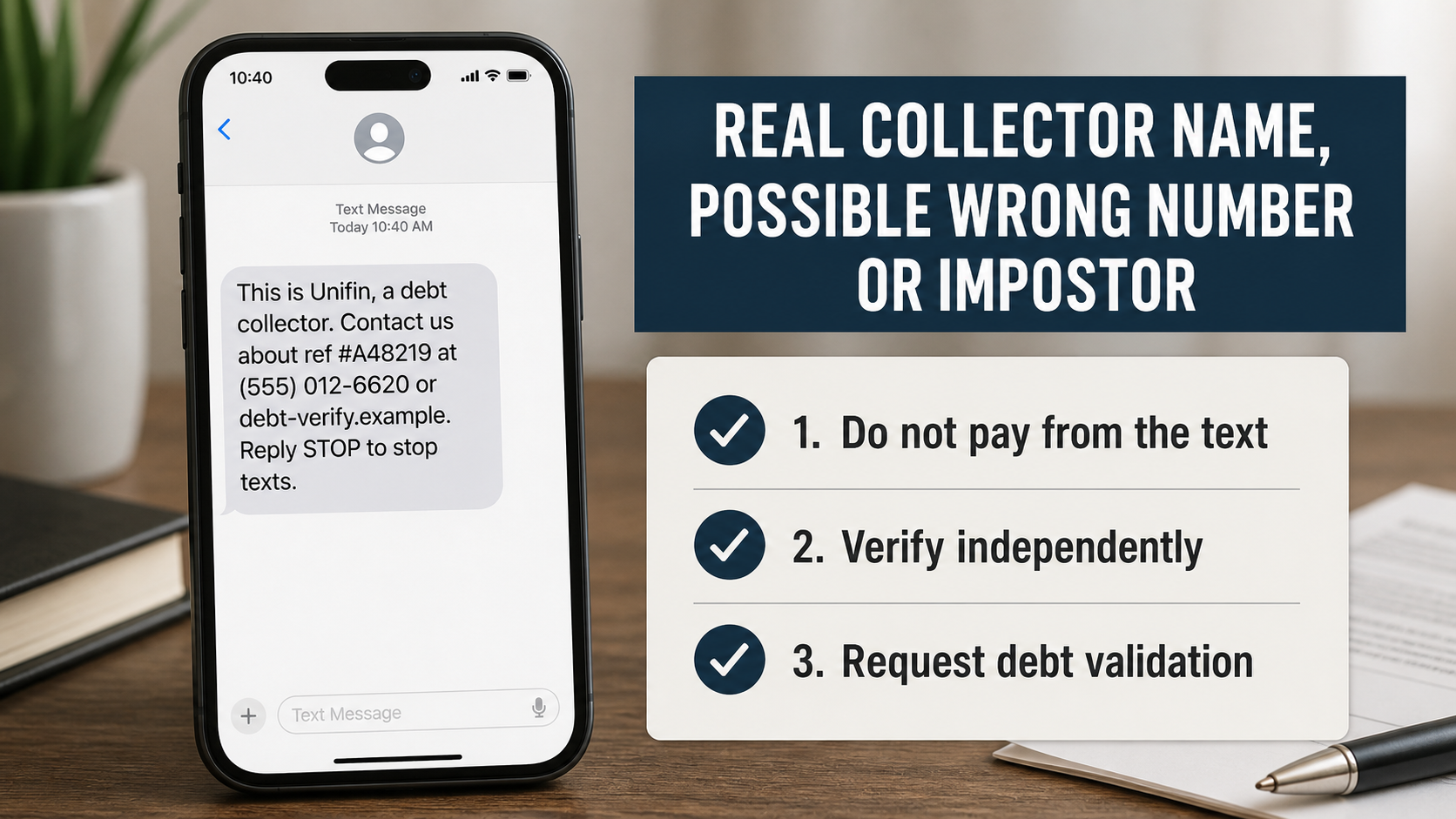
A short initial message may state that it is from a debt collector, include a reference number, provide a phone number or link, mention that message and data rates may apply, and offer a STOP reply.
That format can be legitimate, but it is also easy to copy. An impostor can replace the real phone number or link while leaving the Unifin name and compliance-style wording intact.
A message can also reach the wrong person because a debtor previously used the number, a record contains a typo, or a phone number was recycled by a mobile carrier. Wrong-number collection texts do not prove that the current owner owes the debt.
The correct response is verification, not immediate payment and not automatic dismissal. Locate Unifin’s official website independently, use the company’s communication-verification information, and request the required details about the debt.
The Consumer Financial Protection Bureau explains that a collector generally must provide validation information during the initial communication or within five days.
That information helps identify the debt, creditor, amount, collector, and consumer’s dispute rights. A text link should never be the only evidence used to decide that a debt is real.
What the text may say
This is Unifin, a debt collector.
Contact us about ref #A48219 at (555) 012-6620 or debt-verify.example.
Message and data rates may apply. Reply STOP to stop texts.
The example uses fictional contact details. Real and fake messages can use different numbers, shortened links, subdomains, or reference formats, so searching one number is not enough.
Common variations of the text message
- “This is Unifin, a debt collector”
- “Contact us regarding reference number”
- “View your payment options online”
- “A settlement offer is available for a limited time”
- “We are attempting to reach a person with a similar name”
- “Reply STOP to stop receiving messages”
- “Your account may be eligible for monthly payments”
- “Final notice before escalation”
- “Pay today to prevent legal action”
- “Verify the last four digits of your Social Security number”
The last several examples deserve extra caution when they appear with threats or an unrelated payment route. A legitimate collector must follow debt-collection law and provide validation information.
Three possible explanations for the message
It is a legitimate Unifin contact. A creditor or debt buyer may have placed an account with Unifin, and the contact details may match the company’s official records.
It is legitimate but intended for someone else. The collector may have a stale or incorrect phone number. The current recipient does not become responsible for another person’s debt.
It is an impersonation scam. A criminal may copy the Unifin name and direct the recipient to a fake site or call center that collects identity data or payments.
A fourth possibility is that the debt exists but the details, amount, ownership, age, or person are disputed. Verification and a written dispute process are more useful than arguing through an unsolicited text.
Red flags of a fake or abusive collector
- The person refuses to provide a company mailing address.
- The collector will not identify the original creditor or amount.
- You are threatened with immediate arrest, deportation, or police action.
- Payment is demanded by gift card, cryptocurrency, wire, or payment app.
- The link imitates Unifin but uses an unrelated registered domain.
- You are told not to speak with the original creditor.
- The caller pressures you to pay before receiving validation information.
- The amount changes or the collector cannot explain fees and interest.
- You are asked for a full Social Security number before basic verification.
- The collector claims you have no right to dispute the debt.
The FTC identifies refusal to provide contact information, pressure, arrest threats, and demands for unfamiliar debts as warning signs of fake collectors.
What debt validation should tell you
Validation information generally identifies the debt collector, the current creditor, the account, the amount, and how to dispute the debt or request information about the original creditor.
The amount should be itemized so the consumer can understand interest, fees, payments, and credits from a reference date. The notice should also explain the validation period and response options.
Receiving a validation notice does not force you to agree that the debt is yours. It gives you information to compare with records and credit reports.
Why checking a credit report helps but is not conclusive
A collection account may appear on one or more credit reports, which can help connect the message to a real creditor. Use AnnualCreditReport.com, the federally authorized source in the United States.
However, the absence of a debt from a credit report does not automatically prove it is fake. Some debts are not reported, have not yet been reported, or may be too old to appear.
Likewise, an entry on a report does not prove every amount or collection claim is accurate. Review the creditor, dates, balance, and ownership carefully.
Be careful with older debt
A real debt can be too old for a collector to sue over, depending on the type of debt, state law, and dates involved. This is often called time-barred debt.
The debt may still be collected voluntarily, but the legal consequences of making a payment or written acknowledgement can vary. Do not let a text deadline force a token payment before you understand the account’s age and your local law.
Ask for the date of last payment, charge-off information, current owner, and itemization. If the amount is substantial or the history is complicated, a consumer-law attorney or nonprofit credit counsellor can help review the situation.
Stopping texts does not decide whether the debt exists
A STOP reply can end messages from a legitimate texting program, but it does not erase or validate the debt. The collector may use another lawful communication method.
For a suspicious message, use independently verified contact information before replying. This prevents confirmation of an active number to an impostor while still allowing you to address a real account.
How The Operation Works
1. A legitimate collection placement or stolen lead creates the contact
In a real case, a creditor, debt buyer, or owner assigns an account for collection and provides consumer contact data. In an impostor case, a criminal obtains phone numbers and partial identity details from leaks or public records.
Both can produce a message containing a real name and plausible account information. The source and payment destination must therefore be verified.
2. The initial text uses minimal disclosure
Debt communications are sensitive, so a first text may avoid naming the creditor or amount until the recipient verifies identity. That privacy feature can make a real message feel suspicious.
Scammers exploit the same ambiguity. They use a generic reference number to create curiosity and encourage a click.
3. The recipient visits a portal or calls
A legitimate portal should belong to the verified collector and use a secure process. A fake portal may ask for a reference number plus the last four digits of a Social Security number, date of birth, or payment card.
Do not reach the portal through the text. Find the official company site independently and compare the exact domain and contact information.
4. Identity is confirmed
Collectors need to avoid disclosing debt information to the wrong person. They may request identifying details before discussing an account.
You can still limit exposure. Ask what alternatives exist, provide no more than necessary, and do not disclose a full Social Security number to an inbound caller.
5. The debt and payment options are presented
A legitimate collector may offer a one-time payment, settlement, or instalment plan. Before agreeing, confirm the creditor, balance, ownership, tax implications, and how the agreement will be documented.
A scammer instead pushes immediate payment and resists written validation. The payment method often provides weak recovery.
6. An impostor increases pressure
If the recipient hesitates, a fake collector may claim a lawsuit, wage garnishment, arrest, or service at the workplace will happen within hours.
Real legal processes do not appear solely because an anonymous texter says they do. Do not ignore actual court papers, but independently contact the court using official records.
7. Personal data may be reused
A fraudulent portal can collect identity details even when the victim does not pay. Those details support account takeovers, new credit applications, or more convincing follow-up scams.
A victim who pays may be targeted again because the criminal now knows that pressure about debt works.
How to verify without trusting the text
- Do not tap the link or call the number in the message.
- Type Unifin’s official website address independently or locate it through verified business records.
- Use the official communication-verification process.
- Ask for the collector’s legal name and mailing address.
- Request validation information in writing.
- Compare the creditor and amount with your records.
- Check credit reports through AnnualCreditReport.com.
- Call the original creditor through a statement or official website.
- Do not pay until the debt and collector are confirmed.
What To Do If You Received an Unifin Text
- Preserve the message. Take a screenshot showing the sender, time, reference, link, and wording. Do not publish the reference number.
- Do not use the embedded contact details yet. Find Unifin’s official website independently and use its verification page or published contact information.
- Ask for validation information. Request the creditor, account details, itemized amount, collector mailing address, and instructions for disputing the debt.
- Check whether the message is for you. If the named consumer is someone else, say the number is incorrect without volunteering unnecessary identity information. Ask that contact stop.
- Review your credit reports and records. Look for the creditor, balance, dates, and any unfamiliar accounts that could indicate identity theft.
- Dispute inaccurate debt promptly. Follow the written validation notice and keep copies. A timely written dispute can preserve important rights.
- Do not make a token payment without understanding the consequences. For older debt, payment or acknowledgement can affect limitation periods in some jurisdictions. Consider qualified legal advice.
- Use a traceable payment route only after verification. Do not pay with gift cards, cryptocurrency, or a transfer to a personal account.
- Act quickly if you entered data on a fake site. Change exposed passwords, contact the card issuer, freeze credit when appropriate, and use IdentityTheft.gov for a recovery plan.
- Report impersonation or abuse. File complaints with the FTC, CFPB, and state attorney general where appropriate. Forward scam texts to 7726.
If the debt is confirmed as yours, you can discuss payment or settlement without surrendering your right to clear documentation. Get every agreement in writing before paying.
Keep a simple contact log while you investigate. Record the date, the channel used, the representative’s name, what documents you requested, and what the company promised to send. This prevents confusion if several messages or callers use different details. It also gives you a clear timeline if you need to dispute the account, report an impersonator, or explain the matter to a consumer attorney.
Is Your Device Infected? Run a Free Malware Scan
Slow performance, constant pop-ups, or strange behavior? These are classic signs of a malware infection. The fastest way to find out is to scan your device with Malwarebytes Free — one of the most trusted malware removal tools available.
The free version detects and removes the most common threats, including:
- Adware — the cause of those annoying pop-ups
- Browser hijackers — unwanted redirects and changed homepages
- Trojans and spyware — hidden programs stealing your data
- Potentially unwanted programs (PUPs) — software you never asked for
👉 Select your device below — Windows, Mac, or Android — then follow the simple steps to download Malwarebytes, scan your system, and remove any threats it finds. The scan usually takes 5 to 20 minutes.
Run a Malware Scan with Malwarebytes for Windows
Malwarebytes is one of the most popular and trusted anti-malware tools for Windows — and it’s completely free for removing infections. It catches threats that many antivirus programs miss, including adware, browser hijackers, and trojans. Follow the steps below to scan and clean your PC in just a few minutes.
Download Malwarebytes
Click the button below to download the latest version of Malwarebytes for Windows from the official source. The free version is all you need — it will scan your computer and remove adware, browser hijackers, and other malicious software at no cost.
Download MalwarebytesOfficial installer for Windows 11 and 10. Your download starts right away.Want real-time protection? See Malwarebytes Premium Malwarebytes Free for WindowsScans and removes malware at no cost
-
Install Malwarebytes
When the download finishes, open your Downloads folder and double-click the MBSetup file. If Windows shows a User Account Control pop-up, click “Yes” to allow the installation.

Follow the On-Screen Prompts to Install Malwarebytes
The setup wizard will walk you through a few quick screens:
-
Choose where you’re installing the program — “Personal Computer” or “Work Computer” — then click Next.

-
Malwarebytes will now install on your device. This usually takes under a minute.

-
When installation is complete, the “Welcome to Malwarebytes” screen will open automatically.

-
On the final screen, click Open Malwarebytes to launch the program.

-
Enable “Scan for Rootkits”
Before scanning, turn on rootkit detection so Malwarebytes can find even the most hidden threats. Click the Settings gear icon on the left side of the screen.

In the settings menu, find “Scan for rootkits” and click the toggle so it turns blue.

Done? Click “Dashboard” in the left pane to return to the main screen.
Start the Scan
Click the blue Scan button. Malwarebytes will automatically update its virus database and start checking your computer for malware.

-
Wait for the Scan to Finish
The scan checks your entire system for browser hijackers and other malicious programs, so it can take 5 to 20 minutes depending on your computer. Feel free to do something else — just check back occasionally to see the progress.

-
Quarantine the Detected Threats
When the scan is done, you’ll see a list of everything Malwarebytes found — malware, adware, and potentially unwanted programs. Click the “Quarantine” button to remove all of them at once.

Malwarebytes will now remove the malicious files and registry entries and move them safely into quarantine.

-
Restart Your Computer
Some threats can only be fully removed after a reboot. If Malwarebytes asks you to restart, click Yes. Once you’re logged back in, Malwarebytes has finished removing the threats it found.

That’s it — your Windows PC is now clean of trojans, adware, and other malware, and should be back to running smoothly.
If you are still having problems with your computer after completing these instructions, then please follow one of the steps:
- Run a computer scan with ESET Online Scanner
- Ask for help in our Windows Malware Removal Help & Support forum.
Run a Malware Scan with Malwarebytes for Mac
Malwarebytes for Mac is a free on-demand scanner that removes the malware other security software tends to miss — adware, browser hijackers, and unwanted programs included. Cleaning an infected Mac with Malwarebytes has always been completely free, and it’s our go-to recommendation. Follow the steps below to scan and clean your Mac in just a few minutes.
-
Download Malwarebytes for Mac
Click the button below to download the latest version of Malwarebytes for Mac.
Download MalwarebytesOfficial installer for macOS. Your download starts right away.Want real-time protection? See Malwarebytes PremiumMalwarebytes Free for MacScans and removes malware at no cost -
Open the Malwarebytes setup file
When the download finishes, open your Downloads folder and double-click the setup file to begin the installation.

-
Follow the On-Screen Prompts to Install Malwarebytes
The Malwarebytes for Mac Installer will guide you through a few quick screens. Click “Continue” and keep following the prompts until the installation completes.



When the installation is complete, Malwarebytes opens to the Welcome to Malwarebytes screen. Click “Get started“.
-
Select “Personal Computer” or “Work Computer”
Malwarebytes will ask what type of computer you’re installing it on. Click either Personal Computer or Work Computer, whichever applies.

-
Start the Scan
Click the “Scan” button. Malwarebytes will automatically update its detection database and begin checking your Mac for malware.

-
Wait for the Scan to Finish
Malwarebytes will scan your Mac for adware, browser hijackers, and other malicious programs. This can take a few minutes, so feel free to do something else — just check back occasionally to see the progress.

-
Quarantine the Detected Threats
When the scan is done, you’ll see a list of everything Malwarebytes found. Click the “Quarantine” button to remove all the threats at once.

-
Restart Your Mac
Malwarebytes will now remove all the malicious files it found. Some threats can only be fully removed after a reboot — if Malwarebytes asks you to restart, allow it. Once you’re logged back in, your Mac is clean.

That’s it — your Mac is now free of adware, rogue browser extensions, and other potentially harmful software.
If you are still experiencing problems while trying to remove a malicious program from your computer, please ask for help in our Mac Malware Removal Help & Support forum.
Run a Malware Scan with Malwarebytes for Android
Malwarebytes for Android automatically detects and removes dangerous threats like malware and ransomware so you don’t have to worry about your most-used device being compromised. Aggressive detection of adware and potentially unwanted programs keeps your Android phone or tablet running smooth.
-
Download Malwarebytes for Android.
You can download Malwarebytes for Android by clicking the link below.
Get Malwarebytes for AndroidOpens Google Play in a new tab.Want real-time protection? See Malwarebytes Premium for AndroidMalwarebytes for AndroidScans your phone and removes malware at no cost -
Install Malwarebytes for Android on your phone.
In the Google Play Store, tap “Install” to install Malwarebytes for Android on your device.

When the installation process has finished, tap “Open” to begin using Malwarebytes for Android. You can also open Malwarebytes by tapping on its icon in your phone menu or home screen.

-
Follow the on-screen prompts to complete the setup process
When Malwarebytes will open, you will see the Malwarebytes Setup Wizard which will guide you through a series of permissions and other setup options.
This is the first of two screens that explain the difference between the Premium and Free versions. Swipe this screen to continue.
Tap on “Got it” to proceed to the next step.
Malwarebytes for Android will now ask for a set of permissions that are required to scan your device and protect it from malware. Tap on “Give permission” to continue.
Tap on “Allow” to permit Malwarebytes to access the files on your phone.
-
Update database and run a scan with Malwarebytes for Android
You will now be prompted to update the Malwarebytes database and run a full system scan.

Click on “Update database” to update the Malwarebytes for Android definitions to the latest version, then click on “Run full scan” to perform a system scan.

-
Wait for the Malwarebytes scan to complete.
Malwarebytes will now start scanning your phone for adware and other malicious apps. This process can take a few minutes, so we suggest you do something else and periodically check on the status of the scan to see when it is finished.

-
Click on “Remove Selected”.
When the scan has been completed, you will be presented with a screen showing the malware infections that Malwarebytes for Android has detected. To remove the malicious apps that Malwarebytes has found, tap on the “Remove Selected” button.

-
Restart your phone.
Malwarebytes for Android will now remove all the malicious apps that it has found. To complete the malware removal process, Malwarebytes may ask you to restart your device.
That’s it — your Android phone is now clean — no more malicious apps, adware, or browser redirects.
If you are still having problems with your phone after completing these instructions, then please follow one of the steps:
- Restore your phone to factory settings by going to Settings > General management > Reset > Factory data reset.
- Ask for help in our Mobile Malware Removal Help & Support forum.
Stay Protected: Block Ads and Malicious Sites
Now that your device is clean, keep it that way. Most infections start with a malicious ad or a fake download button — so blocking them at the source is your best defense.
We recommend AdGuard, which blocks malicious ads, phishing pages, and dangerous redirects before they can reach you.
👉 Download AdGuard and browse safely
The Bottom Line
Unifin is a real debt-collection company, so an Unifin text is not automatically fraudulent. It may be legitimate, intended for a previous phone-number owner, connected to an inaccurate debt, or sent by an impostor.
Do not pay from an unexpected text and do not ignore the issue blindly. Verify Unifin through an independently located official channel, request debt validation, and compare the information with your records.
A real debt can withstand independent verification. A scam depends on urgency, secrecy, and payment before you have the facts.

Join the discussion
0 commentsShare your experience or ask a question about this article.
Discussion
Start the conversation
Have a question or something useful to share? Add the first comment.