

Imagine opening your email inbox and discovering a message that says your Geek Squad subscription renewal was successful, charging you nearly five hundred dollars for services you never requested. Your immediate reaction might be panic, confusion, or frustration—and that’s exactly what scammers are counting on. The Geek Squad Subscription Renewal email scam is a widespread and deceptive phishing scheme designed to trick unsuspecting victims into handing over sensitive information or money. Keep reading to understand exactly how this scam works, how to recognize it, and what actions to take if you’ve fallen victim to it.
Scam Overview
The Geek Squad Subscription Renewal Successful email scam is a classic tech support phishing scam that leverages trust and fear to manipulate victims into giving away personal and financial information. This type of deception is becoming increasingly common and sophisticated, posing a significant risk to internet users, particularly older adults who may be less familiar with recognizing fraudulent communications.
What is the Geek Squad Subscription Scam?
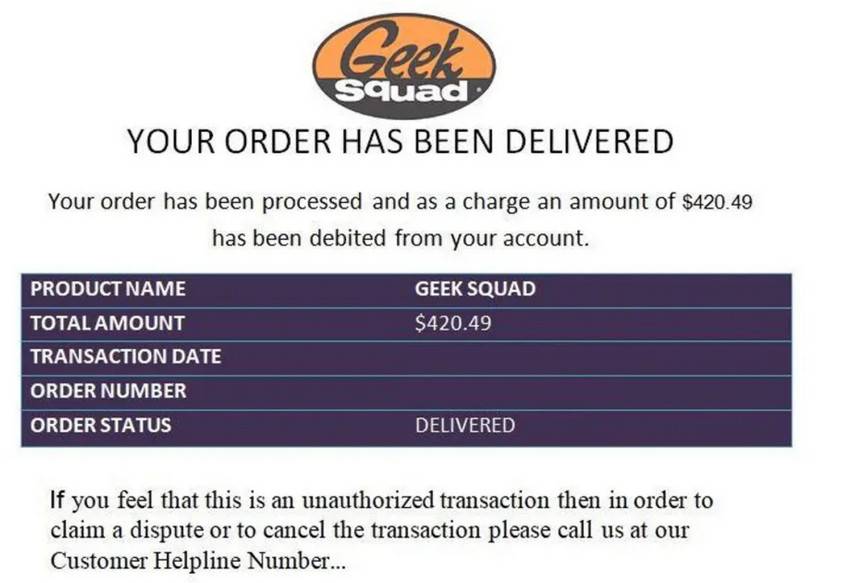
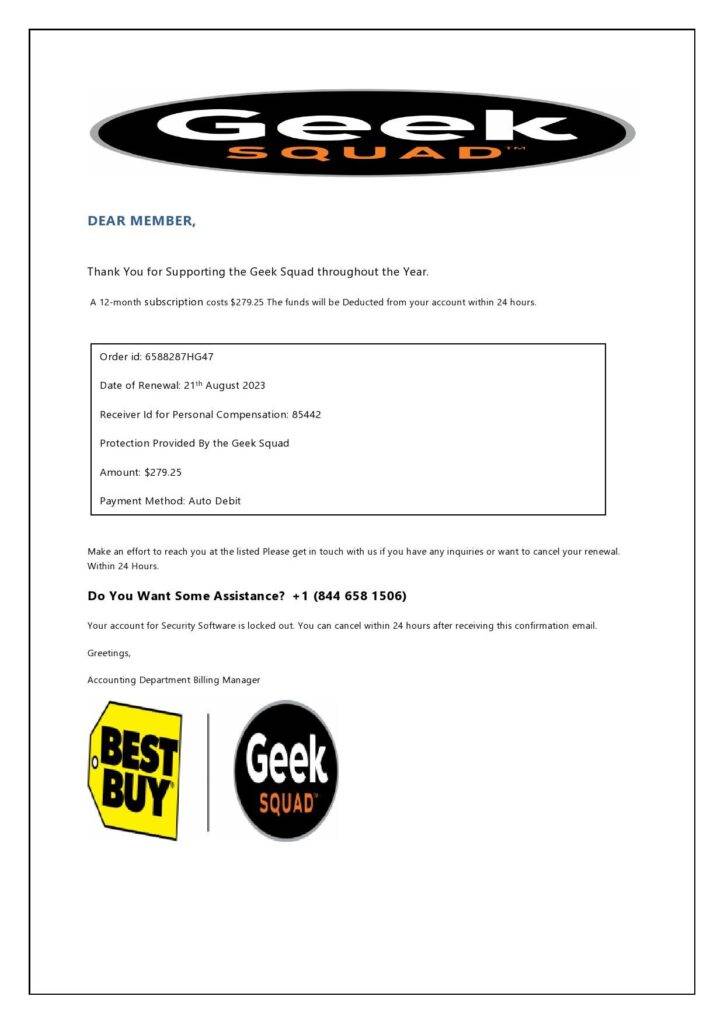
This email scam involves sending fake subscription renewal notices to random individuals, claiming to represent the Geek Squad, a widely known and respected tech support service provided by Best Buy. Victims typically receive an email that appears official, indicating that a hefty charge—often ranging from 200to200 to 200to600—has been successfully processed for subscription renewal to various tech support or computer protection services. The email includes realistic-looking invoice details, transaction IDs, and even customer support phone numbers.
Why Does it Work?
The reason this scam is so effective is straightforward: it instills panic and urgency. When recipients see a substantial amount charged to their accounts, their immediate reaction is often to resolve the issue quickly by calling the provided customer service number listed in the email. Unfortunately, this number doesn’t connect victims to legitimate Geek Squad representatives but instead routes them directly to scammers.
Technical Elements of the Scam
Scammers often use email spoofing techniques, making the email appear as if it originated from a legitimate Geek Squad email address. They use graphics, logos, and branding identical to legitimate companies, making detection more challenging. The emails frequently include multiple elements that seem legitimate:
- Genuine-looking Geek Squad logos
- Detailed and official-sounding invoice numbers
- Legitimate-sounding transaction IDs
- Professional language and grammar
- Fake privacy policy and terms and conditions links
Psychological Manipulation
Scammers exploit human psychology effectively, using tactics to trigger emotional responses. They employ urgency (the threat of losing money), authority (posing as a reputable company like Geek Squad), and trust (providing seemingly helpful customer support numbers). Victims, under stress about possibly losing money, act impulsively, bypassing their normal cautiousness.
The Real Objective
The ultimate goal of these scammers is to gain remote access to your computer or device, under the pretext of either providing a refund or removing malware. Once scammers gain access, they search your computer for sensitive information such as passwords, banking details, and personal identification information. Alternatively, they may prompt victims to purchase gift cards, falsely claiming it is necessary for processing refunds or removing non-existent viruses.
Who is Targeted?
While anyone can become a victim, scammers often target elderly individuals or people less familiar with online scams and cybersecurity measures. These individuals may lack awareness about phishing techniques and can be easily frightened or manipulated by threats of financial loss.
Financial Impact of the Scam
The financial consequences for victims can be significant. Not only could the scammers immediately drain bank accounts or credit card balances, but they can also use stolen identities and financial details to commit further fraud, resulting in long-term and costly damage.
Signs of a Scam Email
Common indicators of a Geek Squad scam email include:
- Unsolicited subscription renewal notices
- Charges for services you’ve never purchased or subscribed to
- Urgent instructions to call a phone number immediately
- Poor grammar or spelling mistakes (though increasingly scammers correct these to appear legitimate)
- Email addresses that appear suspicious or unrelated to Geek Squad or Best Buy
How The Scam Works
Understanding the detailed mechanics behind this scam is crucial for prevention. Here’s how the Geek Squad Subscription Renewal Successful email scam typically unfolds:
Step 1: Receiving the Fake Email
Victims receive an unsolicited email saying their Geek Squad subscription has been renewed automatically, specifying an amount charged, typically several hundred dollars. The email looks official, complete with logos, transaction IDs, invoice numbers, and dates.
Step 2: Immediate Panic and Reaction
Upon seeing the email, victims panic, believing they have been wrongly charged. This panic prompts immediate action without careful thought or verification.
Step 3: Calling the Fake Customer Support Number
The scam email includes a prominently displayed phone number, supposedly for customer support. Victims call this number to dispute or clarify the transaction.
Step 4: Interaction with Fake Tech Support
Scammers posing as Geek Squad representatives answer the call. They speak professionally, calmly, and convincingly, further building trust. They reassure the victim that they can resolve the issue quickly.
Step 5: Remote Access Request
The scammers ask victims to download remote access software (like Anydesk or TeamViewer), claiming they need to verify the transaction and process a refund or secure their computer from supposed threats.
Step 6: Installation of Remote Access Software
Victims unknowingly grant scammers remote access to their devices. Scammers now have full control to browse, copy, and download sensitive information from the victim’s device.
Step 7: Fake Security Scan or Refund Procedure
Scammers perform fake security scans or pretend to process refunds. They manipulate screens or bank statements to suggest the victim mistakenly received too much money, creating another layer of urgency.
Step 8: Requesting Payment via Gift Cards
Scammers ask victims to rectify the fake “overpayment” by purchasing gift cards from popular stores (such as Amazon, Target, or Walmart). They instruct victims to provide the gift card numbers, effectively stealing money instantly.
Step 9: Theft of Financial Information and Money
Simultaneously, scammers secretly retrieve sensitive information, including banking credentials, passwords, and personal documents, allowing them to commit identity theft or directly steal funds.
Step 10: Disconnection and Further Exploitation
After the scammers achieve their goal—either obtaining sensitive information, money, or both—they abruptly disconnect the call. Victims are left confused and financially compromised. The scammers may later use the extracted information in further fraud attempts.
What to do if you have fallen victim to this Scam
If you’ve fallen victim to the Geek Squad Subscription Renewal scam, acting quickly is essential:
- Immediately Disconnect Devices:
Disconnect your device from the internet to prevent further remote access. - Uninstall Remote Access Software:
Remove any software scammers instructed you to install (such as Anydesk or TeamViewer). - Contact Your Bank and Credit Card Company:
Inform them immediately about the situation. Freeze accounts or dispute unauthorized charges. - Change All Your Passwords:
Update passwords for online banking, email, social media, and other critical accounts. - File a Police Report:
Report the fraud to local law enforcement for official documentation. - Report the Scam to the FTC:
Submit a detailed report to the Federal Trade Commission at ftc.gov/complaint. - Monitor Your Identity:
Check your credit reports regularly for suspicious activity. Consider a credit monitoring service. - Inform Geek Squad:
Alert Geek Squad and Best Buy about the scam to help them warn other customers. - Educate Yourself and Others:
Share your experience to help others recognize and avoid similar scams.
Is Your Device Infected? Run a Free Malware Scan
Slow performance, constant pop-ups, or strange behavior? These are classic signs of a malware infection. The fastest way to find out is to scan your device with Malwarebytes Free — one of the most trusted malware removal tools available.
The free version detects and removes the most common threats, including:
- Adware — the cause of those annoying pop-ups
- Browser hijackers — unwanted redirects and changed homepages
- Trojans and spyware — hidden programs stealing your data
- Potentially unwanted programs (PUPs) — software you never asked for
👉 Select your device below — Windows, Mac, or Android — then follow the simple steps to download Malwarebytes, scan your system, and remove any threats it finds. The scan usually takes 5 to 20 minutes.
Run a Malware Scan with Malwarebytes for Windows
Malwarebytes is one of the most popular and trusted anti-malware tools for Windows — and it’s completely free for removing infections. It catches threats that many antivirus programs miss, including adware, browser hijackers, and trojans. Follow the steps below to scan and clean your PC in just a few minutes.
Download Malwarebytes
Click the button below to download the latest version of Malwarebytes for Windows from the official source. The free version is all you need — it will scan your computer and remove adware, browser hijackers, and other malicious software at no cost.
Download MalwarebytesOfficial installer for Windows 11 and 10. Your download starts right away.Want real-time protection? See Malwarebytes Premium Malwarebytes Free for WindowsScans and removes malware at no cost
-
Install Malwarebytes
When the download finishes, open your Downloads folder and double-click the MBSetup file. If Windows shows a User Account Control pop-up, click “Yes” to allow the installation.

Follow the On-Screen Prompts to Install Malwarebytes
The setup wizard will walk you through a few quick screens:
-
Choose where you’re installing the program — “Personal Computer” or “Work Computer” — then click Next.

-
Malwarebytes will now install on your device. This usually takes under a minute.

-
When installation is complete, the “Welcome to Malwarebytes” screen will open automatically.

-
On the final screen, click Open Malwarebytes to launch the program.

-
Enable “Scan for Rootkits”
Before scanning, turn on rootkit detection so Malwarebytes can find even the most hidden threats. Click the Settings gear icon on the left side of the screen.

In the settings menu, find “Scan for rootkits” and click the toggle so it turns blue.

Done? Click “Dashboard” in the left pane to return to the main screen.
Start the Scan
Click the blue Scan button. Malwarebytes will automatically update its virus database and start checking your computer for malware.

-
Wait for the Scan to Finish
The scan checks your entire system for browser hijackers and other malicious programs, so it can take 5 to 20 minutes depending on your computer. Feel free to do something else — just check back occasionally to see the progress.

-
Quarantine the Detected Threats
When the scan is done, you’ll see a list of everything Malwarebytes found — malware, adware, and potentially unwanted programs. Click the “Quarantine” button to remove all of them at once.

Malwarebytes will now remove the malicious files and registry entries and move them safely into quarantine.

-
Restart Your Computer
Some threats can only be fully removed after a reboot. If Malwarebytes asks you to restart, click Yes. Once you’re logged back in, Malwarebytes has finished removing the threats it found.

That’s it — your Windows PC is now clean of trojans, adware, and other malware, and should be back to running smoothly.
If you are still having problems with your computer after completing these instructions, then please follow one of the steps:
- Run a computer scan with ESET Online Scanner
- Ask for help in our Windows Malware Removal Help & Support forum.
Run a Malware Scan with Malwarebytes for Mac
Malwarebytes for Mac is a free on-demand scanner that removes the malware other security software tends to miss — adware, browser hijackers, and unwanted programs included. Cleaning an infected Mac with Malwarebytes has always been completely free, and it’s our go-to recommendation. Follow the steps below to scan and clean your Mac in just a few minutes.
-
Download Malwarebytes for Mac
Click the button below to download the latest version of Malwarebytes for Mac.
Download MalwarebytesOfficial installer for macOS. Your download starts right away.Want real-time protection? See Malwarebytes PremiumMalwarebytes Free for MacScans and removes malware at no cost -
Open the Malwarebytes setup file
When the download finishes, open your Downloads folder and double-click the setup file to begin the installation.

-
Follow the On-Screen Prompts to Install Malwarebytes
The Malwarebytes for Mac Installer will guide you through a few quick screens. Click “Continue” and keep following the prompts until the installation completes.



When the installation is complete, Malwarebytes opens to the Welcome to Malwarebytes screen. Click “Get started“.
-
Select “Personal Computer” or “Work Computer”
Malwarebytes will ask what type of computer you’re installing it on. Click either Personal Computer or Work Computer, whichever applies.

-
Start the Scan
Click the “Scan” button. Malwarebytes will automatically update its detection database and begin checking your Mac for malware.

-
Wait for the Scan to Finish
Malwarebytes will scan your Mac for adware, browser hijackers, and other malicious programs. This can take a few minutes, so feel free to do something else — just check back occasionally to see the progress.

-
Quarantine the Detected Threats
When the scan is done, you’ll see a list of everything Malwarebytes found. Click the “Quarantine” button to remove all the threats at once.

-
Restart Your Mac
Malwarebytes will now remove all the malicious files it found. Some threats can only be fully removed after a reboot — if Malwarebytes asks you to restart, allow it. Once you’re logged back in, your Mac is clean.

That’s it — your Mac is now free of adware, rogue browser extensions, and other potentially harmful software.
If you are still experiencing problems while trying to remove a malicious program from your computer, please ask for help in our Mac Malware Removal Help & Support forum.
Run a Malware Scan with Malwarebytes for Android
Malwarebytes for Android automatically detects and removes dangerous threats like malware and ransomware so you don’t have to worry about your most-used device being compromised. Aggressive detection of adware and potentially unwanted programs keeps your Android phone or tablet running smooth.
-
Download Malwarebytes for Android.
You can download Malwarebytes for Android by clicking the link below.
Get Malwarebytes for AndroidOpens Google Play in a new tab.Want real-time protection? See Malwarebytes Premium for AndroidMalwarebytes for AndroidScans your phone and removes malware at no cost -
Install Malwarebytes for Android on your phone.
In the Google Play Store, tap “Install” to install Malwarebytes for Android on your device.

When the installation process has finished, tap “Open” to begin using Malwarebytes for Android. You can also open Malwarebytes by tapping on its icon in your phone menu or home screen.

-
Follow the on-screen prompts to complete the setup process
When Malwarebytes will open, you will see the Malwarebytes Setup Wizard which will guide you through a series of permissions and other setup options.
This is the first of two screens that explain the difference between the Premium and Free versions. Swipe this screen to continue.
Tap on “Got it” to proceed to the next step.
Malwarebytes for Android will now ask for a set of permissions that are required to scan your device and protect it from malware. Tap on “Give permission” to continue.
Tap on “Allow” to permit Malwarebytes to access the files on your phone.
-
Update database and run a scan with Malwarebytes for Android
You will now be prompted to update the Malwarebytes database and run a full system scan.

Click on “Update database” to update the Malwarebytes for Android definitions to the latest version, then click on “Run full scan” to perform a system scan.

-
Wait for the Malwarebytes scan to complete.
Malwarebytes will now start scanning your phone for adware and other malicious apps. This process can take a few minutes, so we suggest you do something else and periodically check on the status of the scan to see when it is finished.

-
Click on “Remove Selected”.
When the scan has been completed, you will be presented with a screen showing the malware infections that Malwarebytes for Android has detected. To remove the malicious apps that Malwarebytes has found, tap on the “Remove Selected” button.

-
Restart your phone.
Malwarebytes for Android will now remove all the malicious apps that it has found. To complete the malware removal process, Malwarebytes may ask you to restart your device.
That’s it — your Android phone is now clean — no more malicious apps, adware, or browser redirects.
If you are still having problems with your phone after completing these instructions, then please follow one of the steps:
- Restore your phone to factory settings by going to Settings > General management > Reset > Factory data reset.
- Ask for help in our Mobile Malware Removal Help & Support forum.
Stay Protected: Block Ads and Malicious Sites
Now that your device is clean, keep it that way. Most infections start with a malicious ad or a fake download button — so blocking them at the source is your best defense.
We recommend AdGuard, which blocks malicious ads, phishing pages, and dangerous redirects before they can reach you.
👉 Download AdGuard and browse safely
Frequently Asked Questions about the Geek Squad Subscription Renewal Email Scam
Q1: What is the Geek Squad Subscription Renewal email scam?
A: The Geek Squad Subscription Renewal email scam is a phishing attempt where scammers send fake emails claiming that your Geek Squad subscription has been renewed successfully, charging you hundreds of dollars for services you never subscribed to. The scammers try to trick victims into calling fake customer support numbers to steal personal information or money.
Q2: How can I identify if the Geek Squad renewal email is fake?
A: Look out for the following signs:
- You never subscribed to Geek Squad or initiated any service renewal.
- Poor grammar or unusual phrasing.
- Urgent demands or threats requiring immediate action.
- Suspicious sender email addresses.
- The email includes an unfamiliar customer support phone number.
- Requests to download remote access software.
Always verify such emails by directly contacting Geek Squad through official channels.
Q3: What happens if I call the fake customer support number provided in the scam email
A: Calling the number connects you to scammers pretending to be Geek Squad representatives. They will attempt to convince you to grant remote access to your device, where they can steal sensitive information, banking details, or demand payment through gift cards.
Q4: I gave scammers remote access to my device. What should I do now?
A: Immediately follow these steps:
- Disconnect your device from the internet.
- Uninstall any remote access software installed.
- Contact your bank to freeze accounts or dispute unauthorized charges.
- Change all your passwords immediately.
- Report the incident to local law enforcement and file a complaint with the FTC (ftc.gov).
Q5: Why do scammers ask victims to buy gift cards
A: Gift cards are favored by scammers because they’re difficult to trace. Once the victim provides the gift card numbers and PINs, scammers immediately redeem the funds anonymously, leaving victims with little recourse.
Q6: Can Geek Squad or Best Buy help recover my money if I’ve been scammed?
A: Geek Squad and Best Buy are legitimate organizations and are not involved in these scams. They cannot directly recover your money lost to scammers. However, you should inform them about the scam, as they can warn other customers. Your best option is to report to your bank, local authorities, and the FTC.
Q7: What should I do if I received a Geek Squad renewal email scam but didn’t fall for it?
A: Even if you didn’t fall victim, you can help others by:
- Reporting the email as spam.
- Forwarding the suspicious email to Geek Squad or Best Buy’s official fraud reporting channels.
- Filing a complaint with the FTC at ftc.gov/complaint.
- Informing your friends, family, and colleagues about this scam to raise awareness.
Q8: How can I protect myself from similar scams in the future?
A: Follow these precautions:
- Always verify suspicious emails by contacting the company directly through official channels.
- Never respond to unsolicited emails asking for personal information or immediate payment.
- Avoid downloading remote access software unless you are certain of the legitimacy of the request.
- Regularly update your knowledge of common scams and fraud strategies.
- Install reputable antivirus and anti-malware software on all devices.
Q9: Who is most vulnerable to this Geek Squad email scam?
A: While anyone can be targeted, scammers often target older adults or individuals with limited technological experience and familiarity with cybersecurity practices.
Q10: Where can I officially report this scam?
A: Report the Geek Squad Subscription Renewal email scam to:
- FTC (Federal Trade Commission): ftc.gov/complaint
- FBI’s Internet Crime Complaint Center (IC3): ic3.gov
- Local law enforcement: File a police report for documentation and local support.
Q11: Does Geek Squad ever send renewal emails?
A: Legitimate Geek Squad subscription renewal emails do exist, but they will never pressure you to call immediately, ask for sensitive personal information, or request remote access to process refunds. Always verify authenticity directly through Geek Squad’s official website or customer service line.
Q12: Can scammers access my bank account if I only called the fake number?
A: Simply calling a scammer’s phone number typically won’t grant them access to your accounts. However, if you provided personal information, allowed remote computer access, installed software they recommended, or provided online banking details or passwords, your accounts could be compromised.
The Bottom Line
The Geek Squad Subscription Renewal Successful email scam is a sophisticated and dangerous phishing attempt, exploiting trust, urgency, and fear to defraud victims. Protect yourself by remaining cautious, verifying suspicious emails independently, and never allowing remote access to strangers. If you fall victim, act swiftly by notifying financial institutions, changing passwords, and reporting the fraud. Awareness and vigilance are your best defenses against falling victim to such tech support scams.

Join the discussion
0 commentsShare your experience or ask a question about this article.
Discussion
Start the conversation
Have a question or something useful to share? Add the first comment.