

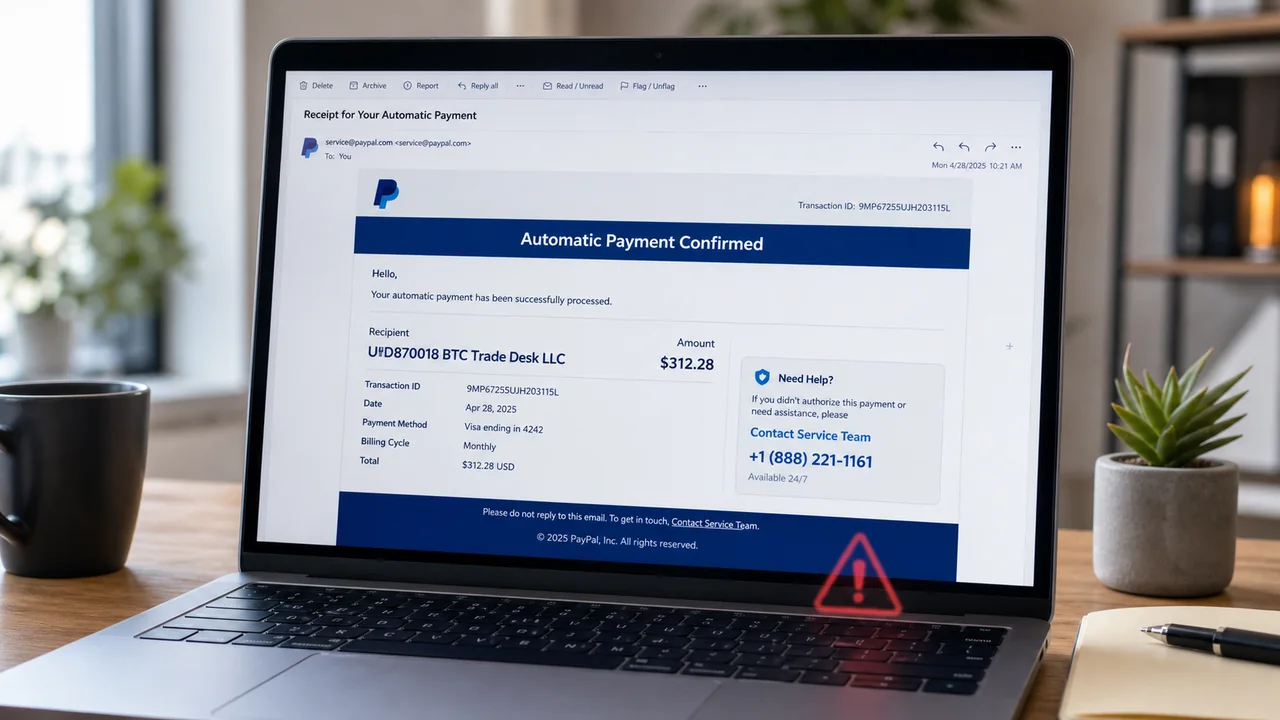
An unexpected PayPal receipt says you paid BTC Trade Desk LLC a large amount and will be charged again next week. The natural reaction is to call the “Service Team” immediately.
That phone number is the trap. The payment story is fabricated to move you from a fake email into a live conversation with a scammer.
Overview
The BTC Trade Desk LLC PayPal scam is a fake billing email designed to look like an automatic payment confirmation. It names an unfamiliar cryptocurrency-related recipient, displays a large charge, and warns that another payment is due soon.
The message then tells recipients to call a “Service Team” if they want to cancel or change the payment. The number does not connect to PayPal. It routes callers to criminals posing as billing, fraud, or technical support representatives.
The scam works because the email does not initially ask for a password or card number. It asks for a phone call, which feels safer. Once a victim calls, however, the fake agent can adapt the story in real time and pressure the caller into sharing information, installing remote-access software, or sending money.
PayPal describes this exact pattern in its guidance about invoice and money-request scams. The company warns users not to call phone numbers included in suspicious invoices or emails and to verify account activity directly through PayPal.
- Scam type: PayPal impersonation and callback phishing
- Main lure: An unauthorized BTC Trade Desk LLC automatic payment
- Primary goal: Get the recipient to call a fraudulent support number
- Possible losses: Card data, account credentials, remote computer access, or direct payments
- Real PayPal involvement: None; PayPal and any legitimate business named in the message are being impersonated
What the BTC Trade Desk LLC PayPal Email Looks Like
One observed version thanks the recipient for an automatic payment to “UID870018 BTC Trade Desk LLC.” It lists a transaction ID, a PayPal or bank-card payment source, and a total of $312.28.
The email says the profile will be billed the same amount again the following week. A cancellation instruction directs the recipient to call a telephone number labeled as the “Service Team.” Other versions may use a different UID, amount, transaction reference, renewal period, address, or telephone number.
These details are disposable. Scammers regularly rotate numbers and amounts once a campaign is reported. The recognizable feature is the combination of an unfamiliar crypto-related charge, a looming recurring payment, and a prominent phone number inside the message.
The sender may copy PayPal colors, legal text, security statements, and a familiar footer. Some messages even repeat advice that PayPal emails should contain the customer’s name. That borrowed language does not authenticate the message.
Look closely and contradictions usually appear. A fake email may open with a generic greeting, use an unusual company name, display an unrelated address, or insist that the only way to cancel is by phone. The support number is often repeated several times to make it the most obvious action.
A real-looking sender name is not proof either. Email display names can be forged, and a message can be sent from a lookalike domain. What matters is whether the transaction exists when you independently open PayPal’s official website or app.
How The Scam Works
1. Scammers send a convincing payment confirmation
The campaign begins with a mass email that imitates a PayPal receipt. The message may be sent to people who use PayPal and people who do not, because the criminals only need a small percentage of recipients to react.
Using the name BTC Trade Desk LLC gives the charge a cryptocurrency angle. Many recipients will not recognize the merchant, but the name sounds just plausible enough to raise concern about a hacked wallet, recurring investment, or unauthorized Bitcoin purchase.
2. The unfamiliar charge creates immediate anxiety
The email claims that a payment has already been processed. That wording makes the situation feel more urgent than a simple invoice because the recipient believes money may have left the account.
A second payment scheduled for the following week adds a deadline. Instead of calmly verifying the claim, a worried reader may call before the supposed renewal occurs.
3. The message presents a fake cancellation route
The email says the automatic payment can be changed or canceled by contacting the Service Team. The number is placed beside the charge and may also appear in the footer as “PayPal Customer Service.”
Legitimate account activity should be managed from the official PayPal website or app. A phone number embedded in an unexpected invoice is not a safe verification channel, because the person who created the warning also controls the number.
4. A scammer answers as PayPal support
When someone calls, an operator may answer with a professional greeting and ask for the transaction ID. That small performance makes the call center sound connected to the invoice.
The operator may claim to see suspicious activity, several attempted crypto purchases, or a compromised PayPal profile. None of this comes from PayPal. The agent is reading from a script and using the caller’s reactions to shape the next step.
5. The caller is asked to “verify” sensitive information
The fake representative may request an email address, full name, phone number, card details, billing address, one-time security code, or PayPal password. The questions are framed as identity checks needed before a refund can be issued.
Giving even partial information can be damaging. Criminals can combine it with data from previous breaches, attempt password resets, or make later calls that sound more personalized.
6. The scam may shift into remote-access fraud
Some operators claim that a secure refund form must be completed on a computer. They instruct the victim to install remote-support software or visit a site that allows screen sharing.
Remote access lets the scammer watch passwords being entered, manipulate what appears on screen, open online banking pages, or move files. A legitimate PayPal employee does not need control of your computer to cancel an invoice or investigate an unauthorized transaction.
7. A fake refund creates an apparent overpayment
In a common variation, the caller says a refund was accidentally issued for too much. The scammer may alter the browser display or ask the victim to move money between accounts, making it look as though extra funds arrived.
The victim is then pressured to return the difference using gift cards, cryptocurrency, a wire transfer, or a payment app. The apparent refund is only a visual trick or a transfer between the victim’s own accounts.
8. The criminals push for a difficult-to-reverse payment
Gift cards and cryptocurrency are favored because payments are difficult to recover. The operator may tell the victim to keep the transaction secret, stay on the phone while traveling to a store, or describe the payment as a personal purchase.
Those instructions are strong signs of fraud. Real fraud departments do not ask customers to buy gift cards, send crypto, or lie to a bank employee to correct a billing error.
9. Stolen access can lead to additional losses
If the caller disclosed credentials or installed remote-access software, the criminals may continue after the call ends. They can try to access email, PayPal, banking, shopping, and social-media accounts.
Email access is especially valuable because it can be used to reset other passwords and hide security alerts. The attackers may also contact friends or coworkers from the compromised account with new payment requests.
10. The fake invoice is reused under new details
Once a phone number is blocked or reported, the group can send the same template with a different recipient name and amount. BTC Trade Desk LLC is one label in a broader family of PayPal, antivirus-renewal, crypto-purchase, and subscription callback scams.
For that reason, searching only the telephone number is not enough. Treat the behavior as the decisive evidence: an unexpected charge that demands a call to a number supplied inside the same message.
Why This Fake PayPal Receipt Is Convincing
The email borrows the visual rhythm of a real receipt. Transaction IDs, payment sources, profile numbers, renewal dates, corporate text, and a familiar blue color scheme give the eye many reassuring details to process.
The amount is also chosen carefully. A charge such as $312.28 is large enough to cause alarm but not so extreme that every recipient will immediately dismiss it as impossible.
Cryptocurrency merchant names add confusion. Someone may wonder whether a family member made the purchase, an old trial renewed, or a criminal accessed the account. That uncertainty increases the urge to speak to a person.
Most importantly, the scam avoids an obvious phishing button. Security-aware users have learned not to click suspicious links, but many still believe calling a number is harmless. Callback phishing exploits that gap.
The operator’s confidence completes the illusion. A live person can answer objections, repeat security language, and manufacture urgency in a way that a static webpage cannot. The safest response is to avoid the conversation entirely.
What to Do if You Have Fallen Victim to This Scam
- End the call immediately. Do not debate the caller or follow any additional instructions. Block the number, but remember that the scammers can contact you from a different one.
- Check PayPal independently. Open the official app or type paypal.com into your browser. Review Activity, invoices, automatic payments, and notifications. Do not use a link or number from the email.
- Report the message to PayPal. Forward the suspicious email to phishing@paypal.com, then delete it. Report any unwanted invoice or money request from inside your logged-in PayPal account.
- Change exposed passwords. If you revealed or typed a password while the caller watched, change it from a clean device. Start with your email account, then PayPal, banking, and every account that reused the same password.
- Enable two-factor authentication. Turn on strong two-step verification for email, PayPal, and financial accounts. Never read a one-time security code to an unsolicited caller.
- Remove remote-access software. Uninstall any tool the caller asked you to install. Disconnect the affected device from the internet until you have checked installed applications, browser extensions, startup items, and security settings.
- Run a complete security scan. Scan the computer for malware and unwanted remote-management tools. A scan is important even if the caller claimed the program was only used for support.
- Contact your bank or card issuer. Use the number printed on the card or the official banking app. Report any exposed card information, transfers, or unauthorized charges and ask whether the card should be replaced.
- Try to stop payments quickly. Gift-card and crypto transfers are difficult to reverse, but contact the gift-card issuer, exchange, wallet provider, wire service, or payment app immediately. Preserve transaction references and wallet addresses.
- Document and report the fraud. Save the email headers, screenshots, telephone number, receipts, chat logs, and transfer records. File a report through ReportFraud.ftc.gov and, for substantial losses, the FBI’s IC3 portal.
- Watch for follow-up scams. Victims may later receive calls from fake investigators or recovery agents. Anyone promising guaranteed recovery for an upfront fee is attempting another scam.
Is Your Device Infected? Run a Free Malware Scan
Slow performance, constant pop-ups, or strange behavior? These are classic signs of a malware infection. The fastest way to find out is to scan your device with Malwarebytes Free — one of the most trusted malware removal tools available.
The free version detects and removes the most common threats, including:
- Adware — the cause of those annoying pop-ups
- Browser hijackers — unwanted redirects and changed homepages
- Trojans and spyware — hidden programs stealing your data
- Potentially unwanted programs (PUPs) — software you never asked for
👉 Select your device below — Windows, Mac, or Android — then follow the simple steps to download Malwarebytes, scan your system, and remove any threats it finds. The scan usually takes 5 to 20 minutes.
Run a Malware Scan with Malwarebytes for Windows
Malwarebytes is one of the most popular and trusted anti-malware tools for Windows — and it’s completely free for removing infections. It catches threats that many antivirus programs miss, including adware, browser hijackers, and trojans. Follow the steps below to scan and clean your PC in just a few minutes.
Download Malwarebytes
Click the button below to download the latest version of Malwarebytes for Windows from the official source. The free version is all you need — it will scan your computer and remove adware, browser hijackers, and other malicious software at no cost.
Download MalwarebytesOfficial installer for Windows 11 and 10. Your download starts right away.Want real-time protection? See Malwarebytes Premium Malwarebytes Free for WindowsScans and removes malware at no cost
-
Install Malwarebytes
When the download finishes, open your Downloads folder and double-click the MBSetup file. If Windows shows a User Account Control pop-up, click “Yes” to allow the installation.

Follow the On-Screen Prompts to Install Malwarebytes
The setup wizard will walk you through a few quick screens:
-
Choose where you’re installing the program — “Personal Computer” or “Work Computer” — then click Next.

-
Malwarebytes will now install on your device. This usually takes under a minute.

-
When installation is complete, the “Welcome to Malwarebytes” screen will open automatically.

-
On the final screen, click Open Malwarebytes to launch the program.

-
Enable “Scan for Rootkits”
Before scanning, turn on rootkit detection so Malwarebytes can find even the most hidden threats. Click the Settings gear icon on the left side of the screen.

In the settings menu, find “Scan for rootkits” and click the toggle so it turns blue.

Done? Click “Dashboard” in the left pane to return to the main screen.
Start the Scan
Click the blue Scan button. Malwarebytes will automatically update its virus database and start checking your computer for malware.

-
Wait for the Scan to Finish
The scan checks your entire system for browser hijackers and other malicious programs, so it can take 5 to 20 minutes depending on your computer. Feel free to do something else — just check back occasionally to see the progress.

-
Quarantine the Detected Threats
When the scan is done, you’ll see a list of everything Malwarebytes found — malware, adware, and potentially unwanted programs. Click the “Quarantine” button to remove all of them at once.

Malwarebytes will now remove the malicious files and registry entries and move them safely into quarantine.

-
Restart Your Computer
Some threats can only be fully removed after a reboot. If Malwarebytes asks you to restart, click Yes. Once you’re logged back in, Malwarebytes has finished removing the threats it found.

That’s it — your Windows PC is now clean of trojans, adware, and other malware, and should be back to running smoothly.
If you are still having problems with your computer after completing these instructions, then please follow one of the steps:
- Run a computer scan with ESET Online Scanner
- Ask for help in our Windows Malware Removal Help & Support forum.
Run a Malware Scan with Malwarebytes for Mac
Malwarebytes for Mac is a free on-demand scanner that removes the malware other security software tends to miss — adware, browser hijackers, and unwanted programs included. Cleaning an infected Mac with Malwarebytes has always been completely free, and it’s our go-to recommendation. Follow the steps below to scan and clean your Mac in just a few minutes.
-
Download Malwarebytes for Mac
Click the button below to download the latest version of Malwarebytes for Mac.
Download MalwarebytesOfficial installer for macOS. Your download starts right away.Want real-time protection? See Malwarebytes PremiumMalwarebytes Free for MacScans and removes malware at no cost -
Open the Malwarebytes setup file
When the download finishes, open your Downloads folder and double-click the setup file to begin the installation.

-
Follow the On-Screen Prompts to Install Malwarebytes
The Malwarebytes for Mac Installer will guide you through a few quick screens. Click “Continue” and keep following the prompts until the installation completes.



When the installation is complete, Malwarebytes opens to the Welcome to Malwarebytes screen. Click “Get started“.
-
Select “Personal Computer” or “Work Computer”
Malwarebytes will ask what type of computer you’re installing it on. Click either Personal Computer or Work Computer, whichever applies.

-
Start the Scan
Click the “Scan” button. Malwarebytes will automatically update its detection database and begin checking your Mac for malware.

-
Wait for the Scan to Finish
Malwarebytes will scan your Mac for adware, browser hijackers, and other malicious programs. This can take a few minutes, so feel free to do something else — just check back occasionally to see the progress.

-
Quarantine the Detected Threats
When the scan is done, you’ll see a list of everything Malwarebytes found. Click the “Quarantine” button to remove all the threats at once.

-
Restart Your Mac
Malwarebytes will now remove all the malicious files it found. Some threats can only be fully removed after a reboot — if Malwarebytes asks you to restart, allow it. Once you’re logged back in, your Mac is clean.

That’s it — your Mac is now free of adware, rogue browser extensions, and other potentially harmful software.
If you are still experiencing problems while trying to remove a malicious program from your computer, please ask for help in our Mac Malware Removal Help & Support forum.
Run a Malware Scan with Malwarebytes for Android
Malwarebytes for Android automatically detects and removes dangerous threats like malware and ransomware so you don’t have to worry about your most-used device being compromised. Aggressive detection of adware and potentially unwanted programs keeps your Android phone or tablet running smooth.
-
Download Malwarebytes for Android.
You can download Malwarebytes for Android by clicking the link below.
Get Malwarebytes for AndroidOpens Google Play in a new tab.Want real-time protection? See Malwarebytes Premium for AndroidMalwarebytes for AndroidScans your phone and removes malware at no cost -
Install Malwarebytes for Android on your phone.
In the Google Play Store, tap “Install” to install Malwarebytes for Android on your device.

When the installation process has finished, tap “Open” to begin using Malwarebytes for Android. You can also open Malwarebytes by tapping on its icon in your phone menu or home screen.

-
Follow the on-screen prompts to complete the setup process
When Malwarebytes will open, you will see the Malwarebytes Setup Wizard which will guide you through a series of permissions and other setup options.
This is the first of two screens that explain the difference between the Premium and Free versions. Swipe this screen to continue.
Tap on “Got it” to proceed to the next step.
Malwarebytes for Android will now ask for a set of permissions that are required to scan your device and protect it from malware. Tap on “Give permission” to continue.
Tap on “Allow” to permit Malwarebytes to access the files on your phone.
-
Update database and run a scan with Malwarebytes for Android
You will now be prompted to update the Malwarebytes database and run a full system scan.

Click on “Update database” to update the Malwarebytes for Android definitions to the latest version, then click on “Run full scan” to perform a system scan.

-
Wait for the Malwarebytes scan to complete.
Malwarebytes will now start scanning your phone for adware and other malicious apps. This process can take a few minutes, so we suggest you do something else and periodically check on the status of the scan to see when it is finished.

-
Click on “Remove Selected”.
When the scan has been completed, you will be presented with a screen showing the malware infections that Malwarebytes for Android has detected. To remove the malicious apps that Malwarebytes has found, tap on the “Remove Selected” button.

-
Restart your phone.
Malwarebytes for Android will now remove all the malicious apps that it has found. To complete the malware removal process, Malwarebytes may ask you to restart your device.
That’s it — your Android phone is now clean — no more malicious apps, adware, or browser redirects.
If you are still having problems with your phone after completing these instructions, then please follow one of the steps:
- Restore your phone to factory settings by going to Settings > General management > Reset > Factory data reset.
- Ask for help in our Mobile Malware Removal Help & Support forum.
Stay Protected: Block Ads and Malicious Sites
Now that your device is clean, keep it that way. Most infections start with a malicious ad or a fake download button — so blocking them at the source is your best defense.
We recommend AdGuard, which blocks malicious ads, phishing pages, and dangerous redirects before they can reach you.
👉 Download AdGuard and browse safely
How to Verify a PayPal Payment Safely
The safest method is simple: leave the message and open PayPal yourself. A transaction that exists only in an email but not in your authenticated account is not a real completed PayPal payment.
Review automatic payments under your PayPal settings and inspect the merchant details. If an unfamiliar authorization genuinely exists, cancel it through PayPal and use the Resolution Center or official support channels.
Never use contact information provided by the disputed sender. Search results can also contain fraudulent support ads, so prefer the help section inside the app or the contact page reached from paypal.com.
Check the actual sender domain, but do not rely on it alone. Even legitimate PayPal invoices can contain notes written by a fraudster. The presence of an invoice in your account does not mean you owe the sender money or should call the number in the note.
PayPal’s official guidance is clear: do not pay an invoice for something you did not order, do not call telephone numbers written in an alarming invoice note, and do not send cryptocurrency to resolve the issue.
Common Questions About the BTC Trade Desk LLC Email
Was $312.28 really taken from my account?
Usually no. The email is designed to create that belief. Confirm by opening PayPal and your bank independently. Never call the number in the receipt to ask whether the charge is real.
Is BTC Trade Desk LLC contacting me?
The name is used as part of the lure. The person answering the supplied number is not a verified representative of PayPal, and the message should not be treated as proof of a genuine relationship with any business bearing that name.
Can calling the number alone harm me?
A brief call does not automatically compromise a device, but it confirms that your number reaches a responsive person. Risk rises sharply if you share information, follow links, install software, or allow remote access.
Why does the email contain real PayPal legal wording?
Scammers copy text from legitimate messages to make a template look authentic. A correct logo, address, copyright notice, or security sentence cannot validate the transaction or the telephone number.
The Bottom Line
The BTC Trade Desk LLC PayPal email is a callback phishing scam, not proof of an automatic crypto payment. Its most dangerous element is the fake Service Team telephone number.
Do not call, install software, disclose codes, or send money. Verify your account directly through PayPal, report the message, and secure any information or device the caller may have accessed.








