

A failed-subscription email can feel routine: update the card, avoid interruption, get back to work. The ChatGPT Payment Method Update email scam uses that familiar billing problem to steer people away from ChatGPT and onto a page built to steal account and card details.
The notice is not from OpenAI. Its invoice, deadline, and payment button are parts of a phishing story.
Overview
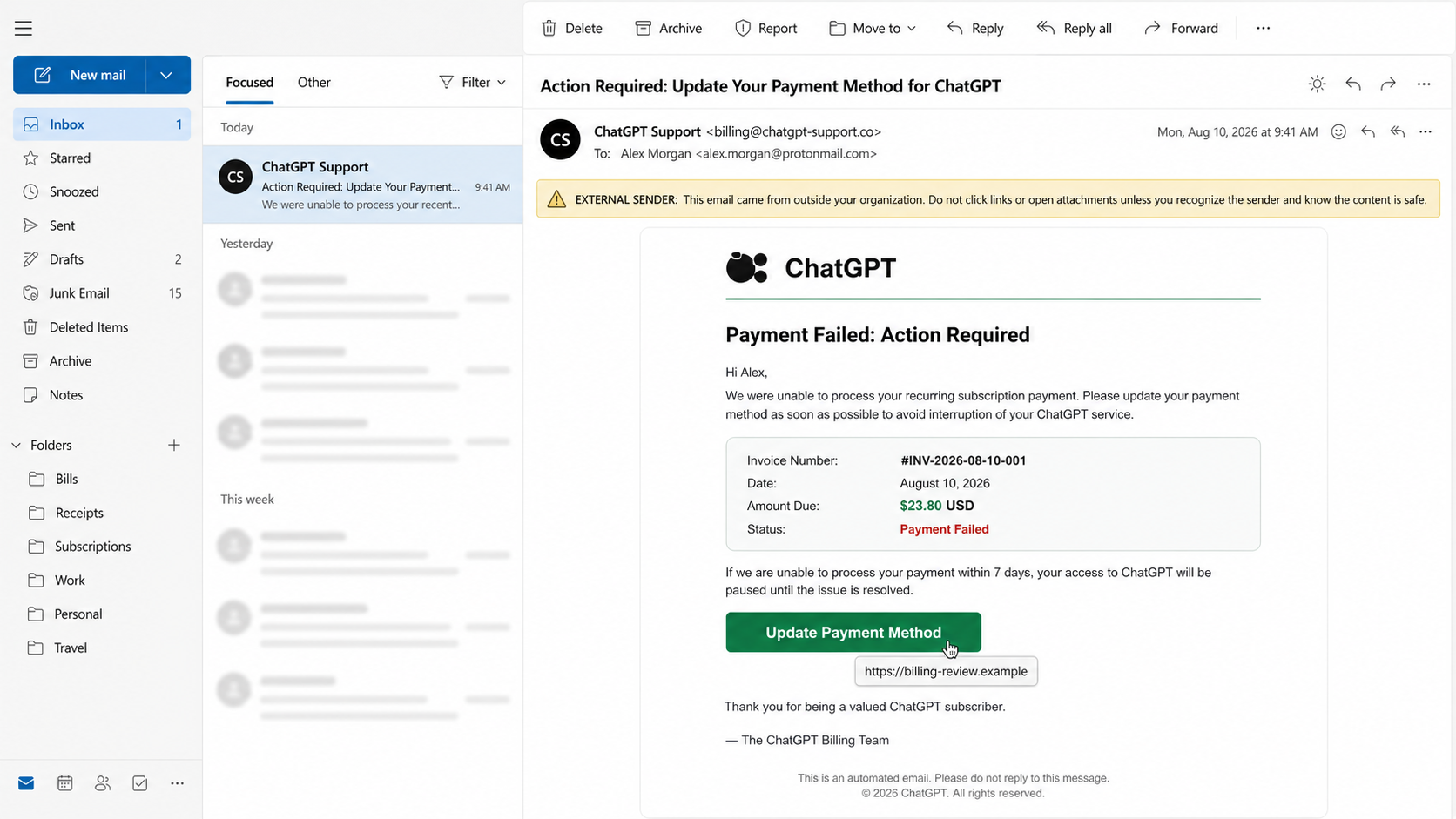
The ChatGPT Payment Method Update email scam is a fraudulent billing notice that impersonates ChatGPT and OpenAI. It claims a recurring subscription payment failed and warns that access may be interrupted unless the recipient updates a payment method.
One observed version used the subject “Action Required: Update Your Payment Method for ChatGPT.” It displayed invoice reference #INV-2026-08-10-001, a date of August 10, 2026, and an amount due of $23.80.
The email told recipients to visit Billing, select Payment Methods, enter new card information, and confirm the $23.80 payment. A prominent “Update Payment Method” button was intended to send the user to a fraudulent website.
The phishing page may ask for an email address, ChatGPT password, cardholder name, card number, expiration date, and security code. OpenAI has no connection to the scam.
Why the fake ChatGPT billing notice works
ChatGPT is used for personal, educational, and business tasks, so a threat of interrupted access can feel immediately disruptive. Users may also have several subscriptions and may not remember the exact renewal date or charge.
The message avoids an extravagant prize or obvious threat. A failed recurring payment is an ordinary event, and updating a card is something real services sometimes require.
That normality is the trap. The attacker wants the recipient to treat the email as account maintenance rather than a request for sensitive financial information.
What the scammers want
The first target may be ChatGPT or email credentials. Account access can expose conversation history and personal or business information the user shared with the service.
The second target is payment-card data. A complete card number, expiration date, security code, cardholder name, billing address, and telephone number can be used for unauthorized purchases or sold to other criminals.
Some phishing pages combine both stages. The victim signs in first and then enters payment details, giving the attacker two valuable sets of information in one session.
How the ChatGPT Payment Method Update Email Scam Works
Step 1: A fake payment-failure email arrives
The message displays ChatGPT or OpenAI branding and claims that the latest subscription charge could not be processed. The sender name may say ChatGPT Billing, OpenAI Payments, or Account Services.
The display name can be forged. The meaningful detail is the complete sender address and whether it belongs to an authentic OpenAI-controlled domain.
Step 2: A specific invoice and amount create credibility
The email includes a formal invoice reference, date, and amount such as $23.80. Precise numbers make the notice look as though it came from a real billing database.
Those values are simply text chosen by the scammer. A plausible amount is not evidence that a charge was attempted or that the recipient has the named plan.
Step 3: The warning threatens service interruption
The body says the subscription may be paused or canceled if payment is not updated. For someone who depends on ChatGPT, that warning creates a reason to act before the next work session.
Urgency also discourages the safest check: opening ChatGPT independently and reviewing the account’s actual billing page.
Step 4: The email provides convincing step-by-step instructions
The message may describe a realistic path through Billing and Payment Methods. Including instructions makes the request feel helpful and reduces the impression that the button is a demand.
However, the supplied button bypasses the genuine account interface. The recipient is following the scammer’s route, not the steps inside an independently opened ChatGPT session.
Step 5: “Update Payment Method” opens an impostor site
The button points to a domain that is not an official OpenAI or ChatGPT address. The page may closely copy colors, typography, login fields, and billing screens.
A padlock in the browser only shows that the connection is encrypted. Criminals can obtain HTTPS certificates for their own domains, so the padlock does not verify the displayed brand.
Step 6: The page asks the victim to sign in
The counterfeit site may begin with an email-and-password form. It can also offer fake “Continue with Google,” “Continue with Microsoft,” or “Continue with Apple” buttons that lead to additional credential pages.
If the victim submits a password, the attacker can try it on ChatGPT, the email provider, and other services where it may have been reused.
Step 7: A fake payment form collects card details
The next screen asks for the card number, name, expiration date, security code, address, and telephone number. It may display the $23.80 balance to keep the workflow consistent.
The form does not update a ChatGPT subscription. It transmits the financial data to criminals.
Step 8: The site may request an additional verification code
If the attacker attempts a card transaction, the bank may send a one-time code or open a verification challenge. The phishing page can ask the victim to enter that code, claiming it is required to confirm the update.
Providing the code may authorize a real transaction. Never share a bank verification code on a page reached through an unexpected email.
Step 9: The victim sees a reassuring conclusion
The page may claim the payment method was updated, show a temporary error, or redirect to the genuine ChatGPT website. A successful-looking result delays suspicion.
Meanwhile, the criminals can test the credentials and card data, attempt purchases, or use the collected information in more targeted scams.
Warning Signs in the ChatGPT Payment Email
- You were not expecting a billing problem. Your account shows no failed payment when opened independently.
- The sender address is not official. The display name uses ChatGPT, but the full domain is misspelled, unrelated, or from a bulk-mail account with no clear connection.
- The amount is unfamiliar. The claimed $23.80 charge does not match the plan, currency, or platform through which you subscribed.
- The email threatens immediate interruption. Pressure is used to make the button feel safer than independent verification.
- The payment link goes outside known OpenAI properties. A lookalike spelling, extra word, or unrelated subdomain is a strong warning.
- The page asks for too much information. A supposed card update expands into email credentials, recovery data, or a bank verification code.
- The message ignores the purchase platform. Subscriptions bought through Apple or Google are managed through those stores, not an arbitrary web form.
How to Check ChatGPT Billing Safely
Do not use the email button. Type chatgpt.com in a new browser tab or open the official app, sign in through your usual method, and review the account settings from there.
OpenAI’s official payment-method guidance says ChatGPT Plus and Pro users can navigate to Settings, then Account, then Payment and Manage. ChatGPT Business users can use the workspace Billing and Plan settings.
If the subscription was purchased in an iOS or Android app, review it through the Apple App Store or Google Play account used for the purchase. The web account and mobile-store billing routes are not interchangeable.
Compare the email with the real status shown inside the authenticated account and with recent bank transactions. If the account shows no past-due balance, do not attempt to “fix” the unsolicited notice.
When in doubt, contact OpenAI Support through the chat bubble at help.openai.com. Do not use a telephone number, reply address, or support link supplied by the suspicious message.
What a Real Payment Problem Does Not Require
A legitimate payment update should not require entering an email password into a domain unrelated to the service. It should not ask for a seed phrase, remote access to the device, gift cards, cryptocurrency, or a bank verification code outside the bank’s normal confirmation flow.
OpenAI’s security guidance recommends caution with emails that ask for credentials or lead to pages requesting account details. It advises users to double-check both the sender address and URL.
Do not assume a message is genuine because it contains a correct name, plan type, or partial card number. That information may come from an earlier breach, a compromised mailbox, or data gathered from other sources.
Why the Invoice Number and Exact Amount Are Not Proof
An invoice reference such as #INV-2026-08-10-001 looks structured, but any sender can generate that text. The number does not connect the email to OpenAI’s billing system and cannot be verified by clicking the message’s own button.
The same is true of the $23.80 amount. Scammers often choose a modest, believable charge because recipients are less likely to question it than an extreme demand. The amount can also be adjusted by region or campaign without representing a real plan price.
Use independent records instead. The authenticated account should show the plan and billing status, while the card issuer can confirm whether a payment was attempted, declined, or completed.
If the email’s invoice does not appear in those trusted records, the invoice is merely part of the lure. Preserve it for reporting, but do not try to validate it through any link or attachment supplied by the sender.
What to Do if You Have Fallen Victim to This Scam
- Close the phishing site. Do not submit another code, retry the card, download an invoice, or contact support details displayed on the page.
- Change the exposed password. Open ChatGPT or the relevant identity provider directly and create a strong, unique password. If you sign in through Google, Microsoft, or Apple, secure that provider account.
- Change reused passwords. Update every service that shared the same or a similar password, with email and financial accounts first.
- Log out active sessions. In ChatGPT, review Settings, Security, and Active sessions, then remove unfamiliar sessions or log out of all devices. Also revoke sessions at the identity provider.
- Enable or strengthen multifactor authentication. Use a passkey, security key, or authenticator option where available. Replace any recovery codes or authentication methods exposed to the scammer.
- Review the account for unfamiliar activity. Check sessions, subscription changes, conversation access, connected services, and any notices from the login provider.
- Contact the card issuer immediately. If you entered card data or a bank code, call the number on the back of the card. Ask to block or replace the card and review pending transactions.
- Dispute unauthorized charges. Tell the issuer the card details were submitted to a phishing site. Follow its fraud process and keep copies of alerts, transaction IDs, and correspondence.
- Contact OpenAI through the official Help Center. Report suspicious account activity or unauthorized charges through help.openai.com. OpenAI also recommends contacting the bank promptly about unauthorized charges.
- Scan the device if anything was downloaded. Update security software and run a full scan if the site delivered a file, extension, or alleged invoice.
- Report the phishing email. Use your email provider’s Report Phishing control and submit a report to the relevant national fraud authority, such as ReportFraud.ftc.gov in the US.
Is Your Device Infected? Run a Free Malware Scan
Slow performance, constant pop-ups, or strange behavior? These are classic signs of a malware infection. The fastest way to find out is to scan your device with Malwarebytes Free — one of the most trusted malware removal tools available.
The free version detects and removes the most common threats, including:
- Adware — the cause of those annoying pop-ups
- Browser hijackers — unwanted redirects and changed homepages
- Trojans and spyware — hidden programs stealing your data
- Potentially unwanted programs (PUPs) — software you never asked for
👉 Select your device below — Windows, Mac, or Android — then follow the simple steps to download Malwarebytes, scan your system, and remove any threats it finds. The scan usually takes 5 to 20 minutes.
Run a Malware Scan with Malwarebytes for Windows
Malwarebytes is one of the most popular and trusted anti-malware tools for Windows — and it’s completely free for removing infections. It catches threats that many antivirus programs miss, including adware, browser hijackers, and trojans. Follow the steps below to scan and clean your PC in just a few minutes.
Download Malwarebytes
Click the button below to download the latest version of Malwarebytes for Windows from the official source. The free version is all you need — it will scan your computer and remove adware, browser hijackers, and other malicious software at no cost.
Download MalwarebytesOfficial installer for Windows 11 and 10. Your download starts right away.Want real-time protection? See Malwarebytes Premium Malwarebytes Free for WindowsScans and removes malware at no cost
-
Install Malwarebytes
When the download finishes, open your Downloads folder and double-click the MBSetup file. If Windows shows a User Account Control pop-up, click “Yes” to allow the installation.

Follow the On-Screen Prompts to Install Malwarebytes
The setup wizard will walk you through a few quick screens:
-
Choose where you’re installing the program — “Personal Computer” or “Work Computer” — then click Next.

-
Malwarebytes will now install on your device. This usually takes under a minute.

-
When installation is complete, the “Welcome to Malwarebytes” screen will open automatically.

-
On the final screen, click Open Malwarebytes to launch the program.

-
Enable “Scan for Rootkits”
Before scanning, turn on rootkit detection so Malwarebytes can find even the most hidden threats. Click the Settings gear icon on the left side of the screen.

In the settings menu, find “Scan for rootkits” and click the toggle so it turns blue.

Done? Click “Dashboard” in the left pane to return to the main screen.
Start the Scan
Click the blue Scan button. Malwarebytes will automatically update its virus database and start checking your computer for malware.

-
Wait for the Scan to Finish
The scan checks your entire system for browser hijackers and other malicious programs, so it can take 5 to 20 minutes depending on your computer. Feel free to do something else — just check back occasionally to see the progress.

-
Quarantine the Detected Threats
When the scan is done, you’ll see a list of everything Malwarebytes found — malware, adware, and potentially unwanted programs. Click the “Quarantine” button to remove all of them at once.

Malwarebytes will now remove the malicious files and registry entries and move them safely into quarantine.

-
Restart Your Computer
Some threats can only be fully removed after a reboot. If Malwarebytes asks you to restart, click Yes. Once you’re logged back in, Malwarebytes has finished removing the threats it found.

That’s it — your Windows PC is now clean of trojans, adware, and other malware, and should be back to running smoothly.
If you are still having problems with your computer after completing these instructions, then please follow one of the steps:
- Run a computer scan with ESET Online Scanner
- Ask for help in our Windows Malware Removal Help & Support forum.
Run a Malware Scan with Malwarebytes for Mac
Malwarebytes for Mac is a free on-demand scanner that removes the malware other security software tends to miss — adware, browser hijackers, and unwanted programs included. Cleaning an infected Mac with Malwarebytes has always been completely free, and it’s our go-to recommendation. Follow the steps below to scan and clean your Mac in just a few minutes.
-
Download Malwarebytes for Mac
Click the button below to download the latest version of Malwarebytes for Mac.
Download MalwarebytesOfficial installer for macOS. Your download starts right away.Want real-time protection? See Malwarebytes PremiumMalwarebytes Free for MacScans and removes malware at no cost -
Open the Malwarebytes setup file
When the download finishes, open your Downloads folder and double-click the setup file to begin the installation.

-
Follow the On-Screen Prompts to Install Malwarebytes
The Malwarebytes for Mac Installer will guide you through a few quick screens. Click “Continue” and keep following the prompts until the installation completes.



When the installation is complete, Malwarebytes opens to the Welcome to Malwarebytes screen. Click “Get started“.
-
Select “Personal Computer” or “Work Computer”
Malwarebytes will ask what type of computer you’re installing it on. Click either Personal Computer or Work Computer, whichever applies.

-
Start the Scan
Click the “Scan” button. Malwarebytes will automatically update its detection database and begin checking your Mac for malware.

-
Wait for the Scan to Finish
Malwarebytes will scan your Mac for adware, browser hijackers, and other malicious programs. This can take a few minutes, so feel free to do something else — just check back occasionally to see the progress.

-
Quarantine the Detected Threats
When the scan is done, you’ll see a list of everything Malwarebytes found. Click the “Quarantine” button to remove all the threats at once.

-
Restart Your Mac
Malwarebytes will now remove all the malicious files it found. Some threats can only be fully removed after a reboot — if Malwarebytes asks you to restart, allow it. Once you’re logged back in, your Mac is clean.

That’s it — your Mac is now free of adware, rogue browser extensions, and other potentially harmful software.
If you are still experiencing problems while trying to remove a malicious program from your computer, please ask for help in our Mac Malware Removal Help & Support forum.
Run a Malware Scan with Malwarebytes for Android
Malwarebytes for Android automatically detects and removes dangerous threats like malware and ransomware so you don’t have to worry about your most-used device being compromised. Aggressive detection of adware and potentially unwanted programs keeps your Android phone or tablet running smooth.
-
Download Malwarebytes for Android.
You can download Malwarebytes for Android by clicking the link below.
Get Malwarebytes for AndroidOpens Google Play in a new tab.Want real-time protection? See Malwarebytes Premium for AndroidMalwarebytes for AndroidScans your phone and removes malware at no cost -
Install Malwarebytes for Android on your phone.
In the Google Play Store, tap “Install” to install Malwarebytes for Android on your device.

When the installation process has finished, tap “Open” to begin using Malwarebytes for Android. You can also open Malwarebytes by tapping on its icon in your phone menu or home screen.

-
Follow the on-screen prompts to complete the setup process
When Malwarebytes will open, you will see the Malwarebytes Setup Wizard which will guide you through a series of permissions and other setup options.
This is the first of two screens that explain the difference between the Premium and Free versions. Swipe this screen to continue.
Tap on “Got it” to proceed to the next step.
Malwarebytes for Android will now ask for a set of permissions that are required to scan your device and protect it from malware. Tap on “Give permission” to continue.
Tap on “Allow” to permit Malwarebytes to access the files on your phone.
-
Update database and run a scan with Malwarebytes for Android
You will now be prompted to update the Malwarebytes database and run a full system scan.

Click on “Update database” to update the Malwarebytes for Android definitions to the latest version, then click on “Run full scan” to perform a system scan.

-
Wait for the Malwarebytes scan to complete.
Malwarebytes will now start scanning your phone for adware and other malicious apps. This process can take a few minutes, so we suggest you do something else and periodically check on the status of the scan to see when it is finished.

-
Click on “Remove Selected”.
When the scan has been completed, you will be presented with a screen showing the malware infections that Malwarebytes for Android has detected. To remove the malicious apps that Malwarebytes has found, tap on the “Remove Selected” button.

-
Restart your phone.
Malwarebytes for Android will now remove all the malicious apps that it has found. To complete the malware removal process, Malwarebytes may ask you to restart your device.
That’s it — your Android phone is now clean — no more malicious apps, adware, or browser redirects.
If you are still having problems with your phone after completing these instructions, then please follow one of the steps:
- Restore your phone to factory settings by going to Settings > General management > Reset > Factory data reset.
- Ask for help in our Mobile Malware Removal Help & Support forum.
Stay Protected: Block Ads and Malicious Sites
Now that your device is clean, keep it that way. Most infections start with a malicious ad or a fake download button — so blocking them at the source is your best defense.
We recommend AdGuard, which blocks malicious ads, phishing pages, and dangerous redirects before they can reach you.
👉 Download AdGuard and browse safely
How to Avoid ChatGPT Subscription Phishing
Bookmark ChatGPT and the OpenAI Help Center. Begin billing changes from those saved addresses instead of from email, search advertisements, or direct messages.
Use a unique password and strong multifactor authentication on the identity provider connected to ChatGPT. Secure the associated email account because it may receive recovery and billing notices.
Turn on transaction alerts with the card issuer. A real declined or completed payment can be compared with the bank’s own record rather than with claims in an email.
For business workspaces, define who is allowed to manage billing and ask other members to forward payment notices to that person. A user without billing responsibility has less reason to interact with an unexpected update request.
Frequently Asked Questions
Is the $23.80 ChatGPT payment email real?
The campaign described here is not real. The amount and invoice number were selected to make a phishing email look like a billing record. Verify your actual account and bank statement independently.
Where should I update a genuine ChatGPT payment method?
Open ChatGPT directly and use the payment-management option in Account settings. For a Business workspace, use its Billing and Plan settings. Mobile subscriptions are managed through the relevant app store.
What if I only clicked the email link?
Close the page and report the message. If you entered nothing and downloaded nothing, the immediate risk is lower. Still check the browser’s downloads and your account activity if anything unusual happened.
What if I entered my card but no password?
Contact the card issuer immediately. The card data can be abused without your ChatGPT password. Ask the issuer whether the card should be blocked and replaced.
How do I report suspicious OpenAI account activity?
Go directly to help.openai.com and use the support chat. Do not reply to the suspected scam or use its contact information.
The Bottom Line
The ChatGPT Payment Method Update email scam makes a routine subscription problem look urgent, then sends victims to a counterfeit login and card form. Review billing only inside ChatGPT or the official app store, and contact the card issuer immediately if financial details were submitted.

Join the discussion
0 commentsShare your experience or ask a question about this article.
Discussion
Start the conversation
Have a question or something useful to share? Add the first comment.