


A page says Binance has credited you with 0.74852 BTC. The balance is already visible, a 24-hour clock is running, and only one small activation step appears to stand between you and the withdrawal.
There is no Bitcoin waiting. The Bitcoin Airdrop From Binance scam uses a fake balance and a $75 fee to steal cryptocurrency and personal information.
Overview
The Bitcoin Airdrop From Binance scam is a fraudulent website that impersonates Binance and promotes a nonexistent cryptocurrency giveaway. It claims the visitor has been selected or credited with a substantial amount of Bitcoin.
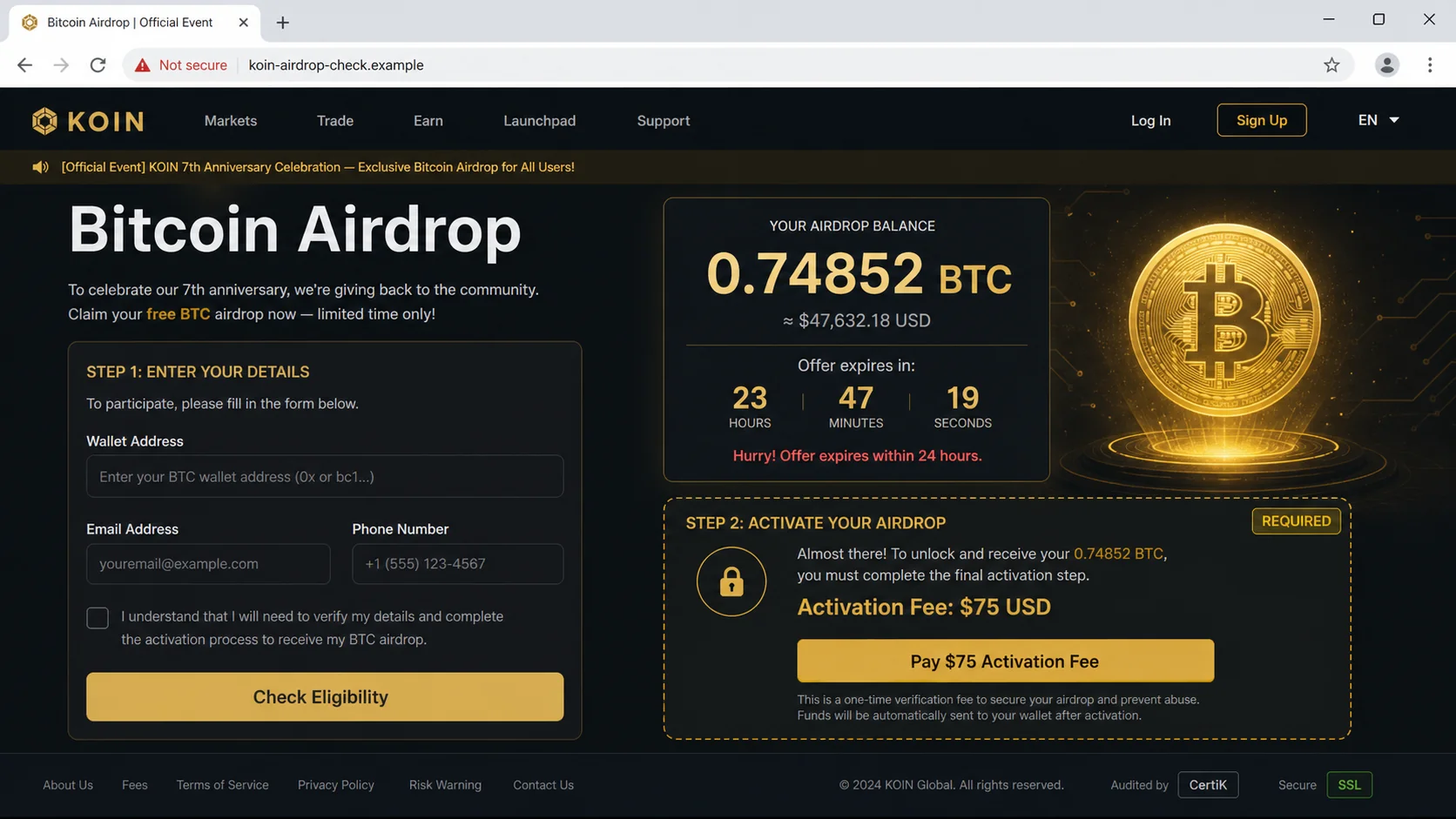
One version displayed a balance of 0.74852 BTC and warned that the opportunity would expire within 24 hours. It asked for a wallet address and personal details, then introduced a supposed activation or “express transit cell” fee of $75.
The page may update the displayed balance to 0.7498 BTC after the fee is introduced, creating the impression that the reward is larger than the requested payment. All of those numbers are controlled by the website and do not represent cryptocurrency held for the visitor.
Binance is not connected to the promotion. The purpose is to collect information, obtain a crypto payment, and potentially expose the victim’s exchange or wallet accounts to further attacks.
Is this a real Binance airdrop?
No. The site uses Binance’s name and exchange-style design without authorization. It is not hosted on an official Binance domain and does not provide verifiable on-chain evidence that any Bitcoin has been allocated to the visitor.
Binance Academy’s guidance on common crypto scams says legitimate giveaways, including those run by Binance or partners, will never require a participant to send funds first.
A real promotion should be announced through verified official channels, have clear eligibility terms, and never require a surprise payment to unlock a balance that appeared without prior participation.
What the scammers want
The clearest objective is the $75 crypto payment. Blockchain transfers are difficult to reverse, and the destination wallet belongs to the scammer rather than to an airdrop system.
The site may also collect a name, email address, telephone number, wallet address, and exchange-login information. These details can support follow-up phishing, identity fraud, and attempts to take over cryptocurrency accounts.
A more aggressive version may ask the visitor to connect a wallet, approve a token transaction, reveal a seed phrase, or install a browser extension. Any of those requests can put the entire wallet balance at risk.
How the Bitcoin Airdrop From Binance Scam Works
Step 1: The victim encounters a fake promotion
The link may appear in a social media post, advertisement, direct message, video comment, email, search result, or compromised website. It uses Binance and Bitcoin keywords to borrow recognition from a major exchange and the best-known cryptocurrency.
Some promotions claim to celebrate an anniversary, market milestone, new product, regulatory approval, or celebrity partnership. The event is only a reason to make free Bitcoin sound timely.
Step 2: The website resembles a crypto exchange
The landing page uses dark colors, gold accents, market-style counters, account panels, and familiar cryptocurrency language. It may show testimonials, transaction feeds, security badges, and lists of other supposed airdrops.
These elements can be entirely fabricated. A scrolling list of recent claims is usually generated by the page and does not prove that anyone received funds.
Step 3: A fake balance appears immediately
The visitor is told that 0.74852 BTC has already been credited. The site may display the same balance to every visitor or generate a random number within an attractive range.
The psychological effect is important: once the reward looks owned, the victim is more willing to spend a smaller amount to avoid losing it. This is the same principle used in advance-fee prize scams.
Step 4: A 24-hour deadline discourages research
The page says the balance will expire, return to the pool, or be assigned to another user if it is not claimed quickly. A countdown clock may reset when the page reloads.
The deadline exists to keep the visitor from checking official Binance announcements, searching the domain, or asking an experienced crypto user for advice.
Step 5: The site asks for a wallet and personal details
The form may request a Bitcoin address, full name, email, and phone number. Those fields make the process feel like account verification or know-your-customer compliance.
However, submitting a public wallet address does not prove identity or create a legitimate airdrop entitlement. The additional contact data helps scammers personalize later approaches.
Step 6: Fake search results reinforce the story
The website may “scan” its system and display a list of available giveaways, bonus pools, or transit routes. Progress bars and animated checks create the appearance of technical work.
The results are scripted. The page is not searching a blockchain or Binance account for funds assigned to the visitor.
Step 7: A $75 activation fee appears
After the victim has invested time and supplied information, the site says the Bitcoin cannot be released until an express transit cell, network channel, wallet verification, or activation step is paid.
The $75 fee seems tiny beside 0.74852 BTC. That comparison is deliberate, but the large balance is fictional and the small payment is the real transaction.
Step 8: The victim sends cryptocurrency to the attacker
The page displays a wallet address or QR code and may demand payment within minutes. Once confirmed, the transfer moves to a wallet controlled by the scam operator.
Cryptocurrency does not include the same chargeback protections as a card purchase. The attacker may quickly move the funds through additional addresses or exchanges.
Step 9: More fees may follow
Paying $75 does not release Bitcoin. Instead, the site may invent a tax, congestion fee, anti-money-laundering deposit, insurance charge, or minimum withdrawal requirement.
Each payment is justified as the final step. The scam continues as long as the victim remains willing to send more.
Step 10: Stolen information fuels follow-up scams
Victims may later receive calls or messages from fake Binance support, wallet investigators, tax agents, or recovery companies. The scammers already know that the person owns crypto and previously responded to an airdrop offer.
A “recovery expert” who promises to retrieve the lost funds for another upfront fee is often a second scam. Genuine authorities do not require payment in crypto to investigate a complaint.
Warning Signs of the Fake Binance Airdrop
- You received Bitcoin without entering a verified promotion. The page assigns a large balance to an unknown visitor before establishing eligibility.
- The site is not on an official Binance domain. Brand colors and copied logos do not override the address bar.
- A countdown demands immediate action. The timer prevents independent checking and may reset when the page reloads.
- You must pay to receive free crypto. A $75 activation or transit fee is an advance-payment scam.
- The balance exists only on the webpage. There is no verifiable transaction ID or on-chain allocation under your control.
- The terminology is vague or invented. Phrases such as “express transit cell” sound technical but do not describe a normal Bitcoin withdrawal requirement.
- The site asks for excessive data. Contact details, exchange credentials, seed phrases, or remote access are not needed for a legitimate public airdrop.
- Testimonials and live claims cannot be verified. Names, photos, transaction feeds, and balances may be generated by the page.
Why the Displayed Bitcoin Balance Is Meaningless
A number shown on a website is not the same as cryptocurrency recorded on a blockchain. The page owner can display 0.74852 BTC, 10 BTC, or any other amount without holding those funds.
Control of Bitcoin depends on the private keys for the address where it is stored. If the website will not provide a verifiable transaction and requires a payment before any funds reach an address you control, the balance is only a sales prop.
Scammers may show a transaction ID that is unrelated, invalid, or copied from a real transfer between other parties. Verify blockchain information through an independent explorer, not through a viewer embedded in the promotional page.
Never reveal a seed phrase or private key to “prove” wallet ownership. Anyone with that secret can move the wallet’s funds, and no legitimate exchange support agent needs it.
How to Check a Binance Promotion Safely
Do not use links supplied by the promotion. Open Binance from a saved bookmark or type the official address yourself, then review its announcement and campaign pages.
Search the exact promotion name through Binance’s verified channels. Check whether the eligibility, dates, reward pool, and claim method match the page you saw.
Use Binance’s official verification and support tools when available, and enable the account anti-phishing code so genuine notification emails include a phrase known to you.
Binance Academy’s crypto scam guidance warns that genuine giveaways never require funds to be sent first. Its airdrop scam guidance also recommends checking official channels and avoiding unknown smart-contract approvals.
If you cannot find the promotion through those independent routes, leave the site. Do not send a small “test” fee; that only confirms to the scammer that the wallet and contact are active.
What to Do if You Have Fallen Victim to This Scam
- Stop sending money. Do not pay another tax, verification charge, gas fee, unlock fee, or recovery fee. Additional payments will not release the fake balance.
- Save evidence. Record the website address, wallet address, transaction ID, amount, time, screenshots, emails, chats, and social media accounts before content disappears.
- Contact the exchange or service used to send the crypto. Report the destination address and transaction immediately. A transfer may not be reversible, but the service can flag accounts or respond to law-enforcement requests.
- Report the scam to Binance. Use support reached from the official Binance site, not from the airdrop page or a direct message claiming to be an agent.
- Secure your Binance account. Change the password, revoke unknown devices and sessions, review API keys, enable strong multifactor authentication, and set an anti-phishing code.
- Protect the email account. If you submitted an email password or reused your Binance password, change it, sign out other sessions, and review forwarding rules and recovery methods.
- Move remaining crypto if a seed phrase or private key was exposed. From a clean device, create a new wallet with a new seed and transfer assets before the attacker does. Never reuse the compromised wallet.
- Revoke malicious token approvals. If you connected an Ethereum-compatible wallet or approved a contract, use the wallet network’s trusted approval-management tool. Moving valuable assets to a fresh wallet may still be necessary.
- Scan the device. If you installed a wallet extension, mobile app, remote-access tool, or file from the site, disconnect the device from sensitive accounts and run an updated security scan.
- Watch for follow-up recovery scams. Ignore unsolicited people who promise guaranteed retrieval for an upfront payment. Your report details may be circulated among scammers.
- Report the financial loss. In the US, submit details to ReportFraud.ftc.gov and IC3.gov. Elsewhere, contact the national cybercrime or fraud-reporting authority and local law enforcement.
Is Your Device Infected? Run a Free Malware Scan
Slow performance, constant pop-ups, or strange behavior? These are classic signs of a malware infection. A quick way to check is to scan your device with Malwarebytes Free, one of the most trusted malware removal tools available. If you only visited a scam page and didn’t download or install anything, this scan is optional.
The free version detects and removes the most common threats, including:
- Adware — the cause of those annoying pop-ups
- Browser hijackers — unwanted redirects and changed homepages
- Trojans and spyware — hidden programs stealing your data
- Potentially unwanted programs (PUPs) — software you never asked for
👉 Select your device below — Windows, Mac, or Android — then follow the simple steps to download Malwarebytes, scan your system, and remove any threats it finds. The scan usually takes 5 to 20 minutes.
Run a Malware Scan with Malwarebytes for Windows
Malwarebytes is one of the most popular and trusted anti-malware tools for Windows — and it’s completely free for removing infections. It catches threats that many antivirus programs miss, including adware, browser hijackers, and trojans. Follow the steps below to scan your PC and remove what Malwarebytes finds.
Download Malwarebytes
Click the button below to download the latest version of Malwarebytes for Windows from the official source. The free version is all you need — it will scan your computer and remove adware, browser hijackers, and other malicious software at no cost.
Download MalwarebytesOfficial installer for Windows 11 and 10. Your download starts right away.Want real-time protection? See Malwarebytes Premium Malwarebytes Free for WindowsScans and removes malware at no cost
-
Install Malwarebytes
When the download finishes, open your Downloads folder and double-click the MBSetup file. If Windows shows a User Account Control pop-up, click “Yes” to allow the installation.

Follow the On-Screen Prompts to Install Malwarebytes
The setup wizard will walk you through a few quick screens:
-
Choose where you’re installing the program — “Personal Computer” or “Work Computer” — then click Next.

-
Malwarebytes will now install on your device. This usually takes under a minute.

-
When installation is complete, the “Welcome to Malwarebytes” screen will open automatically.

-
On the final screen, click Open Malwarebytes to launch the program.

-
Optional: Check for rootkits with a Custom Scan
You don’t need to change any settings for a normal scan. The standard Threat Scan in the next step is enough for most problems, so you can go straight to it.
If you also want to check for rootkits, use a Custom Scan. In current versions of Malwarebytes, rootkit scanning is only available there:
- On the Scanner tile, click the three-dot menu and select Advanced Scan.
- Choose Custom Scan. In its options, check Scan for rootkits.
- Select your system drive (usually C:\) as the location to scan, then start the scan. It takes longer than a Threat Scan.
- When it finishes, review and quarantine the results as described in the steps below.
Rootkit scanning isn’t available on Windows devices with ARM processors.
Start the Scan
Click the blue Scan button. Malwarebytes will automatically update its virus database and start checking your computer for malware.

-
Wait for the Scan to Finish
The scan checks your entire system for browser hijackers and other malicious programs, so it can take 5 to 20 minutes depending on your computer. Feel free to do something else — just check back occasionally to see the progress.

-
Quarantine the Detected Threats
When the scan is done, you’ll see a list of everything Malwarebytes found — malware, adware, and potentially unwanted programs. Click the “Quarantine” button to remove all of them at once.

Malwarebytes will now remove the malicious files and registry entries and move them safely into quarantine.

-
Restart Your Computer
Some threats can only be fully removed after a reboot. If Malwarebytes asks you to restart, click Yes. Once you’re logged back in, Malwarebytes has finished removing the threats it found.

When the scan is done, check whether the problems you noticed have stopped. If they continue, see the options below.
If you are still having problems with your computer after completing these instructions, then please follow one of the steps:
- Run a computer scan with ESET Online Scanner
- Ask for help in our Windows Malware Removal Help & Support forum.
Run a Malware Scan with Malwarebytes for Mac
Malwarebytes for Mac is a free on-demand scanner that removes the malware other security software tends to miss — adware, browser hijackers, and unwanted programs included. Cleaning an infected Mac with Malwarebytes has always been completely free, and it’s our go-to recommendation. Follow the steps below to scan your Mac and remove what Malwarebytes finds.
-
Download Malwarebytes for Mac
Click the button below to download the latest version of Malwarebytes for Mac.
Download MalwarebytesOfficial installer for macOS. Your download starts right away.Want real-time protection? See Malwarebytes PremiumMalwarebytes Free for MacScans and removes malware at no cost -
Open the Malwarebytes setup file
When the download finishes, open your Downloads folder and double-click the setup file to begin the installation.

-
Follow the On-Screen Prompts to Install Malwarebytes
The Malwarebytes for Mac Installer will guide you through a few quick screens. Click “Continue” and keep following the prompts until the installation completes.



When the installation is complete, Malwarebytes opens to the Welcome to Malwarebytes screen. Click “Get started“.
Malwarebytes needs Full Disk Access to check your whole Mac. When it asks, open System Settings > Privacy & Security > Full Disk Access, turn on Malwarebytes (it may be listed as Malwarebytes Protection), and confirm with your password or Touch ID. Then return to Malwarebytes. On macOS Monterey and earlier, this setting is in System Preferences > Security & Privacy > Privacy.
-
Select “Personal Computer” or “Work Computer”
Malwarebytes will ask what type of computer you’re installing it on. Click either Personal Computer or Work Computer, whichever applies.

-
Start the Scan
Click the “Scan” button. Malwarebytes will automatically update its detection database and begin checking your Mac for malware.

-
Wait for the Scan to Finish
Malwarebytes will scan your Mac for adware, browser hijackers, and other malicious programs. This can take a few minutes, so feel free to do something else — just check back occasionally to see the progress.

-
Quarantine the Detected Threats
When the scan is done, you’ll see a list of everything Malwarebytes found. Click the “Quarantine” button to remove all the threats at once.

-
Restart Your Mac
Malwarebytes will now remove all the malicious files it found. Some threats can only be fully removed after a reboot — if Malwarebytes asks you to restart, allow it. Once you’re logged back in, check whether the problems you noticed have stopped. If they come back, save the scan report and ask for help in our forum.

If the problems you noticed continue after the scan, see the options below.
If you are still experiencing problems while trying to remove a malicious program from your computer, please ask for help in our Mac Malware Removal Help & Support forum.
Run a Malware Scan with Malwarebytes for Android
Malwarebytes for Android scans your phone or tablet for malware, adware, and potentially unwanted apps. The free version scans only when you start a scan. Real-time protection, which checks apps automatically, is part of the paid Premium version.
-
Download Malwarebytes for Android.
You can download Malwarebytes for Android by clicking the link below.
Get Malwarebytes for AndroidOpens Google Play in a new tab.Want real-time protection? See Malwarebytes Premium for AndroidMalwarebytes for AndroidScans your phone and removes malware at no cost -
Install Malwarebytes for Android on your phone.
In the Google Play Store, tap “Install” to install Malwarebytes for Android on your device.

When the installation process has finished, tap “Open” to begin using Malwarebytes for Android. You can also open Malwarebytes by tapping on its icon in your phone menu or home screen.

-
Follow the on-screen prompts to complete the setup process
When Malwarebytes opens, it walks you through a short setup. Tap Get started and follow the prompts. If you see an offer for a trial or a paid plan, read it before you accept. You can skip it and keep using the free scanner.
Malwarebytes will ask for permission to access the files on your phone so it can scan them. Tap Allow, or turn on the permission in the Android screen that opens, then return to Malwarebytes.
-
Run a scan with Malwarebytes for Android
On the main screen, tap Scan now. In some versions, you open the menu, tap Scanner, and then tap Run a scan.
-
Wait for the Malwarebytes scan to complete.
Malwarebytes will now start scanning your phone for adware and other malicious apps. This process can take a few minutes, so we suggest you do something else and periodically check on the status of the scan to see when it is finished.

-
Remove the detected apps.
When the scan has been completed, you will see a list of the threats that Malwarebytes for Android has detected. Next to each detected item, tap the menu icon (three dots), then choose to uninstall the app or delete the file. Android then asks you to confirm. Tap OK or Uninstall to remove the app.
-
Restart your phone.
When the detected apps are removed, restart your phone if Malwarebytes asks you to. Then check whether the problems you noticed have stopped.
If the problems you noticed continue after the scan, see the options below.
If you are still having problems with your phone after completing these instructions, then please follow one of the steps:
- Ask for help in our Mobile Malware Removal Help & Support forum.
- Only as a last resort, reset your phone to factory settings. Read the warning below first.
- Back up your photos, videos, files, and messages, for example to your Google account or a computer.
- Make sure you know your Google account email and password. The phone asks for them after the reset. If you changed the password recently, Google recommends waiting 24 hours before you reset.
- On a Samsung phone, also make sure you know your Samsung account password.
- If you use an authenticator app for two-step verification, move your accounts to another device or save your backup codes first.
Stay Protected: Block Ads and Malicious Sites
No scan can prove a device is completely clean, so it helps to block threats before they reach you. Most infections start with a malicious ad or a fake download button — so blocking them at the source is your best defense.
We recommend AdGuard, which blocks malicious ads, phishing pages, and dangerous redirects before they can reach you.
👉 Download AdGuard and browse safely
How to Protect Your Crypto From Airdrop Scams
Use a separate low-value wallet for exploring legitimate airdrops and keep long-term holdings in a wallet that is never connected to unknown sites. A burner wallet limits the damage of a malicious approval but does not make an advance-fee scam legitimate.
Read every wallet prompt before approving it. A signature can authorize more than a login, and a token approval may allow a contract to move assets later.
Bookmark exchange and wallet sites, ignore support messages sent first by strangers, and verify announcements through more than one official channel. Do not trust screenshots of balances or celebrity videos as proof.
Most importantly, keep the economic rule simple: free crypto does not require you to send crypto first. A large promised reward does not make a small requested payment safe.
Frequently Asked Questions
Does Binance give away Bitcoin through random websites?
No legitimate Binance promotion should appear only on an unrelated domain. Verify campaigns through Binance’s official website and verified channels.
Can I recover the $75 activation fee?
Crypto transfers are difficult to reverse, but report the transaction immediately to the sending service and law enforcement. Do not pay anyone who guarantees recovery for another upfront fee.
Is it safe to give the site only my public wallet address?
A public address cannot by itself authorize spending, but it can reveal transaction history and connect your identity with a wallet. It can also make future phishing more targeted.
What if I connected my wallet but sent no payment?
Disconnect the site and review approvals and recent transactions. If you signed a suspicious approval or exposed the seed phrase, move assets to a new wallet created on a clean device.
Is “express transit cell” a normal Bitcoin fee?
No. It is not a standard requirement for receiving Bitcoin. The phrase is used to give the advance fee a technical-sounding explanation.
The Bottom Line
The Bitcoin Airdrop From Binance scam shows a fictional 0.74852 BTC reward to make a $75 payment feel insignificant. There is no airdrop to unlock. Leave the site, verify promotions through official Binance channels, and never send crypto first to receive supposedly free crypto.

Join the discussion
0 commentsShare your experience or ask a question about this article.
Discussion
Start the conversation
Have a question or something useful to share? Add the first comment.