

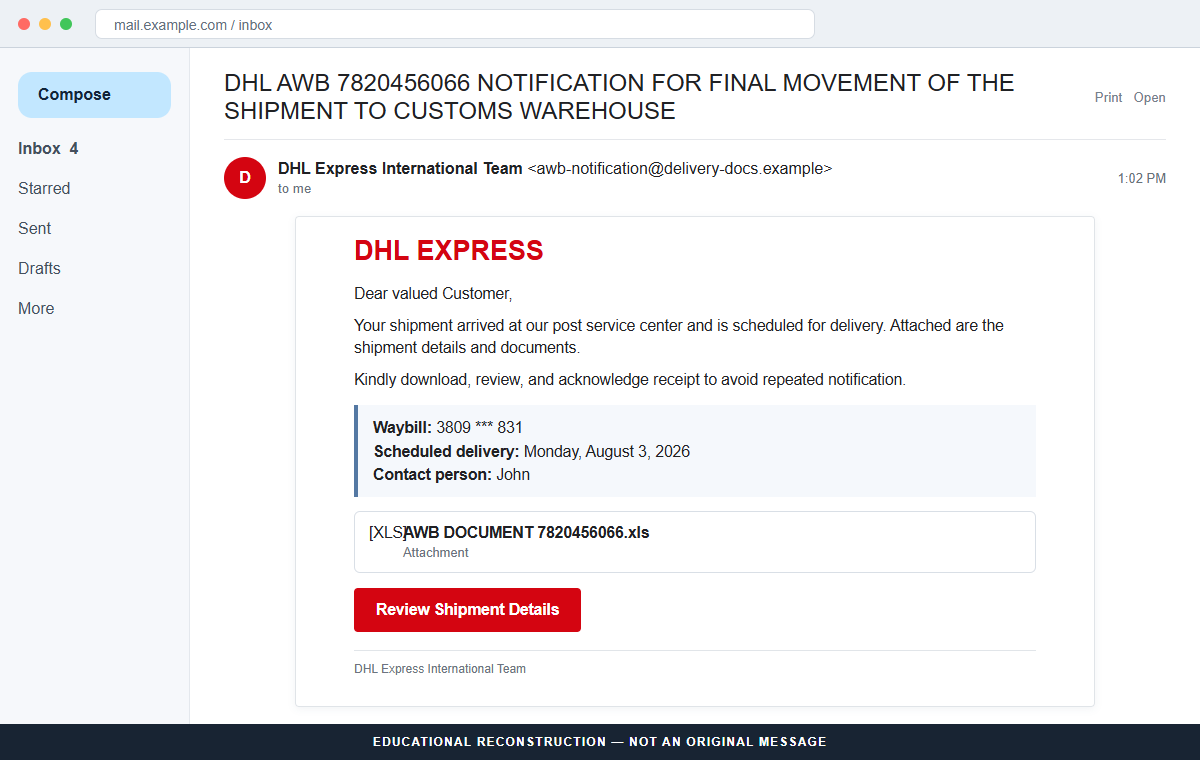
A DHL Express notice says a shipment reached the post service center and is scheduled for delivery. The waybill, contact person, date, and attached documents make it look like ordinary logistics work.
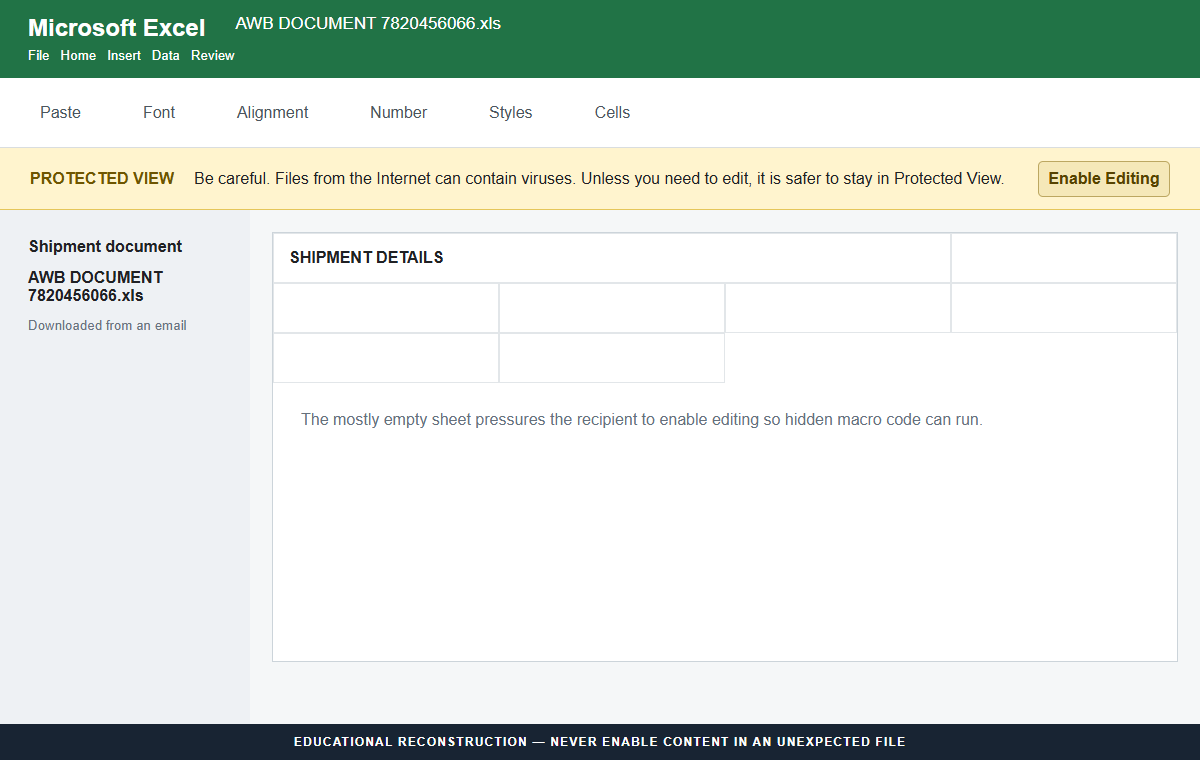
The DHL Shipment Arrived email scam hides its danger in the spreadsheet. The file appears almost empty in Protected View, prompting the recipient to click Enable Editing and activate code that can download malware.
Overview
The message describes a specific customs-warehouse shipment
The subject refers to DHL AWB 7820456066 and the final movement of a shipment to a customs warehouse. The body lists waybill 3809 *** 831, an arrival date, a scheduled delivery date, and a contact named John.
Those details are meant to look exported from a carrier system. They do not prove that a matching shipment exists or that DHL sent the message.
The attached XLS file appears to contain shipment documents
The attachment is named AWB DOCUMENT 7820456066.xls. Opening it in Excel shows Protected View and only a few mostly empty, merged cells rather than readable shipping information.
That emptiness creates a problem the recipient is tempted to fix. The expected document seems hidden, so clicking Enable Editing feels like a normal step rather than permission for active spreadsheet content.
Enabling editing can launch hidden malware delivery
Analysis of the spreadsheet found malicious macro code. Once editing is enabled, the code can execute and download additional malware in the background.
The exact final payload was not identified. Multiple antivirus engines detect the malicious document, but the later program could vary, so the response should cover data theft, remote access, encryption, and other possible outcomes without claiming one confirmed family.
- The subject claims final movement to a customs warehouse.
- A waybill, arrival date, delivery date, and contact person add specificity.
- The email asks the recipient to review and acknowledge attached documents.
- The attachment is AWB DOCUMENT 7820456066.xls.
- Excel opens the file in Protected View.
- The worksheet appears mostly empty until the user enables editing.
- Hidden macro code can then download an unknown malware payload.
- DHL has no connection with the campaign.
Why an Empty Spreadsheet Is Part of the Attack
Protected View is a security boundary, not a formatting problem. Office uses it for files from potentially unsafe locations, including internet downloads and email attachments, so active content cannot run with normal editing privileges immediately.
Attackers must persuade the user to cross that boundary. A blank or broken-looking sheet provides a visual explanation: the document is supposedly hidden because editing is disabled.
The recipient may believe that clicking Enable Editing simply reveals rows, images, or shipment details. In a malicious workbook, that action can also permit macros or exploit code to operate.
Shipping documents are an effective pretext because spreadsheets are genuinely used for manifests, invoices, packing lists, and customs data. A business user may open several such files each day.
The safe question is not whether Excel is commonly used. It is whether this exact shipment and attachment were expected, verified through DHL, and supplied through a trusted business channel.
What Microsoft and DHL Guidance Confirms
Analysis of the spreadsheet classified the campaign as malspam. Multiple security vendors detect the document as malicious, while the final downloaded payload remained unknown.
Microsoft warns that malicious Office macros can install malware when a user enables active content. Its guidance says not to enable content unless the file and its purpose are known with confidence.
DHL's Fraud Awareness page advises recipients to check for unfamiliar URLs, urgency, grammar problems, and suspicious attachments. Official messages use recognized DHL domains, though sender spoofing still requires content checks.
DHL asks users to report suspicious email to phishing@dhl.com, preferably as an attachment so complete headers are included. Genuine shipment questions should go to official customer support.
Antivirus names in the source describe detections for the malicious workbook, not a confirmed identity for whatever it later downloads. That distinction matters when deciding which systems, accounts, and files require review.
Legacy XLS files can support legitimate business workflows, so the extension alone does not prove malice. The combination of an unsolicited carrier story, unexpected attachment, empty sheet, and request to weaken Office protection creates the risk.
A current version can change the workbook name, waybill, date, and final malware. The durable attack is an unexpected carrier attachment that needs security features weakened before its supposed contents appear.
How the DHL Shipment Arrived Email Scam Works
Step 1: A customs-warehouse subject targets shipment anxiety
The subject says a DHL air waybill is making its final movement to a customs warehouse. A recipient may fear that a real parcel will be delayed or returned without action.
The campaign does not need access to DHL tracking. Bulk email reaches enough people who are expecting deliveries or handle shipments at work.
Step 2: Operational details imitate a logistics record
The body supplies a partly masked waybill, scheduled delivery, item count, and contact person. These fields resemble a template generated by a carrier or broker.
A named contact such as John is not useful verification. The complete shipment must match the retailer, sender, and official DHL tracking record.
Step 3: The attachment promises the missing details
Recipients are told to download or review the attached shipping documents and acknowledge receipt. The file is AWB DOCUMENT 7820456066.xls.
An XLS extension indicates an older Excel workbook, not a harmless text document. Spreadsheets can contain macros, embedded objects, links, and active code.
Step 4: Protected View limits the file initially
Excel recognizes that the attachment came from an unsafe source and opens it with editing restricted. A yellow security bar explains that internet files can contain viruses.
At this stage, the user should close the workbook. The protection is working as intended and should not be disabled to satisfy an unexpected email.
Step 5: Empty cells pressure the user to enable editing
The worksheet shows little useful content. The recipient may assume that editing must be enabled for the shipment data, images, or forms to load.
Clicking the button changes the security context. It can allow active workbook behavior that was blocked in Protected View.
Step 6: Hidden code downloads the next payload
Analysis found that malicious macros execute after editing is enabled and retrieve malware in the background. The download may not produce an obvious installer or warning.
The final payload was unknown during analysis. It could change between recipients or dates while the same XLS lure remains in circulation.
Step 7: The infection can remain silent
Malware may steal credentials, provide remote access, encrypt files, or install other components depending on the payload. Some threats wait or communicate quietly instead of displaying an immediate symptom.
Closing Excel and deleting the attachment does not reverse code that already ran. The device and accounts need a proper compromise assessment.
Company and Checkout Checks
The DHL display name must match a recognized sender domain
Expand the sender and Reply-To addresses. DHL publishes the domains it uses, but an apparently valid sender can still be spoofed, so shipment details and attachments must also be verified.
Forward suspicious messages through DHL's official reporting route rather than replying to the sender or using links in the footer.
The waybill must exist in official tracking
Open DHL from a saved bookmark or manually entered address and check the complete number. Compare the sender, destination, retailer order, and expected delivery.
A masked or unrelated tracking number cannot authenticate a file. Contact the merchant if the complete number is not available.
The XLS attachment is active content, not a passive invoice
An Excel workbook can execute macros and load external content. A filename containing AWB or DOCUMENT describes the lure, not the actual behavior.
Do not enable editing, content, macros, add-ins, or data connections in an unexpected shipment file.
An unknown final payload requires careful qualification
The malicious document is established, but the program it downloads was not identified. It is accurate to describe potential impacts of malspam while avoiding a false claim that one specific trojan infects every victim.
Security teams should collect the attachment, process tree, network connections, and alerts to determine what happened on the affected device.
Warning Signs to Check Before You Act
- You were not expecting the shipment or the waybill does not match.
- The sender claims to be DHL but uses an unrelated domain.
- The email asks you to acknowledge receipt after opening a file.
- The attachment is an unexpected XLS workbook.
- Excel opens it in Protected View.
- The sheet is mostly empty or claims content is hidden.
- Instructions require Enable Editing or Enable Content.
- The workbook tries to contact an outside server or download a file.
- The final malware type is described confidently despite no sample evidence.
- DHL and the supposed sender cannot confirm the shipment independently.
Protected View is the warning, not the obstacle. An unexpected shipment spreadsheet that only becomes useful after security restrictions are removed should be closed and verified outside the email.
Even when the attachment looks blank, enabling active content can turn a routine spreadsheet into the starting point for malware delivery.
What to Do if You Have Fallen Victim to This Scam
- If you only read the email, leave the attachment closed. Viewing the message alone does not normally trigger the workbook code. Report it, preserve headers if needed, and delete it without replying or using footer links.
- If the XLS was downloaded but never opened, delete and scan it. Remove the file from Downloads and the recycle bin without previewing it. Run an updated scan and check whether the email or browser saved any additional files.
- If it opened only in Protected View, close it without enabling anything. Do not click Enable Editing, Enable Content, or a similar button. Delete the file and run a scan. Risk is lower when active content remained blocked.
- If editing or macros were enabled, disconnect the device. Turn off Wi-Fi or unplug Ethernet to interrupt downloads and remote commands. Do not use the computer for banking, email, password changes, or sensitive work.
- Notify IT or incident response promptly. A workplace team can isolate the endpoint, preserve evidence, review macro execution, inspect network traffic, and check whether other employees received the same attachment.
- Run full and offline security scans. Use Malwarebytes or another trusted anti-malware product for a complete scan. Consider Microsoft Defender Offline or professional analysis because an unknown second-stage payload may have established persistence.
- Change sensitive credentials from a clean system. Prioritize email, banking, password managers, workplace accounts, and passwords used while the infected computer was active. Revoke sessions and enable strong multi-factor authentication.
- Review files, backups, and financial activity. Check for encryption, missing data, unfamiliar processes, new users, transactions, and account alerts. Keep offline or versioned backups disconnected until the system is assessed.
- Use blocking as an additional preventive layer. AdGuard or another reputable DNS and content blocker can stop some known malicious links and advertising domains. It does not neutralize a spreadsheet already opened or code already executed.
- Report the message to DHL and relevant authorities. Send the email as an attachment to phishing@dhl.com following DHL's guidance. Report financial or identity losses to the bank, police, FTC, or appropriate national cybercrime service.
Is Your Device Infected? Run a Free Malware Scan
Slow performance, constant pop-ups, or strange behavior? These are classic signs of a malware infection. The fastest way to find out is to scan your device with Malwarebytes Free — one of the most trusted malware removal tools available.
The free version detects and removes the most common threats, including:
- Adware — the cause of those annoying pop-ups
- Browser hijackers — unwanted redirects and changed homepages
- Trojans and spyware — hidden programs stealing your data
- Potentially unwanted programs (PUPs) — software you never asked for
👉 Select your device below — Windows, Mac, or Android — then follow the simple steps to download Malwarebytes, scan your system, and remove any threats it finds. The scan usually takes 5 to 20 minutes.
Run a Malware Scan with Malwarebytes for Windows
Malwarebytes is one of the most popular and trusted anti-malware tools for Windows — and it’s completely free for removing infections. It catches threats that many antivirus programs miss, including adware, browser hijackers, and trojans. Follow the steps below to scan and clean your PC in just a few minutes.
Download Malwarebytes
Click the button below to download the latest version of Malwarebytes for Windows from the official source. The free version is all you need — it will scan your computer and remove adware, browser hijackers, and other malicious software at no cost.
Download MalwarebytesOfficial installer for Windows 11 and 10. Your download starts right away.Want real-time protection? See Malwarebytes Premium Malwarebytes Free for WindowsScans and removes malware at no cost
-
Install Malwarebytes
When the download finishes, open your Downloads folder and double-click the MBSetup file. If Windows shows a User Account Control pop-up, click “Yes” to allow the installation.

Follow the On-Screen Prompts to Install Malwarebytes
The setup wizard will walk you through a few quick screens:
-
Choose where you’re installing the program — “Personal Computer” or “Work Computer” — then click Next.

-
Malwarebytes will now install on your device. This usually takes under a minute.

-
When installation is complete, the “Welcome to Malwarebytes” screen will open automatically.

-
On the final screen, click Open Malwarebytes to launch the program.

-
Enable “Scan for Rootkits”
Before scanning, turn on rootkit detection so Malwarebytes can find even the most hidden threats. Click the Settings gear icon on the left side of the screen.

In the settings menu, find “Scan for rootkits” and click the toggle so it turns blue.

Done? Click “Dashboard” in the left pane to return to the main screen.
Start the Scan
Click the blue Scan button. Malwarebytes will automatically update its virus database and start checking your computer for malware.

-
Wait for the Scan to Finish
The scan checks your entire system for browser hijackers and other malicious programs, so it can take 5 to 20 minutes depending on your computer. Feel free to do something else — just check back occasionally to see the progress.

-
Quarantine the Detected Threats
When the scan is done, you’ll see a list of everything Malwarebytes found — malware, adware, and potentially unwanted programs. Click the “Quarantine” button to remove all of them at once.

Malwarebytes will now remove the malicious files and registry entries and move them safely into quarantine.

-
Restart Your Computer
Some threats can only be fully removed after a reboot. If Malwarebytes asks you to restart, click Yes. Once you’re logged back in, Malwarebytes has finished removing the threats it found.

That’s it — your Windows PC is now clean of trojans, adware, and other malware, and should be back to running smoothly.
If you are still having problems with your computer after completing these instructions, then please follow one of the steps:
- Run a computer scan with ESET Online Scanner
- Ask for help in our Windows Malware Removal Help & Support forum.
Run a Malware Scan with Malwarebytes for Mac
Malwarebytes for Mac is a free on-demand scanner that removes the malware other security software tends to miss — adware, browser hijackers, and unwanted programs included. Cleaning an infected Mac with Malwarebytes has always been completely free, and it’s our go-to recommendation. Follow the steps below to scan and clean your Mac in just a few minutes.
-
Download Malwarebytes for Mac
Click the button below to download the latest version of Malwarebytes for Mac.
Download MalwarebytesOfficial installer for macOS. Your download starts right away.Want real-time protection? See Malwarebytes PremiumMalwarebytes Free for MacScans and removes malware at no cost -
Open the Malwarebytes setup file
When the download finishes, open your Downloads folder and double-click the setup file to begin the installation.

-
Follow the On-Screen Prompts to Install Malwarebytes
The Malwarebytes for Mac Installer will guide you through a few quick screens. Click “Continue” and keep following the prompts until the installation completes.



When the installation is complete, Malwarebytes opens to the Welcome to Malwarebytes screen. Click “Get started“.
-
Select “Personal Computer” or “Work Computer”
Malwarebytes will ask what type of computer you’re installing it on. Click either Personal Computer or Work Computer, whichever applies.

-
Start the Scan
Click the “Scan” button. Malwarebytes will automatically update its detection database and begin checking your Mac for malware.

-
Wait for the Scan to Finish
Malwarebytes will scan your Mac for adware, browser hijackers, and other malicious programs. This can take a few minutes, so feel free to do something else — just check back occasionally to see the progress.

-
Quarantine the Detected Threats
When the scan is done, you’ll see a list of everything Malwarebytes found. Click the “Quarantine” button to remove all the threats at once.

-
Restart Your Mac
Malwarebytes will now remove all the malicious files it found. Some threats can only be fully removed after a reboot — if Malwarebytes asks you to restart, allow it. Once you’re logged back in, your Mac is clean.

That’s it — your Mac is now free of adware, rogue browser extensions, and other potentially harmful software.
If you are still experiencing problems while trying to remove a malicious program from your computer, please ask for help in our Mac Malware Removal Help & Support forum.
Run a Malware Scan with Malwarebytes for Android
Malwarebytes for Android automatically detects and removes dangerous threats like malware and ransomware so you don’t have to worry about your most-used device being compromised. Aggressive detection of adware and potentially unwanted programs keeps your Android phone or tablet running smooth.
-
Download Malwarebytes for Android.
You can download Malwarebytes for Android by clicking the link below.
Get Malwarebytes for AndroidOpens Google Play in a new tab.Want real-time protection? See Malwarebytes Premium for AndroidMalwarebytes for AndroidScans your phone and removes malware at no cost -
Install Malwarebytes for Android on your phone.
In the Google Play Store, tap “Install” to install Malwarebytes for Android on your device.

When the installation process has finished, tap “Open” to begin using Malwarebytes for Android. You can also open Malwarebytes by tapping on its icon in your phone menu or home screen.

-
Follow the on-screen prompts to complete the setup process
When Malwarebytes will open, you will see the Malwarebytes Setup Wizard which will guide you through a series of permissions and other setup options.
This is the first of two screens that explain the difference between the Premium and Free versions. Swipe this screen to continue.
Tap on “Got it” to proceed to the next step.
Malwarebytes for Android will now ask for a set of permissions that are required to scan your device and protect it from malware. Tap on “Give permission” to continue.
Tap on “Allow” to permit Malwarebytes to access the files on your phone.
-
Update database and run a scan with Malwarebytes for Android
You will now be prompted to update the Malwarebytes database and run a full system scan.

Click on “Update database” to update the Malwarebytes for Android definitions to the latest version, then click on “Run full scan” to perform a system scan.

-
Wait for the Malwarebytes scan to complete.
Malwarebytes will now start scanning your phone for adware and other malicious apps. This process can take a few minutes, so we suggest you do something else and periodically check on the status of the scan to see when it is finished.

-
Click on “Remove Selected”.
When the scan has been completed, you will be presented with a screen showing the malware infections that Malwarebytes for Android has detected. To remove the malicious apps that Malwarebytes has found, tap on the “Remove Selected” button.

-
Restart your phone.
Malwarebytes for Android will now remove all the malicious apps that it has found. To complete the malware removal process, Malwarebytes may ask you to restart your device.
That’s it — your Android phone is now clean — no more malicious apps, adware, or browser redirects.
If you are still having problems with your phone after completing these instructions, then please follow one of the steps:
- Restore your phone to factory settings by going to Settings > General management > Reset > Factory data reset.
- Ask for help in our Mobile Malware Removal Help & Support forum.
Stay Protected: Block Ads and Malicious Sites
Now that your device is clean, keep it that way. Most infections start with a malicious ad or a fake download button — so blocking them at the source is your best defense.
We recommend AdGuard, which blocks malicious ads, phishing pages, and dangerous redirects before they can reach you.
👉 Download AdGuard and browse safely
Frequently Asked Questions
Is the DHL Shipment Arrived email legitimate?
The documented campaign is not. Its Excel attachment contains malicious code and DHL is not associated with the message.
What is AWB DOCUMENT 7820456066.xls?
It is the malicious spreadsheet attached to the documented campaign. The shipping-themed name is intended to make the workbook look operational.
Why does the worksheet look empty?
The lack of visible details encourages users to click Enable Editing. That action can allow hidden macro code to execute.
Is opening the file in Protected View enough to infect the PC?
Risk is lower while active content remains blocked. Close the file without enabling editing, delete it, and run a scan to be safe.
Which malware does the spreadsheet download?
The exact final payload was not identified. The document is malicious, but naming a particular trojan or ransomware family would go beyond the available evidence.
Where should I report the message?
DHL asks recipients to send suspicious email to phishing@dhl.com, preferably as an attachment with complete headers. Use official customer support for shipment questions.
The Bottom Line
The DHL Shipment Arrived email scam turns a routine customs attachment into a malware launcher. The waybill and delivery details create trust, while the empty workbook persuades the recipient to disable the protection keeping its code contained.
Do not click Enable Editing in an unexpected shipping file. Verify the shipment through DHL, close the workbook, and report the message through the company's official fraud channel.
If active content was enabled, isolate the computer and respond to an unknown malware exposure. Scan thoroughly, involve IT where applicable, secure credentials from a clean device, and monitor for effects that may not appear immediately.

Join the discussion
0 commentsShare your experience or ask a question about this article.
Discussion
Start the conversation
Have a question or something useful to share? Add the first comment.