

A formal notice says your mailbox has not acknowledged a new usage policy. Complete the review before the deadline, it warns, or email access may be suspended and important features limited.
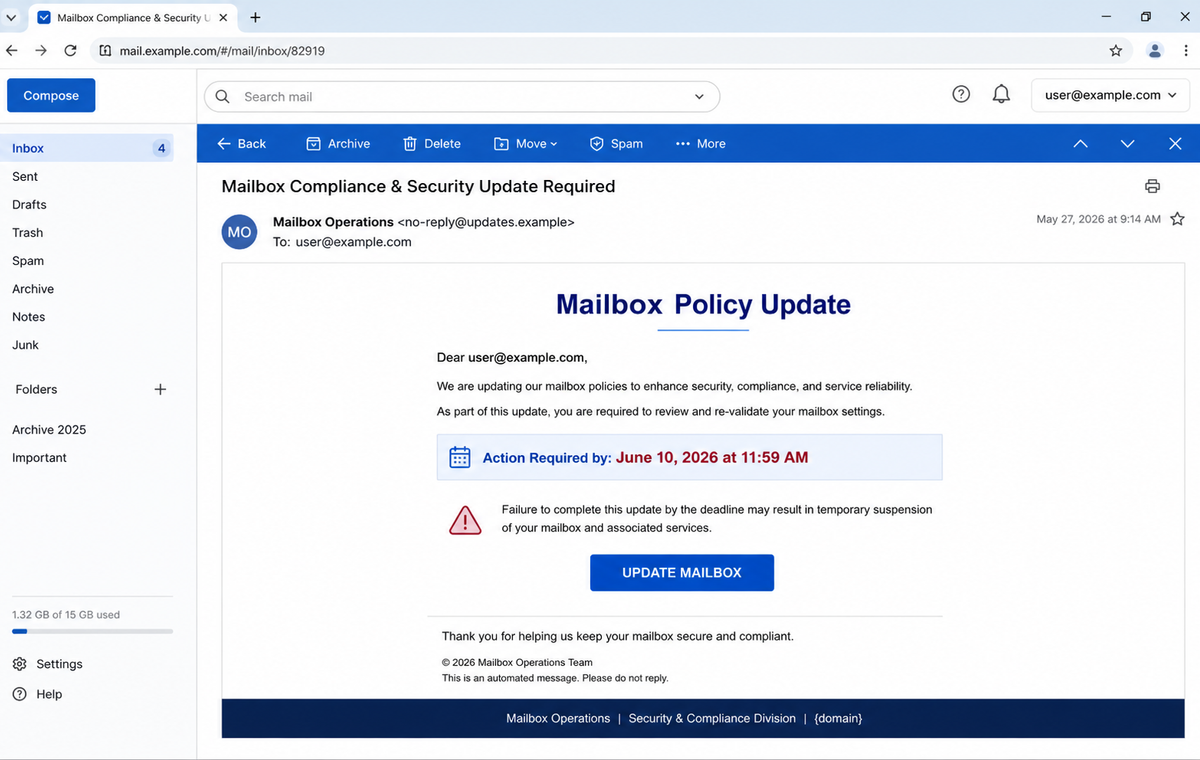
The Mailbox Policy Update Email Scam disguises password theft as routine compliance.
Its message uses security language, a precise date, and a one-minute review promise to make the Update Mailbox button feel like ordinary account administration.
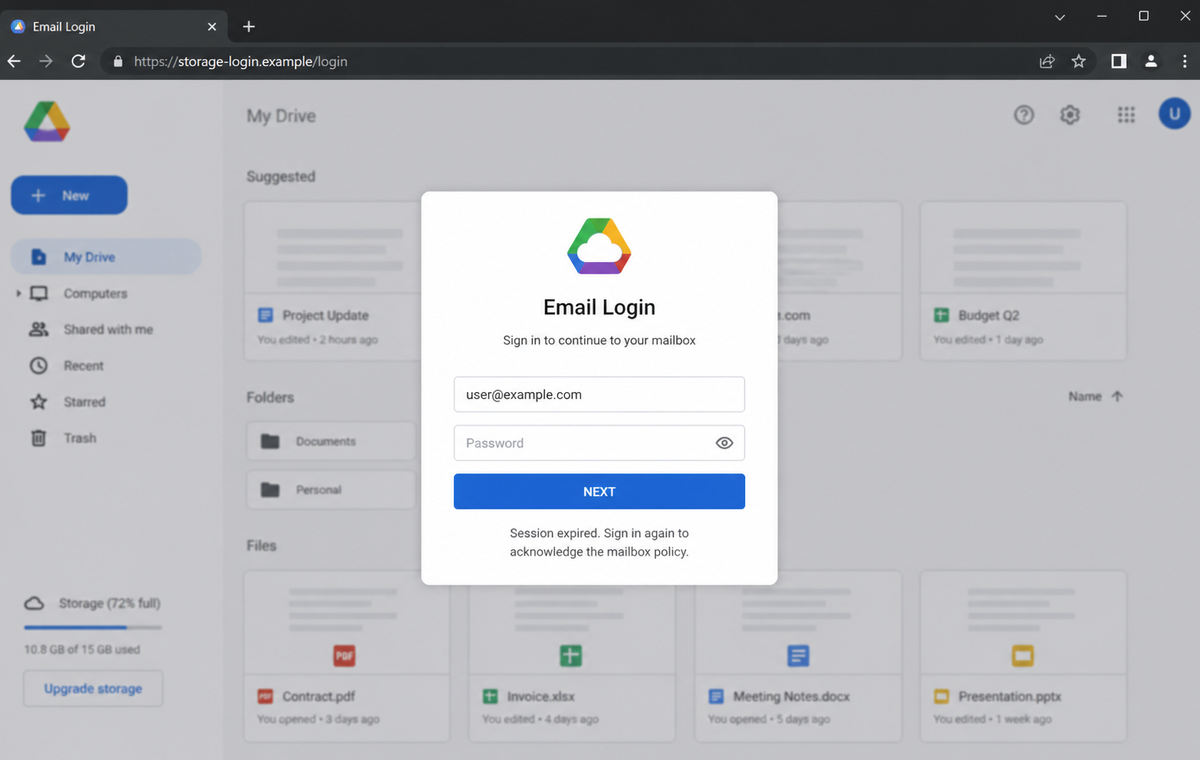
The destination is not an authenticated provider portal. It is a fake login page hosted on cloud infrastructure, with a familiar account background and a form that sends the submitted password to the campaign operator.
Do not acknowledge a policy through an unexpected email. Open the real provider from a bookmark or application, check account notices there, and contact workplace IT through an established channel if the mailbox belongs to an organization.
Overview
A compliance notice makes the request sound routine
The email arrives with the subject “Mailbox Compliance & Security Update Required.” It says the provider updated its Terms of Service and Usage Policy to improve reliability, performance, and account security.
According to the message, the recipient has not yet acknowledged the revision. A precise deadline and the threat of temporary suspension create a simple choice: click Update Mailbox now or risk losing access later.
An unreplaced placeholder reveals the mass-mail template
The footer contains the visible placeholder “{domain}” where a provider or customer domain should have been inserted. That mistake shows the message was generated from a reusable template rather than from a functioning account-management system.
Other fields may be personalized correctly because mailing software can insert the recipient's address. One accurate value does not repair the missing provider identity or prove that the sender has access to mailbox records.
Cloud hosting gives the fake login a misleading air of safety
The button leads to a page hosted on cloud-storage infrastructure. The page overlays a provider-style login dialog on a familiar background and may prefill the email address, making it appear that the service recognizes the account.
Cloud platforms host legitimate customer content, but customers control what they upload. A reputable platform name in part of the address or a valid HTTPS certificate does not prove that the page belongs to the company shown in the design.
- The subject combines mailbox compliance and security.
- The body claims new Terms of Service and Usage Policy require acknowledgment.
- Temporary suspension or limited functionality is threatened.
- A precise deadline makes the mass email feel account-specific.
- The review is described as taking less than a minute.
- Update Mailbox is presented as the only route to remain active.
- The footer exposes an unreplaced {domain} placeholder.
- The destination is hosted outside the real mailbox provider's domain.
- A provider-style sign-in form requests the current password.
- Stolen inbox access can unlock resets, documents, and trusted conversations.
How Genuine Mailbox Policy and Security Notices Work
Email providers do update service terms, privacy notices, security controls, and acceptable-use policies. A real change should be traceable inside the provider's authenticated account, administrative console, help center, or published policy archive.
Managed business accounts create another verification route. An administrator can inspect the vendor console, change log, service-health dashboard, and support case history. A genuine mandatory action should not exist only in one recipient's unsolicited email.
Some policy changes require acceptance, while others take effect automatically after notice.
The provider should identify the exact document, effective date, affected product, organization, and consequences instead of using a generic statement that fits any mailbox.
When authentication is necessary, the safest path starts from the provider's known domain or official application. The user should not be redirected through unrelated storage, compromised sites, URL shorteners, or a page that merely copies familiar sign-in artwork.
Google's security guidance tells users to go directly to account controls when a password may be unsafe. Recent security events, devices, recovery methods, filters, and forwarding rules can be reviewed within the real account without relying on the message.
A provider may send a real alert, but an attacker can copy its wording. The decisive evidence is whether the same event appears after an independent sign-in and whether the registered hostname belongs to the expected service.
Clues That Expose the Fake Mailbox Policy Update
The sender calls itself a Security and Compliance Department without naming a provider. Generic identity lets the same template target Gmail, Outlook, hosted-domain, school, and workplace users without changing the core message.
The unreplaced {domain} marker is direct evidence of incomplete mail-merge automation. A real system already knows the service domain it operates and should not send a production notice with a template variable visible to the customer.
The deadline and one-minute promise are designed to reduce thought, not supply evidence. The message does not identify the revised policy section, an effective-date record, administrator reference, support case, or link to a public change notice.
The final hostname belongs to cloud-hosting infrastructure rather than the mailbox provider. Criminals can upload a static login form to reputable infrastructure; the host's reputation does not authenticate the customer content stored there.
A prefilled email address is not proof of a valid session. The address can be embedded in the email link, read from a URL parameter, or requested on an earlier screen before the password field appears.
The fake page may reject the first password or redirect to the real provider afterward. That behavior can conceal the theft, encourage a second password entry, and leave the victim thinking the update completed successfully.
How the Mailbox Policy Update Email Scam Works
Step 1: A provider-neutral template reaches many kinds of inboxes
Attackers send the same compliance language to addresses gathered from breaches, websites, business directories, marketing lists, and automated guesses. The generic provider identity helps the message remain relevant to different services.
Basic mail merge can insert the recipient's address while leaving other variables, such as {domain}, unfinished.
Step 2: Policy language turns password entry into a duty
Terms, usage rules, security, and compliance are words people expect from service providers. The email frames the request as administrative housekeeping rather than a security incident or financial demand.
That calm framing can be more effective than an exaggerated warning because employees are used to accepting updated policies.
Step 3: A deadline links hesitation with mailbox suspension
The recipient is told that failure to acknowledge the change will temporarily suspend the account or limit functionality. A fixed date makes the consequence feel automated and unavoidable.
The claim is not supported by an account identifier, organization name, administrator notice, or matching event in the real provider portal.
Step 4: Update Mailbox leaves the provider's trusted domain
The button opens an external page, sometimes through several redirects. A long cloud-storage address may contain familiar company words while the actual registered hostname belongs to a hosting service or an unrelated customer domain.
On mobile, the shortened address bar makes this change even easier to miss.
Step 5: A familiar sign-in screen collects the password
The page can adapt its colors or background to the recipient's email domain. It may display the address in advance and ask only for the password, creating the illusion of a continuing provider session.
The form sends the value to the attacker. It is not authenticating against the real mailbox service.
Step 6: The attacker tests the credentials and preserves access
Stolen credentials are tested quickly, often from a new location or automated infrastructure. If multi-factor authentication is weak, the criminal may trigger repeated prompts, steal a session token, or abuse recovery information found elsewhere.
Forwarding, inbox rules, application passwords, and OAuth grants can keep messages flowing to the attacker after the primary password changes.
Step 7: The compromised inbox enables wider impersonation
Private mail reveals invoices, contacts, cloud files, password resets, calendars, and business relationships. The criminal can reply inside genuine threads, request payment changes, or reset accounts tied to the address.
Contacts may trust those follow-up messages because they come from the real mailbox and fit existing conversations.
Company and Checkout Checks
Open the provider account without the email
Use the official application, a saved bookmark, or an address stored in the password manager. Check notifications, security events, policy messages, and administrative tasks after signing in directly.
If no matching action exists, do not return to the email button.
Ask for the exact policy record
A valid notice should identify the provider, policy name, revised section, effective date, affected service, and a stable public record. Generic references to compliance are not enough.
For workplace accounts, ask IT or the administrator through a known telephone number or internal channel.
Inspect the registered hostname before entering a password
Read the address from right to left and identify the domain controlled by the page operator. Words such as mail, secure, storage, update, and login can be placed in paths or subdomains without creating provider ownership.
HTTPS encrypts the connection to that hostname; it does not certify the claim displayed on the page.
Treat placeholders and copied backgrounds as evidence
A visible {domain} variable shows the sender failed to complete its own template. A copied sign-in background proves only that the operator can reproduce public artwork.
Trust the authenticated account record and established support route, not decorative familiarity.
Warning Signs to Check Before You Act
- The provider is never clearly named.
- A policy update is tied to immediate account suspension.
- The exact revised policy and effective record are missing.
- The review is described as taking less than a minute.
- Update Mailbox is the only path offered.
- The footer contains the unreplaced placeholder {domain}.
- The destination does not match the established provider hostname.
- Cloud-storage branding is mistaken for provider ownership.
- The email address is prefilled to imitate account recognition.
- The page requests the current mailbox password.
- No matching task appears after direct sign-in.
- The sender cannot be verified through known support channels.
A real provider notice can be confirmed from inside the account. When the email supplies the only evidence, the only deadline, and the only login route, it is asking the recipient to trust the very channel under examination.
What to Do if You Have Fallen Victim to This Scam
- Change the exposed password immediately. Open the email provider's official application, account portal, or workplace identity dashboard through a saved bookmark or its official application, not through the Mailbox Policy Update message. Set a long password through the real provider after that mailbox-policy message. Change matching or closely related passwords on other accounts.
- Treat the password entered after the mailbox policy update as compromised. Set a long password through the real provider after that mailbox-policy message. Change matching or closely related passwords on other accounts. Audit the authentication methods registered after this mailbox-policy case. Remove unknown telephone numbers, recovery addresses, app passwords, and security keys.
- End the access created through the mailbox policy update. Sign out all other sessions from the email provider’s official portal, revoke unfamiliar OAuth grants, and reconnect trusted mail applications only after the password change. This closes tokens that can survive a simple reset.
- Review the mailbox for changes connected with the mailbox policy update. Remove unknown forwarding addresses, delegates, inbox rules, filters, and automatic replies. The mailbox history surrounding this mailbox-policy incident may expose attacker activity. Inspect sent mail, deleted items, trash, and recovery messages.
- Protect the wider account chain. Prioritize webmail, cloud files, and accounts recovered through the mailbox. The mailbox involved in that mailbox-policy message may unlock other accounts through reset links. Change those credentials before an intruder does.
- Review provider-specific sign-ins and security settings. Check recent activity, trusted devices, recovery methods, OAuth applications, app passwords, mailbox delegates, forwarding, filters, and sent mail. Preserve screenshots of unfamiliar sessions or configuration changes before removing them.
- Check the device used to open the mailbox policy update. Use Malwarebytes after that mailbox-policy message whenever an attachment or browser add-on was opened. Review installed software before returning to banking or email.
- Reduce the chance of reopening a related page. AdGuard or another reputable DNS and content blocker may stop known phishing hosts and malicious advertisements tied to the mailbox policy update. Keep checking destination addresses after this mailbox-policy case. New campaign domains can appear faster than blocklists update.
- Report the phishing message. Use the mail provider's Report Phishing control and notify the provider's abuse team, the cloud host, and the organization's administrator or security team. Keep the original headers for this mailbox-policy incident, not only a cropped screenshot. Administrators can use them to trace and block related messages.
- Warn mail administrator, coworkers, and recent contacts through a separate channel. Explain that the mailbox policy update may have exposed the account and ask them to distrust recent file shares, password requests, invoices, payment changes, or urgent replies until the timeline is confirmed.
- Expect follow-up fraud based on the mailbox policy update. Anyone citing this mailbox-policy incident while promising recovery must be verified independently. A demand for money first is a warning sign. Seek support for this mailbox-policy phishing attempt through known channels. A provider or incident responder verified for this mailbox-policy phishing attempt is safer than an unsolicited fixer.
Frequently Asked Questions
Is the Mailbox Policy Update email genuine?
No. The campaign described here uses a generic compliance notice and a cloud-hosted fake login page to collect mailbox passwords.
Do email providers ever update their policies?
Yes, but a genuine change should be documented inside the authenticated account or administrative portal and identify the exact provider and policy.
Why is {domain} visible in the footer?
It is an unreplaced template variable. Its presence shows the message was mass-generated and not properly tied to a functioning provider account system.
Does a cloud-hosted address make the page safe?
No. Cloud providers host customer content. Attackers can misuse that infrastructure, and the platform name does not authenticate a login form uploaded by a customer.
What if I entered the wrong password?
Change any password you submitted. Phishing forms may store every attempt, and an older or similar password may still expose another account through reuse.
What can an attacker do with my inbox?
They may read private mail, reset linked accounts, add forwarding rules, impersonate you in existing conversations, steal documents, and target contacts with more convincing fraud.
The Bottom Line
The Mailbox Policy Update Email Scam makes credential theft look like a routine compliance task. Its deadline, provider-style design, and cloud-hosted page cannot replace a real notice inside the authenticated account.
Open the provider independently and look for the exact policy change. If the message contains an unresolved placeholder or sends you to an unrelated hostname, delete it and report the campaign.
If a password was submitted, change it immediately, revoke sessions, inspect forwarding and recovery settings, secure linked accounts, scan the device, preserve evidence, and warn contacts if the inbox was used.








