

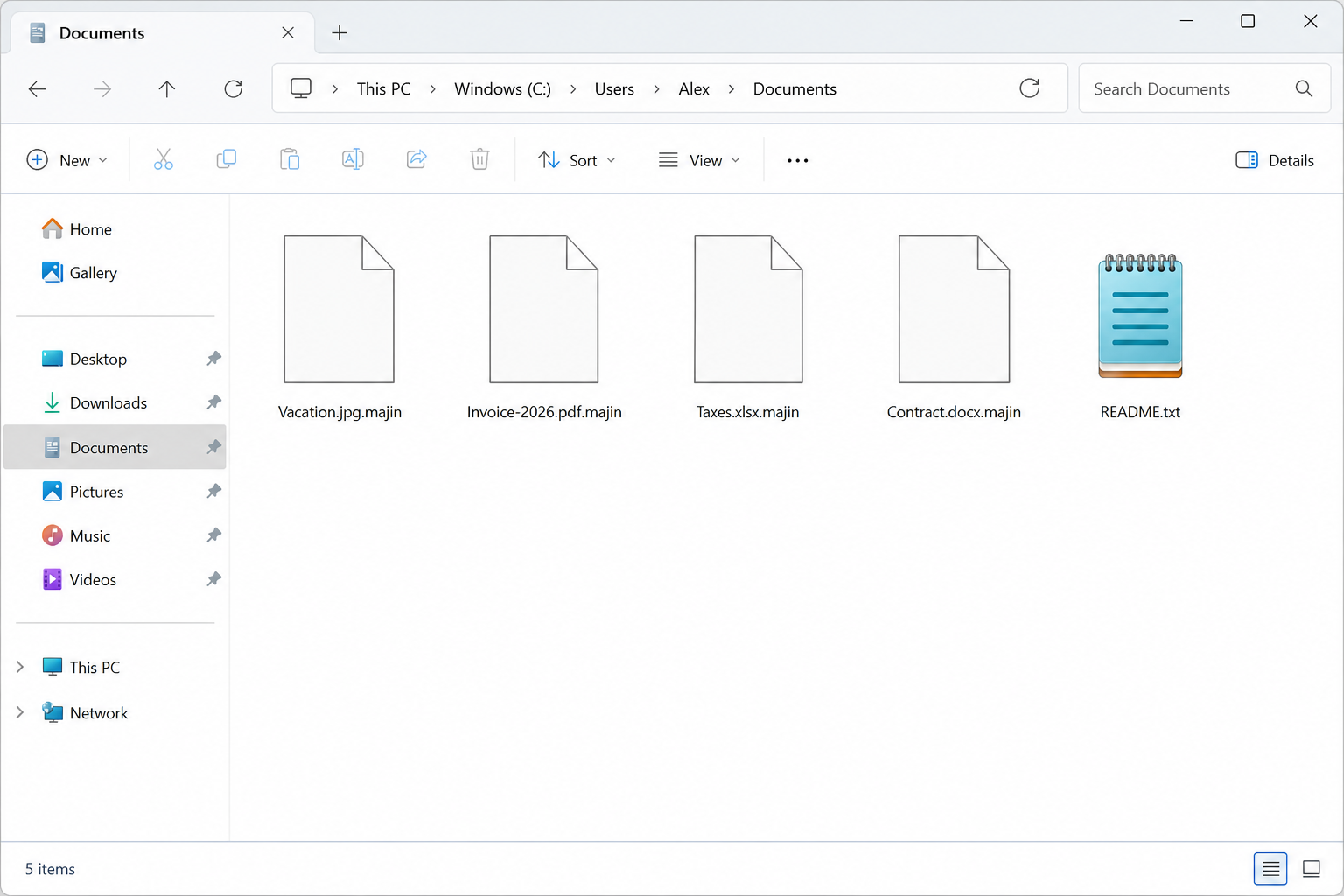
You open the folder you use every week. The vacation photo is still listed. The invoice is still listed. The tax spreadsheet is still listed. Then you notice the names. Each one still starts the way you left it. Each one now ends with .majin. A plain text file called README.txt is sitting in the same place as if it has always belonged there.
That file is the sales pitch. MAJINAHANASHI ransomware locks the files first, then tells you the only way back is a private chat with the people who locked them. The note offers to decrypt two files as “proof.” It is a demo, not a rescue. It also warns you not to talk to anyone in the middle. That warning is not care. It is a fence around their checkout aisle.
The moment those names appear is the moment you need the trap in the note, not a miracle key. A two-file sample is not a contract. The contacts printed in README.txt are a storefront, not a help desk.
Overview
The trap is the storefront in README.txt. The same people who made the files unreadable now present themselves as the only honest broker. They want a private conversation, a two-file demo, and then a payment for a key they claim only they hold. There is no public free decryptor known for MAJINAHANASHI. There is no reason to write to the contacts in the note. There is no reason to pay.
MAJINAHANASHI ransomware is a file locker with a Japanese-themed name. Split the word and it reads like a ghost story. MAJIN is a djinn or a spirit. AHANASHI is a story. The branding is theatrical. The damage is ordinary and ugly. Documents, photos, spreadsheets, archives, and other everyday files are encrypted where they sit. The original names stay. Then .majin is added on the end.
A file that used to be contract.docx becomes contract.docx.majin. Vacation.jpg becomes Vacation.jpg.majin. The familiar part of the name is still there so you can see exactly what you lost. Taking .majin off the name does not open the file. The bytes are locked. The extra letters are a label, not a switch.
After the files are locked, the malware drops README.txt. Public notes in this campaign speak in short, certain sentences. They say the files were encrypted where they sat. They say a unique key was used per file, then wrapped under an offline key that leaves with the attackers. They say backups and copies that would have made an easy rollback were removed because those copies “get in the way.” They say no files were deleted and no data was corrupted. They say every byte can be recovered. That last line is the product.
Then the note changes the subject. It says a copy of your internal data was taken during the process. It frames that sentence as a fact, not a threat. If an agreement is reached, the copies are destroyed, or so the note claims. If no agreement is reached, the data “finds new owners.” That is two kinds of pressure at once. One lock on the disk. One lock on the story of what they say they copied.
The same note tells you how to start the conversation. Contact is offered through qTOX and through a Proton Mail address in the note. One published sample used the redacted address cyclops_fa**ot@proton.me. A case ID is printed in the same file. In one published note that ID was CD42A401. Treat that string as an example from that note, not as a universal docket that every victim will see. Other machines can carry a different ID. The ID is a ticket the criminals invented so they can tell one locked computer from another.
They also offer to decrypt two files as proof that recovery is possible. And they warn you not to use intermediaries. Not consultants. Not anyone who would stand between you and their inbox. That line is doing a job. It keeps the sale in a channel they chose, on a clock they control, with no witness who might tell you to stop.
The .majin name is the first warning
Ransomware families pick an extension so the victim notices the change in seconds. MAJINAHANASHI uses .majin and leaves the rest of the filename alone. That choice is not kindness. It is a billboard. You can still read Invoice-2026.pdf in front of the new ending. You can still see that the family photos are the family photos. The folder looks almost right, which makes the shock land harder.
The same pattern also makes a later scam easier. Anyone who sees a pile of .majin files can pretend they already “have your case.” They can quote the extension back to you. They can offer a paid unlock. The extension is branding. It is not a hint that the file can be renamed back to normal.
Do not bulk-rename the files to hide .majin. Do not run a random “extension fixer” you found in an ad. Those moves can scramble a file that a later official decryptor might still have been able to read. Leave the locked copies as they are until you have a clean machine and a real recovery plan that does not start in a criminal inbox.
README.txt is a sales floor, not a help file
The note is short on comfort and long on certainty. It tells you the files are locked. It tells you the keys left with the attackers. It tells you the easy rollback paths were cleared on purpose. Then it tells you every byte can still come back. The swing from “we took the keys” to “we can fix this” is the whole business model.
Read that swing the way you would read a street vendor who broke a phone and then offered to sell you the only spare part. The competence they are selling is the competence they created. A unique key per file sounds technical and personal. In practice it means they want you to believe there is no public path. It also means they can name a $ figure later that matches whatever they think you will pay, because they claim the key will not work for anyone else.
The note also says the data was not corrupted. That sentence is meant to stop you from panicking in a useful direction. If you believe the files are intact and only waiting for a key, you are more likely to sit still and wait for the people who wrote the note. Intact-looking filenames help that story. Locked bytes do not care how neat the names look.
The case ID is a ticket, not a court docket
One published README.txt printed the case ID CD42A401. That is a useful example because it shows the shape of the campaign. It is not a number you should expect on every machine. It is not a filing in a real system. It is not proof that a human already opened a support case for you.
Criminals like ticket numbers because tickets feel official. A case ID makes the chat feel like a process instead of a shakedown. It also gives them a handle. If you later paste that ID into a search box, you may find pages that repeat it. Some of those pages will be warnings. Some will be shops. Anyone who already knows CD42A401 can greet you by that ID and sound like they are already inside the case.
If your note shows a different ID, that does not mean you have a different, safer family. It means the operators printed a different token. Keep the note. Do not treat the token as a password, a decryptor, or a reason to start a conversation.
qTOX and a Proton Mail address are the checkout aisle
The note does not send you to a shop with a padlock icon and a return policy. It sends you to qTOX and to a Proton Mail address in the note. Those lines are identifiers. They tell you which campaign you are looking at. They are not a support queue.
qTOX is a messenger built for private chats. Proton Mail is a mail service people use when they want the mailbox itself to be harder to tie to a name. Both are useful if you are trying to stay hidden. Neither is useful if you are a victim trying to get a receipt, a real name, or a refund. There is no chargeback window on a qTOX thread. There is no manager to escalate to when the key never arrives.
One published note used the redacted address cyclops_fa**ot@proton.me. The local part of that address is meant to provoke, so this page keeps the redaction. Repeating the slur in full would do the attackers a favor. If your note shows that redacted pattern, you are looking at this campaign. If your note shows a different mailbox, you are still looking at a storefront. Do not write to either one.
Do not install qTOX “just to see.” Do not attach a file “just to ask a question.” Every message is a signal that a person is sitting in front of the locked machine and is willing to talk. That is the moment the price, the pressure, and the follow-up scams begin.
Two files as “proof” is a sales demo
The note offers to restore two files free of charge. That offer is designed to sound generous. It is also designed to stay small. Two files are enough to make a believer. Two files are not enough to give you your year back.
The demo does two jobs at once. First, it proves they can open something they locked. A junk screenshot or an old PDF coming back looks like competence. Second, it keeps the important files on the table. If they unlocked the payroll sheet, the only copy of a family video, or the contract you need on Monday, the leverage would drop. They want the leverage.
A two-file test also trains you to send data to a stranger. Once a file leaves the machine, you cannot control where it goes. Even a “worthless” file can hold a name, an address, a client logo, or a folder path that tells them what else you have. The demo is cheap for them. It is not free for you.
The intermediary warning is a fence
MAJINAHANASHI notes warn victims against intermediaries. The wording can mention consultants, recovery firms, or anyone who would step between you and the writers of the note. On a scared morning that line can sound like a consumer alert. In context it is a sales rule.
The operators do not want a third person in the chat who might tell you that payment is not a guarantee. They do not want a lawyer, an insurer, or a relative who has seen this movie. They want you alone with a case ID and a clock. Believe the part that says random middlemen can be a second scam. Do not believe the part that says the original inbox is the safe alternative.
Both paths can take your money. The original chat takes it as ransom. A fake “ransomware recovery expert” takes it as a deposit, then often circles back to the same criminals or to no one at all. Official help does not start with a $ retainer sent to a stranger who found you by your extension.
Who this campaign has been aimed at
Public ransomware trackers first listed MAJINAHANASHI as an active name in June 2026. Through the summer, victim listings have leaned toward organizations rather than a single famous brand. Restaurants and dining businesses have shown up more than once. Jewelry, retail, healthcare, engineering, and professional services have shown up as well. Country listings have included places such as Colombia, India, Thailand, France, Portugal, Italy, Bulgaria, Germany, Switzerland, Lithuania, Poland, and Spain.
That mix matters for a home reader too. A locker that is busy with restaurants and jewelers can still land on a laptop that came home from the office. A shared desktop in a small shop can hold both the company invoices and the family photos. The extension does not care which life those files belong to.
The group has also been described as a data broker as well as a locker, with leak pressure on top of the encryption. You do not need a leak-site tour to understand the pitch. If the note already claims a copy left the building, the operators want you thinking about customers, staff, and reputation as well as the files on disk. That claim can be true, inflated, or staged. You cannot verify it from inside the ransom chat. Treat it as pressure, not as a status report.
How The Ransomware Works
You do not need a lab report to understand the sequence. MAJINAHANASHI follows a consumer-facing script that many modern lockers use. It changes the files, leaves a note, offers a private chat, flashes a locked-device message, and then tries to keep you away from anyone who would tell you not to pay.
1. Everyday files keep their names and gain .majin
The first thing a person notices is not a skull wallpaper. It is a folder that looks almost right. Word documents, photos, tax PDFs, and zip archives still sit in the same places. The last part of each name is wrong.
MAJINAHANASHI appends .majin and leaves the original name in front. Taxes.xlsx is still readable as Taxes.xlsx.majin. That is why the screenshot looks so ordinary. The Documents folder still has documents. The icons may go generic because Windows no longer knows what to do with the new ending. Double-clicking does not open the photo. It does not open the invoice. It may offer you a useless “choose an app” prompt that cannot undo encryption.
Renaming is not decryption. Copying the file to a new folder is not decryption. Zipping the locked files and mailing them to a stranger is not decryption. The locked copies are evidence and, later, the raw material a trusted public tool would need if one ever appears. They are not puzzles you can solve by editing the filename.
2. README.txt takes over the conversation
The ransom note is a simple text file named README.txt. It is meant to be the first thing you double-click when you are already scared. The filename is ordinary on purpose. Plenty of real software drops a readme. This one uses that habit against you.
The note walks through what they say they did, what they say they took, and what they want you to do next. It is written like a report. “We entered. We looked around. We took what was there.” That voice is meant to sound calm and inevitable. Calm is a tactic. Inevitable is a sales claim.
Part of the note warns you not to modify encrypted files. Part of that warning is self-serving. The authors want you talking to them, not to a real incident responder. Part of it is still a useful caution in the wrong mouth. Mystery decrypt tools from ads can damage files. The safe reading is narrower than the note wants. Do not take technical advice from the attacker. Do not run a paid “decrypt now” app from a search ad.
3. They sell unique keys and a cleaned rollback path
The note’s technical story is simple enough for a scared person to repeat. Each file got its own key. Those keys sit under one offline key that left with the attackers. The copies that would have let you roll the machine back were cleared because they “get in the way.”
You should hear that story as a motive, not as a tutorial. The operators want you to believe two things at the same time. First, that self-help is impossible. Second, that they can reverse everything if you cooperate. Those two claims are how a locker becomes a shop.
There is no public $ menu printed as a fixed price in the note you are likely to see. If a number arrives later in qTOX or in mail, treat it as a demand. It is not a quote from a vendor with a refund policy. It is not a license fee. Public reporting around this name has included five-figure $ asks in at least one private chat. Your note may never print a number at all. The missing number is not mercy. It is a blank invoice they can fill in after they see how badly you want the files.
4. They claim a copy of your data already left
The second half of the note is the leak threat dressed as a status update. “This is not a threat, it is a statement of fact.” That sentence is a threat. It is just a threat that is trying not to sound like one.
Some ransomware crews do copy files before they encrypt them. Some exaggerate. Some stage a few screenshots and let your imagination do the rest. From the victim’s chair you cannot audit their server. You can only see that they want you thinking about customers, patients, staff, or family members while you decide whether to open qTOX.
Sending more files to “prove” what they already have is how a locker incident becomes a larger data incident. If they truly already have the copy, they do not need you to mail it again. If they do not, your upload is a gift. Either way, the chat is not a forensic lab.
5. qTOX and mail are where the price gets invented
Once you are in that chat, the script is predictable even if the wording changes. They will ask for the case ID. They will ask for two files. They will talk about time. They may claim the price goes up if you wait. They may claim a recovery company will only take a cut and still come back to them. That last line pairs neatly with the note’s warning about intermediaries. The whole story points at one inbox.
None of that is a service agreement. It is a funnel. The correct response is not a clever reply. It is no reply. Do not “negotiate to buy time.” Do not send a low $ counteroffer to see if they are real. Do not ask what coin they want. Curiosity is how the storefront stays open.
If a friend later says they will “handle the chat for you,” that friend has just volunteered to become the intermediary the note already told you to fear, and the operators already planned to ignore. Keep the friend. Drop the chat.
6. Two unlocked files keep the rest hostage
The proof offer is the moment many people feel hope. Two files open. The criminals say, see, we are real. Pay for the rest. That demonstration only proves they can unlock files they locked. It does not prove they will unlock the rest after they are paid. It does not prove the rest of your data is still only on your disk.
It also creates a sample they can reuse. A “recovery expert” who later asks you to forward those same two files is running the same funnel with a new logo. A video that says “send me two .majin files and I will show you the tool” is the same funnel with a subscribe button. Proof is a marketing word. In this campaign it is the first item in the cart.
If you already sent two files before you found this page, stop there. Do not send a third. Do not send a “more important” file because they said the first two were too small. Do not pay a deposit to “hold the price” after the demo. Save the note and any reply as evidence. Then leave the conversation.
7. The lock-screen theater is there to hurry you
Some victims also see a full-screen message after the files are locked. Public writeups of this family describe a seized-device layout. Large letters. A spaced-out brand name. A line that says the device has been locked. A line that says not to modify encrypted files. A pointer to README.txt. The wallpaper may change so the same message is waiting behind every window.
That screen is not a new encryption step. It is a billboard. It is there so you do not wander off and call a relative, an insurer, or a real technician before you have read the sales pitch. A wallpaper cannot unlock a file. Closing the message cannot unlock a file. The files were already changed before the drama appeared.
If you see that screen, do not treat it as a puzzle. Do not type anything into a field it offers. Do not hunt for a hidden button that “proves you are the owner.” Read the room. The room is a ransom note with bigger fonts.
8. A second shop offers the same miracle
After a ransomware incident, search results and inbox ads fill up with companies that say they can decrypt MAJINAHANASHI or “all .majin files.” Some of those shops are ordinary overpriced consultants. Plenty are a second scam. The note’s warning about intermediaries is convenient for both sides. The original crew uses it to keep you. The second crew uses it to say, see, the criminals told you not to call us, which means we must be the good ones.
The second scam has a friendly website and a case manager. It asks for a sample file, a remote-access session, or a deposit. It may even unlock one junk file, because anyone who is in contact with the original criminals can buy or borrow the same demo. Then the price rises, the chat dies, or the remote tool installs more malware.
A real public decryptor, when one exists, shows up on an official project page that already existed before your incident. It does not need a deposit in cryptocurrency. It does not need your qTOX ID. It does not need the Proton Mail address in the note. If the pitch is “we can decrypt, pay us first,” you are still in the market the ransomware created.
9. Payment closes nothing
Paying is not a guarantee. That sentence is not a slogan. It is the recorded experience of victims across ransomware families. The people who send the note can take the money and disappear. They can send a tool that only unlocks a few files. They can come back later and lock the same machine again.
Even when a key arrives, it can fail on some file types, stop halfway, or demand a second payment. The same access that delivered MAJINAHANASHI the first time can still be open. A payment teaches the operators that this victim pays. It does not close the hole that let them in. It does not make the leak claim go away. It does not give you a contract you can enforce.
If someone later tells you that 100% of paying victims got everything back, ask for a public source that is not the person selling the key. You will not get one that you should trust. There is no public free decryptor known for this family. Until a trusted project publishes one, treat any site that says “we already have the MAJINAHANASHI key” as a second sales pitch.
What To Do If You See .majin Files
Do not pay. Do not open qTOX to the ID in the note. Do not write to a Proton Mail address in the note, including the redacted cyclops_fa**ot@proton.me sample. Do not send two files as “proof.” Do not ask for a price. The chat is the attacker’s storefront. If you already sent a message before you found this page, stop there. Do not send more files. Do not pay a deposit to “hold the price.”
Keep the .majin files exactly as they are. Keep README.txt with them. Those locked copies and that note are what a later trusted decryptor would need, and they are what an investigator would want to see. The case ID in your note, even if it is not CD42A401, is evidence. It is not a ticket you should redeem.
- STEP 1: Use Rkill to terminate suspicious programs.
- STEP 2: Use Malwarebytes to remove Ransomware and Unwanted Programs
- STEP 3: Use HitmanPro to remove Trojans and other Malware
- STEP 4: Use AdwCleaner to remove Malicious Browser Extensions and Adware
- STEP 5: Perform a final check with ESET Online Scanner
- STEP 6: Restore the files encrypted by ransomware
STEP 1: Use Rkill to terminate suspicious programs.
In this first step, we will download and run Rkill to terminate suspicious programs that may be running on your computer.
RKill is a program that was developed at BleepingComputer.com that attempts to terminate known malware processes so that your normal security software can then run and clean your computer of infections. When RKill runs it will kill malware processes and then removes incorrect executable associations and fixes policies that stop us from using certain tools.
-
Download Rkill.
You can download RKill to your computer from the below link. When at the download page, click on the Download Now button labeled iExplore.exe. We are downloading a renamed version of Rkill (iExplore.exe) because some malware will not allow processes to run unless they have a certain filename.
Download RKillOpens the BleepingComputer download page in a new tab. RKillStops malware processes so other tools can run
 -
Run RKill.
After downloading, double-click the iExplore.exe icon to kill malicious processes. In most cases, downloaded files are saved to the Downloads folder.
The program may take some time to search for and end various malware programs.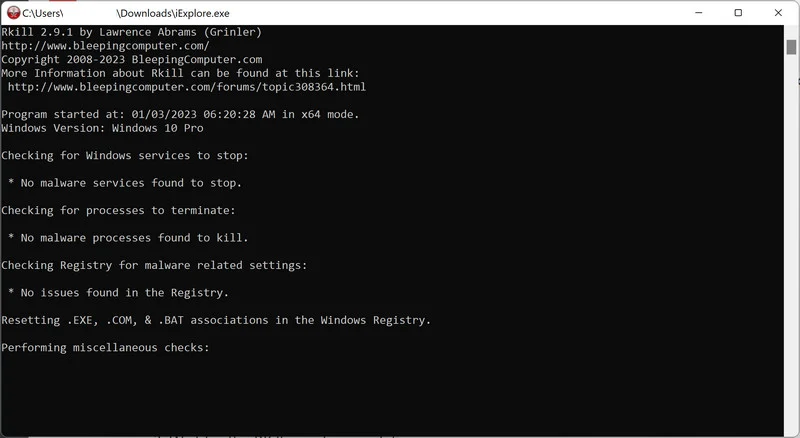
When it is finished, the black window will close automatically and a log file will open. Do not restart your computer. Proceed to the next step in this guide.
STEP 2: Use Malwarebytes to remove Ransomware and Unwanted Programs
In this second step, we will install Malwarebytes to scan and remove any infections, adware, or potentially unwanted programs that may be present on your computer.
Malwarebytes is one of the most popular and trusted anti-malware tools for Windows — and it’s completely free for removing infections. It catches threats that many antivirus programs miss, including adware, browser hijackers, and trojans. Follow the steps below to scan and clean your PC in just a few minutes.
Download Malwarebytes
Click the button below to download the latest version of Malwarebytes for Windows from the official source. The free version is all you need — it will scan your computer and remove adware, browser hijackers, and other malicious software at no cost.
Download MalwarebytesOfficial installer for Windows 11 and 10. Your download starts right away.Want real-time protection? See Malwarebytes Premium Malwarebytes Free for WindowsScans and removes malware at no cost
-
Install Malwarebytes
When the download finishes, open your Downloads folder and double-click the MBSetup file. If Windows shows a User Account Control pop-up, click “Yes” to allow the installation.

Follow the On-Screen Prompts to Install Malwarebytes
The setup wizard will walk you through a few quick screens:
-
Choose where you’re installing the program — “Personal Computer” or “Work Computer” — then click Next.

-
Malwarebytes will now install on your device. This usually takes under a minute.

-
When installation is complete, the “Welcome to Malwarebytes” screen will open automatically.

-
On the final screen, click Open Malwarebytes to launch the program.

-
Enable “Scan for Rootkits”
Before scanning, turn on rootkit detection so Malwarebytes can find even the most hidden threats. Click the Settings gear icon on the left side of the screen.

In the settings menu, find “Scan for rootkits” and click the toggle so it turns blue.

Done? Click “Dashboard” in the left pane to return to the main screen.
Start the Scan
Click the blue Scan button. Malwarebytes will automatically update its virus database and start checking your computer for malware.

-
Wait for the Scan to Finish
The scan checks your entire system for browser hijackers and other malicious programs, so it can take 5 to 20 minutes depending on your computer. Feel free to do something else — just check back occasionally to see the progress.

-
Quarantine the Detected Threats
When the scan is done, you’ll see a list of everything Malwarebytes found — malware, adware, and potentially unwanted programs. Click the “Quarantine” button to remove all of them at once.

Malwarebytes will now remove the malicious files and registry entries and move them safely into quarantine.

-
Restart Your Computer
Some threats can only be fully removed after a reboot. If Malwarebytes asks you to restart, click Yes. Once you’re logged back in, Malwarebytes has finished removing the threats it found.

STEP 3: Use HitmanPro to remove Rootkits and other Malware
In this third step, while the computer is in normal back, we will download and run a scan with HitmanPro to remove Trojans, rootkits, and other malicious programs.
HitmanPro is a second-opinion scanner — it’s designed to catch what your main antivirus might have missed. Instead of relying on a single detection engine, it checks the behavior of files in the locations where malware usually hides. Anything suspicious gets sent to the cloud, where it’s analyzed by two of the best antivirus engines available: Bitdefender and Kaspersky.
Good news: scanning is completely free, with no limits. You only need a license when it’s time to remove what was found — and even then, you can activate a free one-time 30-day trial to clean your PC at no cost. (A full license is $24.95 per year for 1 PC.)
-
Download HitmanPro
Click the button below to download HitmanPro. Remember — the scan is free, so you have nothing to lose by checking your PC.
Download HitmanProFree scan. Removing threats needs the free 30-day trial. Opens the official HitmanPro page in a new tab. HitmanProSecond-opinion malware scanner from Sophos
 -
Install HitmanPro
When the download finishes, open your Downloads folder and double-click the file: “hitmanpro.exe” on 32-bit Windows, or “hitmanpro_x64.exe” on 64-bit Windows.
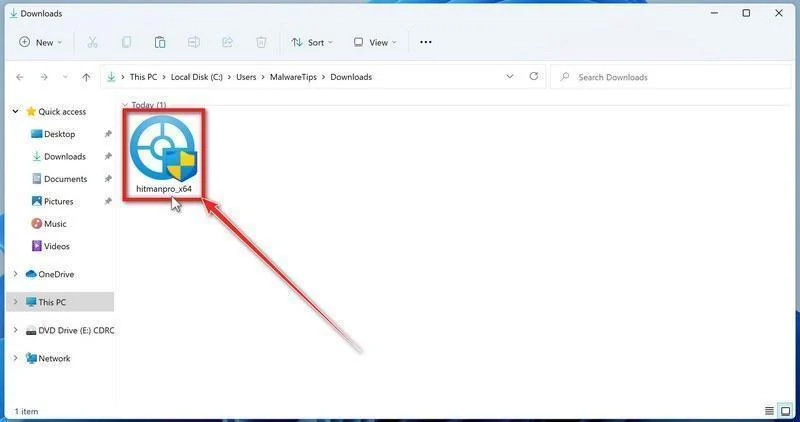
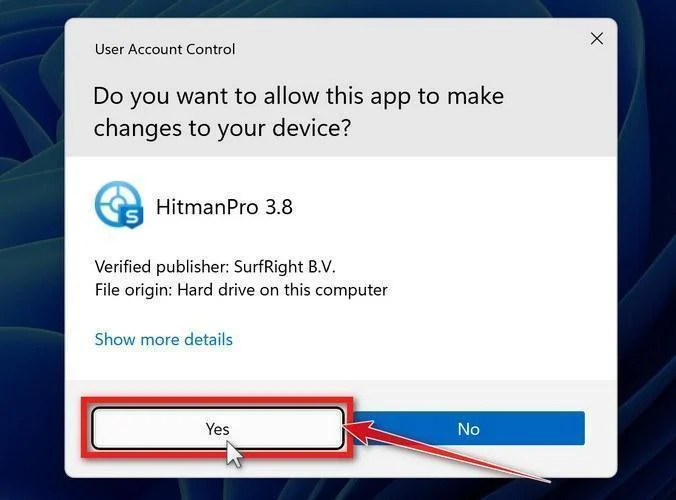
If a User Account Control pop-up asks whether HitmanPro can make changes to your device, click “Yes” to continue.
-
Follow the On-Screen Prompts
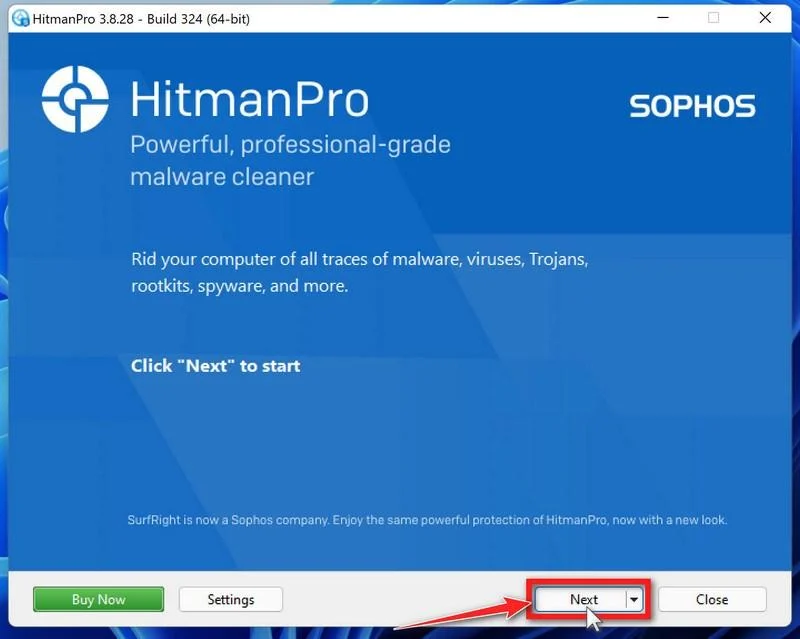
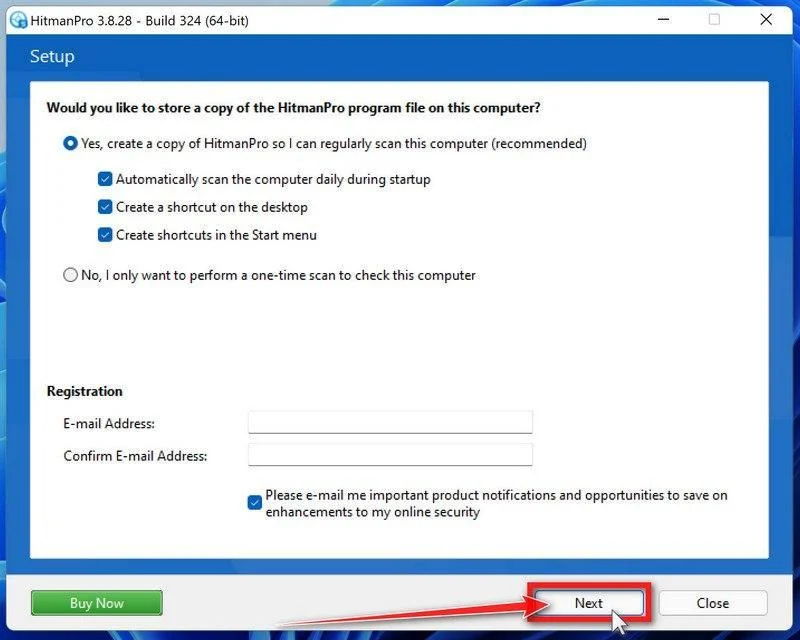
On the HitmanPro start screen, click “Next” to begin the system scan. No lengthy setup required — it goes straight to work.
-
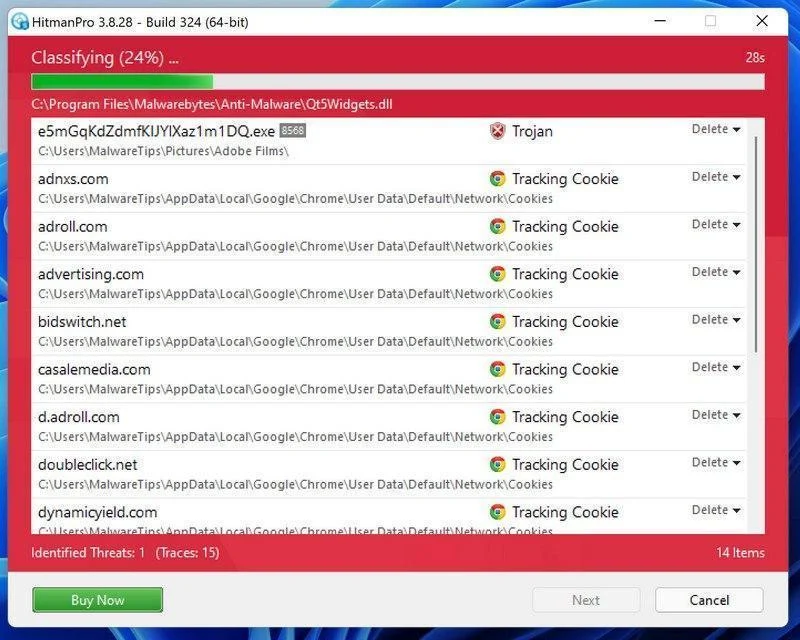
Wait for the Scan to Finish
HitmanPro will now check your computer for malicious programs. This usually takes just a few minutes thanks to its cloud-based scanning.
-
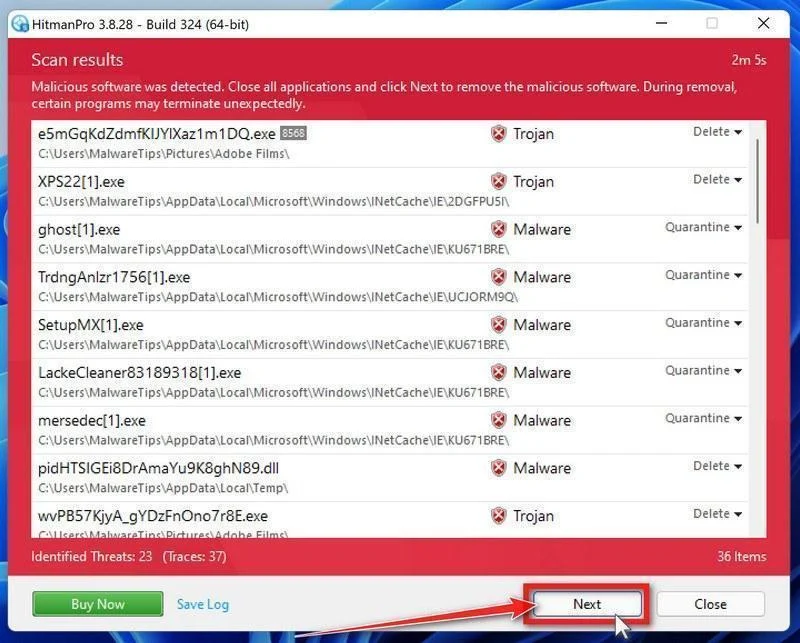
Review the Results and Click “Next”
When the scan is done, HitmanPro will show you everything it found. Click “Next” to remove the detected threats.
-
Click “Activate Free License”
To remove the malicious files, click the “Activate free license” button. This starts your free 30-day trial — no payment details needed — and unlocks the full cleanup.
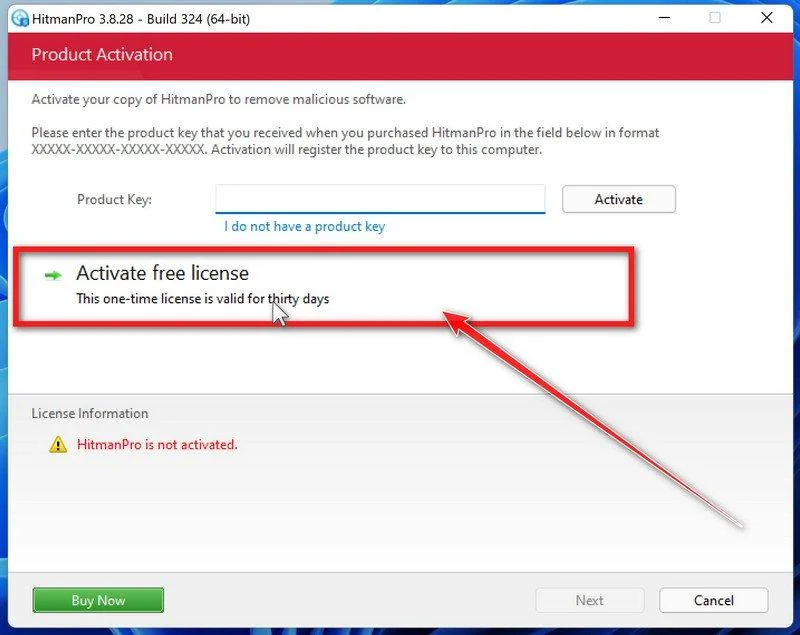
When the removal is complete, HitmanPro will show a summary of everything it cleaned. Click Next, then click Reboot if prompted. If there’s no reboot prompt, just click Close — your PC is clean.
STEP 4: Use AdwCleaner to remove Malicious Browser Extensions and Adware
In this next step, we will use AdwCleaner to remove malicious browser policies and unwanted browser extensions from your computer.
AdwCleaner is a free on-demand scanner that specializes in adware, browser hijackers, and unwanted toolbars — the exact threats that mainstream antivirus programs often miss. It also includes tools that repair the damage malware leaves behind, like hijacked browser settings and malicious policies. It’s a quick scan that’s well worth running.
-
Download AdwCleaner
Click the button below to download AdwCleaner — it’s free, portable, and requires no installation.
Download AdwCleanerOpens the official download page in a new tab. Malwarebytes AdwCleanerRemoves adware and unwanted programs at no cost
 -
Run AdwCleaner
Open your Downloads folder and double-click the file named “adwcleaner.exe“. There’s no installation — the program starts right away.
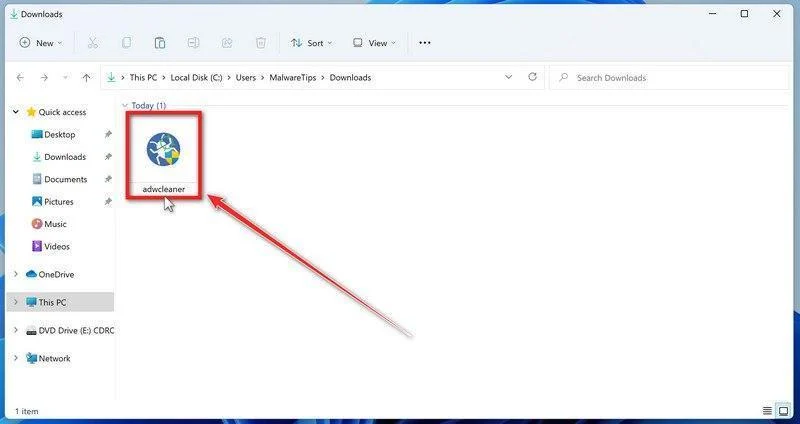
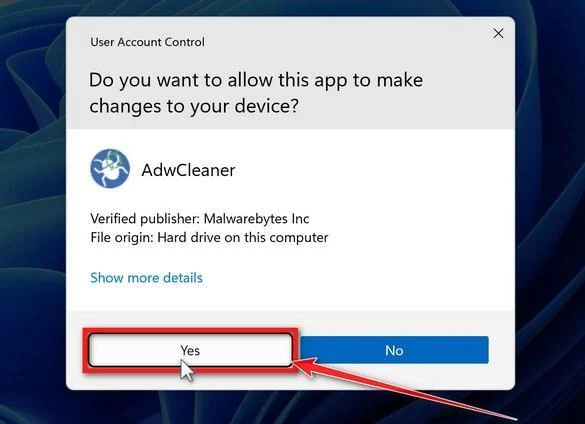
If Windows asks whether you want to allow AdwCleaner to run, click “Yes“. When the license agreement appears, click I agree to continue.
-
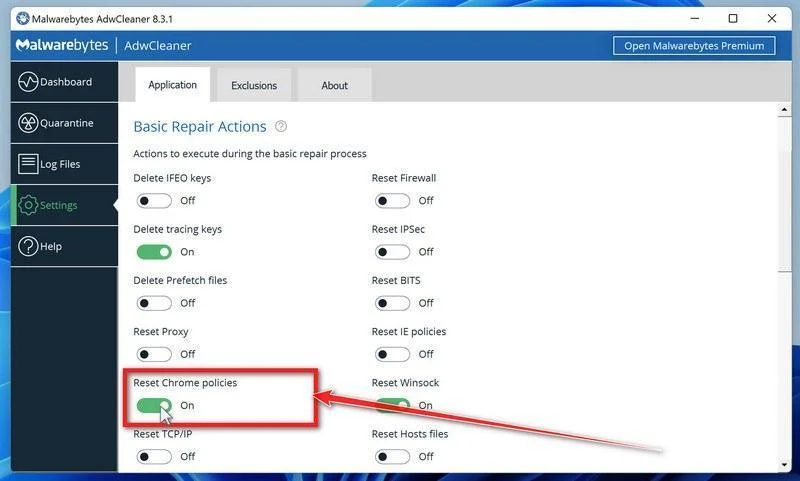
Enable “Reset Chrome policies”
This setting removes malicious browser policies — a trick malware uses to lock your browser settings so you can’t change them back. Click “Settings” on the left side of the window, then turn on “Reset Chrome policies“.
-
Start the Scan
Click “Dashboard” on the left side of the window, then click the “Scan” button.
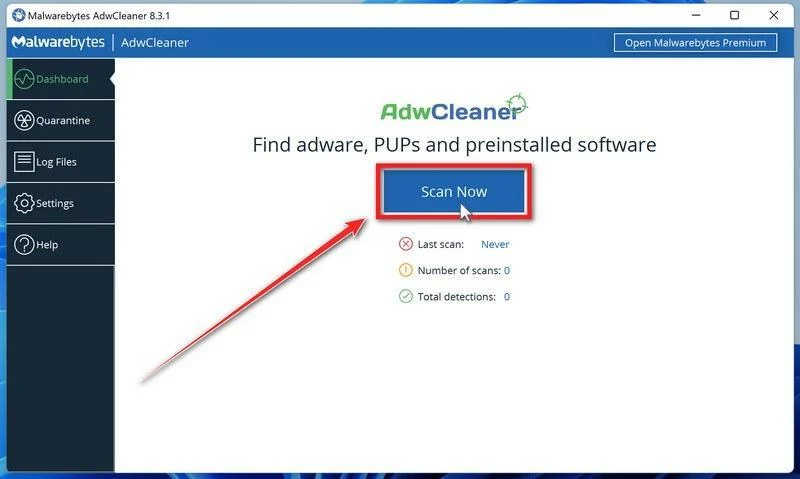
-
Wait for the Scan to Finish
AdwCleaner will now check your computer for adware and other malware. This usually takes only a few minutes — it’s one of the fastest scanners around.
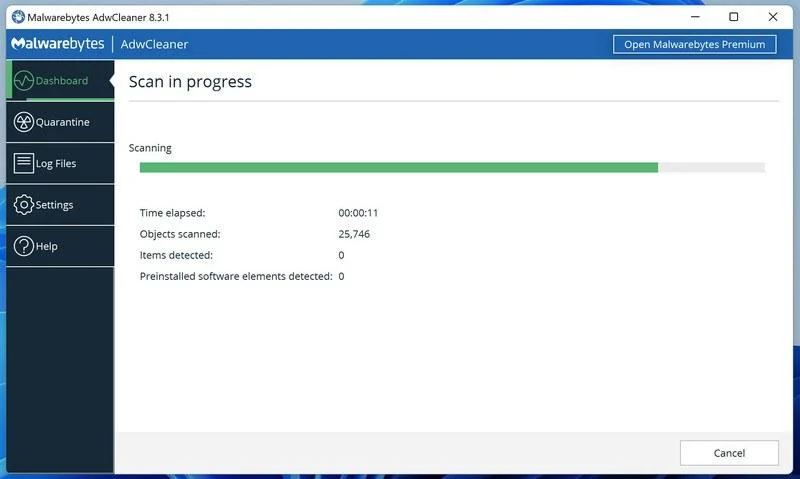
-
Quarantine the Detected Threats
When the scan finishes, AdwCleaner will list everything it found. Click the “Quarantine” button to remove all the malicious items at once.
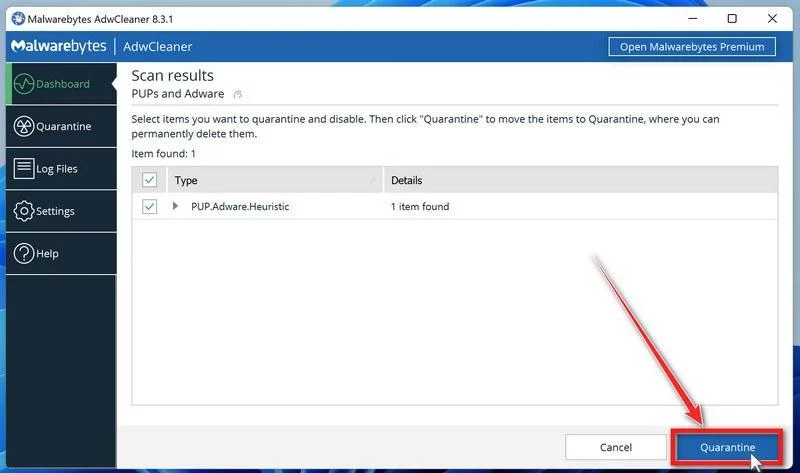
-
Click “Continue” to Finish the Cleanup
Save any open work first — AdwCleaner needs to close your open programs before it can clean. When you’re ready, click the “Continue” button.
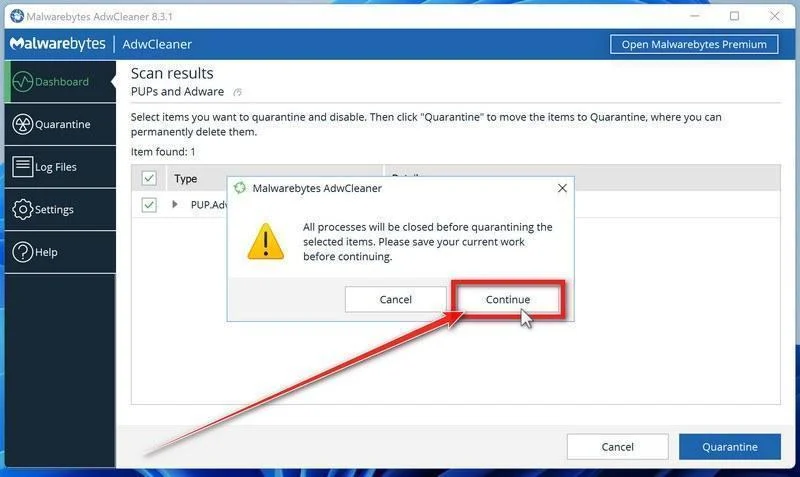
AdwCleaner will now delete all detected malware from your computer. If it asks you to restart your PC, allow it — your computer will be clean when you log back in.
STEP 5: Perform a final check with ESET Online Scanner
This final step involves installing and running a scan with ESET Online Scanner to check for any additional malicious programs that may be installed on the computer..
ESET Online Scanner is a free second-opinion scanner that performs a deep, full-system check for viruses, trojans, rootkits, and other malware. We use it as the final step because it’s thorough — if anything slipped past the previous scans, ESET will find it. A clean result here means your computer is malware-free.
-
Download ESET Online Scanner
Click the button below to download ESET Online Scanner.
Download ESET Online ScannerOpens the official download page in a new tab. ESET Online ScannerFree one-time malware scan from ESET
 -
Run the Installer
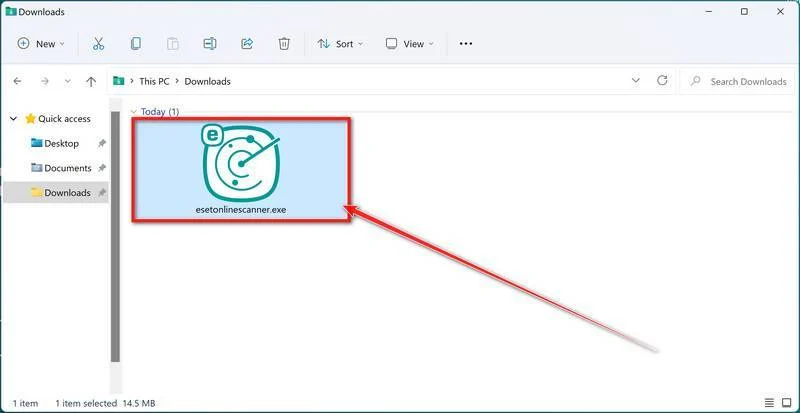
When the download finishes, open your Downloads folder and double-click “esetonlinescanner.exe“.
-
Install ESET Online Scanner
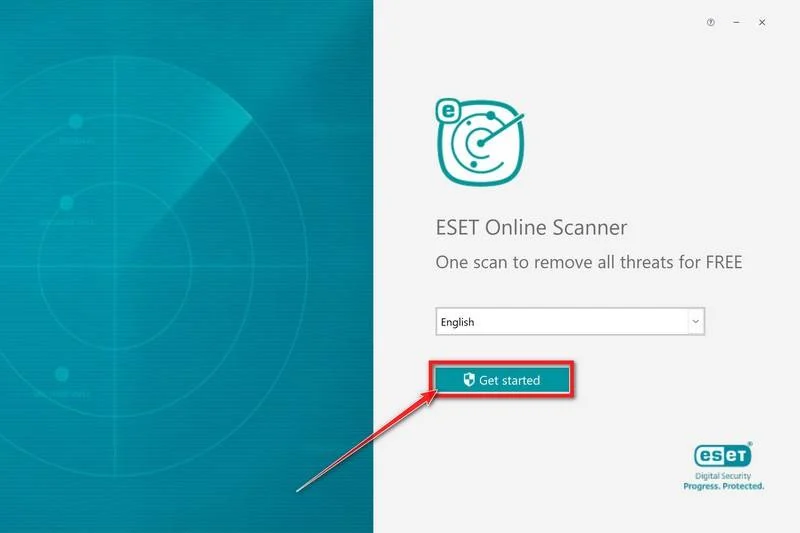
On the start screen, select your language from the drop-down menu and click Get started.
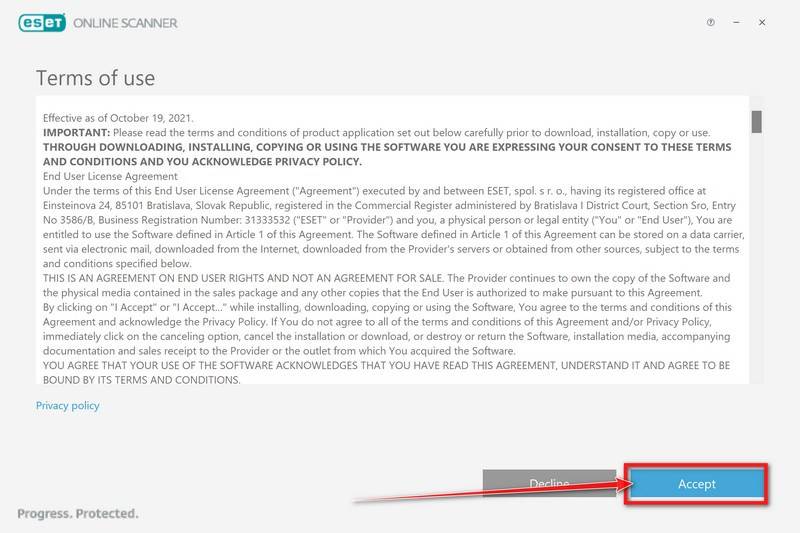
On the Terms of use screen, click Accept.
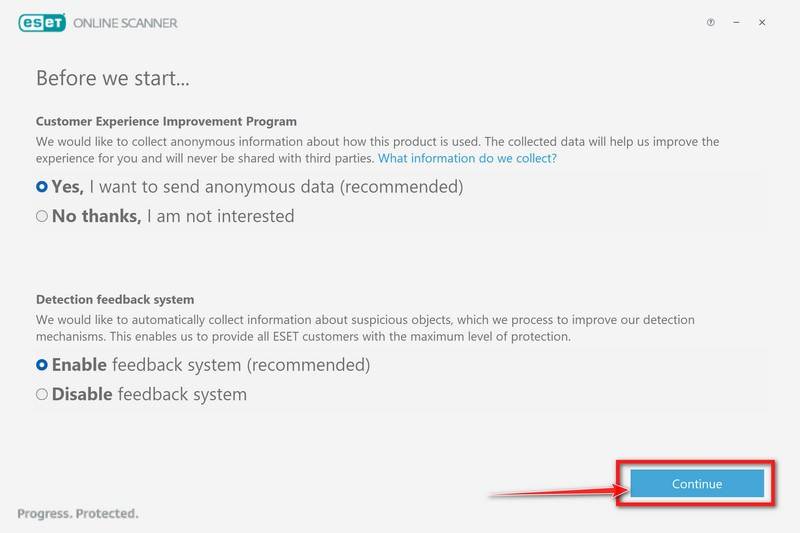
Choose your preferences for the Customer Experience Improvement Program and the Detection feedback system (either choice is fine), then click Continue.
-
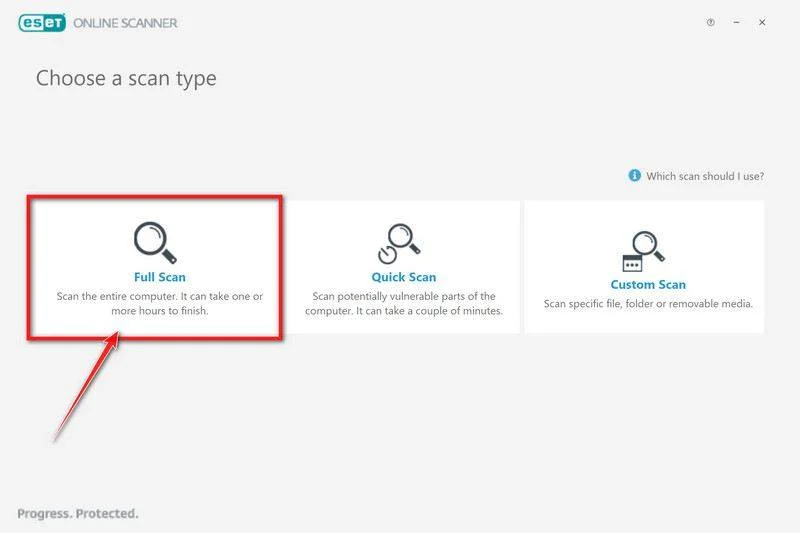
Start a Full Scan
Click Full Scan — this checks your entire computer, not just the common hiding spots.
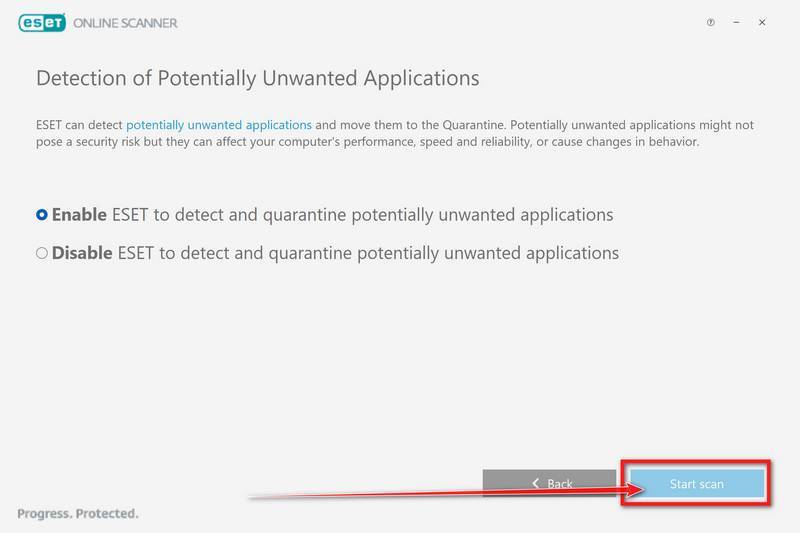
Select Enable for Detection of Potentially Unwanted Applications — this lets ESET catch adware and bundled junk programs, not just viruses. Then click Start scan.
-
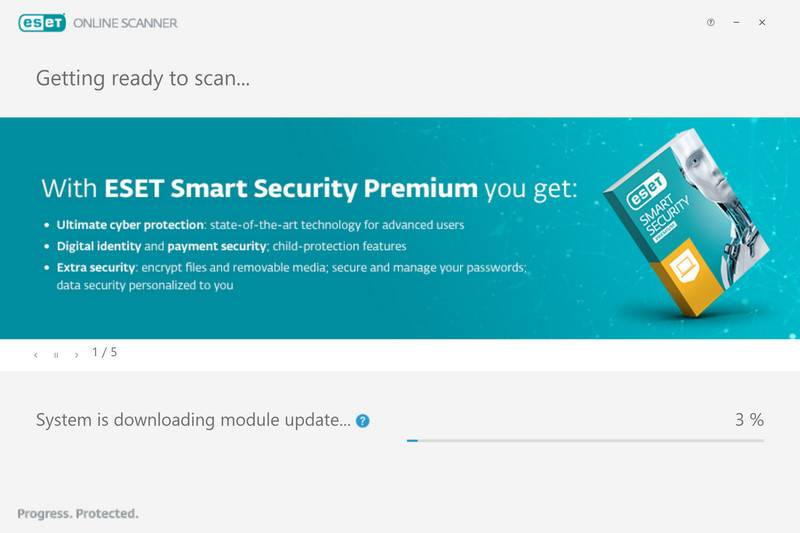
Wait for the Scan to Finish
ESET will now check every file on your computer. Because it’s a full scan, this can take a while — often an hour or more, depending on how much data you have. Leave it running in the background and check on it from time to time.
-
Review the Results
When the scan completes, the Found and resolved detections screen appears. Any threats found were automatically cleaned and quarantined — there’s nothing extra you need to do. Click View detailed results if you want to see exactly what was removed.
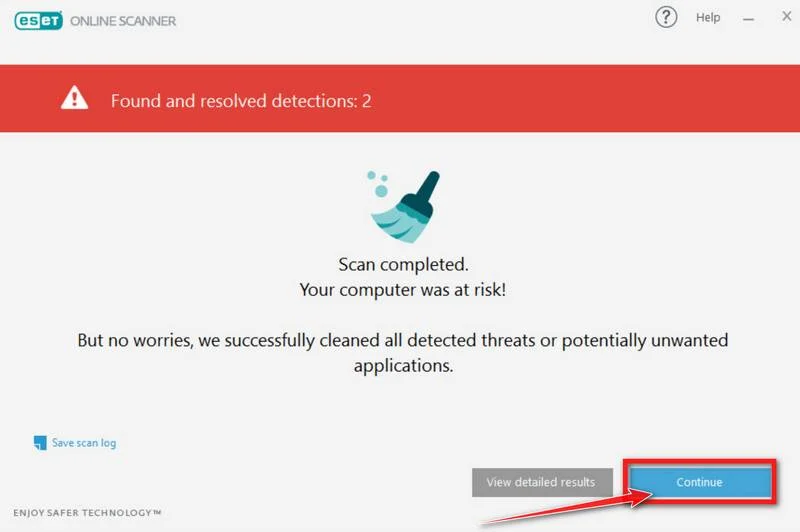
If ESET found nothing — congratulations, your computer has passed the final check and is malware-free.
STEP 6: Restore the files encrypted by ransomware
Unfortunately, in most cases, it’s not possible to recover the files encrypted by this ransomware virus because the private key which is needed to unlock the encrypted files is only available through the attackers. However, below we’ve listed three options you can use to try and recover your files.
Option 1: Search a decryption tool for this ransomware
The cybersecurity community is constantly working to create ransomware decryption tools, so you can try to search these sites for updates:
- https://id-ransomware.malwarehunterteam.com/
- https://decrypter.emsisoft.com/
- https://noransom.kaspersky.com/
- https://www.avast.com/ransomware-decryption-tools
Option 2: Use EaseUS Data Recovery Wizard Free to recover the encrypted files
EaseUS Data Recovery Wizard Free can restore files and repair corrupted files with simple clicks. Its powerful scanning algorithms can identify and retrieve huge file type library, including all of the popular video files, audio files, photos, and document formats.
While the free version only allows you to recover 2 GB of data, this can be helpful to see if the recovery is possible and restore back the most important files from your computer.
-
Download EaseUS Data Recovery Wizard Free.
You can download EaseUS Data Recovery Wizard Free by clicking the link below.
Download EaseUS Data Recovery WizardOpens the download page in a new tab. EaseUS Data Recovery WizardFile recovery tool with a free version
 -
Double-click on the EaseUS Data Recovery Wizard Free setup file.
When EaseUS Data Recovery Wizard Free has finished downloading, double-click on the setup file to install EaseUS Data Recovery Wizard on your computer. In most cases, downloaded files are saved to the Downloads folder.
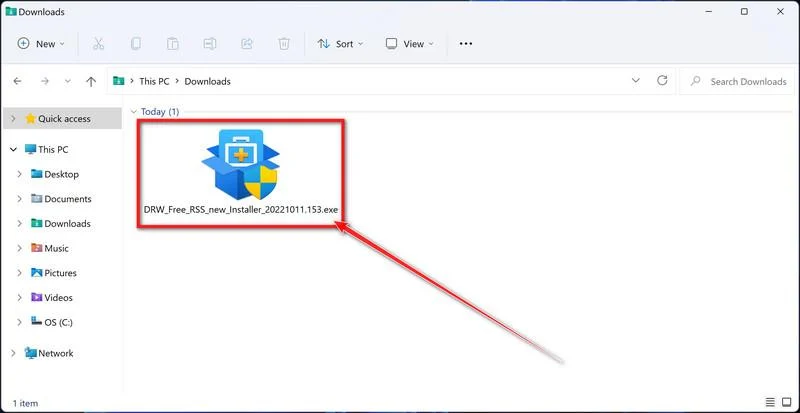
You may be presented with a User Account Control pop-up asking if you want to allow EaseUS to make changes to your device. If this happens, you should click “Yes” to continue with the EaseUS Data Recovery Wizard Free installation.
-
Follow the on-screen prompts to install EaseUS Data Recovery Wizard.
When the EaseUS Data Recovery Wizard installation begins, click on the “Install Now” as seen in the image below.
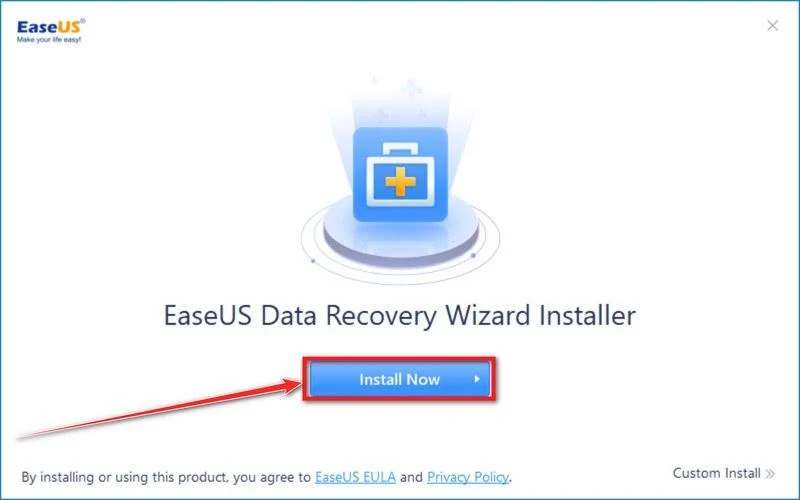
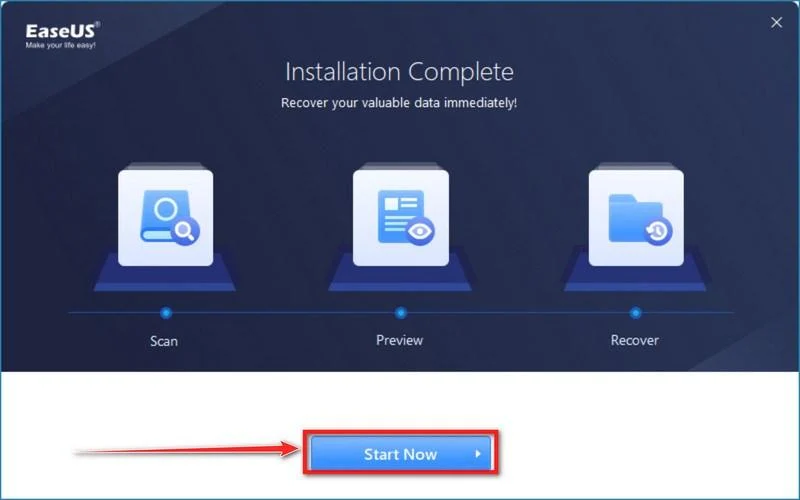
When your EaseUS Data Recovery Wizard installation completes, click the “Start Now” button to start the program.
-
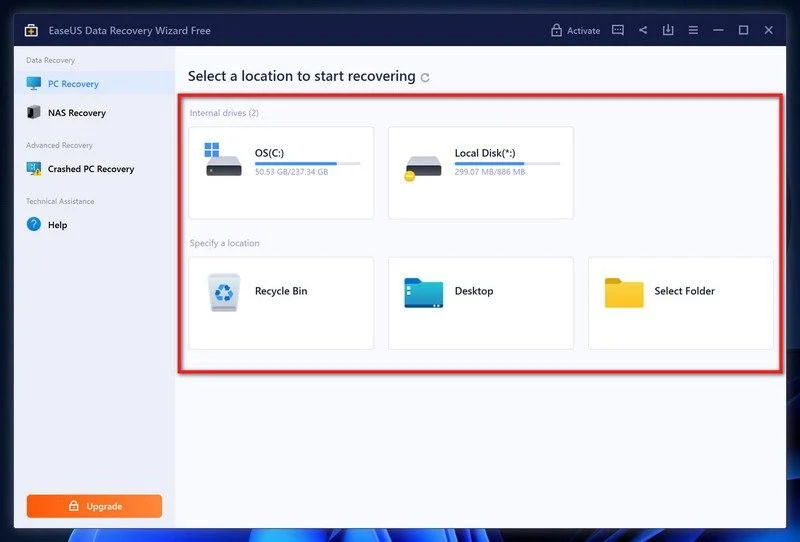
Select a location to start recovering the encrypted files.
Choose the drive or folder where you are the encrypted files that you want to recover and click “Scan“.
-
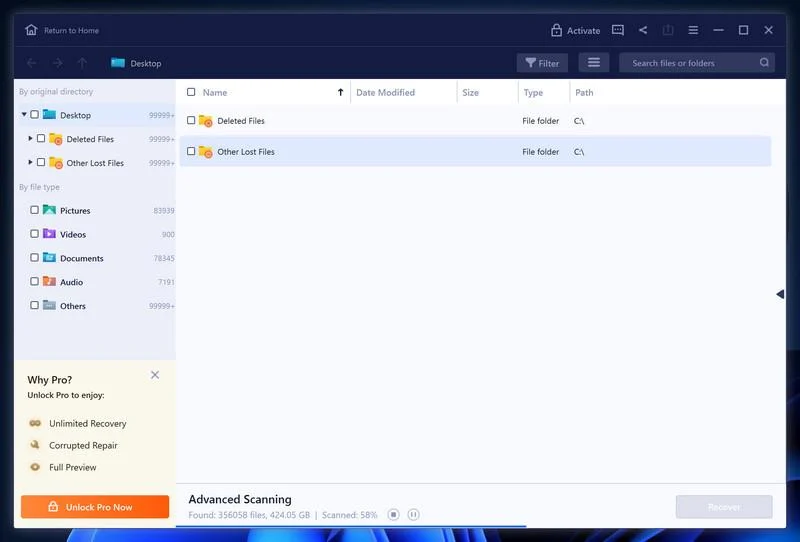
Wait for the EaseUS Data Recovery Wizard scan to complete.
EaseUS Data Recovery Wizard will now scan your computer files that can be restored. This process can take a few minutes, so we suggest you do something else and periodically check on the status of the scan to see when it is finished.
-
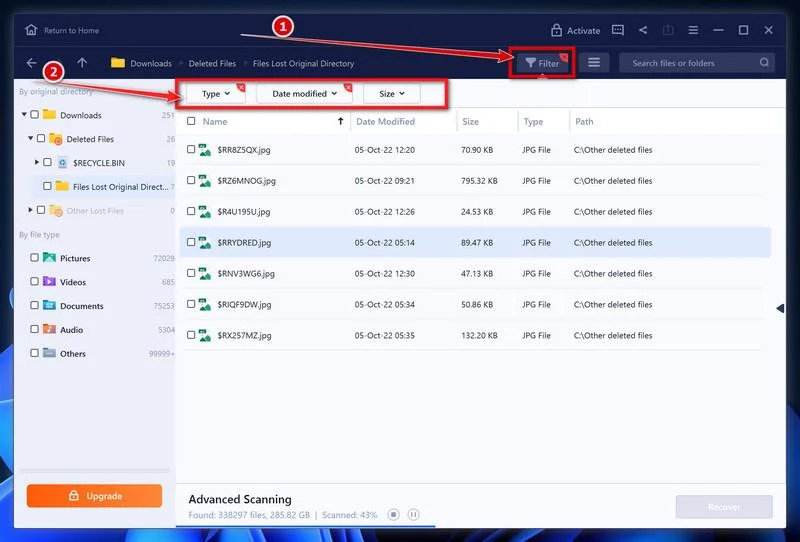
Find the files you want to recover.
When the EaseUS Data Recovery Wizard scan is finished scanning it will show a screen that displays the files that can be recovered. This tool can recover a lot of data, use the “Filter” button to quickly filter specific file types and find the files that you want to recover.
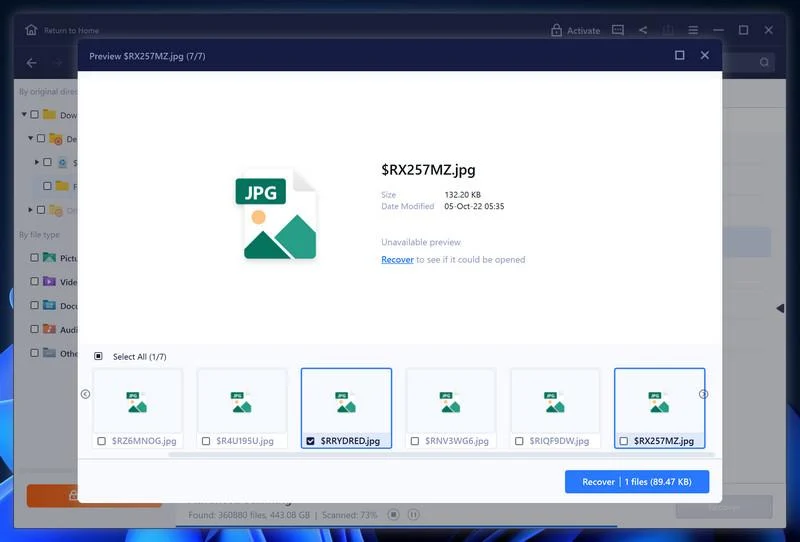
Click the “Preview” button or double-click on a file for a full preview.
-
Select your files and click “Recover”.
Finally, select the the files you want to recover and click “Recover“.
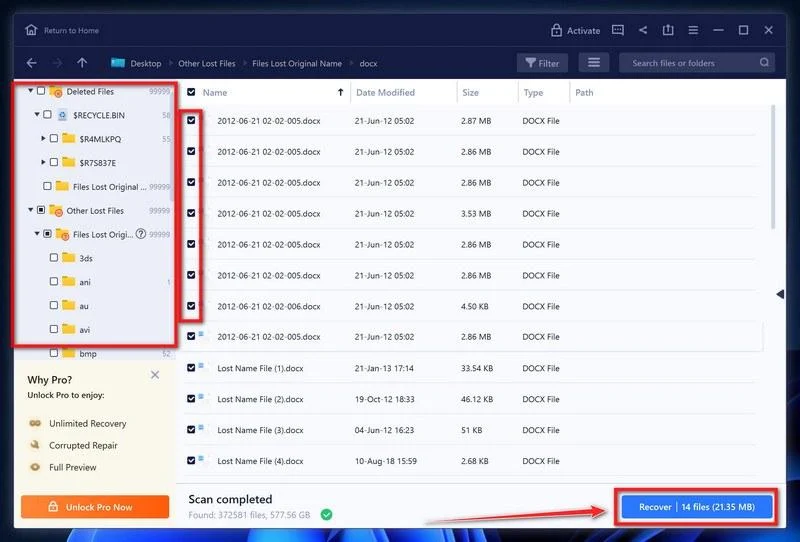
Choose a safe location to save all the files.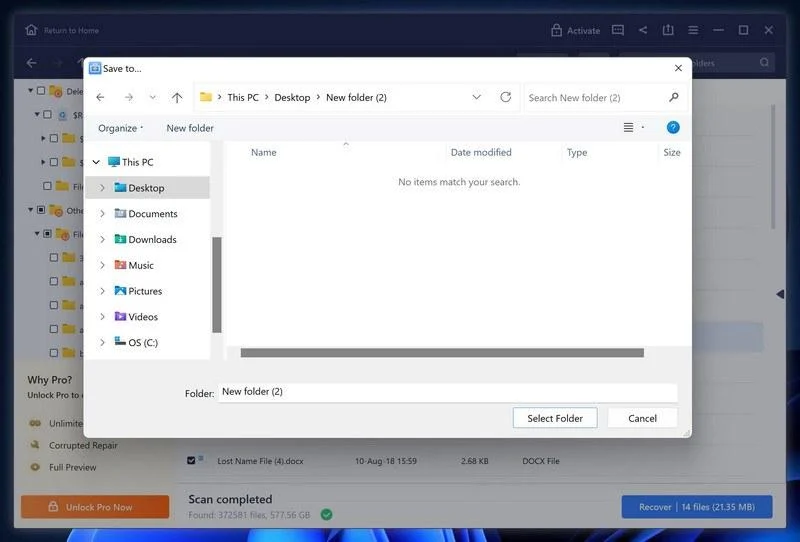
The free version only allow you to recover 2 GB of data, however, this will allow you to recover the most important files and see if EaseUS Data Recovery Wizard can correctly recover them.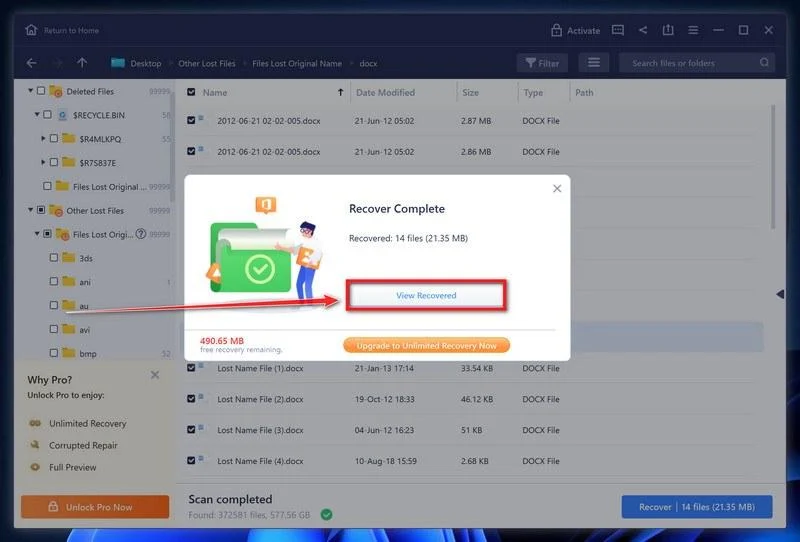
Option 3: Try to restore your files with ShadowExplorer
This ransomware will attempt to delete all shadow copies when you first start any executable on your computer after becoming infected. Thankfully, the infection is not always able to remove the shadow copies, so you should continue to try restoring your files using this method.
-
Download ShadowExplorer.
You can download ShadowExplorer from the below link.
Download ShadowExplorerOpens the official download page in a new tab.ShadowExplorerRestores files from Windows Shadow Volume Copies -
Install ShadowExplorer.
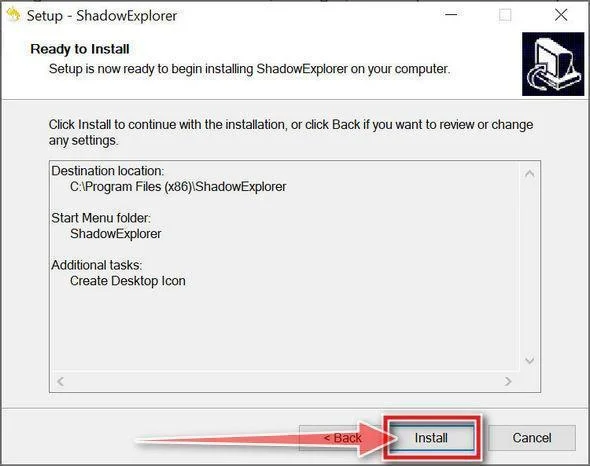
Double-click on the ShadowExplorer-x.x-setup file to start the installation process, then follow the on-screen promts to install this program.
-
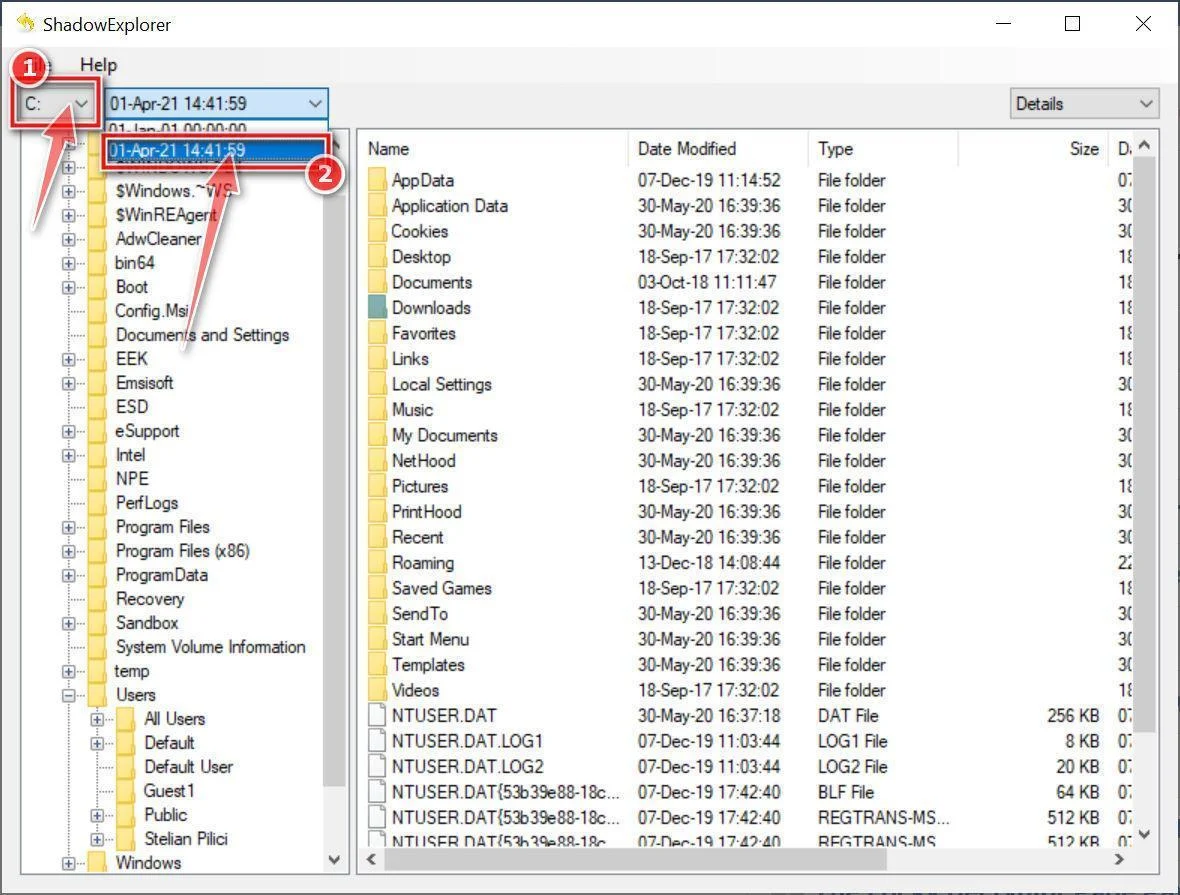
Select snapshot date.
Open ShadowExplorer and then from the top bar select the drive where the files that you want to save are located, then select from the snapshot available one previous to this infection.
-
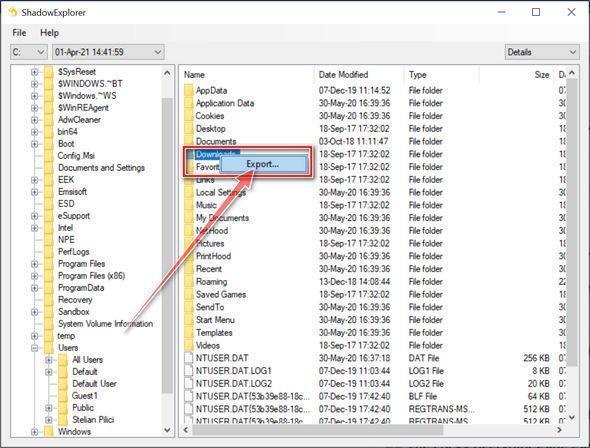
Export the files that you want to recover.
Once you have found a copy of the original file or folder, right-click on it and the select “Export”. A window will prompt you where you want to save the file or folder.
The Bottom Line
MAJINAHANASHI ransomware is a locker with a storefront and a ghost-story name. Files keep their names and then gain .majin. README.txt says the keys left with the attackers, the easy rollback copies are gone, and a copy of your data may have left too. The note points to qTOX and a Proton Mail address. One published sample used cyclops_fa**ot@proton.me. One published note printed the case ID CD42A401 as an example token, not as a universal docket. The offer to decrypt two files is a demo so the rest of the data still has a price. The warning about intermediaries is a fence around that demo.
Do not write to those contacts. Do not pay. Paying is not a guarantee. There is no public free decryptor known for MAJINAHANASHI. Anyone who greets you by your extension, your case ID, or your two sample files is still selling the same lock.
If you take one sentence with you, take this. A note that offers proof is still a ransom note. Treat .majin like ransomware on the first sighting, not on the day a stranger finally names a $ figure.

Join the discussion
0 commentsShare your experience or ask a question about this article.
Discussion
Start the conversation
Have a question or something useful to share? Add the first comment.