

An annual Slack renewal confirmation names a plan, invoice number, user count, and card charge. That detail can make a finance or workspace administrator want to investigate immediately.
The email may not lead to billing at all. Its Manage Subscription button can open a counterfeit sign-in page built to capture a work account.
Overview
A renewal receipt looks like ordinary finance mail
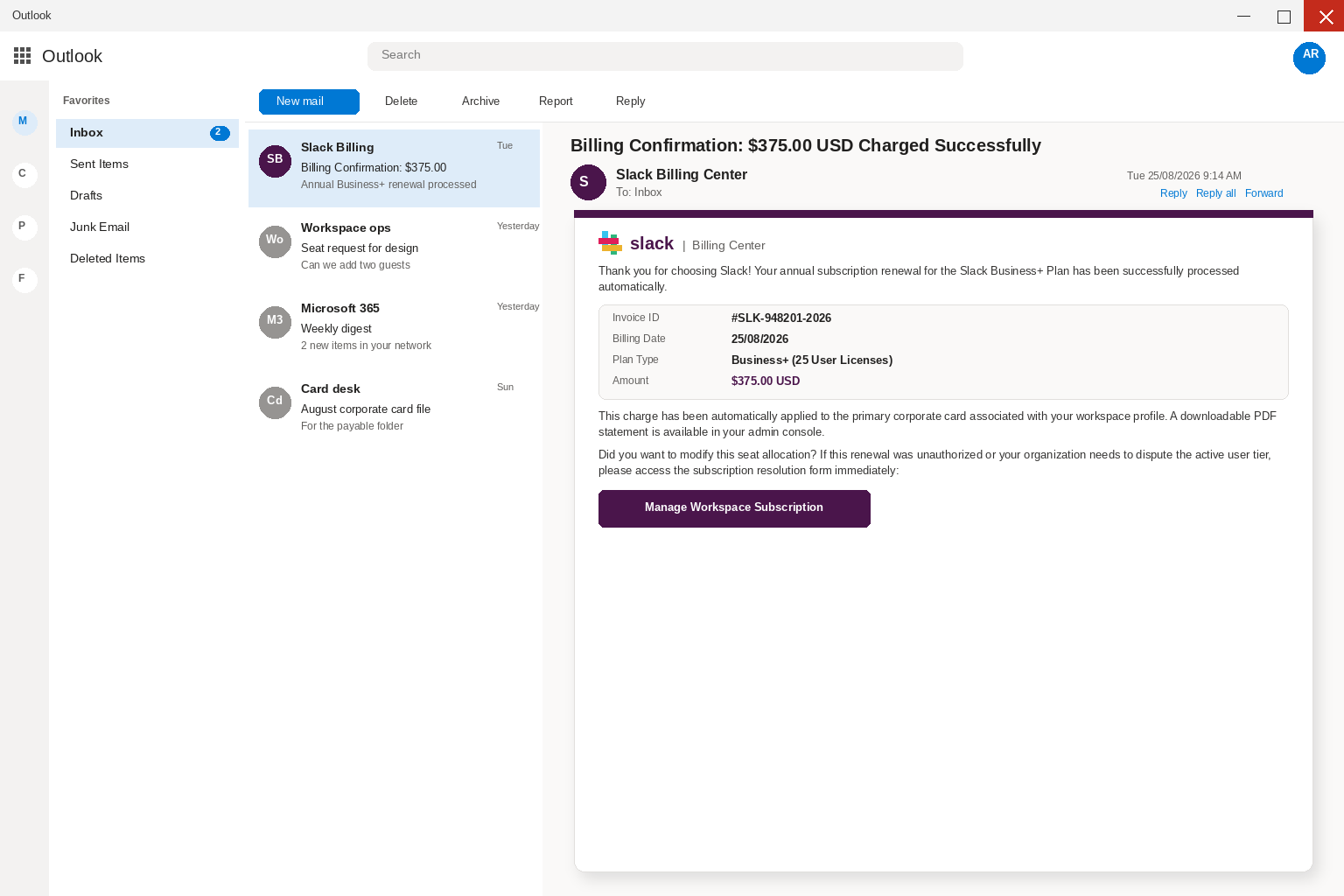
The subject in this case is Billing Confirmation: $375.00 USD Charged Successfully, which is enough of a receipt to survive the few seconds between
the inbox list and the reading pane.
The body writes as Slack Billing Center, thanks you for choosing Slack, and says your annual subscription renewal for the Slack Business+ Plan has
been successfully processed automatically.
Invoice details can be copied into a fake notice
It lists Invoice ID #SLK-948201-2026, a billing date of 25/08/2026, a plan type of Business+ with 25 user licenses, and a charge of $375.00
USD that has already been applied to the primary corporate card associated with your workspace profile.
A downloadable PDF statement, according to the letter, is waiting in your admin console, and if the renewal was unauthorized or your organization needs
to dispute the active user tier, the only control on offer is labeled Manage Workspace Subscription.
The real target is the workspace login
If you need to know whether Slack actually billed the workspace, you check billing the way you already do, on a page you type
yourself, rather than letting a surprise confirmation choose the next screen.
A real workspace invoice, when one exists, is still sitting in the admin console you already use, and it will still be there after
you leave this letter alone.
- A Slack billing story aimed at administrators and finance teams
- A charge amount and invoice number used to create credibility
- A Manage Subscription link that can leave the legitimate workspace
- A login form that requests a work email password
- A compromised account that may expose internal conversations
- A safer way to review billing from the existing workspace
Subscription renewals are easy to believe because many businesses do pay them automatically. The message does not have to invent a strange story.
Instead, it uses a routine charge to create a reason for an administrator to open a link.
Billing can be checked from the known workspace or finance records, without trusting a surprise confirmation.
How The Scam Works
Step 1: A billing confirmation arrives at the workspace
The letter wants you to treat an annual Slack charge as closed business, and then it uses a dispute button to walk you onto
What they take first is the login for the inbox you are sitting in, and after that they take the inbox itself, including the
threads with vendors, the reset codes that land an hour later, and the people who already answer when your name is on the From
line.
The $375.00 Business+ story is costume for that harvest, because a corporate-card renewal is the kind of errand a tired desk will finish before
asking whether Slack actually sent the note.
Slack remains a real company with a real billing desk, and that fact is why the name is useful on a From line.
Anyone can type Slack Billing Center into a display name, which means a tidy heading does not prove that Slack processed $375.00 or asked
Step 2: The Slack name creates immediate recognition
you to manage a workspace from this message.
note as a billing chore you already meant to finish.
Official billing lives inside the Slack workspace you already use, after you type slack.com yourself.
A surprise confirmation is a poor substitute for that door, because Slack does not collect a mailbox password in order to show you a $375.00 statement.
no problem.
A Manage Workspace Subscription button that arrived inside an unexpected billing confirmation is information in the email, which is why it is a poor
place to start a dispute.
a mailbox password so a seat dispute can supposedly finish loading.
Step 3: Invoice numbers make the charge look specific
Read the button the way a tired administrator reads it between two other alerts, because Manage sounds like a setting you already own and
Workspace Subscription sounds like seats the company already pays.
The subject has already done the confirmation, the invoice ID has already done the filing number, and the line about a PDF in the
admin console has already done the paperwork, so when the reader reaches the rectangle the errand feels mostly finished and you are
only disputing.
Unauthorized is the word that turns a $375.00 corporate-card line into something you should finish before lunch, which is why the letter places that
word next to the only control that works.
the seat count would already be visible after you open the product yourself.
Step 4: Manage Subscription directs the recipient to a new site
does not sit between those screens.
is awkward, many people never see the real destination before the next page fills the display.
line is a believable number to put next to 25 user licenses.
Invoice ID #SLK-948201-2026, a billing date of 25/08/2026, and a claim that the charge hit the primary corporate card associated with your workspace profile
are doing the work a ledger line usually does, so a controller can picture the seat count without checking whether anyone at Slack issued
that invoice.
Those details can be typed by anyone who has seen a software renewal, and matching them to a real workspace statement is work the
letter hopes you will skip because the ID already looks filed.
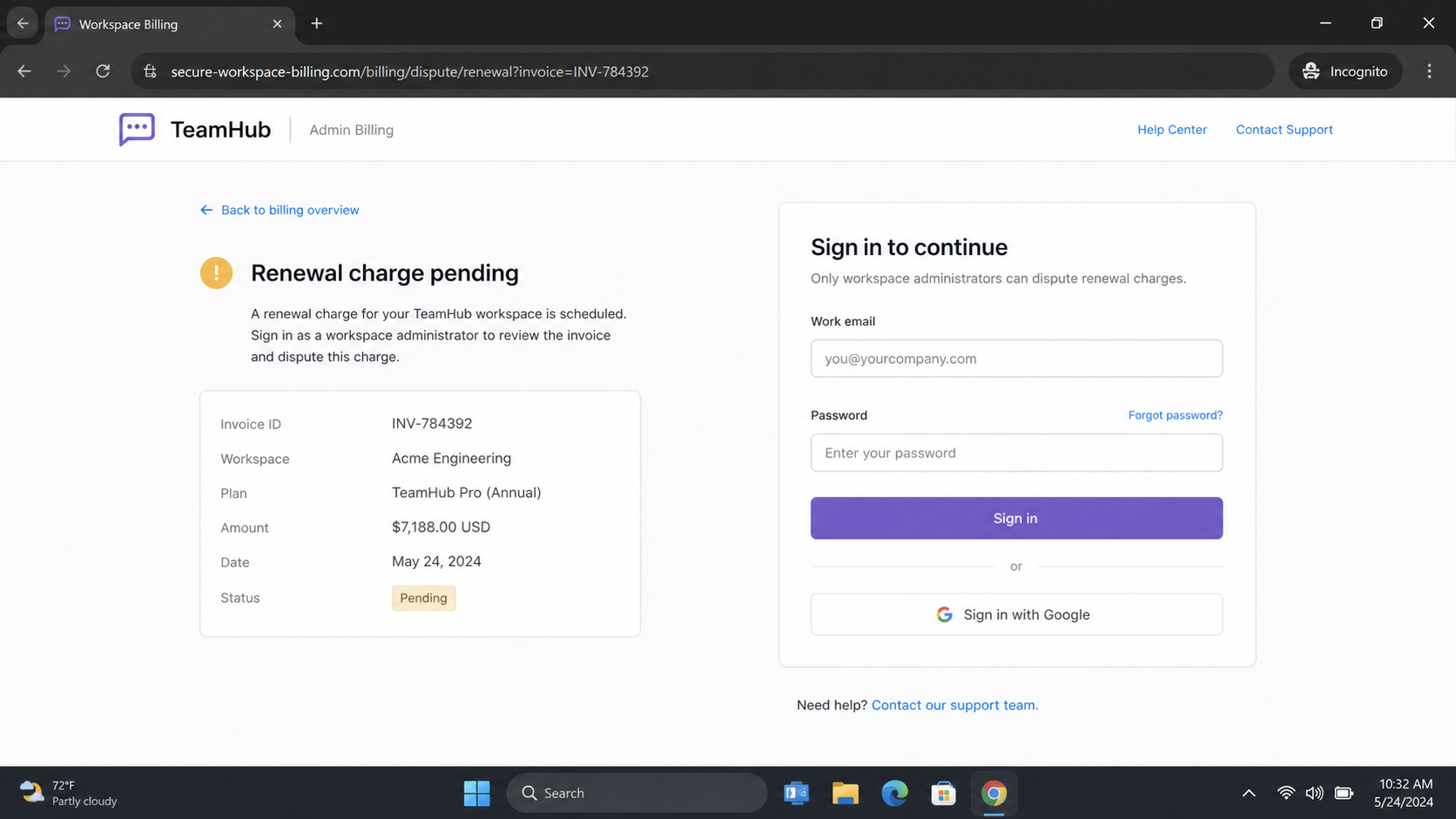
Step 5: The new page imitates workspace billing
Display names are cheap, and anyone can set a From line to read Slack Billing Center, just as anyone can paste a thank-you sentence
under a purple bar and date the whole thing 25/08/2026.
click, and a footer that hurries you toward a subscription resolution form is that kind of click.
they pointed the return path.
look for the invoice there.
the other end is Google, Microsoft, or Slack.
to dispute a seat tier.
key, and after that they want the inbox itself.
Step 6: The sign-in form collects administrator access
presents itself as Slack Billing Center.
a phone screen as a courtesy a finance person already expected.
which is why the letter stays short and why it borrows the tone of a closed invoice.
25 user licenses is enough to buy those seconds inside a finance folder.
Slack belongs to a real product that workplaces already pay for, and that fact is the load-bearing detail in a letter that only has
a few seconds to look like billing.
When you have ever approved seats, forwarded a workspace invoice, or seen Slack on a corporate card statement, you fill in the rest yourself,
and even if you have never opened a Slack admin console, the phrase annual subscription renewal still resembles a genuine payment.
Step 7: Workspace access can fuel later business fraud
The people who wrote the letter did not need to sit inside Slack to borrow a Billing Center heading, a thank-you line, and a
date of 25/08/2026 that would survive a five-second glance.
A purple bar and a tidy invoice block do the rest of the glance, and the unauthorized line remains available for anyone seeking
a reason not to check with a human.
rather than proving a charge posted.
Invoice ID #SLK-948201-2026, a billing date of 25/08/2026, Business+ with 25 user licenses, and $375.00 USD on the primary corporate card are doing the
work a ledger line usually does.
A controller can picture the seat count, the card, and the annual cadence without checking whether anyone at Slack actually issued that invoice, which
Company, Address, and Fulfillment Checks
A billing label is not proof that Slack sent the email
is the point of putting a number that looks like an internal ID next to a round-looking charge.
Finance teams live on that kind of number, because vendors send reminders, controllers ask for dates, and a late SaaS renewal that posted without
a conversation is a real kind of Monday.
The lure is borrowing that Monday, and it does not need a long pitch when it can offer an invoice ID, a plan type,
The destination must belong to the real workspace service
a seat count, and a card line that a tired person can already imagine matching to last year’s statement.
The letter tells you a downloadable PDF statement is available in your admin console, and then it offers Manage Workspace Subscription for anyone who
needs to dispute the active user tier.
You click because a statement link is supposed to open billing, and because unauthorized is a word that makes a $375.00 corporate-card line feel
Support should be reached through the established account
instead of showing an admin console with a PDF in the title bar.
and that sentence is doing the whole job because there is no protected Slack PDF waiting behind the form.
and familiar is the point of that costume.
and close it, since the address in that tab is a door you should stop using rather than a clue you need to collect.
Subscription records must be checked in traceable billing tools
The $375.00 renewal was never sitting behind that box, because the mailbox was, and the people who wrote the letter designed the invoice block
so you would not notice the swap.
unlock a PDF statement, just as you should not type the same password into Slack, the bank, or payroll as a courtesy refresh.
get to supervise the cleanup.
Why This Email Scam Needs a Careful Response
Finance-related phishing is effective because it combines urgency with a familiar expense. Even a suspicious charge can make a person rush to dispute it.
Do not rely on an invoice number printed in an email. A fraudster can invent a credible number as easily as a subject line.
Open the workspace in the normal way, then inspect billing from inside the account. That approach shows whether a charge exists without exposing credentials.
A stolen workspace account can reveal internal names, project details, and payment discussions. Administrators should treat it as a serious business credential.
Use role-based access for billing and remove former administrators promptly. Fewer privileged accounts reduce the usefulness of a stolen password.
If a charge seems genuine but unexpected, contact Slack through support links found from the account you opened yourself.
A polished renewal notice is still unverified until the established workspace shows the same transaction.
the last invoice you received, and the thread with a vendor who pays by wire, and then they write the next message in your
voice.
They will offer to lock the workspace, pull the statement, or refund a $375.00 charge you never approved, and then they will ask for
Subscription is not Slack.
because you may not have paid while the person who trusts you might.
a number you already have rather than on a number that arrived after Manage Workspace Subscription.
What to Do if You Have Fallen Victim to This Scam
- Preserve the billing email and its link for reporting. Do not use its Manage Subscription button again.
- Check the actual workspace and card records through known sign-in paths to determine whether any renewal was processed.
- Change the work-account work-account password on a safe device after it was submitted to the false billing page.
- Review active sessions, linked sign-in methods, recovery settings, and administrator roles for unfamiliar changes.
- Tell finance and workspace administrators about the phishing attempt. Require independent confirmation for any future billing or bank-detail request.
- Run Malwarebytes if the page delivered a file, a browser extension, or unexpected device behavior.
- Use AdGuard to reduce malicious-ad and phishing exposure while the team removes suspicious notifications, extensions, and saved passwords.
- Report the impersonation through the official service and the appropriate fraud-reporting channel, including the sender and website address.
Is Your Device Infected? Run a Free Malware Scan
Slow performance, constant pop-ups, or strange behavior? These are classic signs of a malware infection. The fastest way to find out is to scan your device with Malwarebytes Free — one of the most trusted malware removal tools available.
The free version detects and removes the most common threats, including:
- Adware — the cause of those annoying pop-ups
- Browser hijackers — unwanted redirects and changed homepages
- Trojans and spyware — hidden programs stealing your data
- Potentially unwanted programs (PUPs) — software you never asked for
👉 Select your device below — Windows, Mac, or Android — then follow the simple steps to download Malwarebytes, scan your system, and remove any threats it finds. The scan usually takes 5 to 20 minutes.
Run a Malware Scan with Malwarebytes for Windows
Malwarebytes is one of the most popular and trusted anti-malware tools for Windows — and it’s completely free for removing infections. It catches threats that many antivirus programs miss, including adware, browser hijackers, and trojans. Follow the steps below to scan and clean your PC in just a few minutes.
Download Malwarebytes
Click the button below to download the latest version of Malwarebytes for Windows from the official source. The free version is all you need — it will scan your computer and remove adware, browser hijackers, and other malicious software at no cost.
Download MalwarebytesOfficial installer for Windows 11 and 10. Your download starts right away.Want real-time protection? See Malwarebytes Premium Malwarebytes Free for WindowsScans and removes malware at no cost
-
Install Malwarebytes
When the download finishes, open your Downloads folder and double-click the MBSetup file. If Windows shows a User Account Control pop-up, click “Yes” to allow the installation.

Follow the On-Screen Prompts to Install Malwarebytes
The setup wizard will walk you through a few quick screens:
-
Choose where you’re installing the program — “Personal Computer” or “Work Computer” — then click Next.

-
Malwarebytes will now install on your device. This usually takes under a minute.

-
When installation is complete, the “Welcome to Malwarebytes” screen will open automatically.

-
On the final screen, click Open Malwarebytes to launch the program.

-
Enable “Scan for Rootkits”
Before scanning, turn on rootkit detection so Malwarebytes can find even the most hidden threats. Click the Settings gear icon on the left side of the screen.

In the settings menu, find “Scan for rootkits” and click the toggle so it turns blue.

Done? Click “Dashboard” in the left pane to return to the main screen.
Start the Scan
Click the blue Scan button. Malwarebytes will automatically update its virus database and start checking your computer for malware.

-
Wait for the Scan to Finish
The scan checks your entire system for browser hijackers and other malicious programs, so it can take 5 to 20 minutes depending on your computer. Feel free to do something else — just check back occasionally to see the progress.

-
Quarantine the Detected Threats
When the scan is done, you’ll see a list of everything Malwarebytes found — malware, adware, and potentially unwanted programs. Click the “Quarantine” button to remove all of them at once.

Malwarebytes will now remove the malicious files and registry entries and move them safely into quarantine.

-
Restart Your Computer
Some threats can only be fully removed after a reboot. If Malwarebytes asks you to restart, click Yes. Once you’re logged back in, Malwarebytes has finished removing the threats it found.

That’s it — your Windows PC is now clean of trojans, adware, and other malware, and should be back to running smoothly.
If you are still having problems with your computer after completing these instructions, then please follow one of the steps:
- Run a computer scan with ESET Online Scanner
- Ask for help in our Windows Malware Removal Help & Support forum.
Run a Malware Scan with Malwarebytes for Mac
Malwarebytes for Mac is a free on-demand scanner that removes the malware other security software tends to miss — adware, browser hijackers, and unwanted programs included. Cleaning an infected Mac with Malwarebytes has always been completely free, and it’s our go-to recommendation. Follow the steps below to scan and clean your Mac in just a few minutes.
-
Download Malwarebytes for Mac
Click the button below to download the latest version of Malwarebytes for Mac.
Download MalwarebytesOfficial installer for macOS. Your download starts right away.Want real-time protection? See Malwarebytes PremiumMalwarebytes Free for MacScans and removes malware at no cost -
Open the Malwarebytes setup file
When the download finishes, open your Downloads folder and double-click the setup file to begin the installation.

-
Follow the On-Screen Prompts to Install Malwarebytes
The Malwarebytes for Mac Installer will guide you through a few quick screens. Click “Continue” and keep following the prompts until the installation completes.



When the installation is complete, Malwarebytes opens to the Welcome to Malwarebytes screen. Click “Get started“.
-
Select “Personal Computer” or “Work Computer”
Malwarebytes will ask what type of computer you’re installing it on. Click either Personal Computer or Work Computer, whichever applies.

-
Start the Scan
Click the “Scan” button. Malwarebytes will automatically update its detection database and begin checking your Mac for malware.

-
Wait for the Scan to Finish
Malwarebytes will scan your Mac for adware, browser hijackers, and other malicious programs. This can take a few minutes, so feel free to do something else — just check back occasionally to see the progress.

-
Quarantine the Detected Threats
When the scan is done, you’ll see a list of everything Malwarebytes found. Click the “Quarantine” button to remove all the threats at once.

-
Restart Your Mac
Malwarebytes will now remove all the malicious files it found. Some threats can only be fully removed after a reboot — if Malwarebytes asks you to restart, allow it. Once you’re logged back in, your Mac is clean.

That’s it — your Mac is now free of adware, rogue browser extensions, and other potentially harmful software.
If you are still experiencing problems while trying to remove a malicious program from your computer, please ask for help in our Mac Malware Removal Help & Support forum.
Run a Malware Scan with Malwarebytes for Android
Malwarebytes for Android automatically detects and removes dangerous threats like malware and ransomware so you don’t have to worry about your most-used device being compromised. Aggressive detection of adware and potentially unwanted programs keeps your Android phone or tablet running smooth.
-
Download Malwarebytes for Android.
You can download Malwarebytes for Android by clicking the link below.
Get Malwarebytes for AndroidOpens Google Play in a new tab.Want real-time protection? See Malwarebytes Premium for AndroidMalwarebytes for AndroidScans your phone and removes malware at no cost -
Install Malwarebytes for Android on your phone.
In the Google Play Store, tap “Install” to install Malwarebytes for Android on your device.

When the installation process has finished, tap “Open” to begin using Malwarebytes for Android. You can also open Malwarebytes by tapping on its icon in your phone menu or home screen.

-
Follow the on-screen prompts to complete the setup process
When Malwarebytes will open, you will see the Malwarebytes Setup Wizard which will guide you through a series of permissions and other setup options.
This is the first of two screens that explain the difference between the Premium and Free versions. Swipe this screen to continue.
Tap on “Got it” to proceed to the next step.
Malwarebytes for Android will now ask for a set of permissions that are required to scan your device and protect it from malware. Tap on “Give permission” to continue.
Tap on “Allow” to permit Malwarebytes to access the files on your phone.
-
Update database and run a scan with Malwarebytes for Android
You will now be prompted to update the Malwarebytes database and run a full system scan.

Click on “Update database” to update the Malwarebytes for Android definitions to the latest version, then click on “Run full scan” to perform a system scan.

-
Wait for the Malwarebytes scan to complete.
Malwarebytes will now start scanning your phone for adware and other malicious apps. This process can take a few minutes, so we suggest you do something else and periodically check on the status of the scan to see when it is finished.

-
Click on “Remove Selected”.
When the scan has been completed, you will be presented with a screen showing the malware infections that Malwarebytes for Android has detected. To remove the malicious apps that Malwarebytes has found, tap on the “Remove Selected” button.

-
Restart your phone.
Malwarebytes for Android will now remove all the malicious apps that it has found. To complete the malware removal process, Malwarebytes may ask you to restart your device.
That’s it — your Android phone is now clean — no more malicious apps, adware, or browser redirects.
If you are still having problems with your phone after completing these instructions, then please follow one of the steps:
- Restore your phone to factory settings by going to Settings > General management > Reset > Factory data reset.
- Ask for help in our Mobile Malware Removal Help & Support forum.
Stay Protected: Block Ads and Malicious Sites
Now that your device is clean, keep it that way. Most infections start with a malicious ad or a fake download button — so blocking them at the source is your best defense.
We recommend AdGuard, which blocks malicious ads, phishing pages, and dangerous redirects before they can reach you.
👉 Download AdGuard and browse safely
Frequently Asked Questions
Can Slack send real billing confirmations?
A service can send billing email, but the charge should also be visible after you open the established workspace independently.
Why are invoice numbers not enough proof?
Numbers can be invented or copied into a template. They do not authenticate the sender or the linked page.
Should a billing dispute page ask for a work password?
Use the existing workspace route rather than a link in an unexpected email. The destination must be verified first.
What can happen after an admin login is stolen?
An attacker may access conversations, contacts, settings, and billing-related discussions.
How do I check a renewal safely?
Open the normal workspace sign-in page or finance records, then review billing from there.
What if I clicked but did not sign in?
Close the page and check the genuine account independently. Do not enter credentials or download anything.
The Bottom Line
The Slack renewal email scam uses a believable annual charge to send workspace users toward a counterfeit login.
Review billing from the workspace you already know, not from the Manage Subscription button in an unexpected email.
A real invoice will still be there after you take the safe route.

Join the discussion
0 commentsShare your experience or ask a question about this article.
Discussion
Start the conversation
Have a question or something useful to share? Add the first comment.