

A remittance notice says a payment has been processed and the details are ready. To a bookkeeper, that can look like ordinary work rather than a security decision.
The button is the problem. It can lead away from accounting records and into a page designed to collect a business email password.
Overview
Why remittance notices get opened quickly
You open it because a remittance is supposed to be proof that money already moved, not a prize letter, and a payment-is-on-the-way note feels
safe in a way a lottery message never does.
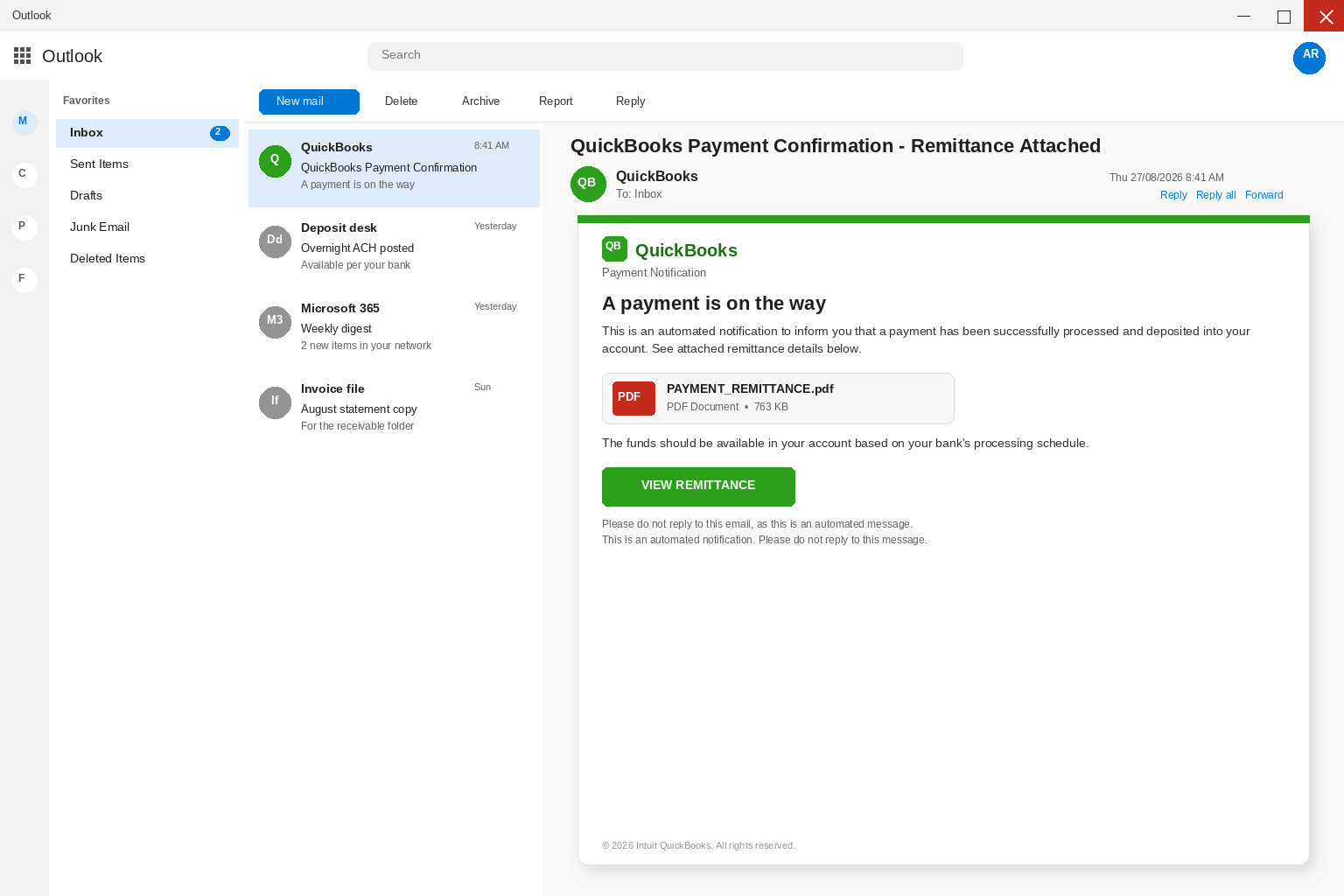
The body writes as an automated QuickBooks payment notification, says a payment was processed and deposited into your account, and then points you at remittance details below.
PAYMENT_REMITTANCE.pdf is listed as a PDF Document at 763 KB, which is a believable weight for a one-page advice note, and then a button says VIEW REMITTANCE.
A payment label is not a confirmed deposit
Please do not reply, it says, this is an automated message.
Nothing in the letter asks you to think, because it asks you to open the deposit, which is why a tired bookkeeper treats the
click as filing rather than as a page the letter chose.
If a customer actually paid you, the payment will still be sitting in the books after you confirm it on a channel you already
The false portal wants the mailbox, not the invoice
or a call on a number you already have.
button that claims to hold the file.
You are looking at a phishing letter, not a QuickBooks deposit.
The pitch is an automated payment confirmation that borrowed Intuit’s books, and the only action it offers is VIEW REMITTANCE, sitting next to a
- A payment-confirmation theme aimed at accounting inboxes
- A PDF-style remittance label used to normalize the click
- A View Remittance button that leaves the expected accounting environment
- A login form that asks for a work email password
- A mailbox compromise that can support invoice fraud
- A safe way to check the payment inside known accounting records
Payment notices feel safe because the recipient expects money, not a threat.
That expectation can make a bookkeeper treat the link as a filing task rather than an external website.
A real deposit can be confirmed in the books without trusting the sender’s button.
How The Scam Works
Step 1: A payment notice appears in a finance inbox
file named PAYMENT_REMITTANCE.pdf and listed as 763 KB.
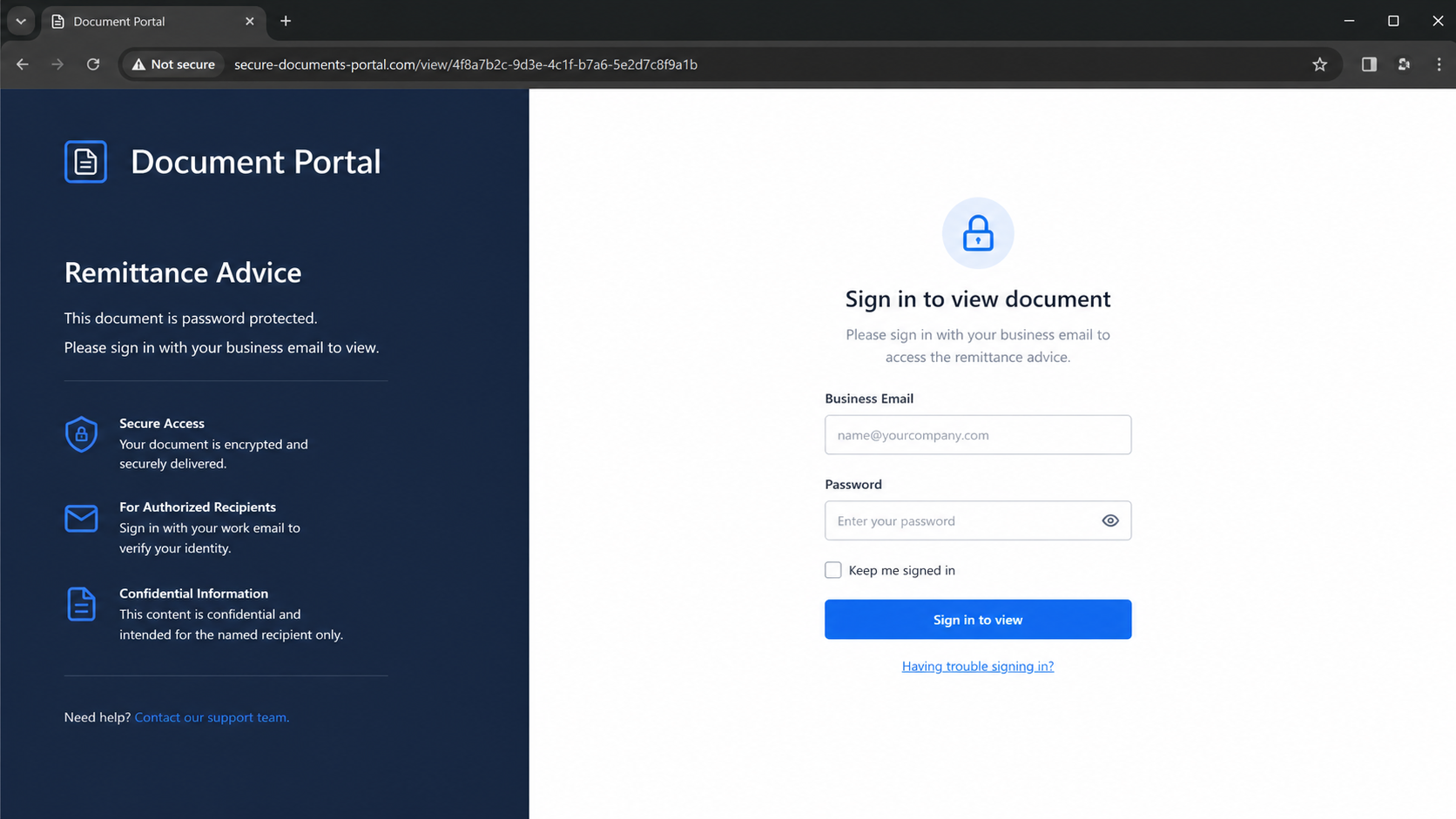
What that click actually opens is a sign-in page copied from the mail service you already use.
Intuit is a real company, QuickBooks is a real product, and people send invoices, record bills, and get paid through those books every week.
That fact is the reason the name is useful, and it is also the reason the name is not proof.
note as a file you already expected, not as a stranger asking for the key to your mail.
Official books live inside the QuickBooks account you already use, after you type quickbooks.intuit.com yourself. A Payment Confirmation in the inbox is not that door.
Intuit is not the sender, and QuickBooks is not holding a deposit because this letter said so.
The people who wrote it want a mailbox password, and they stacked trusted payment language so you would treat the click as bookkeeping.
Step 2: The QuickBooks name creates a familiar frame
The VIEW REMITTANCE click did not open Intuit.
not worth copying here because those pages move and a pasted link is how the next person gets hurt.
The quieter tell is the habit itself: a remittance that demands a mailbox password is not a remittance, a 763 KB chip that never
The Federal Trade Commission writes the rule in ordinary language.
email, and a VIEW REMITTANCE button is information in the email.
CISA says the same thing in two short places.
That guidance is the opposite of fetching a remittance from a letter you did not request.
Read the button the way a tired bookkeeper reads it between deposits, because View sounds like you are opening a record that already exists
Step 3: A remittance button becomes the handoff
and Remittance sounds like money that already moved.
The subject already did the confirmation, the 763 KB line already did the file, and the automated footer already did the work of making
the note feel like a system rather than a person.
By the time your eye hits the green rectangle, the errand feels mostly done, which is how looking becomes typing.
If a customer actually paid you through QuickBooks, the payment, the deposit, and the history sit in the company file or the online books
after you open the product yourself.
a page the sender controls.
The subject is a confirmation, the body is a short notice, and the button is large, so you are already inside Outlook or Gmail
Step 4: The promised PDF becomes a portal story
A 2026 copyright line is sitting in the footer as if a legal department printed it, and none of that is a receipt.
Anyone can set a display name to QuickBooks, and anyone can paste a Payment Notification heading under a green bar.
The automated voice is doing a small job and a large one.
Please do not reply, this is an automated message, which is how a person in a hurry hears system and stops looking for a human.
The large job is the stack: Payment Confirmation, Remittance Attached, a payment is on the way, processed, deposited, funds available based on your bank’s
schedule, PAYMENT_REMITTANCE.pdf, 763 KB, and VIEW REMITTANCE.
Each extra line is supposed to make the last one feel safer.
pointed the return path.
Step 5: The portal copies an email-login experience
If you actually take payments in QuickBooks, open the books you already use and look for the payment there.
and other providers get their own costume.
If a remittance click then presents a login, do not type it; open the real product yourself instead.
Do not finish that form to see if a PDF then appears, because a fake login does not become safer because you only wanted a remittance.
The subject line reads QuickBooks Payment Confirmation – Remittance Attached, which is deposit language an accounts desk already knows how to open.
The body writes as an automated QuickBooks payment notification and claims a payment is on the way.
It claims a payment was processed and deposited into your account, with funds available on your bank’s schedule.
PAYMENT_REMITTANCE.pdf is listed as a PDF Document at 763 KB, sitting next to the VIEW REMITTANCE control.
Step 6: Credentials provide more value than a remittance
The letter says do not reply because this is an automated message, which is how it keeps you from asking a human.
The click is not a PDF you can save; it is a login copied from a mail provider, including an EdgeOne page in this version.
a phone screen on purpose.
receivable lives on that kind of hope.
QuickBooks is not a made-up ledger invented for one inbox, because the name belongs to a real product from a real company, and that
is the load-bearing detail.
You do not need a long story when the letterhead already sounds like a deposit.
If you have ever sent an invoice, recorded a payment, or forwarded a remittance advice, you fill in the rest yourself, and if you
Step 7: A compromised mailbox can be used against customers
have never opened QuickBooks the phrase Payment Confirmation still sounds like money.
The people who wrote the letter are not Intuit.
They borrowed a name that would survive a five-second search, and a green bar plus a 2026 copyright line do the rest of the glance.
The automated do not reply line is sitting there if anyone wants a reason not to check.
The next page is not a viewer with PAYMENT_REMITTANCE.pdf in the title bar.
It is a sign-in, a verify it is you wall, or a short hop that still ends at a password box.
A real PDF would open, or it would sit as an attachment you can save without signing in a second time, and it would
PAYMENT_REMITTANCE.pdf is doing theater.
Company, Address, and Fulfillment Checks
A payment brand in an email is not proof of payment
The chip looks like an attachment, the type line says PDF Document, and the size says 763 KB, which is a believable weight for
a one-page advice note.
None of that means a file is sitting on the message.
Many of these letters never attach a real PDF at all, so the chip is a picture of a file, the button is the
The linked portal must match a verified accounting route
only thing that works, and what it works toward is a login rather than a download.
Even if a later click saves something, do not treat the name as a promise, because a file that uses a remittance label can
still be a page in disguise, a shortcut, or a document that only exists to push you into a browser form.
The safe habit is the same either way. Do not hunt for PAYMENT_REMITTANCE.pdf in your Downloads folder just to open it.
Finance support should use known contacts
If you needed a remittance, you would already have a thread, a customer, and a line in QuickBooks you can find without this letter,
That sentence is cover for a form, not a protected remittance.
because familiar is the point.
Do not finish that form to see if it is real, because a fake login does not become safer because you only wanted a deposit notice.
Remittance data belongs in traceable records
alone and close it.
The address in that tab is not a clue you need to collect; it is a door you should stop using.
can check the PDF.
The FTC says the same thing in consumer language.
Why This Email Scam Needs a Careful Response
Accounting teams are often trained to handle exceptions quickly. A convincing remittance message takes advantage of that useful habit.
Confirm the payment in the accounting platform, bank feed, or customer relationship record before opening an unexpected statement.
A PDF name is not evidence that the destination is a PDF. It may simply be text around a button.
If a mailbox password is compromised, attackers can watch payment discussions and attempt a later bank-detail change.
Phone confirmation through a known number remains the best defense against a changed invoice or payment instruction.
Separate finance credentials from general email passwords wherever possible. One stolen inbox should not be able to authorize every financial action.
Do not type the same password into QuickBooks, the bank, or payroll just in case they all need a refresh.
They are hunting for money that already has your name on it.
offer to lock the account, pull the file, or refund a deposit you never received.
Tell a real customer, if you actually have one, on a number you already have, not on a number that arrived after VIEW REMITTANCE.
next invoice in your name.
so they can look.
What to Do if You Have Fallen Victim to This Scam
- Save the suspicious remittance email and the destination address. Do not forward the live link to coworkers.
- Verify whether payment exists through QuickBooks, the bank, or a known customer contact before taking any other action.
- Change the business-email password from a trusted device if it was typed into the false portal.
- Review forwarding rules, recovery options, connected applications, and recent account sign-ins for unfamiliar activity.
- Tell finance staff to verify any upcoming payment or bank-detail change by using a previously known phone number.
- Run Malwarebytes if the remittance route downloaded a file or altered the browser. It can help identify malicious software and unwanted changes.
- Use AdGuard to reduce phishing and malicious-ad exposure while the team reviews browser access and saved credentials.
- Report the impersonation to the real payment platform and the relevant fraud-reporting channel with the sender and URL.
Is Your Device Infected? Run a Free Malware Scan
Slow performance, constant pop-ups, or strange behavior? These are classic signs of a malware infection. The fastest way to find out is to scan your device with Malwarebytes Free — one of the most trusted malware removal tools available.
The free version detects and removes the most common threats, including:
- Adware — the cause of those annoying pop-ups
- Browser hijackers — unwanted redirects and changed homepages
- Trojans and spyware — hidden programs stealing your data
- Potentially unwanted programs (PUPs) — software you never asked for
👉 Select your device below — Windows, Mac, or Android — then follow the simple steps to download Malwarebytes, scan your system, and remove any threats it finds. The scan usually takes 5 to 20 minutes.
Run a Malware Scan with Malwarebytes for Windows
Malwarebytes is one of the most popular and trusted anti-malware tools for Windows — and it’s completely free for removing infections. It catches threats that many antivirus programs miss, including adware, browser hijackers, and trojans. Follow the steps below to scan and clean your PC in just a few minutes.
Download Malwarebytes
Click the button below to download the latest version of Malwarebytes for Windows from the official source. The free version is all you need — it will scan your computer and remove adware, browser hijackers, and other malicious software at no cost.
Download MalwarebytesOfficial installer for Windows 11 and 10. Your download starts right away.Want real-time protection? See Malwarebytes Premium Malwarebytes Free for WindowsScans and removes malware at no cost
-
Install Malwarebytes
When the download finishes, open your Downloads folder and double-click the MBSetup file. If Windows shows a User Account Control pop-up, click “Yes” to allow the installation.

Follow the On-Screen Prompts to Install Malwarebytes
The setup wizard will walk you through a few quick screens:
-
Choose where you’re installing the program — “Personal Computer” or “Work Computer” — then click Next.

-
Malwarebytes will now install on your device. This usually takes under a minute.

-
When installation is complete, the “Welcome to Malwarebytes” screen will open automatically.

-
On the final screen, click Open Malwarebytes to launch the program.

-
Enable “Scan for Rootkits”
Before scanning, turn on rootkit detection so Malwarebytes can find even the most hidden threats. Click the Settings gear icon on the left side of the screen.

In the settings menu, find “Scan for rootkits” and click the toggle so it turns blue.

Done? Click “Dashboard” in the left pane to return to the main screen.
Start the Scan
Click the blue Scan button. Malwarebytes will automatically update its virus database and start checking your computer for malware.

-
Wait for the Scan to Finish
The scan checks your entire system for browser hijackers and other malicious programs, so it can take 5 to 20 minutes depending on your computer. Feel free to do something else — just check back occasionally to see the progress.

-
Quarantine the Detected Threats
When the scan is done, you’ll see a list of everything Malwarebytes found — malware, adware, and potentially unwanted programs. Click the “Quarantine” button to remove all of them at once.

Malwarebytes will now remove the malicious files and registry entries and move them safely into quarantine.

-
Restart Your Computer
Some threats can only be fully removed after a reboot. If Malwarebytes asks you to restart, click Yes. Once you’re logged back in, Malwarebytes has finished removing the threats it found.

That’s it — your Windows PC is now clean of trojans, adware, and other malware, and should be back to running smoothly.
If you are still having problems with your computer after completing these instructions, then please follow one of the steps:
- Run a computer scan with ESET Online Scanner
- Ask for help in our Windows Malware Removal Help & Support forum.
Run a Malware Scan with Malwarebytes for Mac
Malwarebytes for Mac is a free on-demand scanner that removes the malware other security software tends to miss — adware, browser hijackers, and unwanted programs included. Cleaning an infected Mac with Malwarebytes has always been completely free, and it’s our go-to recommendation. Follow the steps below to scan and clean your Mac in just a few minutes.
-
Download Malwarebytes for Mac
Click the button below to download the latest version of Malwarebytes for Mac.
Download MalwarebytesOfficial installer for macOS. Your download starts right away.Want real-time protection? See Malwarebytes PremiumMalwarebytes Free for MacScans and removes malware at no cost -
Open the Malwarebytes setup file
When the download finishes, open your Downloads folder and double-click the setup file to begin the installation.

-
Follow the On-Screen Prompts to Install Malwarebytes
The Malwarebytes for Mac Installer will guide you through a few quick screens. Click “Continue” and keep following the prompts until the installation completes.



When the installation is complete, Malwarebytes opens to the Welcome to Malwarebytes screen. Click “Get started“.
-
Select “Personal Computer” or “Work Computer”
Malwarebytes will ask what type of computer you’re installing it on. Click either Personal Computer or Work Computer, whichever applies.

-
Start the Scan
Click the “Scan” button. Malwarebytes will automatically update its detection database and begin checking your Mac for malware.

-
Wait for the Scan to Finish
Malwarebytes will scan your Mac for adware, browser hijackers, and other malicious programs. This can take a few minutes, so feel free to do something else — just check back occasionally to see the progress.

-
Quarantine the Detected Threats
When the scan is done, you’ll see a list of everything Malwarebytes found. Click the “Quarantine” button to remove all the threats at once.

-
Restart Your Mac
Malwarebytes will now remove all the malicious files it found. Some threats can only be fully removed after a reboot — if Malwarebytes asks you to restart, allow it. Once you’re logged back in, your Mac is clean.

That’s it — your Mac is now free of adware, rogue browser extensions, and other potentially harmful software.
If you are still experiencing problems while trying to remove a malicious program from your computer, please ask for help in our Mac Malware Removal Help & Support forum.
Run a Malware Scan with Malwarebytes for Android
Malwarebytes for Android automatically detects and removes dangerous threats like malware and ransomware so you don’t have to worry about your most-used device being compromised. Aggressive detection of adware and potentially unwanted programs keeps your Android phone or tablet running smooth.
-
Download Malwarebytes for Android.
You can download Malwarebytes for Android by clicking the link below.
Get Malwarebytes for AndroidOpens Google Play in a new tab.Want real-time protection? See Malwarebytes Premium for AndroidMalwarebytes for AndroidScans your phone and removes malware at no cost -
Install Malwarebytes for Android on your phone.
In the Google Play Store, tap “Install” to install Malwarebytes for Android on your device.

When the installation process has finished, tap “Open” to begin using Malwarebytes for Android. You can also open Malwarebytes by tapping on its icon in your phone menu or home screen.

-
Follow the on-screen prompts to complete the setup process
When Malwarebytes will open, you will see the Malwarebytes Setup Wizard which will guide you through a series of permissions and other setup options.
This is the first of two screens that explain the difference between the Premium and Free versions. Swipe this screen to continue.
Tap on “Got it” to proceed to the next step.
Malwarebytes for Android will now ask for a set of permissions that are required to scan your device and protect it from malware. Tap on “Give permission” to continue.
Tap on “Allow” to permit Malwarebytes to access the files on your phone.
-
Update database and run a scan with Malwarebytes for Android
You will now be prompted to update the Malwarebytes database and run a full system scan.

Click on “Update database” to update the Malwarebytes for Android definitions to the latest version, then click on “Run full scan” to perform a system scan.

-
Wait for the Malwarebytes scan to complete.
Malwarebytes will now start scanning your phone for adware and other malicious apps. This process can take a few minutes, so we suggest you do something else and periodically check on the status of the scan to see when it is finished.

-
Click on “Remove Selected”.
When the scan has been completed, you will be presented with a screen showing the malware infections that Malwarebytes for Android has detected. To remove the malicious apps that Malwarebytes has found, tap on the “Remove Selected” button.

-
Restart your phone.
Malwarebytes for Android will now remove all the malicious apps that it has found. To complete the malware removal process, Malwarebytes may ask you to restart your device.
That’s it — your Android phone is now clean — no more malicious apps, adware, or browser redirects.
If you are still having problems with your phone after completing these instructions, then please follow one of the steps:
- Restore your phone to factory settings by going to Settings > General management > Reset > Factory data reset.
- Ask for help in our Mobile Malware Removal Help & Support forum.
Stay Protected: Block Ads and Malicious Sites
Now that your device is clean, keep it that way. Most infections start with a malicious ad or a fake download button — so blocking them at the source is your best defense.
We recommend AdGuard, which blocks malicious ads, phishing pages, and dangerous redirects before they can reach you.
👉 Download AdGuard and browse safely
Frequently Asked Questions
Can a real payment notice contain a remittance?
Yes, but the payment should also be visible through the company’s normal books, bank feed, or verified customer communication.
Why would a scammer target a bookkeeper?
Accounting mailboxes contain invoices, customer contacts, and payment conversations that can support later fraud.
Should a remittance page ask for email credentials?
No. A document portal should not need the password to a general business mailbox.
Can a PDF label be faked?
Yes. A filename or attachment graphic can be placed next to a link that leads elsewhere.
What if the notice names a real customer?
Contact that customer using existing records, not a reply address or phone number supplied by the email.
What if I only viewed the message?
Reading it is usually not enough to compromise an account. Do not click links or submit credentials.
The Bottom Line
The QuickBooks remittance email scam dresses credential theft as a routine payment task.
Confirm money inside the records you already use, then verify any surprise notice through an established customer or platform channel.
A remittance can wait. A business mailbox password should not be given to an unknown portal.

Join the discussion
0 commentsShare your experience or ask a question about this article.
Discussion
Start the conversation
Have a question or something useful to share? Add the first comment.