

An email says an IRS document is waiting for review and names an official-sounding file. Tax paperwork is serious enough that people may click before checking the sender.
The claimed document is bait. The page behind it can ask for a login instead of showing any tax record.
Overview
A tax-document story creates instant attention
people glance at and file as government paperwork.
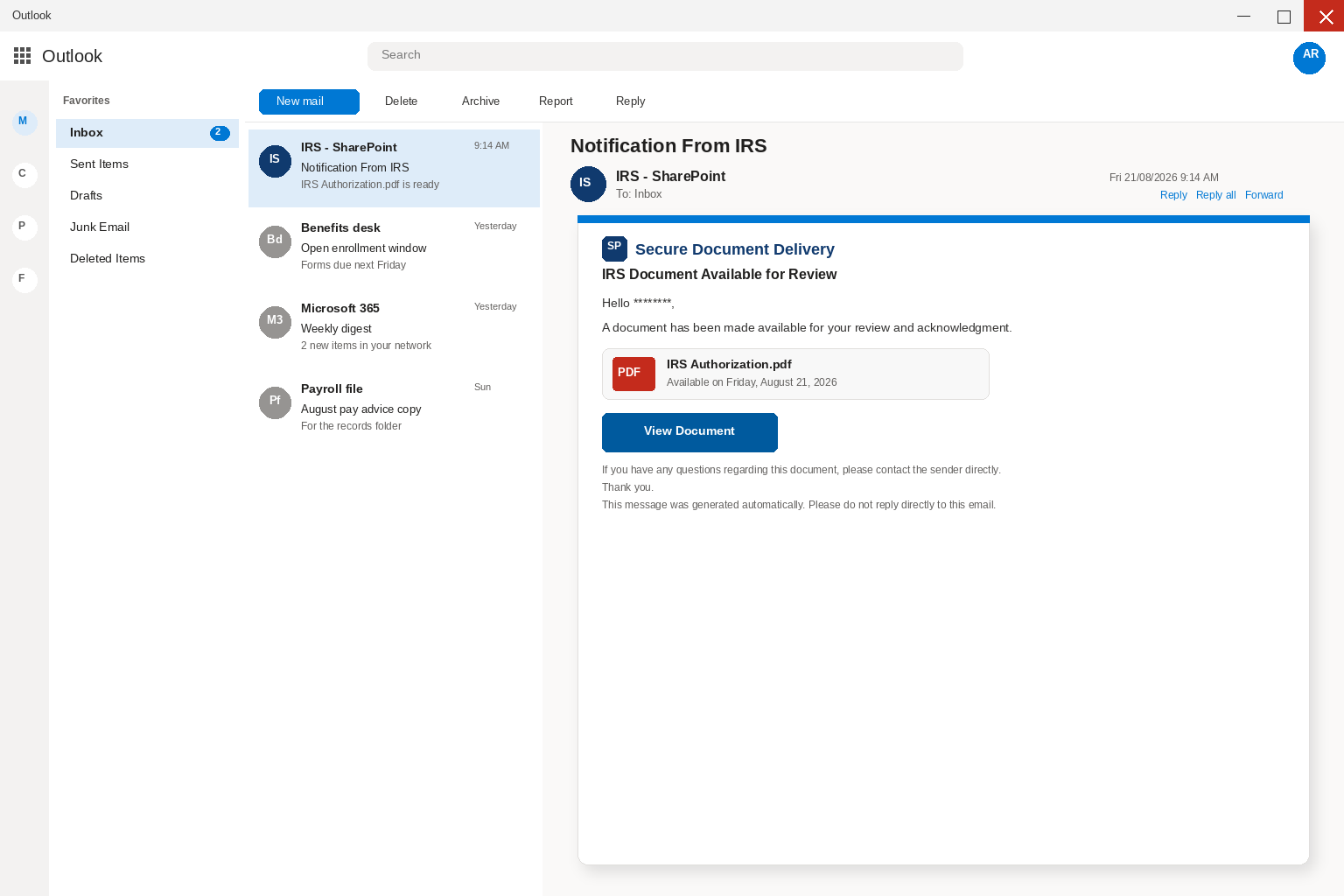
Inside the body, a Secure Document Delivery header tells you an IRS document is available for review, names the file IRS Authorization.pdf, and dates
that availability as Friday, August 21, 2026, as if a clerk had already placed the paper in a folder and only needed you to
open it.
A government label can be copied into any inbox
A View Document button sits under that filename, and the rest of the letter is written in the calm voice of an automated system,
with a greeting made of asterisks instead of your name.
The closing says the message was generated automatically, that you should not reply directly, and that any questions should go to the sender, which
sounds like a help desk until you notice that nobody on that desk is named.
The review page is a credential trap, not a tax portal
None of those lines explain who asked for an authorization, what the file is supposed to cover, or why the notice arrived in ordinary
email instead of the channel you already use for tax mail.
You are looking at a credential-phishing letter that borrowed the Internal Revenue Service as a costume, not a delivery from the agency that actually
handles federal tax documents.
- A document-available notice that borrows IRS authority
- A government-style display name paired with a generic delivery story
- A View Document button that can lead to an unrelated website
- A sign-in request instead of a tax record
- A risk to personal and small-business email accounts
- A safer way to check notices through a known tax account or adviser
Tax notices make people uneasy because missed deadlines and unanswered questions can carry real consequences.
That concern is exactly why a fabricated IRS delivery email can feel more urgent than ordinary spam.
A tax record should be checked through a known official route, never through an unexpected link.
How The Scam Works
Step 1: A bulk tax notice reaches the recipient
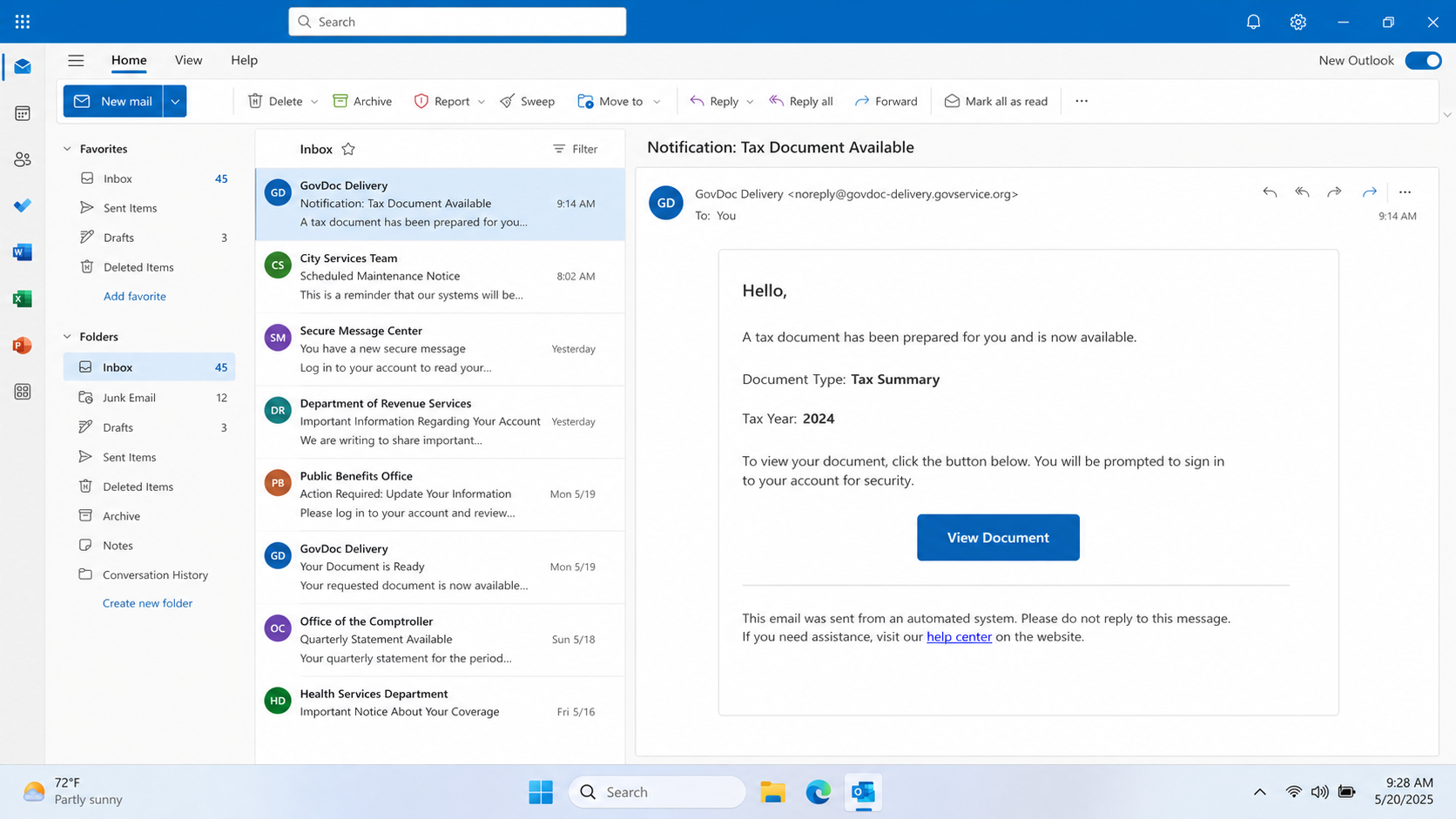
The pitch is Secure Document Delivery: a file called IRS Authorization.pdf is waiting for review and acknowledgment, and View Document is presented as the
only way to open it.
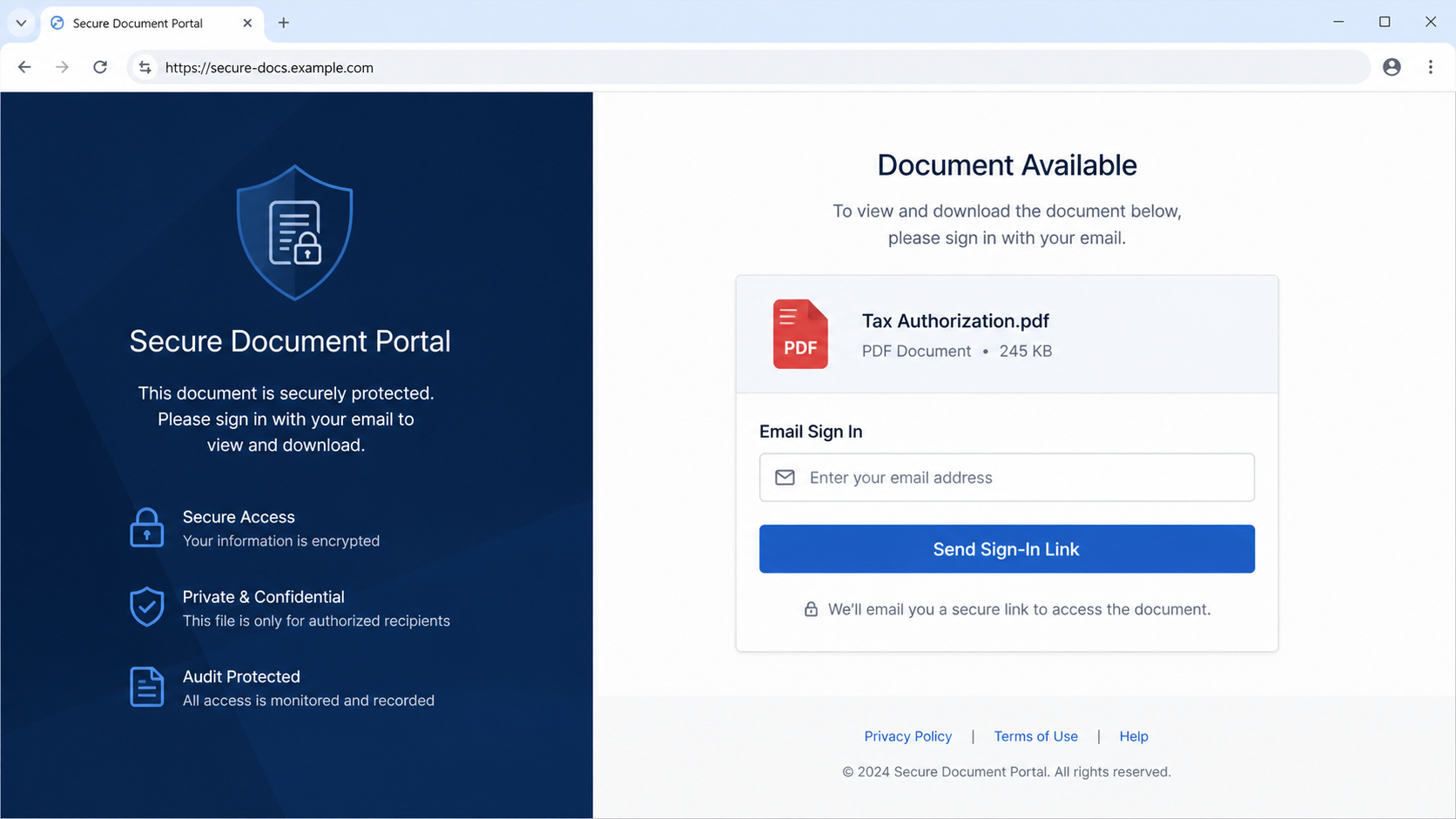
What that click actually opens is a fraudulent website built to steal the login or personal information you type, usually by copying an email-provider
sign-in page or a page that pretends to be an IRS document portal.
The Internal Revenue Service has no connection to this message, and it does not send unsolicited mail that asks you to click a link
or sign into an outside portal just to see a document.
The link in the examined campaign led to a fraudulent website that is no longer active, which is typical for kits that rotate hosts
before inboxes can warn one another.
Step 2: Secure-document language makes the email sound formal
The setup still tells you what the missing page was for, because a document-delivery letter that demands a mailbox password or a tax-portal login
is collecting that secret, not handing you a PDF.
If you need to know whether a real tax document is waiting, you open a new browser tab and type irs.gov yourself, then look
for notices in the account the agency already gave you.
That host belongs to the agency, and it is not the host sitting behind View Document, no matter how official the SharePoint-looking From line appears in Outlook.
Stolen credentials from a letter like this are valuable because an inbox sits in the middle of everything else you do online.
Operators who capture a mailbox password can hijack the email account, search it for tax forms and bank mail, try the same password on
financial sites, and write to contacts who already trust the name on the From line.
Step 3: An IRS-style label borrows public authority
In a tax-themed lure, they may also try to file a fraudulent return in the victim’s name once they have enough personal detail from
the inbox or from a copied portal form, which is why a dead link today does not make yesterday’s typed password harmless.
A document that was never sent is that story with a tax filename on it, and a review button is the click they need
before they can show you a copied login.
The Commission tells you to contact the company or the agency using a site or a number you already know is real, not the
information inside the unexpected message.
If a document-review note feels off, you verify it without using anything in the note, which is the opposite of typing your mailbox password
so a PDF can finish loading.
Step 4: View Document hides the real destination
a message wants an immediate click through a button you did not request.
Campaigns like this usually begin with a large list of addresses rather than a carefully chosen taxpayer, which is why the greeting is a
row of asterisks and the body never names a form number you would recognize from last year’s mail.
Addresses can come from public pages, marketing databases, previous breaches, infected contact lists, or simple combinations of common names and company domains, and the
operators do not need to know whether you actually file with the agency they named.
A tax filename works as bait because almost every adult in the United States has some relationship with federal paperwork, so the letter can
stay generic and still feel personal enough to open.
That bulk start also explains the SharePoint costume, because the people writing the mail want a label that sounds like a workplace document system
Step 5: The next page asks for a login instead of showing a PDF
talking to a government office, and that pairing makes a PDF named IRS Authorization.pdf feel like a file that already exists inside a folder
you are supposed to acknowledge.
They are not trying to prove they know your return so much as they are trying to put a review button in front of
as many inboxes as the list will allow, and a generic authorization file is cheap to print on every copy.
The body is styled as an automated notification from a legitimate document-sharing platform, which is a quieter trick than a threat of arrest or
a prize, because it asks you to finish a chore instead of to panic.
Secure Document Delivery sits at the top like a product name, IRS Document Available for Review sits under it like a ticket, and the
file IRS Authorization.pdf sits under that like evidence that a clerk already did the filing.
Step 6: Submitted credentials can be tested elsewhere
The date Friday, August 21, 2026, is doing the same job as a tracking number, because a calendar line makes a fake folder feel
scheduled rather than invented in a spam blast.
Review and acknowledgment is the small legal-sounding pair that turns curiosity into duty.
People who handle contracts, payroll, or household taxes are used to clicking through a portal to confirm they saw a paper, and the letter
borrows that habit so View Document feels like the next ordinary step rather than a request for a password.
no authorization was sent and that the agency does not hand out PDFs through surprise SharePoint mail.
The sender’s display name, IRS – SharePoint, is a clear giveaway once you look past the friendly text Outlook shows first, because that label
does not belong to the Internal Revenue Service or to any government agency.
Step 7: A stolen mailbox can support later tax or payment fraud
Scammers use it to suggest the message originates from a Microsoft SharePoint system used by the IRS, which is a story that sounds plausible
in offices where people already receive shared files through Microsoft tools.
The actual sending address belongs to an unrelated commercial domain, and that mismatch is the part the display name is designed to hide while
you are already reaching for the button.
Microsoft SharePoint is a real product that real organizations use to share files, and that fact is exactly why the name is useful on
a fake From line.
surprise inbox notice just because someone typed both names into the same display field.
Checking the full sender address is more useful than recognizing a logo or a product word, and even then a polished address is not
Company, Address, and Fulfillment Checks
The IRS name does not identify the sender
proof, because compromised mailboxes and abused commercial domains can still look tidy in a reading pane.
The visible button may say View Document, but that text is only a label, and the underlying address can lead anywhere the operator still controls that morning.
Some phishing links pass through tracking or redirect services before they reach the fake login page, which records who clicked and can help the
kit show different pages based on the recipient, the device, the country, or the email domain.
A document portal needs an independently verified domain
On a phone, the destination is difficult to inspect before you tap, and that is one reason these campaigns look unusually convincing on a
small screen where the reading pane and the next page fill the same display.
to perform before they treat a button as safe.
If you skip that look, the letter has already done its work, because the subject, the filename, the date, and the Secure Document Delivery
Tax questions require official or established support
header have framed the click as opening a paper rather than leaving your inbox.
A real document you actually expected can be retrieved through the account you already use, after you type the official address yourself, which is
slower than a button and also the reason the button exists.
When the destination was still live, the fraudulent site was built to imitate either an email service provider’s login page or an official IRS
Sensitive tax information needs a traceable destination
document portal, and either costume has the same job: capture whatever the visitor types.
A mailbox-looking form is especially useful because you are already sitting in mail, so a page that asks you to sign in again to
open a protected PDF feels like a continuation of the same session rather than a new request for a secret.
A portal-looking form is useful in a different way, because it can ask for a username, a password, and sometimes extra identity fields as
Why This Email Scam Needs a Careful Response
The IRS is a frequent impersonation target because people take its name seriously. That seriousness should lead to verification, not rushed clicking.
Do not call a number inside the suspicious message. Use a number from the IRS website, a prior notice, or a trusted tax professional.
An email that asks for a general email password is especially suspect. Tax-document access and inbox credentials are different things.
Small businesses should warn payroll, finance, and administration staff about the campaign. One mailbox can contain many tax and payment discussions.
Save the message in case it is needed for reporting, but do not download unknown attachments or submit information to the linked page.
A clean browser session opened from a known official site gives the recipient a safer answer than the email can provide.
if the agency needed them before it could show IRS Authorization.pdf.
Padlock icons and HTTPS do not establish that the page belongs to the agency it imitates, because they only mean the connection to that
particular domain is encrypted.
the link, or the bulk list that received the same notice.
This is the decisive moment in the campaign: any username, password, recovery email, phone number, or security answer submitted on that page becomes available
to the people running it, and the PDF never had to exist for that collection to work.
What to Do if You Have Fallen Victim to This Scam
- Stop interacting with the page and retain the email, sender address, link, and screenshots for reporting.
- Check for actual tax notices by using an official account route or contacting a tax professional through an established number.
- If you entered email credentials, change that password immediately from a trusted device and activate multi-factor authentication.
- Review recent sign-ins, forwarding rules, recovery details, and connected applications for signs that the inbox was accessed.
- Monitor bank, tax, and credit activity for follow-up impersonation. A stolen inbox can make future messages seem convincing.
- Run Malwarebytes if the website downloaded anything or if browser behavior changed after the visit.
- Use AdGuard to block many phishing and malicious-ad destinations while you review saved logins, notifications, and browser extensions.
- Report the phishing email to the appropriate IRS and consumer-fraud reporting channels with the original sender and URL.
Is Your Device Infected? Run a Free Malware Scan
Slow performance, constant pop-ups, or strange behavior? These are classic signs of a malware infection. The fastest way to find out is to scan your device with Malwarebytes Free — one of the most trusted malware removal tools available.
The free version detects and removes the most common threats, including:
- Adware — the cause of those annoying pop-ups
- Browser hijackers — unwanted redirects and changed homepages
- Trojans and spyware — hidden programs stealing your data
- Potentially unwanted programs (PUPs) — software you never asked for
👉 Select your device below — Windows, Mac, or Android — then follow the simple steps to download Malwarebytes, scan your system, and remove any threats it finds. The scan usually takes 5 to 20 minutes.
Run a Malware Scan with Malwarebytes for Windows
Malwarebytes is one of the most popular and trusted anti-malware tools for Windows — and it’s completely free for removing infections. It catches threats that many antivirus programs miss, including adware, browser hijackers, and trojans. Follow the steps below to scan and clean your PC in just a few minutes.
Download Malwarebytes
Click the button below to download the latest version of Malwarebytes for Windows from the official source. The free version is all you need — it will scan your computer and remove adware, browser hijackers, and other malicious software at no cost.
Download MalwarebytesOfficial installer for Windows 11 and 10. Your download starts right away.Want real-time protection? See Malwarebytes Premium Malwarebytes Free for WindowsScans and removes malware at no cost
-
Install Malwarebytes
When the download finishes, open your Downloads folder and double-click the MBSetup file. If Windows shows a User Account Control pop-up, click “Yes” to allow the installation.

Follow the On-Screen Prompts to Install Malwarebytes
The setup wizard will walk you through a few quick screens:
-
Choose where you’re installing the program — “Personal Computer” or “Work Computer” — then click Next.

-
Malwarebytes will now install on your device. This usually takes under a minute.

-
When installation is complete, the “Welcome to Malwarebytes” screen will open automatically.

-
On the final screen, click Open Malwarebytes to launch the program.

-
Enable “Scan for Rootkits”
Before scanning, turn on rootkit detection so Malwarebytes can find even the most hidden threats. Click the Settings gear icon on the left side of the screen.

In the settings menu, find “Scan for rootkits” and click the toggle so it turns blue.

Done? Click “Dashboard” in the left pane to return to the main screen.
Start the Scan
Click the blue Scan button. Malwarebytes will automatically update its virus database and start checking your computer for malware.

-
Wait for the Scan to Finish
The scan checks your entire system for browser hijackers and other malicious programs, so it can take 5 to 20 minutes depending on your computer. Feel free to do something else — just check back occasionally to see the progress.

-
Quarantine the Detected Threats
When the scan is done, you’ll see a list of everything Malwarebytes found — malware, adware, and potentially unwanted programs. Click the “Quarantine” button to remove all of them at once.

Malwarebytes will now remove the malicious files and registry entries and move them safely into quarantine.

-
Restart Your Computer
Some threats can only be fully removed after a reboot. If Malwarebytes asks you to restart, click Yes. Once you’re logged back in, Malwarebytes has finished removing the threats it found.

That’s it — your Windows PC is now clean of trojans, adware, and other malware, and should be back to running smoothly.
If you are still having problems with your computer after completing these instructions, then please follow one of the steps:
- Run a computer scan with ESET Online Scanner
- Ask for help in our Windows Malware Removal Help & Support forum.
Run a Malware Scan with Malwarebytes for Mac
Malwarebytes for Mac is a free on-demand scanner that removes the malware other security software tends to miss — adware, browser hijackers, and unwanted programs included. Cleaning an infected Mac with Malwarebytes has always been completely free, and it’s our go-to recommendation. Follow the steps below to scan and clean your Mac in just a few minutes.
-
Download Malwarebytes for Mac
Click the button below to download the latest version of Malwarebytes for Mac.
Download MalwarebytesOfficial installer for macOS. Your download starts right away.Want real-time protection? See Malwarebytes PremiumMalwarebytes Free for MacScans and removes malware at no cost -
Open the Malwarebytes setup file
When the download finishes, open your Downloads folder and double-click the setup file to begin the installation.

-
Follow the On-Screen Prompts to Install Malwarebytes
The Malwarebytes for Mac Installer will guide you through a few quick screens. Click “Continue” and keep following the prompts until the installation completes.



When the installation is complete, Malwarebytes opens to the Welcome to Malwarebytes screen. Click “Get started“.
-
Select “Personal Computer” or “Work Computer”
Malwarebytes will ask what type of computer you’re installing it on. Click either Personal Computer or Work Computer, whichever applies.

-
Start the Scan
Click the “Scan” button. Malwarebytes will automatically update its detection database and begin checking your Mac for malware.

-
Wait for the Scan to Finish
Malwarebytes will scan your Mac for adware, browser hijackers, and other malicious programs. This can take a few minutes, so feel free to do something else — just check back occasionally to see the progress.

-
Quarantine the Detected Threats
When the scan is done, you’ll see a list of everything Malwarebytes found. Click the “Quarantine” button to remove all the threats at once.

-
Restart Your Mac
Malwarebytes will now remove all the malicious files it found. Some threats can only be fully removed after a reboot — if Malwarebytes asks you to restart, allow it. Once you’re logged back in, your Mac is clean.

That’s it — your Mac is now free of adware, rogue browser extensions, and other potentially harmful software.
If you are still experiencing problems while trying to remove a malicious program from your computer, please ask for help in our Mac Malware Removal Help & Support forum.
Run a Malware Scan with Malwarebytes for Android
Malwarebytes for Android automatically detects and removes dangerous threats like malware and ransomware so you don’t have to worry about your most-used device being compromised. Aggressive detection of adware and potentially unwanted programs keeps your Android phone or tablet running smooth.
-
Download Malwarebytes for Android.
You can download Malwarebytes for Android by clicking the link below.
Get Malwarebytes for AndroidOpens Google Play in a new tab.Want real-time protection? See Malwarebytes Premium for AndroidMalwarebytes for AndroidScans your phone and removes malware at no cost -
Install Malwarebytes for Android on your phone.
In the Google Play Store, tap “Install” to install Malwarebytes for Android on your device.

When the installation process has finished, tap “Open” to begin using Malwarebytes for Android. You can also open Malwarebytes by tapping on its icon in your phone menu or home screen.

-
Follow the on-screen prompts to complete the setup process
When Malwarebytes will open, you will see the Malwarebytes Setup Wizard which will guide you through a series of permissions and other setup options.
This is the first of two screens that explain the difference between the Premium and Free versions. Swipe this screen to continue.
Tap on “Got it” to proceed to the next step.
Malwarebytes for Android will now ask for a set of permissions that are required to scan your device and protect it from malware. Tap on “Give permission” to continue.
Tap on “Allow” to permit Malwarebytes to access the files on your phone.
-
Update database and run a scan with Malwarebytes for Android
You will now be prompted to update the Malwarebytes database and run a full system scan.

Click on “Update database” to update the Malwarebytes for Android definitions to the latest version, then click on “Run full scan” to perform a system scan.

-
Wait for the Malwarebytes scan to complete.
Malwarebytes will now start scanning your phone for adware and other malicious apps. This process can take a few minutes, so we suggest you do something else and periodically check on the status of the scan to see when it is finished.

-
Click on “Remove Selected”.
When the scan has been completed, you will be presented with a screen showing the malware infections that Malwarebytes for Android has detected. To remove the malicious apps that Malwarebytes has found, tap on the “Remove Selected” button.

-
Restart your phone.
Malwarebytes for Android will now remove all the malicious apps that it has found. To complete the malware removal process, Malwarebytes may ask you to restart your device.
That’s it — your Android phone is now clean — no more malicious apps, adware, or browser redirects.
If you are still having problems with your phone after completing these instructions, then please follow one of the steps:
- Restore your phone to factory settings by going to Settings > General management > Reset > Factory data reset.
- Ask for help in our Mobile Malware Removal Help & Support forum.
Stay Protected: Block Ads and Malicious Sites
Now that your device is clean, keep it that way. Most infections start with a malicious ad or a fake download button — so blocking them at the source is your best defense.
We recommend AdGuard, which blocks malicious ads, phishing pages, and dangerous redirects before they can reach you.
👉 Download AdGuard and browse safely
Frequently Asked Questions
Does the IRS send documents by email?
Tax communications can vary, but an unexpected email link should never be treated as proof that a document is genuine.
Why is a View Document button risky?
It can conceal an unrelated domain and a password form that has nothing to do with a tax record.
Should a tax portal ask for my ordinary email password?
No. A general inbox password is not a normal requirement for viewing a tax document.
What if the email has an IRS-style name?
A display name can be copied. Check the sender and portal through a separate official route.
How can I verify an IRS notice?
Use a known IRS account, a prior official notice, or an established tax professional.
What if I only clicked the button?
Close the page and use an independent account route. Change passwords only if credentials were entered.
The Bottom Line
The IRS document available email scam uses the fear of missing tax paperwork to steer people toward a false sign-in page.
Reach tax information through a path you choose and can verify. The email should never choose the portal for you.
A calm independent check is safer than a rushed click.

Join the discussion
0 commentsShare your experience or ask a question about this article.
Discussion
Start the conversation
Have a question or something useful to share? Add the first comment.