

A completed signature packet sounds like the final, uneventful step in a transaction that may have involved weeks of careful work.
The notification looks polished, names a familiar real-estate platform, and offers a direct path to the supposedly finished document.
Overview
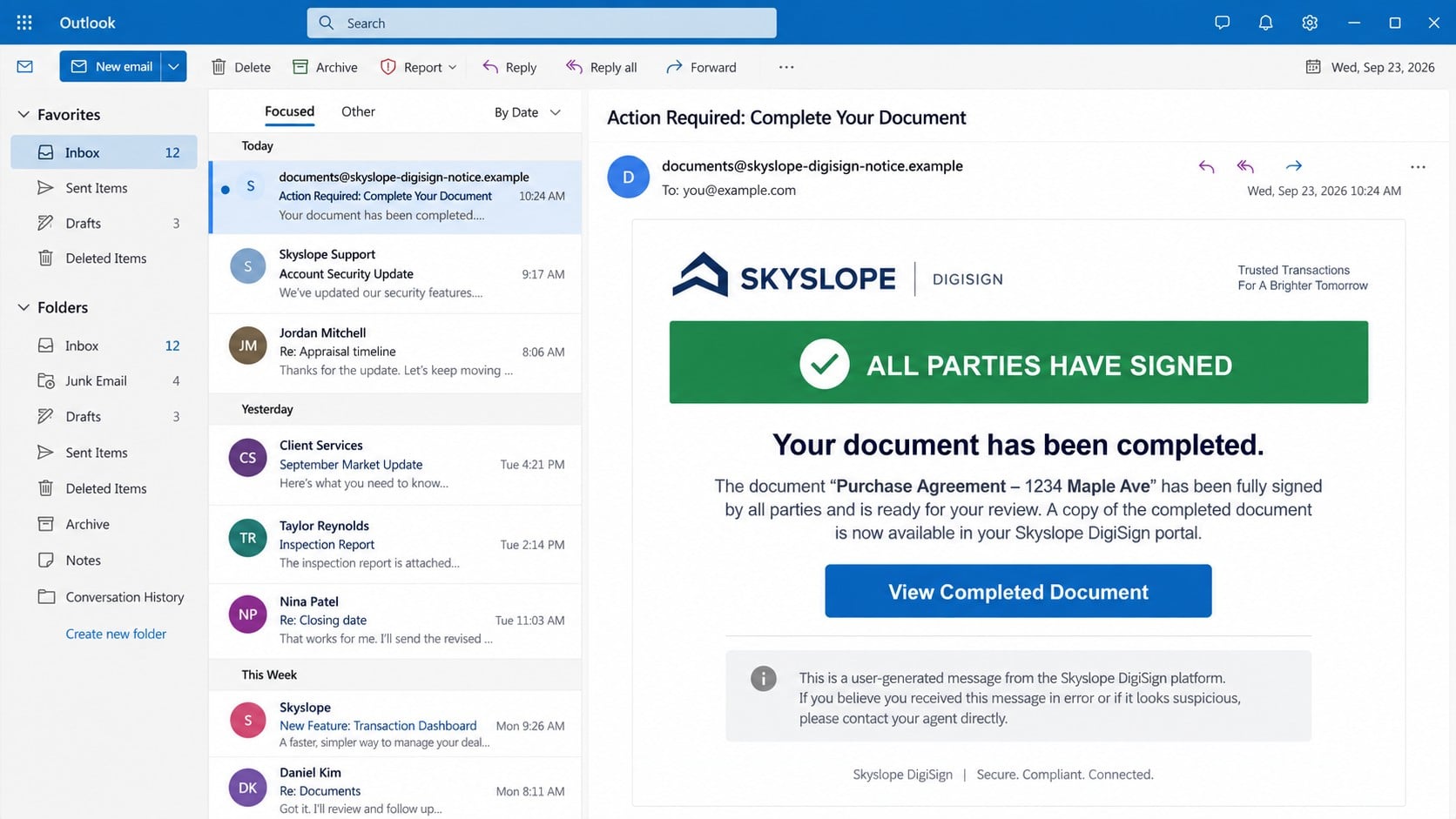
The email says every party has signed a document
The SkySlope DigiSign Document Completed email scam impersonates a legitimate electronic-signature service used in real-estate transactions.
An observed subject reads, “Action Required: Complete Your Document.”
Inside, the message announces “ALL PARTY HAVE SIGNED” and says the completed file is ready to view.
SkySlope DigiSign is a real service, but it has no connection with this phishing campaign.
The viewing button opens an unrelated secured-file page
The “View Completed Document” button does not retrieve a valid transaction envelope.
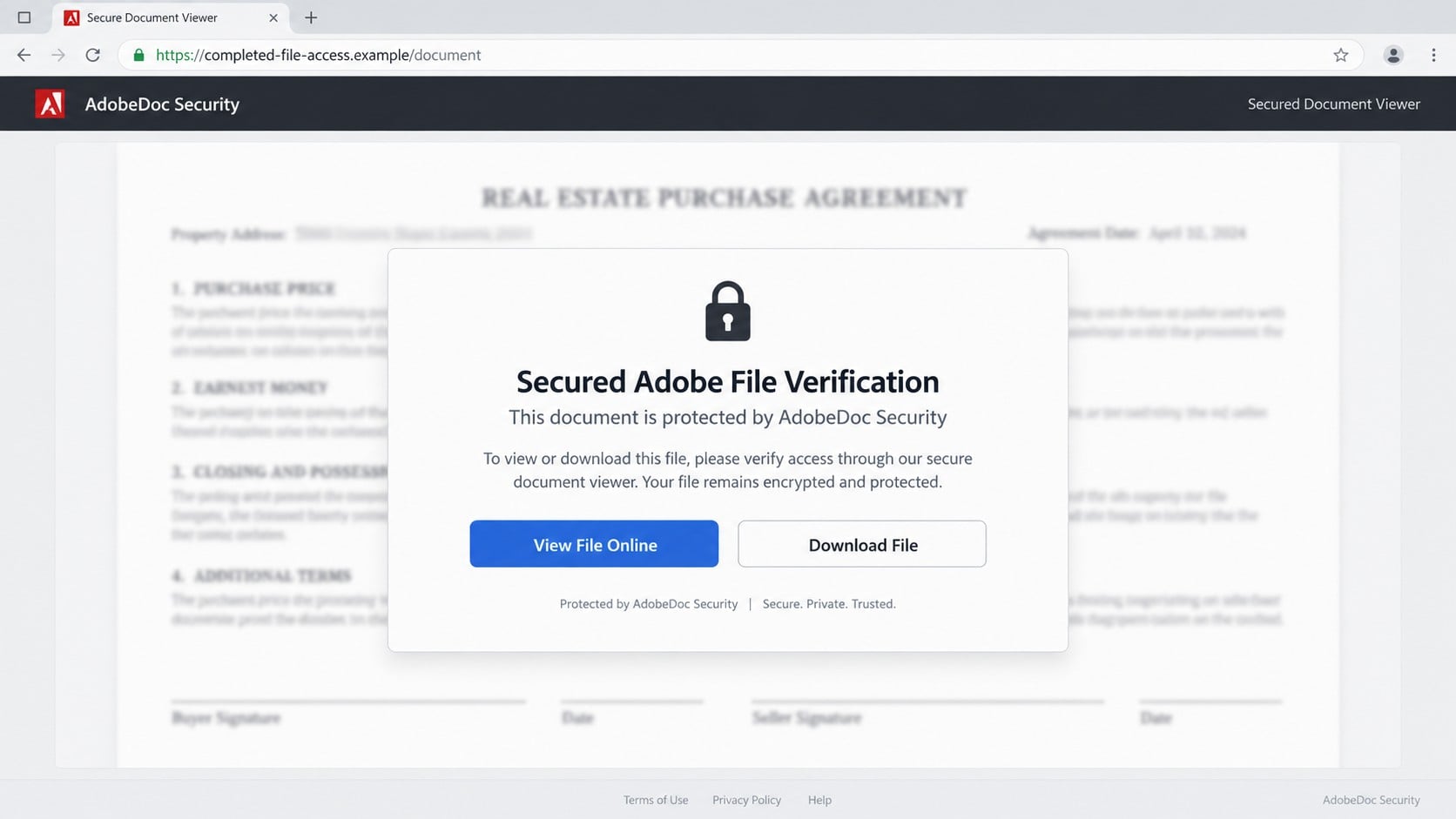
Observed messages have led to an unrelated website that presents “Secured Adobe File Verification” branding.
The page claims an AdobeDoc security feature protects the document.
Adobe did not create that verification process, and its imagery is being used without authorization.
The supposed document hides a credential form
A blurred file preview suggests that a signed agreement exists just behind the verification screen.
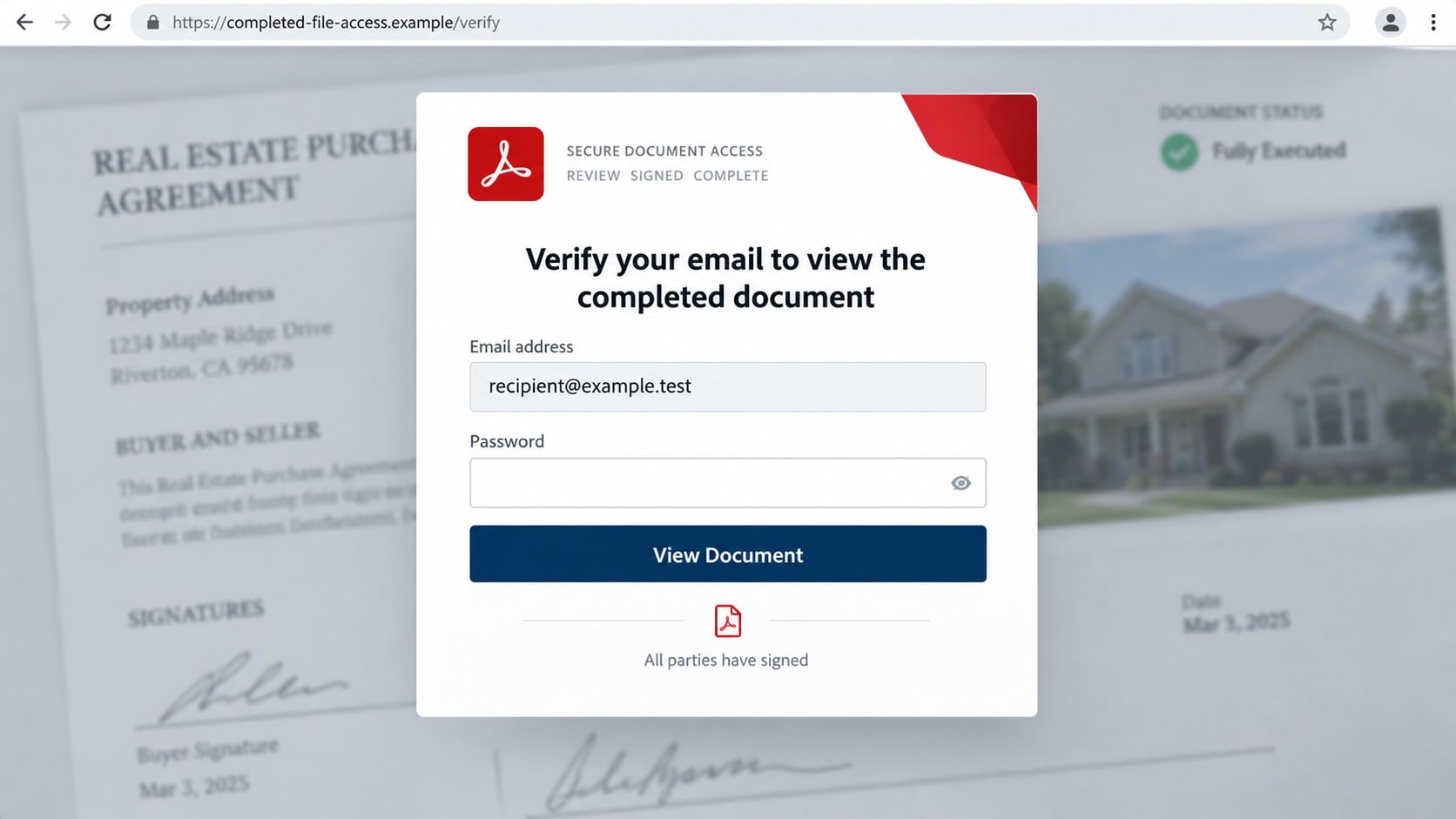
The visitor is asked for an email address and password before the file can be viewed or downloaded.
Submitted credentials go to the phishing operator, while the promised document remains unavailable.
Warning signs include:
- The recipient was not expecting a SkySlope DigiSign transaction.
- The subject requests completion while the body says signing is already complete.
- The sender cannot identify the agent or transaction participants.
- The link leaves the genuine SkySlope service.
- The destination abruptly introduces unrelated Adobe-themed branding.
- A file viewer demands the recipient’s existing email password.
- The email address may be inserted before any real authentication occurs.
- No matching envelope appears in the recipient’s independently opened account.
Why a Completed Document Creates Strong Curiosity
Real-estate transactions produce offers, disclosures, amendments, inspection forms, and closing documents.
Participants may receive many legitimate signature notifications while details are changing quickly.
A buyer, seller, agent, or coordinator can recognize the general situation without recognizing every filename.
The phrase “all parties have signed” suggests that no decision remains, only a harmless review.
That sense of completion lowers the caution people often apply to a new signing request.
The file may also seem important enough to archive immediately.
Criminals exploit that combination of relief, curiosity, and recordkeeping.
The recipient reaches for the document before verifying which deal supposedly produced it.
The Campaign Borrows Trust From Two Different Brands
The email uses SkySlope DigiSign to establish a believable transaction story.
After the click, Adobe-style graphics explain why the browser is showing a protected file instead.
Each brand performs a separate persuasive role, even though no legitimate connection is demonstrated.
The first logo suggests real-estate workflow. The second suggests secure PDF access.
Neither logo proves who sent the email or controls the destination.
Attackers can copy colors, icons, slogans, and interface elements from public websites.
Consistent ownership is what matters, including the domain, envelope record, sender, and actual transaction.
When those elements do not connect, polished branding becomes camouflage.
How the SkySlope DigiSign Document Completed Email Scam Works
Step 1: The phishers distribute a completed-document notice
The campaign sends lookalike notifications to personal and workplace addresses gathered from multiple sources.
Recipients do not need to be active SkySlope customers for the lure to work.
Anyone buying, selling, renting, refinancing, or working around property documents may find it plausible.
Broad wording allows the same template to reach many unrelated targets.
Step 2: The message presents the transaction as finished
The body congratulates the reader and says every party has signed.
A prominent button promises immediate access to the completed record.
The message may include a warning about user-generated content to imitate a cautious platform notice.
That borrowed warning can ironically make the fraudulent email appear more responsible.
Step 3: The button carries tracking and identity data
The link may include the recipient’s address or another campaign identifier.
Redirects can record who clicked and forward the visitor to the active phishing host.
This process explains why the next page may already know the email address.
It does not indicate that SkySlope authenticated the visitor.
Step 4: A fake secured-document viewer continues the story
The browser opens a blurred agreement beneath a lock symbol and verification panel.
Labels such as protected, secured, encrypted, and private create an impression of technical safeguards.
The file is decorative and cannot confirm a property, client, envelope, or agreement.
Buttons for online viewing and downloading can lead to the same credential prompt.
Step 5: The page requests the mailbox password
The victim is told that email verification is necessary to reveal the completed file.
An address may appear automatically, leaving only the password field empty.
This design makes the step feel like familiar single sign-on.
Instead, it asks the user to disclose a secret to an unrelated domain.
Step 6: The operator captures and tests the credentials
Selecting View Document transmits the entered information to attacker-controlled systems.
A fake error may request the password again or claim that document access expired.
The criminal can test the credentials against the mailbox and connected cloud services.
A redirect to a legitimate page may hide the theft after submission.
Step 7: The compromised identity supports larger fraud
Real-estate inboxes can contain wire instructions, identity records, signed agreements, and precise closing schedules.
An intruder may study existing conversations before impersonating an agent, client, lawyer, or title representative.
Altered payment instructions can arrive inside a genuine thread where trust already exists.
The account can also send convincing document lures to everyone involved in the transaction.
Sender, Transaction, Domain, and Login Verification Checks
Confirm the transaction outside the notification
Ask which property, envelope, signer, and document the email concerns.
Use a previously known telephone number or existing conversation to contact the agent or transaction coordinator.
Do not call a number added inside the suspicious message.
If nobody involved recognizes the document, there is no reason to open its link.
Inspect the complete sender information
Expand the message details and compare the display name with the actual address and reply route.
A forged SkySlope label can sit in front of any mailbox.
Unexpected external-sender warnings, unrelated domains, and failed authentication results deserve immediate scrutiny.
Report the original message instead of forwarding it casually to other participants.
Open the service independently
Use a trusted bookmark or manually navigate to the known SkySlope DigiSign service.
Look for the same envelope, participants, status, and completion time inside the real account.
A genuine completed document should exist in the transaction history.
The email button is unnecessary when independent account access is available.
Reject password prompts on document domains
Read the domain in the browser address bar before typing anything.
A file viewer does not need the password for an unrelated email account.
Legitimate access may use an authenticated service session, unique link, or one-time code.
Close the page when a foreign domain asks for the mailbox’s existing password.
How Legitimate Electronic-Signature Notifications Differ
A real signing workflow begins with a recognizable transaction and identifiable sender.
The notification normally provides an envelope reference, document context, or party name that the recipient can confirm.
Account history reflects whether the document awaits action or has already been completed.
The viewing path stays within the provider’s documented domain and authentication process.
Completed status should not conflict with a subject demanding another signature.
A platform may warn users about suspicious content, but that warning does not validate the message around it.
Most importantly, a genuine viewer does not collect the password for an unrelated mailbox through a separate domain.
When uncertain, the agent can resend the envelope after confirming the request by telephone.
Real-Estate Mailboxes Carry Unusual Financial Risk
Property transactions combine large payments with deadlines, changing participants, and frequent electronic documents.
Those conditions are attractive to criminals seeking more than a single reused password.
A compromised mailbox reveals who expects a wire, when funds move, and which professional provides instructions.
The intruder may monitor the conversation silently until the most profitable moment.
One altered account number can redirect a down payment or closing balance.
Because the message comes from a real participant’s account, conventional spam clues may disappear.
Verbal confirmation of payment instructions is essential, even after the original phishing email is removed.
Use a trusted number already on record, not contact details supplied in a late email.
What the Blurred Agreement Is Designed to Do
The page shows enough document texture to imply that content has already loaded.
Blur prevents the visitor from noticing that the names, dates, and property details are missing or generic.
It also creates a practical reason for the password prompt.
The victim may believe authentication will simply remove a privacy filter.
A lock icon and security slogan strengthen that expectation without proving encryption or ownership.
Two viewing choices can create an illusion of functionality even when both trigger the same form.
The document is therefore a stage prop, not evidence of an actual completed transaction.
Verification should begin with the people and account history, never with the image behind the login box.
Signs the Mailbox Was Used After the Theft
New forwarding rules may copy messages containing words such as closing, title, wire, escrow, or commission.
Conversations can vanish from the inbox while remaining inside Deleted Items or obscure folders.
Sent mail may contain document links the owner never created.
Authentication history may show an unknown browser or location at unusual hours.
Third-party applications can retain access after a password change if their consent remains active.
Contacts may receive replies that sound informed because the intruder read the earlier thread.
Payment details changed near closing must be treated as a possible business email compromise.
Involved banks, brokers, title companies, and clients may need prompt notification.
Preserve the genuine conversation before remediation, because its timing may reveal when the intruder began monitoring the deal.
A transaction hold is safer than assuming one corrected email has ended the risk.
How to Respond When You Only Received the Email
Do not use its document button, manual link, telephone number, or reply address.
Report it as phishing through the email provider or workplace reporting tool.
Preserve headers if an internal security team needs indicators for organization-wide blocking.
Reading the message without interacting does not normally compromise the device.
You do not need to change passwords merely because the email reached the inbox.
Delete it after reporting, and warn transaction partners if they may receive the same impersonation.
Open genuine transaction platforms separately if current documents need review.
Never use an unsubscribe link inside an obvious phishing message.
What to Do if You Have Fallen Victim to This Scam
- Change the exposed mailbox password. Use a known-clean device and reach the provider through its genuine application or a manually entered address.
- Terminate active access. Sign out all sessions and revoke unfamiliar devices, application passwords, OAuth permissions, and connected applications.
- Examine account persistence. Remove unknown forwarding rules, delegates, aliases, recovery methods, filters, and hidden inbox actions.
- Preserve a timeline. Save the phishing email, headers, destination, screenshots, sign-in records, and approximate submission time.
- Contact transaction partners directly. Alert the agent, broker, attorney, title company, lender, and other affected parties through established channels.
- Verify every payment instruction. Compare account details with previously confirmed records and telephone the recipient using a number already trusted.
- Call financial institutions immediately. Request a hold or recall if any wire or payment may have been redirected.
- Protect other accounts. Replace reused passwords and secure services that rely on the compromised email for recovery.
- Check for downloaded threats. Run Malwarebytes if a file opened or software executed, then address detections before accessing financial accounts.
- Add web filtering. AdGuard can block many known phishing hosts and deceptive redirects while supporting existing browser protections.
- File appropriate reports. Notify the provider, organization, bank, insurer, and relevant fraud authorities when information or money was exposed.
Is Your Device Infected? Run a Free Malware Scan
Slow performance, constant pop-ups, or strange behavior? These are classic signs of a malware infection. The fastest way to find out is to scan your device with Malwarebytes Free — one of the most trusted malware removal tools available.
The free version detects and removes the most common threats, including:
- Adware — the cause of those annoying pop-ups
- Browser hijackers — unwanted redirects and changed homepages
- Trojans and spyware — hidden programs stealing your data
- Potentially unwanted programs (PUPs) — software you never asked for
👉 Select your device below — Windows, Mac, or Android — then follow the simple steps to download Malwarebytes, scan your system, and remove any threats it finds. The scan usually takes 5 to 20 minutes.
Run a Malware Scan with Malwarebytes for Windows
Malwarebytes is one of the most popular and trusted anti-malware tools for Windows — and it’s completely free for removing infections. It catches threats that many antivirus programs miss, including adware, browser hijackers, and trojans. Follow the steps below to scan and clean your PC in just a few minutes.
Download Malwarebytes
Click the button below to download the latest version of Malwarebytes for Windows from the official source. The free version is all you need — it will scan your computer and remove adware, browser hijackers, and other malicious software at no cost.
Download MalwarebytesOfficial installer for Windows 11 and 10. Your download starts right away.Want real-time protection? See Malwarebytes Premium Malwarebytes Free for WindowsScans and removes malware at no cost
-
Install Malwarebytes
When the download finishes, open your Downloads folder and double-click the MBSetup file. If Windows shows a User Account Control pop-up, click “Yes” to allow the installation.

Follow the On-Screen Prompts to Install Malwarebytes
The setup wizard will walk you through a few quick screens:
-
Choose where you’re installing the program — “Personal Computer” or “Work Computer” — then click Next.

-
Malwarebytes will now install on your device. This usually takes under a minute.

-
When installation is complete, the “Welcome to Malwarebytes” screen will open automatically.

-
On the final screen, click Open Malwarebytes to launch the program.

-
Enable “Scan for Rootkits”
Before scanning, turn on rootkit detection so Malwarebytes can find even the most hidden threats. Click the Settings gear icon on the left side of the screen.

In the settings menu, find “Scan for rootkits” and click the toggle so it turns blue.

Done? Click “Dashboard” in the left pane to return to the main screen.
Start the Scan
Click the blue Scan button. Malwarebytes will automatically update its virus database and start checking your computer for malware.

-
Wait for the Scan to Finish
The scan checks your entire system for browser hijackers and other malicious programs, so it can take 5 to 20 minutes depending on your computer. Feel free to do something else — just check back occasionally to see the progress.

-
Quarantine the Detected Threats
When the scan is done, you’ll see a list of everything Malwarebytes found — malware, adware, and potentially unwanted programs. Click the “Quarantine” button to remove all of them at once.

Malwarebytes will now remove the malicious files and registry entries and move them safely into quarantine.

-
Restart Your Computer
Some threats can only be fully removed after a reboot. If Malwarebytes asks you to restart, click Yes. Once you’re logged back in, Malwarebytes has finished removing the threats it found.

That’s it — your Windows PC is now clean of trojans, adware, and other malware, and should be back to running smoothly.
If you are still having problems with your computer after completing these instructions, then please follow one of the steps:
- Run a computer scan with ESET Online Scanner
- Ask for help in our Windows Malware Removal Help & Support forum.
Run a Malware Scan with Malwarebytes for Mac
Malwarebytes for Mac is a free on-demand scanner that removes the malware other security software tends to miss — adware, browser hijackers, and unwanted programs included. Cleaning an infected Mac with Malwarebytes has always been completely free, and it’s our go-to recommendation. Follow the steps below to scan and clean your Mac in just a few minutes.
-
Download Malwarebytes for Mac
Click the button below to download the latest version of Malwarebytes for Mac.
Download MalwarebytesOfficial installer for macOS. Your download starts right away.Want real-time protection? See Malwarebytes PremiumMalwarebytes Free for MacScans and removes malware at no cost -
Open the Malwarebytes setup file
When the download finishes, open your Downloads folder and double-click the setup file to begin the installation.

-
Follow the On-Screen Prompts to Install Malwarebytes
The Malwarebytes for Mac Installer will guide you through a few quick screens. Click “Continue” and keep following the prompts until the installation completes.



When the installation is complete, Malwarebytes opens to the Welcome to Malwarebytes screen. Click “Get started“.
-
Select “Personal Computer” or “Work Computer”
Malwarebytes will ask what type of computer you’re installing it on. Click either Personal Computer or Work Computer, whichever applies.

-
Start the Scan
Click the “Scan” button. Malwarebytes will automatically update its detection database and begin checking your Mac for malware.

-
Wait for the Scan to Finish
Malwarebytes will scan your Mac for adware, browser hijackers, and other malicious programs. This can take a few minutes, so feel free to do something else — just check back occasionally to see the progress.

-
Quarantine the Detected Threats
When the scan is done, you’ll see a list of everything Malwarebytes found. Click the “Quarantine” button to remove all the threats at once.

-
Restart Your Mac
Malwarebytes will now remove all the malicious files it found. Some threats can only be fully removed after a reboot — if Malwarebytes asks you to restart, allow it. Once you’re logged back in, your Mac is clean.

That’s it — your Mac is now free of adware, rogue browser extensions, and other potentially harmful software.
If you are still experiencing problems while trying to remove a malicious program from your computer, please ask for help in our Mac Malware Removal Help & Support forum.
Run a Malware Scan with Malwarebytes for Android
Malwarebytes for Android automatically detects and removes dangerous threats like malware and ransomware so you don’t have to worry about your most-used device being compromised. Aggressive detection of adware and potentially unwanted programs keeps your Android phone or tablet running smooth.
-
Download Malwarebytes for Android.
You can download Malwarebytes for Android by clicking the link below.
Get Malwarebytes for AndroidOpens Google Play in a new tab.Want real-time protection? See Malwarebytes Premium for AndroidMalwarebytes for AndroidScans your phone and removes malware at no cost -
Install Malwarebytes for Android on your phone.
In the Google Play Store, tap “Install” to install Malwarebytes for Android on your device.

When the installation process has finished, tap “Open” to begin using Malwarebytes for Android. You can also open Malwarebytes by tapping on its icon in your phone menu or home screen.

-
Follow the on-screen prompts to complete the setup process
When Malwarebytes will open, you will see the Malwarebytes Setup Wizard which will guide you through a series of permissions and other setup options.
This is the first of two screens that explain the difference between the Premium and Free versions. Swipe this screen to continue.
Tap on “Got it” to proceed to the next step.
Malwarebytes for Android will now ask for a set of permissions that are required to scan your device and protect it from malware. Tap on “Give permission” to continue.
Tap on “Allow” to permit Malwarebytes to access the files on your phone.
-
Update database and run a scan with Malwarebytes for Android
You will now be prompted to update the Malwarebytes database and run a full system scan.

Click on “Update database” to update the Malwarebytes for Android definitions to the latest version, then click on “Run full scan” to perform a system scan.

-
Wait for the Malwarebytes scan to complete.
Malwarebytes will now start scanning your phone for adware and other malicious apps. This process can take a few minutes, so we suggest you do something else and periodically check on the status of the scan to see when it is finished.

-
Click on “Remove Selected”.
When the scan has been completed, you will be presented with a screen showing the malware infections that Malwarebytes for Android has detected. To remove the malicious apps that Malwarebytes has found, tap on the “Remove Selected” button.

-
Restart your phone.
Malwarebytes for Android will now remove all the malicious apps that it has found. To complete the malware removal process, Malwarebytes may ask you to restart your device.
That’s it — your Android phone is now clean — no more malicious apps, adware, or browser redirects.
If you are still having problems with your phone after completing these instructions, then please follow one of the steps:
- Restore your phone to factory settings by going to Settings > General management > Reset > Factory data reset.
- Ask for help in our Mobile Malware Removal Help & Support forum.
Stay Protected: Block Ads and Malicious Sites
Now that your device is clean, keep it that way. Most infections start with a malicious ad or a fake download button — so blocking them at the source is your best defense.
We recommend AdGuard, which blocks malicious ads, phishing pages, and dangerous redirects before they can reach you.
👉 Download AdGuard and browse safely
Frequently Asked Questions
Is SkySlope DigiSign itself a scam?
No. SkySlope DigiSign is a legitimate service whose name is being impersonated in this phishing campaign.
Was a real completed document attached to the email?
No authentic document has been established in the observed lure.
The button leads toward a fabricated verification page.
Why does the message say all parties have signed?
Completion makes the file feel safe and important.
It encourages review without the hesitation associated with a new signature request.
Does the Adobe-style page prove the file is protected?
No. Logos, lock icons, and security phrases can be copied into any website controlled by an attacker.
What if I opened the page but submitted nothing?
Close it, check for downloads, and report the email.
The credential attack depends on information entered into the form.
Why is this dangerous during a property transaction?
A stolen mailbox can expose wire schedules and trusted relationships, allowing criminals to insert fraudulent payment instructions into genuine conversations.
The Bottom Line
The SkySlope DigiSign Document Completed email combines a believable transaction milestone with a counterfeit secured-file page that captures mailbox passwords.
Confirm the envelope through known participants and the genuine platform. A completed-document story never justifies entering email credentials on an unrelated website.

Join the discussion
0 commentsShare your experience or ask a question about this article.
Discussion
Start the conversation
Have a question or something useful to share? Add the first comment.