


A mailbox warning can feel unusually personal when work, receipts, and family messages all depend on one account.
This notice arrives with familiar Microsoft colors and a simple repair button, making a routine-looking problem difficult to ignore.
Overview
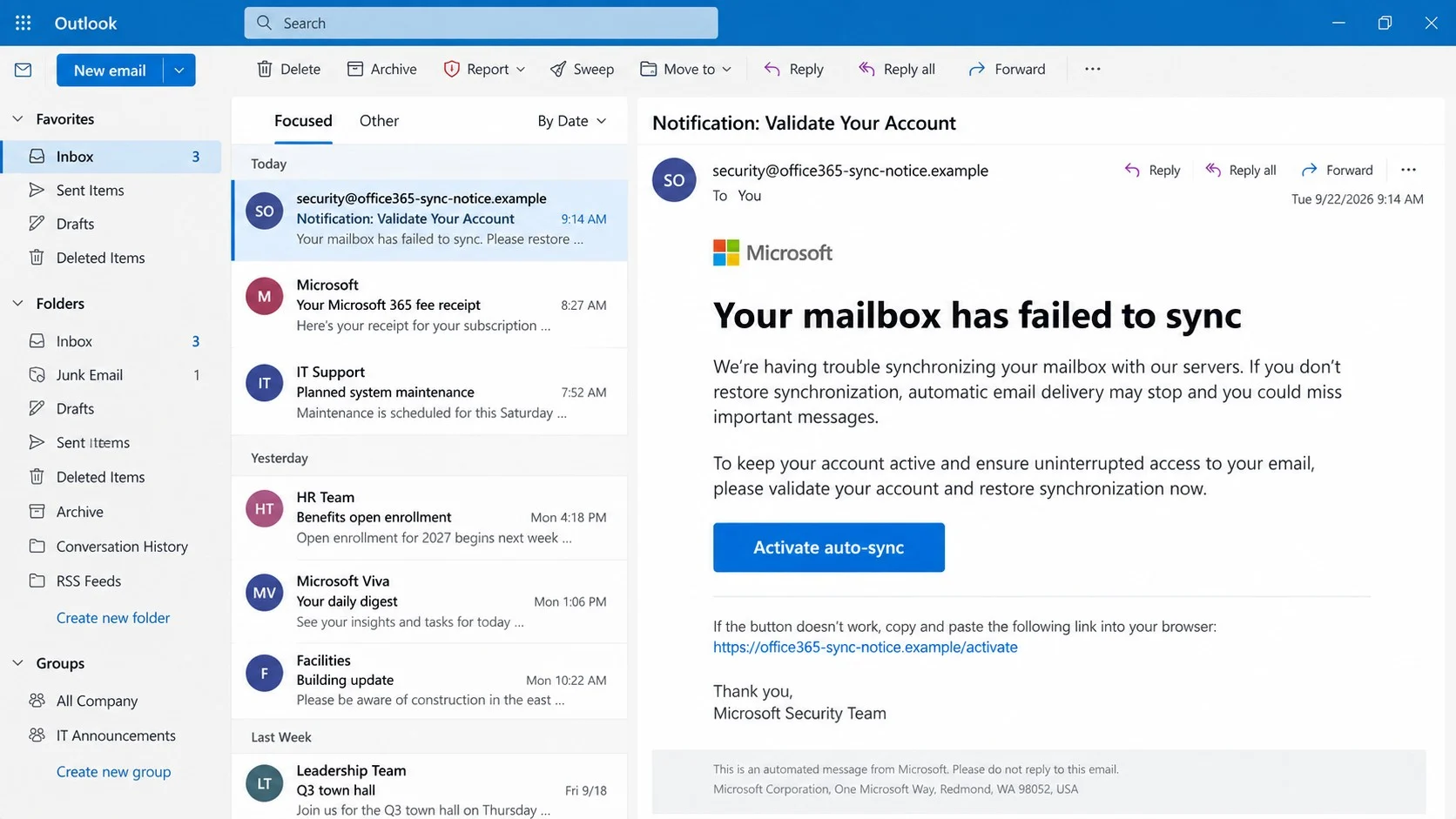
The email says the mailbox has stopped synchronizing
The Office 365 Mailbox Failed to Sync email scam presents an invented delivery problem as an urgent account task.
An observed version uses the subject “Notification: Validate Your Account.”
Its main warning says, “Your mailbox has failed to sync,” followed by a claim that automatic delivery may stop.
The message signs off as the “Microsoft Security Team,” although Microsoft did not send it.
The auto-sync button leaves Microsoft’s services
A blue “Activate auto-sync” button promises to restore normal email delivery.
Instead of opening a genuine Microsoft account page, the link takes the recipient to third-party web infrastructure.
Campaigns may abuse legitimate hosting platforms, including cloud storage services, to keep their phishing pages available.
The padlock beside such a page only encrypts the connection. It does not prove Microsoft controls the website.
The generic webmail page collects the password
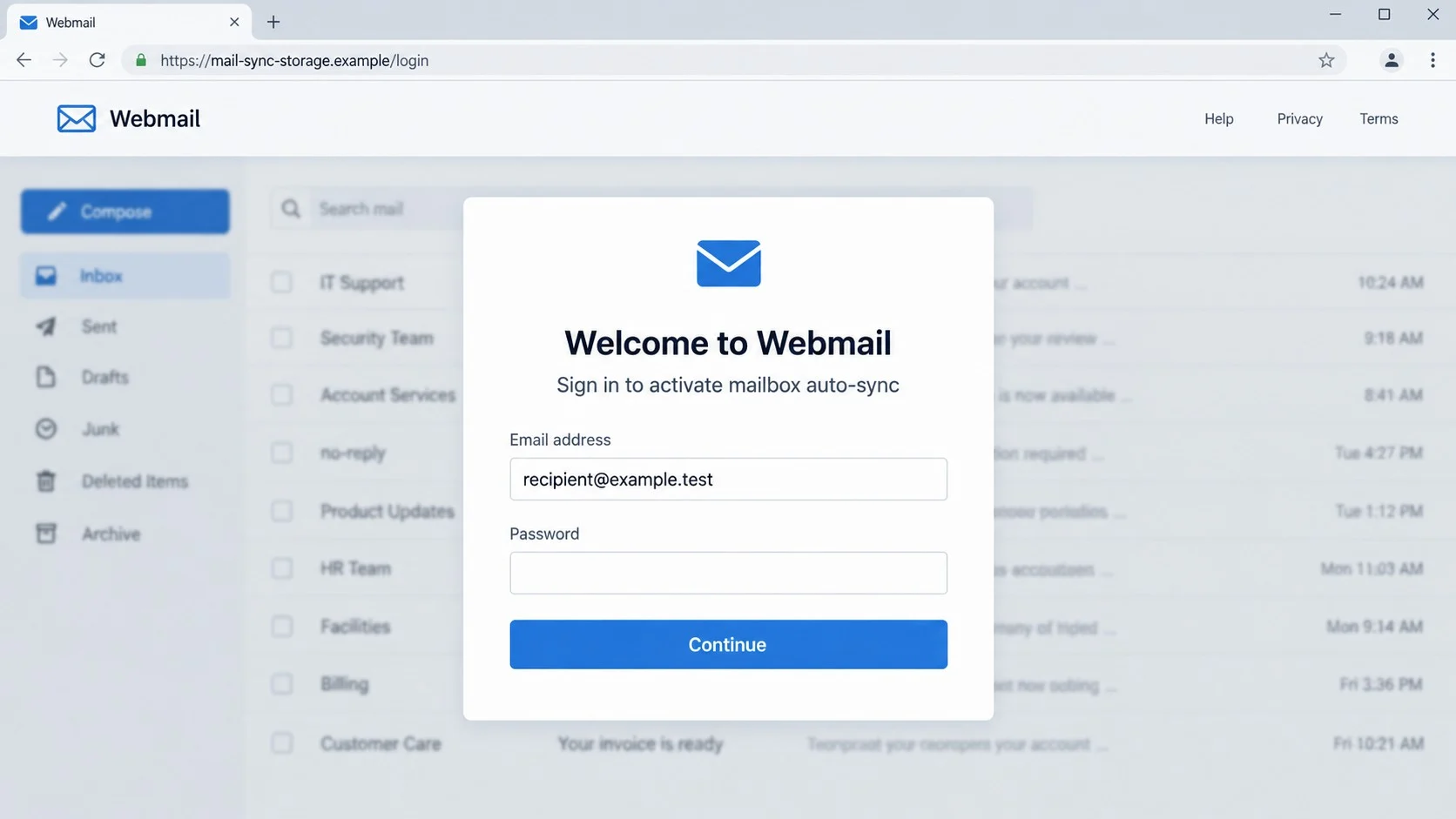
The destination displays a broad “Welcome to Webmail” prompt rather than the recipient’s genuine Microsoft sign-in experience.
The email address may already appear in the form because the phishing link carried it as a parameter.
Entering a password sends that secret to the scam operator, not to Microsoft.
Important warning signs include:
- The sender uses a domain unrelated to Microsoft or the recipient’s organization.
- The alert provides no technical detail about the alleged synchronization failure.
- A security team supposedly fixes delivery through an email button.
- The destination changes from Office 365 branding to a generic webmail page.
- The address bar does not show a confirmed Microsoft-owned domain.
- The form requests a mailbox password on unrelated hosting.
- The email address is prefilled to create false familiarity.
- No matching warning appears when Microsoft 365 is opened independently.
Why a Synchronization Warning Feels Believable
Real mail applications occasionally pause, lose connectivity, or show stale folders.
That ordinary experience gives the phishing story a familiar starting point.
The attacker does not need to know whether the recipient has ever experienced a genuine sync problem.
Most people understand that missed email can affect appointments, invoices, password resets, and workplace responsibilities.
The phrase “automatic delivery may stop” converts a vague technical claim into an immediate personal consequence.
It also avoids a precise deadline that a cautious reader could easily test.
The message provides one convenient remedy, so clicking can feel faster than investigating.
That convenience is the trap. Real account status should be checked inside the known service, not through unsolicited mail.
The Fake Login Is Deliberately Generic
A genuine Microsoft sign-in page has consistent branding, domain ownership, account controls, and security behavior.
The fraudulent page may simply call itself “Webmail” because the campaign targets users at many organizations.
One reusable form can imitate a university mailbox, corporate account, hosting provider, or personal email service.
The page does not need to reproduce every detail when the email has already established the reason to sign in.
A prefilled address creates the impression that the service recognizes the visitor.
In reality, that address can be copied directly from the phishing URL.
Some pages reject the first password and request another attempt.
This behavior can capture multiple passwords while making the failure appear like an ordinary typing mistake.
How the Office 365 Mailbox Failed to Sync Email Scam Works
Step 1: The campaign sends a broad mailbox warning
Criminals distribute the same notification to addresses gathered from breaches, public websites, marketing databases, and earlier campaigns.
Business accounts are attractive because one password can expose internal discussions and trusted contacts.
The message may include the recipient’s address while omitting a real name, tenant, administrator, or support ticket.
Those missing details let the template work across many unrelated organizations.
Step 2: The message invents a delivery problem
The email claims the mailbox cannot synchronize with its server.
It suggests that incoming messages could stop unless the account is validated promptly.
Microsoft terminology and colors make the notice resemble a service notification at a quick glance.
No diagnostic code, affected device, failing folder, or administrator contact supports the claim.
Step 3: The repair button hides the real destination
The “Activate auto-sync” label describes a harmless account action, but the underlying URL points elsewhere.
Redirect services can place several addresses between the email and final phishing page.
This chain helps operators replace blocked destinations without redesigning the message.
It also makes a quick link preview harder to interpret.
Step 4: Abused cloud hosting adds a false sense of safety
Some versions place the fake page on legitimate storage or application platforms.
Recognizable hosting and HTTPS may reduce suspicion, although neither verifies who created the page.
Cloud providers host customer content automatically and cannot endorse every uploaded form.
The relevant question is whether the exact domain and sign-in flow belong to the expected service.
Step 5: The page personalizes a generic password form
The visitor sees an email address already inserted into a webmail login card.
That detail may feel like account recognition, but it came from the link itself.
The form requests the current mailbox password to enable synchronization.
A real administrator would never ask staff to disclose passwords through an external page.
Step 6: Submitted credentials reach the phishing operator
When the victim selects Continue, the form transmits the address and password to attacker-controlled code.
The page might display an error, reload, or send the visitor to a real Microsoft website.
A clean redirect does not undo the submission.
It merely prevents an obvious dead end from revealing the theft immediately.
Step 7: The stolen mailbox becomes a platform for further attacks
The operator can search messages for invoices, payroll records, identity documents, cloud links, and password-reset notices.
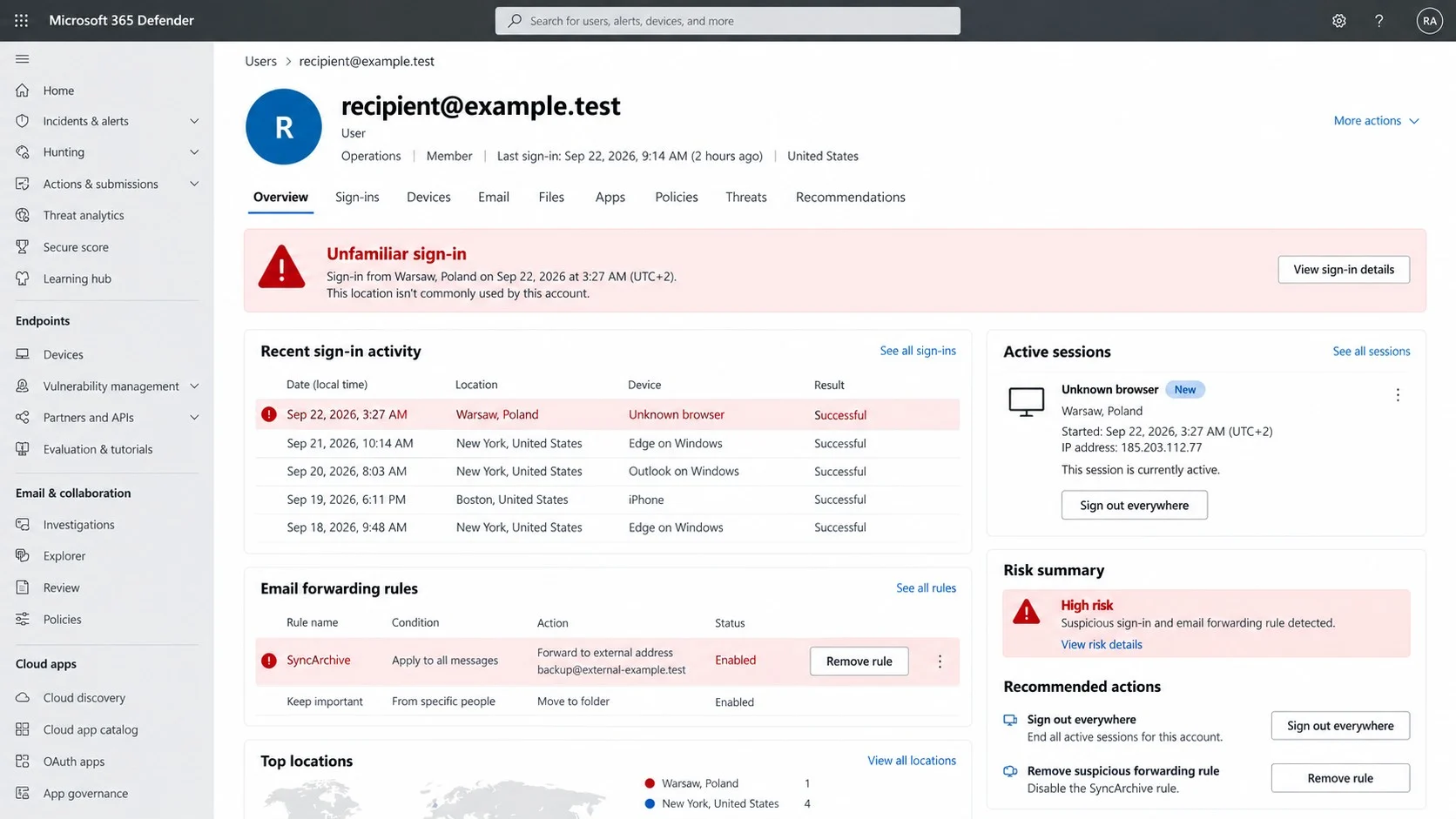
They may create forwarding rules that quietly copy future conversations.
Messages sent from the compromised account can deceive colleagues who would ignore an unknown sender.
The attacker may also reset connected services before the owner notices anything wrong.
Microsoft, Mailbox, Domain, and Login Verification Checks
Open Microsoft 365 without using the email
Close the message and use a saved bookmark, trusted application, or manually typed address.
Check whether Outlook actually shows a delivery, synchronization, storage, or security alert.
For workplace accounts, contact the internal help desk through a known channel.
If the problem exists, support staff can identify the affected device and provide a traceable ticket.
Compare the sender with the real organization
Expand the From, Reply-To, and Return-Path information instead of trusting the display name.
An Office 365 logo does not make an unrelated sender address authentic.
External-sender banners, failed authentication results, and unusual routing deserve attention.
Do not reply to the suspicious email to ask whether it is genuine.
Read the destination from right to left
Preview the link without opening it and identify the registered domain immediately before the first path slash.
Attackers place words such as microsoft, office, security, or sync inside longer domains they control.
A hosting provider’s trusted name does not transform customer-created content into an official Microsoft page.
When the destination is unclear, stop and let the security team inspect it safely.
Use account context to judge the login form
Microsoft sign-in should remain within the expected identity provider for that organization.
A generic webmail card appearing after a branded alert is a major inconsistency.
Password managers often refuse to fill credentials because the domain has changed.
Treat that refusal as a useful warning rather than a problem to bypass manually.
What a Real Synchronization Problem Looks Like
Genuine sync failures usually appear inside the mail application where the problem occurs.
The client may show a disconnected indicator, a last-updated time, an error code, or a retry option.
Only one device might be affected while messages remain visible through the web account.
Common causes include lost connectivity, outdated software, incorrect local settings, or a full mailbox.
Administrators can review service health and message traces without asking for a user’s password.
A legitimate support process identifies the device, tenant, time, and actual symptom.
It does not depend on a surprise button inside an unverified message.
If mail works normally when opened directly, the email’s urgent repair story has no supporting evidence.
What Attackers Can Do With a Microsoft 365 Password
Email access is often more valuable than access to a single shopping or social account.
The mailbox contains a map of the owner’s relationships, responsibilities, purchases, and active services.
Criminals can search for terms such as invoice, payment, wire, payroll, tax, password, and confidential.
They can wait for a real payment discussion and insert altered bank instructions at the right moment.
An inbox rule can hide replies, warnings, and failed-payment notices from the legitimate user.
Connected cloud files may expose contracts, customer data, or private business records.
Password-reset messages can unlock accounts that never shared the stolen password.
For this reason, recovery must include sessions, rules, applications, delegates, and recent activity.
Signs the Account May Already Be Compromised
An unexpected password-reset message can indicate that someone is testing connected services.
Sent items may contain conversations or attachments the owner does not recognize.
Messages can disappear, move automatically, or appear as read before the user opens them.
Forwarding settings may contain an unfamiliar external address with an innocent-looking rule name.
Security history can show a new browser, location, device, or application consent.
Contacts may report unusual document links or payment requests from the genuine address.
A changed recovery phone, alias, or authentication method deserves immediate attention.
Absence of visible symptoms does not prove the account is clean because intruders often remain quiet.
Review deleted messages as well, since attackers sometimes erase the security alerts generated by their own sign-ins.
Administrators should compare audit events with the user’s normal devices before closing the incident.
How to Handle the Email Safely
Do not select the button, copy its URL into a browser, or reply to the sender.
Use the mail client’s phishing-report function so filters can learn from the campaign.
Workplace users should preserve the original message when their security team requests headers or routing details.
Opening or reading ordinary email text alone does not give the sender control of the computer.
Risk increases after following links, entering credentials, granting permissions, or opening unexpected files.
If no interaction occurred, report and delete the message.
Avoid any unsubscribe link inside a fraudulent message because it may confirm that the address is monitored.
Warn colleagues if the same notice reaches multiple people in the organization.
What to Do if You Have Fallen Victim to This Scam
- Change the password through the real service. Use a trusted device and open Microsoft 365 independently, without returning to the email or fake page.
- Sign out every active session. Revoke unfamiliar browsers, mobile devices, application passwords, and persistent tokens where the account controls allow it.
- Inspect authentication methods. Remove unknown recovery addresses, telephone numbers, passkeys, authenticator registrations, and security questions.
- Review mailbox rules and delegates. Delete unauthorized forwarding, hiding, deletion, inbox, shared-mailbox, and delegation settings.
- Check recent activity. Record unfamiliar locations, applications, messages, downloads, and account changes before removing them.
- Protect connected services. Replace reused passwords and secure accounts that can be reset through the compromised mailbox.
- Notify the workplace security team. Administrators can revoke tokens, search audit logs, trace messages, and warn affected contacts.
- Warn recent correspondents. Tell suppliers and coworkers to disregard unexpected links, document shares, or payment changes sent from the account.
- Scan when content was downloaded. Run Malwarebytes if a file opened or software ran, then isolate anything detected before continuing sensitive work.
- Block known phishing destinations. AdGuard can stop many reported deceptive domains and redirects while complementing browser and mail protections.
- Report financial or identity exposure. Contact banks and appropriate fraud authorities if private documents, payments, or identity records were accessible.
Is Your Device Infected? Run a Free Malware Scan
Slow performance, constant pop-ups, or strange behavior? These are classic signs of a malware infection. A quick way to check is to scan your device with Malwarebytes Free, one of the most trusted malware removal tools available. If you only visited a scam page and didn’t download or install anything, this scan is optional.
The free version detects and removes the most common threats, including:
- Adware — the cause of those annoying pop-ups
- Browser hijackers — unwanted redirects and changed homepages
- Trojans and spyware — hidden programs stealing your data
- Potentially unwanted programs (PUPs) — software you never asked for
👉 Select your device below — Windows, Mac, or Android — then follow the simple steps to download Malwarebytes, scan your system, and remove any threats it finds. The scan usually takes 5 to 20 minutes.
Run a Malware Scan with Malwarebytes for Windows
Malwarebytes is one of the most popular and trusted anti-malware tools for Windows — and it’s completely free for removing infections. It catches threats that many antivirus programs miss, including adware, browser hijackers, and trojans. Follow the steps below to scan your PC and remove what Malwarebytes finds.
Download Malwarebytes
Click the button below to download the latest version of Malwarebytes for Windows from the official source. The free version is all you need — it will scan your computer and remove adware, browser hijackers, and other malicious software at no cost.
Download MalwarebytesOfficial installer for Windows 11 and 10. Your download starts right away.Want real-time protection? See Malwarebytes Premium Malwarebytes Free for WindowsScans and removes malware at no cost
-
Install Malwarebytes
When the download finishes, open your Downloads folder and double-click the MBSetup file. If Windows shows a User Account Control pop-up, click “Yes” to allow the installation.

Follow the On-Screen Prompts to Install Malwarebytes
The setup wizard will walk you through a few quick screens:
-
Choose where you’re installing the program — “Personal Computer” or “Work Computer” — then click Next.

-
Malwarebytes will now install on your device. This usually takes under a minute.

-
When installation is complete, the “Welcome to Malwarebytes” screen will open automatically.

-
On the final screen, click Open Malwarebytes to launch the program.

-
Optional: Check for rootkits with a Custom Scan
You don’t need to change any settings for a normal scan. The standard Threat Scan in the next step is enough for most problems, so you can go straight to it.
If you also want to check for rootkits, use a Custom Scan. In current versions of Malwarebytes, rootkit scanning is only available there:
- On the Scanner tile, click the three-dot menu and select Advanced Scan.
- Choose Custom Scan. In its options, check Scan for rootkits.
- Select your system drive (usually C:\) as the location to scan, then start the scan. It takes longer than a Threat Scan.
- When it finishes, review and quarantine the results as described in the steps below.
Rootkit scanning isn’t available on Windows devices with ARM processors.
Start the Scan
Click the blue Scan button. Malwarebytes will automatically update its virus database and start checking your computer for malware.

-
Wait for the Scan to Finish
The scan checks your entire system for browser hijackers and other malicious programs, so it can take 5 to 20 minutes depending on your computer. Feel free to do something else — just check back occasionally to see the progress.

-
Quarantine the Detected Threats
When the scan is done, you’ll see a list of everything Malwarebytes found — malware, adware, and potentially unwanted programs. Click the “Quarantine” button to remove all of them at once.

Malwarebytes will now remove the malicious files and registry entries and move them safely into quarantine.

-
Restart Your Computer
Some threats can only be fully removed after a reboot. If Malwarebytes asks you to restart, click Yes. Once you’re logged back in, Malwarebytes has finished removing the threats it found.

When the scan is done, check whether the problems you noticed have stopped. If they continue, see the options below.
If you are still having problems with your computer after completing these instructions, then please follow one of the steps:
- Run a computer scan with ESET Online Scanner
- Ask for help in our Windows Malware Removal Help & Support forum.
Run a Malware Scan with Malwarebytes for Mac
Malwarebytes for Mac is a free on-demand scanner that removes the malware other security software tends to miss — adware, browser hijackers, and unwanted programs included. Cleaning an infected Mac with Malwarebytes has always been completely free, and it’s our go-to recommendation. Follow the steps below to scan your Mac and remove what Malwarebytes finds.
-
Download Malwarebytes for Mac
Click the button below to download the latest version of Malwarebytes for Mac.
Download MalwarebytesOfficial installer for macOS. Your download starts right away.Want real-time protection? See Malwarebytes PremiumMalwarebytes Free for MacScans and removes malware at no cost -
Open the Malwarebytes setup file
When the download finishes, open your Downloads folder and double-click the setup file to begin the installation.

-
Follow the On-Screen Prompts to Install Malwarebytes
The Malwarebytes for Mac Installer will guide you through a few quick screens. Click “Continue” and keep following the prompts until the installation completes.



When the installation is complete, Malwarebytes opens to the Welcome to Malwarebytes screen. Click “Get started“.
Malwarebytes needs Full Disk Access to check your whole Mac. When it asks, open System Settings > Privacy & Security > Full Disk Access, turn on Malwarebytes (it may be listed as Malwarebytes Protection), and confirm with your password or Touch ID. Then return to Malwarebytes. On macOS Monterey and earlier, this setting is in System Preferences > Security & Privacy > Privacy.
-
Select “Personal Computer” or “Work Computer”
Malwarebytes will ask what type of computer you’re installing it on. Click either Personal Computer or Work Computer, whichever applies.

-
Start the Scan
Click the “Scan” button. Malwarebytes will automatically update its detection database and begin checking your Mac for malware.

-
Wait for the Scan to Finish
Malwarebytes will scan your Mac for adware, browser hijackers, and other malicious programs. This can take a few minutes, so feel free to do something else — just check back occasionally to see the progress.

-
Quarantine the Detected Threats
When the scan is done, you’ll see a list of everything Malwarebytes found. Click the “Quarantine” button to remove all the threats at once.

-
Restart Your Mac
Malwarebytes will now remove all the malicious files it found. Some threats can only be fully removed after a reboot — if Malwarebytes asks you to restart, allow it. Once you’re logged back in, check whether the problems you noticed have stopped. If they come back, save the scan report and ask for help in our forum.

If the problems you noticed continue after the scan, see the options below.
If you are still experiencing problems while trying to remove a malicious program from your computer, please ask for help in our Mac Malware Removal Help & Support forum.
Run a Malware Scan with Malwarebytes for Android
Malwarebytes for Android scans your phone or tablet for malware, adware, and potentially unwanted apps. The free version scans only when you start a scan. Real-time protection, which checks apps automatically, is part of the paid Premium version.
-
Download Malwarebytes for Android.
You can download Malwarebytes for Android by clicking the link below.
Get Malwarebytes for AndroidOpens Google Play in a new tab.Want real-time protection? See Malwarebytes Premium for AndroidMalwarebytes for AndroidScans your phone and removes malware at no cost -
Install Malwarebytes for Android on your phone.
In the Google Play Store, tap “Install” to install Malwarebytes for Android on your device.

When the installation process has finished, tap “Open” to begin using Malwarebytes for Android. You can also open Malwarebytes by tapping on its icon in your phone menu or home screen.

-
Follow the on-screen prompts to complete the setup process
When Malwarebytes opens, it walks you through a short setup. Tap Get started and follow the prompts. If you see an offer for a trial or a paid plan, read it before you accept. You can skip it and keep using the free scanner.
Malwarebytes will ask for permission to access the files on your phone so it can scan them. Tap Allow, or turn on the permission in the Android screen that opens, then return to Malwarebytes.
-
Run a scan with Malwarebytes for Android
On the main screen, tap Scan now. In some versions, you open the menu, tap Scanner, and then tap Run a scan.
-
Wait for the Malwarebytes scan to complete.
Malwarebytes will now start scanning your phone for adware and other malicious apps. This process can take a few minutes, so we suggest you do something else and periodically check on the status of the scan to see when it is finished.

-
Remove the detected apps.
When the scan has been completed, you will see a list of the threats that Malwarebytes for Android has detected. Next to each detected item, tap the menu icon (three dots), then choose to uninstall the app or delete the file. Android then asks you to confirm. Tap OK or Uninstall to remove the app.
-
Restart your phone.
When the detected apps are removed, restart your phone if Malwarebytes asks you to. Then check whether the problems you noticed have stopped.
If the problems you noticed continue after the scan, see the options below.
If you are still having problems with your phone after completing these instructions, then please follow one of the steps:
- Ask for help in our Mobile Malware Removal Help & Support forum.
- Only as a last resort, reset your phone to factory settings. Read the warning below first.
- Back up your photos, videos, files, and messages, for example to your Google account or a computer.
- Make sure you know your Google account email and password. The phone asks for them after the reset. If you changed the password recently, Google recommends waiting 24 hours before you reset.
- On a Samsung phone, also make sure you know your Samsung account password.
- If you use an authenticator app for two-step verification, move your accounts to another device or save your backup codes first.
Stay Protected: Block Ads and Malicious Sites
No scan can prove a device is completely clean, so it helps to block threats before they reach you. Most infections start with a malicious ad or a fake download button — so blocking them at the source is your best defense.
We recommend AdGuard, which blocks malicious ads, phishing pages, and dangerous redirects before they can reach you.
👉 Download AdGuard and browse safely
Frequently Asked Questions
Did Microsoft send the mailbox failed to sync email?
No. The campaign copies Microsoft styling, but its sender and password destination are not verified Microsoft services.
Will my mailbox stop receiving email if I ignore the button?
The warning provides no evidence of a real delivery failure.
Open the genuine account independently to confirm current mailbox status.
Why was my email address already on the fake page?
The phishing link can carry the address and insert it automatically.
Prefilling does not prove the website authenticated or recognized you.
Is a Firebase or other cloud-hosted page automatically safe?
No. Legitimate platforms can be abused to host deceptive customer content.
Judge the exact owner, domain, and requested action.
What if I clicked but entered no password?
Close the page, check downloads, report the message, and watch for unexpected prompts.
Credential theft normally requires submitting the form.
Can changing the password alone remove an intruder?
Not always. End sessions and inspect forwarding rules, delegates, connected applications, and recovery methods as well.
The Bottom Line
The Office 365 Mailbox Failed to Sync email turns a believable technical inconvenience into a pathway toward an unrelated password form.
Check account status through Microsoft directly. A familiar logo, HTTPS connection, or prefilled address cannot make an outside webmail prompt trustworthy.

Join the discussion
0 commentsShare your experience or ask a question about this article.
Discussion
Start the conversation
Have a question or something useful to share? Add the first comment.