


If Firefox feels slow, keeps crashing, or behaves strangely, restoring it to its factory settings can often solve the problem. Resetting Firefox returns the browser to its original state, fixing performance issues, crashes, or bugs caused by add-ons, settings changes, or corrupted data.
What Happens When You Reset Firefox?
Resetting Firefox reverts any changes you’ve made to the browser and restores the default configuration:
- The default search engine is restored
- Custom homepages are removed
- Extensions and themes stored in the Firefox profile are removed
- Performance and accessibility settings return to their defaults
On desktop Firefox, Refresh handles your stored information as follows:
- Browsing and download history are preserved
- Cookies are preserved; temporary cache is not a backup of personal data
- Site permissions and preferences are reset
- Saved passwords and web form autofill information are preserved
Refresh creates a new desktop profile while keeping important personal data. It is not the same as deleting the entire profile or clearing Firefox app storage on Android.
When Should You Reset Firefox?
A reset can fix many common browser issues, such as:
- Slow performance or freezing
- Frequent crashes or errors
- Unexpected homepage changes or redirects
- Annoying pop-ups or intrusive ads
If you suspect Firefox has been affected by malware, a reset can help remove malicious changes and disable harmful extensions. It’s a quick and effective way to fix major problems without needing to reinstall the browser.
Refresh removes custom settings but preserves cookies, so it does not necessarily sign you out of every website. Check the result before reinstalling extensions; a separate unwanted program can restore the changes.
How to Reset Firefox to Default Settings
Choose your operating system below and follow the steps to reset Firefox back to its default state.
Reset Firefox for Windows
The reset option helps fix most browser problems by restoring Firefox to its factory settings while keeping essential data such as bookmarks, passwords, form entries, browsing history, and open tabs.
To reset Firefox for Windows, follow these steps:
-
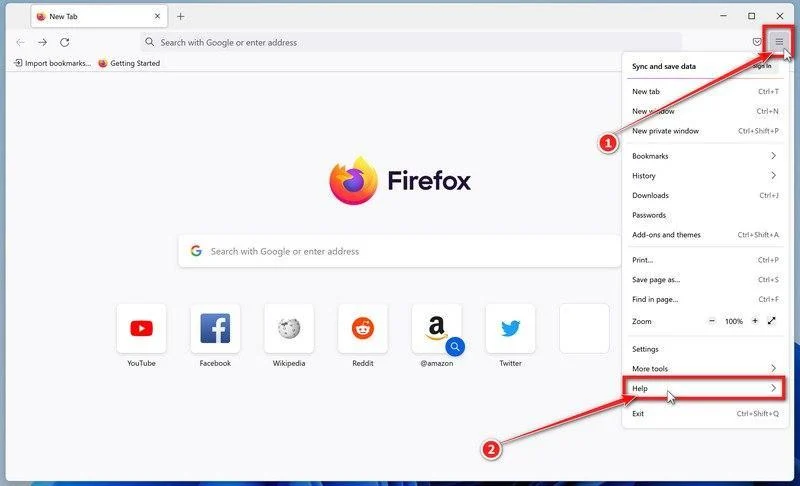
Open the Firefox menu and click “Help”
Click the three horizontal lines in the top-right corner of Firefox to open the main menu, then select “Help“.
-
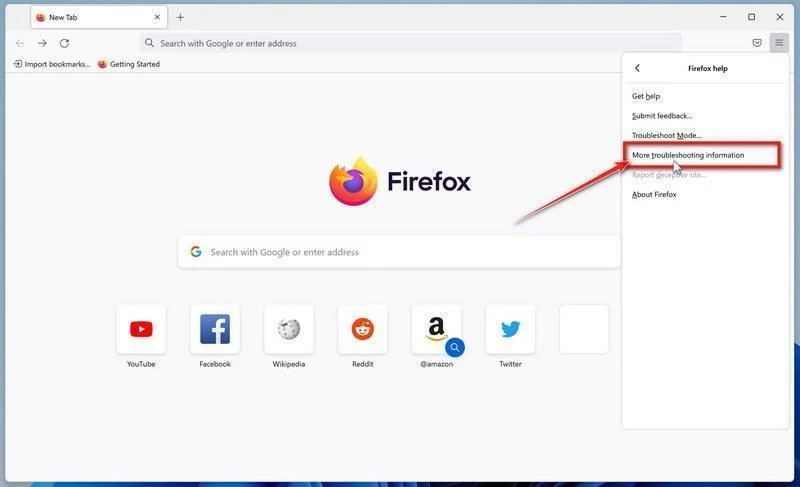
Click “More troubleshooting information”
In the Help menu, click “More troubleshooting information“.
-
Click “Refresh Firefox”
On the “Troubleshooting Information” page, click the “Refresh Firefox” button in the top-right area of the page.
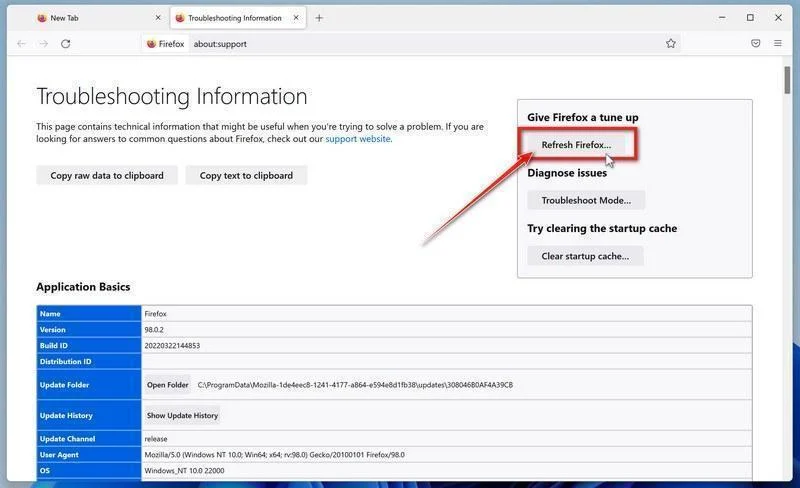
You can also type about:support in the address bar. If Refresh Firefox is missing with the newer profile manager, update Firefox; Mozilla restored that option for those profiles in version 150.
-
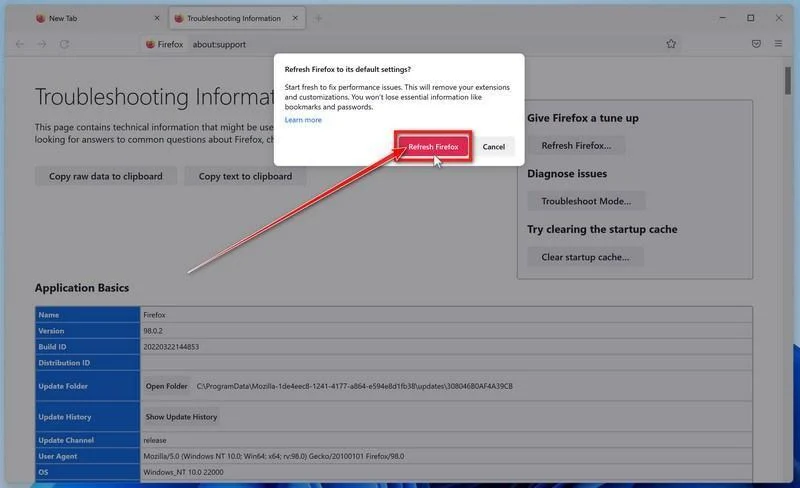
Confirm the refresh
In the confirmation window, click “Refresh Firefox” again. This removes extensions, themes, and customized settings — the usual hiding places for browser hijackers — while keeping your bookmarks, history, and saved passwords safe.
-
Click “Finish”
Firefox will close, reset itself to default settings, and reopen with a window listing the information that was restored. Click “Finish” to finish restoring your Firefox profile. Test the browser before reinstalling extensions.
About the “Old Firefox Data” folder: Firefox saves a copy of your old profile on your desktop. If something you need is missing after the reset, you can recover it from this folder. Otherwise, delete the folder — it contains sensitive data like passwords and cookies, and may also still hold the malicious files you just removed.
Reset Firefox for Mac
Just like on Windows, the reset option on Mac fixes many browser issues by restoring Firefox to its factory settings while preserving important data like bookmarks, saved passwords, autofill information, history, and open tabs.
To reset Firefox for Mac, follow these steps:
-
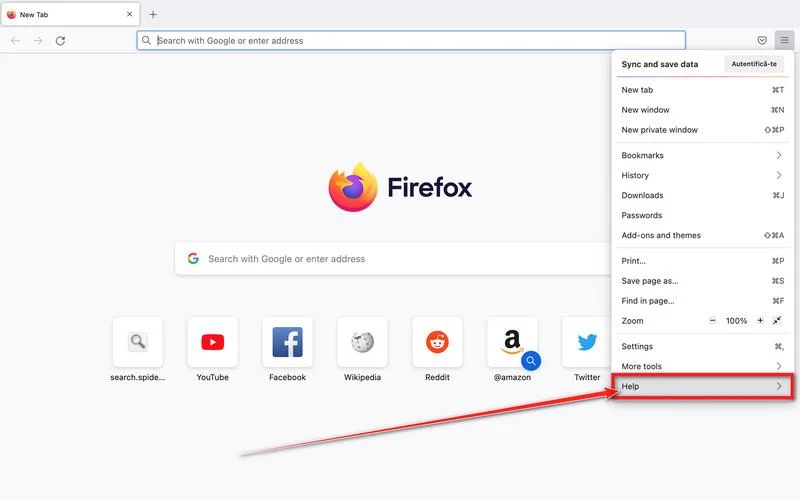
Go to the “Help” menu.
Click on Firefox’s main menu button, represented by three horizontal lines. When the drop-down menu appears, select the option labeled “Help“.
-
Click “More troubleshooting information”.
Next click on the “More troubleshooting information” option. This opens the Troubleshooting Information page, where you can check Firefox details and find the Refresh Firefox control.
You can also open about:support directly. Update Firefox if the Refresh button is missing in a profile created with the newer profile manager.
-
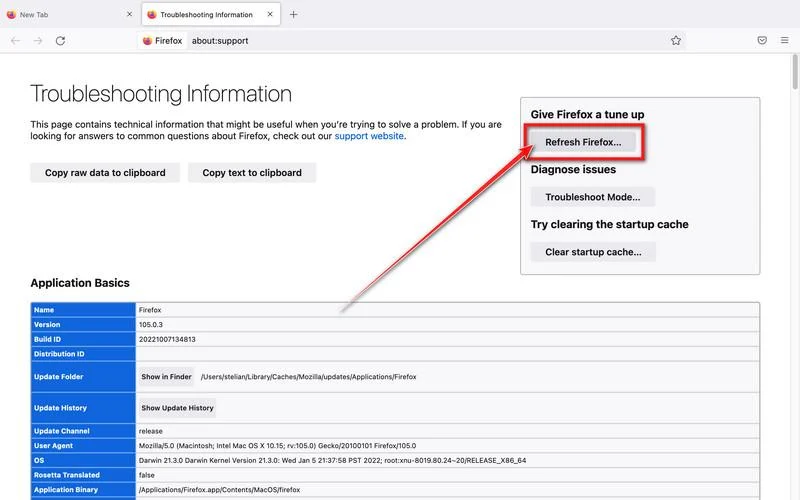
Click on “Refresh Firefox”
Click the “Refresh Firefox” button in the upper-right corner of the “More troubleshooting information” page.
-
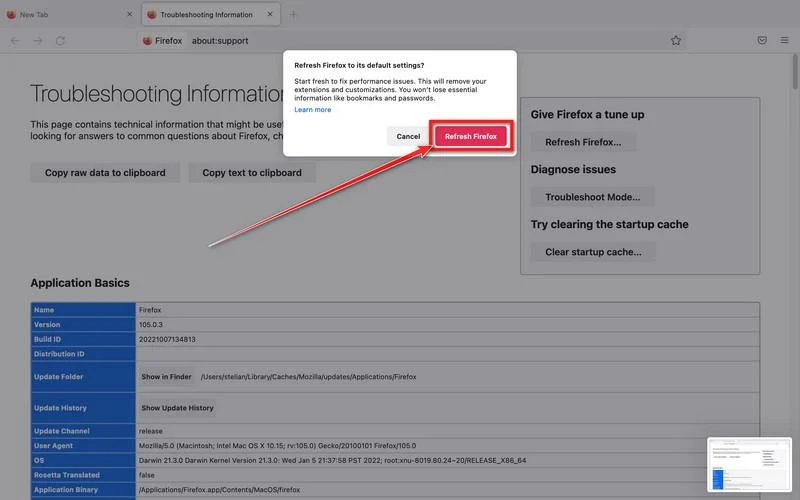
Confirm.
To continue, click on the “Refresh Firefox” button in the new confirmation window that opens.
-
Click on “Finish”.
Firefox will close itself and will revert to its default settings. When it’s done, a window will list the information that was imported. Click on the “Finish“.
Reset Firefox for Android
Unlike the desktop versions, Android’s Firefox doesn’t include a built-in reset option. To restore default settings, you need to clear the app’s data. This will remove cached files, cookies, and stored site preferences, essentially giving you a fresh start.
To reset Firefox for Android, follow these steps:
-
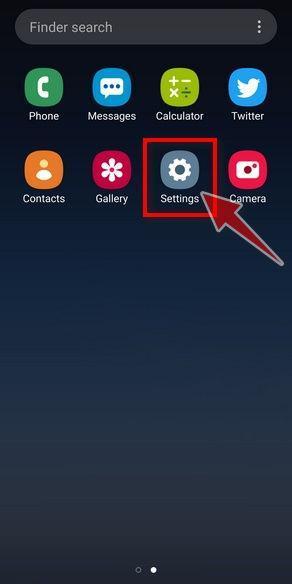
Open the “Settings” app.
From your home screen or app drawer, tap on the Settings app.
-
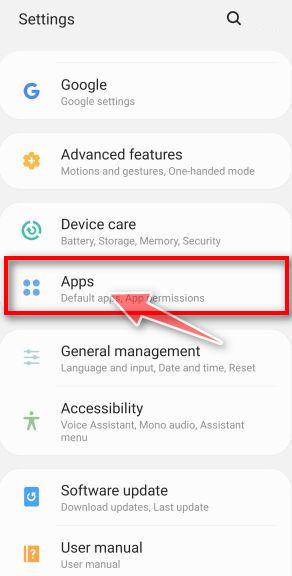
Tap on “Apps”.
In the Settings menu, tap on Apps (or App Manager) to view all installed applications.
-
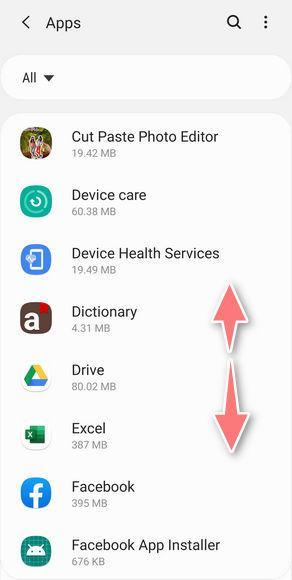
Find and select Firefox.
Scroll through the list of installed apps until you find Firefox, then tap on it to open the app’s details.
-
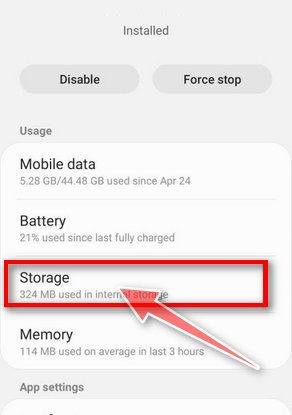
Tap “Storage”.
Once in the app’s info page, tap on Storage.
-
Tap “Clear storage” or “Clear data”.
Tap Clear storage or Clear data. The label depends on your phone. This is the app-data reset, not just Clear cache.
-
Tap “Clear all data”.
Select Clear all data to remove all Firefox data, including local settings, unsynced bookmarks, and sign-ins. Back up anything you need first; this does not delete your Mozilla account.
-
Confirm by tapping “OK”.
When the confirmation dialog appears, tap OK to complete the reset process.
That’s it. Firefox will now be restored to its default settings. To enhance your browsing safety, we recommend installing an ad blocker such as AdGuard [recommended] to prevent malicious or misleading ads.
If your system still shows signs of infection after resetting Firefox, follow these additional steps:
- Run a full scan with Malwarebytes Free
- Ask for expert assistance in our Malware Removal Help forum

Join the discussion
0 commentsShare your experience or ask a question about this article.
Your progress
Did these steps help?
Let us know how the guide worked for you.
Describe what you see and the step you reached. Keep passwords and other private information out.
Discussion
Start the conversation
Have a question or something useful to share? Add the first comment.