

Your browser freezes, you restart it, and a helpful-looking warning appears. When work is waiting, a quick repair can sound appealing.
CrashFix exploits that frustrating moment. The link between the interruption and its proposed solution deserves a closer look.
Overview
CrashFix creates trouble before offering a dangerous cure
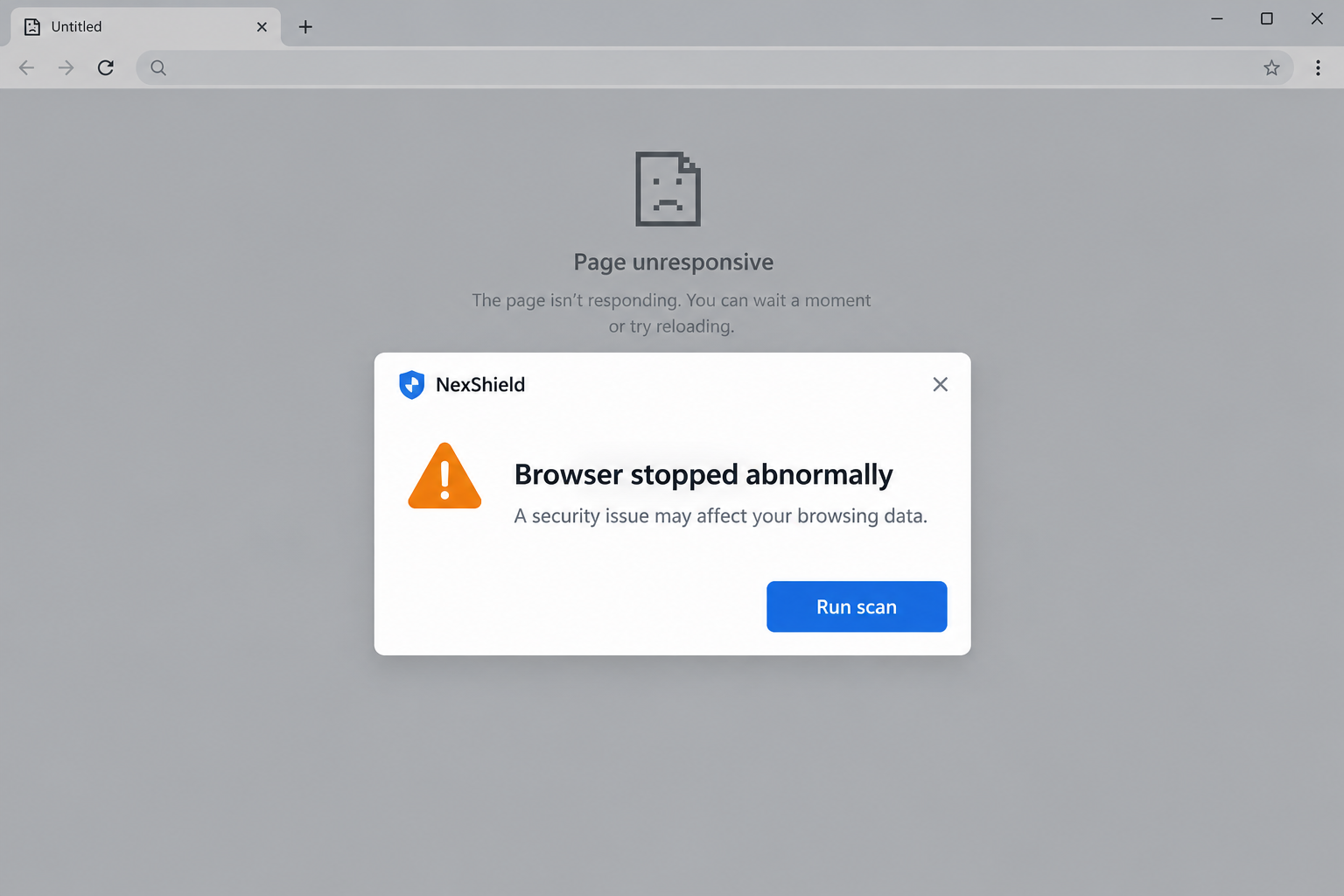
The CrashFix scam is a malware-delivery technique involving a malicious browser extension. The documented NexShield campaign deliberately made the browser unresponsive.
After the user restarted, a security-themed pop-up offered help. Its supposed fix encouraged the user to execute a command outside the normal browsing workflow.
That makes this more than an annoying advertisement. The extension supplies both the disruption and the story explaining why the user should follow its instructions.
The case was documented in January 2026. It should not be presented as proof that every current browser crash comes from NexShield.
The image is an original illustration of the lure. It does not show an infected reader’s browser, a real diagnostic scan, or an executable command.
NexShield borrowed credibility from a legitimate ad blocker
Primary research identified NexShield as a malicious extension imitating uBlock Origin Lite. The legitimate project was not the source of the deceptive repair scheme.
A person looking for fewer ads could encounter a promotion for what appeared to be protective software. That reverses the expectation surrounding a security tool.
But an extension’s purpose is not established by its title, familiar-looking code, or a store-like installation screen.
Check the actual publisher and follow links from the real developer’s established site. Do not let a search advertisement choose the security product for you.
The response changes if you ran the proposed fix
An installed malicious extension already deserves removal and assessment. Executing the proposed command adds a possible system-level infection beyond the browser.
The reported chain delivered ModeloRAT to corporate domain-joined computers. A different branch was observed for standalone systems, so outcomes should not be generalized.
No extension or payload was installed for this article. A diagnosis requires evidence from the affected device, not a resemblance to the illustration.
- Do not paste a repair command supplied by the pop-up.
- Check recently installed extensions through the browser’s own controls.
- Report executed commands promptly on a work computer.
- Keep device containment separate from account recovery.
Why the Fake Repair Feels More Persuasive Than a Random Alert
The browser really is misbehaving
A basic scareware page invents a problem and asks you to believe it. CrashFix can make the disruption visible before giving you an explanation.
You have already experienced frozen tabs or an unresponsive application. The pop-up arrives at a moment when you are looking for a reason.
That does not make its explanation true. The same component causing the problem can offer a solution designed to make the situation worse.
Think of a work session interrupted halfway through an invoice or report. Restoring the browser feels urgent because a real task has stopped.
The safer response is to investigate the recent change, not let the component involved dictate a new Windows command.
A delay can hide the connection to a new extension
The documented extension did not immediately reveal the full disruption. Delayed behavior makes the installation and the later problem feel less closely related.
By then, you may have opened other tabs, changed networks, or started another application. Those ordinary events can become misleading explanations.
When troubleshooting, list recent additions before running repair scripts. Extensions are software changes, even when installing one felt like a minor browser preference.
A useful timeline includes the installation, first slowdown, first pop-up, and any instruction followed. Approximate times are better than no record.
A “scan” button can be only part of the performance
A web-style warning can display a security result without examining the system in the way a genuine endpoint product would.
The word “scan” does not establish that a trusted diagnostic ran. The source of the alert and the action it requests still matter.
A list of severe-sounding issues should not override your normal software-installation process. Do not disable protection to let its repair finish.
For workplace equipment, your real IT team can investigate through established tools. An unfamiliar pop-up is not an alternative help desk.
How the CrashFix Scam Works
Step 1: A protective-looking extension becomes the entry point
The reported campaign began with a promotion for NexShield while a user was looking for an ad blocker. The extension imitated a real open-source project.
Security branding helps the request feel beneficial. The reader believes they are reducing exposure, not introducing another source of risk.
A marketplace listing can be part of that impression, but it does not relieve users or administrators from checking publisher identity and relevance.
Do not install an extension merely because its advertisement appeared above the genuine developer. Search placement is not an endorsement.
Step 2: The installed extension makes the browser difficult to use
The documented malicious behavior exhausted browser resources. The result could include severe slowdown, frozen tabs, and an application needing to be closed.
A crash is not specific to malware. Legitimate bugs, resource pressure, and other problems can produce similar symptoms.
The important combination here is recent NexShield installation, browser disruption, and its follow-up repair pitch. Check those together rather than diagnosing from freezing alone.
Repeatedly reopening the same browser session may reproduce the trouble while leaving the responsible extension in place.
Step 3: A warning claims the restart revealed a security problem
After the browser restarts, the lure explains the failure as an abnormal stop or security issue. It invites the user to run a supposed scan.
The alert now has a convenient story: the interruption happened because something needs fixing, and this component knows the cure.
Because the disruption was real, the user may accept the claimed diagnosis without checking whether the messenger caused it.
Do not call a number or install a second tool if a variant adds those requests. Use independently verified support for any further assistance.
Step 4: The proposed repair crosses from the browser into command execution
The reported instructions directed the user to the Windows Run dialog and a pasted command. The clipboard could hold something different from the reassuring explanation.
That is the crucial change of authority. A message inside a browser is asking you to execute instructions on the operating system.
The specific malicious command is unnecessary for recognition and is not reproduced here. Do not paste it into another tool just to see what it does.
If you copied something but did not execute it, stop there. If you pressed the final confirmation, tell the responder that a command ran.
A brief window, no visible output, or an apparent failure does not reliably indicate that nothing executed.
Step 5: Further malware can remain after the browser symptom is removed
The observed corporate-target chain led to ModeloRAT, a remote-access trojan. That moves the concern beyond the extension and its pop-up.
Huntress’s original CrashFix investigation documents the technique and the different treatment of domain-joined and standalone hosts.
Those historical observations do not prove a particular home computer received a harmless outcome. Never run the fix to discover which branch you get.
Removing NexShield may address the browser disruption while leaving later activity unassessed. The executed-command path needs a broader security response.
Remove the Extension Through Trusted Browser Controls
Use the browser’s extension manager, not the alert’s repair button
Open the extension-management area from your browser’s own menu. Review the installed names and remove the malicious NexShield item if present.
Google’s extension-management instructions explain installation, management, and removal in Chrome. Other browsers provide their own corresponding controls.
If an unfamiliar extension is marked as managed or cannot be removed on a work device, ask IT to investigate the policy controlling it.
Do not edit system policies or disable security services based on instructions supplied by the pop-up or a random troubleshooting comment.
Check other profiles without assuming they are infected
People often have separate work and personal browser profiles. Confirm which profile contained the extension and whether others have the same unexpected item.
If it reappears, report that behavior rather than reinstalling or repeatedly clearing data. Another profile, policy, or synchronization setting may require attention.
A browser reset can remove useful context and disrupt normal settings. It should not replace investigation of a command that already ran.
Keep a short record of the extension’s name, visible identifier, and installation source when available. Do not reinstall it to recover a missing detail.
Do not confuse legitimate ad blocking with the imitation
This attack abuses interest in protective software. It does not establish that genuine uBlock Origin Lite, AdGuard, or all browser extensions are malicious.
Choose software through its real developer or an approved workplace catalog. Check the publisher behind the listing rather than only the product name.
Keep your installed set small enough to understand. An extension that requests broad access deserves a clear reason for being there.
What to Do if You Have Fallen Victim to This Scam
Ignore the proposed command-based cure. Close the deceptive prompt and do not continue its instructions. Record whether you installed NexShield, copied text, or actually ran anything.
These are different exposure levels. A clear description lets support prioritize the right checks instead of assuming either the worst or a harmless outcome.
Remove the unwanted extension safely. Use the browser’s extension controls or ask workplace IT to do so. Do not use an unverified “NexShield remover.”
If the browser remains unusable, seek help through an established support channel. A second advertisement promising a one-click fix is not a trusted recovery route.
Contain the device if a command executed. Stop sensitive work and contact the security team immediately. Disconnect networking when appropriate and follow their instructions.
Microsoft’s endpoint-response documentation describes isolation and investigation options available in managed environments. Avoid improvising around a responder’s containment process.
Run trusted malware checks. Updated Malwarebytes can help detect and remove malicious components. Keep the detection details and note any unsuccessful removal.
Do not interpret a single clean scan as proof that every remote action, account session, or later payload has been ruled out.
Review account exposure from a clean device. Tell IT which business accounts were active. Change affected credentials and review sessions where the evidence or responder recommends it.
Do not reset passwords repeatedly on the suspect computer. If it remains under attacker control, newly entered credentials may be exposed again.
Ask whether a rebuild is necessary. Confirmed backdoor execution may justify reinstalling from trusted media and restoring reviewed data rather than accepting uncertain cleanup.
Before reconnecting, confirm security software, updates, and approved extensions are in place. Coordinate changes on managed equipment instead of wiping evidence without discussion.
Reduce the chance of another fake fix. Install software from verified publisher routes, remove unwanted notifications, and consider AdGuard against malicious advertising.
Blockers are one layer. The decisive habit is refusing an untrusted browser message’s request to execute commands, install remote tools, or weaken protection.
Is Your Device Infected? Run a Free Malware Scan
Slow performance, constant pop-ups, or strange behavior? These are classic signs of a malware infection. The fastest way to find out is to scan your device with Malwarebytes Free — one of the most trusted malware removal tools available.
The free version detects and removes the most common threats, including:
- Adware — the cause of those annoying pop-ups
- Browser hijackers — unwanted redirects and changed homepages
- Trojans and spyware — hidden programs stealing your data
- Potentially unwanted programs (PUPs) — software you never asked for
👉 Select your device below — Windows, Mac, or Android — then follow the simple steps to download Malwarebytes, scan your system, and remove any threats it finds. The scan usually takes 5 to 20 minutes.
Run a Malware Scan with Malwarebytes for Windows
Malwarebytes is one of the most popular and trusted anti-malware tools for Windows — and it’s completely free for removing infections. It catches threats that many antivirus programs miss, including adware, browser hijackers, and trojans. Follow the steps below to scan and clean your PC in just a few minutes.
Download Malwarebytes
Click the button below to download the latest version of Malwarebytes for Windows from the official source. The free version is all you need — it will scan your computer and remove adware, browser hijackers, and other malicious software at no cost.
Download MalwarebytesOfficial installer for Windows 11 and 10. Your download starts right away.Want real-time protection? See Malwarebytes Premium Malwarebytes Free for WindowsScans and removes malware at no cost
-
Install Malwarebytes
When the download finishes, open your Downloads folder and double-click the MBSetup file. If Windows shows a User Account Control pop-up, click “Yes” to allow the installation.

Follow the On-Screen Prompts to Install Malwarebytes
The setup wizard will walk you through a few quick screens:
-
Choose where you’re installing the program — “Personal Computer” or “Work Computer” — then click Next.

-
Malwarebytes will now install on your device. This usually takes under a minute.

-
When installation is complete, the “Welcome to Malwarebytes” screen will open automatically.

-
On the final screen, click Open Malwarebytes to launch the program.

-
Enable “Scan for Rootkits”
Before scanning, turn on rootkit detection so Malwarebytes can find even the most hidden threats. Click the Settings gear icon on the left side of the screen.

In the settings menu, find “Scan for rootkits” and click the toggle so it turns blue.

Done? Click “Dashboard” in the left pane to return to the main screen.
Start the Scan
Click the blue Scan button. Malwarebytes will automatically update its virus database and start checking your computer for malware.

-
Wait for the Scan to Finish
The scan checks your entire system for browser hijackers and other malicious programs, so it can take 5 to 20 minutes depending on your computer. Feel free to do something else — just check back occasionally to see the progress.

-
Quarantine the Detected Threats
When the scan is done, you’ll see a list of everything Malwarebytes found — malware, adware, and potentially unwanted programs. Click the “Quarantine” button to remove all of them at once.

Malwarebytes will now remove the malicious files and registry entries and move them safely into quarantine.

-
Restart Your Computer
Some threats can only be fully removed after a reboot. If Malwarebytes asks you to restart, click Yes. Once you’re logged back in, Malwarebytes has finished removing the threats it found.

That’s it — your Windows PC is now clean of trojans, adware, and other malware, and should be back to running smoothly.
If you are still having problems with your computer after completing these instructions, then please follow one of the steps:
- Run a computer scan with ESET Online Scanner
- Ask for help in our Windows Malware Removal Help & Support forum.
Run a Malware Scan with Malwarebytes for Mac
Malwarebytes for Mac is a free on-demand scanner that removes the malware other security software tends to miss — adware, browser hijackers, and unwanted programs included. Cleaning an infected Mac with Malwarebytes has always been completely free, and it’s our go-to recommendation. Follow the steps below to scan and clean your Mac in just a few minutes.
-
Download Malwarebytes for Mac
Click the button below to download the latest version of Malwarebytes for Mac.
Download MalwarebytesOfficial installer for macOS. Your download starts right away.Want real-time protection? See Malwarebytes PremiumMalwarebytes Free for MacScans and removes malware at no cost -
Open the Malwarebytes setup file
When the download finishes, open your Downloads folder and double-click the setup file to begin the installation.

-
Follow the On-Screen Prompts to Install Malwarebytes
The Malwarebytes for Mac Installer will guide you through a few quick screens. Click “Continue” and keep following the prompts until the installation completes.



When the installation is complete, Malwarebytes opens to the Welcome to Malwarebytes screen. Click “Get started“.
-
Select “Personal Computer” or “Work Computer”
Malwarebytes will ask what type of computer you’re installing it on. Click either Personal Computer or Work Computer, whichever applies.

-
Start the Scan
Click the “Scan” button. Malwarebytes will automatically update its detection database and begin checking your Mac for malware.

-
Wait for the Scan to Finish
Malwarebytes will scan your Mac for adware, browser hijackers, and other malicious programs. This can take a few minutes, so feel free to do something else — just check back occasionally to see the progress.

-
Quarantine the Detected Threats
When the scan is done, you’ll see a list of everything Malwarebytes found. Click the “Quarantine” button to remove all the threats at once.

-
Restart Your Mac
Malwarebytes will now remove all the malicious files it found. Some threats can only be fully removed after a reboot — if Malwarebytes asks you to restart, allow it. Once you’re logged back in, your Mac is clean.

That’s it — your Mac is now free of adware, rogue browser extensions, and other potentially harmful software.
If you are still experiencing problems while trying to remove a malicious program from your computer, please ask for help in our Mac Malware Removal Help & Support forum.
Run a Malware Scan with Malwarebytes for Android
Malwarebytes for Android automatically detects and removes dangerous threats like malware and ransomware so you don’t have to worry about your most-used device being compromised. Aggressive detection of adware and potentially unwanted programs keeps your Android phone or tablet running smooth.
-
Download Malwarebytes for Android.
You can download Malwarebytes for Android by clicking the link below.
Get Malwarebytes for AndroidOpens Google Play in a new tab.Want real-time protection? See Malwarebytes Premium for AndroidMalwarebytes for AndroidScans your phone and removes malware at no cost -
Install Malwarebytes for Android on your phone.
In the Google Play Store, tap “Install” to install Malwarebytes for Android on your device.

When the installation process has finished, tap “Open” to begin using Malwarebytes for Android. You can also open Malwarebytes by tapping on its icon in your phone menu or home screen.

-
Follow the on-screen prompts to complete the setup process
When Malwarebytes will open, you will see the Malwarebytes Setup Wizard which will guide you through a series of permissions and other setup options.
This is the first of two screens that explain the difference between the Premium and Free versions. Swipe this screen to continue.
Tap on “Got it” to proceed to the next step.
Malwarebytes for Android will now ask for a set of permissions that are required to scan your device and protect it from malware. Tap on “Give permission” to continue.
Tap on “Allow” to permit Malwarebytes to access the files on your phone.
-
Update database and run a scan with Malwarebytes for Android
You will now be prompted to update the Malwarebytes database and run a full system scan.

Click on “Update database” to update the Malwarebytes for Android definitions to the latest version, then click on “Run full scan” to perform a system scan.

-
Wait for the Malwarebytes scan to complete.
Malwarebytes will now start scanning your phone for adware and other malicious apps. This process can take a few minutes, so we suggest you do something else and periodically check on the status of the scan to see when it is finished.

-
Click on “Remove Selected”.
When the scan has been completed, you will be presented with a screen showing the malware infections that Malwarebytes for Android has detected. To remove the malicious apps that Malwarebytes has found, tap on the “Remove Selected” button.

-
Restart your phone.
Malwarebytes for Android will now remove all the malicious apps that it has found. To complete the malware removal process, Malwarebytes may ask you to restart your device.
That’s it — your Android phone is now clean — no more malicious apps, adware, or browser redirects.
If you are still having problems with your phone after completing these instructions, then please follow one of the steps:
- Restore your phone to factory settings by going to Settings > General management > Reset > Factory data reset.
- Ask for help in our Mobile Malware Removal Help & Support forum.
Stay Protected: Block Ads and Malicious Sites
Now that your device is clean, keep it that way. Most infections start with a malicious ad or a fake download button — so blocking them at the source is your best defense.
We recommend AdGuard, which blocks malicious ads, phishing pages, and dangerous redirects before they can reach you.
👉 Download AdGuard and browse safely
What to Tell IT Without Feeling You Need a Technical Explanation
You do not have to identify the malware yourself. Explain the sequence in everyday terms: what you installed, when the browser failed, and what you clicked.
If you remember opening the Run dialog, say so. If you do not know whether Enter was pressed, state that uncertainty rather than guessing.
Give the approximate time and the browser profile involved. Mention whether a work account or remote business session was open.
Keep screenshots already available, but do not reopen the dangerous prompt to collect better evidence. A responder can decide what additional collection is appropriate.
Prompt reporting is useful even if you worry the action was a mistake. Delaying while trying to repair everything privately can make containment harder.
Frequently Asked Questions
Is every browser crash a CrashFix attack?
No. Crashes have many ordinary causes. Look for the malicious extension and repair-command sequence rather than using a crash alone as a diagnosis.
Is NexShield the same as genuine uBlock Origin Lite?
No. The documented malicious extension imitated the legitimate project. Keep the warning attached to NexShield and its behavior, not the real developer’s software.
Why should I refuse the repair instructions?
The lure moves you from a browser warning to executing an untrusted command. A reassuring repair description does not establish what the pasted instruction will do.
What if I copied the text but never ran it?
Do not execute it later. Remove the malicious extension and report the sequence; copying and executing are different events that should not be treated as identical.
Does removing NexShield remove ModeloRAT too?
Not necessarily. A later system payload requires its own assessment. If the command ran, involve a trusted responder and perform broader device checks.
Were only business computers at risk?
The analyzed campaign used different branches for corporate and standalone hosts. That historical distinction is not a safety guarantee for home users or future variants.
The Bottom Line
Do not follow the CrashFix repair prompt. Remove the malicious extension through trusted controls instead of letting its pop-up choose a Windows command.
If the command executed, treat that as a possible device compromise. Contain the machine, get proper malware assessment, and recover accounts from a trusted device.

Join the discussion
0 commentsShare your experience or ask a question about this article.
Discussion
Start the conversation
Have a question or something useful to share? Add the first comment.