

A PDF tool arriving in a work email can look like a small practical favor. The folder around it deserves attention too.
PDFSIDER is a reminder that a familiar application is not the whole package. That distinction matters when choosing your response.
Overview
PDFSIDER is a backdoor, not a problem with reading ordinary PDFs
PDFSIDER is Windows malware designed to provide covert remote access. Its reported delivery involves an unexpected software package, not merely a normal document opening.
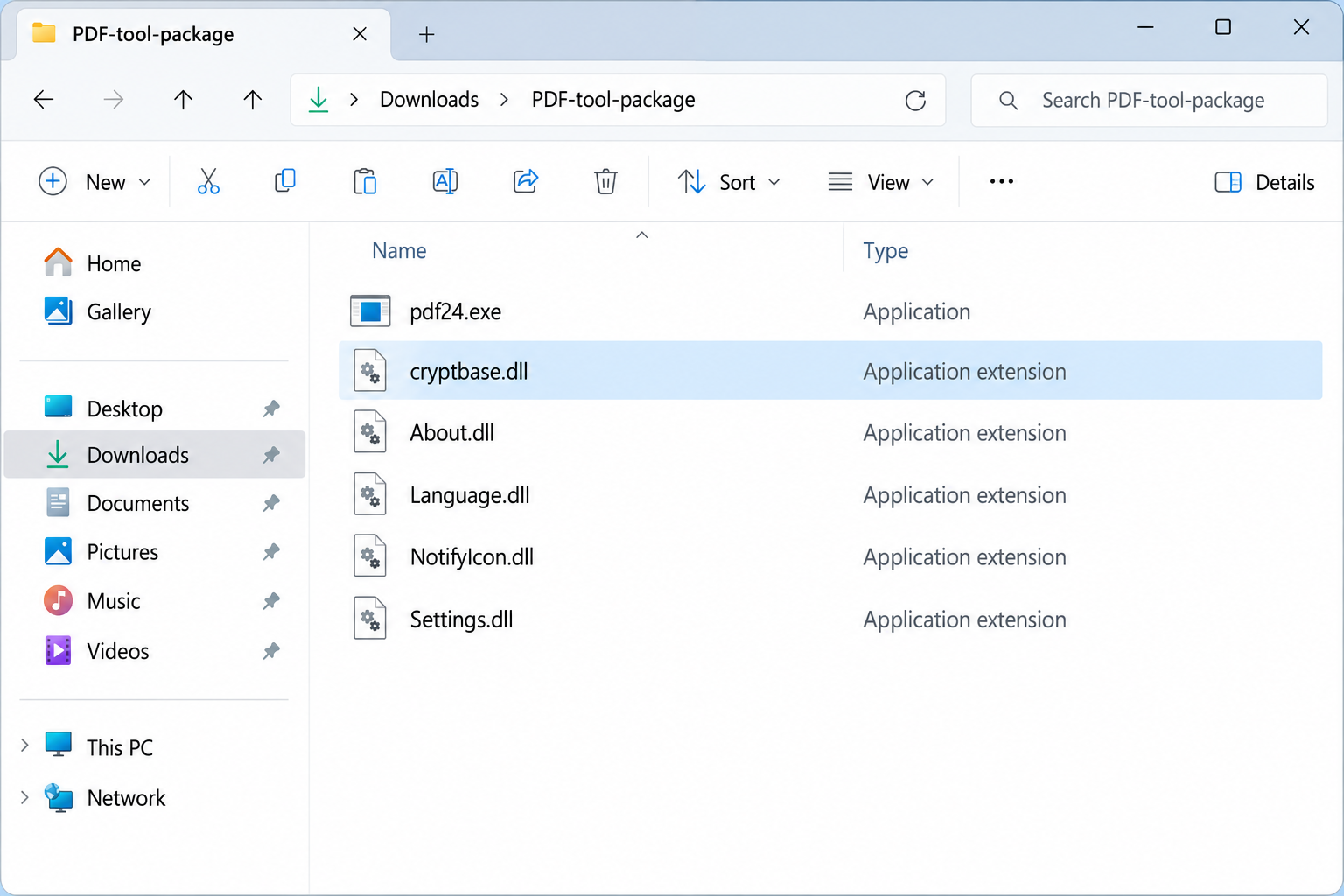
Researchers described a targeted email carrying a ZIP archive. The package paired a legitimate PDF24 executable with a malicious library named cryptbase.dll.
Running the program could load the adjacent malicious code through DLL side-loading. The trusted-looking executable helps the surrounding package seem less suspicious.
This distinction matters: genuine PDF24 is not the backdoor. A legitimate application can be abused when distributed beside files selected by an attacker.
The folder image is an original illustration of that arrangement. It is not a recovered attachment, and filenames alone do not establish infection.
The package creates a hidden channel for commands
Primary technical reporting describes hidden command execution, encrypted communication, and checks intended to frustrate analysis. These capabilities make a silent infection plausible.
That does not mean every slow computer has PDFSIDER. A family name in an article is not a diagnosis for your particular device.
The important exposure question is whether an untrusted executable ran, especially from an archive supplied through an unexpected message.
Downloading an archive without executing its contents is different from launching the program. A useful response begins by establishing that sequence.
No sample was executed for this article. We are explaining the documented threat and safe response, not reporting a breach of a reader’s computer.
Containment and account protection are separate jobs
If the suspicious program ran, treat the device as potentially compromised and involve IT before continuing sensitive work on it.
Removing a detected file may stop one component. It does not automatically settle which commands ran or whether another access method was added.
- Stop opening the archive and preserve its original message.
- Record whether the executable actually launched and approximately when.
- Use trusted security tools rather than repair downloads offered by strangers.
- Recover exposed accounts from another device after containment begins.
The aim is to restore confidence in the system and its accounts, not simply remove an alarming name from a detection list.
How a Legitimate Program Can Load the Wrong Library
The executable is only part of what runs
Windows applications often use dynamic-link libraries, or DLLs. These files provide code that a program can load when it needs particular functions.
Some loading decisions depend on file locations and the application’s behavior. An attacker may exploit that behavior by placing a malicious library near a legitimate program.
Microsoft documents DLL search behavior, including the risk created when attackers control a searched directory.
The exact search order has exceptions and application-specific details. “Every nearby DLL runs automatically” would be an inaccurate explanation.
For the reader, the useful lesson is simpler: assessing one executable does not automatically assess every file that accompanies it.
A digital signature does not approve the whole folder
A genuine signature can identify a signed file’s publisher and help establish whether that file changed. It does not endorse unrelated neighboring files.
An attacker can redistribute a legitimate executable without having created it. That does not make the executable’s publisher responsible for the malicious package.
Imagine receiving a familiar installer from a supposed colleague. The recognizable icon and publisher information may be correct while another included file supplies the danger.
The safer question is where the complete package came from and whether you expected it, not just whether one item looks familiar.
Do not delete every file named cryptbase.dll
The filename appears in the PDFSIDER reporting, but a filename is not a reliable malware verdict. Windows also uses legitimate libraries.
Deleting system files based on a name can damage the operating system and make the original incident harder to investigate.
Security tools and responders assess more context: file path, hashes, signatures, loading behavior, related processes, and the surrounding event history.
Keep the questionable package for authorized analysis without opening it again. Let the responder specify a safe way to collect or submit it.
How the PDFSIDER Infection Chain Works
Step 1: A targeted message supplies an apparently useful PDF application
The documented delivery begins with a phishing message and a ZIP package. The familiar software theme gives the recipient a reason to extract it.
A work-related request can make this feel procedural: open the supplied tool, handle a document, and continue with the task.
But a coworker’s name does not establish who sent a file. A compromised mailbox can also produce messages inside an otherwise believable conversation.
Verify unexpected software requests through an independent workplace channel. Ask why a new application is needed and whether your organization already provides an approved alternative.
Do not forward the archive to other people to see whether it opens for them. Report it through the designated security process instead.
Step 2: Launching the program gives the adjacent malicious DLL its opportunity
In the reported package, the legitimate executable loads a malicious cryptbase.dll supplied alongside it. This is the side-loading stage.
The reader may focus on the application and overlook the supporting files. An ordinary-looking folder can therefore contain the critical difference.
There may be no useful window showing what happened. A missing installer screen should not encourage repeated launches to make the program respond.
If you already ran it, write that down and stop experimenting. “Nothing happened” describes the visible experience, not necessarily the underlying execution.
Step 3: The backdoor communicates and can execute commands quietly
PDFSIDER’s reported function is a hidden remote-command channel. Operators can issue commands and receive output without an obvious console appearing.
Broadcom’s protection bulletin independently identifies the backdoor, DLL side-loading, and encrypted remote-shell behavior.
Such access can put documents and account information at risk. It does not prove that a particular file was stolen from every affected system.
Technical responders need logs and host evidence to establish what actually ran. A list of possible capabilities is not a substitute for that investigation.
Step 4: Response must assess what happened beyond the initial package
A backdoor can be an entry point for later activity. Closing the program or deleting the downloaded archive may not remove everything introduced afterward.
That is why an executed package deserves more attention than an unopened attachment. The investigation needs a time window and the affected account context.
Ask whether the device can be safely returned to use or should be rebuilt. The answer depends on evidence and the sensitivity of its role.
If workplace access was available, responders may also review related account sessions and other systems. Do not assume the problem is confined to one folder.
What the Research Establishes, and What It Does Not
The technical report is about an analyzed package
Resecurity’s original research describes the PDFSIDER package and its backdoor behavior. Its findings are not a test of every genuine PDF24 distribution.
This article does not reproduce a working malware command or offer a download. Opening a sample is not required to understand the warning.
A detection name may vary between security products. Keep the full alert, path, and event time instead of assuming a different label means a different incident.
Memory-focused behavior does not make the threat magical
Malware running largely in memory can reduce some disk artifacts. That does not make all activity invisible or guarantee that security software cannot detect it.
Similarly, encrypted traffic can hide content without erasing the fact that a process communicated with another address.
Responders can combine host, identity, and network records. No single screenshot or clean result should be asked to answer every incident-response question.
A restart can remove some volatile information. On a managed device, follow your responder’s instructions rather than repeatedly rebooting to see whether alerts disappear.
Updating is useful, but it is not a retrospective cleanup
Use the genuine publisher’s current software or your organization’s managed version. Avoid claiming that a historical version number automatically proves your machine is safe.
Installing an update after malicious code ran does not undo commands already executed. Software maintenance and incident recovery solve different parts of the problem.
Do not replace the suspect package with a copy from another download advertisement. Return to your organization’s software catalog or the established publisher.
What to Do for PDFSIDER Malware Removal and Recovery
Stop using the affected machine for sensitive tasks. If the executable ran, disconnect networking where safe and promptly notify workplace IT or your security provider.
For a managed device, follow its incident procedure. Do not improvise changes to servers or critical equipment that could cause another operational problem.
Preserve the delivery context. Keep the original message, archive name, source location, and approximate launch time. Tell responders whether you extracted or executed anything.
Do not email the sample around, upload confidential work files publicly, or open it again to produce a better screenshot.
Use trusted removal tools. Run an updated security scan under the responder’s direction. Malwarebytes is an option for identifying and quarantining malicious components.
The removal guidance below supports device cleanup. A successful scan is useful evidence, but it does not prove no account or document was accessed.
Let the investigation determine the wider scope. Ask about suspicious child processes, network activity, persistence, and account use during the exposure period.
Microsoft’s device-response guidance describes capabilities such as isolation and investigation-package collection for appropriately managed endpoints.
Recover accounts from a separate trusted device. Prioritize accounts used on the affected computer and those with administrative or recovery privileges.
Replace exposed credentials, review sessions, and inspect security settings. Follow your organization’s process for application tokens or service credentials instead of changing them blindly.
Rebuild if trustworthy cleanup cannot be established. A clean installation may be appropriate after confirmed backdoor execution, especially where sensitive business access was available.
Restore necessary documents from known-good backups, not the suspicious program directory. Have IT check restored material before reconnecting to normal work.
Fix the delivery route before returning to routine use. Obtain PDF software through approved channels and review why the unexpected package was accepted.
AdGuard can reduce exposure to malicious advertising, but it does not replace attachment controls, endpoint protection, or verification of a software request.
Is Your Device Infected? Run a Free Malware Scan
Slow performance, constant pop-ups, or strange behavior? These are classic signs of a malware infection. The fastest way to find out is to scan your device with Malwarebytes Free — one of the most trusted malware removal tools available.
The free version detects and removes the most common threats, including:
- Adware — the cause of those annoying pop-ups
- Browser hijackers — unwanted redirects and changed homepages
- Trojans and spyware — hidden programs stealing your data
- Potentially unwanted programs (PUPs) — software you never asked for
👉 Select your device below — Windows, Mac, or Android — then follow the simple steps to download Malwarebytes, scan your system, and remove any threats it finds. The scan usually takes 5 to 20 minutes.
Run a Malware Scan with Malwarebytes for Windows
Malwarebytes is one of the most popular and trusted anti-malware tools for Windows — and it’s completely free for removing infections. It catches threats that many antivirus programs miss, including adware, browser hijackers, and trojans. Follow the steps below to scan and clean your PC in just a few minutes.
Download Malwarebytes
Click the button below to download the latest version of Malwarebytes for Windows from the official source. The free version is all you need — it will scan your computer and remove adware, browser hijackers, and other malicious software at no cost.
Download MalwarebytesOfficial installer for Windows 11 and 10. Your download starts right away.Want real-time protection? See Malwarebytes Premium Malwarebytes Free for WindowsScans and removes malware at no cost
-
Install Malwarebytes
When the download finishes, open your Downloads folder and double-click the MBSetup file. If Windows shows a User Account Control pop-up, click “Yes” to allow the installation.

Follow the On-Screen Prompts to Install Malwarebytes
The setup wizard will walk you through a few quick screens:
-
Choose where you’re installing the program — “Personal Computer” or “Work Computer” — then click Next.

-
Malwarebytes will now install on your device. This usually takes under a minute.

-
When installation is complete, the “Welcome to Malwarebytes” screen will open automatically.

-
On the final screen, click Open Malwarebytes to launch the program.

-
Enable “Scan for Rootkits”
Before scanning, turn on rootkit detection so Malwarebytes can find even the most hidden threats. Click the Settings gear icon on the left side of the screen.

In the settings menu, find “Scan for rootkits” and click the toggle so it turns blue.

Done? Click “Dashboard” in the left pane to return to the main screen.
Start the Scan
Click the blue Scan button. Malwarebytes will automatically update its virus database and start checking your computer for malware.

-
Wait for the Scan to Finish
The scan checks your entire system for browser hijackers and other malicious programs, so it can take 5 to 20 minutes depending on your computer. Feel free to do something else — just check back occasionally to see the progress.

-
Quarantine the Detected Threats
When the scan is done, you’ll see a list of everything Malwarebytes found — malware, adware, and potentially unwanted programs. Click the “Quarantine” button to remove all of them at once.

Malwarebytes will now remove the malicious files and registry entries and move them safely into quarantine.

-
Restart Your Computer
Some threats can only be fully removed after a reboot. If Malwarebytes asks you to restart, click Yes. Once you’re logged back in, Malwarebytes has finished removing the threats it found.

That’s it — your Windows PC is now clean of trojans, adware, and other malware, and should be back to running smoothly.
If you are still having problems with your computer after completing these instructions, then please follow one of the steps:
- Run a computer scan with ESET Online Scanner
- Ask for help in our Windows Malware Removal Help & Support forum.
Run a Malware Scan with Malwarebytes for Mac
Malwarebytes for Mac is a free on-demand scanner that removes the malware other security software tends to miss — adware, browser hijackers, and unwanted programs included. Cleaning an infected Mac with Malwarebytes has always been completely free, and it’s our go-to recommendation. Follow the steps below to scan and clean your Mac in just a few minutes.
-
Download Malwarebytes for Mac
Click the button below to download the latest version of Malwarebytes for Mac.
Download MalwarebytesOfficial installer for macOS. Your download starts right away.Want real-time protection? See Malwarebytes PremiumMalwarebytes Free for MacScans and removes malware at no cost -
Open the Malwarebytes setup file
When the download finishes, open your Downloads folder and double-click the setup file to begin the installation.

-
Follow the On-Screen Prompts to Install Malwarebytes
The Malwarebytes for Mac Installer will guide you through a few quick screens. Click “Continue” and keep following the prompts until the installation completes.



When the installation is complete, Malwarebytes opens to the Welcome to Malwarebytes screen. Click “Get started“.
-
Select “Personal Computer” or “Work Computer”
Malwarebytes will ask what type of computer you’re installing it on. Click either Personal Computer or Work Computer, whichever applies.

-
Start the Scan
Click the “Scan” button. Malwarebytes will automatically update its detection database and begin checking your Mac for malware.

-
Wait for the Scan to Finish
Malwarebytes will scan your Mac for adware, browser hijackers, and other malicious programs. This can take a few minutes, so feel free to do something else — just check back occasionally to see the progress.

-
Quarantine the Detected Threats
When the scan is done, you’ll see a list of everything Malwarebytes found. Click the “Quarantine” button to remove all the threats at once.

-
Restart Your Mac
Malwarebytes will now remove all the malicious files it found. Some threats can only be fully removed after a reboot — if Malwarebytes asks you to restart, allow it. Once you’re logged back in, your Mac is clean.

That’s it — your Mac is now free of adware, rogue browser extensions, and other potentially harmful software.
If you are still experiencing problems while trying to remove a malicious program from your computer, please ask for help in our Mac Malware Removal Help & Support forum.
Run a Malware Scan with Malwarebytes for Android
Malwarebytes for Android automatically detects and removes dangerous threats like malware and ransomware so you don’t have to worry about your most-used device being compromised. Aggressive detection of adware and potentially unwanted programs keeps your Android phone or tablet running smooth.
-
Download Malwarebytes for Android.
You can download Malwarebytes for Android by clicking the link below.
Get Malwarebytes for AndroidOpens Google Play in a new tab.Want real-time protection? See Malwarebytes Premium for AndroidMalwarebytes for AndroidScans your phone and removes malware at no cost -
Install Malwarebytes for Android on your phone.
In the Google Play Store, tap “Install” to install Malwarebytes for Android on your device.

When the installation process has finished, tap “Open” to begin using Malwarebytes for Android. You can also open Malwarebytes by tapping on its icon in your phone menu or home screen.

-
Follow the on-screen prompts to complete the setup process
When Malwarebytes will open, you will see the Malwarebytes Setup Wizard which will guide you through a series of permissions and other setup options.
This is the first of two screens that explain the difference between the Premium and Free versions. Swipe this screen to continue.
Tap on “Got it” to proceed to the next step.
Malwarebytes for Android will now ask for a set of permissions that are required to scan your device and protect it from malware. Tap on “Give permission” to continue.
Tap on “Allow” to permit Malwarebytes to access the files on your phone.
-
Update database and run a scan with Malwarebytes for Android
You will now be prompted to update the Malwarebytes database and run a full system scan.

Click on “Update database” to update the Malwarebytes for Android definitions to the latest version, then click on “Run full scan” to perform a system scan.

-
Wait for the Malwarebytes scan to complete.
Malwarebytes will now start scanning your phone for adware and other malicious apps. This process can take a few minutes, so we suggest you do something else and periodically check on the status of the scan to see when it is finished.

-
Click on “Remove Selected”.
When the scan has been completed, you will be presented with a screen showing the malware infections that Malwarebytes for Android has detected. To remove the malicious apps that Malwarebytes has found, tap on the “Remove Selected” button.

-
Restart your phone.
Malwarebytes for Android will now remove all the malicious apps that it has found. To complete the malware removal process, Malwarebytes may ask you to restart your device.
That’s it — your Android phone is now clean — no more malicious apps, adware, or browser redirects.
If you are still having problems with your phone after completing these instructions, then please follow one of the steps:
- Restore your phone to factory settings by going to Settings > General management > Reset > Factory data reset.
- Ask for help in our Mobile Malware Removal Help & Support forum.
Stay Protected: Block Ads and Malicious Sites
Now that your device is clean, keep it that way. Most infections start with a malicious ad or a fake download button — so blocking them at the source is your best defense.
We recommend AdGuard, which blocks malicious ads, phishing pages, and dangerous redirects before they can reach you.
👉 Download AdGuard and browse safely
Returning to Work Without Repeating the Exposure
Make sure the people handling the incident agree on when the device is ready. A disappearing warning is not a return-to-service decision.
Confirm that essential files are present and normal security protection is enabled. Do not disable scanning because the original program claimed it interfered with installation.
Check whether anyone else received the same archive. Provide the original message identifier to IT so they can look for related deliveries without reopening attachments.
A shared project folder may contain the downloaded package even after the first device is cleaned. Ask the administrator to assess that copy and its access history.
When keeping evidence, preserve the folder relationships. Separating the executable from neighboring libraries can hide the loading arrangement the responder needs to understand.
Do not send company archives to an online scanner without authorization. Even a suspicious message can contain confidential documents or identifying information.
Finally, agree on a follow-up contact and monitoring period. If a related alert reappears, that person should have the original timeline and cleanup record available.
If the message came through a real colleague’s account, report that route too. Their mailbox may require review even if your own device was contained.
Document which packages were removed and where replacement software came from. This helps another administrator distinguish your cleanup from a later suspicious change.
Use the incident to improve the workflow: approved PDF tools, clear software-request procedures, and an easy reporting channel are more useful than blaming the recipient.
Frequently Asked Questions
Is PDF24 itself malware?
No. PDFSIDER reporting concerns attackers abusing a legitimate executable with a malicious companion DLL. Do not equate that package with the genuine publisher’s software.
Can I get PDFSIDER merely by reading this article?
This article does not provide the malware. The documented route involves an untrusted package and program execution, not reading an explanation of the threat.
Does cryptbase.dll always indicate PDFSIDER?
No. Filename alone is insufficient. The file’s location, contents, provenance, and loading behavior must be assessed before treating it as malicious.
Why did no program window appear when I ran the file?
A hidden or failed-looking launch does not establish safety. If an unexpected executable ran, report that fact instead of retrying until a window appears.
Will restarting remove the backdoor completely?
Do not rely on that. Restarting is not an investigation of later activity or persistence. A managed-device responder may also need volatile evidence first.
Can a scan tell whether documents were stolen?
Not by itself. Scanning detects software threats; establishing data access or exfiltration requires relevant logs and incident analysis.
The Bottom Line
Do not run a PDF tool supplied through an unexpected archive. PDFSIDER shows why a familiar executable cannot vouch for everything beside it.
If the package ran, contain the device and seek proper removal and account review. Keep genuine PDF24 separate from the malicious redistribution abusing it.

Join the discussion
0 commentsShare your experience or ask a question about this article.
Your progress
Did these steps help?
Let us know how the guide worked for you.
Describe what you see and the step you reached. Keep passwords and other private information out.
Discussion
Start the conversation
Have a question or something useful to share? Add the first comment.