


A computer can still feel like your own while someone else has a route into it. Ordinary windows and working applications do not settle that question.
If a security alert names Monoxide RAT, the useful response starts with access, not appearances. Here is how to assess the warning and recover safely.
Overview
A Windows remote-access trojan with surveillance capabilities
Monoxide RAT is reported as malicious Windows software that gives an operator remote control of an affected computer. RAT stands for remote-access trojan.
The described features include desktop interaction, file management, remote command execution, and webcam or audio access. These are capabilities, not a record of what happened on your machine.
A reliable detection or incident finding deserves prompt attention. A slow computer, unusual sound, or black screen alone cannot identify this particular malware.
Some activity may happen outside the desktop you are watching
The reported toolkit includes hidden-desktop functionality, often called HVNC. It can let an operator interact with applications outside the ordinary visible session.
That distinction matters because watching your mouse is not a dependable security check. Lack of visible movement does not establish that unauthorized control is absent.
Conversely, an unfamiliar remote-support application is not automatically Monoxide. Establish what was detected, where it was found, and whether access was authorized.
Containment, Windows cleanup, and account recovery serve different purposes
Disconnecting a suspect machine limits an active network route. Removing malware addresses software. Recovering an online account addresses access that may already exist elsewhere.
- Confirm the alert through a security product or administrator you trust.
- Stop sensitive activity on the affected Windows installation.
- Retain detection details before making major changes.
- Use appropriate remediation or a clean rebuild when necessary.
- Review relevant accounts from another trusted device.
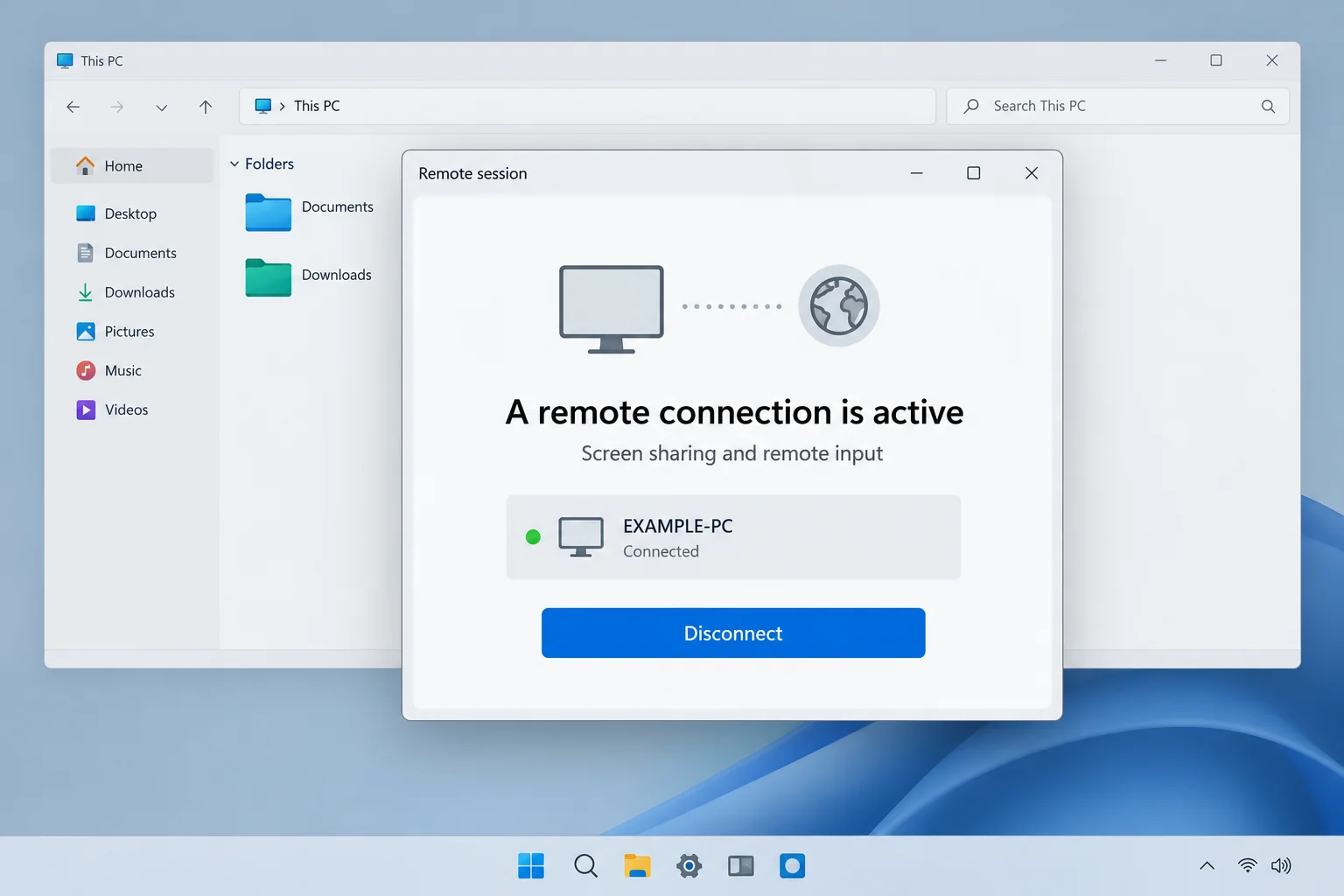
The remote-session illustration is fictional. Monoxide need not display that notification, and a visible Disconnect button is not an indicator required for infection.
What the Reported Monoxide Features Mean for a User
Remote input can turn an open session into an opportunity
Desktop control means more than seeing a screenshot. An operator may interact with applications under the permissions available in the compromised environment.
Consider an account already signed in through a browser. Its immediate risk is not limited to whether the attacker knows the password.
That does not mean every open account was used. It means responders should consider actual session activity, not only search for evidence of a password change.
For a shared or business computer, explain which identities were signed in. Different users can have different permissions even on the same workstation.
File access can expose documents or introduce another threat
The reported file manager supports movement of files, while additional execution features can run other software. The initial alert may therefore require a wider investigation.
Do not assume the malware is limited to the file first detected. Equally, do not claim every available document was copied without supporting records.
Identify sensitive folders, shared drives, and business resources the machine could reach. Let the responsible team determine which deserve closer review.
Private files should not be uploaded publicly to obtain help. A responder can often begin with detection names, timestamps, and paths that do not reveal their contents.
Surveillance and disruptive features can create confusing symptoms
The description includes webcam and audio capabilities, along with options that interfere with the visible desktop. Their availability does not prove they were activated.
Hardware faults, accessibility settings, legitimate support sessions, and application errors can also change screen behavior. Symptoms should be investigated in context.
A microphone or camera indicator may be useful to record, but its absence cannot establish the complete history of device access.
A camera cover does not stop someone browsing your files. Disconnect the suspect computer and arrange proper cleanup even if the camera is physically blocked.
Confirm the Warning Before Following Its Instructions
A browser page announcing a remote-access infection is not equivalent to a detection inside your installed security software. Scammers also use frightening malware names as bait.
Open the security application through your normal Windows route. Check its history for the exact detection, time, affected location, and action taken.
If the only evidence is a webpage demanding a phone call or payment, stop interacting with it. Verify independently before installing anything it recommends.
For a workplace computer, contact the existing IT team. An internal alert may come from a managed product whose detailed findings are not visible to the employee.
Record whether the product blocked a file before execution or found a running component. Those are different starting points for assessing exposure.
Do not reopen a quarantined item to find out what it does. Quarantine is not a temporary folder for convenient experimentation.
The available Monoxide description does not establish one universal delivery route. A detection should not be blamed on a particular email or download without evidence.
Preserve relevant recent activity for the responder, but separate what you remember from what system records confirm. A clear timeline is more useful than a confident guess.
What to Do After a Monoxide RAT Detection
-
Disconnect the affected computer from networks. Unplug Ethernet and turn off its Wi-Fi connection. Stop using it for sensitive accounts or payments.
In a business environment, tell the response team before changing other systems. One workstation alert does not authorize disrupting unrelated services.
-
Save the detection and incident details. Record the security product, threat label, affected file path, discovery time, and action already taken.
Keep passwords, private documents, and full account numbers out of public support requests. Use an appropriate private channel for sensitive evidence.
-
Notify whoever manages the device. Explain whether anyone recently installed software, granted remote support, or used privileged accounts on it.
Authorized support and malicious access must be distinguished. Do not remove an employer’s management tools simply because they can control a screen.
-
Protect accounts from a different trusted device. Review relevant access and replace exposed credentials through the genuine service.
Check account sessions and recovery settings too. Cleaning Windows does not invalidate an unauthorized session that already exists on another computer.
-
Arrange Windows remediation. Malwarebytes can help detect and quarantine unwanted software. Follow the tailored steps below or the organization’s existing incident plan.
A scanner result cannot prove that no information was copied. Preserve findings and ask about rebuilding when the machine’s integrity cannot be established.
-
Report actual financial or business misuse promptly. Contact the relevant institution or internal team through a known route when records show suspicious activity.
Explain the affected computer and account context. Do not delay reporting a real transfer while waiting to learn every technical detail about the malware.
-
Reject unsolicited recovery offers. Do not allow another stranger remote access because they claim to remove Monoxide or recover losses immediately.
Choose help independently and keep a written record of its scope. No provider should promise to make previously exposed information private again.
Monoxide RAT Removal and Windows Recovery
Step 1: Preserve a useful starting point
Leave the machine isolated while deciding whether evidence collection is needed. A business incident may require more than running a consumer scanner immediately.
For personal devices, retain the alert details and a timeline. Avoid deleting logs, clearing every browser record, or manually removing unfamiliar system files.
When important records exist only on that disk, seek advice before rebuilding. Recovery should not destroy the only copy of data you still need.
Do not connect your normal backup drive casually. Discuss a safe backup or evidence-preservation method with the person handling the affected installation.
Step 2: Install Malwarebytes and run the appropriate Windows scan
Use this procedure on a personal Windows PC after preserving the incident details. For a managed computer, let your security team decide when scanning should begin.
Malwarebytes can find and quarantine threats. Its free Custom Scan is separate from paid real-time protection and Threat Scan. Neither edition supplies ransomware decryption keys.
-
Download the Windows installer.
Open the official download page using the button below. Select Free Download there and save the Windows installer.
If the affected PC cannot browse safely, use a trusted computer and arrange an appropriate transfer without exposing clean backup media.
Malwarebytes for WindowsManual scanning and quarantine, with optional paid protection.
Opens the official free-scanner page. Choose its Windows download; paid protection is optional.
-
Open the setup file.
Open Downloads and double-click the MBSetup file. If Windows requests permission, check that the prompt identifies Malwarebytes before allowing the installation.

-
Complete setup without accepting unwanted extras.
Select Install, choose the appropriate Personal or Business device option, and continue. Business-managed computers should be handled through their administrator’s process.

Review any browser extension, trial, or subscription offers. Skip optional features you do not want, then select Open Malwarebytes when setup finishes.

-
Choose a supported scan.
Find the Scanner tile on the dashboard. For a free Custom Scan, open its three-dot menu, select Advanced Scan, and choose Custom Scan.
Expand the file-location selector and select the system drive and relevant locations. Review potentially unwanted program settings, then select Start Custom Scan.
A paid or eligible trial edition may also offer Threat Scan. Use the controls available in your edition; do not disable Windows protections to unlock another option.

-
Let the scan complete and inspect its findings.
Keep the computer powered on while scanning and wait for the results. A large Custom Scan can take longer than a scan limited to common locations.
Review each detection and its location. Leave confirmed threats selected and choose Quarantine. Save the report if a detection is unclear rather than adding it to exclusions.
The results illustration uses sample detections to show the Quarantine control. Those names are not identifiers for the malware discussed in this article.

-
Finish removal and handle a requested restart.
Follow the quarantine prompts. If a restart is requested, save your work and coordinate it with anyone preserving evidence before restarting.

Reopen the application afterward and review the result. Repeated detections, blocked removal, or signs of continuing access need further investigation, not an automatic clean-device conclusion.
The screen design can vary by installed release. Follow the named controls and the vendor’s current scan instructions if your version looks different.
Step 3: Use a second-opinion scanner when findings remain unresolved
HitmanPro provides an optional second opinion when a Windows infection or unresolved finding warrants another check. Run scanners sequentially, not at the same time.
Scanning is free. Removal needs an eligible one-time 30-day trial or a paid license. A computer that already used its trial may not qualify again.
-
Obtain HitmanPro from the established download route.
HitmanProOptional second-opinion Windows scanner.
Free scan. Removal requires an eligible trial or paid license.
-
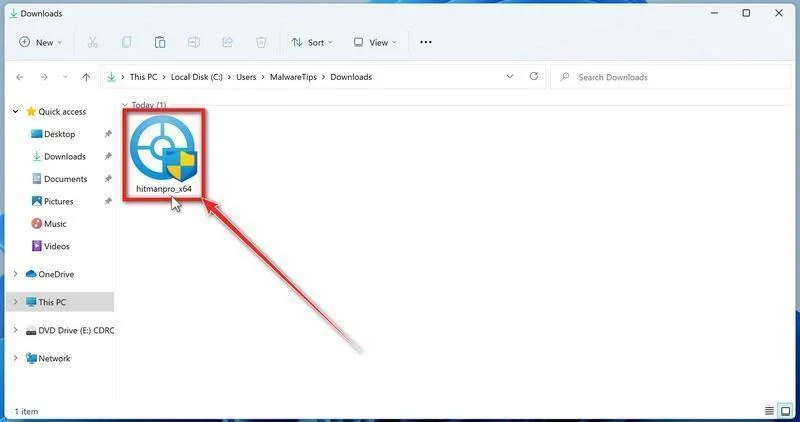
Launch the downloaded program.
Open Downloads and run the appropriate HitmanPro file for your system. Check the publisher in any Windows permission prompt before allowing it.
-
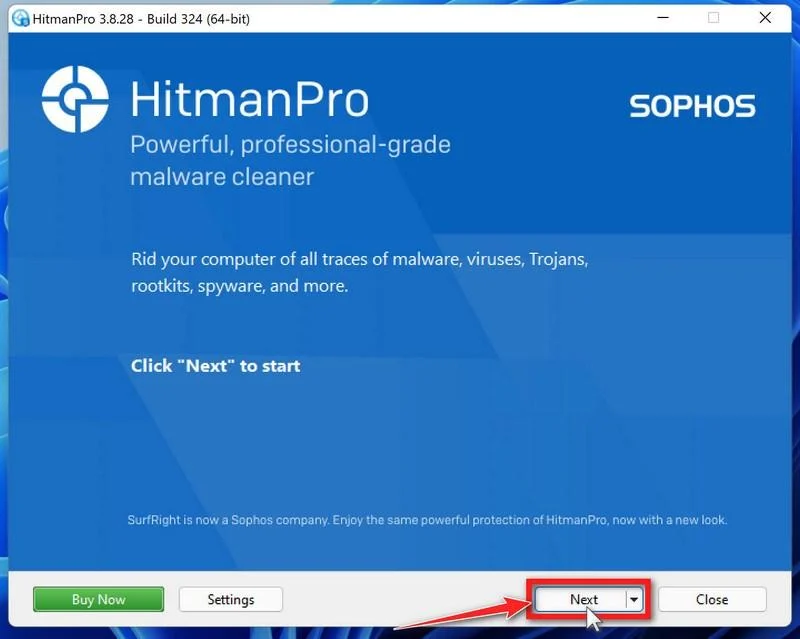
Start the scan.
Open HitmanPro, select Next, and follow its license and setup prompts. Its cloud checks require an internet connection; arrange controlled access if the PC was isolated.
-
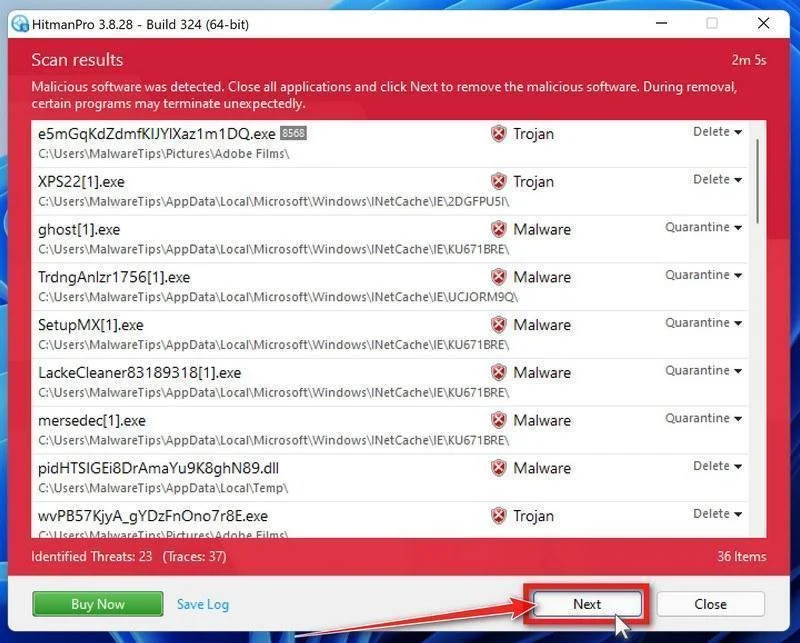
Review the results before removal.
Allow scanning to finish. Inspect the listed objects and proposed actions, then select Next for confirmed unwanted items. Save uncertain findings for qualified assistance.
-
Use an eligible license and complete cleanup.
If available, select Activate free license and follow the trial prompts. Otherwise, use an existing license or retain the report; do not assume purchase is mandatory.
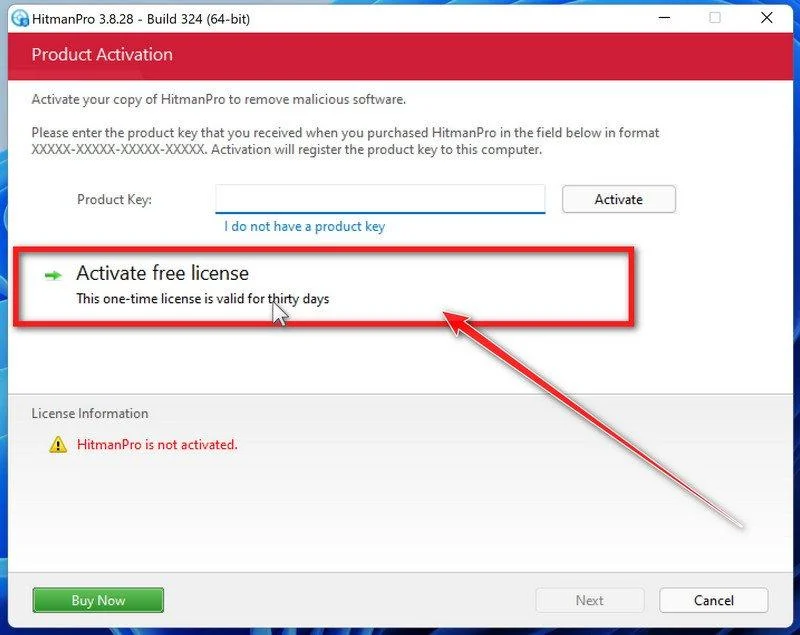
Finish the proposed cleanup and restart if requested. If problems persist, keep both scanners’ reports and seek help rather than repeatedly activating unfamiliar repair tools.
Step 4: Decide whether the installation can be trusted again
A remote-control trojan may permit additional changes beyond its initial file. Remediation should consider the actual findings, privileges involved, and any other software delivered.
A clean rebuild can be appropriate when the system’s integrity remains uncertain. Have an administrator or qualified technician explain the plan and its data consequences.
Reinstalling Windows can erase applications, settings, and files depending on the method. Confirm backups and recovery access before approving a destructive procedure.
Do not restore the original suspicious installer with your documents. Separate essential data from downloaded programs, scripts, and old configuration that may recreate the problem.
Step 5: Reconnect only after device and account checks
Apply supported updates and confirm security protections are working before returning the computer to normal use. Review necessary remote-access software with its owner.
From a trusted device, finish replacing affected secrets and reviewing account sessions. Prioritize email, financial services, workplace identities, and administrative access actually exposed.
For developer or administrator workstations, tell the responsible team about accessible keys and service credentials. Their replacement needs coordination with the systems using them.
Keep a recovery record showing what was removed, rebuilt, or replaced. That helps distinguish a returning problem from an old alert being rediscovered.
Questions to Resolve During Account Recovery
Start with what the computer could legitimately access. A personal browser profile and a privileged business workstation present different opportunities to an unauthorized operator.
For each important service, establish whether a password was stored, a session was open, or a recovery method was available. Those facts guide priorities.
Ask whether other people used the same browser profile. A shared session can expose an account even when its owner never opened the suspicious file.
Do not change an unfamiliar business credential without coordination. An administrator may need to rotate it safely and identify other systems that rely on it.
If a provider offers sign-in history, retain relevant entries before dismissing them. Location estimates can be imperfect, so review device and timing details too.
Where an account sent unauthorized requests, warn affected recipients through a separate established channel. A password replacement does not retract messages already delivered.
Protect shared documents and financial workflows according to their actual exposure. Avoid telling everyone that all data was stolen when the investigation has not established that.
Getting Help When the Result Is Unclear
MalwareTips’ Windows malware-removal support forum can help with unresolved findings. Follow its preparation process and keep private information out of public posts.
Include the exact alert and previous actions rather than a list of unrelated symptoms. State whether the file was blocked before execution if you know.
A workplace incident involving sensitive records, administrative access, or ongoing unauthorized activity may need professional response. A public forum is not a replacement for that responsibility.
Do not run commands from unsolicited private messages claiming to finish the cleanup. Keep assistance within the verified support process you deliberately selected.
Frequently Asked Questions
Does Monoxide RAT always move the mouse visibly?
No. Reported hidden-desktop functionality means visible movement is not a reliable requirement. Establish the infection through actual security findings and investigation.
Is a black screen enough to identify this malware?
No. Many ordinary problems can cause screen changes. Check reliable detection details and seek technical assessment instead of diagnosing a specific trojan from one symptom.
Is every remote-support tool a RAT infection?
No. Authorized administration is legitimate. The concern is malicious software or unauthorized control, not the mere existence of a remote-access feature.
Will a password change remove Monoxide?
No. An online password change does not remediate Windows software. Address the device and affected account access as separate parts of recovery.
Does a clean scan prove no documents were copied?
No. A current scan cannot establish the complete history of an intrusion. Assess sensitive-file exposure using incident evidence and appropriate professional advice.
Should I reinstall Windows immediately?
Not before considering evidence and essential data. Rebuilding may be appropriate, but plan backups, account recovery, and the consequences of the chosen method first.
The Bottom Line
Take a credible Monoxide RAT detection seriously. Isolate the computer, stop sensitive use, preserve findings, and arrange appropriate Windows cleanup or rebuilding.
Recover relevant accounts from a trusted device and investigate actual misuse. Neither normal-looking applications nor one successful scan settles every part of the incident.

Join the discussion
0 commentsShare your experience or ask a question about this article.
Your progress
Did these steps help?
Let us know how the guide worked for you.
Describe what you see and the step you reached. Keep passwords and other private information out.
Discussion
Start the conversation
Have a question or something useful to share? Add the first comment.