


Your messaging app opens normally. Conversations are where you expect them, and the familiar controls give you little reason to question the installation.
But the source of that app matters as much as its appearance. A modified copy can change what happens behind an otherwise ordinary conversation.
Overview
uCreator is an Android surveillance framework, not just a misleading pop-up
uCreator Android spyware, also described as uCreater or YingGai, is a remotely managed platform for instrumenting applications on a device.
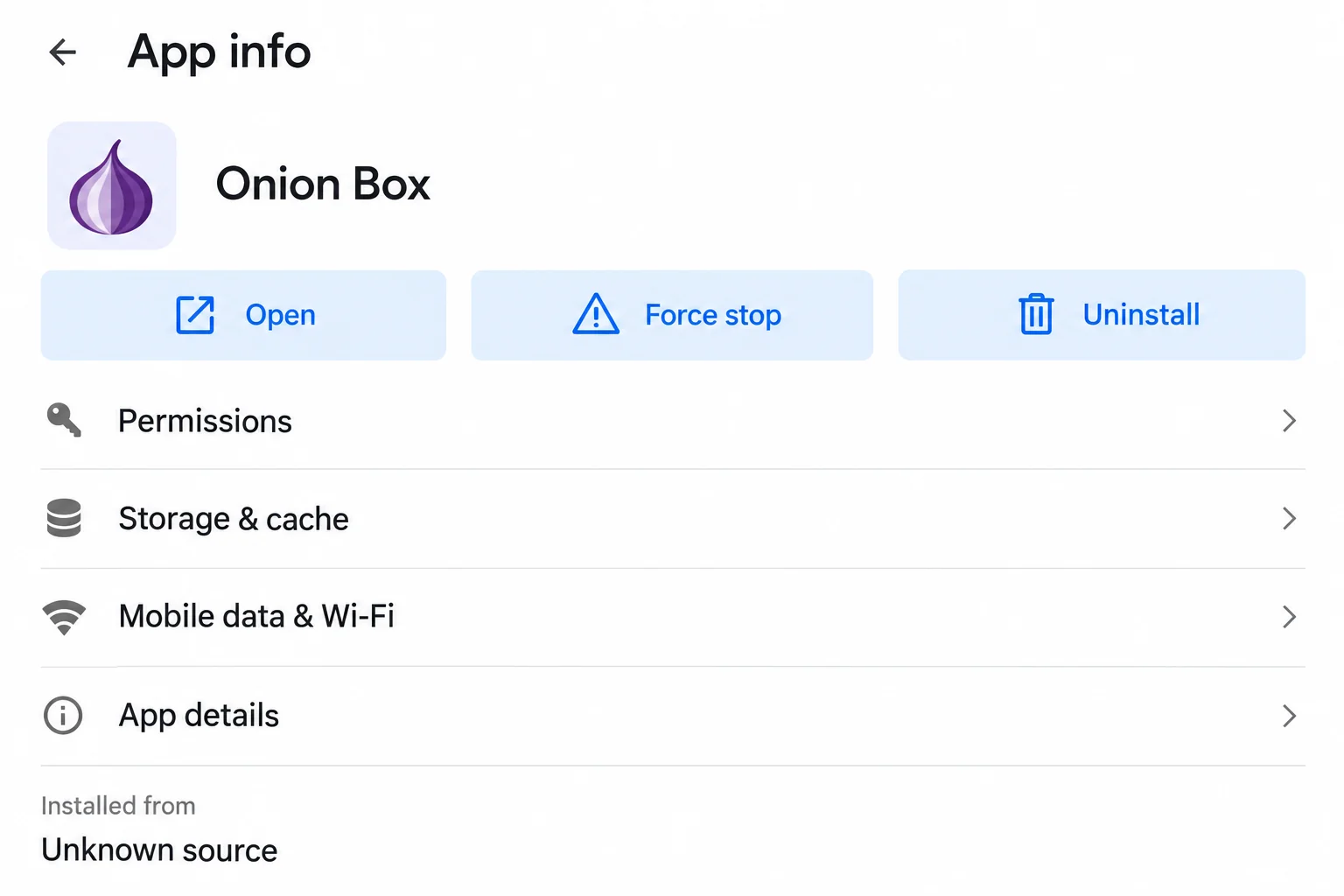
The reported distribution includes modified messaging apps and a container called Onion Box. The recognizable application can continue working inside an environment controlled by other code.
This makes installation history important. An app obtained through an unfamiliar message or download page deserves scrutiny even when its conversations and buttons look normal.
The danger concerns access inside an authenticated application
Technical research describes code capable of accessing messaging data and manipulating account sessions. Telegram-specific components include sensitive account and two-step-verification functionality.
An affected app does not mean every listed feature was used against you. Match the response to the installed package and actual account activity.
Telegram, WeChat, and other targeted services are not themselves the malware. A repackaged client or intrusive container is different from their legitimate applications.
Removing an app and recovering an account are separate jobs
A practical response addresses both the Android installation and any account access it could expose. Start by identifying what was installed and where it came from.
- Check unfamiliar APK installations and app containers.
- Preserve essential information before removing apps that hold local data.
- Use a trusted device to review important account sessions.
- Do not assume a password change cleans the Android installation.
- Do not assume uninstalling a package revokes access already established elsewhere.
The App info illustration is a simplified example, not a detection record. Names and icons alone cannot identify whether a particular installation contains this framework.
How a Familiar App Can Run Inside an Untrusted Environment
A modified client can preserve the ordinary experience
People often expect malicious software to replace a useful application with something obviously broken. That expectation is unreliable when the genuine application’s code still performs its normal work.
A modified client can retain recognizable conversations, menus, and notifications. The user sees the expected service while additional code interacts with its execution.
Think of the distinction as the service versus the installation you use to reach it. Recognizing the service does not authenticate a package obtained from an unrelated sender.
There is no need to distrust every alternative client indiscriminately. What matters is its provenance, integrity, permissions, and whether its behavior has been independently assessed.
A container can change the trust boundary
App containers can host other applications within a separate environment. Virtualization also has legitimate uses, so the technique alone is not a malware verdict.
The concern here is the reported combination of hosted apps, intrusive instrumentation, and remote management. That combination can expose information available to the running application.
A second copy of a messaging app inside a container is not necessarily equivalent to installing the official client directly. Its surrounding software deserves its own assessment.
Do not grant extra access merely because the container promises convenient account switching. Understand which company provides it and why each permission is needed.
Encryption does not solve an untrusted endpoint
Protecting a message during transport is different from protecting it after the recipient’s application displays it. A compromised endpoint can undermine that second boundary.
This does not mean the underlying messaging protocol has been broken. It means code acting within an authenticated application’s environment may reach information the app can use.
The original technical analysis separates supported capabilities from uncertain deployment and victim impact. That distinction should guide recovery too.
Respond to credible evidence of an affected installation. Do not infer that every contact or conversation was stolen simply because a research report lists a capability.
What to Check Before Removing Anything
Start with the installation that caused concern. Note its displayed name, installation source, approximate date, and whether it opens another application inside it.
Do not install a second suspicious build to compare the icons. A visual comparison cannot establish the integrity of either package.
Save any detection name and the security product that produced it. A generic unwanted-app alert may need interpretation rather than automatic attribution to uCreator.
Likewise, high battery use or a slow device is not a family-specific diagnosis. Many ordinary application problems can cause those symptoms.
If someone else manages the device, involve them before changing its configuration. A workplace profile or approved management application must not be removed by guesswork.
For a personally owned device, list the applications you intentionally installed through messaging links or websites. That history may be more informative than the current home-screen appearance.
Remember that a renamed app can be difficult to recognize. Ask for qualified help if the source, package, and detection information do not clearly identify the suspect installation.
Check whether the official client and a container hold different signed-in accounts. The same contact name on two home-screen icons may conceal separate identities.
Write down which phone number or account belongs to each installation without recording its password. That makes subsequent session review less confusing.
If the device has personal and work profiles, identify where the suspect app exists. Removing a personal copy does not automatically address an installation elsewhere.
Likewise, do not wipe a legitimate work profile to remove an unrelated personal app. Ask its administrator to assess the managed environment separately.
Account Risks Worth Addressing Promptly
Messaging sessions can outlast the original installation
An account can have authorized sessions on more than one device. Removing a local app does not necessarily terminate a separate session already established by someone else.
Review the service’s actual session controls from a trusted environment. Identify unfamiliar devices using the available details rather than relying only on a location label.
For Telegram, the official FAQ explains Devices or Active Sessions and Two-Step Verification. Use the current supported account controls.
If the service imposes a recovery delay or restriction, follow that process. Do not purchase a bypass from a person who promises instant restoration.
A reused secret can create additional exposure
A messaging password may also be used elsewhere. If a real secret was exposed, replace it on other services where it remains valid.
Prioritize the email account and recovery methods connected to important identities. Their role in account recovery can matter more than the number of ordinary apps installed.
Do not type replacement passwords into the suspected client. First establish a trusted device or a recovered installation that is appropriate for sensitive sign-in.
Keep recovery information private. A helper does not need your current password, login code, or complete recovery phrase to understand the incident.
Financial activity needs its own provider response
If a wallet or payment service was used within a suspect environment, review its real activity and contact the provider about unfamiliar access or transactions.
Describe what happened accurately: the app involved, the account used, and any suspicious approvals. Do not report a completed transfer unless records actually show one.
For cryptocurrency, never share recovery words with someone offering to inspect the damage. Device cleanup cannot reverse a completed blockchain transfer.
A provider may recommend account restrictions or a particular recovery procedure. Follow independently established support instructions rather than a link introduced by the suspicious installation.
What to Do If You Installed a Suspected uCreator App
-
Stop using the untrusted client or container. Avoid new logins, sensitive messages, payments, and password changes through that installation.
If there is evidence of active compromise, disconnect the affected Android device from network access while arranging a response. Use another trusted device for urgent support.
-
Keep a concise incident record. Save the original installation link privately, the app name, detection information, and relevant times.
Do not reopen malicious links or upload private conversations publicly. A responder can explain what evidence is necessary and how to share it safely.
-
Protect essential local information before uninstalling. Determine what exists only inside the affected app or container, including drafts or device-specific conversations.
Uninstalling can remove local app data. Ask for advice if preserving important material conflicts with removing the installation promptly.
-
Review important accounts from a clean environment. End unauthorized sessions and replace exposed secrets through the genuine provider.
Tell contacts if the account actually sent suspicious requests. Do not distribute a warning containing the original live installation link.
-
Remove and inspect the Android software. Follow the device-specific steps below. Malwarebytes can scan installed apps and accessible files, but a result is not an account-recovery certificate.
If an app cannot be removed or returns, seek help from the device manufacturer, administrator, or a qualified responder instead of disabling security protections.
-
Address financial or identity misuse separately. Contact the relevant institution through its established route and retain case numbers and transaction records.
Reject anyone charging a fee for guaranteed recovery. No legitimate review requires sending your messaging password or cryptocurrency recovery words to a stranger.
How to Remove Suspected uCreator Apps From Android
Step 1: Identify the affected installation and preserve what matters
Open Android Settings and review Apps. Locate the package associated with the warning or suspicious installation, including any container hosting the client.
Record its details before removing it. Do not assume every application using the same ordinary display name belongs to this platform.
Choose a recovery approach for essential local data first. Copying a suspect APK or restoring its full app backup can preserve the unwanted software too.
Step 2: Remove the identified untrusted app or container
Identify the actual unwanted application before removing it. Match the installation source, package details, timing, and detection; an unfamiliar name alone is not enough.
On a work-managed device, ask the administrator before changing management permissions. Do not disable a legitimate assistive service simply because it uses Accessibility.
Follow the controls shown, but select the application identified in your incident, not the sample app in the illustrations.
-
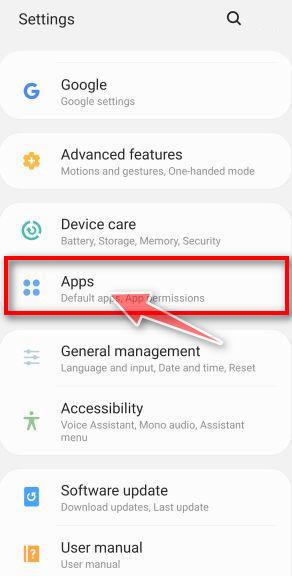
Open Android’s application settings.
Open Settings, then Apps or App management. Names differ by device maker; use the settings search if your version places the list elsewhere.
-
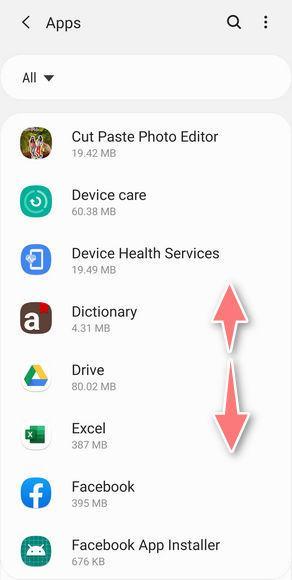
Locate the installation connected with the incident.
Review recently added applications and open the suspect app’s information page. Record its actual name and details before making changes.
-
Revoke inappropriate access if it obstructs removal.
For the identified malicious app, review Accessibility, device administrator access, notification access, and other permissions granted during setup. Restore the intended default messaging app if necessary.
If the app blocks settings or uninstalling, use your manufacturer’s Safe Mode instructions or trusted assistance. Do not remove an employer’s administrator profile without approval.
-
Uninstall the confirmed malicious app.
On its App info page, select Uninstall and confirm Android’s prompt. Opening App info is different from launching the suspect application.
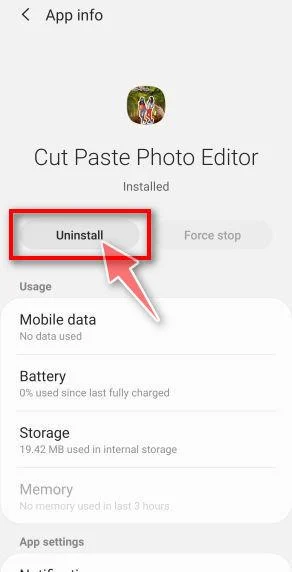
Confirm only the removal you intended. If the button is missing, disabled, or the app returns, stop and preserve the details for further help.
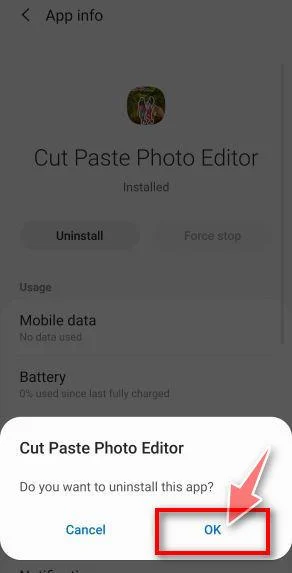
Uninstalling can remove local app data. Check what you need to preserve first, without restoring an untrusted APK or exposing private conversations to a public forum.
Step 3: Check Play Protect and supported Android updates
Google’s unsafe-software guidance covers Play Protect, security updates, and removing untrusted apps. Follow the controls available on your device.
Keep Play Protect enabled. Do not install an alleged cleanup package that tells you to turn protection off before it can work.
Supported updates improve security but are not proof that a previously modified client is now trustworthy. Obtain replacement applications from established official sources.
Step 4: Scan Android and remove confirmed malicious applications
After addressing the suspect app and its permissions, run an Android malware scan. Use the genuine store listing, not another APK supplied by the original message.
-
Open the official Malwarebytes listing.
Malwarebytes for AndroidFree manual scanning, with optional paid protection.
Opens Google Play. Check the publisher before installing.
-
Install and open the app.
In Google Play, select Install, then Open when installation finishes. The store’s design and available options can vary by Android version and region.

Open Malwarebytes through the store or its own app icon. Do not return to the suspicious download page for activation instructions.

-
Review setup and choose only the features you need.
Select Get Started, or activate an existing subscription if you have one. Review optional plan and trial offers rather than assuming a purchase is required for manual scanning.
Grant the permissions needed for the scan through Android’s own prompts. Storage access lets the scanner examine accessible files as well as installed apps.
-
Run a manual device scan.
From the current dashboard, find Device and select Scan now. Let the scan finish, then open the results. Keep the application updated through Google Play.
-
Act on each detected item.
Open the menu next to a detected app and choose Uninstall app for a confirmed malicious installation. Confirm the removal in Android’s prompt.
Do not select Always allow merely to clear a warning. If a result is unclear, keep its name and details and request help before excluding it.
-
Check the outcome and unresolved access.
Confirm removal completed, restart if requested, and review the permissions again. A returning app or blocked uninstall needs further assistance.
A negative scan cannot establish what messages or credentials were accessed earlier. Complete account and session recovery separately from the device check.
Step 5: Restore a trusted messaging environment
Install the legitimate client through the provider’s established distribution. Do not recover access by reinstalling the same APK from the original conversation.
Check active sessions again after sign-in and follow the provider’s security recommendations. Reintroduce only the accounts and integrations you actually need.
A legitimate client cannot erase messages or information already copied elsewhere. Concentrate on ending access and preventing further exposure rather than accepting promises of complete retrieval.
Step 6: Escalate unresolved compromise without rushing a reset
If suspicious software remains, ask the manufacturer or a qualified responder about rebuilding the device. Explain whether private evidence or business data must be preserved.
A factory reset erases local data and settings. Prepare an appropriate backup and recovery-access plan before accepting that option.
Restore necessary personal files selectively. Avoid automatically restoring the untrusted container, its installer, or a backup that recreates the same questionable environment.
Frequently Asked Questions
Is the legitimate Telegram app uCreator spyware?
No. This case concerns modified clients and intrusive hosting environments. A legitimate service and an untrusted package claiming to access it are different things.
Does uCreator require a rooted device?
The documented framework includes no-root instrumentation approaches. A device not being rooted is therefore not sufficient reassurance about a modified installation.
Does the Onion Box name prove infection?
No. Assess the exact package, origin, behavior, and detection evidence. A shared display name or a similar icon alone cannot establish what code is installed.
Can two-step verification replace device cleanup?
No. Stronger account protection is valuable, but it does not make a suspect client trustworthy. Secure the endpoint and review account access separately.
Will uninstalling preserve every conversation?
Not necessarily. Local data and device-specific chats can be lost. Understand the service’s storage model and preserve essential information before removal when safely possible.
Does a scan prove nobody accessed my messages?
No. Scanning examines software and files available to the tool. Historical account access and information already copied require a separate assessment.
The Bottom Line
Do not keep using an untrusted messaging build or container because the interface looks familiar. Identify the installation, preserve essentials, and remove the suspect software safely.
Then recover affected accounts through genuine providers on a trusted device. If removal or account control remains uncertain, obtain qualified help before resuming sensitive use.

Join the discussion
0 commentsShare your experience or ask a question about this article.
Discussion
Start the conversation
Have a question or something useful to share? Add the first comment.