


A work-related app asks to finish configuring your phone. The name sounds technical, the setup looks routine, and the permissions appear one after another.
For someone coordinating deliveries or answering customers all day, it’s easy to tap through. Those permissions are worth slowing down for.
Overview
Spyware disguised as a background service
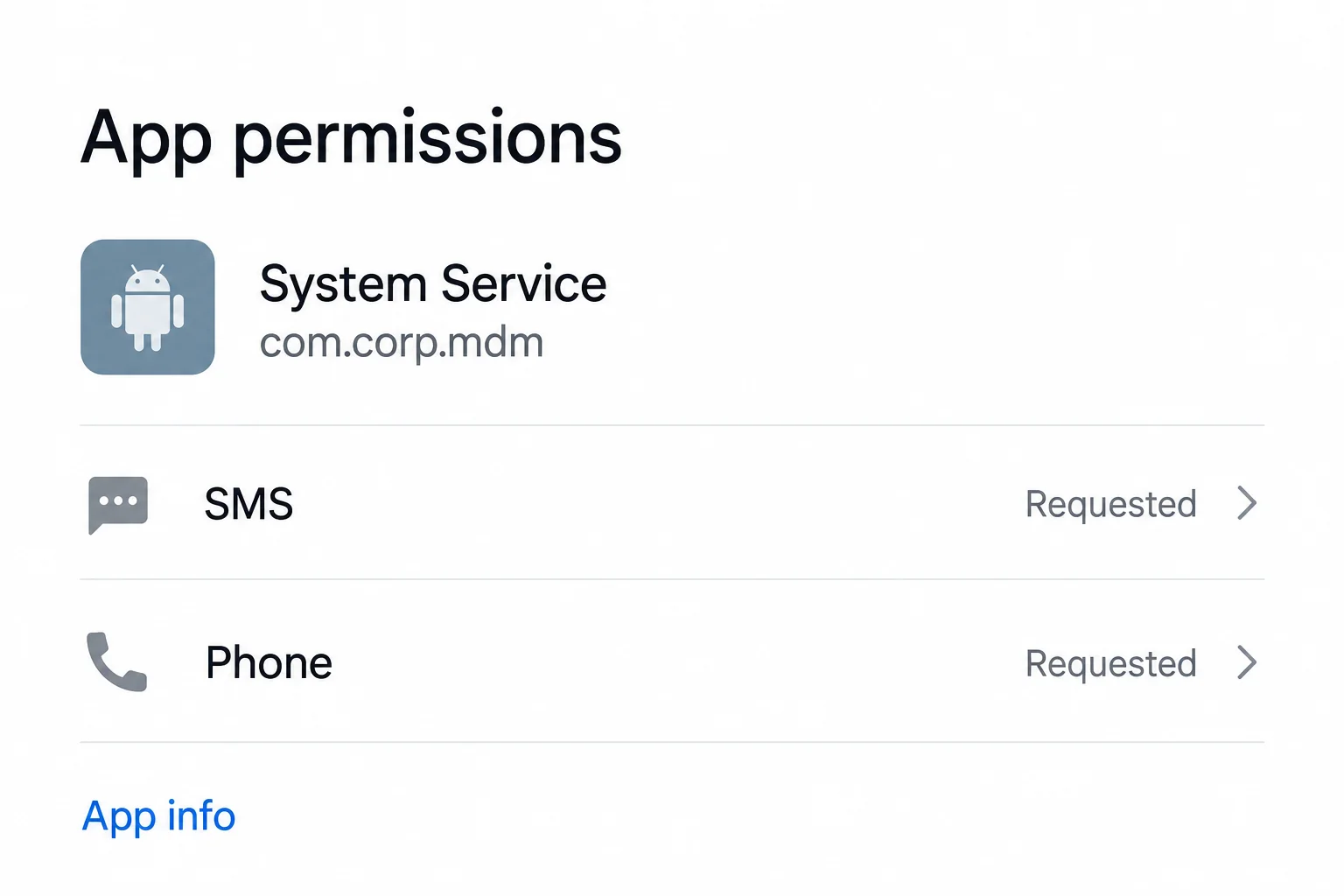
Corp MDM is Android spyware identified as the package com.corp.mdm. The analyzed app presents itself as System Service rather than an obvious surveillance tool.
Research from Have I Been Squatted describes collection of incoming SMS messages and commands for call forwarding. Those functions put communications and authentication codes at risk.
The name doesn’t make every system service suspicious. Android includes genuine background components, and employers can legitimately manage company devices.
Logistics branding supplies a reason to install
The reported distribution pages imitate Google Play listings using CEVA and TKW logistics branding. Visitors are guided toward an APK installation outside the genuine store.
The businesses whose identities appear on those pages should not be confused with the spyware’s operators. A copied app listing isn’t an authorized company deployment.
If an employer genuinely requires software, verify the exact app through its established IT channel before granting access to calls or messages.
Recovery includes the mobile network
- Check the suspicious app’s identity and installation source.
- Contain the device and involve IT when business access is present.
- Ask the carrier to inspect unauthorized call forwarding.
- Recover exposed account access using another trusted device.
Removing an APK doesn’t necessarily cancel forwarding already configured with a carrier. Device cleanup and restoration of call routing are separate checks.
The permissions image is illustrative. It highlights the app name and requested access without showing a real user’s phone or claiming an observed infection.
Why Messages and Incoming Calls Matter to a Business
A logistics employee’s phone may sit between several parties: dispatch, drivers, customers, depots, and systems that send sign-in codes.
Access to that communication can be valuable even without a sophisticated surveillance toolkit. A single intercepted message may reveal a time-sensitive instruction or authentication attempt.
Call diversion introduces a different problem. Someone trying to confirm a change may believe they’re calling the usual employee, while the call reaches another destination.
That doesn’t mean every missed call indicates spyware. Coverage problems, ordinary settings, and legitimate forwarding arrangements also exist.
What matters is whether routing changed without authorization and whether the employee installed something that could have enabled that change.
For businesses, confirmation procedures should not depend entirely on the same communications channel that may be compromised.
If a sensitive dispatch instruction changes, use an established secondary verification process. Don’t invent a new one supplied by the person asking for the change.
The possible business consequences deserve prompt reporting, but they shouldn’t become invented incident claims. A spyware finding doesn’t establish that a particular shipment was stolen.
Preserve actual messages and operational records so the organization can assess what happened. Keep speculation about operators and locations out of that first report.
How a Corp MDM Infection Can Develop
Step 1: An apparent app listing creates familiarity
The initial page borrows a store’s visual structure. Ratings, support details, and installation controls can make an unfamiliar website feel like an ordinary app marketplace.
Check where the page actually lives. A company name or the words Google Play inside a page don’t establish that Google is hosting its listing.
Don’t judge installation safety by a convincing rating alone. The text and stars on an unrelated website can be supplied by whoever built that website.
For a work app, ask IT for the approved installation route. A link from a colleague deserves checking too if it arrived unexpectedly.
Step 2: Installation moves outside the expected store
An APK is an Android application package. Installing one from a website is a different trust decision from following a listing inside the genuine store.
Sideloading has legitimate uses, including some managed deployments. The danger here is an unverified source using impersonation to persuade a person to install.
If asked to enable installation from an unfamiliar source, stop and confirm the business requirement. Don’t accept a page’s instructions as proof of authorization.
A branded application icon can’t settle that question. Verify the supplier, package, and route through the organization actually responsible for the device.
Step 3: A setup screen encourages communication permissions
The analyzed app uses a configuration-style progress display while requesting permissions. That presentation gives access requests the appearance of necessary setup work.
Consider what the app needs to do, not just what its name suggests. Permission to receive messages or make calls can have serious consequences.
Declining a permission is a sensible stopping point when the purpose is unclear. You can ask a genuine administrator before letting an unknown app proceed.
Don’t disable other security checks because the app says setup is incomplete. A failed installation is preferable to granting unexplained control over business communications.
Step 4: App activity and carrier state become separate problems
SMS interception concerns information available on the handset. Call forwarding can involve routing outside it, depending on the carrier and the requested configuration.
That separation is why deleting the application isn’t the last task. The carrier should confirm whether any unauthorized routing remains.
Don’t try random cancellation codes from online comments. Carrier features and legitimate forwarding arrangements differ, particularly on business numbers.
Tell support which number is affected and what changed. Ask it to restore the authorized configuration, not blindly remove every feature associated with the line.
Legitimate Device Management Versus an Unverified System App
MDM is a function, not proof of wrongdoing
Mobile device management can help organizations deploy applications and apply security policies. Its legitimate use doesn’t authenticate an unrelated package with a management-sounding name.
Equally, the spyware’s label isn’t a reason to dismantle genuine employer controls. Doing so may remove protection or interrupt access the organization needs.
Check with the real administrator before changing a managed device. Describe the package and installation event rather than accusing every technical-looking application.
The app drawer is not a complete inventory
Some background apps don’t present a normal launcher icon. Review the installed-app list in Android settings rather than relying on the home screen.
The location and labels vary by manufacturer and Android version. If System Service is ambiguous, ask IT or the device maker to help identify the package.
Don’t remove a genuine system component based on a similar name. Source, package identity, and the actual installation timeline matter together.
Account warnings may be more informative than battery symptoms
Battery drain and data usage are not specific diagnoses. Many ordinary applications can produce those symptoms.
Unexpected sign-ins, missing verification messages, or a confirmed forwarding change provide different evidence. Preserve each without assuming they all have one cause.
Researcher descriptions also have limits. An operator panel advertising a function doesn’t prove the analyzed app implemented it, so avoid assuming unlimited surveillance.
Logistics Teams Should Verify Instructions Outside the Affected Line
A phone-security incident can become an operational problem before anyone notices missing money. Treat unusual business instructions as events to check, not proof of a completed theft.
For example, a last-minute collection change may need confirmation through an established dispatch process. Don’t rely solely on a call routed through a suspect number.
A caller repeating familiar delivery details may have learned them from earlier communications. Knowing those details doesn’t independently establish authority to change the job.
Keep approved contact records available outside the affected handset. The person verifying the change needs a route that doesn’t depend on the potentially compromised device.
When a business number has several authorized users, identify who can change carrier services. A forwarding check should include the people responsible for the line.
Ask the carrier to distinguish unconditional forwarding from ordinary conditional services, such as voicemail routing. Their purpose and configuration may be different.
Don’t erase a legitimate routing arrangement in a panic. Restore the intended business configuration with the carrier and document the result.
Review actual incidents during the relevant period: unexpected contact requests, changed instructions, or authentication events. Avoid assuming every routine delay resulted from the spyware.
If customer information may be involved, let the responsible privacy or security team determine notification obligations. An employee shouldn’t improvise a public disclosure.
Keep potentially sensitive logistics details in the organization’s approved evidence channel. Ordinary group chats can spread customer and shipment information more widely than intended.
Staff who received the same installation link should report whether they installed anything. Receiving the link and approving permissions are different levels of exposure.
Don’t ask colleagues to open the APK to identify it. Share its recorded name and source with security staff instead.
For contractors using personal phones, agree on a safe alternative while the handset is assessed. Continuing business through the same suspect channel can undermine containment.
A temporary communication plan should identify both the trusted number and the person responsible. Otherwise, a change made for safety can create another opportunity for confusion.
Once normal service resumes, explain which installation route is authorized. A clear, usable instruction is more effective than telling staff never to trust any work app.
What to Do If You Installed a Suspected Corp MDM App
Stop using the handset for sensitive verification. Use another trusted device or established contact route to tell the relevant people what happened.
If it is work-managed, notify IT before uninstalling or resetting anything. Give the app’s name, package details if available, and installation source.
Contain communications carefully. Disconnect the affected device as your security team advises, and avoid entering new credentials on it.
Remember that switching off a phone doesn’t itself establish that network-side call forwarding has ended. Arrange the carrier check separately.
Inspect and remove the untrusted app. Use Android’s app settings and appropriate security assistance. Review permissions associated with the suspicious package.
Google’s Android malware guidance covers updates, Play Protect, and untrusted-app removal. Manufacturer-specific controls may differ.
If removal is blocked, seek help rather than repeatedly granting more permissions. Managed-device restrictions should be resolved with the authorized administrator.
Use Android security tools, not Windows instructions. Run Play Protect and, when appropriate, Malwarebytes for Android obtained through a trusted distribution route.
Select the Android section of the guide below. A Windows installer cannot clean an Android handset, even when both devices received the same link.
Ask the carrier about call forwarding. Reach support through an independently found channel and explain that an untrusted app may have changed routing.
Have it inspect the relevant line and cancel unauthorized forwarding. Obtain confirmation of the intended configuration before returning to normal communication.
Recover accounts whose codes or sessions may be exposed. Use clean access to change compromised credentials, inspect activity, and revoke unfamiliar sessions.
Notify financial providers immediately about actual suspicious transactions. For business accounts, let the organization coordinate revocation and review instead of working in isolation.
Review operational consequences without spreading secrets. Identify affected work conversations, access approvals, and time-sensitive changes for the responsible team.
Share evidence privately. Don’t publish intercepted codes, customer details, shipment information, or identity documents in a public warning.
Verify the return to service. Confirm app cleanup, account control, and carrier routing independently. If confidence remains low, discuss a properly planned reset.
AdGuard can reduce some malicious-site and advertising exposure afterward. It doesn’t remove carrier forwarding or replace mobile-app assessment.
Is Your Device Infected? Run a Free Malware Scan
Slow performance, constant pop-ups, or strange behavior? These are classic signs of a malware infection. A quick way to check is to scan your device with Malwarebytes Free, one of the most trusted malware removal tools available. If you only visited a scam page and didn’t download or install anything, this scan is optional.
The free version detects and removes the most common threats, including:
- Adware — the cause of those annoying pop-ups
- Browser hijackers — unwanted redirects and changed homepages
- Trojans and spyware — hidden programs stealing your data
- Potentially unwanted programs (PUPs) — software you never asked for
👉 Select your device below — Windows, Mac, or Android — then follow the simple steps to download Malwarebytes, scan your system, and remove any threats it finds. The scan usually takes 5 to 20 minutes.
Run a Malware Scan with Malwarebytes for Windows
Malwarebytes is one of the most popular and trusted anti-malware tools for Windows — and it’s completely free for removing infections. It catches threats that many antivirus programs miss, including adware, browser hijackers, and trojans. Follow the steps below to scan your PC and remove what Malwarebytes finds.
Download Malwarebytes
Click the button below to download the latest version of Malwarebytes for Windows from the official source. The free version is all you need — it will scan your computer and remove adware, browser hijackers, and other malicious software at no cost.
Download MalwarebytesOfficial installer for Windows 11 and 10. Your download starts right away.Want real-time protection? See Malwarebytes Premium Malwarebytes Free for WindowsScans and removes malware at no cost
-
Install Malwarebytes
When the download finishes, open your Downloads folder and double-click the MBSetup file. If Windows shows a User Account Control pop-up, click “Yes” to allow the installation.

Follow the On-Screen Prompts to Install Malwarebytes
The setup wizard will walk you through a few quick screens:
-
Choose where you’re installing the program — “Personal Computer” or “Work Computer” — then click Next.

-
Malwarebytes will now install on your device. This usually takes under a minute.

-
When installation is complete, the “Welcome to Malwarebytes” screen will open automatically.

-
On the final screen, click Open Malwarebytes to launch the program.

-
Optional: Check for rootkits with a Custom Scan
You don’t need to change any settings for a normal scan. The standard Threat Scan in the next step is enough for most problems, so you can go straight to it.
If you also want to check for rootkits, use a Custom Scan. In current versions of Malwarebytes, rootkit scanning is only available there:
- On the Scanner tile, click the three-dot menu and select Advanced Scan.
- Choose Custom Scan. In its options, check Scan for rootkits.
- Select your system drive (usually C:\) as the location to scan, then start the scan. It takes longer than a Threat Scan.
- When it finishes, review and quarantine the results as described in the steps below.
Rootkit scanning isn’t available on Windows devices with ARM processors.
Start the Scan
Click the blue Scan button. Malwarebytes will automatically update its virus database and start checking your computer for malware.

-
Wait for the Scan to Finish
The scan checks your entire system for browser hijackers and other malicious programs, so it can take 5 to 20 minutes depending on your computer. Feel free to do something else — just check back occasionally to see the progress.

-
Quarantine the Detected Threats
When the scan is done, you’ll see a list of everything Malwarebytes found — malware, adware, and potentially unwanted programs. Click the “Quarantine” button to remove all of them at once.

Malwarebytes will now remove the malicious files and registry entries and move them safely into quarantine.

-
Restart Your Computer
Some threats can only be fully removed after a reboot. If Malwarebytes asks you to restart, click Yes. Once you’re logged back in, Malwarebytes has finished removing the threats it found.

When the scan is done, check whether the problems you noticed have stopped. If they continue, see the options below.
If you are still having problems with your computer after completing these instructions, then please follow one of the steps:
- Run a computer scan with ESET Online Scanner
- Ask for help in our Windows Malware Removal Help & Support forum.
Run a Malware Scan with Malwarebytes for Mac
Malwarebytes for Mac is a free on-demand scanner that removes the malware other security software tends to miss — adware, browser hijackers, and unwanted programs included. Cleaning an infected Mac with Malwarebytes has always been completely free, and it’s our go-to recommendation. Follow the steps below to scan your Mac and remove what Malwarebytes finds.
-
Download Malwarebytes for Mac
Click the button below to download the latest version of Malwarebytes for Mac.
Download MalwarebytesOfficial installer for macOS. Your download starts right away.Want real-time protection? See Malwarebytes PremiumMalwarebytes Free for MacScans and removes malware at no cost -
Open the Malwarebytes setup file
When the download finishes, open your Downloads folder and double-click the setup file to begin the installation.

-
Follow the On-Screen Prompts to Install Malwarebytes
The Malwarebytes for Mac Installer will guide you through a few quick screens. Click “Continue” and keep following the prompts until the installation completes.



When the installation is complete, Malwarebytes opens to the Welcome to Malwarebytes screen. Click “Get started“.
Malwarebytes needs Full Disk Access to check your whole Mac. When it asks, open System Settings > Privacy & Security > Full Disk Access, turn on Malwarebytes (it may be listed as Malwarebytes Protection), and confirm with your password or Touch ID. Then return to Malwarebytes. On macOS Monterey and earlier, this setting is in System Preferences > Security & Privacy > Privacy.
-
Select “Personal Computer” or “Work Computer”
Malwarebytes will ask what type of computer you’re installing it on. Click either Personal Computer or Work Computer, whichever applies.

-
Start the Scan
Click the “Scan” button. Malwarebytes will automatically update its detection database and begin checking your Mac for malware.

-
Wait for the Scan to Finish
Malwarebytes will scan your Mac for adware, browser hijackers, and other malicious programs. This can take a few minutes, so feel free to do something else — just check back occasionally to see the progress.

-
Quarantine the Detected Threats
When the scan is done, you’ll see a list of everything Malwarebytes found. Click the “Quarantine” button to remove all the threats at once.

-
Restart Your Mac
Malwarebytes will now remove all the malicious files it found. Some threats can only be fully removed after a reboot — if Malwarebytes asks you to restart, allow it. Once you’re logged back in, check whether the problems you noticed have stopped. If they come back, save the scan report and ask for help in our forum.

If the problems you noticed continue after the scan, see the options below.
If you are still experiencing problems while trying to remove a malicious program from your computer, please ask for help in our Mac Malware Removal Help & Support forum.
Run a Malware Scan with Malwarebytes for Android
Malwarebytes for Android scans your phone or tablet for malware, adware, and potentially unwanted apps. The free version scans only when you start a scan. Real-time protection, which checks apps automatically, is part of the paid Premium version.
-
Download Malwarebytes for Android.
You can download Malwarebytes for Android by clicking the link below.
Get Malwarebytes for AndroidOpens Google Play in a new tab.Want real-time protection? See Malwarebytes Premium for AndroidMalwarebytes for AndroidScans your phone and removes malware at no cost -
Install Malwarebytes for Android on your phone.
In the Google Play Store, tap “Install” to install Malwarebytes for Android on your device.

When the installation process has finished, tap “Open” to begin using Malwarebytes for Android. You can also open Malwarebytes by tapping on its icon in your phone menu or home screen.

-
Follow the on-screen prompts to complete the setup process
When Malwarebytes opens, it walks you through a short setup. Tap Get started and follow the prompts. If you see an offer for a trial or a paid plan, read it before you accept. You can skip it and keep using the free scanner.
Malwarebytes will ask for permission to access the files on your phone so it can scan them. Tap Allow, or turn on the permission in the Android screen that opens, then return to Malwarebytes.
-
Run a scan with Malwarebytes for Android
On the main screen, tap Scan now. In some versions, you open the menu, tap Scanner, and then tap Run a scan.
-
Wait for the Malwarebytes scan to complete.
Malwarebytes will now start scanning your phone for adware and other malicious apps. This process can take a few minutes, so we suggest you do something else and periodically check on the status of the scan to see when it is finished.

-
Remove the detected apps.
When the scan has been completed, you will see a list of the threats that Malwarebytes for Android has detected. Next to each detected item, tap the menu icon (three dots), then choose to uninstall the app or delete the file. Android then asks you to confirm. Tap OK or Uninstall to remove the app.
-
Restart your phone.
When the detected apps are removed, restart your phone if Malwarebytes asks you to. Then check whether the problems you noticed have stopped.
If the problems you noticed continue after the scan, see the options below.
If you are still having problems with your phone after completing these instructions, then please follow one of the steps:
- Ask for help in our Mobile Malware Removal Help & Support forum.
- Only as a last resort, reset your phone to factory settings. Read the warning below first.
- Back up your photos, videos, files, and messages, for example to your Google account or a computer.
- Make sure you know your Google account email and password. The phone asks for them after the reset. If you changed the password recently, Google recommends waiting 24 hours before you reset.
- On a Samsung phone, also make sure you know your Samsung account password.
- If you use an authenticator app for two-step verification, move your accounts to another device or save your backup codes first.
Stay Protected: Block Ads and Malicious Sites
No scan can prove a device is completely clean, so it helps to block threats before they reach you. Most infections start with a malicious ad or a fake download button — so blocking them at the source is your best defense.
We recommend AdGuard, which blocks malicious ads, phishing pages, and dangerous redirects before they can reach you.
👉 Download AdGuard and browse safely
Before the Number Goes Back Into Everyday Use
Agree who owns each recovery task. IT may handle the handset, the carrier handles network routing, and account administrators handle access.
Without that separation, everyone can assume someone else checked the remaining problem. Keep a short record of what each party confirmed.
Test normal calling through a trusted contact after support restores the configuration. An ordinary successful outgoing call doesn’t establish where incoming calls are routed.
Check any business voicemail or approved forwarding arrangement as well. The goal is the correct configuration, not simply a phone that appears to work.
If verification codes continue behaving unexpectedly, report the specific events. Don’t keep requesting new codes on a device still under suspicion.
A reset plan should preserve necessary business evidence and essential data without restoring the unknown APK. Ask the administrator which backup is safe to use.
Once recovery is complete, distribute the genuine installation route internally. That gives employees a practical alternative when another convincing app link arrives.
Training should focus on the decision point: an unexpected request to install and grant access. Blaming an employee doesn’t repair the process that made the request plausible.
Frequently Asked Questions
Is Corp MDM a genuine Android system component?
The analyzed com.corp.mdm package is spyware. Don’t assume every app called System Service is the same package; verify identity and source.
Does this mean all company device management is unsafe?
No. Legitimate management serves authorized business purposes. Confirm unexpected installation requests with the real administrator rather than removing approved controls indiscriminately.
Why contact the carrier after deleting the app?
Unauthorized forwarding can remain in network settings. Ask the carrier to verify and restore routing instead of assuming app removal cancels it.
Are CEVA and TKW responsible for the spyware?
The reported pages misuse logistics branding. That impersonation is not evidence that the named businesses authorized the malicious application.
Will changing a password stop intercepted SMS messages?
Not by itself. Address the untrusted app and phone-number routing, then secure the affected accounts through clean access.
Should I use a call-forwarding reset code from a forum?
Prefer carrier guidance. Codes and services vary, and a business line may have legitimate routing that needs to be preserved.
The Bottom Line
Corp MDM Android spyware removal isn’t complete until communications and account control are checked too. Don’t trust a system-style name or copied store listing.
Report a suspect installation, clean the correct device, and have the carrier inspect forwarding. Keep business recovery coordinated with the authorized team.

Join the discussion
0 commentsShare your experience or ask a question about this article.
Discussion
Start the conversation
Have a question or something useful to share? Add the first comment.