

A harmless-looking Android package can ask for far more access than its stated purpose requires. The danger becomes serious when those permissions work together.
Mantax, also tracked through the Otax name, is built around that combination. Its reach extends from private conversations to the files stored on older devices.
Overview
Mantax Otax is both spyware and ransomware
Mantax Otax is an Android threat that combines extensive surveillance features with file encryption and interactive extortion.
That combination matters because deleting encrypted files does not address stolen messages, captured credentials, recorded screens, or continued remote control.
The malware has been connected with Indonesian operators and appears designed for direct, hands-on monitoring rather than a brief automated infection.
The infection begins outside the official app store
Examined samples were hosted as standalone APK files on third-party sharing services. The victim must approve installation from an outside source.
Links can arrive through messaging apps, phishing, private groups, or social engineering. The promised application can change while the underlying package remains malicious.
Sideloading is not automatically unsafe, but it removes several store-level checks and makes the source’s identity much harder to verify.
The requested permissions reveal the scale of access
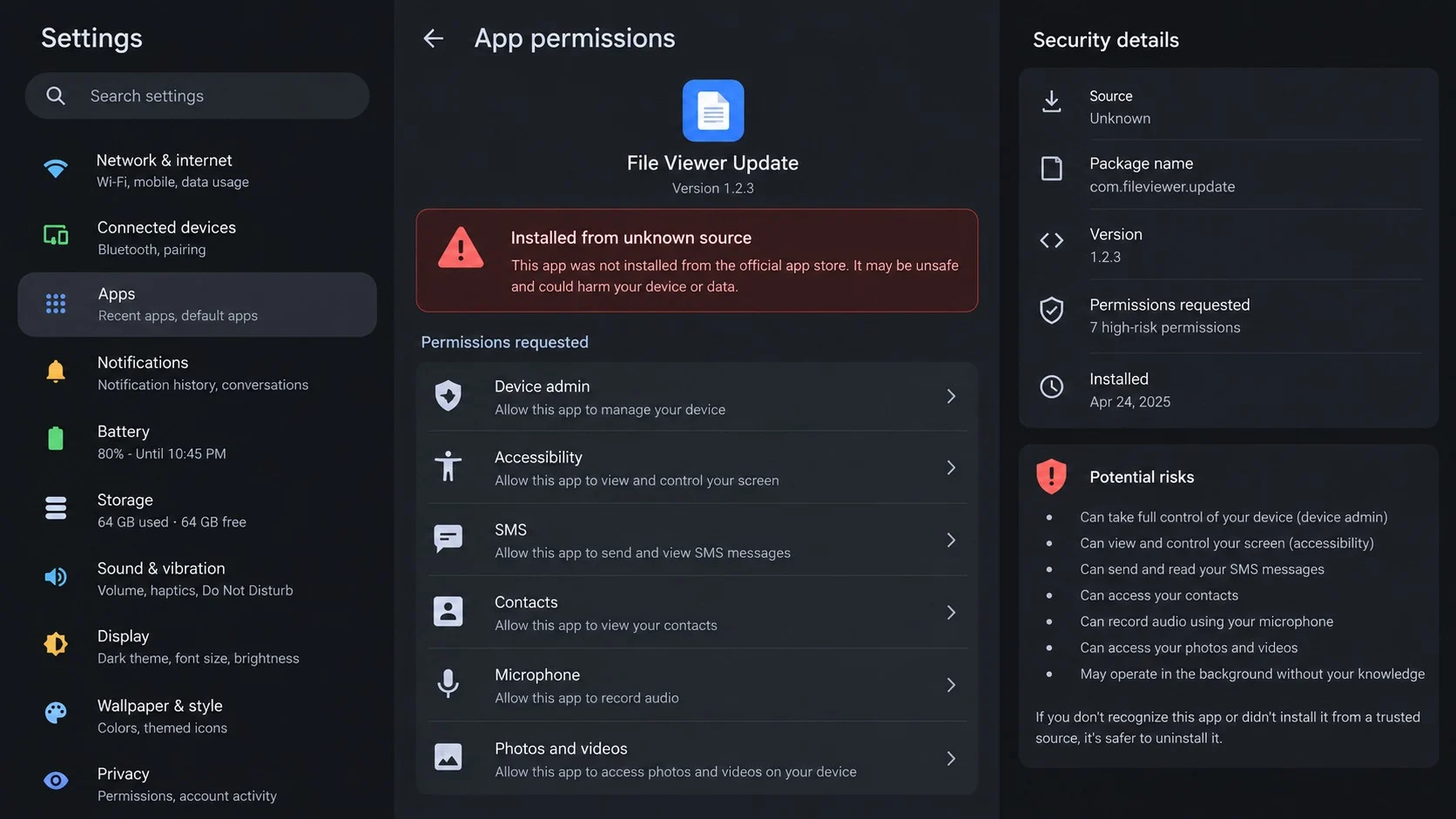
- Device administrator privileges that make removal harder.
- Accessibility control capable of reading and operating screens.
- SMS access that exposes messages and one-time security codes.
- Contacts, call logs, location, microphone, camera, and gallery access.
- Screen captures, recordings, and near-real-time display streaming.
- File access used for theft and encryption on supported Android versions.
- WhatsApp and Telegram data gathered through invasive automation.
A single permission may have a legitimate use. This unusually broad collection, paired with sideloading and deception, creates the dangerous pattern.
How Mantax Otax Android Malware Works
Step 1: A message leads to a sideloaded APK
The infection starts when someone receives a link to an Android installation package hosted outside the official store.
The lure may describe an update, document viewer, delivery tool, entertainment app, security utility, or local service relevant to the intended recipient.
Android warns that outside packages can be risky. Social engineering tries to make that warning feel like a routine inconvenience.
The victim enables installation for the browser or file manager, opens the APK, and approves the final installation prompt.
No advanced exploit is required when the user authorizes these steps. The attacker’s main challenge is making the request sound reasonable.
A familiar icon or generic app name provides little assurance. Both can be copied without proving who created the package.
Step 2: Device administrator access blocks easy removal
After installation, Mantax Otax asks to become a device administrator. This role gives applications elevated control over important security functions.
A malicious app can use administrator status to resist ordinary uninstallation, lock the screen, or create additional friction during cleanup.
The request may be disguised as activation, protection, battery optimization, account verification, or another supposedly necessary setup step.
If the Uninstall button is disabled, check Android’s device administrator list before assuming the package cannot be removed.
Administrator access is not the same as complete ownership, but it is a powerful foothold when combined with Accessibility.
Revoking that role is an essential cleanup step. Uninstalling attempts may fail until the permission is turned off.
Step 3: Accessibility opens a path to screen control
Accessibility services help people interact with Android. They can read visible content, observe interface events, and perform taps or navigation.
Mantax Otax abuses those capabilities to watch applications, automate actions, capture conversations, and operate parts of the device remotely.
A malicious overlay can imitate a system prompt and collect the screen-lock PIN when the victim believes Android requested it.
Accessibility can also help the malware open chats, select conversations, and extract message text from applications that do not expose ordinary database access.
Permission abuse continues even when no suspicious window is visible. A service can remain active while the user performs daily tasks.
Unexpected entries under Installed services deserve immediate attention, particularly when their app names do not match a genuine accessibility need.
Step 4: Private data and live activity are collected
The spyware component can gather contacts, incoming SMS, call history, browser activity, location, installed applications, device details, and linked account information.
Intercepted SMS messages can include one-time passcodes. That creates a direct risk to email, banking, social, and messaging accounts.
Screen monitoring uses Android’s media-projection features for screenshots, recordings, and live viewing. Captured images can be uploaded to outside hosting.
Microphone and camera access add another surveillance layer. The operator may collect audio or photographs without a legitimate application purpose.
WhatsApp profile information and messages can be harvested through Accessibility-driven navigation. Telegram credentials and chat histories may also be targeted.
This collection turns the incident into a privacy breach, not simply a damaged-file problem. Account recovery must accompany device cleanup.
Step 5: Older Android devices can have files encrypted
On Android 9 and earlier, Mantax Otax can recursively scan shared external storage and reach a wide range of user files.
Targeted formats include photos, videos, documents, archives, databases, and cryptographic material. Each victim can receive a remotely supplied encryption key.
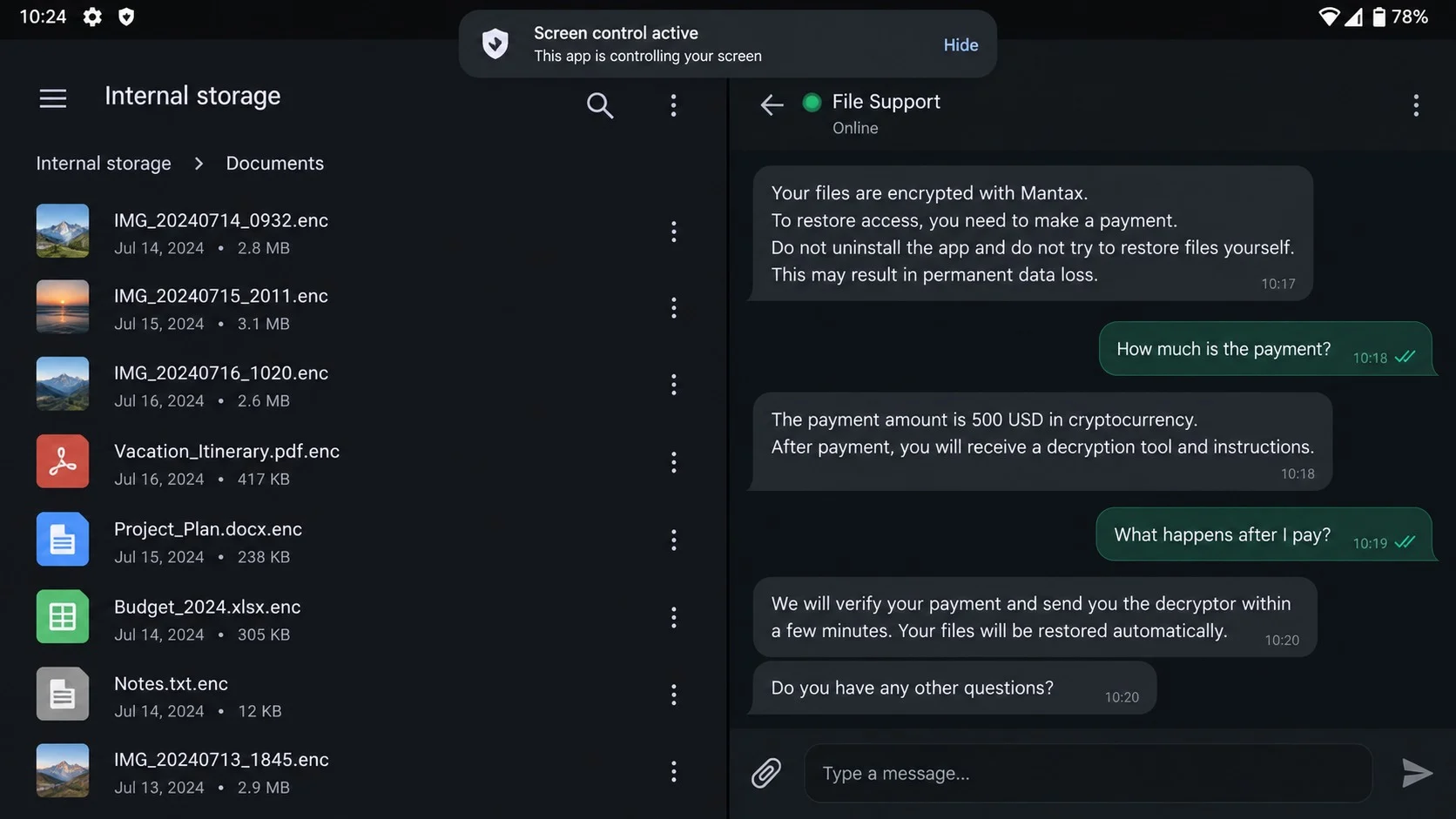
The malware encrypts content with AES, deletes the original file, and creates an altered version carrying the .enc extension.
It can also replace local images with ransom graphics. Seeing the same extortion message throughout a gallery amplifies the emotional pressure.
Android 10 and later introduced Scoped Storage, restricting broad file access. That can reduce encryption damage outside the app’s own directories.
The newer protection does not neutralize spyware capabilities already granted through SMS, Accessibility, media projection, and other permissions.
Step 6: A live ransom chat appears on the screen
After encryption, the malware displays an interactive chat rather than relying only on a static note. Operators can communicate directly with the victim.
The conversation is designed to feel immediate and personal. The criminal can answer questions, apply pressure, and adjust demands based on reactions.
Backend messaging has been associated with cloud communication infrastructure. That allows near-real-time exchanges without revealing the operator’s location.
The chat may insist that payment is the only recovery path. It may also threaten permanent loss or exposure of stolen information.
Do not share identity documents, payment screenshots, or private files in the conversation. Every new detail expands the attacker’s leverage.
Capture evidence from another camera if screenshots are unsafe. Then prioritize isolation and professional help over negotiation.
Step 7: Remote commands keep the device under pressure
Mantax Otax maintains command communication after registration. The operator can dispatch tasks through cloud-based services and change active infrastructure.
The malware can retrieve its current server location from an external configuration source, allowing operators to move when a domain is blocked.
Remote commands can block touch input, obscure applications, flood the screen with dialogs, play videos, display frightening content, or speak through text-to-speech.
These features are meant to overwhelm the owner and interfere with removal. Repeated pop-ups are not evidence that the device itself is physically damaged.
Network isolation interrupts live control, although queued or local functions may remain active until the malicious package is disabled.
If the interface cannot be controlled, Safe Mode or professional mobile incident response may be necessary before permissions can be revoked.
How to Identify Mantax Otax on an Android Device
Review installation source and application history
Look for recently installed apps that came from a browser, chat attachment, file-sharing page, or downloaded APK rather than the official store.
Compare the installation time with the first strange permission prompt, battery change, lock-screen behavior, or unusual network activity.
Do not rely on the displayed name. Check the package details because an icon and label can imitate a trusted utility.
Inspect administrator and Accessibility access
Open Security settings and list active device administrator apps. Anything unfamiliar should be researched before its elevated role remains enabled.
Then review Accessibility’s installed services. A document viewer, game, wallpaper app, or delivery tracker rarely needs full screen observation and control.
Record suspicious package names before disabling them. That information helps responders correlate detections and search remaining artifacts.
Check privacy indicators and account warnings
Unexpected microphone or camera indicators, repeated media-projection prompts, and unexplained battery or data consumption can support suspicion.
Review email and financial accounts for new logins, changed recovery details, unknown sessions, or one-time codes that arrived without your request.
Contacts receiving strange messages may indicate the attacker used stolen address-book data or a compromised messaging account.
Look for encryption and extortion artifacts
On older devices, search for files ending in .enc, ransom graphics replacing photographs, and an on-screen chat demanding payment.
Not every .enc file is malicious. The combination of mass changes, administrator abuse, and an extortion interface is far more meaningful.
Keep the device disconnected while collecting basic evidence. Reconnecting can restore the operator’s command channel and expose additional activity.
What to Do If Mantax Otax Infected Your Android Device
- Activate airplane mode. Disable Wi-Fi, mobile data, Bluetooth, and hotspot functions. This limits live surveillance, command traffic, and further data theft.
- Use another trusted device. Do not sign into important accounts on the infected Android device. Begin recovery from a clean computer or phone.
- Warn your mobile carrier. Ask the carrier to secure the account, add a port-out PIN, and watch for unauthorized SIM or service changes.
- Preserve basic evidence. Photograph permission screens, app details, ransom chat, encrypted filenames, and installation history without sending material to the criminal.
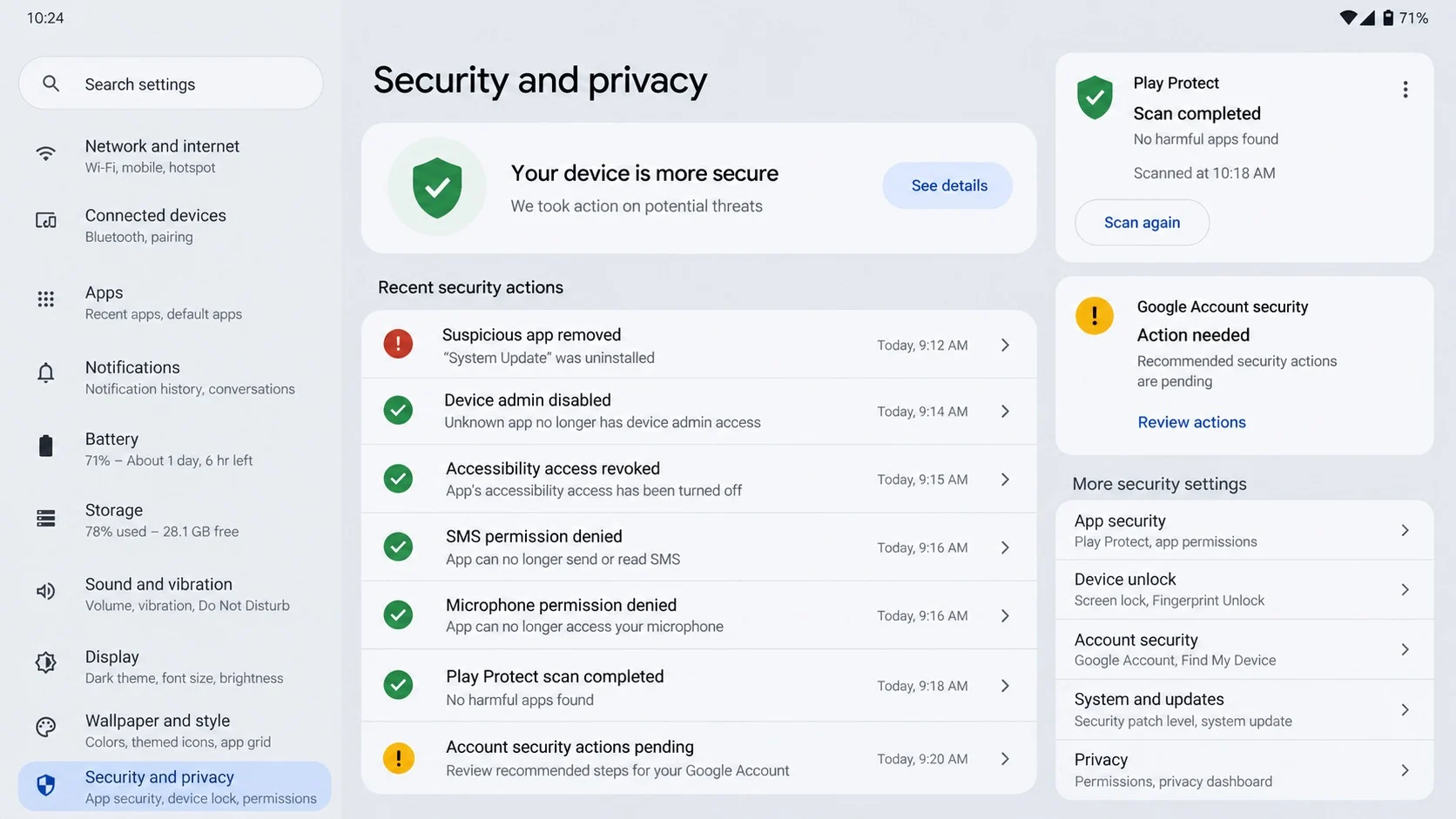
- Revoke elevated access. Disable the unknown device administrator and Accessibility service. Remove media-projection, SMS, microphone, camera, and storage permissions.
- Restart in Safe Mode if needed. Safe Mode can prevent third-party apps from launching, making a resistant malicious package easier to uninstall.
- Remove and scan. Uninstall the suspicious APK, run Android’s built-in protection, then use Malwarebytes for Android as a careful second-opinion scan.
- Reset compromised accounts. Change email, banking, messaging, and cloud passwords. Revoke sessions, regenerate backup codes, and replace exposed authentication methods.
- Add safer browsing controls. After cleanup, use AdGuard to reduce malicious advertising and known dangerous destinations that may host future sideloading lures.
- Factory-reset when confidence is low. If control symptoms return or removal cannot be verified, preserve needed evidence and rebuild from a trusted backup.
Is Your Device Infected? Run a Free Malware Scan
Slow performance, constant pop-ups, or strange behavior? These are classic signs of a malware infection. The fastest way to find out is to scan your device with Malwarebytes Free — one of the most trusted malware removal tools available.
The free version detects and removes the most common threats, including:
- Adware — the cause of those annoying pop-ups
- Browser hijackers — unwanted redirects and changed homepages
- Trojans and spyware — hidden programs stealing your data
- Potentially unwanted programs (PUPs) — software you never asked for
👉 Select your device below — Windows, Mac, or Android — then follow the simple steps to download Malwarebytes, scan your system, and remove any threats it finds. The scan usually takes 5 to 20 minutes.
Run a Malware Scan with Malwarebytes for Windows
Malwarebytes is one of the most popular and trusted anti-malware tools for Windows — and it’s completely free for removing infections. It catches threats that many antivirus programs miss, including adware, browser hijackers, and trojans. Follow the steps below to scan and clean your PC in just a few minutes.
Download Malwarebytes
Click the button below to download the latest version of Malwarebytes for Windows from the official source. The free version is all you need — it will scan your computer and remove adware, browser hijackers, and other malicious software at no cost.
Download MalwarebytesOfficial installer for Windows 11 and 10. Your download starts right away.Want real-time protection? See Malwarebytes Premium Malwarebytes Free for WindowsScans and removes malware at no cost
-
Install Malwarebytes
When the download finishes, open your Downloads folder and double-click the MBSetup file. If Windows shows a User Account Control pop-up, click “Yes” to allow the installation.

Follow the On-Screen Prompts to Install Malwarebytes
The setup wizard will walk you through a few quick screens:
-
Choose where you’re installing the program — “Personal Computer” or “Work Computer” — then click Next.

-
Malwarebytes will now install on your device. This usually takes under a minute.

-
When installation is complete, the “Welcome to Malwarebytes” screen will open automatically.

-
On the final screen, click Open Malwarebytes to launch the program.

-
Enable “Scan for Rootkits”
Before scanning, turn on rootkit detection so Malwarebytes can find even the most hidden threats. Click the Settings gear icon on the left side of the screen.

In the settings menu, find “Scan for rootkits” and click the toggle so it turns blue.

Done? Click “Dashboard” in the left pane to return to the main screen.
Start the Scan
Click the blue Scan button. Malwarebytes will automatically update its virus database and start checking your computer for malware.

-
Wait for the Scan to Finish
The scan checks your entire system for browser hijackers and other malicious programs, so it can take 5 to 20 minutes depending on your computer. Feel free to do something else — just check back occasionally to see the progress.

-
Quarantine the Detected Threats
When the scan is done, you’ll see a list of everything Malwarebytes found — malware, adware, and potentially unwanted programs. Click the “Quarantine” button to remove all of them at once.

Malwarebytes will now remove the malicious files and registry entries and move them safely into quarantine.

-
Restart Your Computer
Some threats can only be fully removed after a reboot. If Malwarebytes asks you to restart, click Yes. Once you’re logged back in, Malwarebytes has finished removing the threats it found.

That’s it — your Windows PC is now clean of trojans, adware, and other malware, and should be back to running smoothly.
If you are still having problems with your computer after completing these instructions, then please follow one of the steps:
- Run a computer scan with ESET Online Scanner
- Ask for help in our Windows Malware Removal Help & Support forum.
Run a Malware Scan with Malwarebytes for Mac
Malwarebytes for Mac is a free on-demand scanner that removes the malware other security software tends to miss — adware, browser hijackers, and unwanted programs included. Cleaning an infected Mac with Malwarebytes has always been completely free, and it’s our go-to recommendation. Follow the steps below to scan and clean your Mac in just a few minutes.
-
Download Malwarebytes for Mac
Click the button below to download the latest version of Malwarebytes for Mac.
Download MalwarebytesOfficial installer for macOS. Your download starts right away.Want real-time protection? See Malwarebytes PremiumMalwarebytes Free for MacScans and removes malware at no cost -
Open the Malwarebytes setup file
When the download finishes, open your Downloads folder and double-click the setup file to begin the installation.

-
Follow the On-Screen Prompts to Install Malwarebytes
The Malwarebytes for Mac Installer will guide you through a few quick screens. Click “Continue” and keep following the prompts until the installation completes.



When the installation is complete, Malwarebytes opens to the Welcome to Malwarebytes screen. Click “Get started“.
-
Select “Personal Computer” or “Work Computer”
Malwarebytes will ask what type of computer you’re installing it on. Click either Personal Computer or Work Computer, whichever applies.

-
Start the Scan
Click the “Scan” button. Malwarebytes will automatically update its detection database and begin checking your Mac for malware.

-
Wait for the Scan to Finish
Malwarebytes will scan your Mac for adware, browser hijackers, and other malicious programs. This can take a few minutes, so feel free to do something else — just check back occasionally to see the progress.

-
Quarantine the Detected Threats
When the scan is done, you’ll see a list of everything Malwarebytes found. Click the “Quarantine” button to remove all the threats at once.

-
Restart Your Mac
Malwarebytes will now remove all the malicious files it found. Some threats can only be fully removed after a reboot — if Malwarebytes asks you to restart, allow it. Once you’re logged back in, your Mac is clean.

That’s it — your Mac is now free of adware, rogue browser extensions, and other potentially harmful software.
If you are still experiencing problems while trying to remove a malicious program from your computer, please ask for help in our Mac Malware Removal Help & Support forum.
Run a Malware Scan with Malwarebytes for Android
Malwarebytes for Android automatically detects and removes dangerous threats like malware and ransomware so you don’t have to worry about your most-used device being compromised. Aggressive detection of adware and potentially unwanted programs keeps your Android phone or tablet running smooth.
-
Download Malwarebytes for Android.
You can download Malwarebytes for Android by clicking the link below.
Get Malwarebytes for AndroidOpens Google Play in a new tab.Want real-time protection? See Malwarebytes Premium for AndroidMalwarebytes for AndroidScans your phone and removes malware at no cost -
Install Malwarebytes for Android on your phone.
In the Google Play Store, tap “Install” to install Malwarebytes for Android on your device.

When the installation process has finished, tap “Open” to begin using Malwarebytes for Android. You can also open Malwarebytes by tapping on its icon in your phone menu or home screen.

-
Follow the on-screen prompts to complete the setup process
When Malwarebytes will open, you will see the Malwarebytes Setup Wizard which will guide you through a series of permissions and other setup options.
This is the first of two screens that explain the difference between the Premium and Free versions. Swipe this screen to continue.
Tap on “Got it” to proceed to the next step.
Malwarebytes for Android will now ask for a set of permissions that are required to scan your device and protect it from malware. Tap on “Give permission” to continue.
Tap on “Allow” to permit Malwarebytes to access the files on your phone.
-
Update database and run a scan with Malwarebytes for Android
You will now be prompted to update the Malwarebytes database and run a full system scan.

Click on “Update database” to update the Malwarebytes for Android definitions to the latest version, then click on “Run full scan” to perform a system scan.

-
Wait for the Malwarebytes scan to complete.
Malwarebytes will now start scanning your phone for adware and other malicious apps. This process can take a few minutes, so we suggest you do something else and periodically check on the status of the scan to see when it is finished.

-
Click on “Remove Selected”.
When the scan has been completed, you will be presented with a screen showing the malware infections that Malwarebytes for Android has detected. To remove the malicious apps that Malwarebytes has found, tap on the “Remove Selected” button.

-
Restart your phone.
Malwarebytes for Android will now remove all the malicious apps that it has found. To complete the malware removal process, Malwarebytes may ask you to restart your device.
That’s it — your Android phone is now clean — no more malicious apps, adware, or browser redirects.
If you are still having problems with your phone after completing these instructions, then please follow one of the steps:
- Restore your phone to factory settings by going to Settings > General management > Reset > Factory data reset.
- Ask for help in our Mobile Malware Removal Help & Support forum.
Stay Protected: Block Ads and Malicious Sites
Now that your device is clean, keep it that way. Most infections start with a malicious ad or a fake download button — so blocking them at the source is your best defense.
We recommend AdGuard, which blocks malicious ads, phishing pages, and dangerous redirects before they can reach you.
👉 Download AdGuard and browse safely
File Recovery and Account Repair After Mantax Otax
Do not assume that paying will restore .enc files. The operator can take money without delivering a functional key.
Preserve encrypted copies before resetting an older device. A future analysis or trusted decryptor may need untouched samples and their original names.
Restore photographs and documents from cloud history or offline backups only after the malicious app and its elevated permissions are gone.
If synchronized files were altered, review the cloud account from a clean device. Version history may contain copies created before encryption.
Assume visible messages and one-time codes were readable. Revoke sessions even when passwords have already been changed.
Replace the screen-lock PIN because the malware can imitate the lock interface. Avoid reusing that PIN for banking or password-manager access.
Financial institutions should know that SMS codes and screen activity may have been exposed. Their fraud teams can apply stronger monitoring.
Tell close contacts to distrust unusual links or money requests sent from your accounts. A short warning can interrupt the next victim’s lure.
Review installed applications after restoration instead of automatically reinstalling every previous APK. The original malicious package may exist inside a backup.
Update Android fully before returning to normal use. A device that no longer receives security updates should be replaced for sensitive activity.
Why Modern Android Protections Do Not Remove Every Risk
Scoped Storage on Android 10 and later limits sweeping access to shared files. That restriction can sharply reduce ransomware’s encryption reach.
However, the victim may still voluntarily grant access to photos, notifications, SMS, screen control, or media projection.
Platform defenses work best when permission decisions remain cautious. An app with a persuasive story can convince users to disable its strongest barriers.
Store scanning also helps only when applications come through the store. Direct APK delivery moves trust from the platform to the person sending the link.
Keep “Install unknown apps” disabled for browsers and messaging tools. Enable it temporarily only when a verified business need exists.
Review Privacy Dashboard regularly. A utility accessing the microphone, camera, location, or messages without a clear reason deserves investigation.
Use an authenticator or hardware security key instead of SMS where services allow it. Stolen text messages then become less useful.
Separate sensitive banking activity from experimentation with outside applications. A dedicated, fully updated device greatly reduces shared risk.
Frequently Asked Questions
Are Mantax and Otax two different Android threats?
The names are associated with the same investigated operation and infrastructure. Reports may use both labels when describing the hybrid malware.
Can Mantax Otax encrypt files on every Android version?
Its broad encryption is most effective on Android 9 and earlier. Scoped Storage limits file reach on newer versions, but spyware functions remain dangerous.
Why can’t I uninstall the suspicious app?
The package may hold device administrator privileges. Revoke that role and its Accessibility access before trying removal again.
Does airplane mode remove the malware?
No. Airplane mode interrupts communications, but the APK and local functions remain. Permissions must be revoked and the package removed or reset.
Should I trust the ransom chat’s recovery promise?
No independent guarantee exists. Preserve files, secure accounts, and explore trusted backups or professional recovery rather than relying on an attacker.
Is a factory reset always necessary?
Not always, but it provides stronger assurance when removal fails, elevated control returns, or sensitive accounts were heavily exposed.
The Bottom Line
Mantax Otax is a serious Android compromise because it joins invasive surveillance, remote control, credential theft, and ransomware inside one sideloaded package.
Cut communications, revoke administrator and Accessibility control, clean or reset the device, and repair every exposed account from trusted hardware.

Join the discussion
0 commentsShare your experience or ask a question about this article.
Your progress
Did these steps help?
Let us know how the guide worked for you.
Describe what you see and the step you reached. Keep passwords and other private information out.
Discussion
Start the conversation
Have a question or something useful to share? Add the first comment.