


How To Reset Chrome For Android To Default Settings
-
Open your device’s “Settings” menu, then tap on “Apps”
To reset Chrome’s settings from your Android device, go to the Settings menu, then tap on Apps or Application manager (this may differ depending on your device).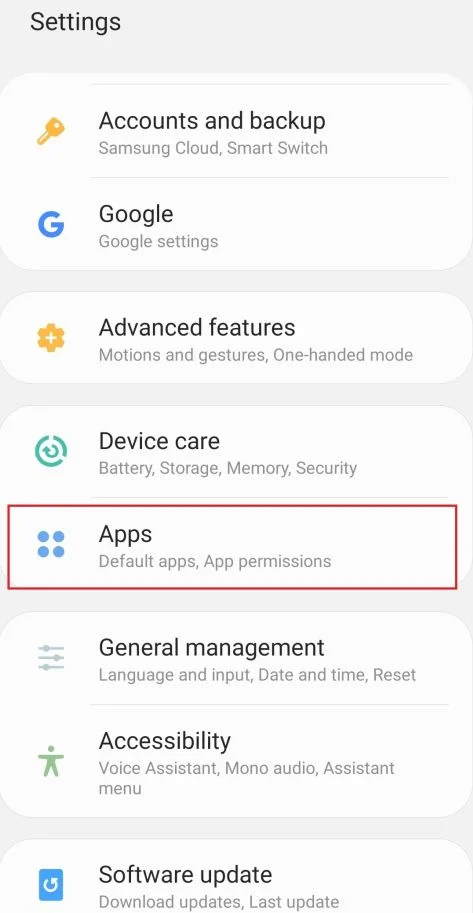
-
Find and tap on the Chrome app.
The “Apps” screen will be displayed with a list of all the apps installed on your device. Scroll through the list until you find the Chrome app.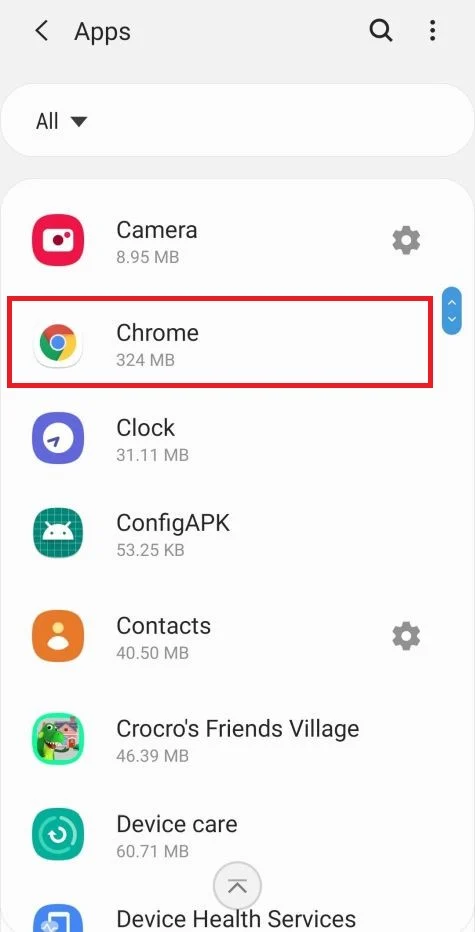
-
Tap “Storage”.
Chrome’s “App info” menu should now be displayed. Tap on “Storage“.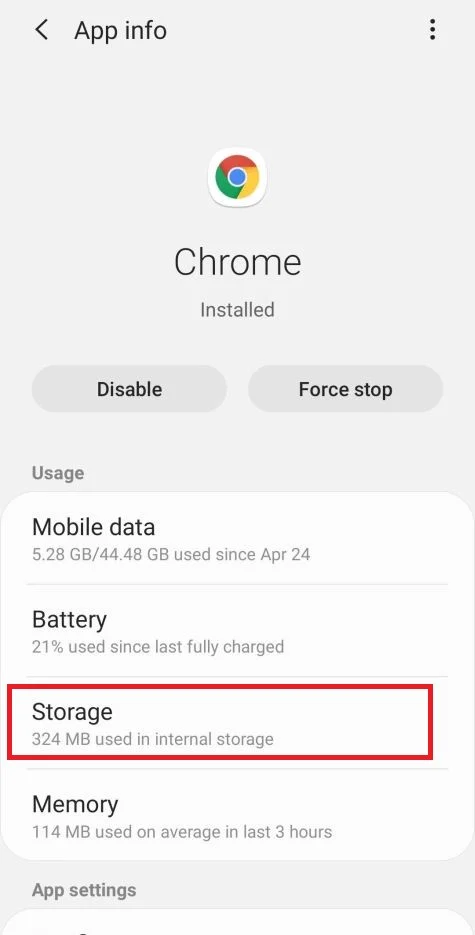
-
Tap “Manage Space”.
Under storage settings, the labels vary by phone. Choose Manage Space, Manage Storage, or Clear storage; do not select only Clear Cache. Some devices show Manage Space and Clear Cache. Tap on “Manage Space”.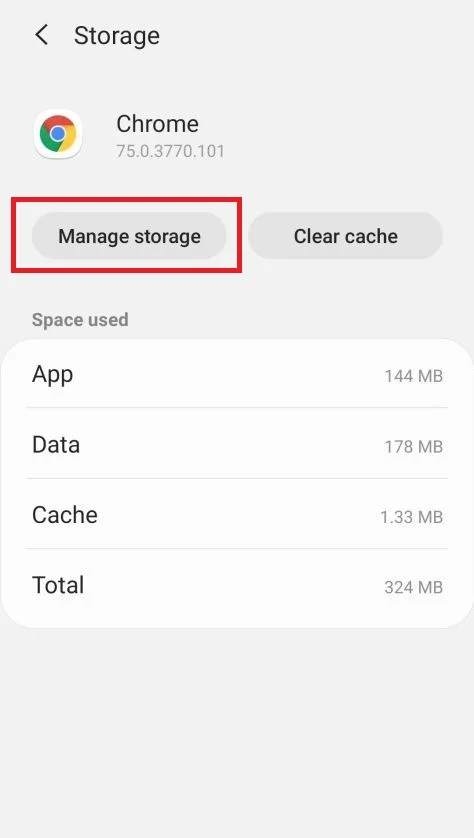
-
Tap “Clear all data”.
Before clearing data, save any tabs and unsynced bookmarks you need. Tap “Clear all data” to reset Chrome’s local app storage and sign-ins. This does not delete your Google account or the data already saved in it.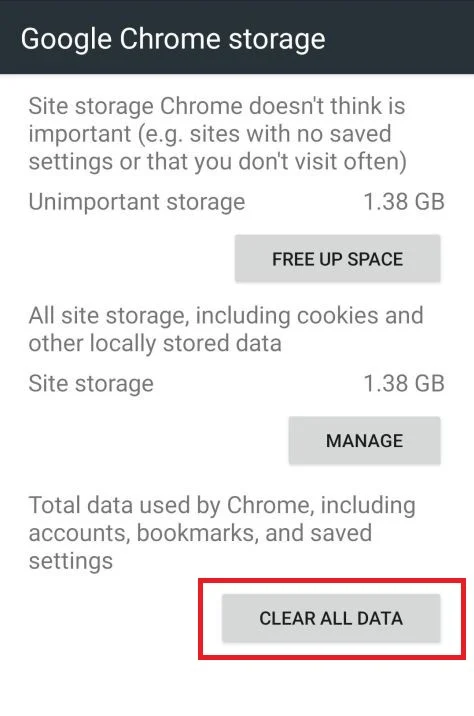
-
Confirm by tapping “Ok”.
A confirmation dialog should now be displayed, detailing the components that will be restored to their default state should you continue on with the reset process. To complete the restoration process, tap “Ok”.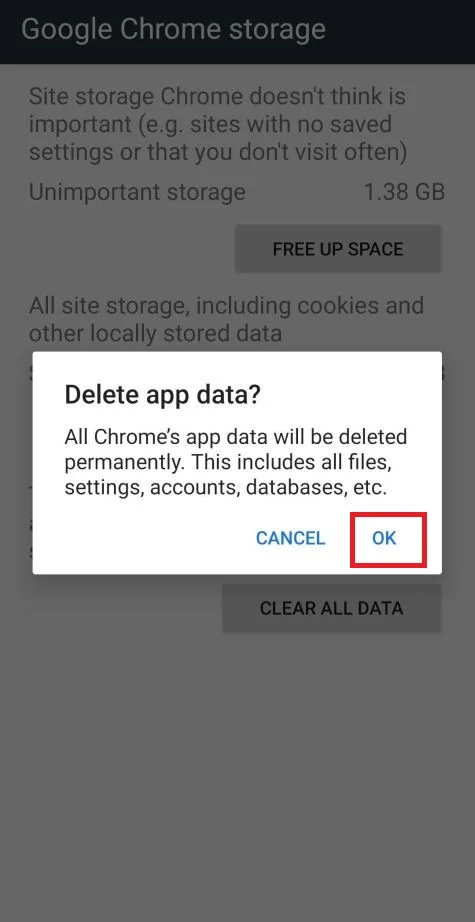
- Run an Android scan with Malwarebytes Free
- Ask for help in our Malware Removal Help forum.

Join the discussion
0 commentsShare your experience or ask a question about this article.
Your progress
Did these steps help?
Let us know how the guide worked for you.
Describe what you see and the step you reached. Keep passwords and other private information out.
Discussion
Start the conversation
Have a question or something useful to share? Add the first comment.