

A technical-looking notice says a mailbox failed to sync, putting delivery, sent items, and access at risk unless an update runs immediately.
The message borrows two familiar hosting names and enough operational detail to resemble an automated alert from behind the scenes.
Overview
The email fabricates a synchronization failure
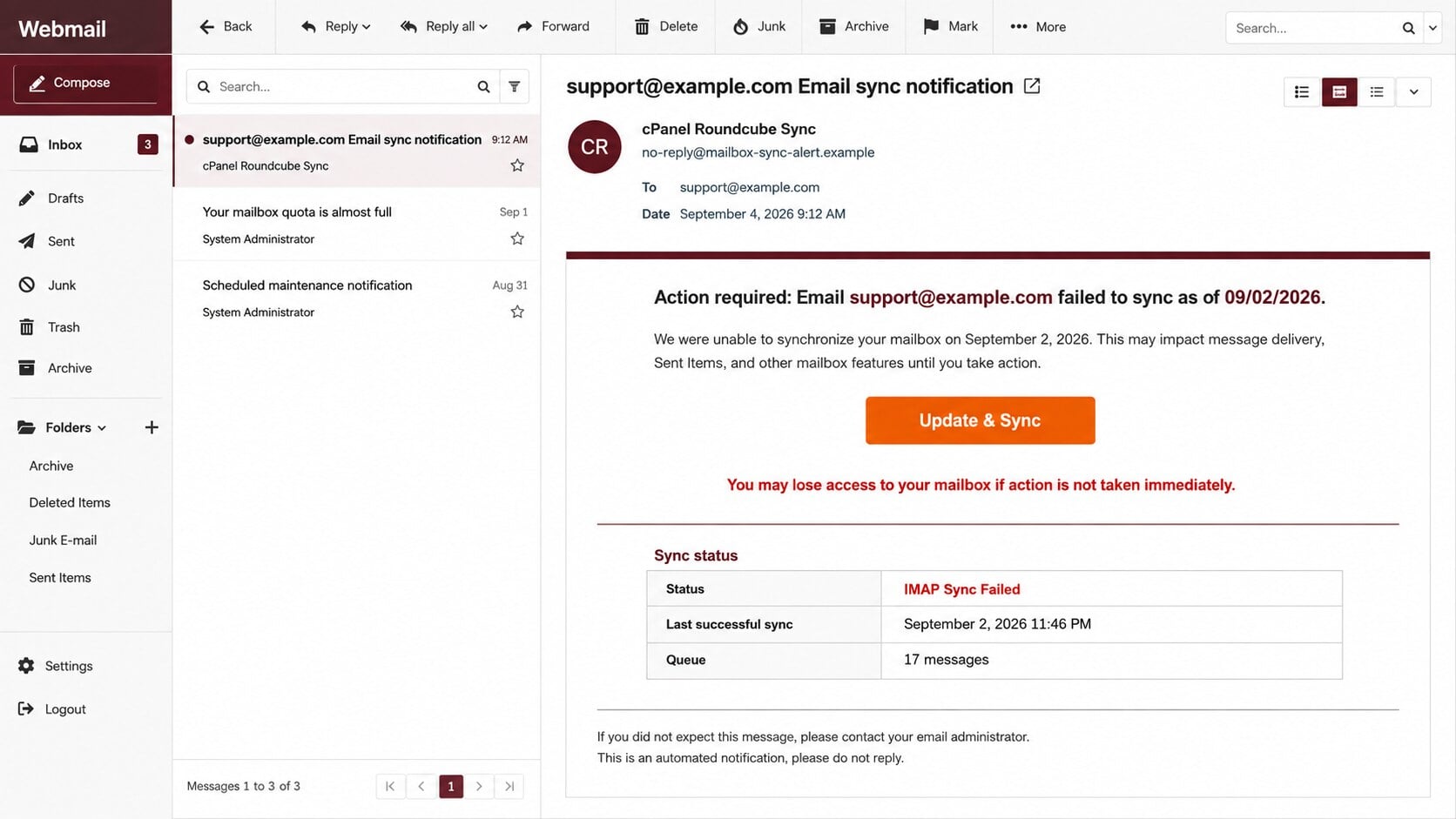
The cPanel Roundcube Mailbox Sync scam claims the recipient’s address stopped synchronizing on a specific date and may lose important email features.
It warns about message delivery and sent items, then presents an “Update & Sync” button as the only practical fix.
The destination imitates whichever provider the victim uses
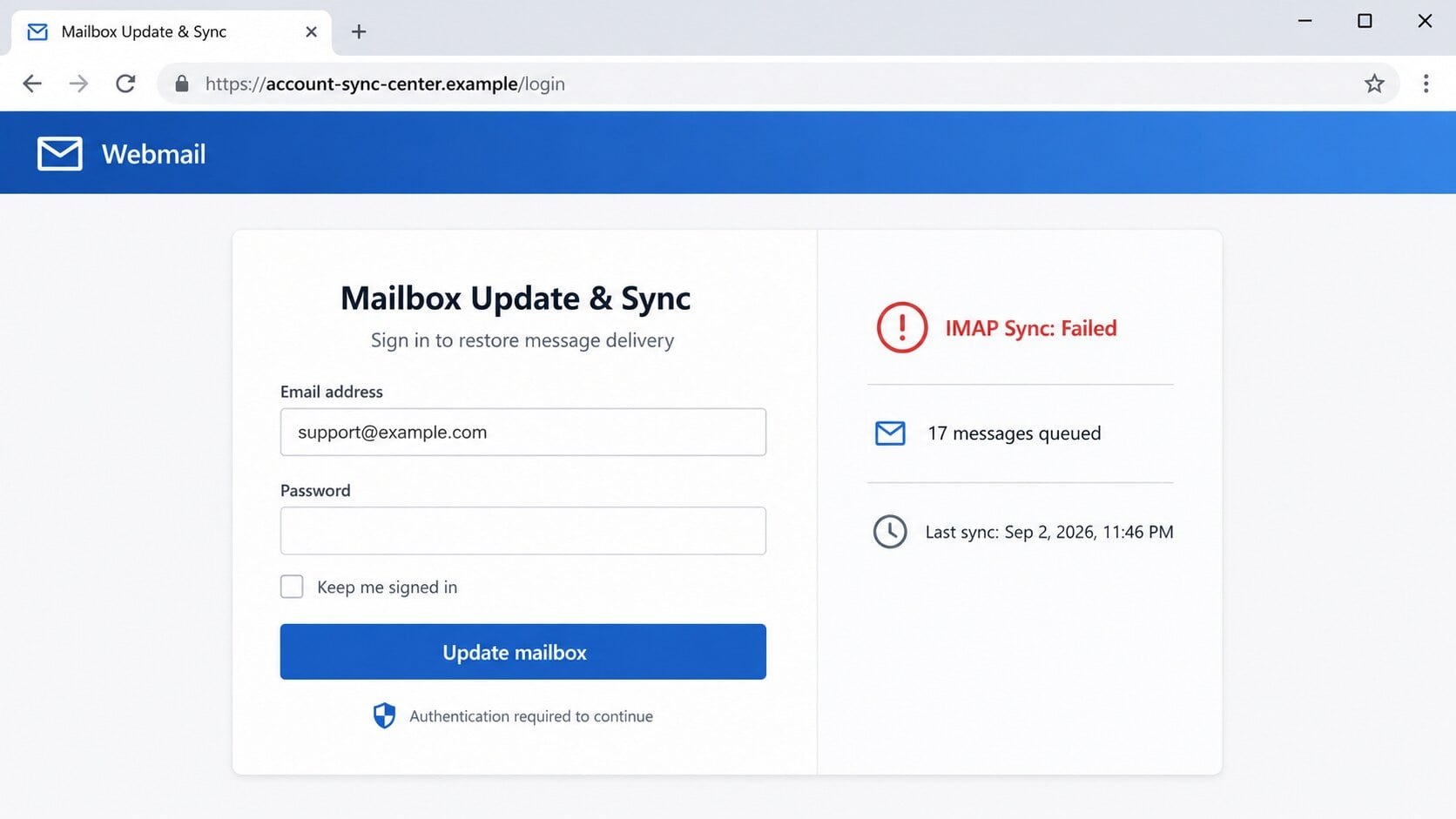
The linked page can inspect the supplied email address and display a matching sign-in design, such as a Gmail-styled form for a Gmail user.
This adaptive branding creates the illusion of a legitimate handoff. In reality, the destination is unrelated to cPanel, Roundcube, Google, or the hosting provider.
Hosting access can expose more than one inbox
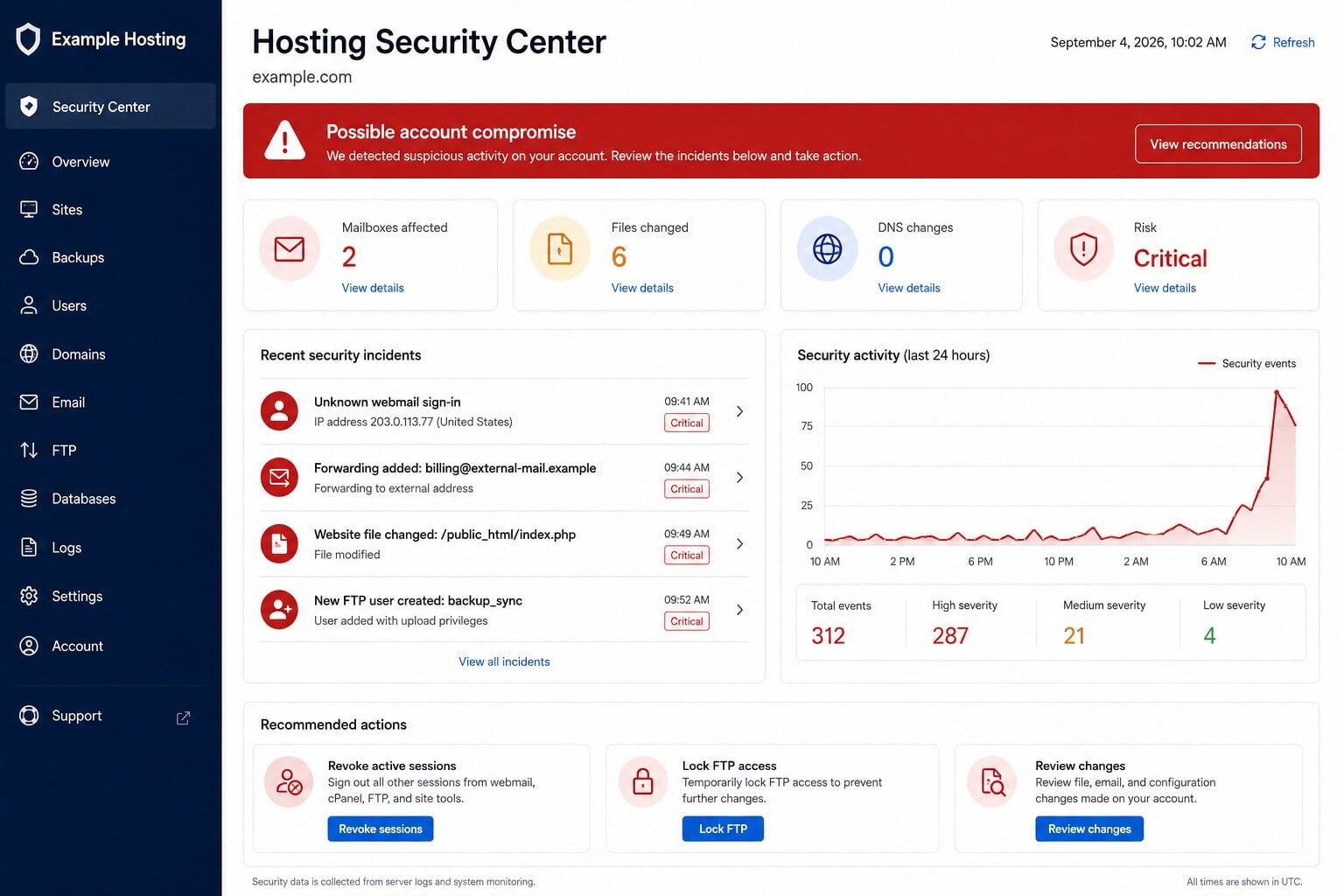
A stolen webmail password reveals messages and resets. A stolen cPanel credential may expose domains, website files, databases, backups, DNS settings, and multiple mailboxes.
The ambiguous form lets criminals test what the same credentials unlock. Reused passwords can turn one phishing submission into a broader server compromise.
- cPanel and Roundcube are presented as one vague synchronization service.
- The notice threatens lost access without a provider ticket or server error.
- The linked site does not belong to cPanel, Roundcube, or the mailbox host.
- The login design may change according to the recipient’s email domain.
- A footer address is copied into the message to manufacture legitimacy.
Understanding the Names Used in the Email
cPanel is a hosting control panel
Hosting companies use cPanel to let customers manage domains, files, databases, email accounts, certificates, backups, and other server features through a browser.
The cPanel company develops that software, but it does not operate every website or mailbox using it. Support normally comes from the customer’s hosting provider.
A legitimate cPanel alert should correspond with information inside the actual hosting account. An unsolicited email alone cannot establish that any server event occurred.
Roundcube is a webmail application
Roundcube provides a browser interface for reading and sending mail. Many independent hosts install it, so its logo appears across unrelated domains worldwide.
That familiarity gives scammers useful camouflage. Recipients recognize the interface but may not remember the exact domain their host uses for webmail.
Roundcube does not require a random external page to “sync” an account. Mail synchronization is handled by configured mail services and authenticated clients.
The combined branding creates artificial authority
The phrase “cPanel Roundcube Sync” sounds like an integrated product, even though the message does not identify the real hosting company managing the recipient’s account.
Attackers often stack technical terms because non-specialists hesitate to challenge them. Familiar names can make an unfamiliar process appear routine.
The correct question is not whether the logos look authentic. It is whether the known hosting provider confirms the event inside its own control panel.
A real street address does not validate the sender
The footer may copy a genuine corporate address associated with cPanel. Public addresses are easy to find and paste into fraudulent templates.
Physical details can improve appearance without creating a relationship between the sender, linked domain, and company being impersonated.
Trust depends on authenticated delivery and a recognized account path. A copied footer cannot compensate for an unrelated login destination.
How the Scam Works
Step 1: The campaign reaches hosting and webmail users
Criminals gather addresses from public websites, domain records, contact pages, compromised lists, earlier breaches, and mailboxes exposed during previous attacks.
Domain-based addresses such as admin, webmaster, support, and billing are especially attractive because they may connect to website management or sensitive customer communication.
The same template can also reach ordinary users. Because Roundcube is widely deployed, enough recipients will recognize the name for mass distribution to remain profitable.
The email need not know whether the target actually uses cPanel. Recipients who do not recognize it are simply expected to ignore the lure.
Step 2: A dated sync failure creates technical urgency
The notice claims the mailbox failed to synchronize “as of” a recent date. This makes the alleged problem sound measured and recorded by an automated system.
It lists consequences that matter immediately: missing incoming mail, incomplete sent items, broken features, and eventual loss of mailbox access.
These claims remain vague enough to avoid verification. No server hostname, synchronization protocol, affected client, error number, or failed message appears.
The Update & Sync button promises relief without requiring the recipient to understand the issue. That simplicity moves attention toward the attacker’s link.
Step 3: The link transfers the session to attacker-controlled infrastructure
Instead of opening the known hosting panel, the button leads to an unrelated website. Its domain may look ordinary but has no operational role in the mailbox.
The landing page can receive the target’s email address through a query value or encoded fragment included in the link.
Phishing kits use that address to choose colors, logos, and labels associated with the domain. This process is called dynamic or adaptive brand impersonation.
Nothing has been synchronized at this stage. The site has merely displayed a costume selected from information already present in the phishing URL.
Step 4: The fake portal collects an email password
The visitor sees a familiar sign-in prompt and may assume cPanel transferred authentication to the email provider. The page asks for credentials to continue.
Submitting the form sends the password to the phishing operator. The real provider does not confirm it, and no legitimate synchronization command occurs.
A staged error may request a second attempt. Two captured passwords help attackers identify a typo and learn whether the victim uses more than one candidate.
The victim may eventually reach a real login page or generic error. That redirect hides the malicious collection behind what looks like a temporary technical failure.
Step 5: Attackers determine what the credentials unlock
The stolen combination may be tested against Roundcube, cPanel, the hosting provider’s customer portal, file transfer services, content management systems, and cloud applications.
If multifactor authentication is absent, an email login can succeed immediately. Attackers then search for account resets, invoices, private attachments, and valuable conversations.
Hosting credentials create additional options. Website code can be modified, malicious redirects inserted, databases copied, and new mailboxes created for future impersonation.
Automated testing makes password reuse particularly dangerous. One familiar password may provide access across several layers of the same online business.
Step 6: Persistence is added quietly
Criminals may create mailbox forwarding, hidden filters, delegated access, application passwords, or additional administrator accounts so a password change alone does not remove them.
Website access can be preserved through unauthorized plugins, scheduled tasks, altered files, API keys, or database users that survive ordinary mailbox recovery.
DNS changes can redirect web traffic or email delivery. Modified mail routing may let attackers intercept resets even after the original account appears secured.
Every exposed system therefore needs separate review. Treating the incident as only a bad email password may leave a quieter backdoor untouched.
Step 7: Compromised infrastructure supports new fraud
A hijacked domain carries trust. Attackers can host phishing pages, send authenticated scam mail, inject payment redirects, or distribute malware from a previously legitimate website.
Customers may receive convincing messages from real support addresses. Search engines and security filters can take time to recognize that an established site changed behavior.
The business may face blacklist listings, suspended hosting, lost mail, damaged search visibility, privacy complaints, and expensive incident recovery.
Rapid containment limits that expansion. Mailbox, hosting, website, database, and DNS evidence should be examined as parts of one possible compromise.
What an Adaptive Phishing Page Actually Does
It derives appearance from the target’s address
An email domain provides a useful clue about which interface the victim expects. A phishing kit can map common domains to stored logo and color templates.
For custom business domains, the page may show the organization name, fetch a public logo, or fall back to a generic webmail design.
This is visual personalization, not federated authentication. The browser remains on the attacker’s host while the page imitates another service.
It can evade simple screenshot comparisons
Two recipients following the same campaign may see different brands. One reports a Gmail imitation, while another sees Microsoft or generic Roundcube styling.
That variability complicates employee reports and automated detection. Defenders should prioritize destination domains and shared page behavior over one specific logo.
Security teams can search mail logs for the original URL pattern, even when the rendered pages differed among recipients.
It uses familiarity to suppress domain checking
People recognize colors and logos faster than addresses. A convincing visual signal can make the unfamiliar domain above it fade into the background.
Slow down whenever a link produces a login form. Read the full hostname from right to left and identify the actual registered domain.
If that domain is not expected, close the page. Open the service through a known bookmark rather than trying to reason with the suspicious form.
Hosting, Sender, Domain, and Mailbox Checks
Confirm the hosting provider, not merely the software name
Find the company that invoices you for hosting or manages the server. That provider should be able to confirm account status and genuine maintenance events.
Use a bookmarked dashboard, saved contract, or earlier verified statement. Never obtain the support number from the email whose legitimacy is uncertain.
Ask whether cPanel or Roundcube alerts are sent directly, which sender domain is used, and whether any synchronization incident affects your mailbox.
Inspect sender authentication and reply routing
Expand technical message details to see the actual From, Reply-To, return path, and delivery authentication results. Display names are easily forged.
A domain mismatch is powerful evidence. Even a matching-looking sender deserves caution when the linked destination belongs somewhere else.
Forward the original message as an attachment to your administrator. Preserving headers helps trace servers and find related emails across the organization.
Check the destination’s ownership and purpose
The address should belong to your host or approved identity provider. An unrelated commercial domain has no reason to collect credentials for mailbox maintenance.
HTTPS protects data while traveling to that unrelated site. It does not certify the site’s story, business identity, or authorization to handle your password.
If a password manager does not recognize the page, treat that as a warning. Do not override it simply because the logo looks accurate.
Review both mailbox and hosting activity
Look for unknown logins, rules, forwards, delegates, app passwords, recovery changes, and sent mail. Then inspect cPanel users, files, domains, DNS, databases, and scheduled tasks.
Check recent website modifications against known deployments. Unexpected code near login, checkout, or header files may indicate malicious persistence or traffic redirection.
Ask the host for authentication and file-change logs if available. A timeline helps distinguish phishing exposure from an actual successful compromise.
Clear Warning Signs in the Fake Sync Alert
- The message combines cPanel and Roundcube without naming your host.
- A mailbox “sync” failure supposedly threatens all account access.
- No affected application, device, protocol, or error code is identified.
- The button opens a domain unrelated to every brand shown.
- The login page changes appearance based on the email address.
- Copied corporate details are used as decoration rather than verification.
- The notice demands credentials to solve a server-side problem.
- Urgency discourages contacting the actual hosting support team.
Technical language should create more verifiable details, not fewer. A genuine administrator can explain what failed and where the failure appears in the account.
When the claim cannot survive independent inspection, do not give the linked page an opportunity to test your password.
What to Do if You Have Fallen Victim to This Scam
- Stop interacting with the page and record its address. Do not retry the password, approve new prompts, or contact support listed in the phishing email.
- Change the mailbox password through the verified hosting portal. If cPanel used the same credential, change that password separately and make both unique.
- Revoke sessions, application passwords, delegates, forwarding rules, filters, and unfamiliar recovery options. Enable strong multifactor authentication wherever the host supports it.
- Audit cPanel administrators, FTP accounts, databases, DNS zones, cron jobs, website files, plugins, API keys, and backups for unauthorized additions or changes.
- Contact the hosting provider through a known channel. Request login logs, containment help, malware scanning, clean restoration guidance, and mail reputation checks.
- Run Malwarebytes on devices that downloaded or executed anything. Add AdGuard to reduce malicious advertising, redirect chains, and future deceptive pages.
- Notify affected customers and colleagues if messages or website data were exposed. Reset connected services and invalidate sensitive links delivered through the mailbox.
- Preserve the email, headers, page address, screenshots, server logs, and altered files. Report financial loss or identity misuse promptly to relevant authorities.
Is Your Device Infected? Run a Free Malware Scan
Slow performance, constant pop-ups, or strange behavior? These are classic signs of a malware infection. The fastest way to find out is to scan your device with Malwarebytes Free — one of the most trusted malware removal tools available.
The free version detects and removes the most common threats, including:
- Adware — the cause of those annoying pop-ups
- Browser hijackers — unwanted redirects and changed homepages
- Trojans and spyware — hidden programs stealing your data
- Potentially unwanted programs (PUPs) — software you never asked for
👉 Select your device below — Windows, Mac, or Android — then follow the simple steps to download Malwarebytes, scan your system, and remove any threats it finds. The scan usually takes 5 to 20 minutes.
Run a Malware Scan with Malwarebytes for Windows
Malwarebytes is one of the most popular and trusted anti-malware tools for Windows — and it’s completely free for removing infections. It catches threats that many antivirus programs miss, including adware, browser hijackers, and trojans. Follow the steps below to scan and clean your PC in just a few minutes.
Download Malwarebytes
Click the button below to download the latest version of Malwarebytes for Windows from the official source. The free version is all you need — it will scan your computer and remove adware, browser hijackers, and other malicious software at no cost.
Download MalwarebytesOfficial installer for Windows 11 and 10. Your download starts right away.Want real-time protection? See Malwarebytes Premium Malwarebytes Free for WindowsScans and removes malware at no cost
-
Install Malwarebytes
When the download finishes, open your Downloads folder and double-click the MBSetup file. If Windows shows a User Account Control pop-up, click “Yes” to allow the installation.

Follow the On-Screen Prompts to Install Malwarebytes
The setup wizard will walk you through a few quick screens:
-
Choose where you’re installing the program — “Personal Computer” or “Work Computer” — then click Next.

-
Malwarebytes will now install on your device. This usually takes under a minute.

-
When installation is complete, the “Welcome to Malwarebytes” screen will open automatically.

-
On the final screen, click Open Malwarebytes to launch the program.

-
Enable “Scan for Rootkits”
Before scanning, turn on rootkit detection so Malwarebytes can find even the most hidden threats. Click the Settings gear icon on the left side of the screen.

In the settings menu, find “Scan for rootkits” and click the toggle so it turns blue.

Done? Click “Dashboard” in the left pane to return to the main screen.
Start the Scan
Click the blue Scan button. Malwarebytes will automatically update its virus database and start checking your computer for malware.

-
Wait for the Scan to Finish
The scan checks your entire system for browser hijackers and other malicious programs, so it can take 5 to 20 minutes depending on your computer. Feel free to do something else — just check back occasionally to see the progress.

-
Quarantine the Detected Threats
When the scan is done, you’ll see a list of everything Malwarebytes found — malware, adware, and potentially unwanted programs. Click the “Quarantine” button to remove all of them at once.

Malwarebytes will now remove the malicious files and registry entries and move them safely into quarantine.

-
Restart Your Computer
Some threats can only be fully removed after a reboot. If Malwarebytes asks you to restart, click Yes. Once you’re logged back in, Malwarebytes has finished removing the threats it found.

That’s it — your Windows PC is now clean of trojans, adware, and other malware, and should be back to running smoothly.
If you are still having problems with your computer after completing these instructions, then please follow one of the steps:
- Run a computer scan with ESET Online Scanner
- Ask for help in our Windows Malware Removal Help & Support forum.
Run a Malware Scan with Malwarebytes for Mac
Malwarebytes for Mac is a free on-demand scanner that removes the malware other security software tends to miss — adware, browser hijackers, and unwanted programs included. Cleaning an infected Mac with Malwarebytes has always been completely free, and it’s our go-to recommendation. Follow the steps below to scan and clean your Mac in just a few minutes.
-
Download Malwarebytes for Mac
Click the button below to download the latest version of Malwarebytes for Mac.
Download MalwarebytesOfficial installer for macOS. Your download starts right away.Want real-time protection? See Malwarebytes PremiumMalwarebytes Free for MacScans and removes malware at no cost -
Open the Malwarebytes setup file
When the download finishes, open your Downloads folder and double-click the setup file to begin the installation.

-
Follow the On-Screen Prompts to Install Malwarebytes
The Malwarebytes for Mac Installer will guide you through a few quick screens. Click “Continue” and keep following the prompts until the installation completes.



When the installation is complete, Malwarebytes opens to the Welcome to Malwarebytes screen. Click “Get started“.
-
Select “Personal Computer” or “Work Computer”
Malwarebytes will ask what type of computer you’re installing it on. Click either Personal Computer or Work Computer, whichever applies.

-
Start the Scan
Click the “Scan” button. Malwarebytes will automatically update its detection database and begin checking your Mac for malware.

-
Wait for the Scan to Finish
Malwarebytes will scan your Mac for adware, browser hijackers, and other malicious programs. This can take a few minutes, so feel free to do something else — just check back occasionally to see the progress.

-
Quarantine the Detected Threats
When the scan is done, you’ll see a list of everything Malwarebytes found. Click the “Quarantine” button to remove all the threats at once.

-
Restart Your Mac
Malwarebytes will now remove all the malicious files it found. Some threats can only be fully removed after a reboot — if Malwarebytes asks you to restart, allow it. Once you’re logged back in, your Mac is clean.

That’s it — your Mac is now free of adware, rogue browser extensions, and other potentially harmful software.
If you are still experiencing problems while trying to remove a malicious program from your computer, please ask for help in our Mac Malware Removal Help & Support forum.
Run a Malware Scan with Malwarebytes for Android
Malwarebytes for Android automatically detects and removes dangerous threats like malware and ransomware so you don’t have to worry about your most-used device being compromised. Aggressive detection of adware and potentially unwanted programs keeps your Android phone or tablet running smooth.
-
Download Malwarebytes for Android.
You can download Malwarebytes for Android by clicking the link below.
Get Malwarebytes for AndroidOpens Google Play in a new tab.Want real-time protection? See Malwarebytes Premium for AndroidMalwarebytes for AndroidScans your phone and removes malware at no cost -
Install Malwarebytes for Android on your phone.
In the Google Play Store, tap “Install” to install Malwarebytes for Android on your device.

When the installation process has finished, tap “Open” to begin using Malwarebytes for Android. You can also open Malwarebytes by tapping on its icon in your phone menu or home screen.

-
Follow the on-screen prompts to complete the setup process
When Malwarebytes will open, you will see the Malwarebytes Setup Wizard which will guide you through a series of permissions and other setup options.
This is the first of two screens that explain the difference between the Premium and Free versions. Swipe this screen to continue.
Tap on “Got it” to proceed to the next step.
Malwarebytes for Android will now ask for a set of permissions that are required to scan your device and protect it from malware. Tap on “Give permission” to continue.
Tap on “Allow” to permit Malwarebytes to access the files on your phone.
-
Update database and run a scan with Malwarebytes for Android
You will now be prompted to update the Malwarebytes database and run a full system scan.

Click on “Update database” to update the Malwarebytes for Android definitions to the latest version, then click on “Run full scan” to perform a system scan.

-
Wait for the Malwarebytes scan to complete.
Malwarebytes will now start scanning your phone for adware and other malicious apps. This process can take a few minutes, so we suggest you do something else and periodically check on the status of the scan to see when it is finished.

-
Click on “Remove Selected”.
When the scan has been completed, you will be presented with a screen showing the malware infections that Malwarebytes for Android has detected. To remove the malicious apps that Malwarebytes has found, tap on the “Remove Selected” button.

-
Restart your phone.
Malwarebytes for Android will now remove all the malicious apps that it has found. To complete the malware removal process, Malwarebytes may ask you to restart your device.
That’s it — your Android phone is now clean — no more malicious apps, adware, or browser redirects.
If you are still having problems with your phone after completing these instructions, then please follow one of the steps:
- Restore your phone to factory settings by going to Settings > General management > Reset > Factory data reset.
- Ask for help in our Mobile Malware Removal Help & Support forum.
Stay Protected: Block Ads and Malicious Sites
Now that your device is clean, keep it that way. Most infections start with a malicious ad or a fake download button — so blocking them at the source is your best defense.
We recommend AdGuard, which blocks malicious ads, phishing pages, and dangerous redirects before they can reach you.
👉 Download AdGuard and browse safely
How to Protect Hosting and Webmail Accounts
Use separate credentials for separate layers
Webmail, hosting administration, domain registration, DNS, and content management should not share one password. Separation contains damage when a single credential is stolen.
Store strong unique passwords in a manager and protect administrator accounts with phishing-resistant multifactor authentication when available.
Monitor changes that indicate persistence
Alert on new forwarding rules, administrators, FTP users, scheduled tasks, DNS edits, API keys, and modifications to sensitive website directories.
Regular clean backups should remain outside the active hosting account. Otherwise, an intruder may alter or remove the recovery copies too.
Define one trusted support route
Document the hosting portal, telephone number, and escalation contacts employees should use. Familiar verification paths reduce reliance on details inside urgent messages.
When staff know exactly where to check, vague cPanel warnings lose much of their power.
Frequently Asked Questions
Is the cPanel Roundcube Mailbox Sync email genuine?
The reviewed message is phishing. It invents a sync failure and leads to an unrelated adaptive login page that records submitted credentials.
cPanel and Roundcube are legitimate projects, but neither is responsible for this impersonation campaign.
Can cPanel and Roundcube legitimately appear together?
Yes. Many cPanel hosting environments offer Roundcube for webmail. That real relationship is exactly why the combined branding feels plausible.
Legitimate use does not validate this email. Confirm notices through the hosting provider’s known dashboard and support channels.
Why did the phishing page show my usual email brand?
The page can read your email domain from the link or entered address, then select a matching visual template.
That automatic styling does not contact the provider or prove authentication. Always judge the browser’s actual domain.
What is at risk if my cPanel password was stolen?
Depending on permissions, attackers may reach website files, databases, mailboxes, backups, domains, certificates, DNS controls, and account configuration.
Ask the host to help audit the entire account. Changing one password may not remove additional users or malicious code.
Was my device infected by opening the email?
Viewing the message alone normally does not install malware. Risk increases after opening linked pages, downloading files, enabling content, or running programs.
If no file ran, prioritize account review. If anything executed, isolate the device and perform comprehensive security scans.
How can I verify a real mailbox outage?
Open webmail and the hosting panel independently, review official status notices, send test messages, and contact the hosting company using stored details.
A genuine outage should produce evidence outside the unsolicited email, including service notices, errors, logs, or provider confirmation.
The Bottom Line
The cPanel Roundcube Mailbox Sync scam dresses password theft as routine hosting maintenance. Adaptive branding and copied corporate details are presentation, not proof.
Verify synchronization problems with the company that actually hosts the mailbox. Never enter credentials after following a link from an unexpected technical warning.
If information was submitted, examine both email and hosting controls. Quick, broad containment can prevent mailbox theft from spreading into websites, databases, and customer fraud.

Join the discussion
0 commentsShare your experience or ask a question about this article.
Discussion
Start the conversation
Have a question or something useful to share? Add the first comment.