

A payment notification arrives just when you’re trying to catch up with accounts. It mentions Wells Fargo and offers a remittance copy for your records.
The button looks like the quickest way to find out who paid you. Before opening it, take a moment to untangle what the message is claiming.
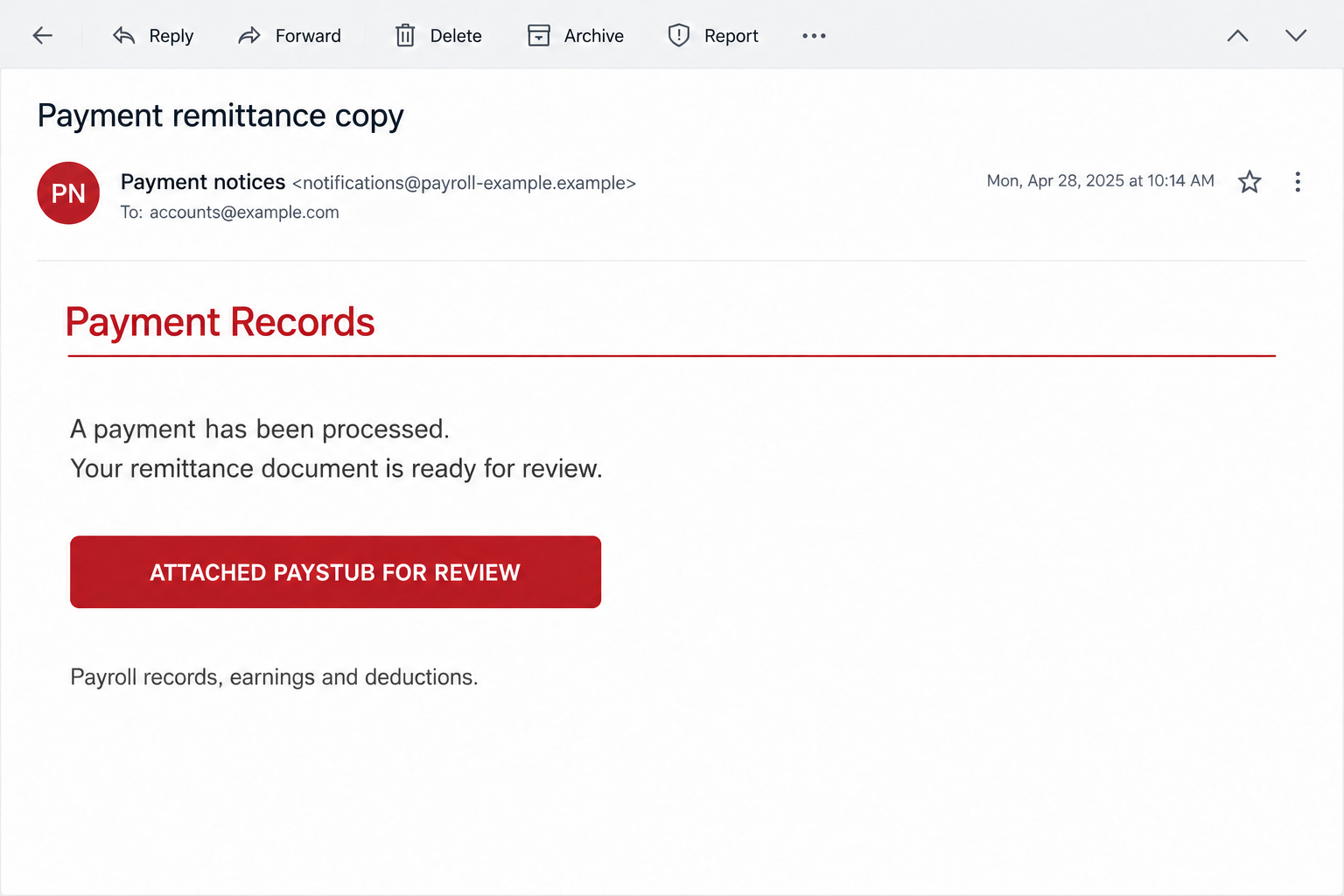
Overview
A processed-payment story is used as document bait
The Wells Fargo Payment Remittance Copy email scam dresses an unsolicited message as routine payment paperwork. Its aim is to get the recipient to follow an untrusted link.
A reported copy mixes a bank payment announcement with payroll-related wording. That blend matters because a paystub and a business remittance notice serve different purposes.
Wells Fargo and Justworks are legitimate services whose names appear in the message. Their presence does not establish that either company sent this particular notification.
The button does not verify a banking login
The reported review button was not functioning when examined. A counterfeit banking login was suspected, but the exact destination and information fields were not established.
A failed link leaves unanswered what it previously requested. It does not show whether anyone lost account access or whether software was involved.
The practical warning remains clear: do not use this notice to open a payment record or authenticate an account. Verify the supposed payment somewhere independent.
Details that deserve a closer look
- A notification about money received funnels the reader toward a document-review button.
- Bank remittance language appears beside paystub and payroll-benefit wording.
- A partial account reference looks personal without proving any connection to your actual account.
- A broken button does not confirm either a genuine payment or a safe message.
- The real bank ledger and your established payroll records are better evidence than the email.
The illustration above shows the general document bait, not an original message or a reproduced login destination. No actual banking details were entered during research.
A Remittance Advice Is Not the Same Thing as Money Received
A remittance advice explains a payment, often helping a business match money to an invoice. It does not independently prove that funds reached the intended account.
A paystub is an earnings record. It may show wages, deductions, taxes, and reimbursements. Its purpose is not interchangeable with a supplier’s payment allocation.
Some legitimate workflows involve banks, employers, and payroll providers together. Seeing two names is therefore not enough, by itself, to prove an email fraudulent.
The problem is letting an unexpected message define the workflow without checking your own relationship with the supposed payer.
If you are an employee, ask whether your employer uses the named payroll service. Open the account the way you normally do and check the relevant pay period.
If you manage receivables, compare the claimed payment with open invoices and actual deposits. A document can be internally consistent while referring to no genuine transfer.
A partial account number also needs context. It might be copied, guessed, or simply included to make the notice feel specific.
Do not send someone a complete account statement just to prove the partial number is wrong. Verify through your own records without supplying new financial information.
How the Wells Fargo Payment Remittance Copy Email Scam Works
Step 1: A payment announcement interrupts an ordinary workday
The opening claim is pleasant rather than frightening: a payment has been processed. That can lower resistance because the recipient expects to receive something, not pay something.
For an accounts employee, the email resembles another reconciliation task. For a worker awaiting wages, it promises a useful explanation of an incoming deposit.
The sender does not need to know which interpretation fits. Broad payment language lets different recipients supply their own reason for opening the message.
That is why timing alone is weak evidence. A fraudulent notice can arrive on payday or while a customer genuinely owes you money.
Keep the email separate from the underlying transaction until the real payer or your account records connect the two.
Step 2: Familiar names give the paperwork borrowed authority
The message invokes a major bank and payroll-related services. The reader may recognize one name and overlook how poorly the rest fits their actual circumstances.
Brand names can be inserted into ordinary email text. A footer listing useful payroll features does not prove that the corresponding service issued the notification.
Similarly, a logo is not a bank confirmation. The person composing a fraudulent message can copy publicly visible design elements without processing a single payment.
Check the sender’s full address and any different reply destination. Those details can reveal a mismatch, although a plausible address still needs independent confirmation.
If your organization has a security team, let it examine the original headers. Avoid trying to interpret one authentication result as a complete verdict on the message.
Step 3: A document button turns curiosity into a risky click
The call to action is an attached-paystub review button. Its wording makes following a link sound like opening an ordinary record already associated with the payment.
A button label does not tell you whether the destination is an attachment, a cloud document, a redirect, or a website requesting a password.
The same distinction applies when the email says attached but no conventional attachment appears. Read the message’s actual structure rather than accepting the label.
Do not click repeatedly to investigate a failed route. You do not need to reach the end of an untrusted link to decide against using it.
Move the verification task elsewhere: your banking app, payroll portal, or a conversation with the known payer using contact details you already hold.
Step 4: A later request may seek access rather than a payment record
A phishing destination can ask for credentials under the excuse of viewing a protected document. The specific destination in this case was unavailable, so that remains a possible follow-on.
If a page asks you to sign in, identify which service it claims to be. A bank password, payroll password, and mailbox password protect different accounts.
Do not assume the account is safe because the page rejected the password. A fraudulent form can receive information without ever granting access to a document.
One-time codes and approval prompts need equal care. Read what action the genuine service says you are approving, not what the document page says it needs.
A request to install a viewer, extension, or remote-support application would introduce a separate device risk. It is not a routine requirement for proving money arrived.
Step 5: The recipient may confuse the email’s outcome with the bank’s outcome
A failure screen can leave someone waiting for the promised deposit. A convincing confirmation screen can do the opposite, suggesting the payment has been settled.
Neither response replaces the real account ledger. Check the transaction itself before releasing goods, allocating invoices, refunding an overpayment, or changing payment instructions.
If the sender follows up about a supposed error, do not move into a refund conversation through the same thread. Verify the payer first.
No refund demand was established in the reported message. The point is to avoid letting an unverified payment story become the basis for a new transfer.
Once you recognize the suspicious notice, preserve it for reporting and end the interaction. You do not owe its sender an explanation.
How to Check the Real Bank and Payroll Records
Start with the account you already use
Open your established banking app or type the bank’s known website address. Review deposits, pending items, and any genuine account alerts there.
Do not search for a customer-support number supplied in the message. Use the number on your bank card, statement, or independently opened official website.
For payroll questions, use an existing employer contact. Ask about the pay period and expected payment method without forwarding passwords, security codes, or full financial statements.
A real secure email does not validate this one
Wells Fargo does provide secure email services. Legitimate protected messages exist, so an unfamiliar document format is not an automatic fraud verdict.
But a real service’s existence does not authenticate a separate notification using its name. Confirm the expected communication before registering, signing in, or downloading anything.
When in doubt, have your known bank contact explain the relevant process through a channel you initiated.
Check payroll access independently too
Justworks publishes guidance about impersonation and phishing. A familiar payroll name in an email is not a substitute for your normal account route.
If your employer does not use that provider, the mismatch is especially relevant. If it does, ask payroll to verify the specific notice.
Someone who doesn’t bank with Wells Fargo could still receive a legitimate payment sent through that bank. Judge the actual transaction, not customer status alone.
A Safer Way to Reconcile an Unexpected Payment
Begin with the transaction you can actually see, not the document the email wants you to open. Record the date, amount, and reference from your genuine account.
Then compare those details with the expected payer and purpose. A matching amount is helpful context, but it does not authenticate a separate link in an email.
For wages, compare the relevant pay period and your employer’s established payroll channel. Ask payroll about a missing record without sharing access codes or login screenshots.
For customer payments, follow your normal allocation process. Do not mark an invoice settled merely because a notice promises the deposit will become visible later.
If a real but unexplained deposit appears, ask the bank about it. Do not send funds to a different account proposed by an email correspondent.
Keep bank verification separate from any request to change supplier or employee details. A genuine payment does not automatically authorize a new destination for future payments.
That separation keeps an ordinary accounts task from becoming an access or refund problem. You can resolve the transaction without trusting the suspicious button.
What to Do if You Have Fallen Victim to This Scam
Pause the document task and establish what happened. Note whether you received the message, followed its link, entered information, approved a prompt, or installed something.
Do not revisit a page to recreate the event. Browser history, the original email, and existing account records can help explain the sequence safely.
Contact the bank promptly if banking access was exposed. Use independently verified contact details and describe the credentials, codes, or approvals involved.
Ask the bank to review access and transactions and advise on protective steps. If money moved, request the appropriate fraud response without assuming reimbursement is guaranteed.
Recover the particular login you supplied. A mailbox password needs mailbox recovery; a payroll password needs the payroll provider’s process.
Use a trusted device, replace the exposed password, check sessions and recovery methods, and remove unauthorized access with the provider’s help.
Change reused passwords elsewhere too. Do not assume the bank is the only account at risk because its name appeared in the subject or body.
Tell payroll or finance about relevant business exposure. Explain whether compensation details, customer records, or company credentials were shared.
Ask them to check for unauthorized pay-destination changes or payment instructions. Keep the response factual so colleagues can act without relying on assumptions.
Investigate downloaded or installed software separately. If you ran an unexpected viewer, extension, or support application, involve your workplace IT team before making further account changes.
Malwarebytes is useful for checking possible malware. AdGuard can help block some deceptive advertising; neither substitutes for the bank’s response or payroll-account recovery.
Report the email through official channels. Wells Fargo’s fraud-reporting page distinguishes suspicious messages from incidents where someone already responded.
Keep the original message and transaction references privately. Share evidence only with the relevant bank, employer, provider, or reporting authority.
Watch for follow-up impersonation. A caller mentioning the email or the payment may be continuing the same attempt rather than offering independent help.
Hang up and contact the institution yourself. Do not approve a transfer, give remote access, or disclose a code to cancel a supposedly mistaken payment.
Is Your Device Infected? Run a Free Malware Scan
Slow performance, constant pop-ups, or strange behavior? These are classic signs of a malware infection. The fastest way to find out is to scan your device with Malwarebytes Free — one of the most trusted malware removal tools available.
The free version detects and removes the most common threats, including:
- Adware — the cause of those annoying pop-ups
- Browser hijackers — unwanted redirects and changed homepages
- Trojans and spyware — hidden programs stealing your data
- Potentially unwanted programs (PUPs) — software you never asked for
👉 Select your device below — Windows, Mac, or Android — then follow the simple steps to download Malwarebytes, scan your system, and remove any threats it finds. The scan usually takes 5 to 20 minutes.
Run a Malware Scan with Malwarebytes for Windows
Malwarebytes is one of the most popular and trusted anti-malware tools for Windows — and it’s completely free for removing infections. It catches threats that many antivirus programs miss, including adware, browser hijackers, and trojans. Follow the steps below to scan and clean your PC in just a few minutes.
Download Malwarebytes
Click the button below to download the latest version of Malwarebytes for Windows from the official source. The free version is all you need — it will scan your computer and remove adware, browser hijackers, and other malicious software at no cost.
Download MalwarebytesOfficial installer for Windows 11 and 10. Your download starts right away.Want real-time protection? See Malwarebytes Premium Malwarebytes Free for WindowsScans and removes malware at no cost
-
Install Malwarebytes
When the download finishes, open your Downloads folder and double-click the MBSetup file. If Windows shows a User Account Control pop-up, click “Yes” to allow the installation.

Follow the On-Screen Prompts to Install Malwarebytes
The setup wizard will walk you through a few quick screens:
-
Choose where you’re installing the program — “Personal Computer” or “Work Computer” — then click Next.

-
Malwarebytes will now install on your device. This usually takes under a minute.

-
When installation is complete, the “Welcome to Malwarebytes” screen will open automatically.

-
On the final screen, click Open Malwarebytes to launch the program.

-
Enable “Scan for Rootkits”
Before scanning, turn on rootkit detection so Malwarebytes can find even the most hidden threats. Click the Settings gear icon on the left side of the screen.

In the settings menu, find “Scan for rootkits” and click the toggle so it turns blue.

Done? Click “Dashboard” in the left pane to return to the main screen.
Start the Scan
Click the blue Scan button. Malwarebytes will automatically update its virus database and start checking your computer for malware.

-
Wait for the Scan to Finish
The scan checks your entire system for browser hijackers and other malicious programs, so it can take 5 to 20 minutes depending on your computer. Feel free to do something else — just check back occasionally to see the progress.

-
Quarantine the Detected Threats
When the scan is done, you’ll see a list of everything Malwarebytes found — malware, adware, and potentially unwanted programs. Click the “Quarantine” button to remove all of them at once.

Malwarebytes will now remove the malicious files and registry entries and move them safely into quarantine.

-
Restart Your Computer
Some threats can only be fully removed after a reboot. If Malwarebytes asks you to restart, click Yes. Once you’re logged back in, Malwarebytes has finished removing the threats it found.

That’s it — your Windows PC is now clean of trojans, adware, and other malware, and should be back to running smoothly.
If you are still having problems with your computer after completing these instructions, then please follow one of the steps:
- Run a computer scan with ESET Online Scanner
- Ask for help in our Windows Malware Removal Help & Support forum.
Run a Malware Scan with Malwarebytes for Mac
Malwarebytes for Mac is a free on-demand scanner that removes the malware other security software tends to miss — adware, browser hijackers, and unwanted programs included. Cleaning an infected Mac with Malwarebytes has always been completely free, and it’s our go-to recommendation. Follow the steps below to scan and clean your Mac in just a few minutes.
-
Download Malwarebytes for Mac
Click the button below to download the latest version of Malwarebytes for Mac.
Download MalwarebytesOfficial installer for macOS. Your download starts right away.Want real-time protection? See Malwarebytes PremiumMalwarebytes Free for MacScans and removes malware at no cost -
Open the Malwarebytes setup file
When the download finishes, open your Downloads folder and double-click the setup file to begin the installation.

-
Follow the On-Screen Prompts to Install Malwarebytes
The Malwarebytes for Mac Installer will guide you through a few quick screens. Click “Continue” and keep following the prompts until the installation completes.



When the installation is complete, Malwarebytes opens to the Welcome to Malwarebytes screen. Click “Get started“.
-
Select “Personal Computer” or “Work Computer”
Malwarebytes will ask what type of computer you’re installing it on. Click either Personal Computer or Work Computer, whichever applies.

-
Start the Scan
Click the “Scan” button. Malwarebytes will automatically update its detection database and begin checking your Mac for malware.

-
Wait for the Scan to Finish
Malwarebytes will scan your Mac for adware, browser hijackers, and other malicious programs. This can take a few minutes, so feel free to do something else — just check back occasionally to see the progress.

-
Quarantine the Detected Threats
When the scan is done, you’ll see a list of everything Malwarebytes found. Click the “Quarantine” button to remove all the threats at once.

-
Restart Your Mac
Malwarebytes will now remove all the malicious files it found. Some threats can only be fully removed after a reboot — if Malwarebytes asks you to restart, allow it. Once you’re logged back in, your Mac is clean.

That’s it — your Mac is now free of adware, rogue browser extensions, and other potentially harmful software.
If you are still experiencing problems while trying to remove a malicious program from your computer, please ask for help in our Mac Malware Removal Help & Support forum.
Run a Malware Scan with Malwarebytes for Android
Malwarebytes for Android automatically detects and removes dangerous threats like malware and ransomware so you don’t have to worry about your most-used device being compromised. Aggressive detection of adware and potentially unwanted programs keeps your Android phone or tablet running smooth.
-
Download Malwarebytes for Android.
You can download Malwarebytes for Android by clicking the link below.
Get Malwarebytes for AndroidOpens Google Play in a new tab.Want real-time protection? See Malwarebytes Premium for AndroidMalwarebytes for AndroidScans your phone and removes malware at no cost -
Install Malwarebytes for Android on your phone.
In the Google Play Store, tap “Install” to install Malwarebytes for Android on your device.

When the installation process has finished, tap “Open” to begin using Malwarebytes for Android. You can also open Malwarebytes by tapping on its icon in your phone menu or home screen.

-
Follow the on-screen prompts to complete the setup process
When Malwarebytes will open, you will see the Malwarebytes Setup Wizard which will guide you through a series of permissions and other setup options.
This is the first of two screens that explain the difference between the Premium and Free versions. Swipe this screen to continue.
Tap on “Got it” to proceed to the next step.
Malwarebytes for Android will now ask for a set of permissions that are required to scan your device and protect it from malware. Tap on “Give permission” to continue.
Tap on “Allow” to permit Malwarebytes to access the files on your phone.
-
Update database and run a scan with Malwarebytes for Android
You will now be prompted to update the Malwarebytes database and run a full system scan.

Click on “Update database” to update the Malwarebytes for Android definitions to the latest version, then click on “Run full scan” to perform a system scan.

-
Wait for the Malwarebytes scan to complete.
Malwarebytes will now start scanning your phone for adware and other malicious apps. This process can take a few minutes, so we suggest you do something else and periodically check on the status of the scan to see when it is finished.

-
Click on “Remove Selected”.
When the scan has been completed, you will be presented with a screen showing the malware infections that Malwarebytes for Android has detected. To remove the malicious apps that Malwarebytes has found, tap on the “Remove Selected” button.

-
Restart your phone.
Malwarebytes for Android will now remove all the malicious apps that it has found. To complete the malware removal process, Malwarebytes may ask you to restart your device.
That’s it — your Android phone is now clean — no more malicious apps, adware, or browser redirects.
If you are still having problems with your phone after completing these instructions, then please follow one of the steps:
- Restore your phone to factory settings by going to Settings > General management > Reset > Factory data reset.
- Ask for help in our Mobile Malware Removal Help & Support forum.
Stay Protected: Block Ads and Malicious Sites
Now that your device is clean, keep it that way. Most infections start with a malicious ad or a fake download button — so blocking them at the source is your best defense.
We recommend AdGuard, which blocks malicious ads, phishing pages, and dangerous redirects before they can reach you.
👉 Download AdGuard and browse safely
Frequently Asked Questions
Is the Wells Fargo Payment Remittance Copy email genuine?
The reported message is a fraudulent payment notice. Confirm any real deposit through your account or known payer rather than its document-review button.
What if the paystub link no longer opens?
Stop trying it. An unavailable destination neither proves a payment nor identifies what the page previously requested. Your bank and payroll records remain the useful checks.
Was a fake Wells Fargo login directly confirmed?
No. The destination was unavailable when reported. A bank-login trap was suspected, but its fields, operator, and account access were not confirmed.
Does the Justworks name mean Justworks sent it?
No. A third party can copy a service name and payroll wording. Verify the notice inside your established employer or payroll relationship.
Do I need antivirus just because the email arrived?
Receipt alone is not evidence of infection. Device checks become relevant if you ran files, installed something, or encountered suspicious behavior; exposed account access needs separate protection.
Should I return money if someone says this was an overpayment?
Do not send a refund based on the notice. Ask your bank and the independently verified payer to establish the actual transaction before taking any payment action.
The Bottom Line
Do not open payment paperwork through this Wells Fargo remittance email. Its document bait is not reliable evidence that you were paid or that either named service contacted you.
Verify the deposit through real records. If you supplied credentials or authorized an action, contact the affected provider now and explain exactly what you shared.

Join the discussion
0 commentsShare your experience or ask a question about this article.
Discussion
Start the conversation
Have a question or something useful to share? Add the first comment.