


A penguin-themed token page says your wallet could qualify for free crypto. The design is simple, the claim button is prominent, and checking seems almost effortless.
With several similar names and addresses circulating, it can be difficult to tell which invitation deserves attention. Start with the request behind the cheerful branding.
Overview
A token name becomes the bait for a false allocation
The Nietzschean Penguin airdrop scam promotes counterfeit claim pages using the PENGUIN name. The lure is a supposed allocation of free tokens, not a conventional product purchase.
Reported addresses include nietzscheanpenguin[.]click, penguins-allocation[.]xyz, and event-penguinonsol[.]fun. Those identifiers should not be treated as claim links.
This warning concerns those deceptive promotions. It is not a finding that every token, project, or online community using penguin imagery is fraudulent.
The risk sits in the wallet request
The reported pages direct visitors into wallet activity and were described as drainer schemes. A drainer uses deceptive access requests to help move assets to an attacker.
Connecting a wallet alone is not the same as approving a transfer. The consequential action might involve a transaction, spending authority, or another request presented for approval.
No wallet was connected for this investigation. The exact network, contract, beneficiary address, and authorization payload were not independently reproduced.
Several small distinctions can prevent a large loss
- A familiar token ticker does not identify a unique issuer, contract, or official website.
- A displayed allocation is a website claim until verified independently.
- A request labeled a claim can still ask you to authorize something else.
- Disconnecting a website does not necessarily remove authority you already granted.
- No free distribution justifies revealing your private keys or wallet backup.
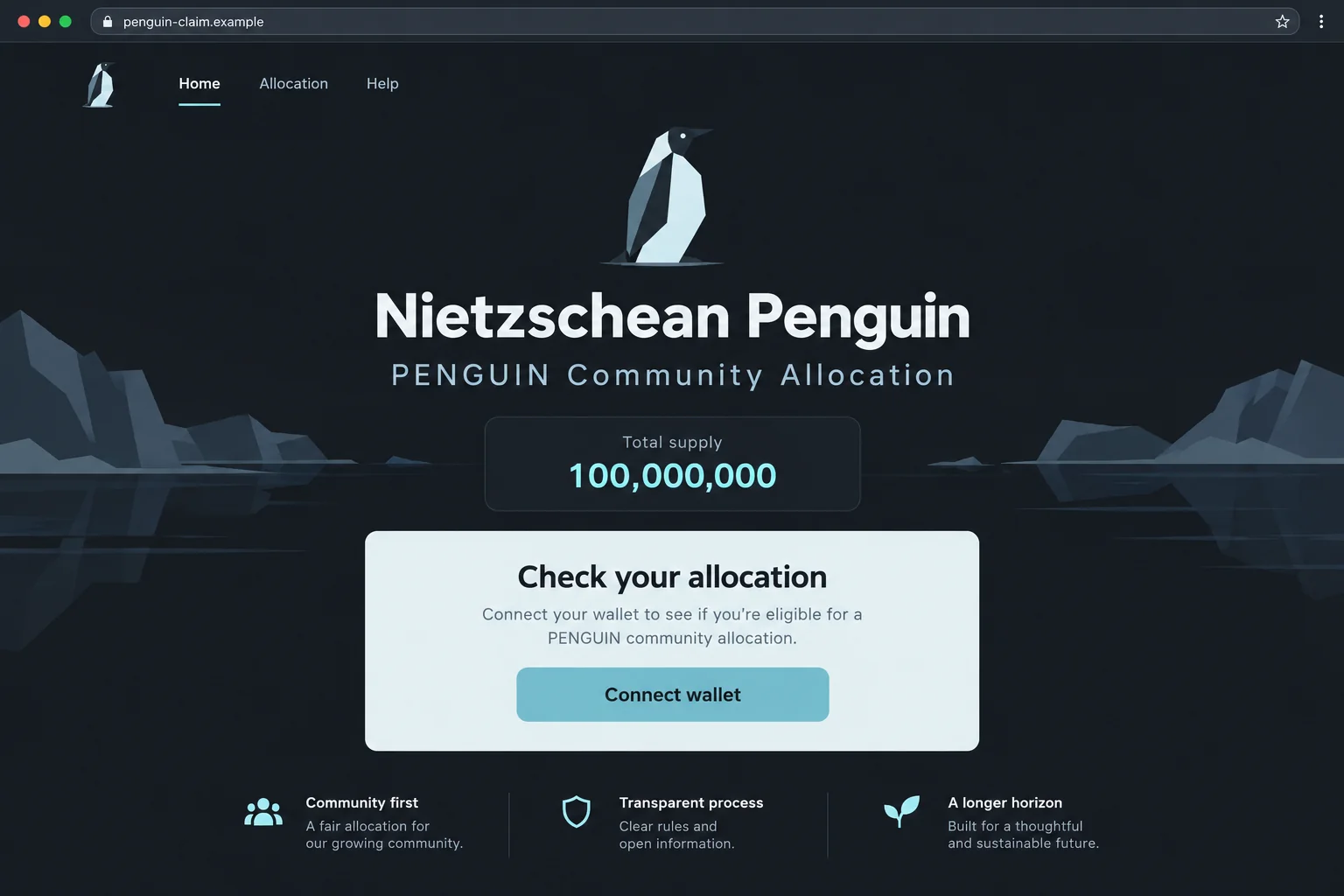
The lead image is an original interface illustration. It explains the claim-page format without pretending to be a fresh capture of one of the reported websites.
Why the Penguin Name Is Not Enough to Identify a Safe Offer
Memecoin communities often share symbols, mascots, jokes, and abbreviated names. A visitor can recognize the visual theme without knowing the identity of the operator.
That gap creates room for imitation. A new page can borrow the familiar word and add allocation, rewards, or event to make itself sound connected.
The result may feel like a natural extension of a community the reader has already encountered. The claim button then asks for trust the page has not earned.
Do not use popularity as a shortcut. Search interest, a busy social thread, or a rapidly circulating screenshot does not verify the destination that asks for wallet access.
Even an account you recognize can share an unsafe link after being compromised or misled. The route should be checked independently of the person posting it.
A ticker is another weak shortcut. Different assets can use similar labels, and a page can print a real ticker without interacting with the real asset.
If an offer identifies a contract, compare it through independently verified project information and the correct network. Do not buy or sign merely to perform that comparison.
The safest result of a failed identity check is not a smaller test payment. It is declining the offer without giving it access to an account.
How the Nietzschean Penguin Airdrop Scam Works
Step 1: A free-token invitation turns recognition into curiosity
The promotion uses a recognizable theme to make the claim feel relevant. Visitors are invited to discover whether their wallet has an allocation waiting.
Eligibility language is effective because it promises an answer about the reader personally. People may click even when they would never purchase the token outright.
There is also an apparent absence of financial commitment. A free claim sounds safer than a deposit, even though wallet authorization can expose existing assets.
Do not measure the risk only by the amount the page asks you to pay. First ask what authority it wants you to grant.
An invitation received through an advertisement, reply, or direct message still needs independent verification before any wallet interaction.
Step 2: A lookalike destination supplies an official-looking setting
A claim page can display the token name, a mascot, supply figures, and community language. These details establish a story, not ownership or approval by an issuer.
One reported page presents a total-supply figure. That number does not demonstrate a genuine allocation, reserve, market value, or ability to deliver tokens.
A polished interface can be produced without control of the real project. The relevant proof has to come from outside the claim page.
Leave the invitation and locate the project’s communication channels independently. Compare the exact event, address, network, and conditions rather than settling for a similar name.
If the relationship cannot be established, do not connect in order to ask the website whether it is official.
Step 3: The visitor is prompted to bring a wallet into the process
Connecting can reveal an address and allow the application to request additional actions. It does not, by itself, demonstrate that a blockchain transfer has occurred.
That distinction matters for both prevention and recovery. A person who only connected needs to inspect what followed, not assume either total safety or immediate loss.
Watch for requests that appear after the connection. The website may call them eligibility checks, claim confirmation, synchronization, or another harmless-sounding task.
The wallet’s own prompt is more important than that label. Read the action, account, network, recipient, asset, and amount it actually displays.
If the prompt is unclear, reject it. An expiring reward is not a good reason to approve an action you cannot explain.
Step 4: A disguised authorization can put existing assets at risk
A fraudulent claim may seek a transfer or permissions that affect assets already in the wallet. The valuable object is your authorization, not the advertised free token.
Different networks and wallets represent authority differently. Avoid assuming every request is an Ethereum allowance or that every signature is merely a harmless login.
A request to reveal recovery words is another, more direct boundary. A web promotion must not receive the secret backup that can recreate wallet control.
The exact payload for these reported sites was not available for examination. That limitation does not make it sensible to experiment with a funded wallet.
Reject unfamiliar requests and leave. Do not try several wallets to find one the page accepts.
Step 5: The supposed claim can end without the promised reward
A page might show success, failure, or no visible result. None of those states tells you reliably what the wallet authorized or what reached the blockchain.
Check activity in the genuine wallet and an appropriate independently accessed explorer. A submitted request, pending transaction, and finalized transfer are not interchangeable.
If a transfer is confirmed, record its identifier and destination. If an authorization remains, use the relevant wallet’s official guidance to understand and remove it.
Do not make a new payment to release a missing allocation. That would put more real assets behind an offer that has not established its legitimacy.
Once the interaction looks wrong, focus on protecting existing holdings rather than trying to complete the giveaway.
What to Check Before Treating an Allocation as Real
The website and the issuer are different identities
A campaign domain can contain the complete token name and still belong to an unrelated operator. Words such as official or allocation are not credentials.
One reported address no longer produced a usable page when checked. Do not keep searching for a replacement claim link simply to make the promotion work.
A page being offline does not prove fraud. The reason to reject this offer is its reported counterfeit giveaway and wallet-access trap, not a loading error.
The advertised reward and the requested action must agree
A claim for incoming tokens should not distract you from an outgoing transfer or broad authority over unrelated assets. Read the request as its own transaction decision.
If the wallet displays a warning or an unexpected network, stop. Do not disable protection because the claim page says a warning is normal.
A small asset balance also does not make every experiment safe. The same account or secret may control other assets that the current screen does not show.
Permissions require the right recovery instructions
Phantom’s approval guidance explains that malicious token authority can remain after a site is disconnected. Use instructions that match your actual wallet and network.
MetaMask distinguishes application permissions from other forms of access too. A removed connection is not proof that every on-chain permission has disappeared.
Neither resource authenticates this giveaway. They help explain why the cleanup must follow the real authorization rather than the promotion’s vocabulary.
Do Not Let an Unknown Token Pull You Back Into the Page
A token appearing in a wallet is not the same as a verified reward. Public addresses can receive unsolicited assets without the owner requesting them.
Do not follow a token’s website field simply because it appears inside a genuine wallet application. The application can display metadata without endorsing the linked promotion.
If an unfamiliar asset appears after your visit, record what you see and check official wallet help. Avoid trying to claim, swap, or unlock it through unsolicited instructions.
A displayed price is not proof that a real market will buy the asset at that value. Do not budget around a windfall shown by an unknown promotion.
The same reasoning applies to a fake allocation counter. It can show a large quantity without establishing that the account can receive or spend anything.
Keep these questions separate from the safety of your existing holdings. An unwanted token does not automatically prove exposed keys, while an impressive reward does not prove safety.
Use the actual access record to decide what needs protection. The story told by the new token or claim page should not direct the investigation.
What to Do if You Have Fallen Victim to This Scam
Reject new requests and leave the allocation page. Do not try to repair the claim, pay a verification fee, or move to a support chat it recommends.
Save the exact address and describe the last action you took. Being specific now will make later checks much more useful.
Review activity in your genuine wallet. Identify the affected account and network, then inspect recent requests and transactions.
Keep any transaction hash and check its status. An empty reward panel is not proof of theft, while a reassuring panel is not proof that nothing happened.
Remove harmful authority where applicable. Follow verified wallet instructions for the permission actually granted. Revoke it through a trusted route rather than a new link from a stranger.
Some changes require a legitimate network transaction and fee. A payment sent to the claim site’s operator is not the same thing as revoking authority.
Replace exposed wallet secrets. If you entered a private key or recovery phrase, stop treating the old wallet as securely controlled.
Create a fresh wallet safely and obtain verified assistance with protecting remaining assets. Reinstalling the app or changing its PIN does not replace leaked keys.
Keep the new backup private. Do not add funds to the compromised account casually; automated draining can make moving assets more difficult.
Investigate any installed extension or application. If the claim required software, check its source and involve trusted technical support when needed.
Malwarebytes can assist with device-malware checks. AdGuard may reduce deceptive ad exposure, but neither cancels blockchain activity nor makes a compromised wallet backup safe.
Report with usable transaction evidence. Provide the promotion URL, relevant public addresses, transaction identifiers, network, and times to the appropriate wallet support and authorities.
Never include recovery words in a report. Public transaction details may help an investigation, but tracing an asset is not a promise that it can be returned.
Protect yourself from a recovery follow-up. Unsolicited accounts may offer to retrieve tokens after seeing a public complaint.
Reject guaranteed results, requests for your wallet backup, and demands for another transfer to unlock a refund. Ask for help through channels you independently chose.
Is Your Device Infected? Run a Free Malware Scan
Slow performance, constant pop-ups, or strange behavior? These are classic signs of a malware infection. A quick way to check is to scan your device with Malwarebytes Free, one of the most trusted malware removal tools available. If you only visited a scam page and didn’t download or install anything, this scan is optional.
The free version detects and removes the most common threats, including:
- Adware — the cause of those annoying pop-ups
- Browser hijackers — unwanted redirects and changed homepages
- Trojans and spyware — hidden programs stealing your data
- Potentially unwanted programs (PUPs) — software you never asked for
👉 Select your device below — Windows, Mac, or Android — then follow the simple steps to download Malwarebytes, scan your system, and remove any threats it finds. The scan usually takes 5 to 20 minutes.
Run a Malware Scan with Malwarebytes for Windows
Malwarebytes is one of the most popular and trusted anti-malware tools for Windows — and it’s completely free for removing infections. It catches threats that many antivirus programs miss, including adware, browser hijackers, and trojans. Follow the steps below to scan your PC and remove what Malwarebytes finds.
Download Malwarebytes
Click the button below to download the latest version of Malwarebytes for Windows from the official source. The free version is all you need — it will scan your computer and remove adware, browser hijackers, and other malicious software at no cost.
Download MalwarebytesOfficial installer for Windows 11 and 10. Your download starts right away.Want real-time protection? See Malwarebytes Premium Malwarebytes Free for WindowsScans and removes malware at no cost
-
Install Malwarebytes
When the download finishes, open your Downloads folder and double-click the MBSetup file. If Windows shows a User Account Control pop-up, click “Yes” to allow the installation.

Follow the On-Screen Prompts to Install Malwarebytes
The setup wizard will walk you through a few quick screens:
-
Choose where you’re installing the program — “Personal Computer” or “Work Computer” — then click Next.

-
Malwarebytes will now install on your device. This usually takes under a minute.

-
When installation is complete, the “Welcome to Malwarebytes” screen will open automatically.

-
On the final screen, click Open Malwarebytes to launch the program.

-
Optional: Check for rootkits with a Custom Scan
You don’t need to change any settings for a normal scan. The standard Threat Scan in the next step is enough for most problems, so you can go straight to it.
If you also want to check for rootkits, use a Custom Scan. In current versions of Malwarebytes, rootkit scanning is only available there:
- On the Scanner tile, click the three-dot menu and select Advanced Scan.
- Choose Custom Scan. In its options, check Scan for rootkits.
- Select your system drive (usually C:\) as the location to scan, then start the scan. It takes longer than a Threat Scan.
- When it finishes, review and quarantine the results as described in the steps below.
Rootkit scanning isn’t available on Windows devices with ARM processors.
Start the Scan
Click the blue Scan button. Malwarebytes will automatically update its virus database and start checking your computer for malware.

-
Wait for the Scan to Finish
The scan checks your entire system for browser hijackers and other malicious programs, so it can take 5 to 20 minutes depending on your computer. Feel free to do something else — just check back occasionally to see the progress.

-
Quarantine the Detected Threats
When the scan is done, you’ll see a list of everything Malwarebytes found — malware, adware, and potentially unwanted programs. Click the “Quarantine” button to remove all of them at once.

Malwarebytes will now remove the malicious files and registry entries and move them safely into quarantine.

-
Restart Your Computer
Some threats can only be fully removed after a reboot. If Malwarebytes asks you to restart, click Yes. Once you’re logged back in, Malwarebytes has finished removing the threats it found.

When the scan is done, check whether the problems you noticed have stopped. If they continue, see the options below.
If you are still having problems with your computer after completing these instructions, then please follow one of the steps:
- Run a computer scan with ESET Online Scanner
- Ask for help in our Windows Malware Removal Help & Support forum.
Run a Malware Scan with Malwarebytes for Mac
Malwarebytes for Mac is a free on-demand scanner that removes the malware other security software tends to miss — adware, browser hijackers, and unwanted programs included. Cleaning an infected Mac with Malwarebytes has always been completely free, and it’s our go-to recommendation. Follow the steps below to scan your Mac and remove what Malwarebytes finds.
-
Download Malwarebytes for Mac
Click the button below to download the latest version of Malwarebytes for Mac.
Download MalwarebytesOfficial installer for macOS. Your download starts right away.Want real-time protection? See Malwarebytes PremiumMalwarebytes Free for MacScans and removes malware at no cost -
Open the Malwarebytes setup file
When the download finishes, open your Downloads folder and double-click the setup file to begin the installation.

-
Follow the On-Screen Prompts to Install Malwarebytes
The Malwarebytes for Mac Installer will guide you through a few quick screens. Click “Continue” and keep following the prompts until the installation completes.



When the installation is complete, Malwarebytes opens to the Welcome to Malwarebytes screen. Click “Get started“.
Malwarebytes needs Full Disk Access to check your whole Mac. When it asks, open System Settings > Privacy & Security > Full Disk Access, turn on Malwarebytes (it may be listed as Malwarebytes Protection), and confirm with your password or Touch ID. Then return to Malwarebytes. On macOS Monterey and earlier, this setting is in System Preferences > Security & Privacy > Privacy.
-
Select “Personal Computer” or “Work Computer”
Malwarebytes will ask what type of computer you’re installing it on. Click either Personal Computer or Work Computer, whichever applies.

-
Start the Scan
Click the “Scan” button. Malwarebytes will automatically update its detection database and begin checking your Mac for malware.

-
Wait for the Scan to Finish
Malwarebytes will scan your Mac for adware, browser hijackers, and other malicious programs. This can take a few minutes, so feel free to do something else — just check back occasionally to see the progress.

-
Quarantine the Detected Threats
When the scan is done, you’ll see a list of everything Malwarebytes found. Click the “Quarantine” button to remove all the threats at once.

-
Restart Your Mac
Malwarebytes will now remove all the malicious files it found. Some threats can only be fully removed after a reboot — if Malwarebytes asks you to restart, allow it. Once you’re logged back in, check whether the problems you noticed have stopped. If they come back, save the scan report and ask for help in our forum.

If the problems you noticed continue after the scan, see the options below.
If you are still experiencing problems while trying to remove a malicious program from your computer, please ask for help in our Mac Malware Removal Help & Support forum.
Run a Malware Scan with Malwarebytes for Android
Malwarebytes for Android scans your phone or tablet for malware, adware, and potentially unwanted apps. The free version scans only when you start a scan. Real-time protection, which checks apps automatically, is part of the paid Premium version.
-
Download Malwarebytes for Android.
You can download Malwarebytes for Android by clicking the link below.
Get Malwarebytes for AndroidOpens Google Play in a new tab.Want real-time protection? See Malwarebytes Premium for AndroidMalwarebytes for AndroidScans your phone and removes malware at no cost -
Install Malwarebytes for Android on your phone.
In the Google Play Store, tap “Install” to install Malwarebytes for Android on your device.

When the installation process has finished, tap “Open” to begin using Malwarebytes for Android. You can also open Malwarebytes by tapping on its icon in your phone menu or home screen.

-
Follow the on-screen prompts to complete the setup process
When Malwarebytes opens, it walks you through a short setup. Tap Get started and follow the prompts. If you see an offer for a trial or a paid plan, read it before you accept. You can skip it and keep using the free scanner.
Malwarebytes will ask for permission to access the files on your phone so it can scan them. Tap Allow, or turn on the permission in the Android screen that opens, then return to Malwarebytes.
-
Run a scan with Malwarebytes for Android
On the main screen, tap Scan now. In some versions, you open the menu, tap Scanner, and then tap Run a scan.
-
Wait for the Malwarebytes scan to complete.
Malwarebytes will now start scanning your phone for adware and other malicious apps. This process can take a few minutes, so we suggest you do something else and periodically check on the status of the scan to see when it is finished.

-
Remove the detected apps.
When the scan has been completed, you will see a list of the threats that Malwarebytes for Android has detected. Next to each detected item, tap the menu icon (three dots), then choose to uninstall the app or delete the file. Android then asks you to confirm. Tap OK or Uninstall to remove the app.
-
Restart your phone.
When the detected apps are removed, restart your phone if Malwarebytes asks you to. Then check whether the problems you noticed have stopped.
If the problems you noticed continue after the scan, see the options below.
If you are still having problems with your phone after completing these instructions, then please follow one of the steps:
- Ask for help in our Mobile Malware Removal Help & Support forum.
- Only as a last resort, reset your phone to factory settings. Read the warning below first.
- Back up your photos, videos, files, and messages, for example to your Google account or a computer.
- Make sure you know your Google account email and password. The phone asks for them after the reset. If you changed the password recently, Google recommends waiting 24 hours before you reset.
- On a Samsung phone, also make sure you know your Samsung account password.
- If you use an authenticator app for two-step verification, move your accounts to another device or save your backup codes first.
Stay Protected: Block Ads and Malicious Sites
No scan can prove a device is completely clean, so it helps to block threats before they reach you. Most infections start with a malicious ad or a fake download button — so blocking them at the source is your best defense.
We recommend AdGuard, which blocks malicious ads, phishing pages, and dangerous redirects before they can reach you.
👉 Download AdGuard and browse safely
Frequently Asked Questions
What is the Nietzschean Penguin airdrop scam?
It is a counterfeit free-token promotion using the PENGUIN identity to solicit wallet activity. The warning targets the deceptive claim pages, not every similarly named asset.
Are all penguin-themed crypto projects scams?
No such conclusion follows from this case. A project and an impersonating allocation page are different entities; investigate the exact domain and request.
Does a 100,000,000 supply figure prove a real reward?
No. A number displayed on a claim page does not establish issuance, eligibility, funding, value, or a genuine right to receive tokens.
What if I connected but rejected the next prompt?
Review the wallet’s actual activity and remove the connection. Rejected requests differ from completed authorizations; do not assume funds moved without checking the record.
Can disconnecting undo a transaction I already approved?
Disconnecting does not reverse a finalized transfer. It may also leave other permissions intact, so inspect the specific authorization using guidance for your wallet.
Should I use a recovery website suggested in the comments?
Not on that recommendation alone. Recovery impersonators target distressed users; verify help independently and never disclose keys or pay to activate a supposed refund.
The Bottom Line
Skip these Nietzschean Penguin claim pages. Recognizable branding and an allocation promise are not a reason to let an unverified website direct your wallet activity.
If you already interacted, check the actual authorization and secure remaining assets. Work through genuine wallet support, not the promotion or someone promising an effortless recovery.

Join the discussion
0 commentsShare your experience or ask a question about this article.
Community experiences
Did this happen to you?
Your experience could help someone recognize the same scam. Submit a private report for our team to review.
I experienced this tooReports are reviewed before publication. Sharing publicly is always your choice.
Discussion
Start the conversation
Have a question or something useful to share? Add the first comment.