

A request for 40 pumps lands in your sales inbox with a famous healthcare company’s name attached. For a small supplier, that could be a significant order.
The accompanying document asks for the details a purchasing department would normally need. It’s worth checking who is asking before your team starts preparing the quotation.
Overview
A recognizable buyer is used to attract suppliers
The Johnson & Johnson quotation request email scam impersonates corporate procurement. It approaches a business as a potential customer rather than threatening the recipient with an account problem.
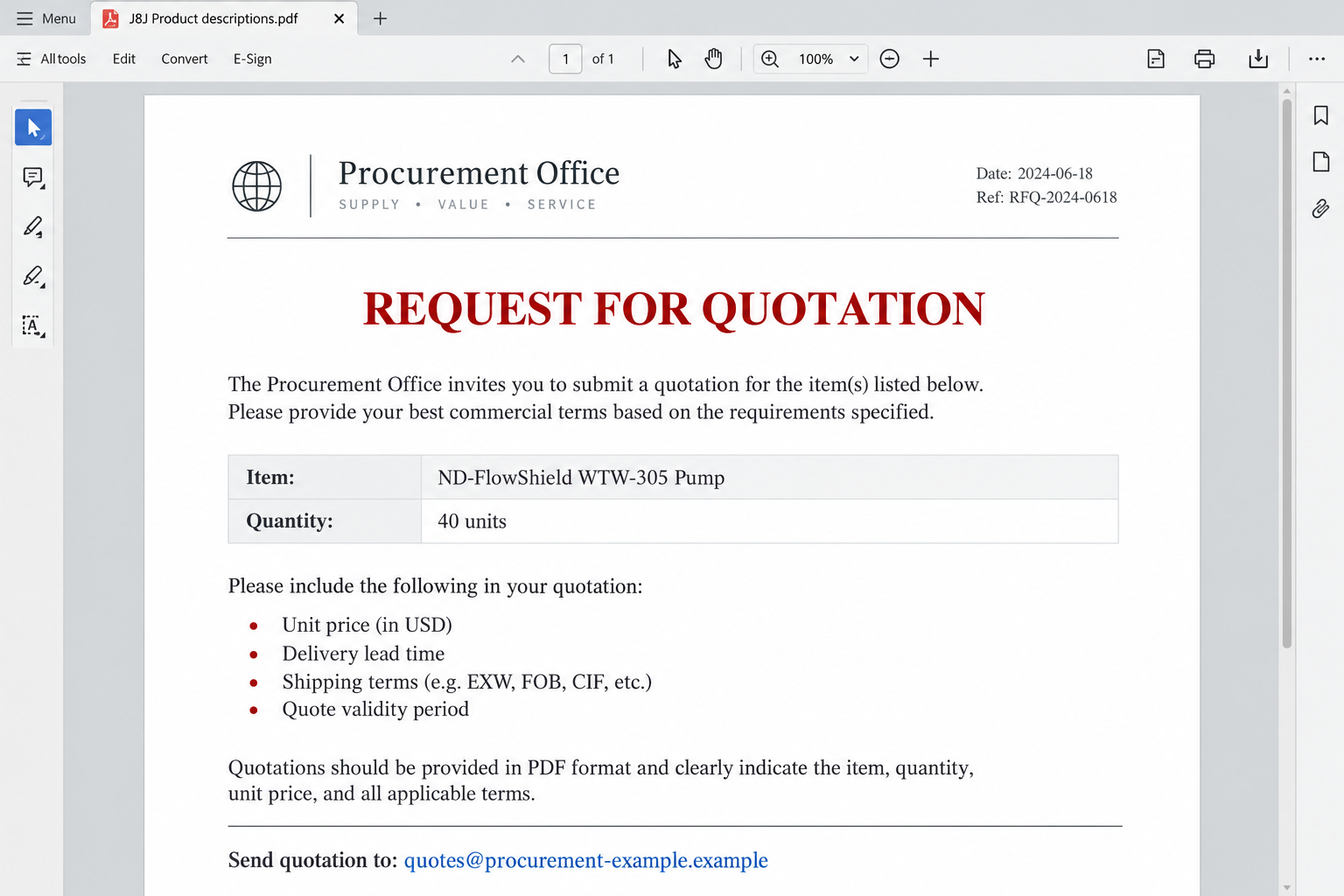
The reported request names an ND-FlowShield WTW-305 pump and asks for 40 units. Replies are directed to quotes@jnj-supplies[.]com.
Johnson & Johnson is a genuine company with genuine supplier relationships. This warning concerns the fraudulent approach using its identity, not the company’s procurement operation.
A formal PDF makes the request look procedural
A document named J8J Product descriptions.pdf accompanies the message. The request asks for commercial information such as prices, lead times, delivery conditions, and quotation validity.
Those are normal subjects for an RFQ. Their presence does not verify the sender, establish a purchase commitment, or authorize a supplier to bypass customer checks.
The image above is an original illustration of the document format, not the campaign’s PDF. Its example address is deliberately nonfunctional.
The risk begins with accepting a false buyer identity
The opening request draws the supplier into correspondence. Later requests for sensitive information, payments, or special purchasing arrangements are possible escalations, not transactions demonstrated by the initial document.
- A large buyer’s name encourages the recipient to treat the inquiry as a valuable lead.
- A technical item description gives sales staff something concrete to quote.
- A separate reply domain can channel correspondence away from established company contacts.
- A PDF, signature block, or tax reference can be copied into fabricated paperwork.
- Business details shared during quoting can help an impersonator make the next approach more convincing.
Do not submit a quotation or payment through this approach. First establish whether the real company initiated the request, using a contact route the email did not supply.
Why a Fake Customer Can Be More Persuasive Than a Fake Bill
Sales teams are supposed to respond to new opportunities. An unsolicited inquiry is not automatically suspicious, and many genuine customers begin with an email.
That ordinary openness is what makes procurement impersonation effective. The recipient may be rewarded for responding quickly, especially when the request names a recognizable organization.
The sender also gives staff a task they know how to complete. They can check inventory, request pricing, estimate shipping, and prepare a professional response.
Each task invests more time in the opportunity. Once several colleagues are involved, stopping to question the buyer can feel like losing work already done.
A precise model number makes the request look informed. But specificity is not the same as authenticity, and a plausible product name does not prove a buyer needs it.
This distinction is especially important if your business does not sell the requested item. An unexpected specification should prompt questions, not a rush to source it.
A fake prospect can exploit helpfulness as easily as fear. You can remain welcoming to new business while insisting on independent verification before taking consequential steps.
The useful question is not whether a multinational might buy pumps. It is whether this particular person is authorized to make this particular request.
How the Johnson & Johnson Quotation Request Scam Works
Step 1: An apparent procurement manager introduces an order opportunity
The sender adopts the role of a purchasing professional and presents a formal RFQ. That role gives the message an immediate business purpose.
Instead of asking for money at once, the opening asks the supplier to demonstrate capability. A quotation feels like a low-risk way to begin a relationship.
The claimed manager’s identity should be treated as unverified. A real person’s name, if copied, would not establish that the person sent or authorized the message.
Before responding, check your customer records and ask the relevant account owner whether there is an existing relationship with the supposed buyer.
A familiar company name is a reason to verify carefully, not a reason to skip verification.
Step 2: The attachment supplies the appearance of a real tender
The document adds structure to the request. Commercial fields and submission conditions make it resemble paperwork that has already passed through an internal procurement process.
That presentation can encourage staff to focus on compliance with the form rather than the legitimacy of the person sending it.
A PDF is a container for content, not a certificate of authenticity. Anyone can create one with a company name, address, and signature block.
Do not follow a document’s link into a new login page or install a viewer it recommends. A quotation task does not justify surrendering mailbox access.
No specific malware was established in this reported attachment. Keep file safety separate from the equally important question of whether the buyer is genuine.
Step 3: The reply destination becomes the center of the relationship
The requested quotation goes to a domain that resembles the company’s initials with an added supplies label. That resemblance is meant to feel commercially plausible.
A domain can include an organization’s initials without belonging to it. Do not infer affiliation from spelling, a logo, or the fact that email reaches the address.
Compare the destination with contacts obtained through the company’s independently opened website. Ask the real organization to confirm the request and communication channel.
Do not ask only the suspicious sender to confirm their own address. They can answer yes and provide another document using the same fabricated identity.
An ordinary website at the domain, if one appears, would not settle the matter either. A web page and a mailbox can be built to support the same story.
Step 4: The supplier may reveal information or accept new conditions
A quotation can disclose staff names, direct telephone numbers, pricing, stock levels, bank instructions, and business identifiers. Not all of that belongs in an unverified first reply.
Much of this information may be routine within an established relationship. In an impersonation, it can help someone tailor later requests to your actual business.
If the supposed buyer introduces an administrative fee, special registration payment, or unusual purchase requirement, stop and verify before proceeding.
Those are potential next stages of procurement fraud. The initial RFQ does not prove that any particular fee, account, or intermediary was already used.
Never let a promising order become the justification for paying a stranger simply to keep the opportunity alive.
Step 5: Commercial pressure can override normal approval controls
A fast-moving exchange can create the impression that approval is nearly complete. Staff may feel that only one document, payment, or supplier arrangement remains.
Keep your usual separation between sales, finance, purchasing, and shipping. An email conversation should not authorize all four functions by itself.
A supposed purchase order also needs verification before goods leave your control. Check the customer, delivery location, payment terms, and any last-minute changes.
If a request turns out to be fraudulent, stop the workflow across the team. A colleague should not continue sourcing or dispatching after another person spots the problem.
The goal is to end reliance on the false customer identity before it becomes a financial or operational loss.
Buyer Identity, Reply Domain, and Document Checks
Use the real company’s supplier resources
Johnson & Johnson maintains an official supplier resource page. Reach it independently, then use appropriate established channels to ask about an unfamiliar procurement approach.
The existence of supplier resources does not mean every inquiry must follow an identical format. It gives you a company-controlled starting point outside the suspicious correspondence.
If your firm already supplies the company, use the contact or procurement system from that relationship. Do not replace it with a new address solely because an email instructs you.
A copied address does not establish a buyer
A real street address or valid-looking business identifier can make an RFQ look substantial. Neither detail proves who controls the reply mailbox.
Do not label a named office fake merely because it appears in fraudulent paperwork. Impersonators can reuse genuine organizational details.
Likewise, a telephone number printed in the attachment is part of the claim being checked. Find a suitable company contact independently rather than treating that number as confirmation.
A quote is not a reason to disclose everything
Share only what the verified stage of the business relationship requires. A first inquiry rarely needs personal identity documents, login credentials, or unrestricted financial records.
Redact unnecessary bank and customer details from examples you use internally. Preserve the original privately so your security or finance team can investigate.
For a suspicious business-payment request, the FBI’s business email compromise guidance offers useful context. It does not independently identify the operator behind this RFQ.
Keep Quoting, Purchasing, and Shipping as Separate Decisions
A price quotation is not an approved order. Even a genuine inquiry leaves commercial questions unresolved, including who pays, where goods go, and who accepts delivery.
Record each stage separately in your customer process. The person handling a sales email should not accidentally authorize expenditure simply by asking another team to source an item.
If an unfamiliar buyer recommends a particular distributor, verify that supplier independently too. This is a precaution against a possible sourcing trap, not an established stage of this RFQ.
Do not let a supposed buyer’s confidence replace your own checks on availability, specifications, payment terms, and the business receiving your money.
Before dispatch, verify any newly introduced delivery address through the authenticated customer relationship. A convincing purchase order cannot explain away every last-minute change.
Keep a clear approval record so a colleague can see which facts were confirmed and which still depend on the email sender’s word.
These boundaries protect genuine transactions as well. A real customer can tolerate reasonable verification more easily than your business can absorb a preventable fraudulent order.
What to Do if You Have Fallen Victim to This Scam
Freeze the particular sales opportunity. Tell everyone handling the quote that the buyer has not been authenticated and that no payment or shipment should proceed.
List pending actions, including supplier purchases, credit approval, dispatch, and document submission. Canceling an email task alone may leave an operational task running elsewhere.
Verify through an independent corporate contact. Use your existing account relationship or contact information obtained from the real company’s website.
Ask whether the inquiry, named contact, requested item, and reply domain belong to an authorized procurement process. Do not send sensitive documents just to obtain that confirmation.
Inventory what your team already disclosed. Separate an ordinary price list from bank details, personal documents, credentials, or confidential customer information.
Tell the relevant finance, security, or privacy lead what was shared. That lets the response match the information rather than treating every quotation as a stolen bank account.
Contact the payment provider if money left. Give the bank or other provider the beneficiary details, amount, reference, and time.
Request its fraud and recovery process promptly. Keep receipts and correspondence, and do not pay an additional fee to the sender to reverse the first payment.
Protect accounts and devices only where exposure occurred. If someone entered a password, recover that account through its real provider and review unauthorized access.
If a file or viewer was run, involve IT and use Malwarebytes for appropriate malware checks. AdGuard may reduce malicious advertising exposure, not authenticate a customer.
Do not run another attachment to see whether it behaves the same way. Receiving a PDF is not, by itself, proof that a device was infected.
Preserve the evidence without circulating the trap. Keep original emails, headers, the attachment, payment records, and any shipping instructions in your controlled incident records.
Warn colleagues through a clean internal message, preferably without clickable suspect links. Report the impersonation through the company’s genuine channels and relevant authorities.
Review the process that nearly approved the customer. Add an independent buyer check before new-customer payments, unusual sourcing requests, or release of goods.
The lesson is not to ignore new sales leads. It is to keep an attractive opportunity from overruling the same controls used for ordinary customers.
Is Your Device Infected? Run a Free Malware Scan
Slow performance, constant pop-ups, or strange behavior? These are classic signs of a malware infection. The fastest way to find out is to scan your device with Malwarebytes Free — one of the most trusted malware removal tools available.
The free version detects and removes the most common threats, including:
- Adware — the cause of those annoying pop-ups
- Browser hijackers — unwanted redirects and changed homepages
- Trojans and spyware — hidden programs stealing your data
- Potentially unwanted programs (PUPs) — software you never asked for
👉 Select your device below — Windows, Mac, or Android — then follow the simple steps to download Malwarebytes, scan your system, and remove any threats it finds. The scan usually takes 5 to 20 minutes.
Run a Malware Scan with Malwarebytes for Windows
Malwarebytes is one of the most popular and trusted anti-malware tools for Windows — and it’s completely free for removing infections. It catches threats that many antivirus programs miss, including adware, browser hijackers, and trojans. Follow the steps below to scan and clean your PC in just a few minutes.
Download Malwarebytes
Click the button below to download the latest version of Malwarebytes for Windows from the official source. The free version is all you need — it will scan your computer and remove adware, browser hijackers, and other malicious software at no cost.
Download MalwarebytesOfficial installer for Windows 11 and 10. Your download starts right away.Want real-time protection? See Malwarebytes Premium Malwarebytes Free for WindowsScans and removes malware at no cost
-
Install Malwarebytes
When the download finishes, open your Downloads folder and double-click the MBSetup file. If Windows shows a User Account Control pop-up, click “Yes” to allow the installation.

Follow the On-Screen Prompts to Install Malwarebytes
The setup wizard will walk you through a few quick screens:
-
Choose where you’re installing the program — “Personal Computer” or “Work Computer” — then click Next.

-
Malwarebytes will now install on your device. This usually takes under a minute.

-
When installation is complete, the “Welcome to Malwarebytes” screen will open automatically.

-
On the final screen, click Open Malwarebytes to launch the program.

-
Enable “Scan for Rootkits”
Before scanning, turn on rootkit detection so Malwarebytes can find even the most hidden threats. Click the Settings gear icon on the left side of the screen.

In the settings menu, find “Scan for rootkits” and click the toggle so it turns blue.

Done? Click “Dashboard” in the left pane to return to the main screen.
Start the Scan
Click the blue Scan button. Malwarebytes will automatically update its virus database and start checking your computer for malware.

-
Wait for the Scan to Finish
The scan checks your entire system for browser hijackers and other malicious programs, so it can take 5 to 20 minutes depending on your computer. Feel free to do something else — just check back occasionally to see the progress.

-
Quarantine the Detected Threats
When the scan is done, you’ll see a list of everything Malwarebytes found — malware, adware, and potentially unwanted programs. Click the “Quarantine” button to remove all of them at once.

Malwarebytes will now remove the malicious files and registry entries and move them safely into quarantine.

-
Restart Your Computer
Some threats can only be fully removed after a reboot. If Malwarebytes asks you to restart, click Yes. Once you’re logged back in, Malwarebytes has finished removing the threats it found.

That’s it — your Windows PC is now clean of trojans, adware, and other malware, and should be back to running smoothly.
If you are still having problems with your computer after completing these instructions, then please follow one of the steps:
- Run a computer scan with ESET Online Scanner
- Ask for help in our Windows Malware Removal Help & Support forum.
Run a Malware Scan with Malwarebytes for Mac
Malwarebytes for Mac is a free on-demand scanner that removes the malware other security software tends to miss — adware, browser hijackers, and unwanted programs included. Cleaning an infected Mac with Malwarebytes has always been completely free, and it’s our go-to recommendation. Follow the steps below to scan and clean your Mac in just a few minutes.
-
Download Malwarebytes for Mac
Click the button below to download the latest version of Malwarebytes for Mac.
Download MalwarebytesOfficial installer for macOS. Your download starts right away.Want real-time protection? See Malwarebytes PremiumMalwarebytes Free for MacScans and removes malware at no cost -
Open the Malwarebytes setup file
When the download finishes, open your Downloads folder and double-click the setup file to begin the installation.

-
Follow the On-Screen Prompts to Install Malwarebytes
The Malwarebytes for Mac Installer will guide you through a few quick screens. Click “Continue” and keep following the prompts until the installation completes.



When the installation is complete, Malwarebytes opens to the Welcome to Malwarebytes screen. Click “Get started“.
-
Select “Personal Computer” or “Work Computer”
Malwarebytes will ask what type of computer you’re installing it on. Click either Personal Computer or Work Computer, whichever applies.

-
Start the Scan
Click the “Scan” button. Malwarebytes will automatically update its detection database and begin checking your Mac for malware.

-
Wait for the Scan to Finish
Malwarebytes will scan your Mac for adware, browser hijackers, and other malicious programs. This can take a few minutes, so feel free to do something else — just check back occasionally to see the progress.

-
Quarantine the Detected Threats
When the scan is done, you’ll see a list of everything Malwarebytes found. Click the “Quarantine” button to remove all the threats at once.

-
Restart Your Mac
Malwarebytes will now remove all the malicious files it found. Some threats can only be fully removed after a reboot — if Malwarebytes asks you to restart, allow it. Once you’re logged back in, your Mac is clean.

That’s it — your Mac is now free of adware, rogue browser extensions, and other potentially harmful software.
If you are still experiencing problems while trying to remove a malicious program from your computer, please ask for help in our Mac Malware Removal Help & Support forum.
Run a Malware Scan with Malwarebytes for Android
Malwarebytes for Android automatically detects and removes dangerous threats like malware and ransomware so you don’t have to worry about your most-used device being compromised. Aggressive detection of adware and potentially unwanted programs keeps your Android phone or tablet running smooth.
-
Download Malwarebytes for Android.
You can download Malwarebytes for Android by clicking the link below.
Get Malwarebytes for AndroidOpens Google Play in a new tab.Want real-time protection? See Malwarebytes Premium for AndroidMalwarebytes for AndroidScans your phone and removes malware at no cost -
Install Malwarebytes for Android on your phone.
In the Google Play Store, tap “Install” to install Malwarebytes for Android on your device.

When the installation process has finished, tap “Open” to begin using Malwarebytes for Android. You can also open Malwarebytes by tapping on its icon in your phone menu or home screen.

-
Follow the on-screen prompts to complete the setup process
When Malwarebytes will open, you will see the Malwarebytes Setup Wizard which will guide you through a series of permissions and other setup options.
This is the first of two screens that explain the difference between the Premium and Free versions. Swipe this screen to continue.
Tap on “Got it” to proceed to the next step.
Malwarebytes for Android will now ask for a set of permissions that are required to scan your device and protect it from malware. Tap on “Give permission” to continue.
Tap on “Allow” to permit Malwarebytes to access the files on your phone.
-
Update database and run a scan with Malwarebytes for Android
You will now be prompted to update the Malwarebytes database and run a full system scan.

Click on “Update database” to update the Malwarebytes for Android definitions to the latest version, then click on “Run full scan” to perform a system scan.

-
Wait for the Malwarebytes scan to complete.
Malwarebytes will now start scanning your phone for adware and other malicious apps. This process can take a few minutes, so we suggest you do something else and periodically check on the status of the scan to see when it is finished.

-
Click on “Remove Selected”.
When the scan has been completed, you will be presented with a screen showing the malware infections that Malwarebytes for Android has detected. To remove the malicious apps that Malwarebytes has found, tap on the “Remove Selected” button.

-
Restart your phone.
Malwarebytes for Android will now remove all the malicious apps that it has found. To complete the malware removal process, Malwarebytes may ask you to restart your device.
That’s it — your Android phone is now clean — no more malicious apps, adware, or browser redirects.
If you are still having problems with your phone after completing these instructions, then please follow one of the steps:
- Restore your phone to factory settings by going to Settings > General management > Reset > Factory data reset.
- Ask for help in our Mobile Malware Removal Help & Support forum.
Stay Protected: Block Ads and Malicious Sites
Now that your device is clean, keep it that way. Most infections start with a malicious ad or a fake download button — so blocking them at the source is your best defense.
We recommend AdGuard, which blocks malicious ads, phishing pages, and dangerous redirects before they can reach you.
👉 Download AdGuard and browse safely
Frequently Asked Questions
Is Johnson & Johnson sending this pump quotation request?
The reported approach impersonates its procurement operation. Do not treat the company name, attachment, or claimed manager as authentication of this request.
What product does the fraudulent RFQ mention?
The request names an ND-FlowShield WTW-305 pump. Naming a technical item does not prove an authorized buyer exists or that the proposed purchase will proceed.
Does jnj-supplies.com prove a connection to the company?
No. A lookalike domain is not evidence of authorization. Confirm any proposed communication address through an independently established company contact.
Is the attached PDF confirmed to contain malware?
No specific payload was established. Treat unexpected attachments carefully, but distinguish fraudulent document content from a demonstrated malware infection.
What if I only sent a price quotation?
Stop the correspondence and check what the quote included. Notify your team if it exposed financial details, confidential information, or actions that could still trigger purchases or dispatch.
Should I pay a fee to qualify for the order?
Do not pay through this unverified approach. A fee or new purchasing condition requires independent buyer confirmation, not another assurance from the person who sent the RFQ.
The Bottom Line
Do not proceed with this Johnson & Johnson quotation request. Its corporate identity and formal-looking PDF do not establish a genuine customer or purchase commitment.
Verify the buyer outside the email thread. If your business already paid, shipped, or disclosed sensitive information, involve the relevant bank and internal team immediately.

Join the discussion
0 commentsShare your experience or ask a question about this article.
Discussion
Start the conversation
Have a question or something useful to share? Add the first comment.