

A server-password notice says mail may be limited unless you maintain the current password. The instruction is strange, but same-day urgency can hide that contradiction.
The goal is not to maintain anything. It is to make the recipient type a working webmail password into a false login form.
Overview
A same-day expiry is designed to interrupt
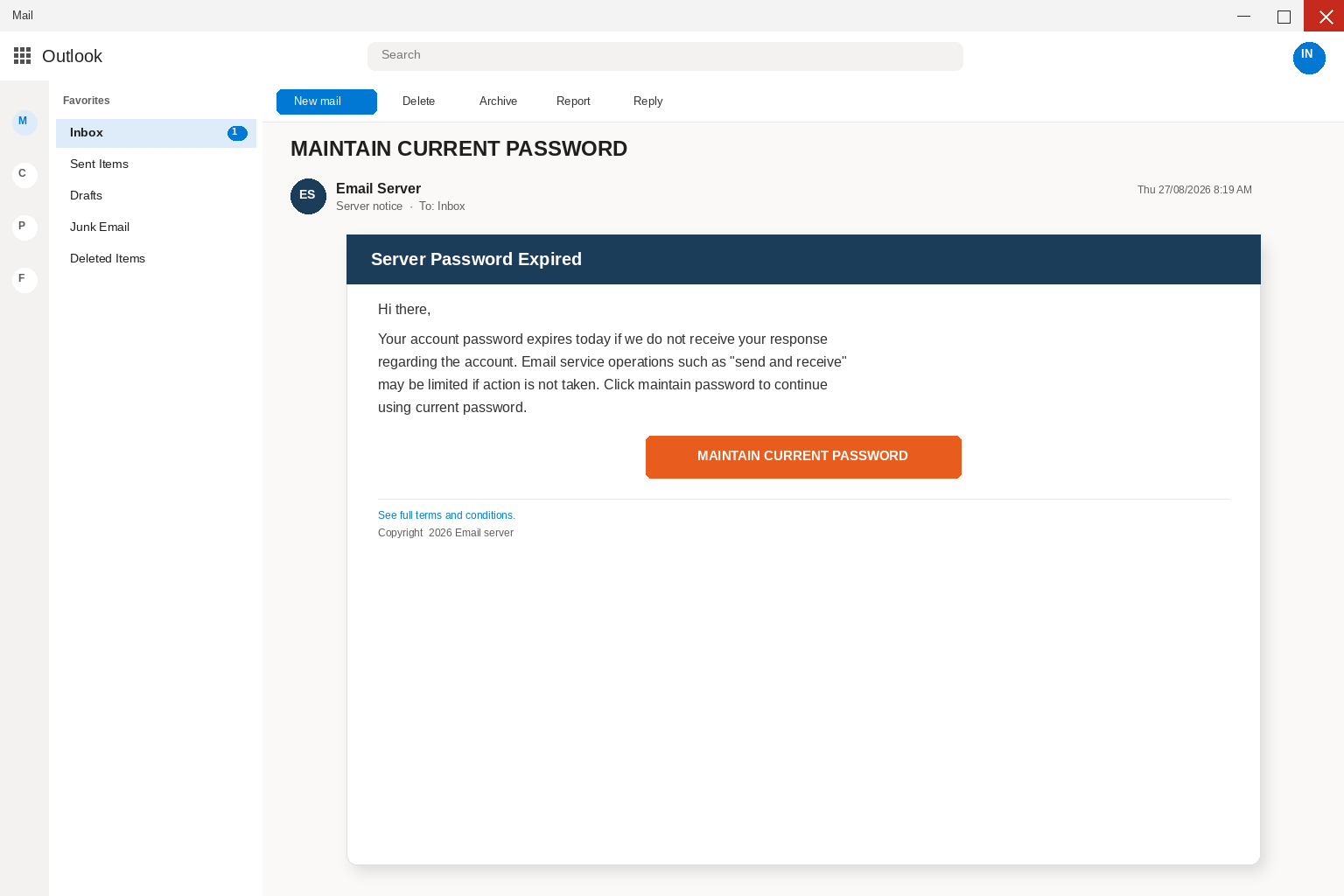
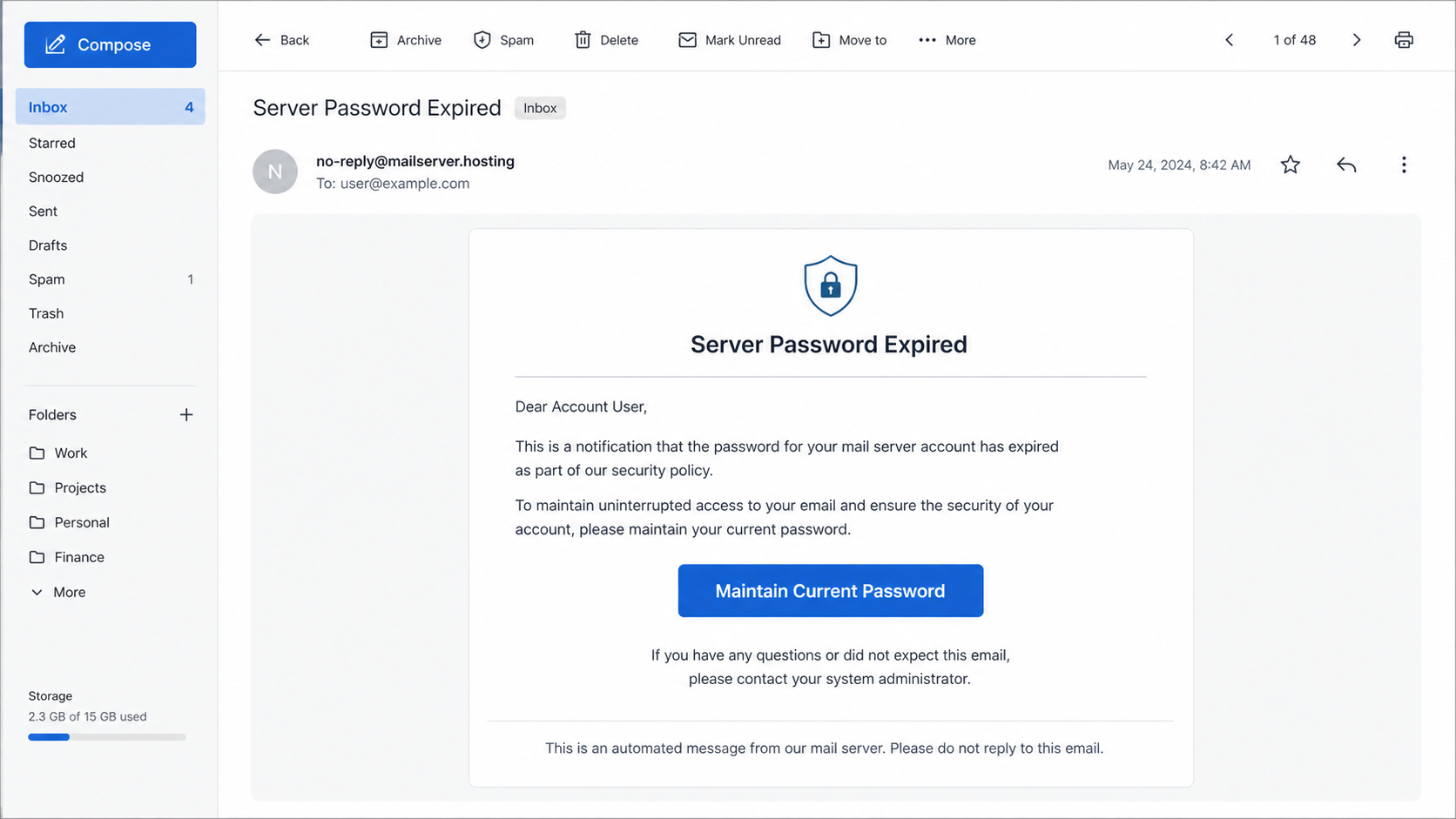
Under that heading the card says Server Password Expired, greets you with the name on the account, and tells you the password expires today
unless the server receives a response about that same mailbox.
You have seen expiry mail before, because banks send it when a password is due, workplace directories send it on a rotation, and some
hosts really do force a change on a calendar you already agreed to.
Maintain Current Password is a misleading instruction
This one is short enough to finish on a phone, and it does not attach a PDF you have to open before you can
read the rest of the warning.
It only warns that send and receive may be limited if you wait, tells you to click maintain password to continue using the current
one, and then puts that same instruction on a large button in capital letters.
The counterfeit page targets the inbox itself
You tap so send and receive stay on, so you do not have to invent a new password before lunch, and because the letter
The MAINTAIN CURRENT PASSWORD button does not keep the password you already have, because the click opens a page that asks you to type
that password, and usually the address as well, into a form the letter chose for you.
The message poses as a notice from your own email server, claims the account password expires that same day, and warns that send and
- A mail-server expiration story aimed at hosted webmail users
- A same-day deadline that creates fear of losing send-and-receive access
- A Maintain Current Password button that points away from the real host
- A fake login page built to collect mailbox credentials
- A mailbox compromise that may expose personal or business messages
- A safe way to review the account by signing in independently
People who depend on a hosted address can be especially vulnerable to a disruption warning. Mail is often tied to customers, family, bills, and password recovery.
The phish depends on that dependence. It asks the recipient to fix a made-up problem on a page the attacker owns.
A real service question can be checked without using the email’s button.
How The Scam Works
Step 1: An expiry warning arrives in the inbox
receive may be limited unless you act immediately.
a login copied from hosted webmail and dressed with the client names people who use a control panel already recognize.
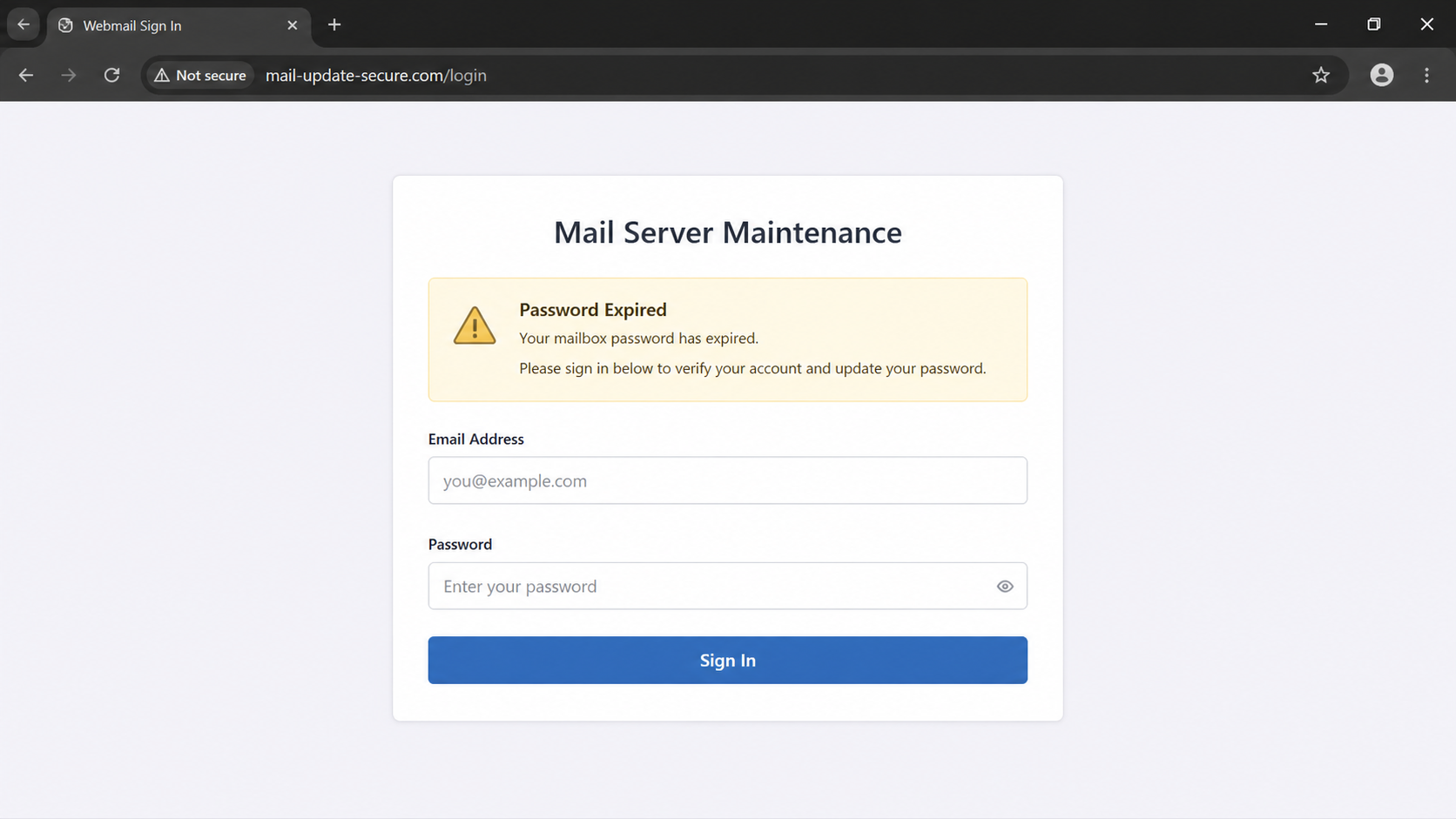
What opens next copies a cPanel-style webmail door and offers Horde, Roundcube, and SquirrelMail as if you were choosing a mail client on a real hosting panel.
Visitors are prompted for an email address and a password, and anything typed there is captured and sent along to the people who wrote the expiry note.
cPanel, L.L.C.
name is useful on a fake login and exactly why it is not proof the company sent this letter.
Anyone can put your mailbox name in a subject line, anyone can title a card Server Password Expired, and anyone can paste a 2026
copyright line onto a footer that says Email server.
Step 2: The sender impersonates a mail server
account when there is not.
email, and a MAINTAIN CURRENT PASSWORD button is information in the email.
A password expiry can be real, because panels do rotate credentials on a schedule and hosts do ask you to set a new one
before an old one lapses.
already delivered the letter, so it already knows which mailbox received it.
says the password they already typed last month is about to stop working.
The letter borrows that ordinary chore and turns it into a one-day errand, because your account password expires today if they do not receive
a response regarding the account.
Step 3: Today becomes the pressure point
Your password expires today makes the day the deadline, send and receive may be limited if action is not taken turns a missed click
into a dark inbox, and click maintain password to continue using current password makes the scare sound like a kindness, as if you can
keep the password you already remember if you only press the orange rectangle in time.
rotation email from the host you actually pay.
had time to look at the address bar.
The politeness is cheap, the terms-and-conditions link is cheap, and the copyright line for 2026 Email server is cheap.
were told to keep.
Read the button the way a tired person reads it between invoices, because maintain sounds like you are keeping something you already have, current
Step 4: The maintenance button creates the detour
sounds like you will not have to invent a new string, and password sounds like the same chore a real panel already asks for
once a year.
The subject, the expiry heading, and the send-and-receive warning have already done the shouting, the deadline, and the threat, so by the time your
eye hits the orange rectangle the errand feels mostly done and you are just confirming that the password can stay.
in the panel or the webmail you open yourself, after you type the host you already pay.
sit between those screens.
a password in place.
The letter is built for that smaller screen, with a subject that is an instruction, a body that is a short notice, and a
Step 5: The false page copies a webmail sign-in
button that is large enough to tap with a thumb while you are already inside Outlook or Gmail.
never meant to start.
It is built to look like the hosted webmail people see when a domain still lives on a control panel, with Horde, Roundcube, and
SquirrelMail offered as if you were picking a client the host already installed.
the other end is your host, cPanel, or the vendor printed on a copyright line.
not become safer when you only wanted to keep a password.
want and everything else is downstream.
Stolen accounts are also commonly sold to other criminals or used to send further phishing mail to everyone in the contact list, which is
Step 6: The password is more valuable than the supposed fix
how a single password becomes a week of letters that look like you.
immediate click, and a footer that tells you to see the terms is not a matching sender.
The subject uses your mailbox name in brackets and then says MAINTAIN CURRENT PASSWORD, which is an instruction rather than a conversation.
The card is titled Server Password Expired and greets the reader as if a daemon already knew the account, even when the rest of
the wording is generic.
It claims the password expires today unless they receive a response regarding the account, which turns an ordinary rotation into a same-day emergency.
It warns that send and receive may be limited if action is not taken, so a missed click sounds like a dark inbox rather
than a postponed chore.
Step 7: The attacker can use the mailbox after collection
It tells you to click maintain password to continue using the current password, and then repeats that instruction on the only large button in the card.
A terms-and-conditions link and a 2026 Email server copyright line sit in the footer so the card feels like a system notice instead of a stranger.
The click does not save a password, because it opens a fake webmail door with Horde, Roundcube, and SquirrelMail and then asks for the
address and the password.
PASSWORD, and with a body short enough to finish while you are standing in a doorway.
do not receive a response, plus a warning that send and receive may be limited.
which is why this costume works on people who would ignore a lottery message.
People who would delete a refund scare will still open an expiry note that looks like the rotation they have been expecting from the
Company, Address, and Fulfillment Checks
A mail-server label is not a verified provider
host, and hosted mail lives on that kind of quiet dread.
The display name says Email Server, or copies enough of your domain that the inbox treats it as furniture, and the card says Server
Password Expired as if the daemon that already holds the mailbox were speaking.
Those names are borrowed from real furniture, because hosted webmail is a real way people read mail in a browser and cPanel is a
The sign-in page must match the actual host
real control panel that real hosting companies use, which is the load-bearing detail the costume needs even though the random expiry letter is not
a navy header with Server Password Expired in white type.
costume in the inbox, and a message that wears a server’s name and then asks you to maintain a password on a surprise page
is not the server talking to you.
Real support can identify the mailbox without pressure
Your account password expires today if we do not receive your response regarding the account, and email service operations such as send and receive
may be limited if action is not taken.
You only need to believe that waiting until tonight might leave you unable to send mail, and that is enough to make a careful
person tap before they read the address bar.
Account credentials should have a known destination
you type and a fake one cannot.
channel you already trust.
saying the account will be deleted.
The next page is not a settings screen where the old password remains in force.
Why This Email Scam Needs a Careful Response
The phrase “maintain current password” is a useful clue. A legitimate password change process normally explains what must change and where.
Hosted email users should save the correct provider sign-in page before an emergency arrives. A bookmark reduces the power of a surprise alert.
If the account also manages a domain or website, review those passwords separately. Attackers often look for reused credentials.
A mail outage warning can be real, but a genuine host should not object to you logging in through the normal portal first.
Turn on multi-factor authentication where the provider supports it. It can limit damage if a password is accidentally disclosed.
Do not share a one-time code with a caller who claims to be fixing the expired password. That code can complete an account takeover.
It is a login form that wants the email address and the password, presented as if you were choosing Horde, Roundcube, or SquirrelMail on
a panel you already pay for.
On a phone, that handoff is almost invisible, because the next screen fills the display and looks like the webmail you just left, and
curiosity about whether Horde will actually open is how they learn the bait landed.
for an email address and a password underneath.
People who have seen a hosting dashboard will recognize the furniture, which is the point of copying it.
What to Do if You Have Fallen Victim to This Scam
- Save the email, button URL, and sender information before deleting anything. Those details help with reporting and account review.
- Open the genuine webmail or host page through a bookmark or manually typed address. Check whether any password action is actually required.
- Change the mailbox mailbox password promptly from a known-safe device after it was typed into the fake maintenance page.
- Review recent sign-ins, rules, recovery methods, connected apps, and forwarding settings for unexpected modifications.
- Change related hosting, domain, and site passwords if they were reused. Use multi-factor protection wherever the mail host provides it.
- Run Malwarebytes if the message delivered a download or if the browser showed unexpected changes during the visit.
- Use AdGuard to limit malicious ads and phishing destinations while you remove suspicious browser permissions and inspect saved passwords.
- Report the fake server notice to the hosting provider and the relevant fraud-reporting service.
Is Your Device Infected? Run a Free Malware Scan
Slow performance, constant pop-ups, or strange behavior? These are classic signs of a malware infection. The fastest way to find out is to scan your device with Malwarebytes Free — one of the most trusted malware removal tools available.
The free version detects and removes the most common threats, including:
- Adware — the cause of those annoying pop-ups
- Browser hijackers — unwanted redirects and changed homepages
- Trojans and spyware — hidden programs stealing your data
- Potentially unwanted programs (PUPs) — software you never asked for
👉 Select your device below — Windows, Mac, or Android — then follow the simple steps to download Malwarebytes, scan your system, and remove any threats it finds. The scan usually takes 5 to 20 minutes.
Run a Malware Scan with Malwarebytes for Windows
Malwarebytes is one of the most popular and trusted anti-malware tools for Windows — and it’s completely free for removing infections. It catches threats that many antivirus programs miss, including adware, browser hijackers, and trojans. Follow the steps below to scan and clean your PC in just a few minutes.
Download Malwarebytes
Click the button below to download the latest version of Malwarebytes for Windows from the official source. The free version is all you need — it will scan your computer and remove adware, browser hijackers, and other malicious software at no cost.
Download MalwarebytesOfficial installer for Windows 11 and 10. Your download starts right away.Want real-time protection? See Malwarebytes Premium Malwarebytes Free for WindowsScans and removes malware at no cost
-
Install Malwarebytes
When the download finishes, open your Downloads folder and double-click the MBSetup file. If Windows shows a User Account Control pop-up, click “Yes” to allow the installation.

Follow the On-Screen Prompts to Install Malwarebytes
The setup wizard will walk you through a few quick screens:
-
Choose where you’re installing the program — “Personal Computer” or “Work Computer” — then click Next.

-
Malwarebytes will now install on your device. This usually takes under a minute.

-
When installation is complete, the “Welcome to Malwarebytes” screen will open automatically.

-
On the final screen, click Open Malwarebytes to launch the program.

-
Enable “Scan for Rootkits”
Before scanning, turn on rootkit detection so Malwarebytes can find even the most hidden threats. Click the Settings gear icon on the left side of the screen.

In the settings menu, find “Scan for rootkits” and click the toggle so it turns blue.

Done? Click “Dashboard” in the left pane to return to the main screen.
Start the Scan
Click the blue Scan button. Malwarebytes will automatically update its virus database and start checking your computer for malware.

-
Wait for the Scan to Finish
The scan checks your entire system for browser hijackers and other malicious programs, so it can take 5 to 20 minutes depending on your computer. Feel free to do something else — just check back occasionally to see the progress.

-
Quarantine the Detected Threats
When the scan is done, you’ll see a list of everything Malwarebytes found — malware, adware, and potentially unwanted programs. Click the “Quarantine” button to remove all of them at once.

Malwarebytes will now remove the malicious files and registry entries and move them safely into quarantine.

-
Restart Your Computer
Some threats can only be fully removed after a reboot. If Malwarebytes asks you to restart, click Yes. Once you’re logged back in, Malwarebytes has finished removing the threats it found.

That’s it — your Windows PC is now clean of trojans, adware, and other malware, and should be back to running smoothly.
If you are still having problems with your computer after completing these instructions, then please follow one of the steps:
- Run a computer scan with ESET Online Scanner
- Ask for help in our Windows Malware Removal Help & Support forum.
Run a Malware Scan with Malwarebytes for Mac
Malwarebytes for Mac is a free on-demand scanner that removes the malware other security software tends to miss — adware, browser hijackers, and unwanted programs included. Cleaning an infected Mac with Malwarebytes has always been completely free, and it’s our go-to recommendation. Follow the steps below to scan and clean your Mac in just a few minutes.
-
Download Malwarebytes for Mac
Click the button below to download the latest version of Malwarebytes for Mac.
Download MalwarebytesOfficial installer for macOS. Your download starts right away.Want real-time protection? See Malwarebytes PremiumMalwarebytes Free for MacScans and removes malware at no cost -
Open the Malwarebytes setup file
When the download finishes, open your Downloads folder and double-click the setup file to begin the installation.

-
Follow the On-Screen Prompts to Install Malwarebytes
The Malwarebytes for Mac Installer will guide you through a few quick screens. Click “Continue” and keep following the prompts until the installation completes.



When the installation is complete, Malwarebytes opens to the Welcome to Malwarebytes screen. Click “Get started“.
-
Select “Personal Computer” or “Work Computer”
Malwarebytes will ask what type of computer you’re installing it on. Click either Personal Computer or Work Computer, whichever applies.

-
Start the Scan
Click the “Scan” button. Malwarebytes will automatically update its detection database and begin checking your Mac for malware.

-
Wait for the Scan to Finish
Malwarebytes will scan your Mac for adware, browser hijackers, and other malicious programs. This can take a few minutes, so feel free to do something else — just check back occasionally to see the progress.

-
Quarantine the Detected Threats
When the scan is done, you’ll see a list of everything Malwarebytes found. Click the “Quarantine” button to remove all the threats at once.

-
Restart Your Mac
Malwarebytes will now remove all the malicious files it found. Some threats can only be fully removed after a reboot — if Malwarebytes asks you to restart, allow it. Once you’re logged back in, your Mac is clean.

That’s it — your Mac is now free of adware, rogue browser extensions, and other potentially harmful software.
If you are still experiencing problems while trying to remove a malicious program from your computer, please ask for help in our Mac Malware Removal Help & Support forum.
Run a Malware Scan with Malwarebytes for Android
Malwarebytes for Android automatically detects and removes dangerous threats like malware and ransomware so you don’t have to worry about your most-used device being compromised. Aggressive detection of adware and potentially unwanted programs keeps your Android phone or tablet running smooth.
-
Download Malwarebytes for Android.
You can download Malwarebytes for Android by clicking the link below.
Get Malwarebytes for AndroidOpens Google Play in a new tab.Want real-time protection? See Malwarebytes Premium for AndroidMalwarebytes for AndroidScans your phone and removes malware at no cost -
Install Malwarebytes for Android on your phone.
In the Google Play Store, tap “Install” to install Malwarebytes for Android on your device.

When the installation process has finished, tap “Open” to begin using Malwarebytes for Android. You can also open Malwarebytes by tapping on its icon in your phone menu or home screen.

-
Follow the on-screen prompts to complete the setup process
When Malwarebytes will open, you will see the Malwarebytes Setup Wizard which will guide you through a series of permissions and other setup options.
This is the first of two screens that explain the difference between the Premium and Free versions. Swipe this screen to continue.
Tap on “Got it” to proceed to the next step.
Malwarebytes for Android will now ask for a set of permissions that are required to scan your device and protect it from malware. Tap on “Give permission” to continue.
Tap on “Allow” to permit Malwarebytes to access the files on your phone.
-
Update database and run a scan with Malwarebytes for Android
You will now be prompted to update the Malwarebytes database and run a full system scan.

Click on “Update database” to update the Malwarebytes for Android definitions to the latest version, then click on “Run full scan” to perform a system scan.

-
Wait for the Malwarebytes scan to complete.
Malwarebytes will now start scanning your phone for adware and other malicious apps. This process can take a few minutes, so we suggest you do something else and periodically check on the status of the scan to see when it is finished.

-
Click on “Remove Selected”.
When the scan has been completed, you will be presented with a screen showing the malware infections that Malwarebytes for Android has detected. To remove the malicious apps that Malwarebytes has found, tap on the “Remove Selected” button.

-
Restart your phone.
Malwarebytes for Android will now remove all the malicious apps that it has found. To complete the malware removal process, Malwarebytes may ask you to restart your device.
That’s it — your Android phone is now clean — no more malicious apps, adware, or browser redirects.
If you are still having problems with your phone after completing these instructions, then please follow one of the steps:
- Restore your phone to factory settings by going to Settings > General management > Reset > Factory data reset.
- Ask for help in our Mobile Malware Removal Help & Support forum.
Stay Protected: Block Ads and Malicious Sites
Now that your device is clean, keep it that way. Most infections start with a malicious ad or a fake download button — so blocking them at the source is your best defense.
We recommend AdGuard, which blocks malicious ads, phishing pages, and dangerous redirects before they can reach you.
👉 Download AdGuard and browse safely
Frequently Asked Questions
Can a mail provider require a password update?
Yes, but you can verify that requirement by opening the provider’s real portal independently.
Why is Maintain Current Password suspicious?
The phrase is contradictory and can be used to make a credential request sound like routine maintenance.
What can happen after a webmail password is stolen?
Attackers may read mail, create forwarding rules, reset accounts, or impersonate the owner.
Should I click to check whether the expiry is real?
No. Sign in through a bookmarked or manually typed host address instead.
What if the alert contains my email address?
Addresses are easy to obtain or guess. Personalization alone does not prove the message is authentic.
What if I submitted the password?
Change it quickly from a trusted device and review account security settings for unauthorized access.
The Bottom Line
The server password expired email scam turns a familiar lockout fear into a fake webmail login.
Do not let the warning choose the website. Open your real provider directly and review the account there.
That independent route protects the inbox the scammer wants.

Join the discussion
0 commentsShare your experience or ask a question about this article.
Discussion
Start the conversation
Have a question or something useful to share? Add the first comment.