

An inbox warning about unresolved messages is difficult to ignore. It hints that customers, colleagues, or password resets may already be waiting somewhere out of sight.
The Unresolved Inbound Items Email Scam uses that uncertainty to move recipients from an invented mail queue to a counterfeit login page that records their passwords.
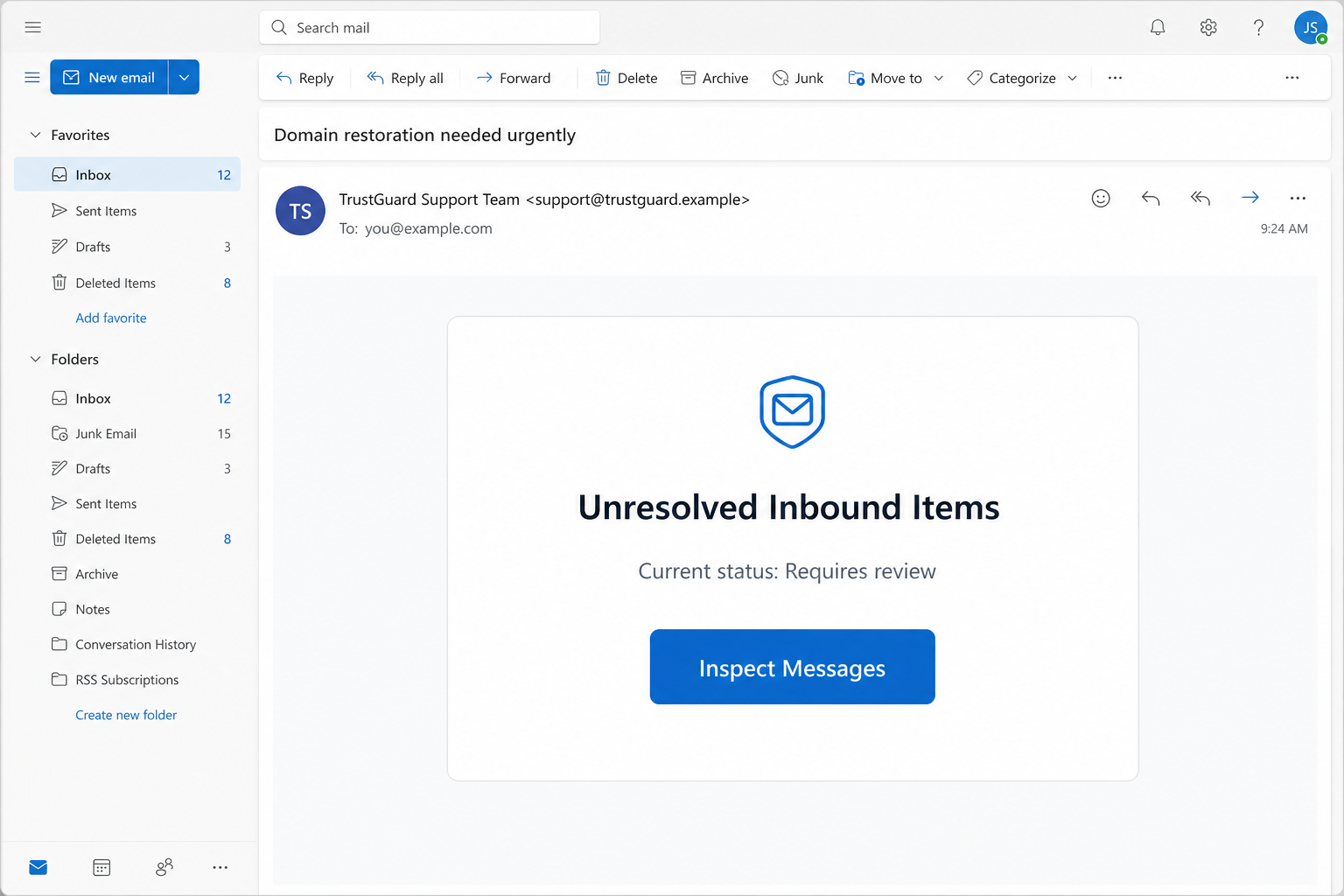
The subject says “Domain restoration needed urgently” and claims inbound items require review. An “Inspect Messages” button offers the solution.
The wording never identifies the messages, senders, timestamps, or real mail administrator. Instead, a generic status label says “Requires review” and pressures the reader to investigate.
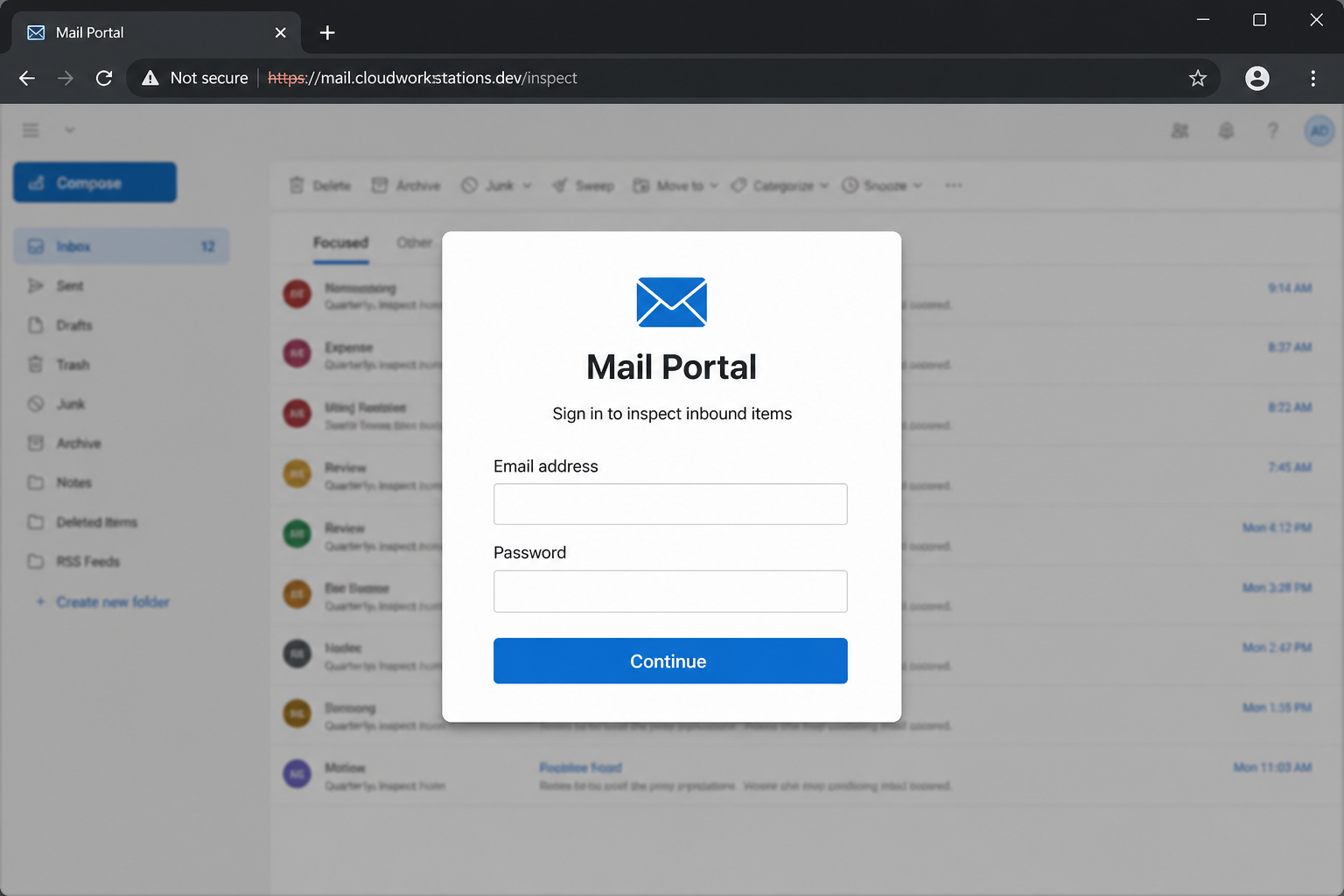
The linked page sits on an unrelated cloud-development host. It places a login form over a familiar inbox background so that stolen scenery appears to authenticate the foreground form.
Overview
A fictional queue creates a real sense of loss
The scam does not need to name a missed message. Once people are told that inbound items are unresolved, they imagine the communication most important to them.
That open-ended concern works for personal and business inboxes. A sales lead, invoice, legal notice, or family message could all fit the claim without changing the template.
- The warning links the problem to the recipient’s actual email address.
- A restoration-themed subject makes a routine mail issue sound urgent and technical.
- The status “Requires review” suggests a queue already examined by an automated system.
- The button promises direct access to content that the email never proves exists.
The destination imitates the user’s own mail service
The analyzed route used Google Cloud Workstations infrastructure and displayed a mail-themed overlay.
Other variants may change colors or backgrounds according to the recipient’s domain.
A real inbox loaded behind the form can be especially persuasive. That background may come from a public page and does not make the overlay part of the genuine service.
- The browser host is more reliable evidence than the logo or inbox image.
- A cloud-development domain can be legitimate infrastructure while the hosted page remains abusive.
- The form requests credentials before showing any queue record or message metadata.
- Submitting the password sends it to the page operator, not to the normal provider.
Mailbox access can unlock much more than email
A compromised inbox contains conversations, attachments, contacts, and identity clues. It also receives password-reset links for services connected to the address.
Criminals can add forwarding rules or trusted applications that survive a simple password change. Recovery therefore requires an account review, not only a replacement password.
- Private messages may reveal invoices, contracts, travel, payroll, or medical information.
- Existing conversations give attackers language and timing for believable impersonation.
- Reset messages can expose shopping, cloud, social, and financial accounts.
- A genuine compromised mailbox can distribute the next phishing email to trusted contacts.
What a Genuine Mail Queue Notice Usually Provides
Real notices identify the responsible service
A legitimate quarantine or delivery digest normally names the provider, company, gateway, or administrator. It uses a format the recipient has seen before and points to an established portal.
The unresolved-items message speaks for an unnamed support team. That vagueness allows one email to target customers of many unrelated services without changing its visible content.
Useful message details can be verified
A real queue may show sender, subject, received time, filtering reason, and an item identifier. The user can compare those entries with mail logs or an authenticated dashboard.
The scam supplies none of that evidence before demanding a login. The promise of hidden information replaces the information a genuine administrator could safely display.
The known portal should work without the email button
Users should be able to open their provider or company gateway directly and find the same held-mail record. A real issue does not disappear when the embedded link is ignored.
If the only visible queue exists after clicking the message, contact support through a saved number or internal chat. Do not reply to the suspected sender for reassurance.
Why the Background Inbox Is Not Proof
Web pages can display unrelated content behind a form
A phishing page can use an image, frame, or live public site as scenery. The central credential form remains controlled by whoever operates the surrounding page.
This technique encourages the eye to recognize the background and stop examining the address bar. Authentication depends on the domain and connection, not visual familiarity.
Prefilled addresses are information the attacker already had
The campaign needed the recipient’s address to deliver the email. Placing that same address inside the form does not prove the page knows anything about the real account.
Prefilling also reduces effort. The victim sees a personal detail, assumes continuity, and needs to supply only the secret the attacker lacks: the password.
How the Unresolved Inbound Items Email Scam Works
Step 1: The campaign sends a provider-neutral warning
Attackers distribute the template to addresses obtained from breaches, public pages, earlier compromises, or purchased lists.
The email avoids naming a specific provider so it fits almost anyone.
Business addresses are valuable because one mailbox can expose internal conversations and trusted partners. Shared addresses may also be monitored by several potential targets.
Step 2: The subject invents a restoration emergency
“Domain restoration needed urgently” suggests a technical failure affecting the whole account. The body narrows that story to unresolved inbound items without explaining the mismatch.
Recipients may focus on recovering missing mail rather than asking why domain restoration, message retrieval, and credential verification have been combined into one vague task.
Step 3: An Inspect Messages button replaces evidence
The email recommends opening a link, confirming retrieval, and checking primary and junk folders afterward. These procedural instructions make the invented queue sound operational.
No message list is displayed before the click. Curiosity and fear must carry the recipient to the external page before any verifiable information appears.
- There is no named sender for the supposedly delayed mail.
- There is no delivery timestamp, rejection code, or gateway record.
- The support identity is generic and changes easily between recipients.
- The action button conceals the actual host until the user inspects it.
Step 4: The browser opens an unrelated cloud host
The analyzed page used a cloudworkstations.dev address rather than the recipient’s normal provider.
Development platforms are useful to legitimate teams but can also be abused for temporary phishing pages.
Ownership of the platform does not transfer to every hosted project. The important comparison is between the address bar and the domain normally used to sign in.
Step 5: A familiar inbox sits behind the credential form
The page loads recognizable mail imagery and places a portal overlay in front. The victim may interpret the background as proof that authentication remained inside the real service.
The overlay asks for an email address and password before displaying any inbound item. That order reveals that credential collection, not mail management, is the page’s primary function.
Step 6: Submitted credentials are tested against the real mailbox
After submission, the page can record the values and show an error, spinner, or fake success message. A second prompt may capture another password variation.
The operator can test the credential quickly, steal a session, or sell the verified login. Multifactor authentication can limit access but does not excuse delayed action.
Step 7: The hijacked inbox supports follow-on fraud
Attackers may search for payments, supplier threads, personal documents, and password resets. They can create hidden rules that forward valuable mail or delete security alerts.
Messages sent from the genuine address can persuade contacts to open files, change bank details, or surrender their own passwords. One fictional queue becomes a real compromise chain.
Company, Address, and Fulfillment Checks
A generic support label is not a provider identity
The footer can display the recipient’s domain or the word Support without proving any relationship to the administrator. These values can be inserted automatically from a mailing list.
Find the provider name in account settings, billing records, or internal documentation. Compare it with the complete sender address instead of trusting the visible display name.
The browser domain exposes the handoff
A cloudworkstations.dev page is not automatically the provider that hosts the mailbox. Subdomains can be long enough that familiar words near the left side distract from the registered host.
Read the address from the domain outward and compare it with a saved login URL. If the hosts differ, close the page and use the official route.
Support must be reached independently
The email invites recipients to contact support, but a reply may return to the attacker or confirm the mailbox is active. Use a known help desk channel instead.
Administrators can inspect delivery logs and quarantine records without asking the employee to revisit the suspicious page.
Their confirmation should include the affected service and event time.
Cloud hosting does not validate the hosted content
Large platforms host countless independent projects. A familiar infrastructure provider may remove abuse once reported, but its presence does not endorse the page.
Judge the specific project, requested data, and relationship to the claimed service. Credentials belong only on the verified authentication domain or approved single sign-on screen.
Red Flags Hidden in the Message
The warning sounds technical but remains uncheckable
Terms such as inbound items, domain restoration, secure action, and retrieval create an administrative tone. None provides the record needed to verify the supposed problem.
- The provider, administrator, and mail gateway are not clearly named.
- The message count and affected senders are missing.
- The status says review is required without showing what triggered it.
- The action leaves the known mail domain and opens a development host.
- The destination wants a password before presenting any queue details.
- A familiar inbox background attempts to substitute appearance for ownership.
A safe response avoids the embedded route
Open the mail provider from a bookmark or type its address manually. Check spam, quarantine, service status, and storage from inside that authenticated account.
If no alert appears, preserve the email and report it. A genuine service issue will still be visible through normal support channels after the suspicious message is ignored.
What to Do if You Have Fallen Victim to This Scam
- Change the mailbox password through the real provider. Use a clean device and open the service from a saved bookmark or manually typed address. Choose a unique password that is not used for any other account.
- Revoke every active session. A password change may not invalidate stolen cookies or application tokens. Use the provider’s security controls to sign out all devices and remove sessions you do not recognize.
- Review forwarding and filtering rules. Delete unfamiliar forwards, delegates, inbox rules, recovery addresses, and connected applications. Check deleted and sent folders for actions the intruder tried to conceal.
- Enable strong multifactor authentication. Prefer a passkey, hardware security key, or authenticator application where supported. Remove unknown methods and save recovery codes somewhere separate from the mailbox.
- Scan the device with Malwarebytes. Credential phishing normally targets the password, but malicious pages can also push downloads. Malwarebytes can check for known threats, unwanted programs, and browser changes on the device used.
- Protect linked accounts and financial conversations. Reset reused passwords, inspect password-reset history, and warn coworkers or vendors if the mailbox handled invoices. Confirm payment details through a second channel before approving changes.
- Use AdGuard as an additional blocking layer. AdGuard can stop many known phishing destinations and malicious advertisements from loading. Keep provider filtering, browser updates, and careful domain checks in place as well.
- Report the email and reject recovery offers. Notify the provider, employer, hosting platform, and appropriate fraud authority. Criminals may follow an exposed address with offers to recover the account for an upfront payment.
Is Your Device Infected? Run a Free Malware Scan
Slow performance, constant pop-ups, or strange behavior? These are classic signs of a malware infection. The fastest way to find out is to scan your device with Malwarebytes Free — one of the most trusted malware removal tools available.
The free version detects and removes the most common threats, including:
- Adware — the cause of those annoying pop-ups
- Browser hijackers — unwanted redirects and changed homepages
- Trojans and spyware — hidden programs stealing your data
- Potentially unwanted programs (PUPs) — software you never asked for
👉 Select your device below — Windows, Mac, or Android — then follow the simple steps to download Malwarebytes, scan your system, and remove any threats it finds. The scan usually takes 5 to 20 minutes.
Run a Malware Scan with Malwarebytes for Windows
Malwarebytes is one of the most popular and trusted anti-malware tools for Windows — and it’s completely free for removing infections. It catches threats that many antivirus programs miss, including adware, browser hijackers, and trojans. Follow the steps below to scan and clean your PC in just a few minutes.
Download Malwarebytes
Click the button below to download the latest version of Malwarebytes for Windows from the official source. The free version is all you need — it will scan your computer and remove adware, browser hijackers, and other malicious software at no cost.
Download MalwarebytesOfficial installer for Windows 11 and 10. Your download starts right away.Want real-time protection? See Malwarebytes Premium Malwarebytes Free for WindowsScans and removes malware at no cost
-
Install Malwarebytes
When the download finishes, open your Downloads folder and double-click the MBSetup file. If Windows shows a User Account Control pop-up, click “Yes” to allow the installation.

Follow the On-Screen Prompts to Install Malwarebytes
The setup wizard will walk you through a few quick screens:
-
Choose where you’re installing the program — “Personal Computer” or “Work Computer” — then click Next.

-
Malwarebytes will now install on your device. This usually takes under a minute.

-
When installation is complete, the “Welcome to Malwarebytes” screen will open automatically.

-
On the final screen, click Open Malwarebytes to launch the program.

-
Enable “Scan for Rootkits”
Before scanning, turn on rootkit detection so Malwarebytes can find even the most hidden threats. Click the Settings gear icon on the left side of the screen.

In the settings menu, find “Scan for rootkits” and click the toggle so it turns blue.

Done? Click “Dashboard” in the left pane to return to the main screen.
Start the Scan
Click the blue Scan button. Malwarebytes will automatically update its virus database and start checking your computer for malware.

-
Wait for the Scan to Finish
The scan checks your entire system for browser hijackers and other malicious programs, so it can take 5 to 20 minutes depending on your computer. Feel free to do something else — just check back occasionally to see the progress.

-
Quarantine the Detected Threats
When the scan is done, you’ll see a list of everything Malwarebytes found — malware, adware, and potentially unwanted programs. Click the “Quarantine” button to remove all of them at once.

Malwarebytes will now remove the malicious files and registry entries and move them safely into quarantine.

-
Restart Your Computer
Some threats can only be fully removed after a reboot. If Malwarebytes asks you to restart, click Yes. Once you’re logged back in, Malwarebytes has finished removing the threats it found.

That’s it — your Windows PC is now clean of trojans, adware, and other malware, and should be back to running smoothly.
If you are still having problems with your computer after completing these instructions, then please follow one of the steps:
- Run a computer scan with ESET Online Scanner
- Ask for help in our Windows Malware Removal Help & Support forum.
Run a Malware Scan with Malwarebytes for Mac
Malwarebytes for Mac is a free on-demand scanner that removes the malware other security software tends to miss — adware, browser hijackers, and unwanted programs included. Cleaning an infected Mac with Malwarebytes has always been completely free, and it’s our go-to recommendation. Follow the steps below to scan and clean your Mac in just a few minutes.
-
Download Malwarebytes for Mac
Click the button below to download the latest version of Malwarebytes for Mac.
Download MalwarebytesOfficial installer for macOS. Your download starts right away.Want real-time protection? See Malwarebytes PremiumMalwarebytes Free for MacScans and removes malware at no cost -
Open the Malwarebytes setup file
When the download finishes, open your Downloads folder and double-click the setup file to begin the installation.

-
Follow the On-Screen Prompts to Install Malwarebytes
The Malwarebytes for Mac Installer will guide you through a few quick screens. Click “Continue” and keep following the prompts until the installation completes.



When the installation is complete, Malwarebytes opens to the Welcome to Malwarebytes screen. Click “Get started“.
-
Select “Personal Computer” or “Work Computer”
Malwarebytes will ask what type of computer you’re installing it on. Click either Personal Computer or Work Computer, whichever applies.

-
Start the Scan
Click the “Scan” button. Malwarebytes will automatically update its detection database and begin checking your Mac for malware.

-
Wait for the Scan to Finish
Malwarebytes will scan your Mac for adware, browser hijackers, and other malicious programs. This can take a few minutes, so feel free to do something else — just check back occasionally to see the progress.

-
Quarantine the Detected Threats
When the scan is done, you’ll see a list of everything Malwarebytes found. Click the “Quarantine” button to remove all the threats at once.

-
Restart Your Mac
Malwarebytes will now remove all the malicious files it found. Some threats can only be fully removed after a reboot — if Malwarebytes asks you to restart, allow it. Once you’re logged back in, your Mac is clean.

That’s it — your Mac is now free of adware, rogue browser extensions, and other potentially harmful software.
If you are still experiencing problems while trying to remove a malicious program from your computer, please ask for help in our Mac Malware Removal Help & Support forum.
Run a Malware Scan with Malwarebytes for Android
Malwarebytes for Android automatically detects and removes dangerous threats like malware and ransomware so you don’t have to worry about your most-used device being compromised. Aggressive detection of adware and potentially unwanted programs keeps your Android phone or tablet running smooth.
-
Download Malwarebytes for Android.
You can download Malwarebytes for Android by clicking the link below.
Get Malwarebytes for AndroidOpens Google Play in a new tab.Want real-time protection? See Malwarebytes Premium for AndroidMalwarebytes for AndroidScans your phone and removes malware at no cost -
Install Malwarebytes for Android on your phone.
In the Google Play Store, tap “Install” to install Malwarebytes for Android on your device.

When the installation process has finished, tap “Open” to begin using Malwarebytes for Android. You can also open Malwarebytes by tapping on its icon in your phone menu or home screen.

-
Follow the on-screen prompts to complete the setup process
When Malwarebytes will open, you will see the Malwarebytes Setup Wizard which will guide you through a series of permissions and other setup options.
This is the first of two screens that explain the difference between the Premium and Free versions. Swipe this screen to continue.
Tap on “Got it” to proceed to the next step.
Malwarebytes for Android will now ask for a set of permissions that are required to scan your device and protect it from malware. Tap on “Give permission” to continue.
Tap on “Allow” to permit Malwarebytes to access the files on your phone.
-
Update database and run a scan with Malwarebytes for Android
You will now be prompted to update the Malwarebytes database and run a full system scan.

Click on “Update database” to update the Malwarebytes for Android definitions to the latest version, then click on “Run full scan” to perform a system scan.

-
Wait for the Malwarebytes scan to complete.
Malwarebytes will now start scanning your phone for adware and other malicious apps. This process can take a few minutes, so we suggest you do something else and periodically check on the status of the scan to see when it is finished.

-
Click on “Remove Selected”.
When the scan has been completed, you will be presented with a screen showing the malware infections that Malwarebytes for Android has detected. To remove the malicious apps that Malwarebytes has found, tap on the “Remove Selected” button.

-
Restart your phone.
Malwarebytes for Android will now remove all the malicious apps that it has found. To complete the malware removal process, Malwarebytes may ask you to restart your device.
That’s it — your Android phone is now clean — no more malicious apps, adware, or browser redirects.
If you are still having problems with your phone after completing these instructions, then please follow one of the steps:
- Restore your phone to factory settings by going to Settings > General management > Reset > Factory data reset.
- Ask for help in our Mobile Malware Removal Help & Support forum.
Stay Protected: Block Ads and Malicious Sites
Now that your device is clean, keep it that way. Most infections start with a malicious ad or a fake download button — so blocking them at the source is your best defense.
We recommend AdGuard, which blocks malicious ads, phishing pages, and dangerous redirects before they can reach you.
👉 Download AdGuard and browse safely
Frequently Asked Questions
Are unresolved inbound items a real email feature?
Mail gateways can quarantine or delay messages, but the observed warning is fraudulent. Genuine items should appear in the provider’s known portal with sender, time, and filtering details.
Why does the phishing page show a familiar inbox?
The background is visual decoration intended to borrow trust. A page can display copied or public content while sending the foreground form data to an unrelated operator.
Does a cloudworkstations.dev address belong to my email provider?
Not simply because the page mentions mail. Compare the registered domain with the official sign-in address in your provider documentation or organization portal.
What if I clicked Inspect Messages but entered nothing?
Close the page, clear any downloaded files, report the link, and scan if anything ran. Merely viewing the page is generally less serious than submitting credentials.
Is changing the password enough after submission?
Not always. Revoke sessions, remove mailbox rules and applications, verify recovery methods, and review linked services because persistence can remain after a password change.
Can the attacker read messages immediately?
If the password works and no effective multifactor barrier stops the login, access can happen quickly. Respond as soon as possible rather than waiting for a visible security alert.
The Bottom Line
The Unresolved Inbound Items Email Scam invents hidden mail so the recipient supplies the one item the attacker truly wants: a valid webmail password.
Ignore the Inspect Messages route. Open the known mail portal independently and demand verifiable queue details before believing any delivery or restoration warning.
If credentials reached the fake page, replace them, revoke sessions, inspect mailbox persistence, and warn affected contacts.
Quick, complete recovery can stop one stolen login from spreading further.

Join the discussion
0 commentsShare your experience or ask a question about this article.
Discussion
Start the conversation
Have a question or something useful to share? Add the first comment.