


The promise is hard to ignore: plug a small stick into the television and simplify the way you watch shows, sports, and movies at home.
Flix Stick looks familiar at first glance, but the details behind that easy pitch deserve a much closer look before anyone reaches the checkout.
Overview
The headline promises more than the disclaimer
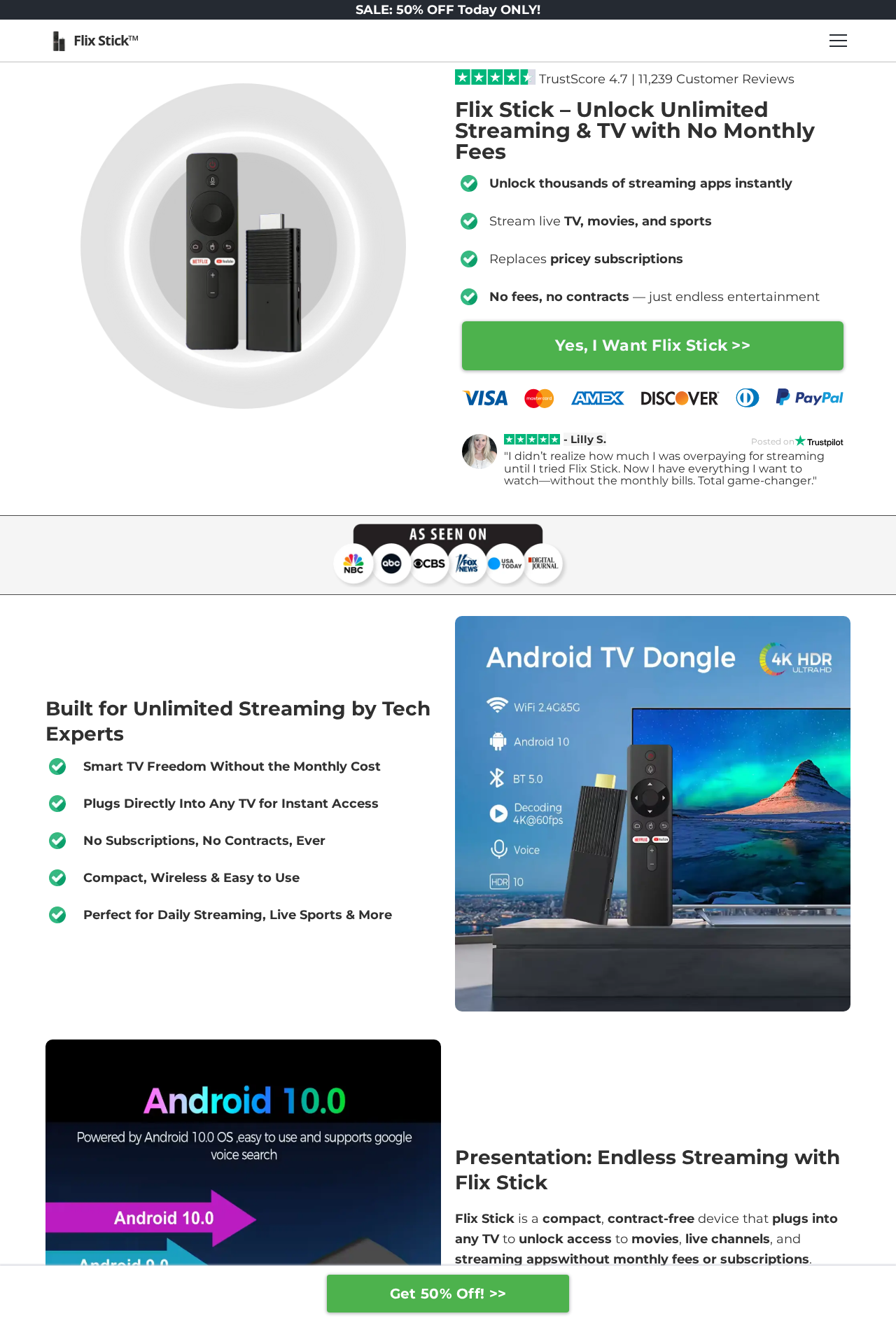
The sales page says Flix Stick can unlock streaming and television with no monthly fees.
It also displays familiar payment logos, a high review count, broadcaster-style logos, and repeated claims about replacing costly subscriptions.
Farther down, the disclaimer gives a more ordinary explanation.
The device provides access to downloadable apps, while services such as Netflix, Hulu, and Disney+ still require separate paid subscriptions and are not included.
The hardware appears to be a common Android TV stick
The product imagery shows a generic HDMI dongle and remote, with Android 10.0 and 4K marketing.
Omi Home also lists a Multi Media TV Stick that describes Flix Stick as a device for installing and using streaming apps.
That can be useful on an older television, but it is not the same as receiving paid content for free.
A device that opens an app does not grant a Netflix account, a sports package, or lawful access to premium channels.
A separate $49.99 membership sits behind the offer
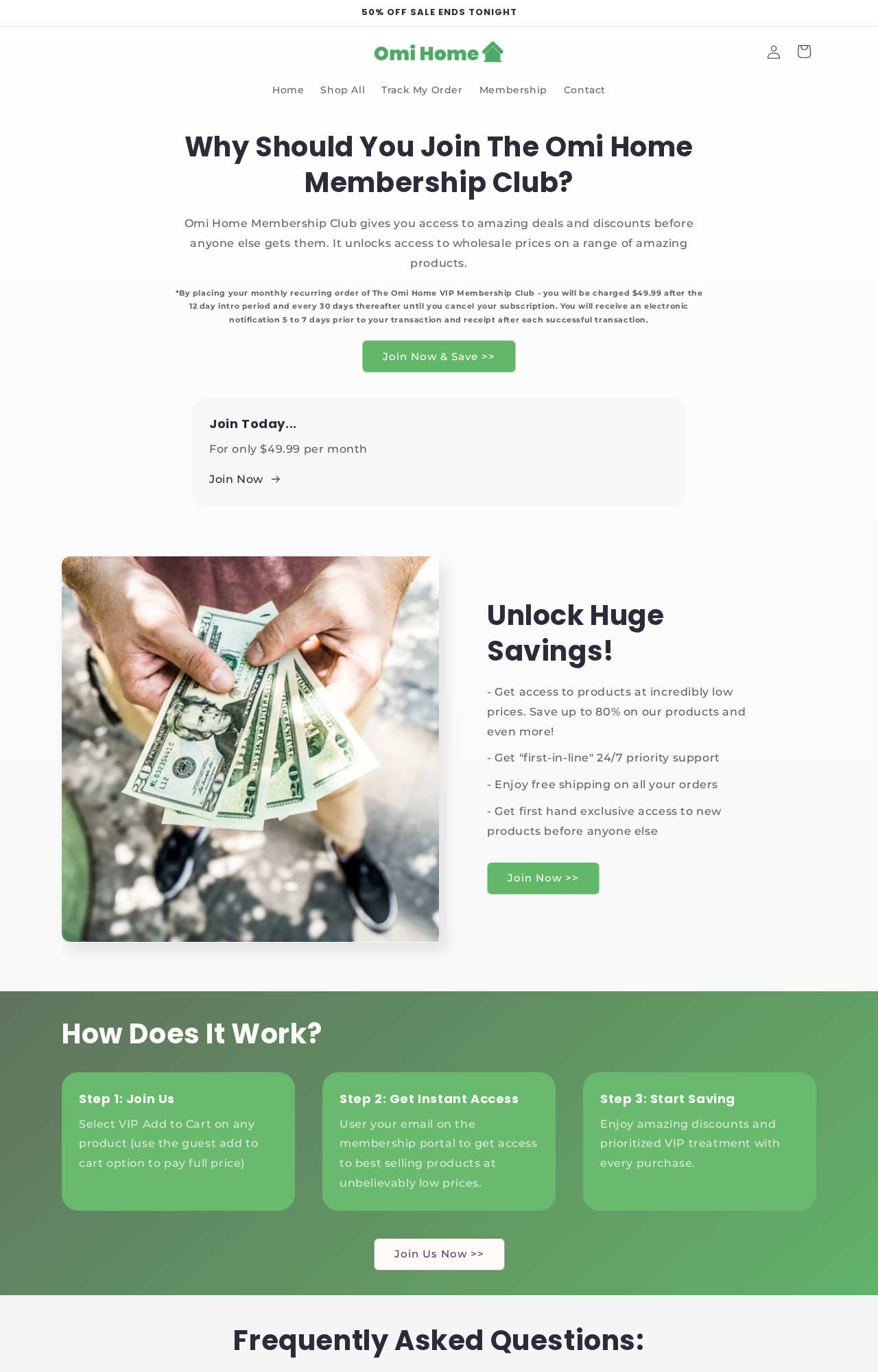
Omi Home publishes a membership page stating that its VIP Membership Club costs $49.99 after a 12-day introductory period and repeats every 30 days until canceled.
The page says the club provides discounts, priority support, and free shipping.
The membership is not a Netflix, HBO, or sports subscription. It is a store club.
A buyer attracted by a no-monthly-fee device should carefully check whether the lower product price also enrolls the order in that recurring club.
- The main page promotes unlimited streaming and no monthly fees.
- The disclaimer says paid streaming services remain separate.
- Omi Home openly lists a $49.99 monthly store membership.
- The membership begins after a 12-day introductory period.
- Public reviews include allegations of unexpected enrollment, difficult returns, and products that did not meet the advertising.
Flix Stick is therefore not a magic replacement for paid content. At best, it is a streaming device that runs apps.
The financial risk comes from a marketing gap and a recurring store membership that may matter more than the price displayed beside the stick.
How The Scam Works
Step 1: The ad begins with subscription fatigue
People are tired of paying for several streaming services. The campaign speaks directly to that frustration, suggesting that one small device can remove the recurring cost while preserving the content.
That story works because ordinary streaming sticks really do make apps easier to use.
The misleading leap is the suggestion that hardware can replace the paid licenses, accounts, and rights that make premium content available.
Step 2: The landing page borrows familiar authority
The page displays network-style logos, a TrustScore, a large review count, payment brands, and a confident product comparison.
Together, those elements create the feeling that the offer has already been checked by trusted companies.
A logo on a seller’s page is not evidence of an endorsement.
The page’s own disclaimer says streaming trademarks belong to their owners and that Flix Stick is not affiliated with or endorsed by any streaming provider.
Step 3: The product claim shifts as the visitor reads
Near the top, the pitch says no subscriptions and no monthly fees.
Later, the language becomes more careful, describing access to apps and stating that separate paid subscriptions may still be required.
This shift is central to the funnel. The bold claim earns the click, while the narrow disclaimer limits what the seller is actually promising.
A buyer remembers the headline, not the correction at the bottom.
Step 4: The discount can lead into the membership
Omi Home tells shoppers to select VIP Add to Cart for member pricing and to use the guest option to pay full price.
The cheaper route is therefore tied to the membership mechanism.
After the 12-day introductory period, the published fee is $49.99 every 30 days.
A shopper who focused on the stick’s price may only understand the club when a later card charge appears.
Step 5: The device arrives, but the paid services are still paid
The stick may boot into an Android interface and offer common apps.
The buyer then discovers that the apps still need valid accounts, that premium content is not included, or that performance differs from the glossy page.
This is not a surprising technical limitation. Streaming subscriptions are controlled by their providers. A third-party HDMI stick cannot lawfully create paid accounts or erase the providers’ monthly charges.
Step 6: Returns and cancellation become separate jobs
Returning the physical device does not automatically prove that the membership has been canceled. The buyer may need to complete both tasks, with separate emails, deadlines, and confirmation numbers.
Omi Home says membership cancellations should be made at least three business days before the next billing.
Its refund policy and product return process can impose different conditions, so the customer must document each request independently.
Step 7: Reviews split between support praise and serious complaints
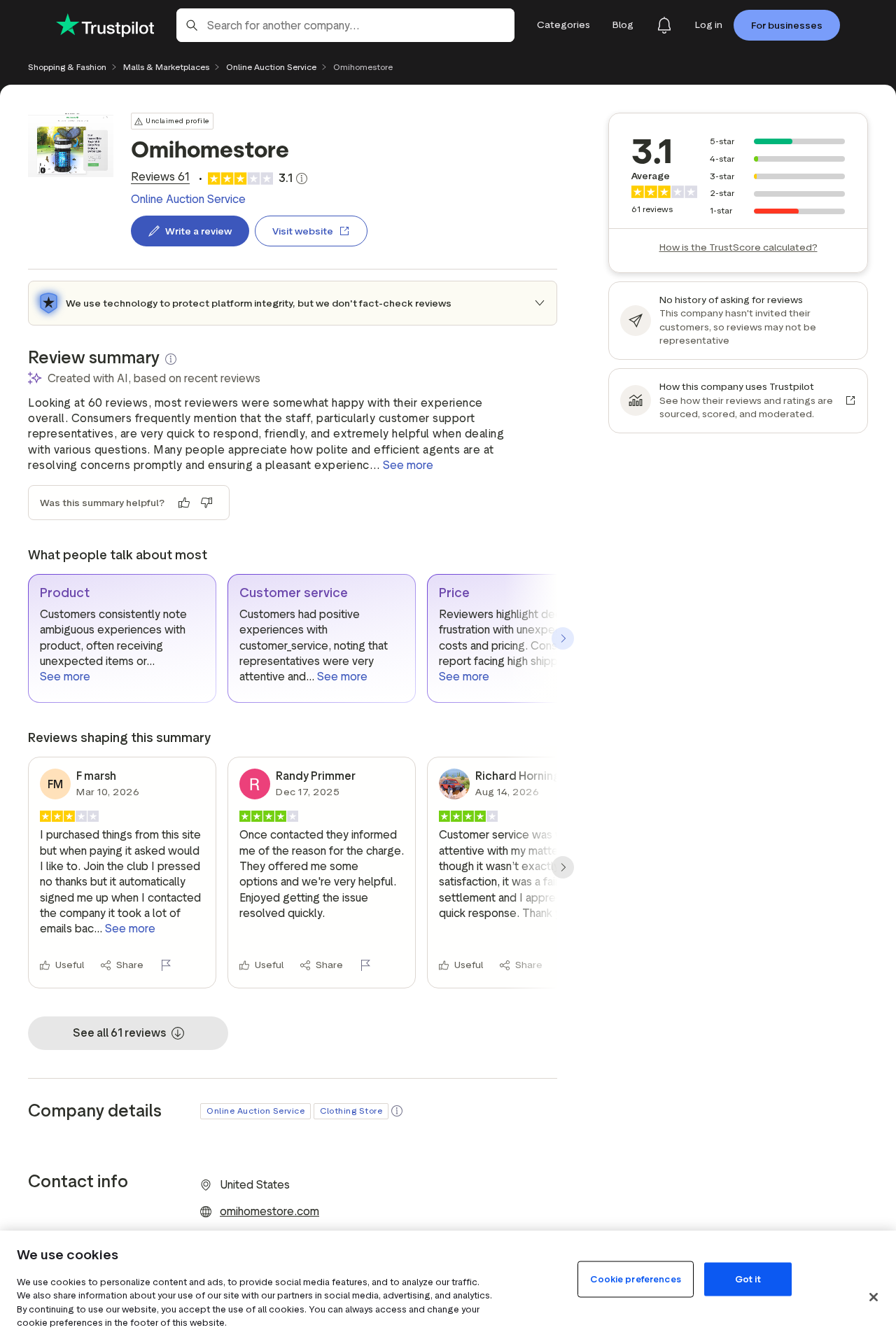
The current Trustpilot profile contains positive and negative reports. Some reviewers praise helpful support.
Others allege automatic club enrollment, unexpected charges, extra items, return complications, or devices that did not perform as expected.
Reviews cannot establish what happened in every order.
They are useful here because the recurring membership is independently confirmed by Omi Home’s own page, while the complaints show how that arrangement can surprise real customers.
What Flix Stick Can and Cannot Do
A streaming stick can turn an HDMI television into a smart television. It can connect to Wi-Fi, install supported apps, play local media, and provide a remote-friendly menu.
Many established devices do the same thing.
It cannot give a customer a legitimate Netflix, Disney+, Hulu, or premium sports subscription without the service provider’s authorization.
If an app requires an account elsewhere, the stick does not remove that requirement.
Claims about thousands of channels also need context. Free, ad-supported services exist, and some public channels provide lawful streams.
That does not mean every premium channel, new movie, or live sporting event is included.
A buyer should ask which operating system version is installed, whether security updates are supplied, which app store is used, and whether the device is certified for protected high-definition services.
A 4K label does not guarantee every service will play at 4K.
Unknown Android hardware also deserves a security check.
Do not sign in to sensitive accounts if the device asks for unusual permissions, sideloaded applications, disabled security controls, or software from links outside a trusted app store.
Company, Address, and Fulfillment Checks
The product brand and the billing brand are different
The sales page uses Flix Stick, while the store and membership use Omi Home.
The card descriptor may therefore resemble the store name rather than the product printed on the order page.
Save both names before paying.
If a later charge appears, the bank needs the descriptor, date, and amount, while the seller needs the order number and the email used at checkout.
The recurring fee is for a store club
The $49.99 charge is described as an Omi Home VIP Membership Club fee. Its listed benefits are store discounts, priority support, free shipping, and early access to products.
That membership should not be confused with the streaming subscriptions the device still requires. Paying the club fee does not fund Netflix, Apple TV+, HBO Max, or another independent service.
The support trail should be tested before ordering
Omi Home lists `support@omihomestore.com` and `(715) 801-3030` for membership cancellation. Call or email before buying and ask whether the selected cart option creates a recurring membership.
Also ask for the physical return destination and whether returns go to a domestic warehouse or an overseas facility.
A support number that answers sales questions may still leave return costs and timing unclear.
The hardware origin is not established by the marketing page
The device resembles widely sold Android TV dongles, but resemblance alone does not prove a particular factory or country of origin.
Do not claim that a unit is made in China without packaging, customs, supplier, or manufacturer evidence.
The sharper criticism is evidence-based. The page does not clearly identify a recognized hardware manufacturer, update policy, certification record, or independent technical test that supports the broadest performance claims.
How to Check the Offer Before Buying
- Read the final disclaimer before believing the no-subscription headline.
- Use the guest checkout if you do not want a store membership.
- Confirm the complete total and recurring status on the final payment screen.
- Photograph or screenshot every selected option before submitting the order.
- Ask which paid streaming accounts are still required.
- Verify the return address and who pays return shipping.
- Compare the device with established streaming sticks that publish update and certification details.
Do not buy because the page says the sale ends tonight. Countdown language is designed to shorten the inspection that this offer needs.
A legitimate device will still have specifications, terms, and support information tomorrow.
If the goal is simply to add apps to an older television, compare total cost over six months.
A $49.99 monthly club can quickly cost more than a well-supported device from an established retailer.
Look at the confirmation email before unpacking the device.
If it mentions VIP access, recurring orders, an introductory period, or a future billing date, address the membership immediately rather than waiting for the next statement.
Keep the outer mailer and shipping label until the matter is resolved.
They can identify the fulfillment route, order reference, and return origin when the sales page uses a different brand from the card charge.
Compare the hardware specifications with ordinary Android TV sticks. Familiar-looking electronics cannot create legal access to subscription services that still require separate accounts.
What to Do if You Have Fallen Victim to This Scam
- Save the order and membership evidence. Keep the sales page, checkout screenshots, confirmation, card statement, delivery label, product box, terms, and every message from support.
- Cancel the membership separately. Use the Omi Home cancellation page, email, or phone. State that all future recurring charges must stop and request written confirmation with an effective date.
- Request the device return instructions. Ask for an authorization and exact return address. Do not mail the package to an address found in an unrelated review. Use tracking and keep proof of delivery.
- Contact the card issuer. Explain the first purchase, the later membership charge, and what the checkout disclosed. Ask about blocking future charges from the merchant descriptor.
- Remove sensitive accounts from the stick. Sign out of streaming, Google, and payment accounts. Change passwords if you entered them into an unfamiliar app or page, and revoke unknown devices from account security settings.
- Reset or disconnect suspicious hardware. Stop using the device if it installs unknown applications, displays intrusive ads, or asks to disable security. Do not use it for banking, email, or password-manager access.
- Scan affected computers and phones. If the campaign led you to download software or browser extensions, run a full Malwarebytes scan. A television stick should not require a Windows cleanup utility from an unknown page.
- Block the advertising path. AdGuard can reduce malicious ads, redirects, and tracking used by aggressive funnels. It cannot cancel the store membership, so complete the billing steps as well.
- Report misleading advertising. Send the claim, disclaimer, order evidence, and charge details to the FTC or the consumer protection agency in your country.
Is Your Device Infected? Run a Free Malware Scan
Slow performance, constant pop-ups, or strange behavior? These are classic signs of a malware infection. A quick way to check is to scan your device with Malwarebytes Free, one of the most trusted malware removal tools available. If you only visited a scam page and didn’t download or install anything, this scan is optional.
The free version detects and removes the most common threats, including:
- Adware — the cause of those annoying pop-ups
- Browser hijackers — unwanted redirects and changed homepages
- Trojans and spyware — hidden programs stealing your data
- Potentially unwanted programs (PUPs) — software you never asked for
👉 Select your device below — Windows, Mac, or Android — then follow the simple steps to download Malwarebytes, scan your system, and remove any threats it finds. The scan usually takes 5 to 20 minutes.
Run a Malware Scan with Malwarebytes for Windows
Malwarebytes is one of the most popular and trusted anti-malware tools for Windows — and it’s completely free for removing infections. It catches threats that many antivirus programs miss, including adware, browser hijackers, and trojans. Follow the steps below to scan your PC and remove what Malwarebytes finds.
Download Malwarebytes
Click the button below to download the latest version of Malwarebytes for Windows from the official source. The free version is all you need — it will scan your computer and remove adware, browser hijackers, and other malicious software at no cost.
Download MalwarebytesOfficial installer for Windows 11 and 10. Your download starts right away.Want real-time protection? See Malwarebytes Premium Malwarebytes Free for WindowsScans and removes malware at no cost
-
Install Malwarebytes
When the download finishes, open your Downloads folder and double-click the MBSetup file. If Windows shows a User Account Control pop-up, click “Yes” to allow the installation.

Follow the On-Screen Prompts to Install Malwarebytes
The setup wizard will walk you through a few quick screens:
-
Choose where you’re installing the program — “Personal Computer” or “Work Computer” — then click Next.

-
Malwarebytes will now install on your device. This usually takes under a minute.

-
When installation is complete, the “Welcome to Malwarebytes” screen will open automatically.

-
On the final screen, click Open Malwarebytes to launch the program.

-
Optional: Check for rootkits with a Custom Scan
You don’t need to change any settings for a normal scan. The standard Threat Scan in the next step is enough for most problems, so you can go straight to it.
If you also want to check for rootkits, use a Custom Scan. In current versions of Malwarebytes, rootkit scanning is only available there:
- On the Scanner tile, click the three-dot menu and select Advanced Scan.
- Choose Custom Scan. In its options, check Scan for rootkits.
- Select your system drive (usually C:\) as the location to scan, then start the scan. It takes longer than a Threat Scan.
- When it finishes, review and quarantine the results as described in the steps below.
Rootkit scanning isn’t available on Windows devices with ARM processors.
Start the Scan
Click the blue Scan button. Malwarebytes will automatically update its virus database and start checking your computer for malware.

-
Wait for the Scan to Finish
The scan checks your entire system for browser hijackers and other malicious programs, so it can take 5 to 20 minutes depending on your computer. Feel free to do something else — just check back occasionally to see the progress.

-
Quarantine the Detected Threats
When the scan is done, you’ll see a list of everything Malwarebytes found — malware, adware, and potentially unwanted programs. Click the “Quarantine” button to remove all of them at once.

Malwarebytes will now remove the malicious files and registry entries and move them safely into quarantine.

-
Restart Your Computer
Some threats can only be fully removed after a reboot. If Malwarebytes asks you to restart, click Yes. Once you’re logged back in, Malwarebytes has finished removing the threats it found.

When the scan is done, check whether the problems you noticed have stopped. If they continue, see the options below.
If you are still having problems with your computer after completing these instructions, then please follow one of the steps:
- Run a computer scan with ESET Online Scanner
- Ask for help in our Windows Malware Removal Help & Support forum.
Run a Malware Scan with Malwarebytes for Mac
Malwarebytes for Mac is a free on-demand scanner that removes the malware other security software tends to miss — adware, browser hijackers, and unwanted programs included. Cleaning an infected Mac with Malwarebytes has always been completely free, and it’s our go-to recommendation. Follow the steps below to scan your Mac and remove what Malwarebytes finds.
-
Download Malwarebytes for Mac
Click the button below to download the latest version of Malwarebytes for Mac.
Download MalwarebytesOfficial installer for macOS. Your download starts right away.Want real-time protection? See Malwarebytes PremiumMalwarebytes Free for MacScans and removes malware at no cost -
Open the Malwarebytes setup file
When the download finishes, open your Downloads folder and double-click the setup file to begin the installation.

-
Follow the On-Screen Prompts to Install Malwarebytes
The Malwarebytes for Mac Installer will guide you through a few quick screens. Click “Continue” and keep following the prompts until the installation completes.



When the installation is complete, Malwarebytes opens to the Welcome to Malwarebytes screen. Click “Get started“.
Malwarebytes needs Full Disk Access to check your whole Mac. When it asks, open System Settings > Privacy & Security > Full Disk Access, turn on Malwarebytes (it may be listed as Malwarebytes Protection), and confirm with your password or Touch ID. Then return to Malwarebytes. On macOS Monterey and earlier, this setting is in System Preferences > Security & Privacy > Privacy.
-
Select “Personal Computer” or “Work Computer”
Malwarebytes will ask what type of computer you’re installing it on. Click either Personal Computer or Work Computer, whichever applies.

-
Start the Scan
Click the “Scan” button. Malwarebytes will automatically update its detection database and begin checking your Mac for malware.

-
Wait for the Scan to Finish
Malwarebytes will scan your Mac for adware, browser hijackers, and other malicious programs. This can take a few minutes, so feel free to do something else — just check back occasionally to see the progress.

-
Quarantine the Detected Threats
When the scan is done, you’ll see a list of everything Malwarebytes found. Click the “Quarantine” button to remove all the threats at once.

-
Restart Your Mac
Malwarebytes will now remove all the malicious files it found. Some threats can only be fully removed after a reboot — if Malwarebytes asks you to restart, allow it. Once you’re logged back in, check whether the problems you noticed have stopped. If they come back, save the scan report and ask for help in our forum.

If the problems you noticed continue after the scan, see the options below.
If you are still experiencing problems while trying to remove a malicious program from your computer, please ask for help in our Mac Malware Removal Help & Support forum.
Run a Malware Scan with Malwarebytes for Android
Malwarebytes for Android scans your phone or tablet for malware, adware, and potentially unwanted apps. The free version scans only when you start a scan. Real-time protection, which checks apps automatically, is part of the paid Premium version.
-
Download Malwarebytes for Android.
You can download Malwarebytes for Android by clicking the link below.
Get Malwarebytes for AndroidOpens Google Play in a new tab.Want real-time protection? See Malwarebytes Premium for AndroidMalwarebytes for AndroidScans your phone and removes malware at no cost -
Install Malwarebytes for Android on your phone.
In the Google Play Store, tap “Install” to install Malwarebytes for Android on your device.

When the installation process has finished, tap “Open” to begin using Malwarebytes for Android. You can also open Malwarebytes by tapping on its icon in your phone menu or home screen.

-
Follow the on-screen prompts to complete the setup process
When Malwarebytes opens, it walks you through a short setup. Tap Get started and follow the prompts. If you see an offer for a trial or a paid plan, read it before you accept. You can skip it and keep using the free scanner.
Malwarebytes will ask for permission to access the files on your phone so it can scan them. Tap Allow, or turn on the permission in the Android screen that opens, then return to Malwarebytes.
-
Run a scan with Malwarebytes for Android
On the main screen, tap Scan now. In some versions, you open the menu, tap Scanner, and then tap Run a scan.
-
Wait for the Malwarebytes scan to complete.
Malwarebytes will now start scanning your phone for adware and other malicious apps. This process can take a few minutes, so we suggest you do something else and periodically check on the status of the scan to see when it is finished.

-
Remove the detected apps.
When the scan has been completed, you will see a list of the threats that Malwarebytes for Android has detected. Next to each detected item, tap the menu icon (three dots), then choose to uninstall the app or delete the file. Android then asks you to confirm. Tap OK or Uninstall to remove the app.
-
Restart your phone.
When the detected apps are removed, restart your phone if Malwarebytes asks you to. Then check whether the problems you noticed have stopped.
If the problems you noticed continue after the scan, see the options below.
If you are still having problems with your phone after completing these instructions, then please follow one of the steps:
- Ask for help in our Mobile Malware Removal Help & Support forum.
- Only as a last resort, reset your phone to factory settings. Read the warning below first.
- Back up your photos, videos, files, and messages, for example to your Google account or a computer.
- Make sure you know your Google account email and password. The phone asks for them after the reset. If you changed the password recently, Google recommends waiting 24 hours before you reset.
- On a Samsung phone, also make sure you know your Samsung account password.
- If you use an authenticator app for two-step verification, move your accounts to another device or save your backup codes first.
Stay Protected: Block Ads and Malicious Sites
No scan can prove a device is completely clean, so it helps to block threats before they reach you. Most infections start with a malicious ad or a fake download button — so blocking them at the source is your best defense.
We recommend AdGuard, which blocks malicious ads, phishing pages, and dangerous redirects before they can reach you.
👉 Download AdGuard and browse safely
Frequently Asked Questions
Is Flix Stick a confirmed scam?
The broad no-fee marketing is misleading when compared with the disclaimer and recurring store membership.
The device may function as an Android streaming stick, but it does not legitimately include independent paid services.
Does Flix Stick include Netflix or HBO Max?
The seller’s disclaimer says streaming services require separate paid subscriptions and are not included. The stick may offer access to their apps, which is different from providing paid accounts.
What is the $49.99 Omi Home charge?
Omi Home describes it as a monthly VIP Membership Club fee after a 12-day introductory period. Listed benefits concern the store, not premium streaming subscriptions.
Can I cancel by returning the device?
Do not assume so. Cancel the membership in writing and handle the product return as a separate request. Keep confirmation for both actions.
Is the hardware dangerous?
We found no basis to label every unit malicious. Use caution with unknown Android hardware, unusual permissions, sideloaded apps, missing updates, and requests to enter sensitive credentials.
Can Malwarebytes or AdGuard recover my money?
No. Malwarebytes can check devices for malicious software, and AdGuard can block many harmful ads. Refunds and recurring charges must be handled through the seller, payment provider, and card issuer.
The Bottom Line
Flix Stick is sold with a dream that a small device can erase streaming bills.
The seller’s own disclaimer reduces that dream to an ordinary app-running stick, while Omi Home’s terms introduce a separate $49.99 monthly membership.
Judge the offer by the final checkout and the disclaimer, not the loudest headline.
If the cart does not make the membership unmistakable, close the page and buy a clearly specified device from a retailer with straightforward terms.

Join the discussion
0 commentsShare your experience or ask a question about this article.
Discussion
Start the conversation
Have a question or something useful to share? Add the first comment.