

An urgent webmail warning can feel personal, even when it never names your provider. The clock starts ticking before you have time to think.
This message looks tidy, official, and reassuringly familiar. A closer inspection reveals details every email user should recognize before pressing its blue button.
Overview
What the email claims
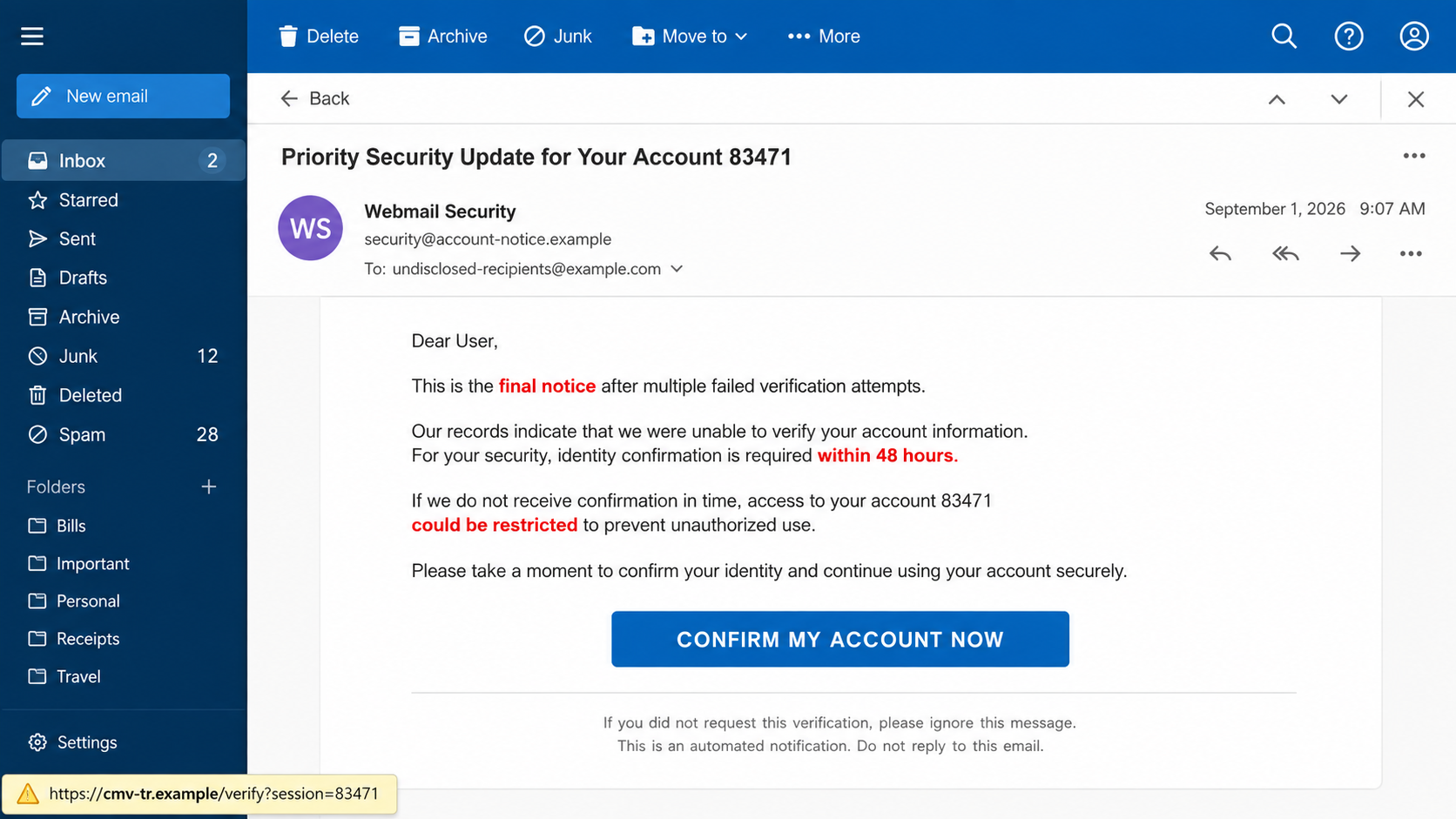
The Webmail Security Confirmation Pending email says previous verification attempts failed. It describes itself as a final notice and gives the recipient 48 hours.
The warning predicts restricted access, missing unread messages, and a lengthy reactivation process. One button supposedly prevents those problems by confirming the account immediately.
Its subject may include a random account number and timestamp. Those details create the impression that an automated security system generated a case specifically for you.
What investigators actually found
The message is a credential-phishing lure, not a genuine security notice. Its button sends visitors to an unrelated domain controlled through the campaign.
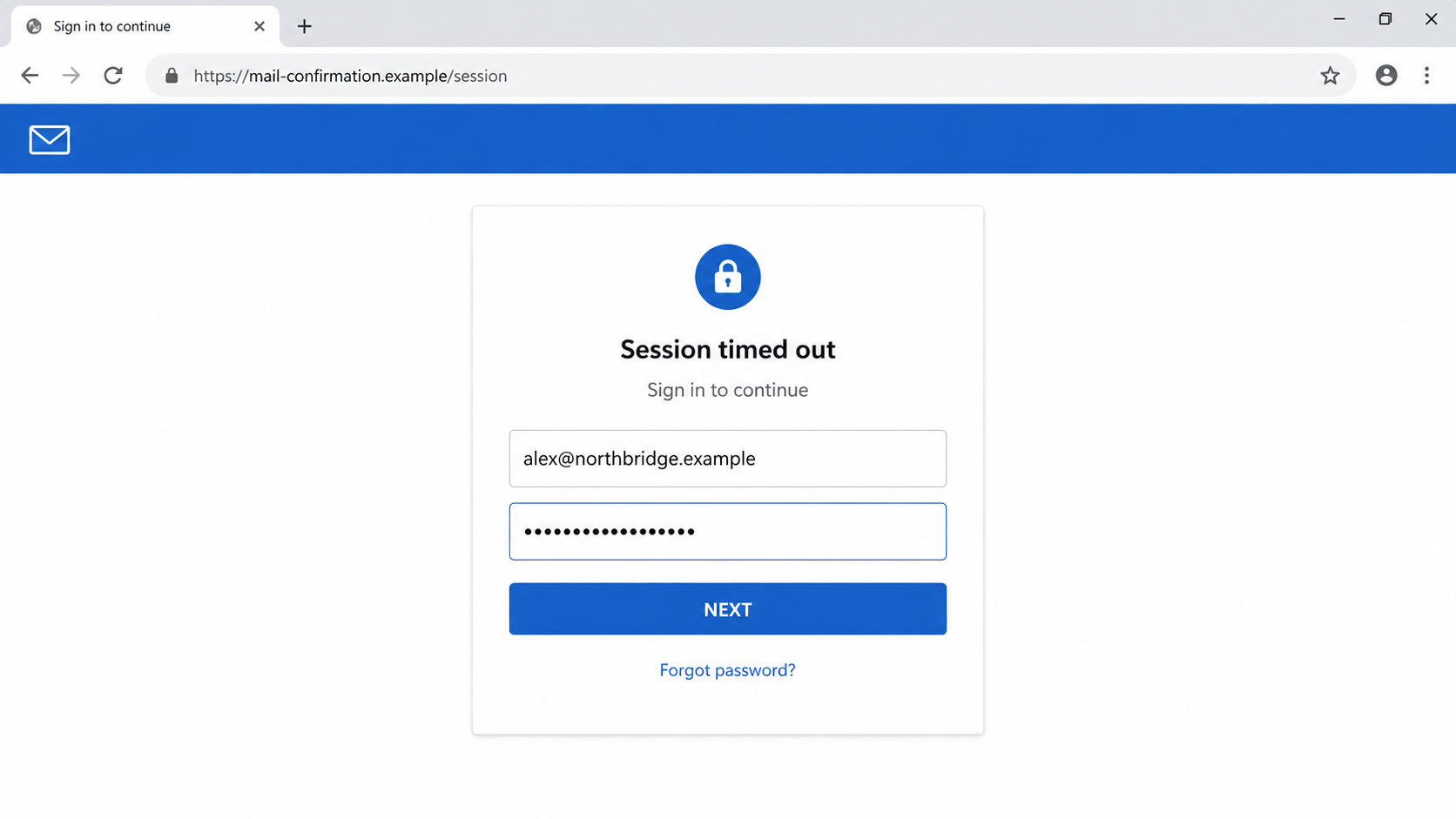
The destination can identify the recipient’s email provider and imitate its sign-in page. The email address may already appear, leaving only a password field.
That personalization is cosmetic. Entered credentials go to the operators, while a harmless-looking error can hide the theft and encourage another attempt.
The warning signs at a glance
- The sender calls itself “Webmail” without naming the company that hosts your mailbox.
- A fixed 48-hour deadline pushes action before verification.
- The greeting is generic, despite claims about a specific account.
- The button’s destination does not belong to the recipient’s mail provider.
- The page asks for a password after arriving from an unsolicited message.
- Threats about deleted messages and delayed recovery intensify the pressure.
This combination matters more than any single typo. Polished phishing often uses correct grammar, responsive layouts, and believable security language.
A legitimate provider may request account action, but it should remain verifiable through the provider’s normal website or application. The email button is unnecessary.
The safest response is to close the message and open your mailbox through a saved bookmark. Genuine alerts should also appear inside the authenticated account.
How the Webmail Security Confirmation Scam Works
Step 1: A broad email pretends to be a tailored warning
Operators send the same basic notice to many addresses. Random numbers, dates, or account references make each copy look individually generated.
The sender name may say Webmail Security, Email Administrator, or Support Team. None identifies the organization that actually provides the recipient’s service.
That ambiguity is deliberate. One template can target people using Microsoft, Google, Yahoo, workplace mail, hosting panels, and smaller regional providers.
Because almost everyone recognizes a mailbox warning, the message needs little context. It borrows the routine language of password expiration and identity checks.
Step 2: The threat creates a narrow decision window
The email claims prior verification attempts failed, although the recipient probably never saw them. That invented history makes the “final notice” sound plausible.
A 48-hour deadline then converts uncertainty into urgency. The recipient is encouraged to solve the supposed problem before discussing it with anyone.
References to unread messages target a different fear: losing information from a customer, employer, bank, school, or family member.
The promised three-to-five-day reactivation delay adds inconvenience. Even cautious readers may click because they cannot risk losing access during work.
Step 3: The button conceals an unrelated destination
The blue confirmation button is visually reassuring, but its label says nothing about the underlying address. The destination becomes visible only when inspected.
In the examined campaign, the link used a domain unrelated to any recognizable provider. Future copies can rotate through compromised sites or newly registered names.
HTTPS does not settle the question. A padlock only means traffic is encrypted between the browser and that site, not that the site is trustworthy.
Mobile screens make inspection harder because the full address is hidden. That is one reason these messages remain effective despite their generic wording.
Step 4: The page adapts to the email address
Some phishing kits read information carried in the link. They may already know the targeted address and extract the domain after the @ symbol.
The page can then display colors, icons, or wording associated with that provider. This creates a convincing handoff from a generic email to a familiar login.
A prefilled email field reduces friction and reassures the visitor that the portal recognizes them. In reality, the attacker supplied that information beforehand.
The most important clue remains the browser address. Branding inside a page can be copied in minutes, while the real domain is much harder to fake.
Step 5: The password is captured
After the victim types the secret, the site can relay it to the campaign’s collection panel. Nothing needs to be visibly downloaded.
The form may reject the first entry with a “session timed out” message. Asking twice helps the operators obtain a correctly typed password.
Afterward, the page may redirect to the real provider. That smooth exit makes the failed verification feel like an ordinary technical hiccup.
Simply viewing the email does not normally surrender a password. The critical action is entering information on the linked page or approving an unexpected sign-in.
Step 6: The mailbox becomes a gateway
An inbox is valuable because many services use email for password resets. One stolen mailbox can expose shopping, social, cloud, and workplace accounts.
Operators may search messages for invoices, identity documents, travel plans, tax records, or conversations that reveal valuable relationships.
They can also impersonate the owner. A believable message sent from a genuine account is more persuasive than another obvious phishing email.
Workplace mailboxes create added risk. Existing threads may reveal suppliers, payment schedules, executives, and internal language suitable for business email compromise.
Step 7: Persistence can outlive a password change
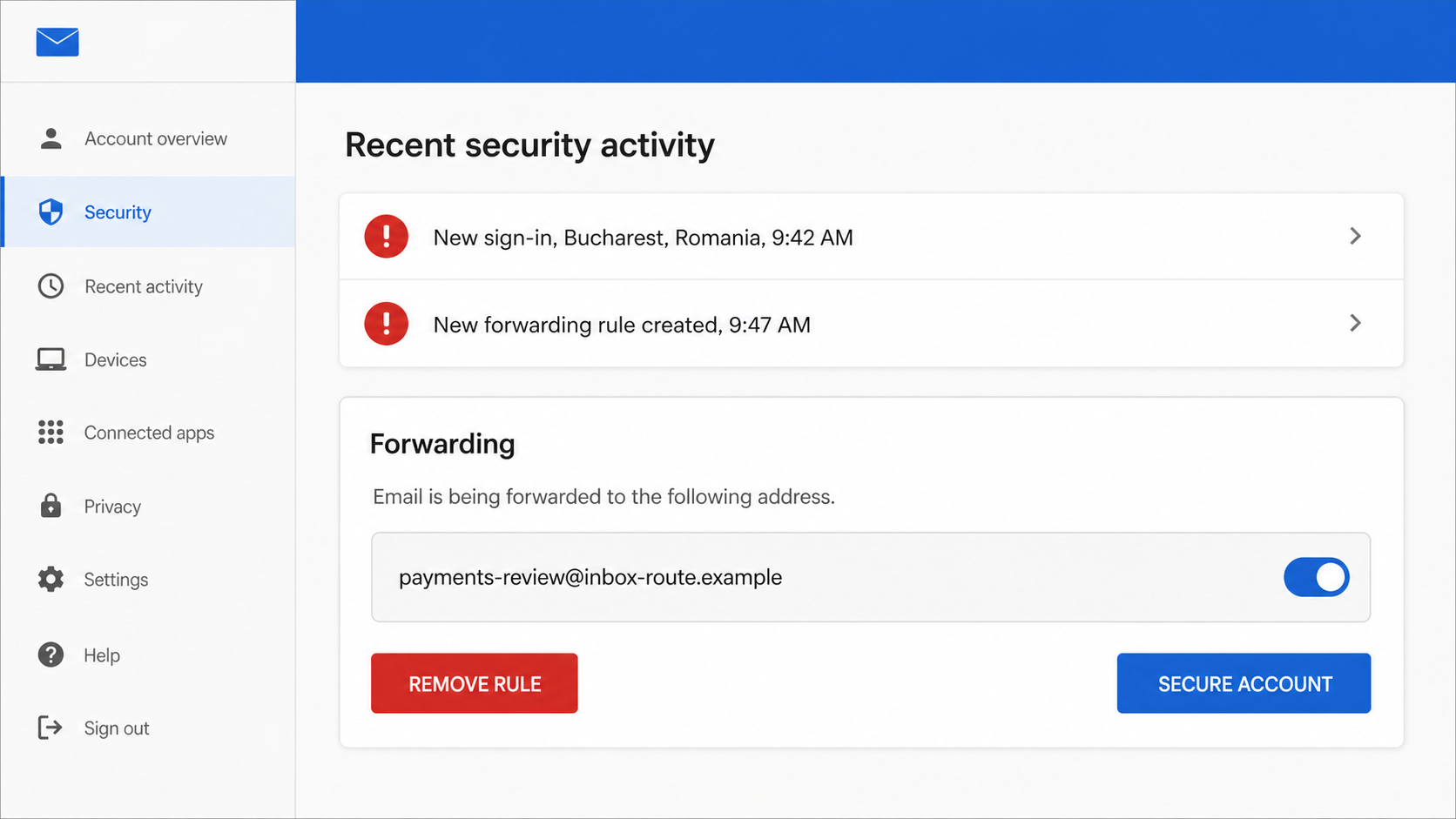
A careful intruder may create forwarding rules, register an application password, approve an outside app, or add a recovery method.
Those changes can preserve access after the account password is replaced. They may also hide security notices by moving them into archive or trash folders.
That is why recovery requires more than choosing a stronger password. Sessions, rules, connected applications, and recovery information all need review.
The attacker may wait quietly before using the account. A lack of immediate spam does not prove that the mailbox is clean.
Why This Email Can Look Convincing
It resembles an ordinary administrative task
Real mail services do send quota, sign-in, and policy notices. The scam hides among familiar messages instead of promising an implausible reward.
The restrained design helps. A plain logo, short explanation, and single button can appear more credible than an aggressively decorated message.
It combines fear with continuity
The notice invents previous failed attempts, making the recipient feel late rather than newly targeted. That framing discourages careful investigation.
Threatened message loss also feels irreversible. People act faster when they believe waiting will destroy information instead of merely postponing access.
The fake page completes the story
A provider-themed login page makes the email and website feel like one process. The prefilled address adds another layer of apparent continuity.
None of these elements proves ownership. Logos, account names, and user addresses are easy to copy or pass through a URL parameter.
What the Threats in the Email Really Mean
Account restriction is presented without evidence
The message never identifies a real policy violation, failed login, billing problem, or administrative change. It simply asserts that verification was unsuccessful.
That absence is useful to the sender. Specific evidence could be checked, while a vague identity issue keeps the recipient focused on the button.
Real restriction notices usually explain where the event occurred and how to review it safely. They do not depend on one unverified external link.
Unread-message loss is a psychological lever
The sender cannot know that valuable unread messages exist. The claim invites recipients to imagine whatever communication they fear missing most.
Personal users may picture a bank alert or family message. Employees may imagine a customer complaint, approval request, or time-sensitive assignment.
This open-ended threat works because every reader supplies different stakes. The campaign gains urgency without providing a single verifiable message detail.
The recovery delay discourages independent help
Promising a three-to-five-day reactivation delay makes official support sound slow. The button is framed as the fastest path to uninterrupted access.
In reality, contacting known support is precisely what exposes the lie. A genuine administrator can confirm whether the account faces any restriction.
Do not let an email’s invented timeline dictate your security decision. Verification through the normal account remains safer than instant action elsewhere.
Company, Address, and Fulfillment Checks
The sender identity is deliberately vague
“Webmail” is a type of service, not a company. A real notice should identify the provider, account, policy, and support path with consistent details.
Display names can be typed freely. Expand the sender information and examine the complete address, while remembering that addresses can also be spoofed.
The link is the decisive mismatch
Compare the registrable domain with the address you normally use. Extra words before or after a familiar brand do not make a domain official.
A link shortener, unfamiliar country domain, raw IP address, or compromised unrelated website deserves immediate suspicion. Do not test it by signing in.
Hosting services are not endorsements
Phishing pages frequently appear on ordinary cloud storage, website builders, or compromised servers. The infrastructure owner may have no involvement in the fraud.
Likewise, a valid certificate only protects transmission. It cannot confirm that the person receiving your password is your legitimate email provider.
Contact details must be found independently
Do not call a number or use a support link supplied by the suspicious email. Open the provider’s known website or contact your organization’s IT team.
Ask whether an identity confirmation is genuinely pending. If the provider cannot see the alert inside your account, treat the message as hostile.
Security portals normally preserve an event history. A real restriction, unfamiliar login, or recovery change should be visible after you sign in independently.
Save the original message before deleting it if your employer may investigate. Full headers can help administrators identify the delivery source and related recipients.
What to Do if You Have Fallen Victim to This Scam
- Leave the phishing page. Close the tab and do not submit another password, verification code, or recovery answer. Avoid using links from the same message.
- Change the mailbox password. Type the provider’s known address yourself on a trusted device. Choose a unique password that was never used elsewhere.
- Sign out every active session. Use the account security page to revoke unfamiliar devices and sessions. This can interrupt an attacker who is already connected.
- Turn on strong multi-factor authentication. Prefer an authenticator or security key where available. Never approve a prompt you did not initiate.
- Inspect persistence settings. Remove unknown forwarding rules, filters, delegates, recovery addresses, app passwords, connected applications, and automatic replies.
- Review recent activity. Check sent, deleted, archived, and spam folders. Look for password-reset messages, unfamiliar replies, and security notices that were hidden.
- Secure linked accounts. Replace reused passwords and prioritize banking, shopping, cloud storage, social media, and workplace services reachable through email resets.
- Warn affected people. Tell contacts not to trust recent requests from your address. At work, notify IT and your manager through a separate channel.
- Scan suspicious downloads. If the page delivered a file or extension, scan the device with Malwarebytes and remove anything detected before changing more passwords.
- Reduce repeat exposure. A reputable blocker such as AdGuard can stop some malicious redirects and known phishing domains, but it does not replace careful domain checks.
- Preserve evidence and report it. Save the email, headers, URLs, timestamps, and screenshots. Report the page to your provider and the relevant national fraud service.
If you only opened the email, did not follow its link, and entered nothing, account theft is unlikely. Delete it and report it as phishing.
If you clicked but submitted nothing, close the page and review downloads. Change credentials if the browser autofilled or transmitted any information unexpectedly.
Frequently Asked Questions
Is the Webmail Security Confirmation Pending email genuine?
The examined version is phishing. Verify any similar warning by opening your provider directly, never through the email’s confirmation button.
Why does the fake page already know my email address?
The address may be encoded inside the link or obtained from a breached mailing list. Prefilling it does not prove the page recognizes your account.
Can opening the email infect my computer?
Reading a normal message usually does not install malware. Risk rises if you open a downloaded file, install an extension, or submit information.
What if I entered an old or incorrect password?
Change it anywhere it remains in use. The submission also confirms your address is active, so expect additional targeted messages.
Will multi-factor authentication keep me safe?
It provides important protection, but phishing can also request codes or trigger approval prompts. Review sessions and reject every sign-in you did not start.
How can I verify a real webmail alert?
Open the official app or type the provider’s address independently. Check security activity there, or contact your organization’s support team through known details.
The Bottom Line
The Webmail Security Confirmation Pending scam turns a routine account notice into a password trap. Its urgency matters far less than the domain behind the button.
Do not confirm accounts through unsolicited links. Enter the provider’s address yourself, review genuine security activity, and investigate every mailbox setting after credential exposure.

Join the discussion
0 commentsShare your experience or ask a question about this article.
Discussion
Start the conversation
Have a question or something useful to share? Add the first comment.