

A pocket-sized emergency tool can feel like an easy precaution. Outpeed promoted a compact card as the kind of practical item someone might keep in a wallet or glove compartment.
The advertising story was reassuring, but the storefront behind it has not remained equally stable. That difference deserves attention before anyone trusts the product, seller, or refund promise.
Overview
The advertisement turns a generic tool into a safety story
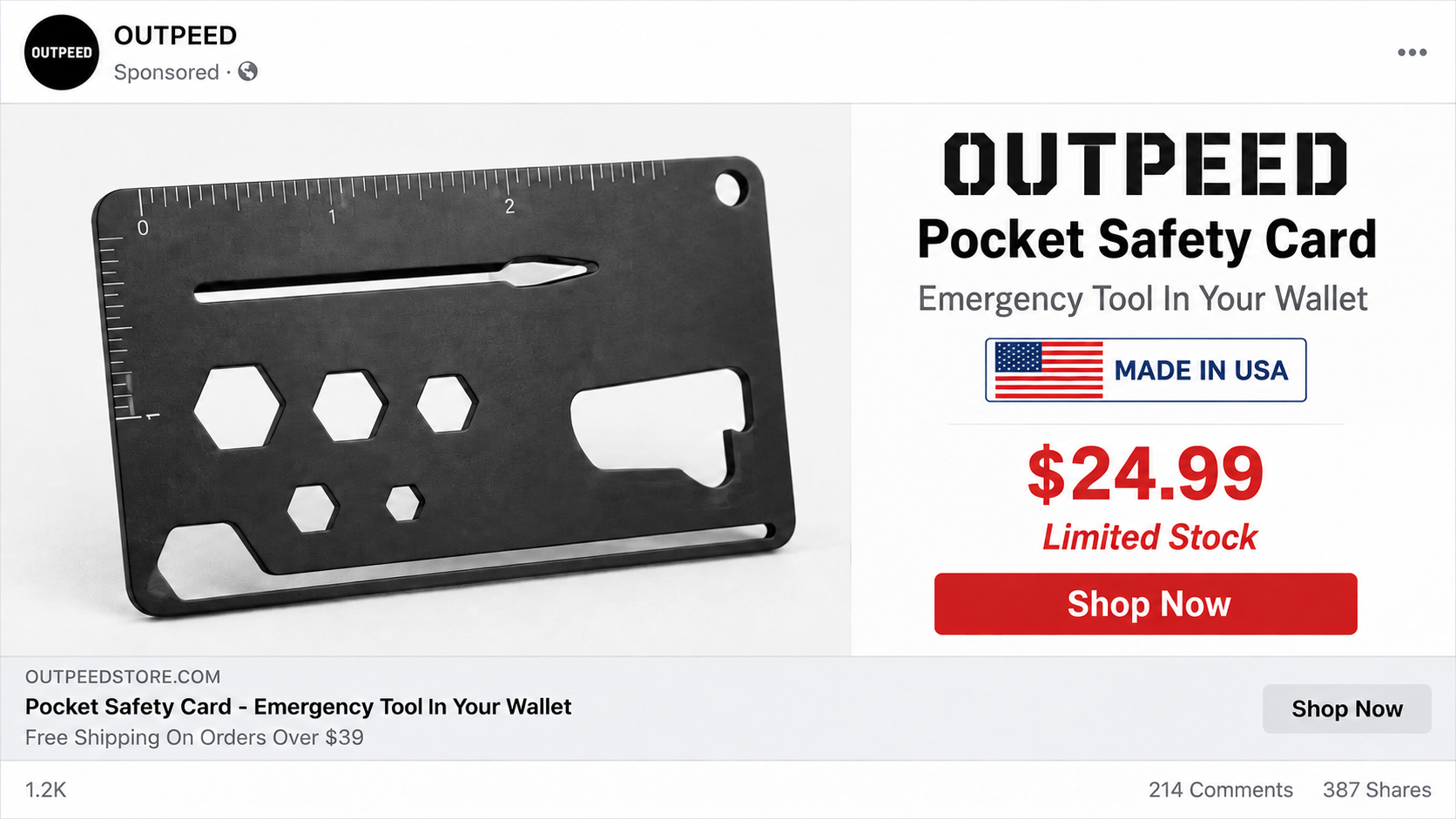
The Outpeed Pocket Safety Card was presented as a compact emergency accessory with practical uses. The pitch leaned on preparedness, portability, and an approachable price near $25.
Products in this category can be real and useful. The concern is whether the pictured item, origin story, materials, and promised capabilities are supported by verifiable information.
Nearly identical pocket cards appear through other online stores. That suggests the design may be a generic item relabeled by different sellers rather than a distinctive Outpeed invention.
Generic sourcing is not automatically dishonest. It becomes misleading when advertising implies unique engineering, domestic manufacturing, special quality, or scarcity without evidence.
The original store no longer provides a stable buying record
During this investigation, Outpeed’s former product and policy pages were not reliably accessible. Attempts to reach the domain produced security and connection problems.
That condition prevents shoppers from confirming the listing, legal seller, refund address, warranty, or product specifications through the original storefront.
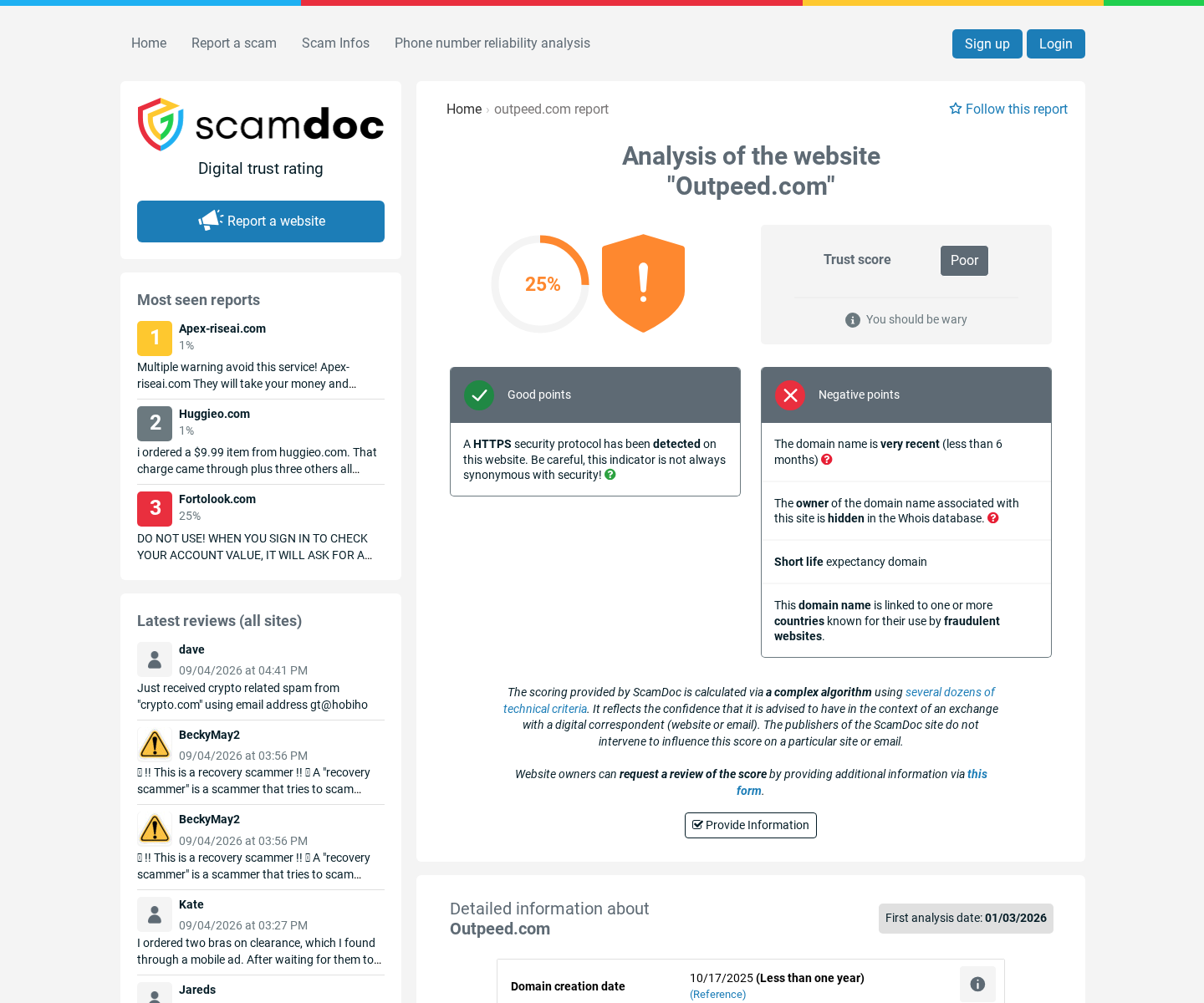
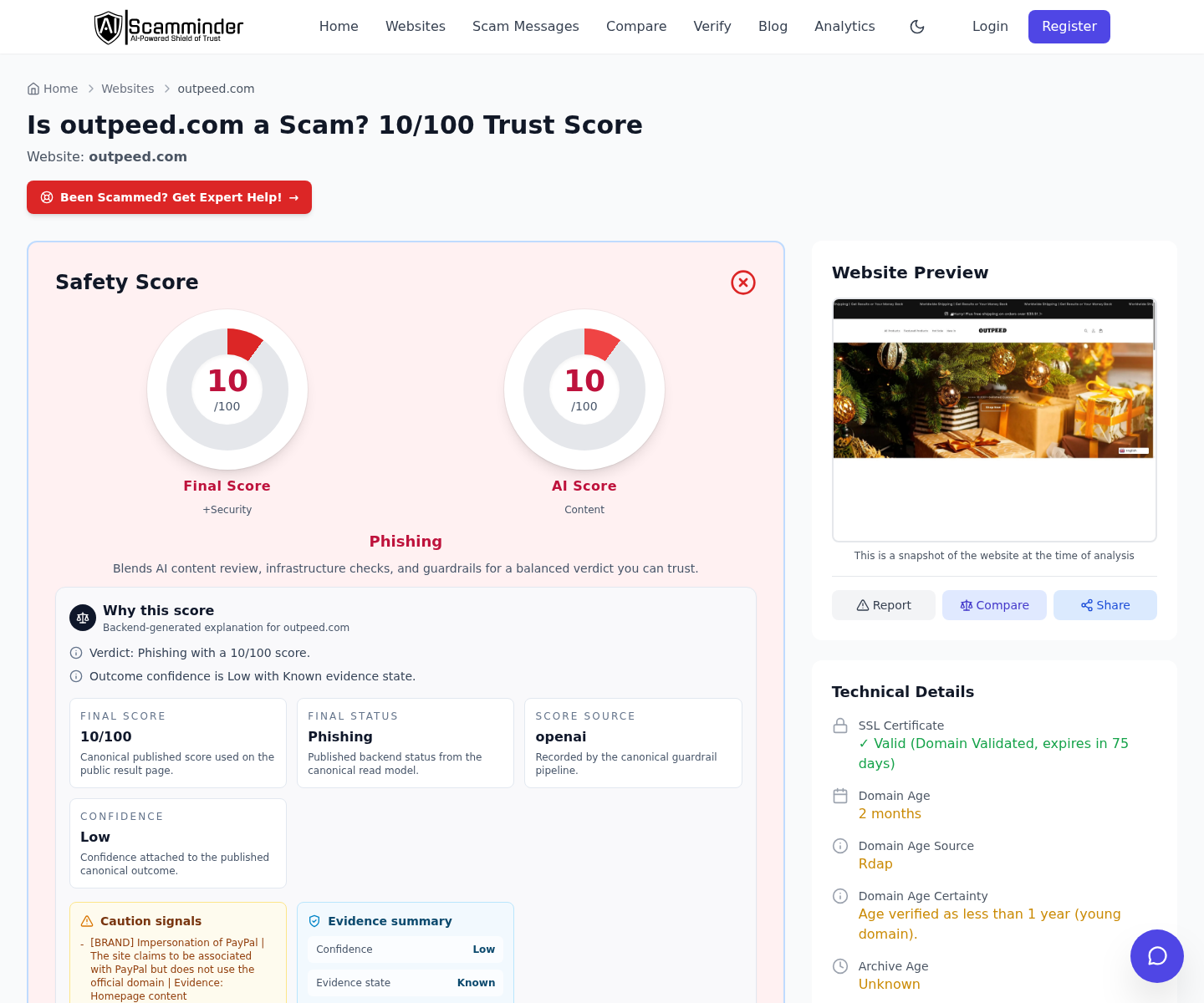
Independent website checks captured a recently created domain with concealed ownership and a weak reputation. One later preview showed unrelated seasonal merchandise rather than the safety card.
A domain shifting between product themes is a meaningful warning. It suggests the storefront may be disposable, repurposed, or operated without a durable brand identity.
- The product appears similar to generic pocket tools sold by other stores.
- The original Outpeed storefront is no longer reliably available.
- Public domain checks show a young registration and hidden ownership.
- A captured site preview displayed unrelated merchandise.
- Manufacturer, testing, and domestic-origin evidence remain difficult to verify.
Safety claims require stronger proof than ordinary gadget claims
A novelty purchase can be disappointing without creating immediate danger. An emergency product is different because someone may rely on it during a stressful situation.
Materials, sharp edges, locking behavior, durability, corrosion resistance, and instructions all matter. A product sold for safety should identify its intended limitations.
No small card should replace a tested seat-belt cutter, window tool, first-aid kit, fire extinguisher, or professional rescue equipment when those tools are appropriate.
How the Outpeed Pocket Safety Card Sales Funnel Works
Step 1: A social advertisement creates an emergency scenario
The ad begins with a relatable fear: being stranded, needing a tool unexpectedly, or wanting to protect family members during travel.
Preparedness marketing shortens the comparison process. Buyers imagine the cost of being unprepared, making a $25 purchase feel minor and immediately responsible.
Dramatic demonstrations may show several tasks in quick succession. Viewers rarely see repeated testing, failed attempts, material wear, or the conditions required for each use.
The seller benefits when emotional urgency replaces technical scrutiny. A safety narrative can make ordinary stamped metal appear specialized and proprietary.
Step 2: Origin and invention language increase perceived value
Advertisements for generic gadgets often imply local development, veteran inspiration, family craftsmanship, or domestic manufacturing. Those stories should be supported by names and records.
For Outpeed, clear evidence identifying the actual designer and manufacturer was difficult to locate. The product’s resemblance to other marketplace items weakens exclusivity claims.
A seller can legally import a product and sell it under a brand. It should not describe that product as domestically manufactured when only marketing or fulfillment occurs locally.
Look for a manufacturer name, country-of-origin marking, material specification, model number, patent reference, and responsible importer. Vague patriotic imagery proves none of these.
Step 3: The checkout emphasizes a low-risk impulse purchase
A price below $30 sits in a convenient range. It is expensive enough to suggest quality but low enough that many shoppers skip extensive research.
Quantity discounts can move the order from one card to several. The buyer may imagine gifts for family members, increasing the transaction before testing a single unit.
Countdown clocks and low-stock messages add urgency. Unless inventory data is independently connected to the display, those elements should be treated as sales design.
Before submitting payment, shoppers should capture the full order summary. Optional extras, shipping protection, and multiple-unit bundles can change the total unexpectedly.
Step 4: A generic supplier may fulfill the order
Small direct-response stores frequently outsource storage and shipping. The package can originate from an international logistics partner rather than the location implied by the advertisement.
Long transit times and minimal tracking are common in this model. The parcel label may reveal a consolidator, returns warehouse, or shipping agent instead of Outpeed.
A fulfillment center is not automatically fraudulent. It becomes concerning when no accountable company stands behind the order once the warehouse completes delivery.
Photograph packaging and country-of-origin markings. These details can directly contradict claims about where the product was made or who supplied it.
Step 5: The product may not match the advertising impression
The delivered card may be thinner, duller, smaller, or less durable than expected. Edges and tool functions can perform differently from edited demonstrations.
Some features may work only under narrow conditions. A small blade, for example, may struggle with reinforced materials or become unsafe when gripped incorrectly.
Do not create a dangerous test simply to reproduce an advertisement. Evaluate ordinary build quality and follow any supplied instructions without risking injury or property damage.
If the listing promised specific metal grades or manufacturing origin, compare those claims with markings and documents. Unsupported impressions are harder to dispute than explicit statements.
Step 6: A vanished storefront complicates any refund
After delivery, customers normally return to the product page for instructions. An unavailable domain removes the easiest route to policies and customer service.
Email replies may be slow or absent. Even when an address is provided, international tracked return postage can exceed the item’s value.
A payment provider may ask for evidence that the customer attempted resolution. Archived emails and screenshots show that the merchant’s support route failed.
Do not let repeated silence consume dispute deadlines. A low transaction amount is still worth reporting when the product was materially misrepresented or never arrived.
Step 7: The domain can be repurposed for another campaign
Temporary stores sometimes remove one winning product and replace it with unrelated items. Advertising accounts, designs, and product pages can migrate to a fresh domain.
A captured reputation preview associated Outpeed with seasonal merchandise rather than the Pocket Safety Card. That inconsistency undermines the idea of a specialized safety company.
Repurposing also fragments the evidence. Old links fail, search results become confusing, and support messages may refer to brand names shoppers never encountered.
This is why the product story should never carry the entire trust decision. The accountable legal seller and durable support channel matter more than a memorable logo.
Product Claims That Deserve Verification
“Made in USA” requires actual manufacturing evidence
Domestic-origin claims have a specific meaning. Packaging, supplier records, and clear disclosures should support them rather than relying on flags, patriotic colors, or an American backstory.
A United States returns address does not prove domestic manufacture. Warehouses can process imported merchandise without designing or producing it.
If origin matters, ask for the manufacturer’s legal name and production location before ordering. An evasive response is a reason to choose a documented alternative.
Emergency capability should be tested and limited
A multi-tool should state what each edge, notch, or opening is designed to do. It should also warn against uses likely to cause breakage or injury.
Marketing demonstrations can use prepared materials, hidden cuts, repeated takes, or favorable angles. A short video is not equivalent to standardized product testing.
For vehicle emergencies, select tools with credible testing, clear instructions, and an accessible mounting location. A card buried inside a wallet may be difficult to reach.
Patents and unique-design claims should be traceable
If advertising mentions a patent, search the stated number and confirm that the named inventor, owner, and design correspond to the product being sold.
“Patent pending” without an application reference provides little practical verification. A common shape available from many suppliers is unlikely to prove exclusive engineering by itself.
Comparing photographs across wholesale and retail sites can reveal shared molds, identical tool layouts, and the same promotional images under different brand names.
Customer reviews need context
Reviews embedded in a seller’s own page can be selected, imported, or disconnected from verified purchases. Examine whether dates, names, and product details appear credible.
Independent reviews are more useful when they include parcel photos and measurements. Repeated generic praise provides less evidence than one carefully documented comparison.
A lack of outside discussion is also informative when the store claims widespread popularity. Strong sales should normally leave some independent product history.
Company, Address, and Fulfillment Checks
The legal seller is not clearly established
A dependable store identifies the company accepting orders, its jurisdiction, customer-service contact, and responsibility for product safety. Those details should survive after a campaign ends.
Outpeed’s inaccessible original pages make that verification difficult today. A buyer should not have to reconstruct the seller’s identity from card statements and package labels.
Before purchasing from a similar store, compare the company named in its terms, privacy policy, checkout, receipt, and bank transaction. All should tell a coherent story.
A young private domain adds uncertainty
Public checks captured a recent registration with ownership details hidden. Privacy protection is common, but it removes one potential accountability signal from an already unfamiliar merchant.
Domain age cannot prove fraud. Combined with a vanished storefront, changing merchandise, and unclear identity, it substantially increases the chance of unresolved problems.
Search archived results, but do not assume an old screenshot represents current terms. Save the live page presented at the moment of purchase.
Addresses and phone numbers must lead somewhere useful
Search the return address before ordering. It may belong to a third-party warehouse, virtual mailbox, residential property, or unrelated company rather than Outpeed management.
Call any support number and ask about the exact Pocket Safety Card, manufacturer, origin, warranty, and return destination. Generic answers do not establish accountability.
An unanswered email is especially serious when no working website remains. Payment protection becomes the only practical fallback.
Mass-produced tools can carry physical risks
An inexpensive tool may have sharp unfinished edges, brittle metal, weak joints, or unsafe coatings. These issues matter when the item is used with force.
Stop using a product that bends, cracks, flakes, or causes cuts. Keep it away from children and do not rely on it for life-critical tasks.
Report injuries and hazardous defects to the appropriate product-safety authority. A refund does not replace reporting when other customers may face the same danger.
What to Do if You Have Fallen Victim to This Scam
- Save the evidence immediately. Preserve the advertisement, product claims, checkout total, receipt, tracking page, package, origin markings, card statement, and all support messages.
- Compare the delivered item carefully. Record dimensions, materials, model markings, missing functions, quantity, damage, and differences from the original photographs.
- Request a written solution. Ask for a full refund and prepaid return label when the product is materially different. Give the merchant a reasonable response deadline.
- Open a payment dispute before time expires. Explain whether the issue is non-delivery, unauthorized billing, defect, or merchandise not as described. Submit organized supporting files.
- Monitor the payment method. Watch for duplicate or unfamiliar charges. Contact the issuer and replace the card if payment details may have been misused.
- Check devices exposed to unusual files. Run Malwarebytes if an order message required an unofficial tracking application, browser extension, or downloaded document.
- Reduce future ad exposure. AdGuard can block many deceptive advertisements and suspicious pages, while careful merchant verification remains essential.
- Report unsafe or misleading sales. Send evidence to consumer-protection agencies, advertising platforms, and product-safety authorities when origin claims, demonstrations, or merchandise were deceptive.
Is Your Device Infected? Run a Free Malware Scan
Slow performance, constant pop-ups, or strange behavior? These are classic signs of a malware infection. The fastest way to find out is to scan your device with Malwarebytes Free — one of the most trusted malware removal tools available.
The free version detects and removes the most common threats, including:
- Adware — the cause of those annoying pop-ups
- Browser hijackers — unwanted redirects and changed homepages
- Trojans and spyware — hidden programs stealing your data
- Potentially unwanted programs (PUPs) — software you never asked for
👉 Select your device below — Windows, Mac, or Android — then follow the simple steps to download Malwarebytes, scan your system, and remove any threats it finds. The scan usually takes 5 to 20 minutes.
Run a Malware Scan with Malwarebytes for Windows
Malwarebytes is one of the most popular and trusted anti-malware tools for Windows — and it’s completely free for removing infections. It catches threats that many antivirus programs miss, including adware, browser hijackers, and trojans. Follow the steps below to scan and clean your PC in just a few minutes.
Download Malwarebytes
Click the button below to download the latest version of Malwarebytes for Windows from the official source. The free version is all you need — it will scan your computer and remove adware, browser hijackers, and other malicious software at no cost.
Download MalwarebytesOfficial installer for Windows 11 and 10. Your download starts right away.Want real-time protection? See Malwarebytes Premium Malwarebytes Free for WindowsScans and removes malware at no cost
-
Install Malwarebytes
When the download finishes, open your Downloads folder and double-click the MBSetup file. If Windows shows a User Account Control pop-up, click “Yes” to allow the installation.

Follow the On-Screen Prompts to Install Malwarebytes
The setup wizard will walk you through a few quick screens:
-
Choose where you’re installing the program — “Personal Computer” or “Work Computer” — then click Next.

-
Malwarebytes will now install on your device. This usually takes under a minute.

-
When installation is complete, the “Welcome to Malwarebytes” screen will open automatically.

-
On the final screen, click Open Malwarebytes to launch the program.

-
Enable “Scan for Rootkits”
Before scanning, turn on rootkit detection so Malwarebytes can find even the most hidden threats. Click the Settings gear icon on the left side of the screen.

In the settings menu, find “Scan for rootkits” and click the toggle so it turns blue.

Done? Click “Dashboard” in the left pane to return to the main screen.
Start the Scan
Click the blue Scan button. Malwarebytes will automatically update its virus database and start checking your computer for malware.

-
Wait for the Scan to Finish
The scan checks your entire system for browser hijackers and other malicious programs, so it can take 5 to 20 minutes depending on your computer. Feel free to do something else — just check back occasionally to see the progress.

-
Quarantine the Detected Threats
When the scan is done, you’ll see a list of everything Malwarebytes found — malware, adware, and potentially unwanted programs. Click the “Quarantine” button to remove all of them at once.

Malwarebytes will now remove the malicious files and registry entries and move them safely into quarantine.

-
Restart Your Computer
Some threats can only be fully removed after a reboot. If Malwarebytes asks you to restart, click Yes. Once you’re logged back in, Malwarebytes has finished removing the threats it found.

That’s it — your Windows PC is now clean of trojans, adware, and other malware, and should be back to running smoothly.
If you are still having problems with your computer after completing these instructions, then please follow one of the steps:
- Run a computer scan with ESET Online Scanner
- Ask for help in our Windows Malware Removal Help & Support forum.
Run a Malware Scan with Malwarebytes for Mac
Malwarebytes for Mac is a free on-demand scanner that removes the malware other security software tends to miss — adware, browser hijackers, and unwanted programs included. Cleaning an infected Mac with Malwarebytes has always been completely free, and it’s our go-to recommendation. Follow the steps below to scan and clean your Mac in just a few minutes.
-
Download Malwarebytes for Mac
Click the button below to download the latest version of Malwarebytes for Mac.
Download MalwarebytesOfficial installer for macOS. Your download starts right away.Want real-time protection? See Malwarebytes PremiumMalwarebytes Free for MacScans and removes malware at no cost -
Open the Malwarebytes setup file
When the download finishes, open your Downloads folder and double-click the setup file to begin the installation.

-
Follow the On-Screen Prompts to Install Malwarebytes
The Malwarebytes for Mac Installer will guide you through a few quick screens. Click “Continue” and keep following the prompts until the installation completes.



When the installation is complete, Malwarebytes opens to the Welcome to Malwarebytes screen. Click “Get started“.
-
Select “Personal Computer” or “Work Computer”
Malwarebytes will ask what type of computer you’re installing it on. Click either Personal Computer or Work Computer, whichever applies.

-
Start the Scan
Click the “Scan” button. Malwarebytes will automatically update its detection database and begin checking your Mac for malware.

-
Wait for the Scan to Finish
Malwarebytes will scan your Mac for adware, browser hijackers, and other malicious programs. This can take a few minutes, so feel free to do something else — just check back occasionally to see the progress.

-
Quarantine the Detected Threats
When the scan is done, you’ll see a list of everything Malwarebytes found. Click the “Quarantine” button to remove all the threats at once.

-
Restart Your Mac
Malwarebytes will now remove all the malicious files it found. Some threats can only be fully removed after a reboot — if Malwarebytes asks you to restart, allow it. Once you’re logged back in, your Mac is clean.

That’s it — your Mac is now free of adware, rogue browser extensions, and other potentially harmful software.
If you are still experiencing problems while trying to remove a malicious program from your computer, please ask for help in our Mac Malware Removal Help & Support forum.
Run a Malware Scan with Malwarebytes for Android
Malwarebytes for Android automatically detects and removes dangerous threats like malware and ransomware so you don’t have to worry about your most-used device being compromised. Aggressive detection of adware and potentially unwanted programs keeps your Android phone or tablet running smooth.
-
Download Malwarebytes for Android.
You can download Malwarebytes for Android by clicking the link below.
Get Malwarebytes for AndroidOpens Google Play in a new tab.Want real-time protection? See Malwarebytes Premium for AndroidMalwarebytes for AndroidScans your phone and removes malware at no cost -
Install Malwarebytes for Android on your phone.
In the Google Play Store, tap “Install” to install Malwarebytes for Android on your device.

When the installation process has finished, tap “Open” to begin using Malwarebytes for Android. You can also open Malwarebytes by tapping on its icon in your phone menu or home screen.

-
Follow the on-screen prompts to complete the setup process
When Malwarebytes will open, you will see the Malwarebytes Setup Wizard which will guide you through a series of permissions and other setup options.
This is the first of two screens that explain the difference between the Premium and Free versions. Swipe this screen to continue.
Tap on “Got it” to proceed to the next step.
Malwarebytes for Android will now ask for a set of permissions that are required to scan your device and protect it from malware. Tap on “Give permission” to continue.
Tap on “Allow” to permit Malwarebytes to access the files on your phone.
-
Update database and run a scan with Malwarebytes for Android
You will now be prompted to update the Malwarebytes database and run a full system scan.

Click on “Update database” to update the Malwarebytes for Android definitions to the latest version, then click on “Run full scan” to perform a system scan.

-
Wait for the Malwarebytes scan to complete.
Malwarebytes will now start scanning your phone for adware and other malicious apps. This process can take a few minutes, so we suggest you do something else and periodically check on the status of the scan to see when it is finished.

-
Click on “Remove Selected”.
When the scan has been completed, you will be presented with a screen showing the malware infections that Malwarebytes for Android has detected. To remove the malicious apps that Malwarebytes has found, tap on the “Remove Selected” button.

-
Restart your phone.
Malwarebytes for Android will now remove all the malicious apps that it has found. To complete the malware removal process, Malwarebytes may ask you to restart your device.
That’s it — your Android phone is now clean — no more malicious apps, adware, or browser redirects.
If you are still having problems with your phone after completing these instructions, then please follow one of the steps:
- Restore your phone to factory settings by going to Settings > General management > Reset > Factory data reset.
- Ask for help in our Mobile Malware Removal Help & Support forum.
Stay Protected: Block Ads and Malicious Sites
Now that your device is clean, keep it that way. Most infections start with a malicious ad or a fake download button — so blocking them at the source is your best defense.
We recommend AdGuard, which blocks malicious ads, phishing pages, and dangerous redirects before they can reach you.
👉 Download AdGuard and browse safely
Frequently Asked Questions
Is the Outpeed Pocket Safety Card a real product?
Pocket multi-tools are real, and similar cards appear elsewhere. The investigation concerns Outpeed’s unstable storefront, unclear identity, origin questions, and product representation.
Was the card really made in the United States?
We found no reliable manufacturing documentation proving that claim. Domestic imagery, a local return label, or a marketing story would not establish production origin.
Why is the Outpeed website unavailable?
The original pages were not reliably reachable during this review. The precise reason is unconfirmed, but customers should not send money through replacement links claiming continuity.
Can a generic safety card still be useful?
Possibly, for limited low-risk tasks. It should not replace purpose-built emergency equipment, and buyers should test ordinary functions safely before relying on it.
What if my card never arrived?
Check tracking independently, contact the merchant in writing, and use payment-provider protections promptly. Do not pay an extra release or redelivery charge through an unsolicited message.
Should I return a defective card?
Request a prepaid label first. Do not spend more on international postage than the item cost without written assurance and strong payment-provider guidance.
The Bottom Line
The Pocket Safety Card may be a real generic tool, but Outpeed does not currently provide the stable identity, storefront, sourcing evidence, or support expected from a trustworthy safety brand.
Avoid relying on the advertisement alone. Choose documented emergency equipment from an accountable seller, and dispute misleading or undelivered orders before payment protections expire.

Join the discussion
0 commentsShare your experience or ask a question about this article.
Discussion
Start the conversation
Have a question or something useful to share? Add the first comment.