

A free sample arriving in the mail sounds pleasantly simple. SnappySample builds its pitch around that familiar idea, with colorful offers and an easy signup form.
The important details sit beyond the cheerful product pictures. Understanding what the form collects, who receives that information, and what users actually agree to requires a closer look.
Overview
SnappySample is a real sampling and lead generation operation
SnappySample is not simply an imaginary website collecting payment for products that never arrive. Its published terms identify the service and connect the brand with Tibrio LLC.
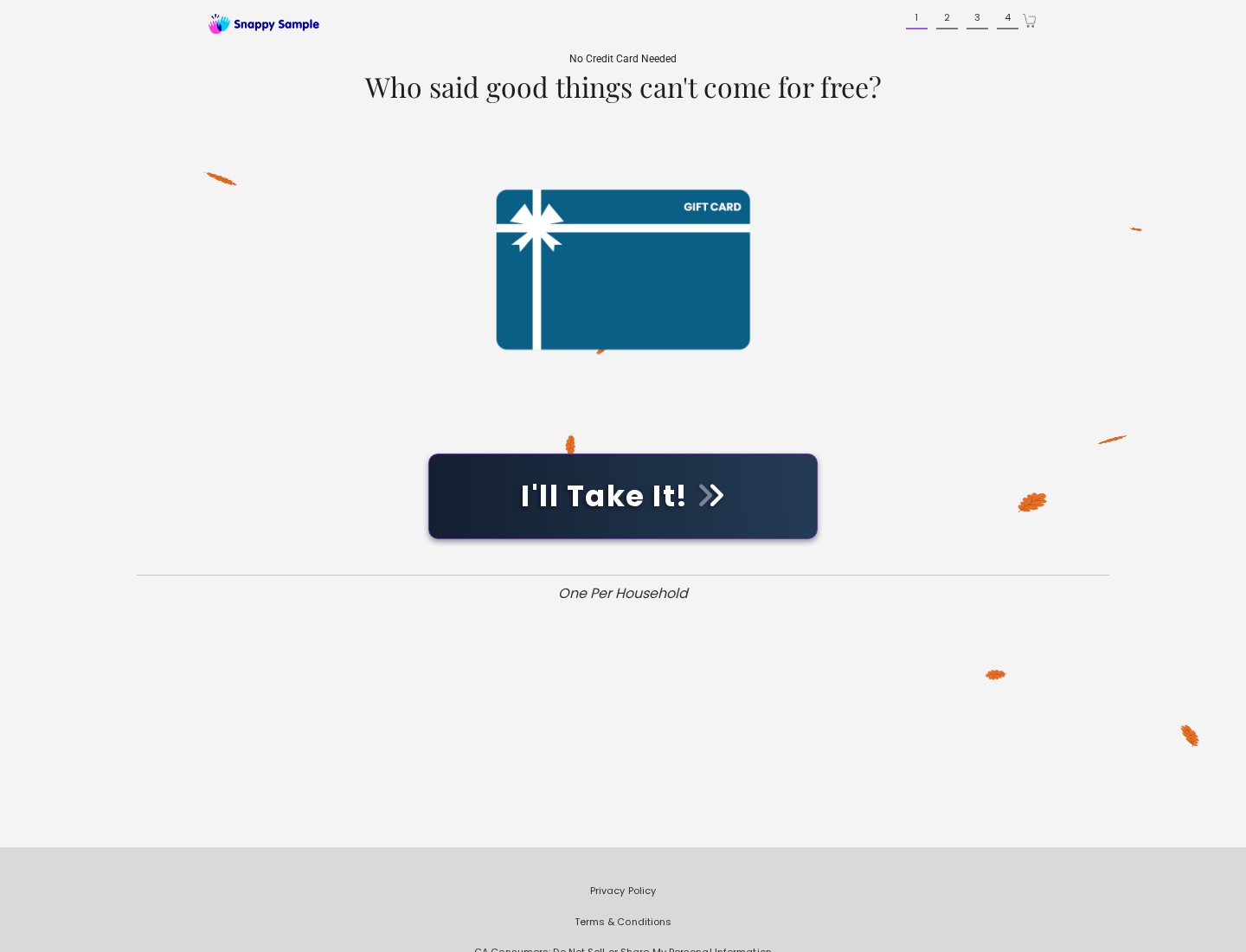
The company presents sample campaigns for household, food, beauty, and wellness products. Visitors answer questions, provide contact details, and may qualify for a mailed item.
No credit card is required for the ordinary sample request. That distinction matters because the central concern is personal information and marketing consent, not an immediate checkout charge.
The free item is only one part of the exchange
People naturally focus on the pictured sample. The business, however, also collects survey answers and contact information that can make each participant valuable to advertisers.
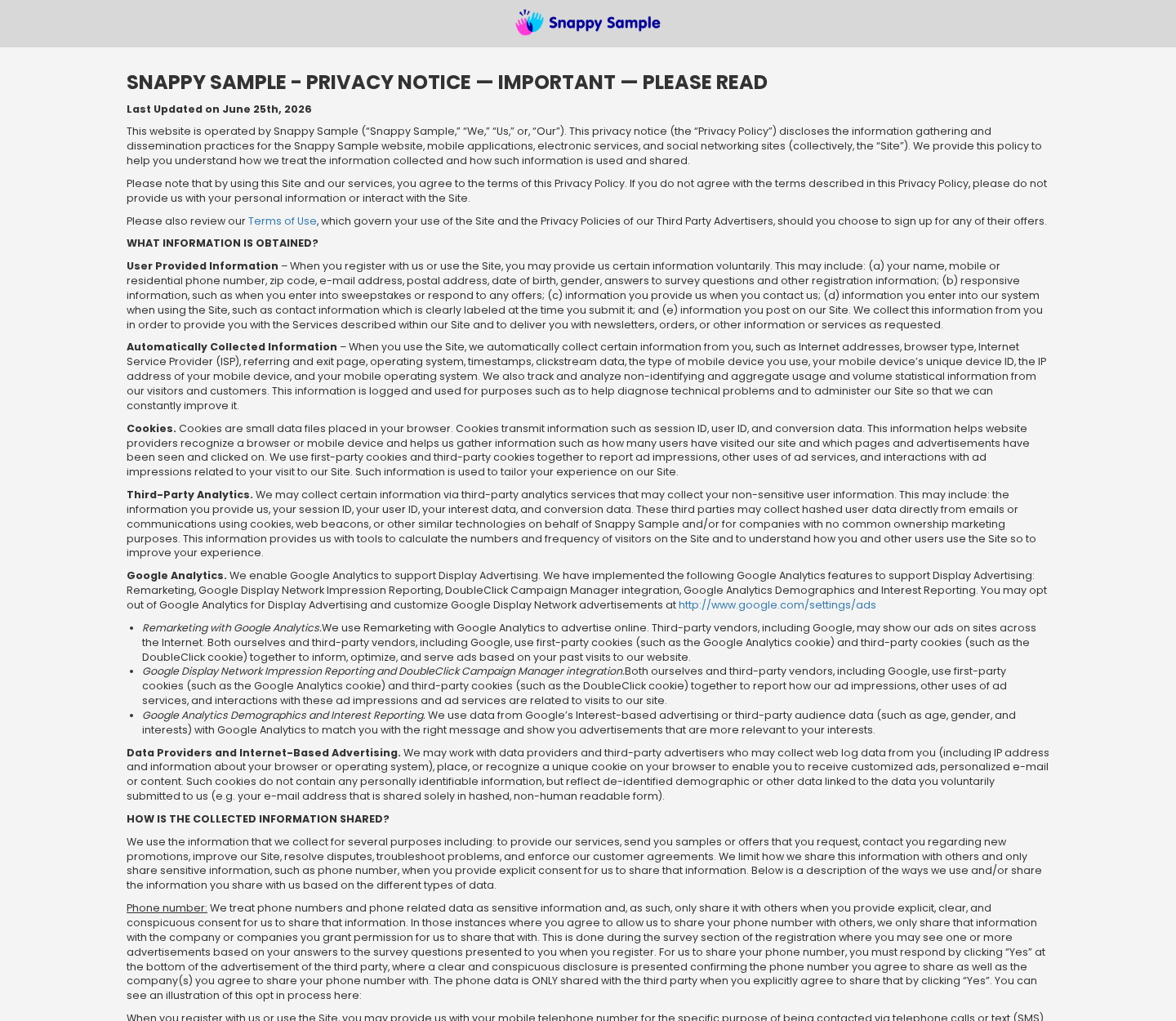
The privacy policy describes collecting names, email addresses, phone numbers, postal addresses, birth information, device identifiers, browsing details, and answers supplied through questionnaires.
Depending on the choices made during signup, information may support advertising, direct mail, email, telephone, or text marketing. Some sharing requires a separate consent action.
The practical exchange can therefore involve more than a sample. A visitor may trade detailed personal and household information for a product that has limited retail value.
- The sample may take six to eight weeks to arrive.
- Availability is limited and delivery is not guaranteed.
- A different item may be substituted when the advertised sample is unavailable.
- One sample per household per month may be enforced.
- Marketing permissions can depend on boxes, buttons, and disclosure wording shown during signup.
The risk comes from consent details people may overlook
A free offer encourages quick decisions. Visitors may provide information before reading the terms, privacy disclosures, or language surrounding optional partner offers.
That creates a mismatch in expectations. The participant remembers requesting shampoo or snacks, while the operator may record a broader set of permissions and survey responses.
The concern is not that every user will receive unwanted calls. It is that the signup journey can normalize sharing far more information than the sample requires.
How the SnappySample Offer Funnel Works
Step 1: A free product catches attention
The journey usually begins with an advertisement, social post, promotional email, or landing page showing an appealing product beside the word “free.”
Free offers reduce hesitation. People who would ignore an ordinary survey may answer one when a recognizable consumer product appears to be the reward.
The visitor is encouraged to act while supplies last. Scarcity language makes careful reading feel less important than completing the form quickly.
The product picture can dominate the page visually. Disclosures about eligibility, delivery, data use, and marketing may appear in smaller text or linked policies.
Step 2: The form builds a detailed consumer profile
Basic delivery information may include a name and postal address. The form can also request an email address, phone number, age range, gender, and household details.
Survey questions can reveal purchasing preferences, health interests, family composition, insurance concerns, homeownership, financial interests, or products someone plans to buy.
Individually, each answer may look harmless. Together, the responses can create a useful marketing profile tied to direct contact information.
That profile helps determine which advertisements or partner offers may interest the participant. It can remain commercially useful even when the sample itself costs very little.
Step 3: Consent may be collected through several actions
Online forms often present disclosure text near buttons, checkboxes, or offer cards. The meaning of a click depends on the wording displayed at that exact moment.
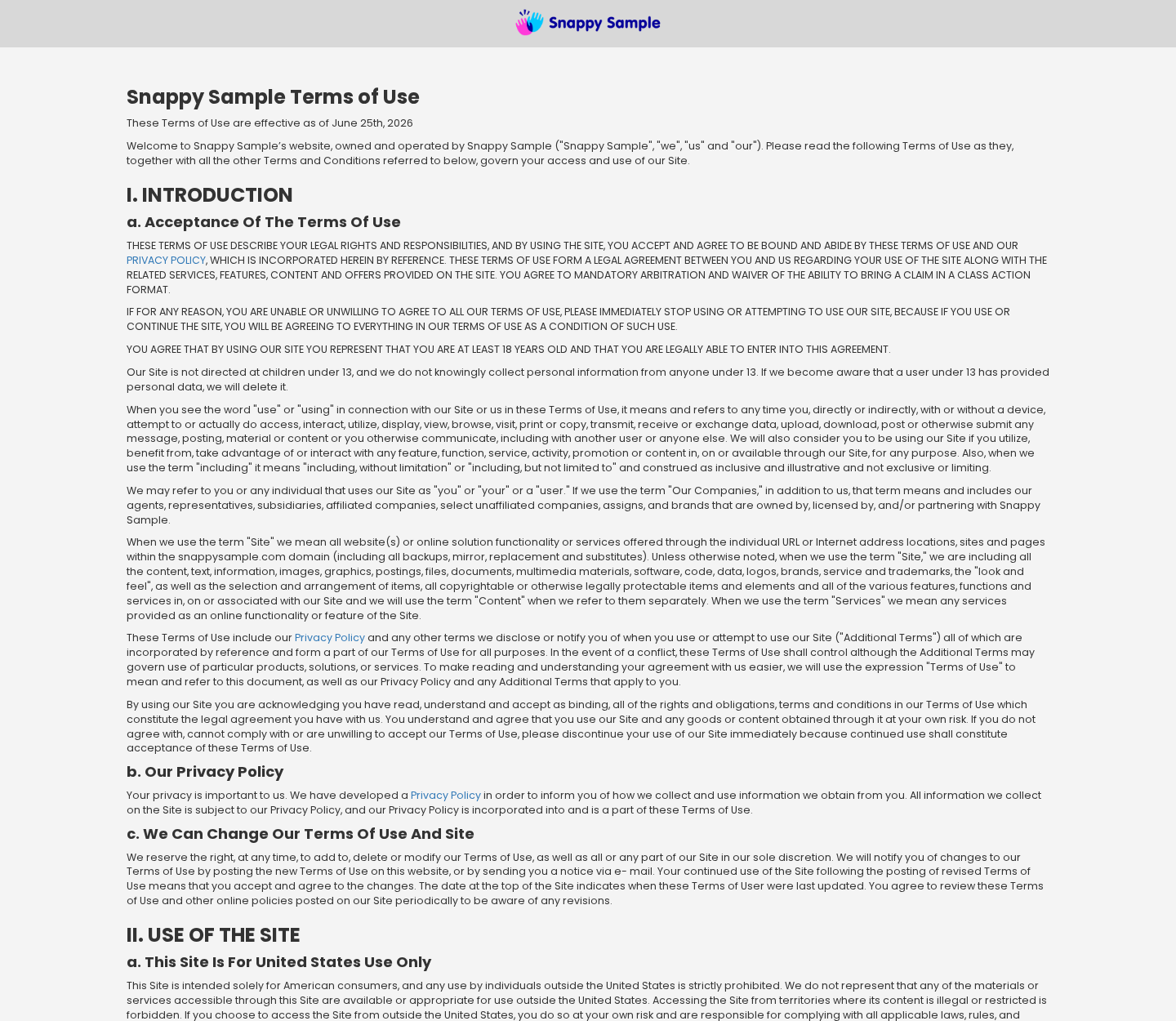
SnappySample’s terms say opt-in actions may be documented with logs, timestamps, and visual records. These records can be used as evidence that permission was granted.
A consumer may remember clicking to continue, while the stored record may connect that click with consent for communications from specified marketing partners.
This is why screenshots matter. A saved copy of each form page can show whether consent was optional, clearly labeled, preselected, or bundled with another action.
Step 4: Partner offers can extend the relationship
After the initial questions, participants may encounter additional offers. These can concern insurance, home services, health products, subscriptions, sweepstakes, or unrelated consumer categories.
Each offer may have its own company, privacy policy, eligibility rules, and contact permissions. Accepting one should not be treated as merely another sample question.
Telephone and text permissions deserve special attention. A short disclosure can authorize calls using automated technology from named companies or their marketing representatives.
Email and direct-mail marketing can also continue after the sample request. Unsubscribing from one sender may not automatically stop messages from every partner already authorized.
Step 5: The sample enters a separate fulfillment process
Once a request is accepted, delivery is not immediate. The published terms say fulfillment may take six to eight weeks, which is unusually long for ordinary shopping.
The wait makes tracking difficult. People may forget which website collected their details or confuse the eventual package with another promotion.
Availability is not promised. The operator may substitute another sample, and eligibility limits can exclude repeated requests from the same household.
A missing sample does not automatically prove fraud because the terms disclose limitations. It does, however, weaken the apparent certainty created by the advertisement.
Step 6: Marketing can outlast the value of the sample
A small product may be used quickly, yet the submitted data can remain in business systems according to retention rules and legal obligations.
Marketing partners may maintain their own records. Deleting information from the original service does not necessarily erase copies already shared under a valid consent.
Consumers can therefore experience calls, messages, or targeted offers long after they stop thinking about the original sample campaign.
The safest approach is to evaluate the data request first. The value of the promised item should be compared with the breadth of information and permissions requested.
What the Published Terms Actually Say
Delivery is delayed and not guaranteed
The terms state that a sample can require six to eight weeks for delivery. They also explain that availability may change and a substitute may be sent.
This language gives the operator considerable flexibility. A participant should not interpret the attractive product photo as a firm promise of that exact item.
If a campaign fills quickly, the visitor’s information may still have entered the system even though the desired sample is unavailable.
Marketing communications depend on the permissions given
The terms discuss email, telephone, and text communications. Some contacts may follow when a person expressly agrees to receive offers from identified parties.
That does not mean every form submission authorizes every possible caller. It means users must examine each consent statement instead of assuming all questions serve fulfillment.
Promises such as “no purchase necessary” address payment. They do not mean the transaction has no commercial purpose or that information will remain unused.
The privacy policy reaches beyond shipping details
The disclosed data categories include contact information, demographic details, survey responses, device information, network identifiers, and activity connected with the service.
These categories can help prevent duplicate requests and operate campaigns. They can also support audience selection, analytics, advertising, and measurement.
Users should distinguish operational data from optional marketing data. A mailing address may be needed for shipping, while unrelated preference questions serve a different purpose.
Disputes may be governed by arbitration provisions
The terms include arbitration language and a class-action waiver. Such provisions can affect how a consumer pursues a dispute with the operator.
Many people never read dispute terms for a free promotion. Their presence shows why even a zero-price offer should be treated as a contractual interaction.
Saving the version accepted during signup is sensible. Terms can change, and a dated copy preserves the language that appeared when information was submitted.
Privacy and Identity Checks Before You Sign Up
Read the sentence attached to every button
Do not judge a checkbox only by its short label. Read nearby text naming companies, communication methods, recurring contacts, and any consent that survives withdrawal.
Leave optional marketing boxes unchecked unless the contact is genuinely wanted. A sample should not require agreement to unrelated sales calls unless the requirement is clearly disclosed.
If the page blocks progress after declining optional consent, capture the screen. That record can help when disputing whether permission was freely given.
Use contact details that limit spillover
A separate email alias can keep promotional mail away from important accounts. It also makes it easier to identify which campaign generated later messages.
A secondary telephone number can reduce disruption, but never provide false information that could interfere with delivery or violate published eligibility rules.
Avoid supplying sensitive identifiers such as Social Security numbers, banking credentials, account passwords, or government-document images for a consumer sample.
Compare the reward with the requested data
Estimate the sample’s realistic retail value. Then review every requested answer and ask whether that information is necessary to ship or qualify for the product.
A travel-size item may not justify disclosing detailed financial, health, insurance, or family information. Skipping the offer can be the most rational choice.
Do not let sunk effort influence the final decision. You can close the form even after answering several questions if the next request feels excessive.
Keep a record of what you accepted
Save screenshots of the offer, consent wording, privacy links, confirmation page, and any companies named as communication partners.
Record the submission date and expected delivery window. This makes it easier to recognize related messages and evaluate whether the sample arrives within the disclosed period.
Use the operator’s published contact channel for privacy requests. Be specific about which information, marketing permissions, or communication methods you want addressed.
Company, Address, and Fulfillment Checks
The brand and legal operator should match
A polished brand name is not the same as a legal business identity. Here, the published materials connect SnappySample with Tibrio LLC.
That connection is more transparent than a store providing no company name. Still, users should confirm that emails, forms, and privacy requests point to the same operator.
Unexpected names on later messages may identify marketing partners. They should be compared with the companies listed in the consent wording saved during signup.
The listed address may serve administration or fulfillment
The terms provide a Fort Worth, Texas address for the sample administrator. An administrative address does not necessarily identify the manufacturer or warehouse shipping every sample.
Sample programs often rely on sponsors and fulfillment partners. A package return label may therefore show a different facility without proving the original disclosure was false.
What matters is whether the operator provides a usable channel for questions, privacy requests, and complaints, and whether responses address the specific campaign.
Phone and email access should be tested carefully
Before sharing a primary number, look for an accessible privacy contact. Send a simple question and keep the response, especially when the form requests telephone consent.
Do not call numbers contained in unrelated promotional messages and assume they belong to SnappySample. Return to the official policy pages to locate current contact information.
If a caller invokes the sample but requests money, passwords, remote access, or verification codes, end the call. Those demands do not fit ordinary sample fulfillment.
Free fulfillment does not require a surprise payment
The standard SnappySample offer says no credit card is needed. A later demand for shipping fees or account verification deserves independent scrutiny.
Never send gift cards, cryptocurrency, wire transfers, or bank login details to release a free sample. Those payment methods are common warning signs for impersonation scams.
If another company offers a paid trial after the survey, treat it as a separate purchase. Read its renewal, cancellation, return, and billing terms from the beginning.
What to Do if You Shared Your Information
- Review what you submitted. Reconstruct the form, saved screenshots, confirmation email, and companies named in any consent language. Separate necessary delivery details from optional marketing permissions.
- Withdraw unwanted consent. Use the operator’s published privacy channel and each sender’s unsubscribe process. State clearly that you withdraw telephone, text, and email marketing permission where applicable.
- Block persistent contacts. Use your phone’s blocking tools and report spam texts through your carrier. Do not reply with personal details to prove your identity.
- Protect important accounts. If you reused a password on any related offer, replace it with a unique password and enable multifactor authentication on your email account.
- Watch for tailored impersonation. Survey answers can make fraudulent messages sound relevant. Treat unexpected insurance, health, financial, or prize offers as unverified until independently confirmed.
- Scan the device if you installed anything. Run Malwarebytes when a linked download, browser extension, or unexpected application was installed during the offer journey.
- Reduce malicious advertising. AdGuard can block many deceptive advertisements and tracking requests, although it cannot erase information already submitted or replace careful consent review.
- Report deceptive conduct. Preserve evidence and complain to the appropriate consumer-protection or privacy authority when consent was misrepresented, withdrawal is ignored, or messages violate applicable rules.
Is Your Device Infected? Run a Free Malware Scan
Slow performance, constant pop-ups, or strange behavior? These are classic signs of a malware infection. The fastest way to find out is to scan your device with Malwarebytes Free — one of the most trusted malware removal tools available.
The free version detects and removes the most common threats, including:
- Adware — the cause of those annoying pop-ups
- Browser hijackers — unwanted redirects and changed homepages
- Trojans and spyware — hidden programs stealing your data
- Potentially unwanted programs (PUPs) — software you never asked for
👉 Select your device below — Windows, Mac, or Android — then follow the simple steps to download Malwarebytes, scan your system, and remove any threats it finds. The scan usually takes 5 to 20 minutes.
Run a Malware Scan with Malwarebytes for Windows
Malwarebytes is one of the most popular and trusted anti-malware tools for Windows — and it’s completely free for removing infections. It catches threats that many antivirus programs miss, including adware, browser hijackers, and trojans. Follow the steps below to scan and clean your PC in just a few minutes.
Download Malwarebytes
Click the button below to download the latest version of Malwarebytes for Windows from the official source. The free version is all you need — it will scan your computer and remove adware, browser hijackers, and other malicious software at no cost.
Download MalwarebytesOfficial installer for Windows 11 and 10. Your download starts right away.Want real-time protection? See Malwarebytes Premium Malwarebytes Free for WindowsScans and removes malware at no cost
-
Install Malwarebytes
When the download finishes, open your Downloads folder and double-click the MBSetup file. If Windows shows a User Account Control pop-up, click “Yes” to allow the installation.

Follow the On-Screen Prompts to Install Malwarebytes
The setup wizard will walk you through a few quick screens:
-
Choose where you’re installing the program — “Personal Computer” or “Work Computer” — then click Next.

-
Malwarebytes will now install on your device. This usually takes under a minute.

-
When installation is complete, the “Welcome to Malwarebytes” screen will open automatically.

-
On the final screen, click Open Malwarebytes to launch the program.

-
Enable “Scan for Rootkits”
Before scanning, turn on rootkit detection so Malwarebytes can find even the most hidden threats. Click the Settings gear icon on the left side of the screen.

In the settings menu, find “Scan for rootkits” and click the toggle so it turns blue.

Done? Click “Dashboard” in the left pane to return to the main screen.
Start the Scan
Click the blue Scan button. Malwarebytes will automatically update its virus database and start checking your computer for malware.

-
Wait for the Scan to Finish
The scan checks your entire system for browser hijackers and other malicious programs, so it can take 5 to 20 minutes depending on your computer. Feel free to do something else — just check back occasionally to see the progress.

-
Quarantine the Detected Threats
When the scan is done, you’ll see a list of everything Malwarebytes found — malware, adware, and potentially unwanted programs. Click the “Quarantine” button to remove all of them at once.

Malwarebytes will now remove the malicious files and registry entries and move them safely into quarantine.

-
Restart Your Computer
Some threats can only be fully removed after a reboot. If Malwarebytes asks you to restart, click Yes. Once you’re logged back in, Malwarebytes has finished removing the threats it found.

That’s it — your Windows PC is now clean of trojans, adware, and other malware, and should be back to running smoothly.
If you are still having problems with your computer after completing these instructions, then please follow one of the steps:
- Run a computer scan with ESET Online Scanner
- Ask for help in our Windows Malware Removal Help & Support forum.
Run a Malware Scan with Malwarebytes for Mac
Malwarebytes for Mac is a free on-demand scanner that removes the malware other security software tends to miss — adware, browser hijackers, and unwanted programs included. Cleaning an infected Mac with Malwarebytes has always been completely free, and it’s our go-to recommendation. Follow the steps below to scan and clean your Mac in just a few minutes.
-
Download Malwarebytes for Mac
Click the button below to download the latest version of Malwarebytes for Mac.
Download MalwarebytesOfficial installer for macOS. Your download starts right away.Want real-time protection? See Malwarebytes PremiumMalwarebytes Free for MacScans and removes malware at no cost -
Open the Malwarebytes setup file
When the download finishes, open your Downloads folder and double-click the setup file to begin the installation.

-
Follow the On-Screen Prompts to Install Malwarebytes
The Malwarebytes for Mac Installer will guide you through a few quick screens. Click “Continue” and keep following the prompts until the installation completes.



When the installation is complete, Malwarebytes opens to the Welcome to Malwarebytes screen. Click “Get started“.
-
Select “Personal Computer” or “Work Computer”
Malwarebytes will ask what type of computer you’re installing it on. Click either Personal Computer or Work Computer, whichever applies.

-
Start the Scan
Click the “Scan” button. Malwarebytes will automatically update its detection database and begin checking your Mac for malware.

-
Wait for the Scan to Finish
Malwarebytes will scan your Mac for adware, browser hijackers, and other malicious programs. This can take a few minutes, so feel free to do something else — just check back occasionally to see the progress.

-
Quarantine the Detected Threats
When the scan is done, you’ll see a list of everything Malwarebytes found. Click the “Quarantine” button to remove all the threats at once.

-
Restart Your Mac
Malwarebytes will now remove all the malicious files it found. Some threats can only be fully removed after a reboot — if Malwarebytes asks you to restart, allow it. Once you’re logged back in, your Mac is clean.

That’s it — your Mac is now free of adware, rogue browser extensions, and other potentially harmful software.
If you are still experiencing problems while trying to remove a malicious program from your computer, please ask for help in our Mac Malware Removal Help & Support forum.
Run a Malware Scan with Malwarebytes for Android
Malwarebytes for Android automatically detects and removes dangerous threats like malware and ransomware so you don’t have to worry about your most-used device being compromised. Aggressive detection of adware and potentially unwanted programs keeps your Android phone or tablet running smooth.
-
Download Malwarebytes for Android.
You can download Malwarebytes for Android by clicking the link below.
Get Malwarebytes for AndroidOpens Google Play in a new tab.Want real-time protection? See Malwarebytes Premium for AndroidMalwarebytes for AndroidScans your phone and removes malware at no cost -
Install Malwarebytes for Android on your phone.
In the Google Play Store, tap “Install” to install Malwarebytes for Android on your device.

When the installation process has finished, tap “Open” to begin using Malwarebytes for Android. You can also open Malwarebytes by tapping on its icon in your phone menu or home screen.

-
Follow the on-screen prompts to complete the setup process
When Malwarebytes will open, you will see the Malwarebytes Setup Wizard which will guide you through a series of permissions and other setup options.
This is the first of two screens that explain the difference between the Premium and Free versions. Swipe this screen to continue.
Tap on “Got it” to proceed to the next step.
Malwarebytes for Android will now ask for a set of permissions that are required to scan your device and protect it from malware. Tap on “Give permission” to continue.
Tap on “Allow” to permit Malwarebytes to access the files on your phone.
-
Update database and run a scan with Malwarebytes for Android
You will now be prompted to update the Malwarebytes database and run a full system scan.

Click on “Update database” to update the Malwarebytes for Android definitions to the latest version, then click on “Run full scan” to perform a system scan.

-
Wait for the Malwarebytes scan to complete.
Malwarebytes will now start scanning your phone for adware and other malicious apps. This process can take a few minutes, so we suggest you do something else and periodically check on the status of the scan to see when it is finished.

-
Click on “Remove Selected”.
When the scan has been completed, you will be presented with a screen showing the malware infections that Malwarebytes for Android has detected. To remove the malicious apps that Malwarebytes has found, tap on the “Remove Selected” button.

-
Restart your phone.
Malwarebytes for Android will now remove all the malicious apps that it has found. To complete the malware removal process, Malwarebytes may ask you to restart your device.
That’s it — your Android phone is now clean — no more malicious apps, adware, or browser redirects.
If you are still having problems with your phone after completing these instructions, then please follow one of the steps:
- Restore your phone to factory settings by going to Settings > General management > Reset > Factory data reset.
- Ask for help in our Mobile Malware Removal Help & Support forum.
Stay Protected: Block Ads and Malicious Sites
Now that your device is clean, keep it that way. Most infections start with a malicious ad or a fake download button — so blocking them at the source is your best defense.
We recommend AdGuard, which blocks malicious ads, phishing pages, and dangerous redirects before they can reach you.
👉 Download AdGuard and browse safely
Frequently Asked Questions
Is SnappySample a fake website?
The evidence points to an operating sampling and lead-generation service connected with Tibrio LLC, not a simple phantom storefront. That does not make every offer equally worthwhile.
Does SnappySample require a credit card?
Its ordinary sample language says no credit card is needed. Leave if a page unexpectedly demands card information, and verify that you have not entered a partner offer.
Will every requested sample arrive?
No. The terms describe limited availability, a six-to-eight-week delivery period, household limits, and possible substitutions. The displayed product should not be treated as guaranteed.
Why does a free-sample site ask survey questions?
Answers can determine eligibility and help advertisers understand consumer interests. They also make participant profiles commercially useful for targeting and measurement.
Can I stop marketing after signing up?
You can withdraw consent and unsubscribe, but separate partners may require separate requests. Keep records, because deleting data from one operator may not remove lawfully shared copies.
What information should never be required for a sample?
A routine consumer sample should not require account passwords, Social Security numbers, remote device access, gift cards, cryptocurrency, or bank login credentials.
The Bottom Line
SnappySample appears to be a real sampling and lead-generation operation, but “free” describes the product price, not the full value exchanged. Personal data and consent deserve equal attention.
Read every disclosure, decline unnecessary permissions, and save the exact terms accepted. If a small sample demands extensive personal information, walking away is a sensible decision.

Join the discussion
0 commentsShare your experience or ask a question about this article.
Discussion
Start the conversation
Have a question or something useful to share? Add the first comment.