


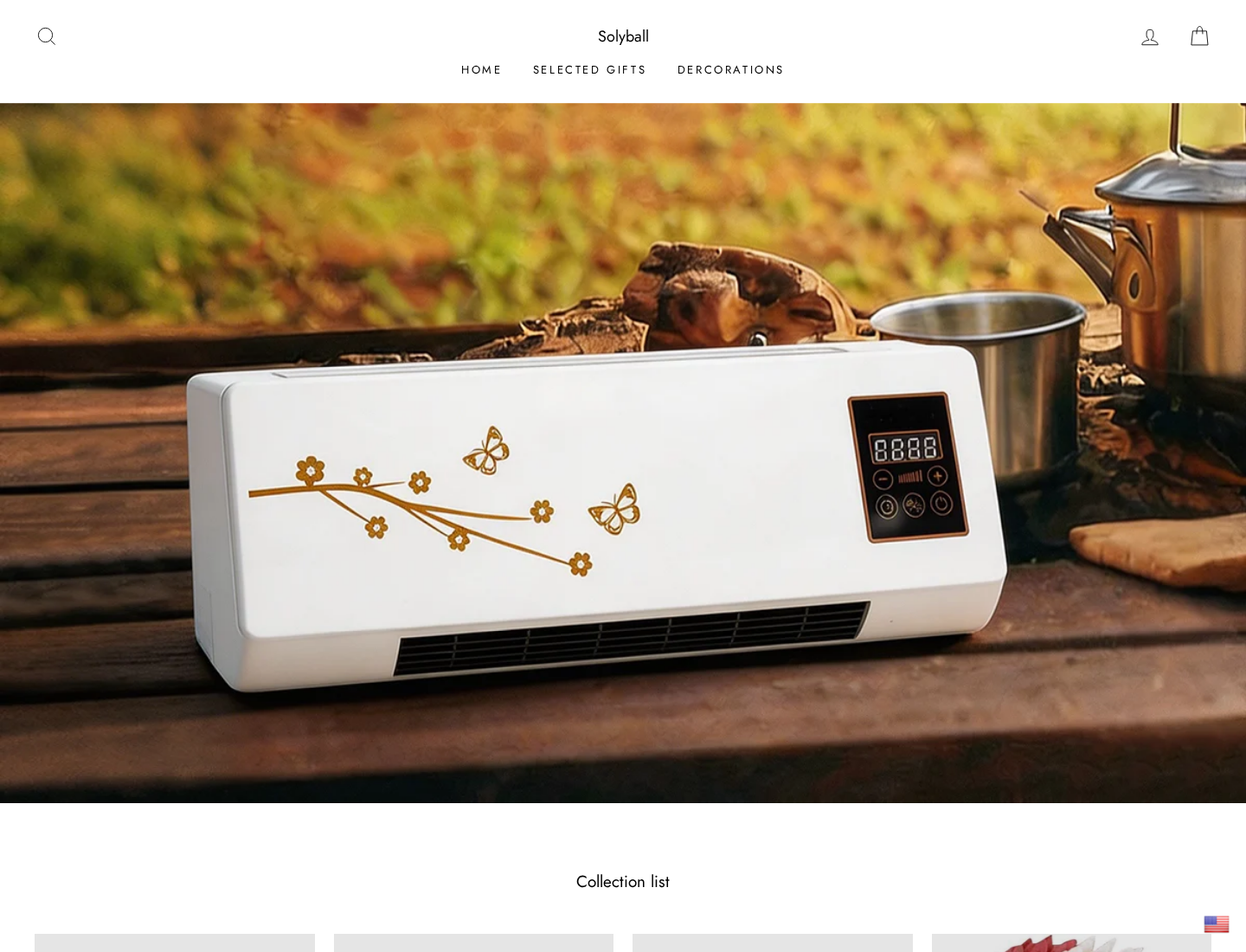
A compact box that cools an entire room without installation sounds ideal during a heat wave. Solyball’s Coolzy campaign presents that promise through a polished inventor story.
The page looks informative, the discount feels urgent, and the machine appears almost effortless. Several details become far less comfortable once the sales claims and seller information are compared.

Overview
Coolzy is advertised like a breakthrough air conditioner
The Solyball advertorial tells readers that a Seattle engineer developed an affordable alternative to expensive air conditioning. It portrays the device as fast, powerful, and easy to use.
One headline says the product can cool a room from 95°F to 63°F in under two minutes. The story claims it needs no compressor, refrigerant, or installation.
Those statements imply performance far beyond a small fan or evaporative personal cooler. Yet the page provides no credible engineering report demonstrating that room-scale temperature change.
The emotional narrative does most of the persuading. A supposed aerospace engineer, rising energy bills, and thousands of satisfied households make an unfamiliar gadget feel proven.
The page is an advertisement disguised as editorial content
The layout resembles a consumer-news feature rather than a standard product listing. Long-form storytelling, quoted reactions, product demonstrations, and discount announcements lead readers toward checkout.
At the bottom, a disclosure states that the page is an advertisement and not an actual news article, blog, or consumer-protection update.
That disclosure is important, but it does not neutralize the surrounding impression. Many visitors decide to buy before reaching the final lines.
An advertorial should be judged as sales material. Names, claimed credentials, testing numbers, patents, customer totals, and performance figures all require independent verification.
- The campaign uses a news-like inventor story.
- It promises dramatic room cooling without conventional air-conditioning components.
- A 50% discount and stock warnings create urgency.
- Seller policies contain conflicting brand names and email domains.
- Independent reviews report weak cooling, difficult returns, and quantity problems.
Company details and customer reports deepen the concern
Solyball’s policies do not present one consistent retail identity. Contact information references Olybally, while other pages use Ribilli or Solyball branding.
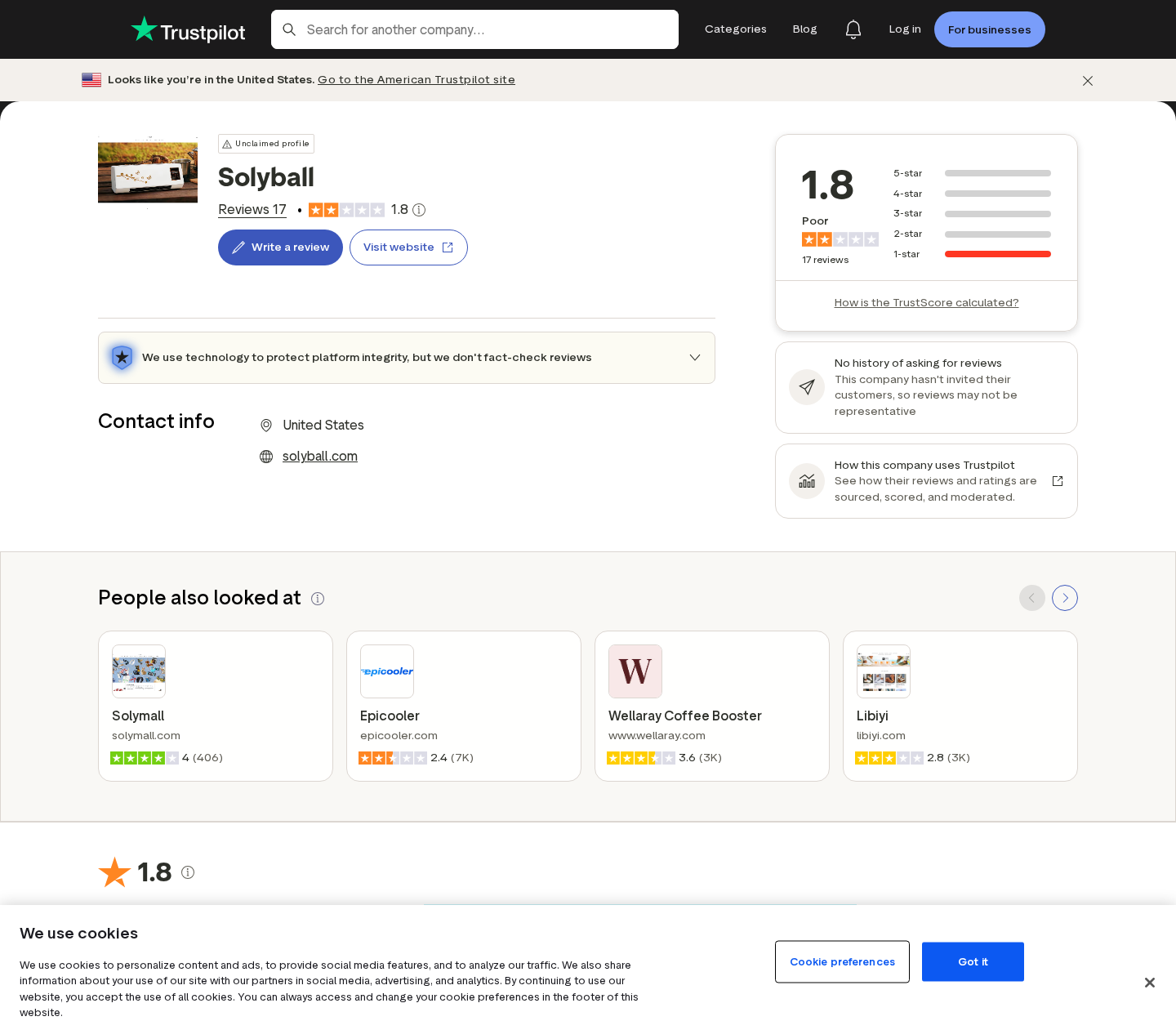
The company named on the contact page is Cola Technology International Co., Limited, with an address in Mong Kok, Hong Kong.
Public reviews repeatedly describe receiving a small fan or fan-heater that does not cool a room. Several buyers also report expensive or unworkable return arrangements.
How the Solyball Coolzy Scam Works
Step 1: A social ad promises relief from extreme heat
The funnel begins where discomfort is immediate. A video or display advertisement appears during hot weather and offers powerful cooling without a costly electricity bill.
Viewers see a compact device beside language normally associated with air conditioners. The small size makes the claimed result seem convenient rather than physically questionable.
The ad may emphasize renters, bedrooms, offices, older homes, or households unable to install window units. These situations make the proposed solution emotionally relevant.
A click leads away from the social platform and into a controlled sales environment where every element reinforces the same performance story.
Step 2: A fake news-style story supplies authority
The landing page introduces “Mr. Miller,” described as a 54-year-old aerospace engineer from Seattle. His supposed expertise substitutes for verifiable product testing.
The story frames Coolzy as a response to industry pricing and inefficient conventional systems. That creates an appealing inventor-versus-big-business narrative.
Readers are given personal motivation, technical confidence, and a discovery moment. These details make advertising feel like independent reporting about an overlooked invention.
There is no clear route to confirm the engineer’s identity, professional history, or connection with the named seller. A photograph and quotation are not verification.
Step 3: Impossible-sounding performance claims lower resistance
The advertorial says Coolzy can reduce room temperature from 95°F to 63°F in less than two minutes. That is an enormous cooling load.
Traditional air conditioning removes heat and transfers it elsewhere using a refrigeration cycle. A small fan cannot lower an enclosed room’s overall temperature simply by moving air.
An evaporative cooler can make nearby airflow feel cooler in dry conditions. It adds moisture and performs poorly in humidity, while still differing from compressor-based air conditioning.
The campaign claims major cooling without clearly explaining the thermodynamic process, heat exhaust, water consumption, cooling capacity, or conditions used for measurement.
Consumers can perform a simple credibility check before buying. Search the manual for BTU or watt-based cooling capacity, airflow, recommended room size, and exhaust requirements.
If those basic specifications are missing, comparisons with real air conditioners are meaningless. A marketing temperature alone cannot describe usable room performance.
Step 4: Scarcity and a 50% discount push the checkout
The page says demand is high and stock is limited. A reduced price under $130 is framed as temporary access to a much more valuable technology.
Price anchoring encourages readers to compare Coolzy with expensive air conditioners rather than with small fans or evaporative desktop coolers.
Countdown language limits research time. Shoppers may order several units for different rooms before seeing whether one can provide meaningful cooling.
At checkout, quantities, optional accessories, warranties, or shipping choices should be reviewed carefully. Buyer complaints include receiving more units than intended.
Step 5: A low-cost device arrives through outsourced fulfillment
Customer reports describe receiving compact equipment that behaves like a fan, fan-heater, or weak personal cooler rather than a room air conditioner.
The visible product may exist, but its real performance does not match the extraordinary impression created by the advertorial.
International sourcing can keep unit costs low while the marketing story supports a higher selling price. The brand printed online may not appear clearly on the package.
Buyers should record the parcel’s origin, model number, electrical label, wattage, safety marks, and instructions before using the device.
Step 6: Refund rules transfer the burden to the buyer
The published policy provides a 30-day return period measured from delivery. The item must remain unused and in the same condition, creating tension with reasonable product testing.
Customers may have to pay return shipping. International tracked postage for one or several appliances can make a nominal refund economically pointless.
The policy says merchandise will be inspected before approval. Shipping charges are described as nonrefundable, further reducing any amount recovered.
When support offers only a small partial refund, the buyer must choose between accepting a loss or funding an uncertain overseas return.
Step 7: Conflicting identities make escalation harder
A consumer who bought from Solyball can encounter policies branded as Ribilli, contact text naming Olybally, and email addresses using different domains.
These inconsistencies make it harder to determine which company contracted with the buyer and where a legal complaint should be directed.
The contact page names a Hong Kong company, while the advertising story centers on a Seattle engineer. The geographic contrast is not clearly explained.
Confusion benefits the seller when disputes begin. Customers spend valuable time asking who handles returns while card deadlines continue running.
Why the Cooling Claims Do Not Add Up
A fan cannot remove heat from a closed room
A fan moves air across skin, increasing evaporation and making a person feel cooler. It does not transport the room’s heat outdoors.
Its motor actually adds a small amount of heat to the room. Comfort can improve near the airflow while the overall air temperature remains nearly unchanged.
Calling that effect air conditioning encourages the wrong expectation. Room cooling requires measurable heat removal, normally expressed through cooling capacity.
Evaporative cooling depends heavily on humidity
Some compact coolers pull air across water or a damp filter. Evaporation can lower the outgoing air temperature when surrounding air is dry.
The effect weakens as humidity rises. In an enclosed room, added moisture can further reduce performance unless ventilation replaces humid air.
A responsible listing should explain climate limits, water use, coverage area, airflow, and test conditions. A universal room-cooling promise hides these tradeoffs.
The advertised temperature drop lacks credible test evidence
A claim of reducing a room by 32°F in two minutes should include room dimensions, starting humidity, heat load, door position, measurement location, and certified equipment.
The advertorial does not provide enough information for independent reproduction. A thermometer placed directly in cool airflow would not represent the entire room.
Extraordinary numerical claims require stronger evidence than testimonials. Without it, the number operates mainly as a persuasion device.
Electrical safety deserves attention
Any imported appliance combining electricity, heat, fans, or water needs clear ratings and appropriate certification. Plugs, wiring, insulation, and chargers must match local standards.
Stop using a unit that overheats, smells of melting plastic, sparks, leaks near electrical parts, or has a damaged cable.
Do not leave an unfamiliar device operating unattended or near curtains. A product disappointing at cooling can still create a real fire or shock hazard.
Company, Address, and Fulfillment Checks
The brand names do not line up
Customers encounter Solyball in the advertisement, Ribilli in parts of the storefront, and Olybally in contact information. This is not normal brand clarity.
A legitimate group can operate multiple brands, but it should disclose the relationship plainly. Policies, receipts, support replies, and card descriptors should identify one accountable seller.
Conflicting email domains also increase the risk of lost messages and disputed return instructions. Save every page before paying.
The published company is based in Hong Kong
The contact page names Cola Technology International Co., Limited and lists an address in Mong Kok. That differs sharply from the Seattle-centered invention story.
A Hong Kong company can sell legitimate products worldwide. The issue is whether advertising allows shoppers to understand who accepts the order and governs returns.
Search the exact company name and address. Commercial buildings may host many registered entities, agents, or mailbox arrangements without operating a consumer-service desk.
Support details should answer product-specific questions
The published telephone number and email should be tested before purchase. Ask for cooling capacity, power consumption, technology type, manufacturer, certification, and return country.
A support agent repeating the advertorial does not provide technical proof. Request a manual or specification sheet containing measurable values.
If nobody can explain where removed heat goes, do not buy the device as an air conditioner. Marketing vocabulary cannot replace basic physics.
Fulfillment and returns may happen in different places
The parcel can originate from one logistics center while returns must go somewhere else. Never mail merchandise to the sender address without written authorization.
Obtain the complete return destination and estimated tracked cost before ordering. Buyer-paid international postage can erase most of a refund.
Cheap mass-produced appliances may lack durable parts and local warranty support. Once the campaign ends, replacement filters or components may become impossible to find.
What to Do if You Have Fallen Victim to This Scam
- Stop using an unsafe device. Unplug Coolzy if it overheats, leaks, sparks, smells unusual, or has damaged wiring. Photograph the defect without opening the casing.
- Preserve the complete sales record. Save the advertorial, temperature claims, discount, checkout, quantity, receipt, tracking, packaging, electrical label, refund policy, and company details.
- Demand a clear written remedy. Explain how the product differs from the advertisement. Request a full refund and prepaid return label when the merchandise was misrepresented.
- Do not accept endless delays. Set a response deadline and contact your card issuer or payment provider while dispute protections remain available.
- Review the billed quantity. Compare the number of units and total charge with the final order screen. Report unauthorized additions or duplicate charges immediately.
- Check devices used during checkout. Run Malwarebytes if you installed an unofficial order tracker, browser extension, or file supplied through a suspicious support message.
- Reduce deceptive advertising. AdGuard can block many malicious ads and tracking requests, but it cannot verify appliance performance or recover a completed purchase.
- Report the campaign. Send evidence to the advertising platform, consumer-protection authority, payment provider, and product-safety regulator when claims or electrical risks warrant action.
Is Your Device Infected? Run a Free Malware Scan
Slow performance, constant pop-ups, or strange behavior? These are classic signs of a malware infection. A quick way to check is to scan your device with Malwarebytes Free, one of the most trusted malware removal tools available. If you only visited a scam page and didn’t download or install anything, this scan is optional.
The free version detects and removes the most common threats, including:
- Adware — the cause of those annoying pop-ups
- Browser hijackers — unwanted redirects and changed homepages
- Trojans and spyware — hidden programs stealing your data
- Potentially unwanted programs (PUPs) — software you never asked for
👉 Select your device below — Windows, Mac, or Android — then follow the simple steps to download Malwarebytes, scan your system, and remove any threats it finds. The scan usually takes 5 to 20 minutes.
Run a Malware Scan with Malwarebytes for Windows
Malwarebytes is one of the most popular and trusted anti-malware tools for Windows — and it’s completely free for removing infections. It catches threats that many antivirus programs miss, including adware, browser hijackers, and trojans. Follow the steps below to scan your PC and remove what Malwarebytes finds.
Download Malwarebytes
Click the button below to download the latest version of Malwarebytes for Windows from the official source. The free version is all you need — it will scan your computer and remove adware, browser hijackers, and other malicious software at no cost.
Download MalwarebytesOfficial installer for Windows 11 and 10. Your download starts right away.Want real-time protection? See Malwarebytes Premium Malwarebytes Free for WindowsScans and removes malware at no cost
-
Install Malwarebytes
When the download finishes, open your Downloads folder and double-click the MBSetup file. If Windows shows a User Account Control pop-up, click “Yes” to allow the installation.

Follow the On-Screen Prompts to Install Malwarebytes
The setup wizard will walk you through a few quick screens:
-
Choose where you’re installing the program — “Personal Computer” or “Work Computer” — then click Next.

-
Malwarebytes will now install on your device. This usually takes under a minute.

-
When installation is complete, the “Welcome to Malwarebytes” screen will open automatically.

-
On the final screen, click Open Malwarebytes to launch the program.

-
Optional: Check for rootkits with a Custom Scan
You don’t need to change any settings for a normal scan. The standard Threat Scan in the next step is enough for most problems, so you can go straight to it.
If you also want to check for rootkits, use a Custom Scan. In current versions of Malwarebytes, rootkit scanning is only available there:
- On the Scanner tile, click the three-dot menu and select Advanced Scan.
- Choose Custom Scan. In its options, check Scan for rootkits.
- Select your system drive (usually C:\) as the location to scan, then start the scan. It takes longer than a Threat Scan.
- When it finishes, review and quarantine the results as described in the steps below.
Rootkit scanning isn’t available on Windows devices with ARM processors.
Start the Scan
Click the blue Scan button. Malwarebytes will automatically update its virus database and start checking your computer for malware.

-
Wait for the Scan to Finish
The scan checks your entire system for browser hijackers and other malicious programs, so it can take 5 to 20 minutes depending on your computer. Feel free to do something else — just check back occasionally to see the progress.

-
Quarantine the Detected Threats
When the scan is done, you’ll see a list of everything Malwarebytes found — malware, adware, and potentially unwanted programs. Click the “Quarantine” button to remove all of them at once.

Malwarebytes will now remove the malicious files and registry entries and move them safely into quarantine.

-
Restart Your Computer
Some threats can only be fully removed after a reboot. If Malwarebytes asks you to restart, click Yes. Once you’re logged back in, Malwarebytes has finished removing the threats it found.

When the scan is done, check whether the problems you noticed have stopped. If they continue, see the options below.
If you are still having problems with your computer after completing these instructions, then please follow one of the steps:
- Run a computer scan with ESET Online Scanner
- Ask for help in our Windows Malware Removal Help & Support forum.
Run a Malware Scan with Malwarebytes for Mac
Malwarebytes for Mac is a free on-demand scanner that removes the malware other security software tends to miss — adware, browser hijackers, and unwanted programs included. Cleaning an infected Mac with Malwarebytes has always been completely free, and it’s our go-to recommendation. Follow the steps below to scan your Mac and remove what Malwarebytes finds.
-
Download Malwarebytes for Mac
Click the button below to download the latest version of Malwarebytes for Mac.
Download MalwarebytesOfficial installer for macOS. Your download starts right away.Want real-time protection? See Malwarebytes PremiumMalwarebytes Free for MacScans and removes malware at no cost -
Open the Malwarebytes setup file
When the download finishes, open your Downloads folder and double-click the setup file to begin the installation.

-
Follow the On-Screen Prompts to Install Malwarebytes
The Malwarebytes for Mac Installer will guide you through a few quick screens. Click “Continue” and keep following the prompts until the installation completes.



When the installation is complete, Malwarebytes opens to the Welcome to Malwarebytes screen. Click “Get started“.
Malwarebytes needs Full Disk Access to check your whole Mac. When it asks, open System Settings > Privacy & Security > Full Disk Access, turn on Malwarebytes (it may be listed as Malwarebytes Protection), and confirm with your password or Touch ID. Then return to Malwarebytes. On macOS Monterey and earlier, this setting is in System Preferences > Security & Privacy > Privacy.
-
Select “Personal Computer” or “Work Computer”
Malwarebytes will ask what type of computer you’re installing it on. Click either Personal Computer or Work Computer, whichever applies.

-
Start the Scan
Click the “Scan” button. Malwarebytes will automatically update its detection database and begin checking your Mac for malware.

-
Wait for the Scan to Finish
Malwarebytes will scan your Mac for adware, browser hijackers, and other malicious programs. This can take a few minutes, so feel free to do something else — just check back occasionally to see the progress.

-
Quarantine the Detected Threats
When the scan is done, you’ll see a list of everything Malwarebytes found. Click the “Quarantine” button to remove all the threats at once.

-
Restart Your Mac
Malwarebytes will now remove all the malicious files it found. Some threats can only be fully removed after a reboot — if Malwarebytes asks you to restart, allow it. Once you’re logged back in, check whether the problems you noticed have stopped. If they come back, save the scan report and ask for help in our forum.

If the problems you noticed continue after the scan, see the options below.
If you are still experiencing problems while trying to remove a malicious program from your computer, please ask for help in our Mac Malware Removal Help & Support forum.
Run a Malware Scan with Malwarebytes for Android
Malwarebytes for Android scans your phone or tablet for malware, adware, and potentially unwanted apps. The free version scans only when you start a scan. Real-time protection, which checks apps automatically, is part of the paid Premium version.
-
Download Malwarebytes for Android.
You can download Malwarebytes for Android by clicking the link below.
Get Malwarebytes for AndroidOpens Google Play in a new tab.Want real-time protection? See Malwarebytes Premium for AndroidMalwarebytes for AndroidScans your phone and removes malware at no cost -
Install Malwarebytes for Android on your phone.
In the Google Play Store, tap “Install” to install Malwarebytes for Android on your device.

When the installation process has finished, tap “Open” to begin using Malwarebytes for Android. You can also open Malwarebytes by tapping on its icon in your phone menu or home screen.

-
Follow the on-screen prompts to complete the setup process
When Malwarebytes opens, it walks you through a short setup. Tap Get started and follow the prompts. If you see an offer for a trial or a paid plan, read it before you accept. You can skip it and keep using the free scanner.
Malwarebytes will ask for permission to access the files on your phone so it can scan them. Tap Allow, or turn on the permission in the Android screen that opens, then return to Malwarebytes.
-
Run a scan with Malwarebytes for Android
On the main screen, tap Scan now. In some versions, you open the menu, tap Scanner, and then tap Run a scan.
-
Wait for the Malwarebytes scan to complete.
Malwarebytes will now start scanning your phone for adware and other malicious apps. This process can take a few minutes, so we suggest you do something else and periodically check on the status of the scan to see when it is finished.

-
Remove the detected apps.
When the scan has been completed, you will see a list of the threats that Malwarebytes for Android has detected. Next to each detected item, tap the menu icon (three dots), then choose to uninstall the app or delete the file. Android then asks you to confirm. Tap OK or Uninstall to remove the app.
-
Restart your phone.
When the detected apps are removed, restart your phone if Malwarebytes asks you to. Then check whether the problems you noticed have stopped.
If the problems you noticed continue after the scan, see the options below.
If you are still having problems with your phone after completing these instructions, then please follow one of the steps:
- Ask for help in our Mobile Malware Removal Help & Support forum.
- Only as a last resort, reset your phone to factory settings. Read the warning below first.
- Back up your photos, videos, files, and messages, for example to your Google account or a computer.
- Make sure you know your Google account email and password. The phone asks for them after the reset. If you changed the password recently, Google recommends waiting 24 hours before you reset.
- On a Samsung phone, also make sure you know your Samsung account password.
- If you use an authenticator app for two-step verification, move your accounts to another device or save your backup codes first.
Stay Protected: Block Ads and Malicious Sites
No scan can prove a device is completely clean, so it helps to block threats before they reach you. Most infections start with a malicious ad or a fake download button — so blocking them at the source is your best defense.
We recommend AdGuard, which blocks malicious ads, phishing pages, and dangerous redirects before they can reach you.
👉 Download AdGuard and browse safely
Frequently Asked Questions
Is Solyball Coolzy a real air conditioner?
Buyer reports and the product presentation suggest a compact fan or personal cooler, not a conventional compressor-based room air conditioner with documented cooling capacity.
Can Coolzy cool a room from 95°F to 63°F in two minutes?
The campaign provides no credible independent test supporting that extraordinary room-wide claim. Air measured beside an outlet would not establish the whole room’s temperature.
Who sells Solyball Coolzy?
The contact page names Cola Technology International Co., Limited, while store materials also use Solyball, Ribilli, and Olybally branding.
Does Solyball offer a 30-day refund?
A policy describes a 30-day return window, but conditions, buyer-paid postage, inspection, and nonrefundable shipping can make the practical recovery smaller.
Why are the different brand names concerning?
They make it harder to identify the contracting seller, support channel, card descriptor, and responsible party when a return or safety complaint begins.
What is a safer cooling alternative?
Choose a properly rated fan, evaporative cooler suited to local humidity, or certified air conditioner from a seller with measurable specifications and accessible returns.
The Bottom Line
Solyball Coolzy is promoted through a deceptive news-style story and dramatic cooling claims unsupported by credible evidence. Customer reports and inconsistent company details add substantial risk.
Do not confuse a small fan or personal cooler with room air conditioning. Avoid the campaign, choose documented equipment, and dispute misrepresented orders before refund deadlines expire.

Join the discussion
0 commentsShare your experience or ask a question about this article.
Discussion
Start the conversation
Have a question or something useful to share? Add the first comment.