

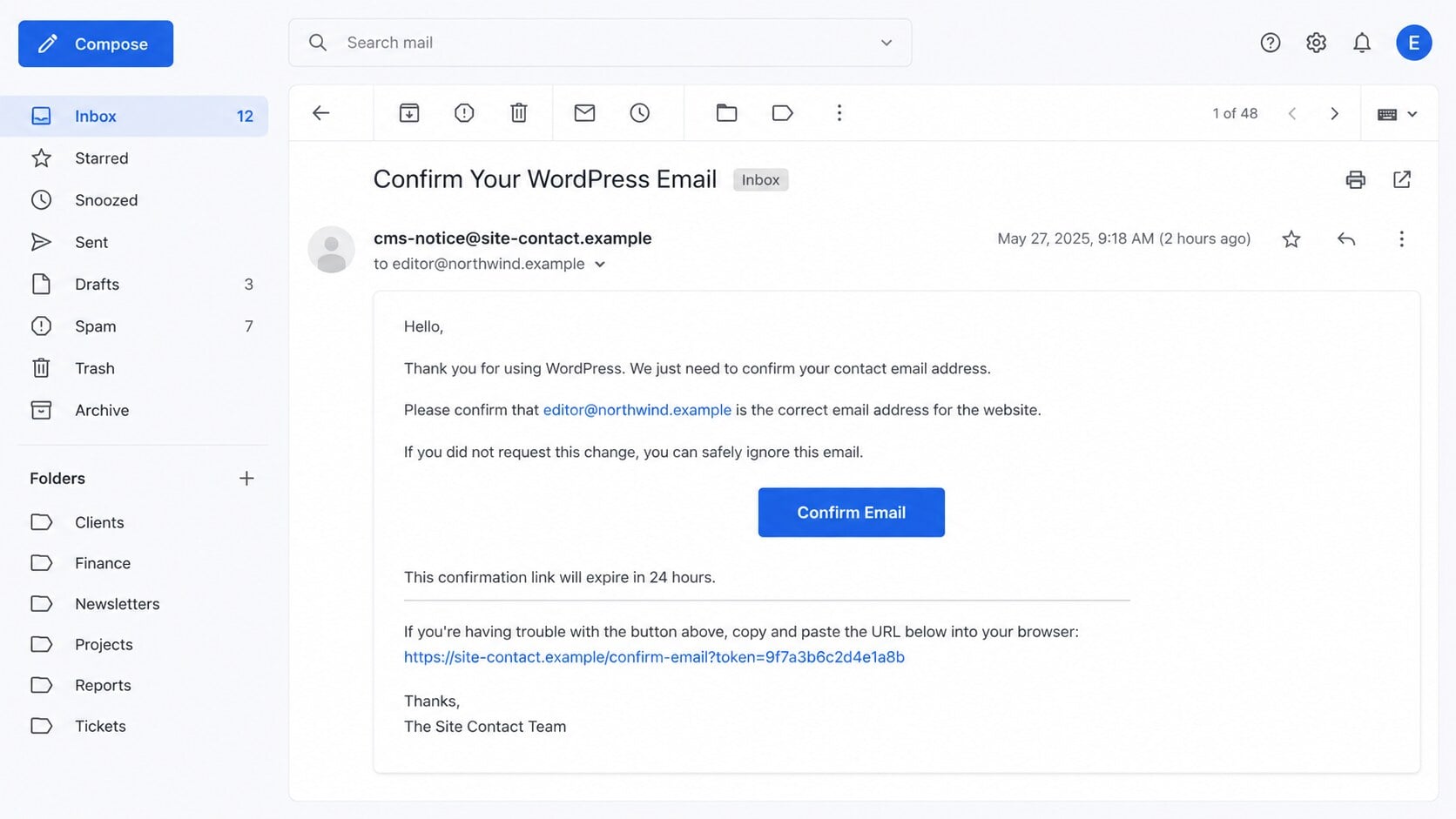
The message looks routine: a website contact address needs confirmation, and one blue button promises to settle the matter. For a busy site owner, clicking feels harmless.
That familiar request deserves a closer look. Small details around the sender, destination, and requested password reveal whether the notice belongs to your website at all.
Overview
The message borrows a real WordPress maintenance concept
WordPress genuinely uses administrative email addresses for recovery messages, security notices, and site management. Administrators can also be asked to verify that an address remains current.
The scam borrows that ordinary housekeeping language. It claims the displayed address must be confirmed so the website information stays accurate and uninterrupted.
This makes the request sound administrative rather than dangerous. There is no dramatic threat, expensive invoice, or obvious prize to trigger immediate suspicion.
The examined lure uses a subject similar to “Please confirm to continue.” Other versions may mention contact information, administrator access, site ownership, or a pending update.
The confirmation button leaves the website ecosystem
The important evidence is not the logo or button color. It is the destination loaded after the recipient clicks and what that page requests.
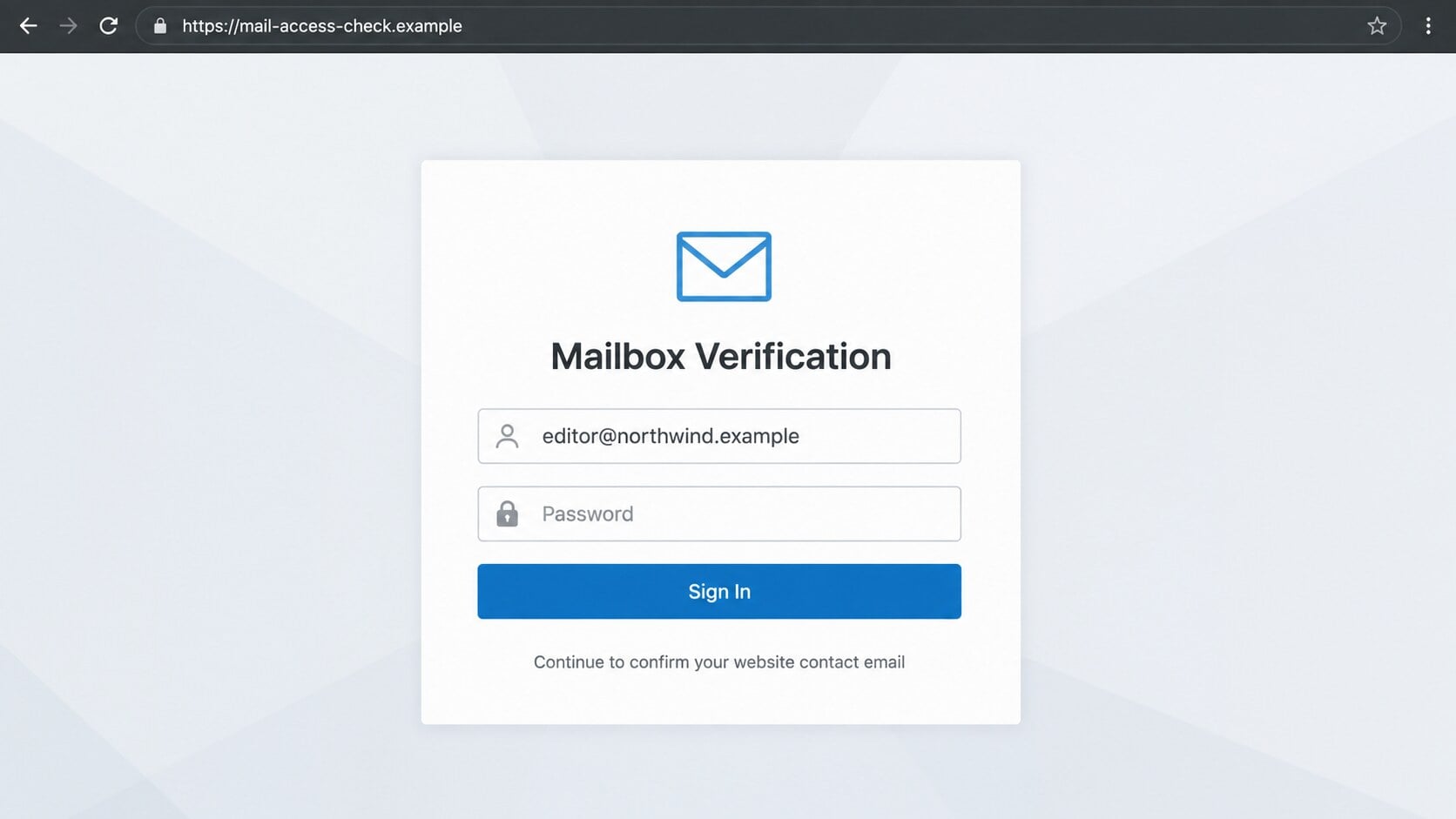
Instead of opening the recipient’s own WordPress dashboard, the link leads to unrelated hosted content presenting a counterfeit webmail sign-in form.
The page may resemble Roundcube or another familiar mailbox. It can display the victim’s address automatically, making the page feel personalized and expected.
- The sender domain does not belong to the site or hosting provider.
- The link opens an unrelated domain or cloud-storage address.
- The page requests the email password, not a WordPress action.
- The supposed confirmation cannot be verified inside wp-admin.
The real target is the recipient’s mailbox
The page is not confirming a WordPress setting. It is collecting the password entered into the imitation webmail form.
An inbox is especially valuable because password-reset messages for many other services arrive there. One stolen mailbox can become the key to several accounts.
Attackers may read private correspondence, search for invoices, register forwarding rules, or impersonate the owner in messages sent to clients and coworkers.
The WordPress name supplies credibility, but WordPress is not involved in the theft. The phishing operator simply uses a believable website-management task as cover.
What a Legitimate WordPress Email Check Looks Like
A real WordPress installation can ask an administrator to confirm the site’s administration email. The standard reminder appears after the administrator signs into wp-admin.
That screen shows the current address and allows the administrator to confirm it or update it. It does not require the password for a separate webmail account.
A genuine email may also be generated when someone changes the administration address under Settings and General. That message should relate to a change you initiated.
Self-hosted WordPress messages usually originate from your own site configuration, hosting environment, or mail service. They are not universally sent from one central WordPress mailbox.
This distinction matters because a sender can place “WordPress” in the display name. The actual address and domain remain more useful than the friendly label.
When uncertain, ignore the email button. Open a new browser tab, type your website address, add `/wp-admin`, and sign in through your normal route.
Check Settings, General, Users, and any security alerts in the dashboard. If no pending confirmation appears, the unsolicited message has no legitimate task to complete.
Hosting customers can also contact their provider through the provider’s bookmarked portal. Support can confirm whether its platform generated a particular administrative notice.
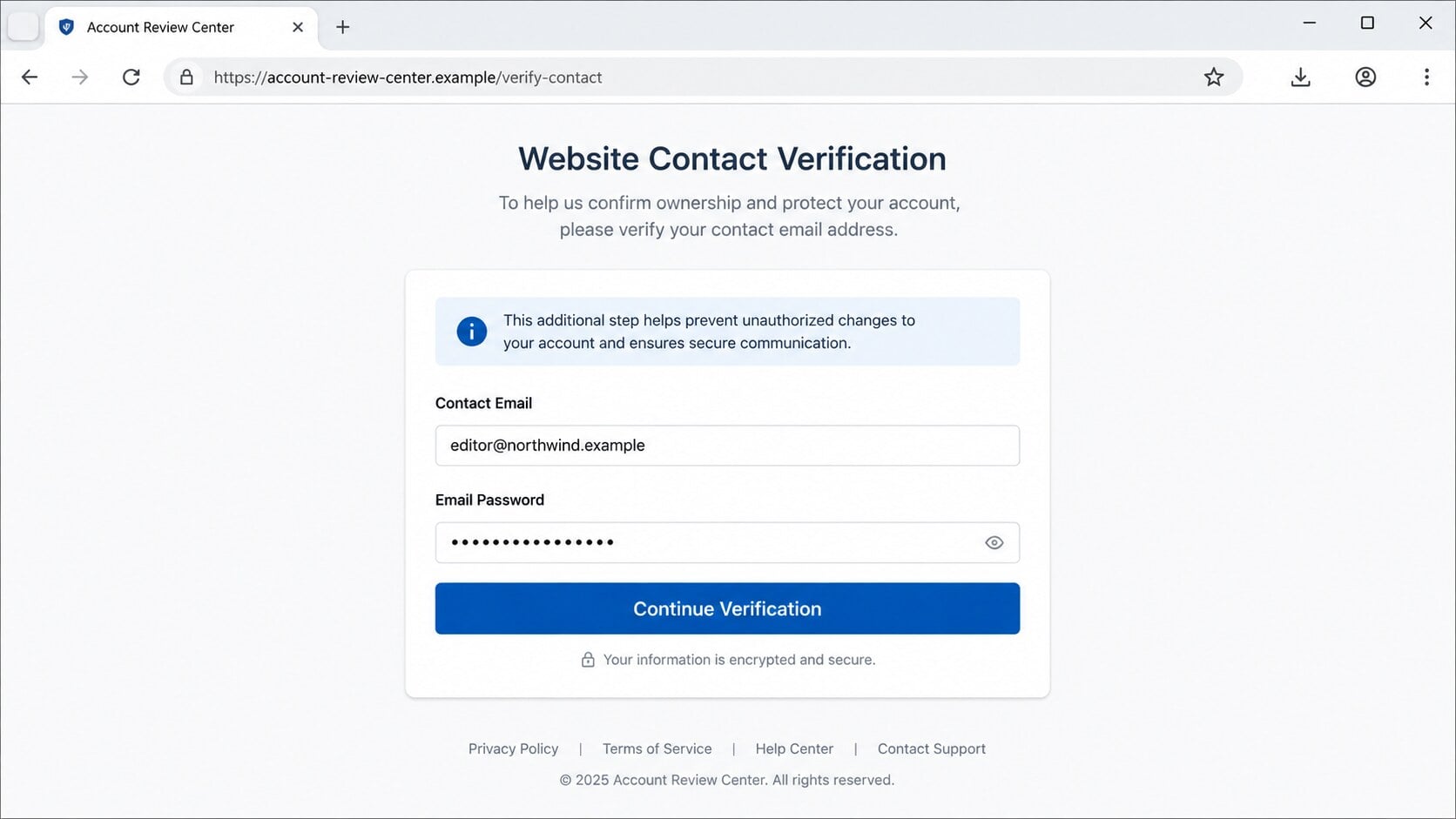
Why the Fake Page Can Look Convincing
Phishing pages often receive the victim’s email address through a parameter in the malicious link. The address then appears prefilled when the page loads.
That is not proof of authentication. The scammer already knew where the email was delivered and reused that public information to decorate the form.
Some pages inspect the part after the `@` symbol and adjust colors or background graphics. A business address may therefore produce a page resembling its usual provider.
The form can display a padlock because HTTPS only encrypts traffic between the visitor and that site. It does not certify that the site is honest.
Cloud-storage platforms may host the fraudulent page. The hosting company is a legitimate service being abused, not evidence that the login request is trustworthy.
Attackers also add privacy links, copyright text, loading animations, and error messages. These elements are inexpensive copies that create the appearance of a complete service.
A common form rejects the first password as incorrect. The second attempt is also recorded, giving criminals two likely password variations before redirecting the visitor elsewhere.
The strongest check remains simple: a website contact confirmation should never require the password for an unrelated email portal reached through an unexpected link.
How the Confirm Your WordPress Email Scam Works
Step 1: A website-themed notice reaches the mailbox
The campaign sends messages to addresses that may belong to site owners, employees, freelancers, or ordinary users. The sender does not need to know who operates WordPress.
Millions of sites use WordPress, so a broad mailing list will inevitably reach many relevant recipients. Others may assume their employer manages a WordPress site.
The subject stays mild and practical. That restraint helps the email bypass the instinctive caution triggered by threats, legal warnings, or enormous unexpected charges.
Step 2: Familiar account details reduce hesitation
The body displays the recipient’s address as the “current contact email.” That information came from the mailing target, not from privileged access to the website.
Generic explanations suggest this address may differ from the user’s primary account. The wording conveniently excuses inconsistencies before the reader can question them.
A clean layout and one obvious confirmation button keep attention away from the sender domain. The message wants a quick click, not a careful review.
Step 3: The button redirects through unrelated infrastructure
The visible label says “Confirm Email,” but hyperlinks can point anywhere. The first destination may be a redirector, compromised page, or cloud-hosted file.
Redirects help operators replace a blocked phishing address without changing every email already delivered. They can also collect visit statistics and separate automated scanners from people.
The destination is unrelated to the victim’s website, hosting account, and normal mail provider. That domain mismatch is the clearest break in the story.
Step 4: A counterfeit webmail form requests the password
The next page presents the recipient’s address and asks for the mailbox password. It may imitate Roundcube while surrounding text continues discussing WordPress confirmation.
This is the moment the administrative story changes purpose. WordPress does not need a private webmail password to confirm which address receives site notices.
Anything typed into the form can be transmitted to the page operator. Closing the page after submission does not withdraw information already sent.
Step 5: The scam hides the successful submission
After capturing a password, the page may show an error, request another attempt, or redirect to a real website. Each outcome reduces the chance of immediate reporting.
A redirect to WordPress.org or the victim’s mail provider can feel like completion. In reality, the legitimate site has no record of the preceding form.
If the first password was mistyped, a second prompt gives the operator another candidate. If both differ, attackers can test both against the mailbox.
Step 6: The mailbox becomes a recovery hub for further theft
Criminals can attempt a login immediately or wait until the victim is less alert. They may use residential proxies to reduce suspicious-location warnings.
Once inside, they search for financial conversations, hosting invoices, password resets, cloud documents, cryptocurrency messages, and other accounts connected to the address.
They may add forwarding or filtering rules that copy messages and hide security alerts. A password change alone can miss these persistence settings.
Step 7: The compromised account targets trusted contacts
A message sent from a genuine mailbox carries more credibility than the original spam. Attackers can continue an existing invoice conversation or share another fake document.
For a website administrator, the inbox may also receive hosting and domain recovery links. Losing it can expose the site even when the WordPress password differs.
The campaign therefore begins with a small confirmation request but can expand into business email compromise, account takeover, payment diversion, or website access.
Sender, Domain, and Hosting Checks
The display name is not the sender’s identity
“WordPress Support” can be typed into any display-name field. Expand the message details and inspect the complete From, Reply-To, Return-Path, and authentication results.
Compare those domains with your own site and hosting provider. An unrelated address, free mailbox, or recently created domain requires independent verification.
Even a familiar From address can be spoofed. SPF, DKIM, and DMARC results in the headers help administrators determine whether the claimed domain authorized the message.
The destination must belong to the expected workflow
Hover over the button without clicking and read the destination. On managed systems, security staff can safely inspect the link through approved analysis tools.
A cloud-storage URL is not automatically malicious, but it is not your WordPress dashboard. Treat that mismatch as evidence against the confirmation story.
Shortened links and multiple redirects make ownership harder to see. Do not follow them merely to discover where they end from a production computer.
There is no legitimate support relationship to verify
The email may omit a support number or provide only a reply address. Do not reply, because a response confirms that the mailbox is active.
Contact your hosting provider using the account portal you already know. Ask whether it sent the notice and whether any administration-email change is pending.
WordPress software does not maintain a central support desk that asks every self-hosted site owner to verify mail through a generic Roundcube page.
The requested secret exposes the real objective
A legitimate confirmation link can prove access to an address without asking for that mailbox’s password. Receiving the link is already the relevant proof.
Requests for a current password, backup code, authentication code, or recovery phrase reveal that the page seeks reusable access rather than a simple acknowledgment.
Preserve the email headers and destination URL for investigation. Do not preserve a live phishing page by entering test credentials from an ordinary account.
Warning Signs That Deserve an Immediate Pause
No single spelling error defines phishing. Modern campaigns can use polished grammar, responsive layouts, and valid HTTPS certificates.
Instead, look for contradictions between the claimed task and the action demanded. This email says WordPress, then requests access to webmail on another domain.
- You did not request an administration-email change.
- The message addresses you generically or lacks the website name.
- The sender and Reply-To domains do not match.
- The confirmation button opens cloud storage or an unrelated host.
- The page asks for a mailbox password or verification code.
- No matching notification appears inside your real dashboard.
A legitimate notification can still arrive unexpectedly after another administrator changes a setting. Verify that event directly with your team before accepting or rejecting it.
If your organization uses centralized identity management, report the message to IT. Administrators can search mail logs for other recipients and block the destination.
What to Do if You Have Fallen Victim to This Scam
Do not panic. The correct response depends on whether you only opened the email, visited the page, submitted credentials, or approved an authentication request.
- Close the page and stop interacting. Do not submit another password to “correct” an error. Record the URL and time without revisiting it.
- Change the mailbox password from a trusted device. Use the provider’s bookmarked site, create a unique password, and replace reused versions elsewhere.
- End every active session. Use the provider’s security controls to sign out other browsers, revoke app passwords, and remove unknown connected applications.
- Enable strong multifactor authentication. Prefer an authenticator application, passkey, or hardware security key. Never approve a prompt you did not initiate.
- Inspect mailbox persistence. Remove unfamiliar forwarding addresses, inbox rules, recovery contacts, delegated users, filters, and automatic replies.
- Protect the website and hosting account. Change exposed or reused credentials, review WordPress administrators, rotate application passwords, and inspect recent security logs.
- Scan the device when files were downloaded. Malwarebytes can identify malicious installers and related persistence. A click without a download still warrants checking browser downloads.
- Block repeat exposure. AdGuard can reduce malicious advertising and known scam-page traffic, but it does not replace password changes or account review.
- Warn affected contacts and administrators. Tell them to distrust recent links or payment requests from the compromised mailbox and preserve suspicious messages.
- Report the campaign. Use the mail provider’s phishing control, notify the hosting service abused by the page, and contact relevant cybercrime authorities.
Is Your Device Infected? Run a Free Malware Scan
Slow performance, constant pop-ups, or strange behavior? These are classic signs of a malware infection. The fastest way to find out is to scan your device with Malwarebytes Free — one of the most trusted malware removal tools available.
The free version detects and removes the most common threats, including:
- Adware — the cause of those annoying pop-ups
- Browser hijackers — unwanted redirects and changed homepages
- Trojans and spyware — hidden programs stealing your data
- Potentially unwanted programs (PUPs) — software you never asked for
👉 Select your device below — Windows, Mac, or Android — then follow the simple steps to download Malwarebytes, scan your system, and remove any threats it finds. The scan usually takes 5 to 20 minutes.
Run a Malware Scan with Malwarebytes for Windows
Malwarebytes is one of the most popular and trusted anti-malware tools for Windows — and it’s completely free for removing infections. It catches threats that many antivirus programs miss, including adware, browser hijackers, and trojans. Follow the steps below to scan and clean your PC in just a few minutes.
Download Malwarebytes
Click the button below to download the latest version of Malwarebytes for Windows from the official source. The free version is all you need — it will scan your computer and remove adware, browser hijackers, and other malicious software at no cost.
Download MalwarebytesOfficial installer for Windows 11 and 10. Your download starts right away.Want real-time protection? See Malwarebytes Premium Malwarebytes Free for WindowsScans and removes malware at no cost
-
Install Malwarebytes
When the download finishes, open your Downloads folder and double-click the MBSetup file. If Windows shows a User Account Control pop-up, click “Yes” to allow the installation.

Follow the On-Screen Prompts to Install Malwarebytes
The setup wizard will walk you through a few quick screens:
-
Choose where you’re installing the program — “Personal Computer” or “Work Computer” — then click Next.

-
Malwarebytes will now install on your device. This usually takes under a minute.

-
When installation is complete, the “Welcome to Malwarebytes” screen will open automatically.

-
On the final screen, click Open Malwarebytes to launch the program.

-
Enable “Scan for Rootkits”
Before scanning, turn on rootkit detection so Malwarebytes can find even the most hidden threats. Click the Settings gear icon on the left side of the screen.

In the settings menu, find “Scan for rootkits” and click the toggle so it turns blue.

Done? Click “Dashboard” in the left pane to return to the main screen.
Start the Scan
Click the blue Scan button. Malwarebytes will automatically update its virus database and start checking your computer for malware.

-
Wait for the Scan to Finish
The scan checks your entire system for browser hijackers and other malicious programs, so it can take 5 to 20 minutes depending on your computer. Feel free to do something else — just check back occasionally to see the progress.

-
Quarantine the Detected Threats
When the scan is done, you’ll see a list of everything Malwarebytes found — malware, adware, and potentially unwanted programs. Click the “Quarantine” button to remove all of them at once.

Malwarebytes will now remove the malicious files and registry entries and move them safely into quarantine.

-
Restart Your Computer
Some threats can only be fully removed after a reboot. If Malwarebytes asks you to restart, click Yes. Once you’re logged back in, Malwarebytes has finished removing the threats it found.

That’s it — your Windows PC is now clean of trojans, adware, and other malware, and should be back to running smoothly.
If you are still having problems with your computer after completing these instructions, then please follow one of the steps:
- Run a computer scan with ESET Online Scanner
- Ask for help in our Windows Malware Removal Help & Support forum.
Run a Malware Scan with Malwarebytes for Mac
Malwarebytes for Mac is a free on-demand scanner that removes the malware other security software tends to miss — adware, browser hijackers, and unwanted programs included. Cleaning an infected Mac with Malwarebytes has always been completely free, and it’s our go-to recommendation. Follow the steps below to scan and clean your Mac in just a few minutes.
-
Download Malwarebytes for Mac
Click the button below to download the latest version of Malwarebytes for Mac.
Download MalwarebytesOfficial installer for macOS. Your download starts right away.Want real-time protection? See Malwarebytes PremiumMalwarebytes Free for MacScans and removes malware at no cost -
Open the Malwarebytes setup file
When the download finishes, open your Downloads folder and double-click the setup file to begin the installation.

-
Follow the On-Screen Prompts to Install Malwarebytes
The Malwarebytes for Mac Installer will guide you through a few quick screens. Click “Continue” and keep following the prompts until the installation completes.



When the installation is complete, Malwarebytes opens to the Welcome to Malwarebytes screen. Click “Get started“.
-
Select “Personal Computer” or “Work Computer”
Malwarebytes will ask what type of computer you’re installing it on. Click either Personal Computer or Work Computer, whichever applies.

-
Start the Scan
Click the “Scan” button. Malwarebytes will automatically update its detection database and begin checking your Mac for malware.

-
Wait for the Scan to Finish
Malwarebytes will scan your Mac for adware, browser hijackers, and other malicious programs. This can take a few minutes, so feel free to do something else — just check back occasionally to see the progress.

-
Quarantine the Detected Threats
When the scan is done, you’ll see a list of everything Malwarebytes found. Click the “Quarantine” button to remove all the threats at once.

-
Restart Your Mac
Malwarebytes will now remove all the malicious files it found. Some threats can only be fully removed after a reboot — if Malwarebytes asks you to restart, allow it. Once you’re logged back in, your Mac is clean.

That’s it — your Mac is now free of adware, rogue browser extensions, and other potentially harmful software.
If you are still experiencing problems while trying to remove a malicious program from your computer, please ask for help in our Mac Malware Removal Help & Support forum.
Run a Malware Scan with Malwarebytes for Android
Malwarebytes for Android automatically detects and removes dangerous threats like malware and ransomware so you don’t have to worry about your most-used device being compromised. Aggressive detection of adware and potentially unwanted programs keeps your Android phone or tablet running smooth.
-
Download Malwarebytes for Android.
You can download Malwarebytes for Android by clicking the link below.
Get Malwarebytes for AndroidOpens Google Play in a new tab.Want real-time protection? See Malwarebytes Premium for AndroidMalwarebytes for AndroidScans your phone and removes malware at no cost -
Install Malwarebytes for Android on your phone.
In the Google Play Store, tap “Install” to install Malwarebytes for Android on your device.

When the installation process has finished, tap “Open” to begin using Malwarebytes for Android. You can also open Malwarebytes by tapping on its icon in your phone menu or home screen.

-
Follow the on-screen prompts to complete the setup process
When Malwarebytes will open, you will see the Malwarebytes Setup Wizard which will guide you through a series of permissions and other setup options.
This is the first of two screens that explain the difference between the Premium and Free versions. Swipe this screen to continue.
Tap on “Got it” to proceed to the next step.
Malwarebytes for Android will now ask for a set of permissions that are required to scan your device and protect it from malware. Tap on “Give permission” to continue.
Tap on “Allow” to permit Malwarebytes to access the files on your phone.
-
Update database and run a scan with Malwarebytes for Android
You will now be prompted to update the Malwarebytes database and run a full system scan.

Click on “Update database” to update the Malwarebytes for Android definitions to the latest version, then click on “Run full scan” to perform a system scan.

-
Wait for the Malwarebytes scan to complete.
Malwarebytes will now start scanning your phone for adware and other malicious apps. This process can take a few minutes, so we suggest you do something else and periodically check on the status of the scan to see when it is finished.

-
Click on “Remove Selected”.
When the scan has been completed, you will be presented with a screen showing the malware infections that Malwarebytes for Android has detected. To remove the malicious apps that Malwarebytes has found, tap on the “Remove Selected” button.

-
Restart your phone.
Malwarebytes for Android will now remove all the malicious apps that it has found. To complete the malware removal process, Malwarebytes may ask you to restart your device.
That’s it — your Android phone is now clean — no more malicious apps, adware, or browser redirects.
If you are still having problems with your phone after completing these instructions, then please follow one of the steps:
- Restore your phone to factory settings by going to Settings > General management > Reset > Factory data reset.
- Ask for help in our Mobile Malware Removal Help & Support forum.
Stay Protected: Block Ads and Malicious Sites
Now that your device is clean, keep it that way. Most infections start with a malicious ad or a fake download button — so blocking them at the source is your best defense.
We recommend AdGuard, which blocks malicious ads, phishing pages, and dangerous redirects before they can reach you.
👉 Download AdGuard and browse safely
If the mailbox held customer data, financial records, or regulated information, involve the organization’s security and legal teams. Notification duties depend on jurisdiction and exposure.
Continue monitoring for password-reset emails, new administrators, changed domain records, and altered payment instructions. Attackers sometimes return after the first visible problem is fixed.
Frequently Asked Questions
Is every WordPress email confirmation message fraudulent?
No. WordPress can generate legitimate administration-email confirmations. Verify them inside your own dashboard and confirm that any email follows a change you or another administrator initiated.
Why did the phishing page already know my email address?
The malicious link can carry the destination address as a parameter. Prefilling public information creates familiarity but does not prove the page authenticated your account.
Does a padlock make the verification page safe?
No. HTTPS protects the connection to the displayed domain. It does not confirm that the domain belongs to WordPress, your host, or your email provider.
Am I compromised if I only read the message?
Usually not. Reading ordinary message content does not surrender a password. Risk increases after clicking, downloading a file, entering information, or approving an unexpected login.
Should I change my WordPress password too?
Yes, if it matches the stolen mailbox password or the email account controls website recovery. Also review administrators, plugins, application passwords, and recent site changes.
Can Malwarebytes recover a stolen email account?
No. Malwarebytes can detect malicious software on the device. Account recovery requires changing credentials, ending sessions, removing persistence, and working with the email provider.
The Bottom Line
The Confirm Your WordPress Email scam disguises mailbox credential theft as routine website administration. Its strongest warning is the sudden jump from WordPress maintenance to unrelated webmail authentication.
Open your dashboard directly, verify changes through known channels, and never enter an email password into a page reached through an unsolicited confirmation button.
If credentials were submitted, secure the mailbox first, then inspect WordPress, hosting, domain, and financial accounts connected to that address.

Join the discussion
0 commentsShare your experience or ask a question about this article.
Discussion
Start the conversation
Have a question or something useful to share? Add the first comment.