

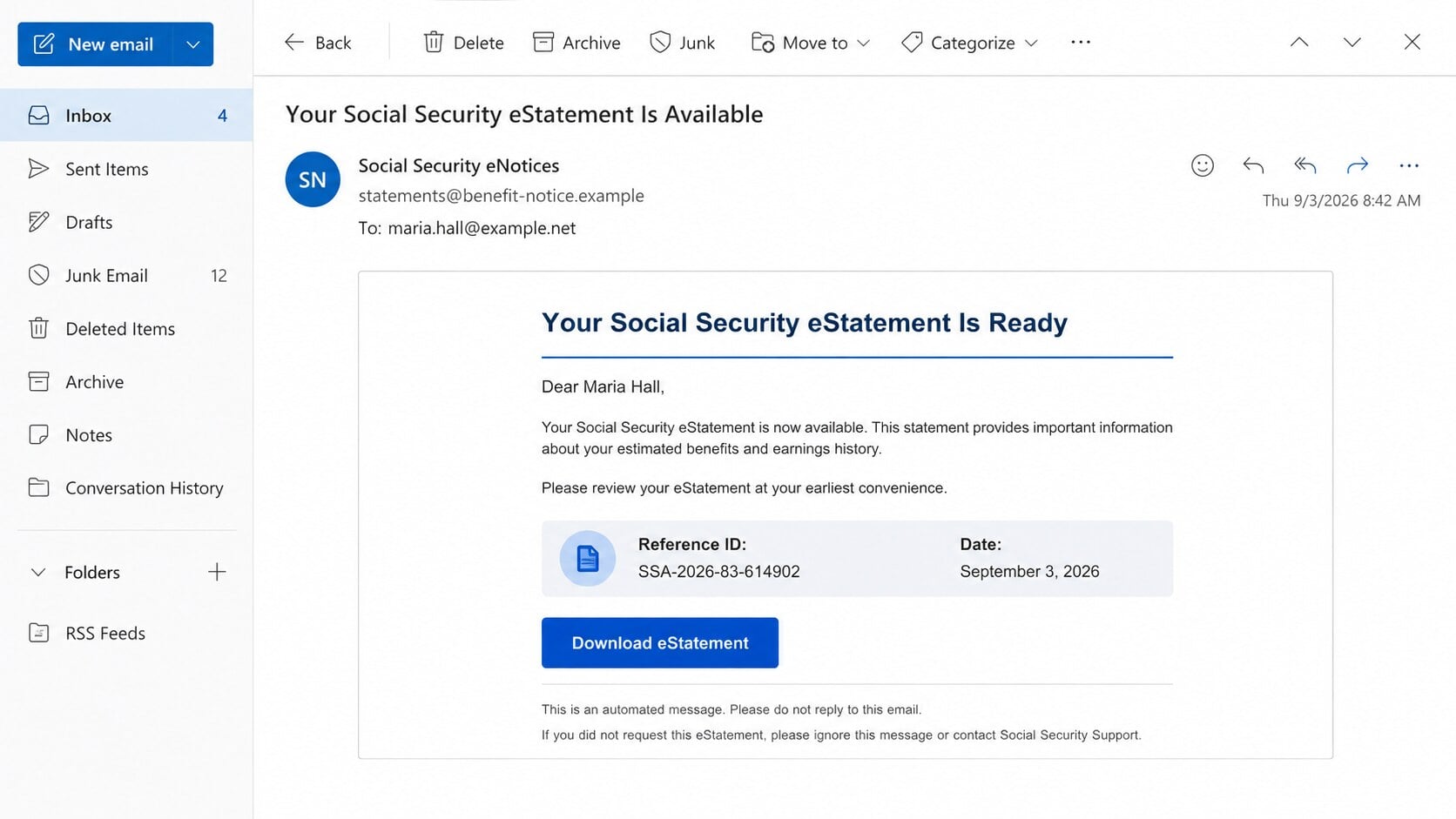
An email says your latest Social Security statement is ready, complete with a reference number and familiar benefit language. The button appears to offer an ordinary document.
What follows is far more serious than a fake sign-in form. One downloaded Windows installer can turn a convincing government notice into a remote-access incident.
Overview
The lure imitates a useful Social Security notification
The message claims a personalized eStatement is available. It may mention earnings history, retirement estimates, direct deposit information, Medicare, disability, or survivor benefits.
Those topics make the email relevant to nearly every worker or beneficiary. A reference number, date, and recipient address add the appearance of an individual government record.
Some versions say the document works only on Windows. Others claim a special viewer or verification step is required before the statement can open.
The Social Security Administration does provide online Statements, but users access them through their personal my Social Security account, not an unsolicited installer.
The link delivers software instead of a statement
The examined chain opens an imitation verification page rather than a PDF. A slider or download control creates one more reassuring step before the file arrives.
The downloaded file can carry an `.msi` extension, identifying a Windows installer package. A benefit statement does not need software installation to display ordinary account information.
In this campaign, the filename references ScreenConnect. ScreenConnect is legitimate remote-support software, but attackers can configure its client for unauthorized unattended access.
- The email promises a personal government document.
- The destination sits outside an official `.gov` domain.
- The page filters for Windows users.
- The download is an installer, not a document.
- Running it can establish remote control.
A legitimate tool becomes dangerous through malicious deployment
Remote-support products allow technicians to view screens, transfer files, execute commands, and maintain systems. Those capabilities are valuable when the owner knowingly authorizes a trusted technician.
The same features become powerful intrusion tools when a deceptive installer enrolls the computer into an attacker’s remote-access instance.
This distinction matters. The software name alone does not make every ScreenConnect installation malicious, and the legitimate developer is not responsible for the fraudulent email.
The danger comes from who configured the client, which server controls it, and whether the computer owner knowingly requested that remote relationship.
How Real Social Security Statements Are Accessed
A personal Social Security Statement is available through the official my Social Security account. The account shows earnings history and estimated retirement, disability, and survivor benefits.
Users can elect to receive email or text alerts when a notice is waiting. A genuine alert should lead you to verify the account independently.
Social Security guidance recommends typing `ssa.gov/myaccount` into the browser rather than following a suspicious message link. This removes redirects and lookalike domains from the path.
Official online notices are viewed through the Message Center. They are ordinarily provided as PDF documents, not executable installers that demand permission to modify Windows.
A reminder can contain limited information because email is not a secure channel for sensitive records. A detailed statement should remain behind authenticated account access.
The SSA Office of the Inspector General warned in 2026 about fraudulent statement emails. Warning signs include direct downloads, attachments, urgency, and sender addresses outside `.gov`.
A `.gov` sender alone is not sufficient because visible addresses can be spoofed. Still, an unrelated sender combined with an executable download is decisive evidence against the message.
If you expect a notice, sign in independently. The presence or absence of the document inside your real Message Center settles the question without testing the email link.
Why ScreenConnect Changes the Risk
A credential-harvesting page steals what a victim types. A remote-access client can give an operator continuing visibility and control over the entire computer.
Depending on configuration and privileges, an intruder may view files, capture information displayed on screen, transfer tools, run commands, or install additional malware.
Attackers can wait for the victim to open banking or email accounts. They may also search browser profiles, saved documents, accounting software, and password-manager data.
An unattended client can reconnect after a reboot. Closing the fraudulent webpage therefore does not end access once the installer has completed.
Remote control can also support refund fraud or bank impersonation. The operator may alter what appears on screen while coaching the victim through a transfer.
The attacker might deploy an information stealer, ransomware, proxy software, or another remote-access tool. The first installer should not be treated as the only possible payload.
A legitimate application may be digitally signed, which can make the download look safer. A valid signature identifies the software publisher, not the intentions of its deployment.
Any machine that ran an unsolicited remote-support package should be treated as potentially controlled until it is isolated, examined, and all affected credentials are changed.
How the Social Security eStatement Email Scam Works
Step 1: The email uses retirement and benefit information as bait
The subject announces a new statement, annual review, benefit approval, or account update. These are plausible events that recipients may feel responsible for checking.
The message may list familiar features of a real Statement, including estimated benefits and reported earnings. Accurate general descriptions make the false delivery method less noticeable.
Older adults and people managing active benefits may feel particular urgency. However, the mailing can target any address because most workers eventually receive Social Security information.
Step 2: Official-looking details manufacture confidence
A campaign can copy government colors, public wording, mailing addresses, and telephone numbers. These details are easy to obtain and do not authenticate the sender.
Random reference identifiers create the impression that the notice came from a case-management system. The number does not correspond to a verified record.
Some messages warn that delayed review could affect processing. Others avoid threats and rely on curiosity about future payments, which can be equally effective.
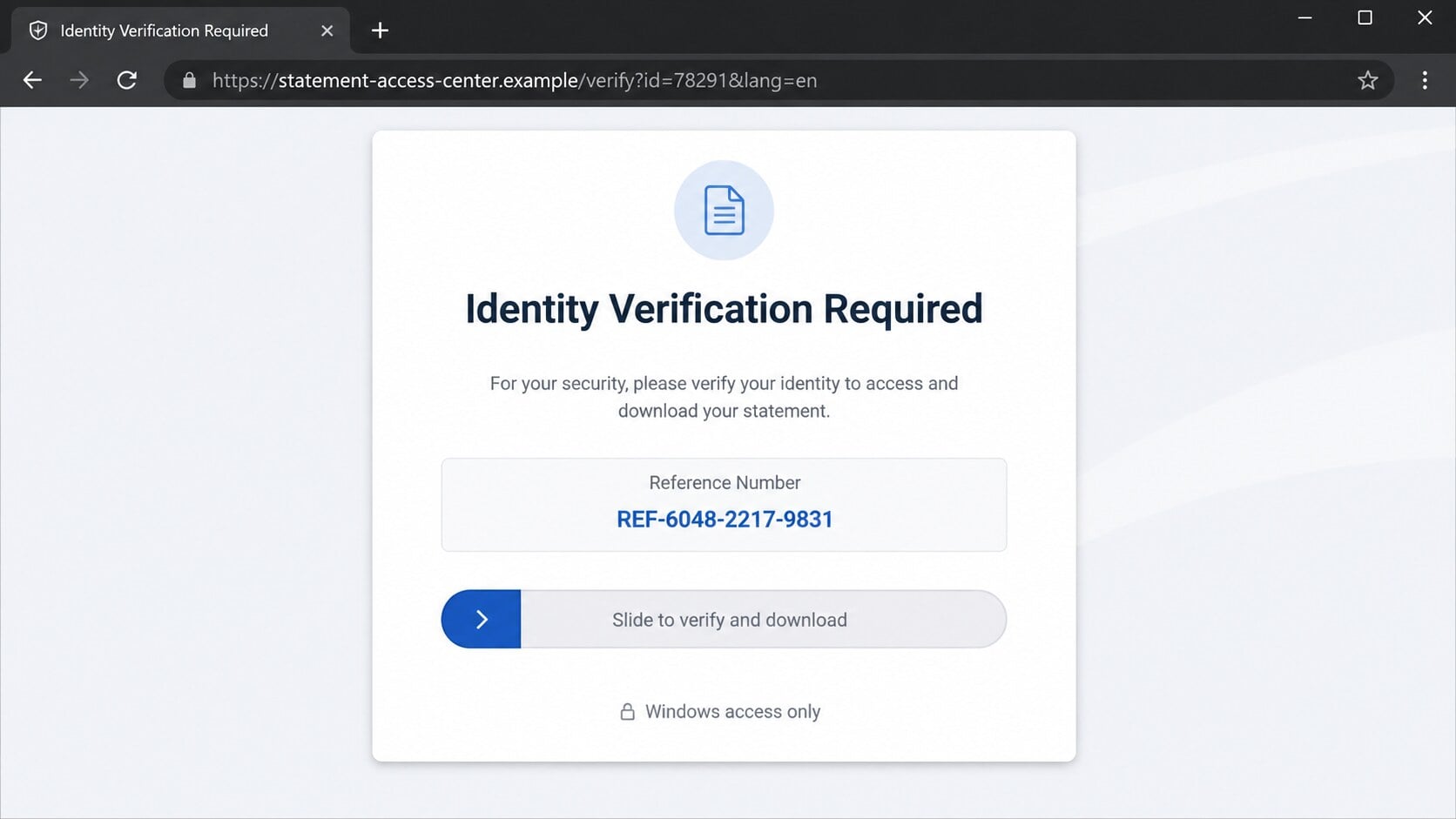
Step 3: The link opens a counterfeit verification page
The button does not go to the official account portal. It reaches an unrelated domain designed to resemble a protected document service.
A slider, loading animation, or challenge makes the page feel interactive. It can also require human action that helps the operator evade automated link scanners.
The page may identify Windows as the only supported platform. That restriction is suspicious because genuine Statements are ordinary documents accessible through modern account services.
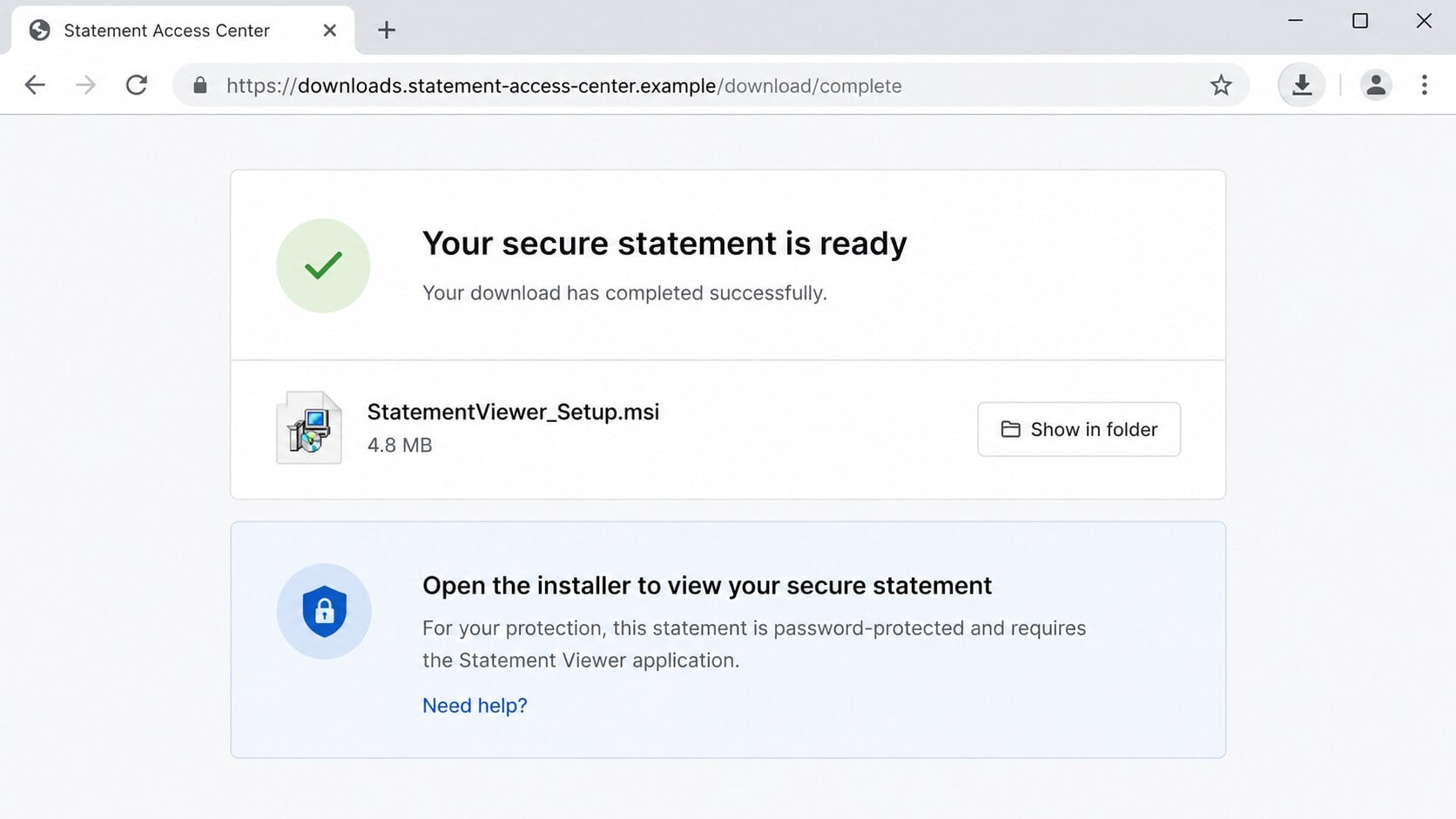
Step 4: The website pushes an installer instead of a PDF
After the visitor completes the prompt, the site offers a file such as `ScreenConnect.ClientSetup.msi` or another deceptively named setup package.
Windows installers can add programs, services, and startup components. They should never be opened merely because a webpage claims they are required to view a government record.
The browser may warn that the file is uncommon or potentially harmful. Disabling protection to force the installation gives the payload a clearer path.
Step 5: Running the package enrolls the computer for remote access
The maliciously configured client contacts infrastructure selected by the attacker. It can establish an unattended session without behaving like a conventional destructive virus.
Because legitimate remote-management components are involved, some defenses may initially view the program as administration software. Context and configuration remain essential to detection.
The operator can then explore the computer, observe activity, or deploy additional payloads. The victim may notice slowness, unfamiliar services, or nothing obvious.
Step 6: The attacker exploits the active session
With remote access, criminals may steal tax records, identity documents, browser cookies, saved credentials, and financial information stored on the machine.
They can impersonate support, display false warnings, or wait until the user signs into sensitive services. Any visible information can become part of later fraud.
If the computer belongs to a business, the compromise may expose network shares and customer information. Escalate quickly rather than treating it as one suspicious download.
Step 7: Stolen access enables follow-on attacks
The remote session may be sold or shared with other criminals. Additional malware can create access that survives removal of the original client.
Compromised email and banking accounts may be used long after the installer disappears. Password changes should happen from a different, trusted device after containment.
Attackers can also contact the victim again as supposed recovery specialists. Anyone demanding payment to undo the incident deserves independent verification.
Sender, Domain, and Installer Checks
The government name does not prove the sender
Expand the sender information and inspect the complete address. Official SSA communications use government infrastructure, while lookalike or unrelated domains lack that relationship.
Check the Reply-To and Return-Path because they may differ from the visible From line. Failed SPF, DKIM, or DMARC results add further concern.
Do not call a number merely because the email copied it from an official page. Navigate to `ssa.gov` independently and use contact information found there.
The destination must remain on an official route
Hovering over the button can reveal a cloud-storage address, shortened link, or newly created domain. None belongs to your my Social Security account.
A padlock does not convert a private domain into a government portal. HTTPS only means the connection to that particular domain is encrypted.
Use the official account page to check for the Statement. Never use the suspicious destination as a test of whether your credentials work.
The file type contradicts the promised document
Windows may hide known extensions, leaving “StatementViewer_Setup” visible without `.msi`. Enable filename extensions before evaluating an unexpected download.
Documents commonly use `.pdf`. Installers use formats such as `.msi` and `.exe`. Archives, scripts, disk images, and password-protected files also require caution.
A government notice should not instruct you to bypass browser warnings, disable antivirus protection, enable macros, or install a remote-support client.
The remote-access owner must be traceable
Organizations legitimately using ScreenConnect can identify their support provider, session owner, and reason for installation. An unsolicited statement email provides no trusted relationship.
Do not rely on a company name embedded inside the installer. Incident responders should inspect service configuration, server addresses, timestamps, and related persistence.
Removing one visible application may not address copied credentials or added malware. The full device and surrounding accounts need review.
What to Do if You Have Fallen Victim to This Scam
Act according to the furthest step completed. Reading the email is different from downloading a file, and running the installer creates the highest risk.
- Disconnect an affected computer. Turn off Wi-Fi and unplug Ethernet if the installer ran. This can interrupt remote control and additional downloads.
- Do not uninstall blindly. Preserve the email, URL, filename, and installation time. Business users should contact security staff before changing evidence.
- Use a trusted device for account protection. Change email, banking, government, and password-manager credentials that were accessed or stored on the compromised computer.
- End sessions and strengthen authentication. Revoke active sessions, remove unknown applications, rotate recovery codes, and enable strong multifactor authentication.
- Run offline and full malware scans. Use Microsoft Defender Offline, then Malwarebytes to detect the remote client, companion malware, and persistence.
- Obtain professional incident help when needed. A business system or computer containing sensitive records may require forensic review or a clean rebuild.
- Review financial activity. Contact banks through trusted numbers, flag accounts, dispute unauthorized transactions, and monitor credit if identity information was exposed.
- Check your Social Security account directly. Sign in through `ssa.gov/myaccount`, review profile and benefit information, and report suspicious changes.
- Report the impersonation. Notify the SSA Office of the Inspector General, the FBI’s IC3, and the FTC when personal or financial loss occurred.
- Reduce repeat exposure. AdGuard can block many malicious ads and known scam pages, but it cannot remove existing remote access or reverse stolen data.
Is Your Device Infected? Run a Free Malware Scan
Slow performance, constant pop-ups, or strange behavior? These are classic signs of a malware infection. The fastest way to find out is to scan your device with Malwarebytes Free — one of the most trusted malware removal tools available.
The free version detects and removes the most common threats, including:
- Adware — the cause of those annoying pop-ups
- Browser hijackers — unwanted redirects and changed homepages
- Trojans and spyware — hidden programs stealing your data
- Potentially unwanted programs (PUPs) — software you never asked for
👉 Select your device below — Windows, Mac, or Android — then follow the simple steps to download Malwarebytes, scan your system, and remove any threats it finds. The scan usually takes 5 to 20 minutes.
Run a Malware Scan with Malwarebytes for Windows
Malwarebytes is one of the most popular and trusted anti-malware tools for Windows — and it’s completely free for removing infections. It catches threats that many antivirus programs miss, including adware, browser hijackers, and trojans. Follow the steps below to scan and clean your PC in just a few minutes.
Download Malwarebytes
Click the button below to download the latest version of Malwarebytes for Windows from the official source. The free version is all you need — it will scan your computer and remove adware, browser hijackers, and other malicious software at no cost.
Download MalwarebytesOfficial installer for Windows 11 and 10. Your download starts right away.Want real-time protection? See Malwarebytes Premium Malwarebytes Free for WindowsScans and removes malware at no cost
-
Install Malwarebytes
When the download finishes, open your Downloads folder and double-click the MBSetup file. If Windows shows a User Account Control pop-up, click “Yes” to allow the installation.

Follow the On-Screen Prompts to Install Malwarebytes
The setup wizard will walk you through a few quick screens:
-
Choose where you’re installing the program — “Personal Computer” or “Work Computer” — then click Next.

-
Malwarebytes will now install on your device. This usually takes under a minute.

-
When installation is complete, the “Welcome to Malwarebytes” screen will open automatically.

-
On the final screen, click Open Malwarebytes to launch the program.

-
Enable “Scan for Rootkits”
Before scanning, turn on rootkit detection so Malwarebytes can find even the most hidden threats. Click the Settings gear icon on the left side of the screen.

In the settings menu, find “Scan for rootkits” and click the toggle so it turns blue.

Done? Click “Dashboard” in the left pane to return to the main screen.
Start the Scan
Click the blue Scan button. Malwarebytes will automatically update its virus database and start checking your computer for malware.

-
Wait for the Scan to Finish
The scan checks your entire system for browser hijackers and other malicious programs, so it can take 5 to 20 minutes depending on your computer. Feel free to do something else — just check back occasionally to see the progress.

-
Quarantine the Detected Threats
When the scan is done, you’ll see a list of everything Malwarebytes found — malware, adware, and potentially unwanted programs. Click the “Quarantine” button to remove all of them at once.

Malwarebytes will now remove the malicious files and registry entries and move them safely into quarantine.

-
Restart Your Computer
Some threats can only be fully removed after a reboot. If Malwarebytes asks you to restart, click Yes. Once you’re logged back in, Malwarebytes has finished removing the threats it found.

That’s it — your Windows PC is now clean of trojans, adware, and other malware, and should be back to running smoothly.
If you are still having problems with your computer after completing these instructions, then please follow one of the steps:
- Run a computer scan with ESET Online Scanner
- Ask for help in our Windows Malware Removal Help & Support forum.
Run a Malware Scan with Malwarebytes for Mac
Malwarebytes for Mac is a free on-demand scanner that removes the malware other security software tends to miss — adware, browser hijackers, and unwanted programs included. Cleaning an infected Mac with Malwarebytes has always been completely free, and it’s our go-to recommendation. Follow the steps below to scan and clean your Mac in just a few minutes.
-
Download Malwarebytes for Mac
Click the button below to download the latest version of Malwarebytes for Mac.
Download MalwarebytesOfficial installer for macOS. Your download starts right away.Want real-time protection? See Malwarebytes PremiumMalwarebytes Free for MacScans and removes malware at no cost -
Open the Malwarebytes setup file
When the download finishes, open your Downloads folder and double-click the setup file to begin the installation.

-
Follow the On-Screen Prompts to Install Malwarebytes
The Malwarebytes for Mac Installer will guide you through a few quick screens. Click “Continue” and keep following the prompts until the installation completes.



When the installation is complete, Malwarebytes opens to the Welcome to Malwarebytes screen. Click “Get started“.
-
Select “Personal Computer” or “Work Computer”
Malwarebytes will ask what type of computer you’re installing it on. Click either Personal Computer or Work Computer, whichever applies.

-
Start the Scan
Click the “Scan” button. Malwarebytes will automatically update its detection database and begin checking your Mac for malware.

-
Wait for the Scan to Finish
Malwarebytes will scan your Mac for adware, browser hijackers, and other malicious programs. This can take a few minutes, so feel free to do something else — just check back occasionally to see the progress.

-
Quarantine the Detected Threats
When the scan is done, you’ll see a list of everything Malwarebytes found. Click the “Quarantine” button to remove all the threats at once.

-
Restart Your Mac
Malwarebytes will now remove all the malicious files it found. Some threats can only be fully removed after a reboot — if Malwarebytes asks you to restart, allow it. Once you’re logged back in, your Mac is clean.

That’s it — your Mac is now free of adware, rogue browser extensions, and other potentially harmful software.
If you are still experiencing problems while trying to remove a malicious program from your computer, please ask for help in our Mac Malware Removal Help & Support forum.
Run a Malware Scan with Malwarebytes for Android
Malwarebytes for Android automatically detects and removes dangerous threats like malware and ransomware so you don’t have to worry about your most-used device being compromised. Aggressive detection of adware and potentially unwanted programs keeps your Android phone or tablet running smooth.
-
Download Malwarebytes for Android.
You can download Malwarebytes for Android by clicking the link below.
Get Malwarebytes for AndroidOpens Google Play in a new tab.Want real-time protection? See Malwarebytes Premium for AndroidMalwarebytes for AndroidScans your phone and removes malware at no cost -
Install Malwarebytes for Android on your phone.
In the Google Play Store, tap “Install” to install Malwarebytes for Android on your device.

When the installation process has finished, tap “Open” to begin using Malwarebytes for Android. You can also open Malwarebytes by tapping on its icon in your phone menu or home screen.

-
Follow the on-screen prompts to complete the setup process
When Malwarebytes will open, you will see the Malwarebytes Setup Wizard which will guide you through a series of permissions and other setup options.
This is the first of two screens that explain the difference between the Premium and Free versions. Swipe this screen to continue.
Tap on “Got it” to proceed to the next step.
Malwarebytes for Android will now ask for a set of permissions that are required to scan your device and protect it from malware. Tap on “Give permission” to continue.
Tap on “Allow” to permit Malwarebytes to access the files on your phone.
-
Update database and run a scan with Malwarebytes for Android
You will now be prompted to update the Malwarebytes database and run a full system scan.

Click on “Update database” to update the Malwarebytes for Android definitions to the latest version, then click on “Run full scan” to perform a system scan.

-
Wait for the Malwarebytes scan to complete.
Malwarebytes will now start scanning your phone for adware and other malicious apps. This process can take a few minutes, so we suggest you do something else and periodically check on the status of the scan to see when it is finished.

-
Click on “Remove Selected”.
When the scan has been completed, you will be presented with a screen showing the malware infections that Malwarebytes for Android has detected. To remove the malicious apps that Malwarebytes has found, tap on the “Remove Selected” button.

-
Restart your phone.
Malwarebytes for Android will now remove all the malicious apps that it has found. To complete the malware removal process, Malwarebytes may ask you to restart your device.
That’s it — your Android phone is now clean — no more malicious apps, adware, or browser redirects.
If you are still having problems with your phone after completing these instructions, then please follow one of the steps:
- Restore your phone to factory settings by going to Settings > General management > Reset > Factory data reset.
- Ask for help in our Mobile Malware Removal Help & Support forum.
Stay Protected: Block Ads and Malicious Sites
Now that your device is clean, keep it that way. Most infections start with a malicious ad or a fake download button — so blocking them at the source is your best defense.
We recommend AdGuard, which blocks malicious ads, phishing pages, and dangerous redirects before they can reach you.
👉 Download AdGuard and browse safely
After cleaning, confirm that no unfamiliar remote-support service, scheduled task, startup entry, browser extension, or user account remains. Repeated detections justify a clean Windows installation.
Keep the computer isolated until responders are confident access is removed. Restoring connectivity too early can allow an attacker to reconnect or finish an interrupted payload.
Frequently Asked Questions
Can the Social Security Administration email notice alerts?
Yes, users can choose alerts for items in the Message Center. Verify any alert by typing the official account address yourself rather than using an embedded download link.
Why does the page say the Statement works only on Windows?
The restriction steers compatible visitors toward a Windows installer. Genuine online Statements are accessed as account documents and do not require an unsolicited viewer package.
Is ScreenConnect itself malware?
No. It is legitimate remote-support software. It becomes dangerous when attackers configure and deliver it deceptively to gain unauthorized control over a computer.
Am I infected if the installer downloaded but never ran?
Downloading alone usually does not install the client. Delete it without opening, scan the device, and review browser downloads to confirm nothing else executed.
Will removing ScreenConnect restore stolen information?
No. Removal stops that access path but cannot recall copied files or credentials. Protect accounts separately and investigate what the attacker could have reached.
Should I trust a caller offering to clean the computer?
Only after independently verifying the provider. Recovery scammers target recent victims and may request remote access, cryptocurrency, gift cards, or large advance payments.
The Bottom Line
The Social Security eStatement email is dangerous because it replaces an expected account document with a Windows installer configured for remote access.
Never install software to read an unsolicited government statement. Open your my Social Security account directly and confirm the notice inside its secure Message Center.
If the installer ran, isolate the computer immediately, secure accounts from another device, and treat the event as a full remote-access compromise.

Join the discussion
0 commentsShare your experience or ask a question about this article.
Discussion
Start the conversation
Have a question or something useful to share? Add the first comment.