

MadMuscles looks like a polished fitness companion, promising structured workouts for people who want guidance without hiring a personal trainer.
The app itself is only part of the story. Its checkout, renewal rules, complaint history, and a new federal case deserve a careful examination.
Overview
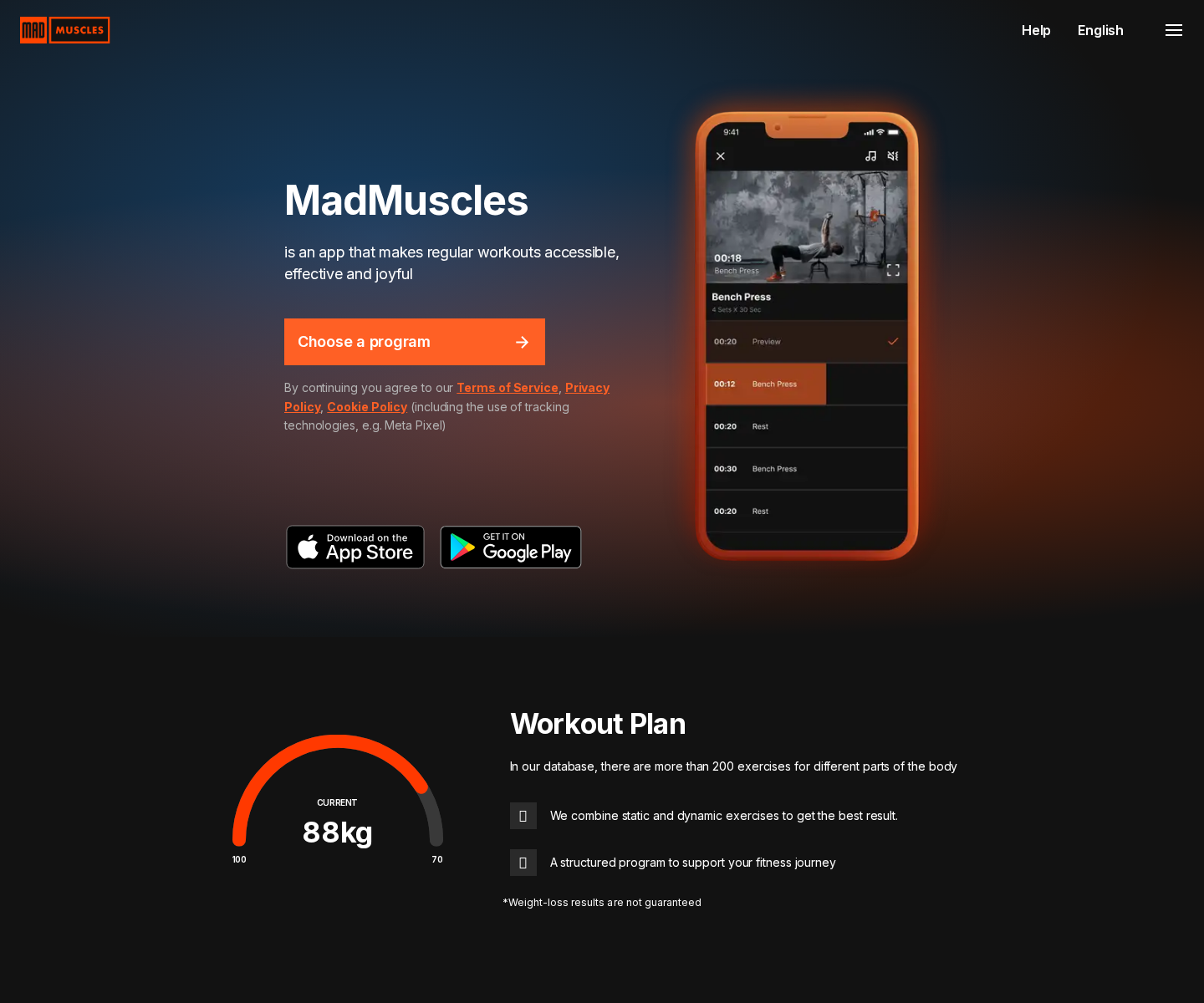
MadMuscles is a functioning fitness app
MadMuscles provides workout plans, exercise demonstrations, progress tools, and fitness guidance through its website and mobile applications.
It is available through established app stores, has a substantial user base, and receives many positive reviews alongside billing complaints.
That evidence matters. This is not a nonexistent program that simply takes a payment and disappears overnight.
Some users genuinely like the short routines, organized schedules, and ability to exercise at home without planning each session themselves.
The dispute centers on how subscriptions are sold and renewed
A useful app can still be marketed through a checkout that leaves customers with an inaccurate understanding of future charges.
MadMuscles offers plans through several payment routes. Website purchases, Apple subscriptions, and Google Play subscriptions can follow different cancellation procedures.
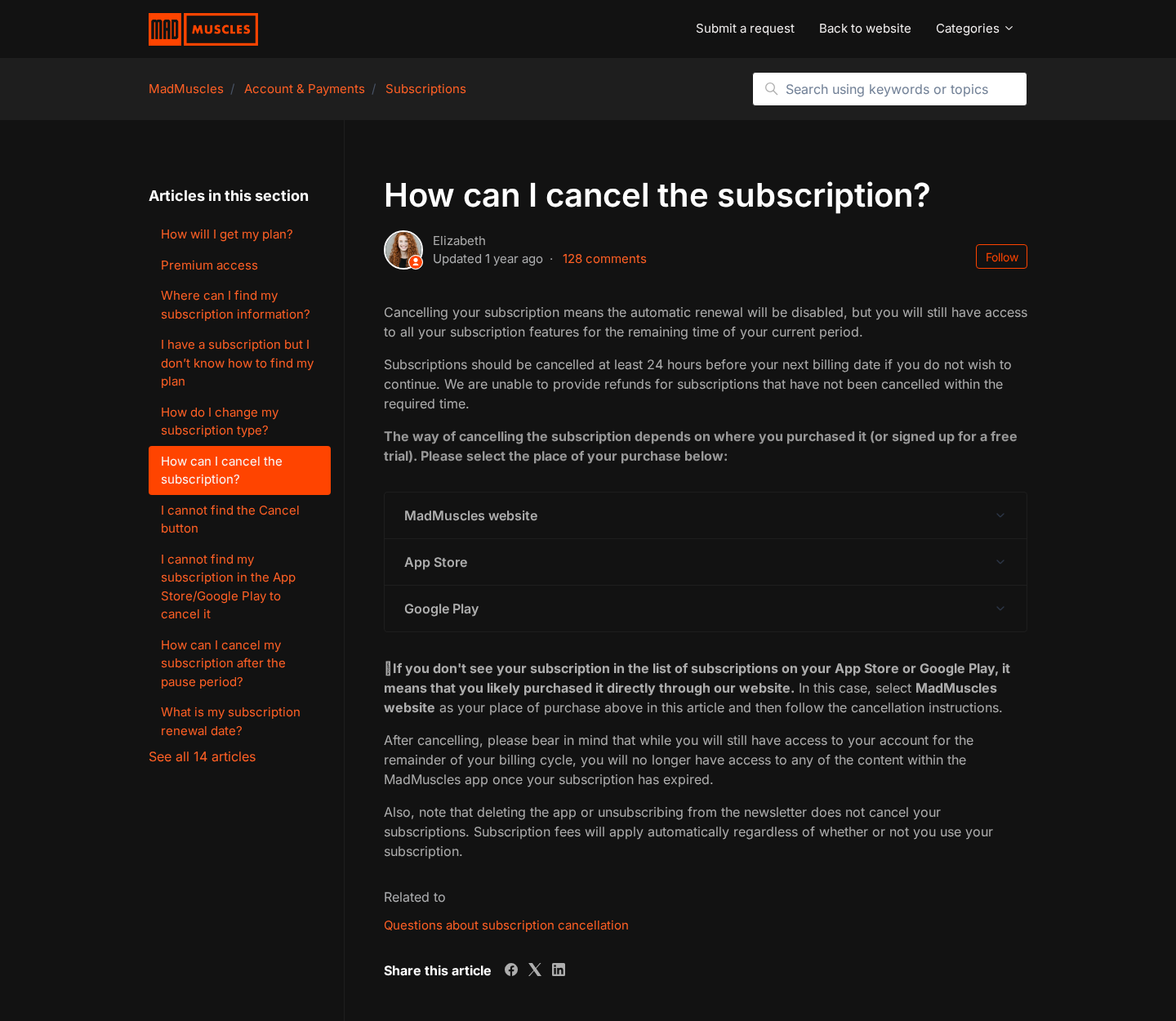
The official support page says deleting the app does not cancel billing. Unsubscribing from promotional email also leaves the paid plan active.
It also says customers with two subscriptions must cancel each one separately. Stopping one plan does not automatically stop another.
- Introductory pricing may differ from the later renewal amount.
- A website purchase may not appear inside Apple or Google subscription settings.
- The cancellation button may take up to 24 hours to appear after purchase.
- Renewal should be disabled at least 24 hours before the next billing date.
- Using no workouts does not stop recurring fees.
The FTC case raises the stakes beyond ordinary bad reviews
In June 2026, the Federal Trade Commission sued a network of companies it calls the Genesis Tech enterprise.
The agency specifically identified MadMuscles, Harna, and Unimeal among fitness and nutrition products discussed in its federal complaint.
The FTC alleges that the wider enterprise obscured recurring terms, added unauthorized charges, and created unreasonable cancellation obstacles across multiple products.
Those statements are allegations, not a final court judgment. The FTC itself notes that the case will be decided by the court.
Still, a federal enforcement complaint is materially different from an anonymous comment. It gives consumers a serious reason to examine every checkout disclosure.
How the MadMuscles Subscription Funnel Works
Step 1: A personalized fitness quiz creates commitment
The customer commonly begins with questions about age, body type, target weight, equipment, experience, and desired training pace.
Each answer makes the resulting plan feel more personal. By the final screen, the visitor has already invested time and disclosed private preferences.
This progress creates a natural desire to finish. Walking away now can feel like abandoning a plan that was supposedly built specifically for you.
Personalization can be useful, but quiz participation does not prove that every workout or meal recommendation was individually designed.
Step 2: The initial price becomes the center of attention
Fitness funnels often present a discounted first period, limited offer, or comparison showing a dramatic saving against a larger regular price.
People tend to remember the prominent number. Renewal timing, ongoing cost, and additional offers can receive less attention during that emotional moment.
A customer may believe they are buying a single plan because the screen emphasizes immediate access rather than the continuing billing relationship.
Before paying, the important question is not merely today’s charge. It is what will be billed next, when, and through which processor.
Step 3: Extra products can create more than one active plan
After choosing the main program, shoppers may encounter add-ons, premium features, nutrition tools, or another subscription presented as an upgrade.
An extra option can look like part of the original package. In practice, it may create a separate agreement with its own renewal control.
MadMuscles’ support material explicitly addresses customers who have two subscriptions. Each has an independent cancellation button and must be stopped separately.
This is where receipt review becomes essential. Two line items or confirmation emails may reveal that the checkout created multiple recurring commitments.
Step 4: Access begins while the renewal clock starts
Once payment is accepted, the user receives app access and can begin the assigned routines. The service may work exactly as a fitness application.
Meanwhile, the subscription period continues toward its renewal date whether the customer trains daily, opens the app once, or never returns.
That distinction surprises some buyers. They associate payment with usage, while subscription billing is tied to time and cancellation status.
The official instructions warn that fees apply automatically even when the customer does not use the subscription.
Step 5: Cancellation depends on the original purchase route
A plan bought in Apple’s App Store must be managed through Apple. A Google Play plan is controlled through the corresponding Google account.
A subscription purchased on the MadMuscles website may not appear in either store. It must be managed through the website account instead.
Customers who cannot find the plan sometimes look in the wrong place, assume nothing is active, and discover another charge later.
Account email mismatches can add confusion. The login must use the address entered when the subscription was originally created.
Step 6: The timing rule can affect refund eligibility
MadMuscles says renewal should be canceled at least 24 hours before the next billing date or the end of a trial.
The company also states that it cannot provide refunds when subscriptions were not canceled within its required period.
A customer acting on the renewal date may therefore believe they canceled promptly while support treats the request as late.
Take a screenshot of the cancellation confirmation, displayed status, date, and time. Keep the email showing that automatic renewal was disabled.
Step 7: Complaints and support responses produce a mixed record
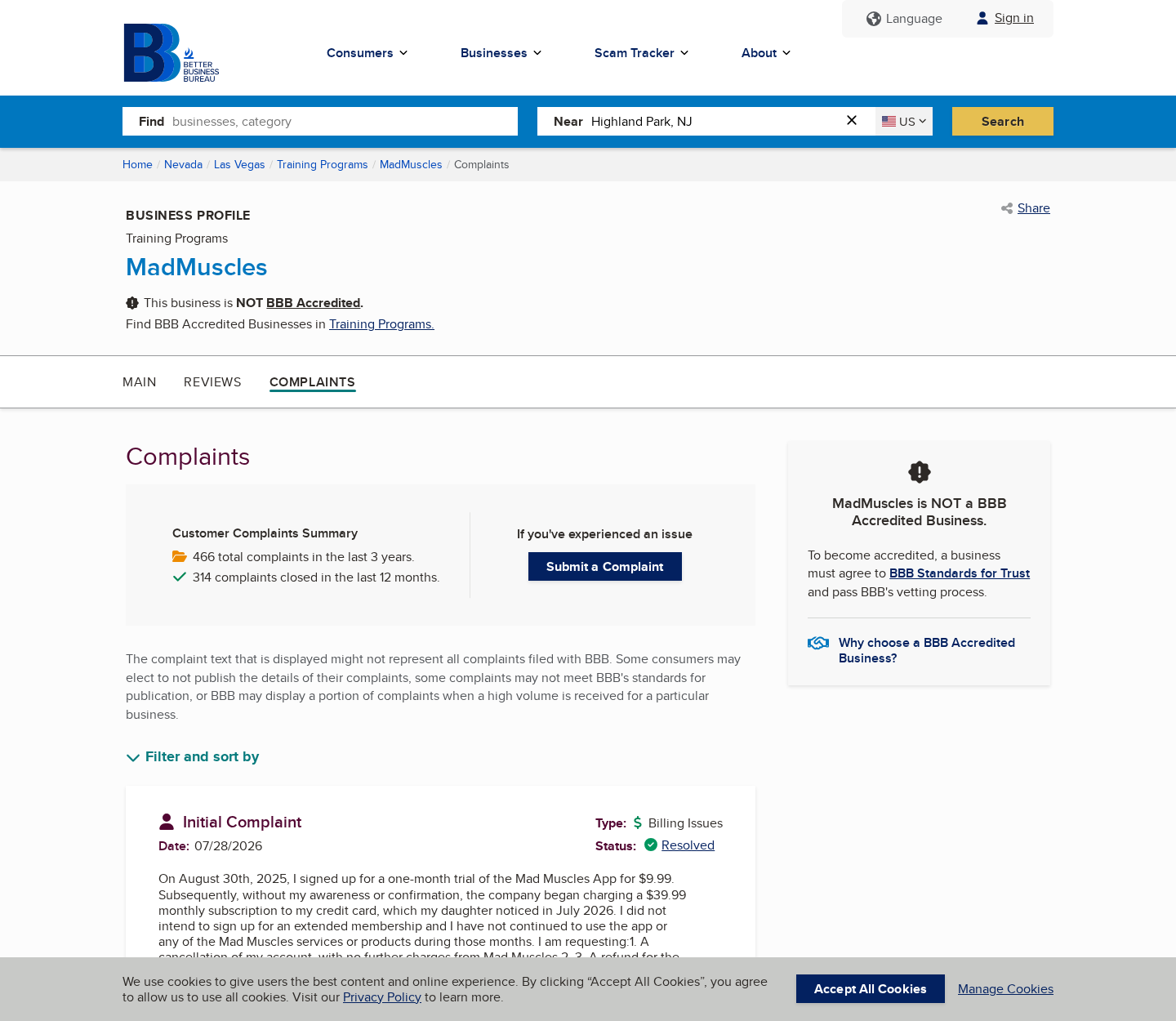
BBB displays hundreds of MadMuscles complaints, many involving renewals, disputed charges, cancellation, or dissatisfaction with the purchased plan.
That number should not be treated as proof that every customer was harmed. MadMuscles serves a large international audience.
The complaint pages also show company responses and resolved cases. Some customers report receiving refunds after escalating their concerns.
Trustpilot presents a broader mixture, including many satisfied users and negative accounts focused heavily on subscription expectations.
The consistent lesson is narrower: verify the commercial terms separately from evaluating whether the exercise content is useful.
What the FTC Lawsuit Actually Alleges
The federal case concerns a larger business network
The complaint does not portray MadMuscles as an isolated application created by an unknown operator.
It describes a collection of Cyprus and United States companies connected to numerous digital products and payment relationships.
According to the FTC, the network continually launched products, registered corporate identities, and opened merchant accounts while moving funds across affiliates.
The filing names several corporations and individuals. It seeks court orders and monetary relief for alleged violations of federal consumer protection laws.
Low introductory offers are a central allegation
The FTC says products across the network were promoted as free or inexpensive, sometimes appearing to require only a one-time payment.
According to the agency, references to automatic renewal were obscured or placed in the smallest text instead of receiving clear, prominent disclosure.
The complaint also alleges that consumers were sometimes double-charged or enrolled in added products without knowing consent.
These are serious claims. They should be described accurately as the FTC’s allegations until the court determines the facts and legal outcome.
Cancellation difficulty is not a minor footnote
A recurring payment is lawful only when the customer understands the arrangement and can stop it through a reasonable process.
The FTC alleges that cancellation options were omitted, explanations were demanded, and charges continued even after some consumers believed cancellation was confirmed.
MadMuscles currently publishes detailed cancellation instructions. Their existence helps, but buyers still need to follow the route matching their original payment.
The federal case will determine whether the challenged conduct violated the FTC Act and the Restore Online Shoppers’ Confidence Act.
Is MadMuscles Worth Using?
Judge the workouts and the contract separately
A person may enjoy the training plan and still dislike the way a renewal was presented. Both experiences can be true simultaneously.
Look beyond star averages. App store comments often blend opinions about exercise quality, technical bugs, motivation, pricing, and billing into one rating.
For the fitness side, examine exercise variety, coaching clarity, equipment requirements, accessibility, and whether the plan matches existing medical limitations.
For the purchase side, record every price, billing interval, trial deadline, add-on, and cancellation route before authorizing payment.
A subscription is safest when you can explain it plainly
Before continuing, you should be able to state the immediate charge, the next charge, the renewal date, and the service provider.
You should also know whether you are buying one plan or two. If the screen is ambiguous, pause before entering payment information.
Use a calendar reminder several days before renewal. Waiting until the final hours creates unnecessary risk if an account or support problem appears.
Consider a virtual card with a merchant-specific limit when your bank offers that feature. It adds control without replacing formal cancellation.
Company, Address, and Fulfillment Checks
The operator named in current store terms
MadMuscles store terms identify AMO APP INC. and provide an address at 3753 Howard Hughes Parkway in Las Vegas, Nevada.
The same terms list support@madmuscles.com for communication. Consumers should compare that identity with the name shown on their receipt and card statement.
Digital services can use affiliates or different merchant descriptors. A mismatch is not automatically fraudulent, but it can complicate a bank dispute.
The FTC identifies a wider alleged enterprise
The federal filing connects MadMuscles with AMO-related entities and the broader Genesis Tech network described by the agency.
That connection should not be exaggerated beyond the complaint. It is part of active litigation, and the defendants may contest the government’s allegations.
Consumers can rely on the official case documents for the precise parties, claims, and procedural status instead of social media summaries.
No warehouse test applies to an app subscription
MadMuscles mainly delivers digital access, so traditional fulfillment checks involving a return warehouse or imported parcel are not the core issue.
The relevant trail is digital: confirmation emails, app store records, website account status, invoices, renewal notices, and payment processor descriptors.
Save those records outside the app. Access can disappear after cancellation, while screenshots and downloaded receipts remain available for a dispute.
Support details must match the route you used
Apple and Google control refunds and cancellations for purchases processed through their stores. MadMuscles controls subscriptions purchased directly on its website.
Sending a website billing complaint to Apple may lead nowhere. Likewise, MadMuscles may direct an app store customer back to the platform.
Start with the receipt. It identifies who accepted payment, which account was used, and where the subscription should be managed.
What to Do if You Were Charged by MadMuscles
- Identify every active plan. Check the MadMuscles website, Apple subscriptions, Google Play subscriptions, confirmation emails, and card statements. Look for separate add-ons.
- Cancel through the correct channel. Disable renewal where the purchase originated. If two plans exist, cancel both and retain each confirmation.
- Capture evidence immediately. Save screenshots showing the offer, renewal amount, account status, cancellation time, receipt, merchant descriptor, and correspondence.
- Request a refund in writing. Explain which charge is disputed, why authorization or disclosure was inadequate, and the exact resolution you want.
- Contact the payment platform when appropriate. Apple, Google, PayPal, or your card issuer may have a separate dispute process and deadline.
- Report unresolved unauthorized billing. Submit accurate records to the FTC, your state attorney general, or the relevant consumer authority.
- Secure exposed account details. Change reused passwords, enable multifactor authentication, and review recent activity for unfamiliar logins or purchases.
- Scan devices if suspicious advertising led you elsewhere. Run Malwarebytes for unwanted software and use AdGuard to reduce deceptive redirects and malicious ads.
Is Your Device Infected? Run a Free Malware Scan
Slow performance, constant pop-ups, or strange behavior? These are classic signs of a malware infection. The fastest way to find out is to scan your device with Malwarebytes Free — one of the most trusted malware removal tools available.
The free version detects and removes the most common threats, including:
- Adware — the cause of those annoying pop-ups
- Browser hijackers — unwanted redirects and changed homepages
- Trojans and spyware — hidden programs stealing your data
- Potentially unwanted programs (PUPs) — software you never asked for
👉 Select your device below — Windows, Mac, or Android — then follow the simple steps to download Malwarebytes, scan your system, and remove any threats it finds. The scan usually takes 5 to 20 minutes.
Run a Malware Scan with Malwarebytes for Windows
Malwarebytes is one of the most popular and trusted anti-malware tools for Windows — and it’s completely free for removing infections. It catches threats that many antivirus programs miss, including adware, browser hijackers, and trojans. Follow the steps below to scan and clean your PC in just a few minutes.
Download Malwarebytes
Click the button below to download the latest version of Malwarebytes for Windows from the official source. The free version is all you need — it will scan your computer and remove adware, browser hijackers, and other malicious software at no cost.
Download MalwarebytesOfficial installer for Windows 11 and 10. Your download starts right away.Want real-time protection? See Malwarebytes Premium Malwarebytes Free for WindowsScans and removes malware at no cost
-
Install Malwarebytes
When the download finishes, open your Downloads folder and double-click the MBSetup file. If Windows shows a User Account Control pop-up, click “Yes” to allow the installation.

Follow the On-Screen Prompts to Install Malwarebytes
The setup wizard will walk you through a few quick screens:
-
Choose where you’re installing the program — “Personal Computer” or “Work Computer” — then click Next.

-
Malwarebytes will now install on your device. This usually takes under a minute.

-
When installation is complete, the “Welcome to Malwarebytes” screen will open automatically.

-
On the final screen, click Open Malwarebytes to launch the program.

-
Enable “Scan for Rootkits”
Before scanning, turn on rootkit detection so Malwarebytes can find even the most hidden threats. Click the Settings gear icon on the left side of the screen.

In the settings menu, find “Scan for rootkits” and click the toggle so it turns blue.

Done? Click “Dashboard” in the left pane to return to the main screen.
Start the Scan
Click the blue Scan button. Malwarebytes will automatically update its virus database and start checking your computer for malware.

-
Wait for the Scan to Finish
The scan checks your entire system for browser hijackers and other malicious programs, so it can take 5 to 20 minutes depending on your computer. Feel free to do something else — just check back occasionally to see the progress.

-
Quarantine the Detected Threats
When the scan is done, you’ll see a list of everything Malwarebytes found — malware, adware, and potentially unwanted programs. Click the “Quarantine” button to remove all of them at once.

Malwarebytes will now remove the malicious files and registry entries and move them safely into quarantine.

-
Restart Your Computer
Some threats can only be fully removed after a reboot. If Malwarebytes asks you to restart, click Yes. Once you’re logged back in, Malwarebytes has finished removing the threats it found.

That’s it — your Windows PC is now clean of trojans, adware, and other malware, and should be back to running smoothly.
If you are still having problems with your computer after completing these instructions, then please follow one of the steps:
- Run a computer scan with ESET Online Scanner
- Ask for help in our Windows Malware Removal Help & Support forum.
Run a Malware Scan with Malwarebytes for Mac
Malwarebytes for Mac is a free on-demand scanner that removes the malware other security software tends to miss — adware, browser hijackers, and unwanted programs included. Cleaning an infected Mac with Malwarebytes has always been completely free, and it’s our go-to recommendation. Follow the steps below to scan and clean your Mac in just a few minutes.
-
Download Malwarebytes for Mac
Click the button below to download the latest version of Malwarebytes for Mac.
Download MalwarebytesOfficial installer for macOS. Your download starts right away.Want real-time protection? See Malwarebytes PremiumMalwarebytes Free for MacScans and removes malware at no cost -
Open the Malwarebytes setup file
When the download finishes, open your Downloads folder and double-click the setup file to begin the installation.

-
Follow the On-Screen Prompts to Install Malwarebytes
The Malwarebytes for Mac Installer will guide you through a few quick screens. Click “Continue” and keep following the prompts until the installation completes.



When the installation is complete, Malwarebytes opens to the Welcome to Malwarebytes screen. Click “Get started“.
-
Select “Personal Computer” or “Work Computer”
Malwarebytes will ask what type of computer you’re installing it on. Click either Personal Computer or Work Computer, whichever applies.

-
Start the Scan
Click the “Scan” button. Malwarebytes will automatically update its detection database and begin checking your Mac for malware.

-
Wait for the Scan to Finish
Malwarebytes will scan your Mac for adware, browser hijackers, and other malicious programs. This can take a few minutes, so feel free to do something else — just check back occasionally to see the progress.

-
Quarantine the Detected Threats
When the scan is done, you’ll see a list of everything Malwarebytes found. Click the “Quarantine” button to remove all the threats at once.

-
Restart Your Mac
Malwarebytes will now remove all the malicious files it found. Some threats can only be fully removed after a reboot — if Malwarebytes asks you to restart, allow it. Once you’re logged back in, your Mac is clean.

That’s it — your Mac is now free of adware, rogue browser extensions, and other potentially harmful software.
If you are still experiencing problems while trying to remove a malicious program from your computer, please ask for help in our Mac Malware Removal Help & Support forum.
Run a Malware Scan with Malwarebytes for Android
Malwarebytes for Android automatically detects and removes dangerous threats like malware and ransomware so you don’t have to worry about your most-used device being compromised. Aggressive detection of adware and potentially unwanted programs keeps your Android phone or tablet running smooth.
-
Download Malwarebytes for Android.
You can download Malwarebytes for Android by clicking the link below.
Get Malwarebytes for AndroidOpens Google Play in a new tab.Want real-time protection? See Malwarebytes Premium for AndroidMalwarebytes for AndroidScans your phone and removes malware at no cost -
Install Malwarebytes for Android on your phone.
In the Google Play Store, tap “Install” to install Malwarebytes for Android on your device.

When the installation process has finished, tap “Open” to begin using Malwarebytes for Android. You can also open Malwarebytes by tapping on its icon in your phone menu or home screen.

-
Follow the on-screen prompts to complete the setup process
When Malwarebytes will open, you will see the Malwarebytes Setup Wizard which will guide you through a series of permissions and other setup options.
This is the first of two screens that explain the difference between the Premium and Free versions. Swipe this screen to continue.
Tap on “Got it” to proceed to the next step.
Malwarebytes for Android will now ask for a set of permissions that are required to scan your device and protect it from malware. Tap on “Give permission” to continue.
Tap on “Allow” to permit Malwarebytes to access the files on your phone.
-
Update database and run a scan with Malwarebytes for Android
You will now be prompted to update the Malwarebytes database and run a full system scan.

Click on “Update database” to update the Malwarebytes for Android definitions to the latest version, then click on “Run full scan” to perform a system scan.

-
Wait for the Malwarebytes scan to complete.
Malwarebytes will now start scanning your phone for adware and other malicious apps. This process can take a few minutes, so we suggest you do something else and periodically check on the status of the scan to see when it is finished.

-
Click on “Remove Selected”.
When the scan has been completed, you will be presented with a screen showing the malware infections that Malwarebytes for Android has detected. To remove the malicious apps that Malwarebytes has found, tap on the “Remove Selected” button.

-
Restart your phone.
Malwarebytes for Android will now remove all the malicious apps that it has found. To complete the malware removal process, Malwarebytes may ask you to restart your device.
That’s it — your Android phone is now clean — no more malicious apps, adware, or browser redirects.
If you are still having problems with your phone after completing these instructions, then please follow one of the steps:
- Restore your phone to factory settings by going to Settings > General management > Reset > Factory data reset.
- Ask for help in our Mobile Malware Removal Help & Support forum.
Stay Protected: Block Ads and Malicious Sites
Now that your device is clean, keep it that way. Most infections start with a malicious ad or a fake download button — so blocking them at the source is your best defense.
We recommend AdGuard, which blocks malicious ads, phishing pages, and dangerous redirects before they can reach you.
👉 Download AdGuard and browse safely
Do not fabricate details to strengthen a dispute. A concise timeline supported by receipts and screenshots is more persuasive than an emotional accusation.
Canceling a card is not always sufficient because some recurring merchants receive updated card credentials. Ask the issuer how it will block future charges.
Frequently Asked Questions
Is MadMuscles a fake app?
No. MadMuscles is a functioning workout application with real content, mobile distribution, users, and customer support materials.
The concern examined here is subscription marketing and billing, not whether the software exists.
Why is the FTC suing companies connected with MadMuscles?
The FTC alleges that a broader enterprise used hidden recurring terms, unauthorized charges, and difficult cancellation practices across multiple digital products.
MadMuscles is among the fitness and nutrition offerings specifically identified. The allegations remain subject to a court decision.
Does deleting MadMuscles cancel the subscription?
No. The official support page says deleting the application or leaving the mailing list does not cancel automatic renewal.
You must disable renewal through the website, Apple, or Google, depending on where payment began.
Why can I not see MadMuscles in my app store subscriptions?
You may have purchased directly from the MadMuscles website. Website plans do not necessarily appear in Apple or Google subscription menus.
Use the email associated with checkout to access the website’s subscription management area.
Can one cancellation leave another MadMuscles charge active?
Yes. MadMuscles says customers can have two active subscriptions, each with its own cancellation control.
Review receipts and the account page carefully, then confirm that every unwanted plan displays a canceled status.
Should I dispute a MadMuscles payment immediately?
First identify the payment route, cancel renewal, and make a documented refund request unless the charge is clearly unauthorized.
If support does not resolve the issue, use the dispute process offered by the payment platform or card issuer before its deadline.
The Bottom Line
MadMuscles is a real fitness app, but that does not erase legitimate questions about recurring billing, multiple plans, disclosure, and cancellation.
The FTC lawsuit makes careful wording essential. The government has made serious allegations, yet the case still requires a court determination.
Anyone considering the service should read beyond the introductory price, record every term, and know exactly where renewal must be stopped.

Join the discussion
0 commentsShare your experience or ask a question about this article.
Discussion
Start the conversation
Have a question or something useful to share? Add the first comment.