

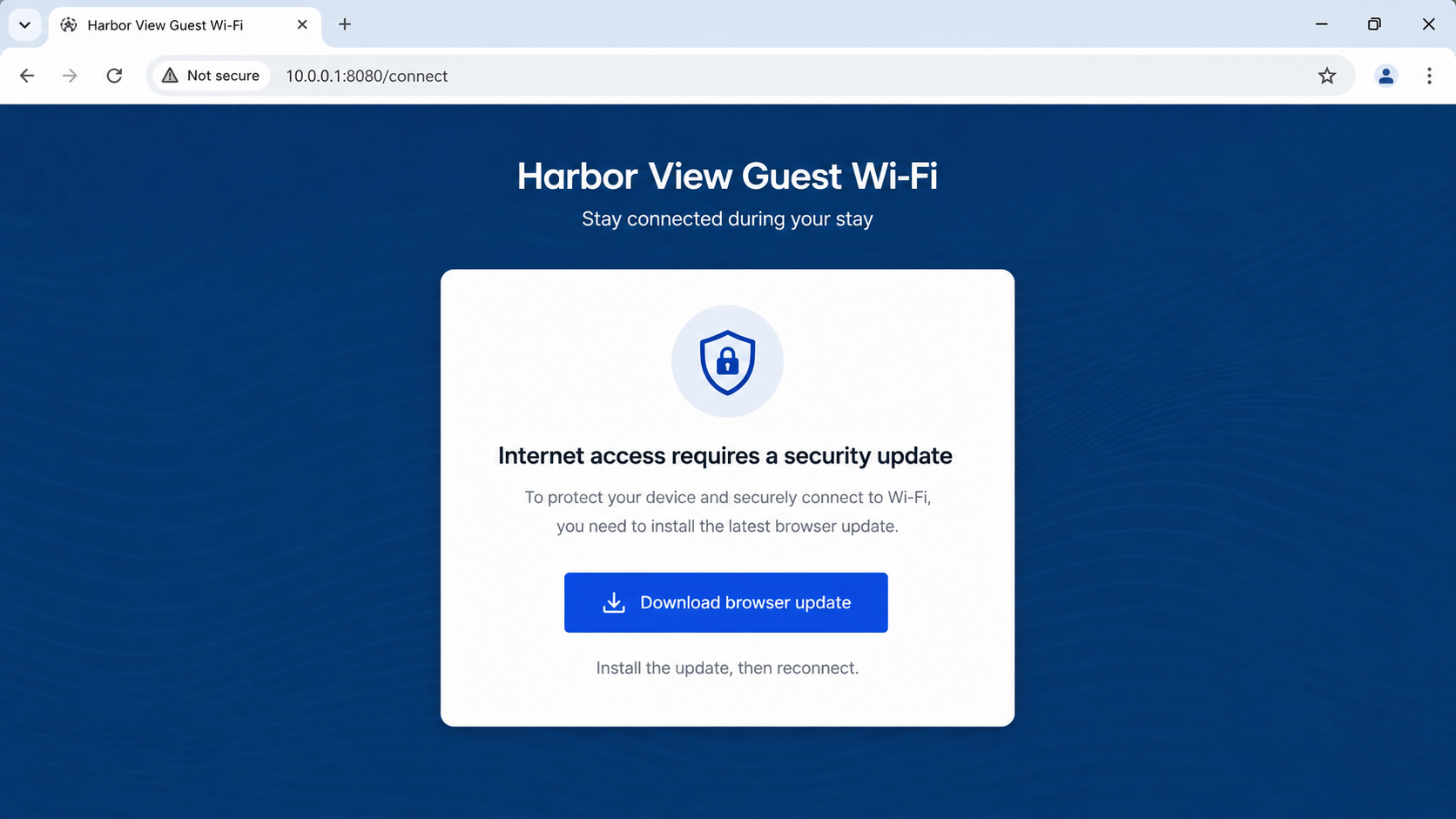
You join the hotel Wi-Fi and a familiar browser window opens. Instead of asking for a room number or accepting the network terms, it says your browser or Windows security needs an update before internet access can continue.
The hotel Wi-Fi fake update scam feels logical because the message appeared at the exact moment you connected.
That timing is what makes this attack unusually convincing.
Overview
The fake update is delivered through a compromised guest network
The hotel Wi-Fi fake update scam is not an ordinary pop-up placed on a random website. In the campaign Microsoft calls CaptiveCrunch, attackers manipulate traffic connected to hospitality and other captive-portal networks.
A captive portal is the page that opens when you join guest Wi-Fi and need to accept terms, enter a room number, or sign in. Travelers expect that page to interrupt normal browsing, so a false security check shown at that moment can feel like part of the venue’s connection process.
Microsoft Threat Intelligence reported widespread but targeted traffic manipulation involving hospitality networks in several countries. The activity has redirected users to phishing infrastructure and delivered malware disguised as browser or operating-system updates.
The download is a remote-access trojan, not an update
The page may claim to install Windows Update, Microsoft Defender, DirectX, a Visual C++ component, browser repair software, or network diagnostics. Another version uses ClickFix instructions that tell the victim to paste a command into Windows Terminal or another system tool.
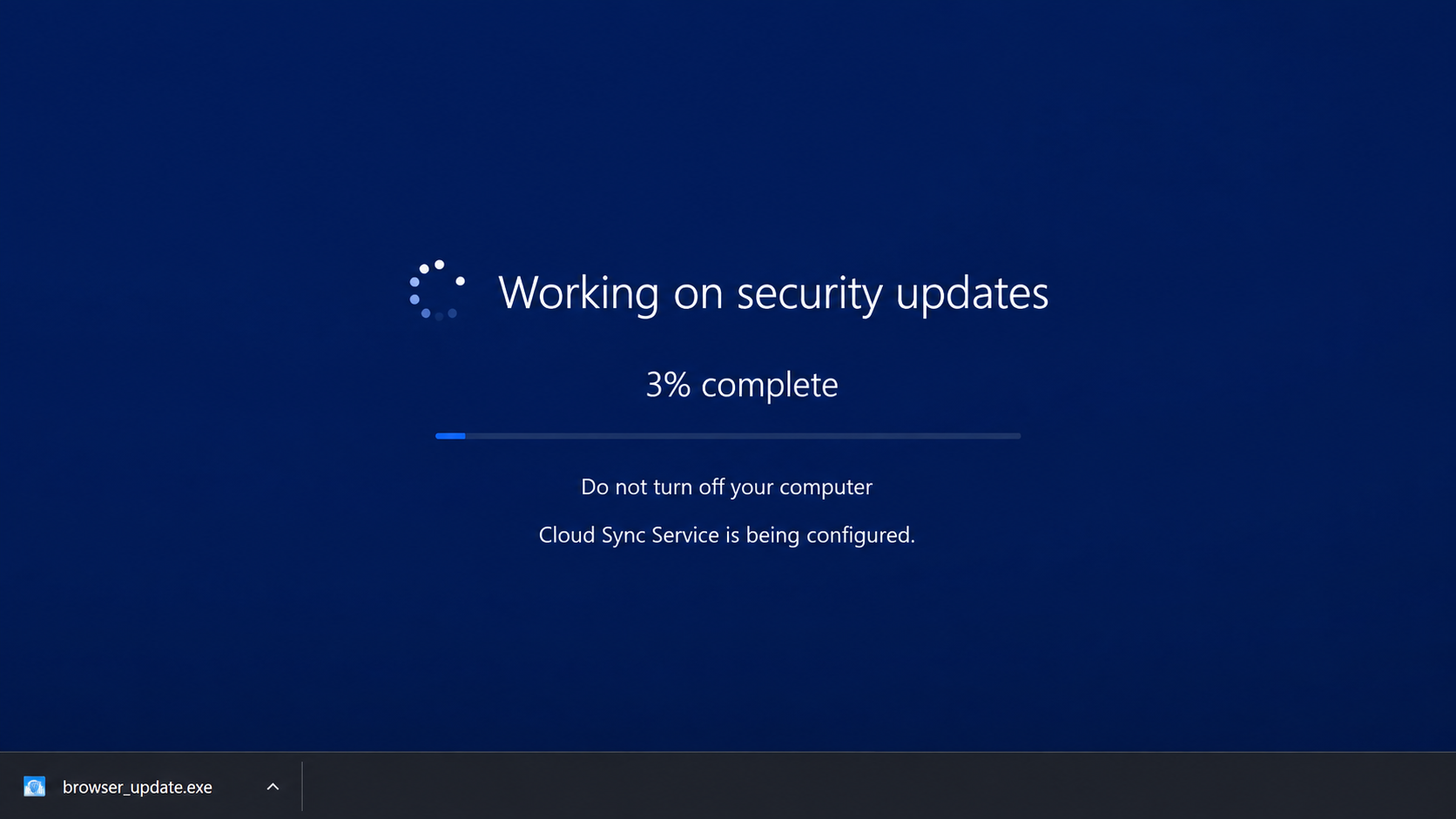
Running the file can install CornFlake, a remote-access trojan documented by Microsoft. It can establish persistence, capture keystrokes, steal browser credentials and session cookies, collect files, watch removable drives, and provide the operator with a remote command shell.
A companion PowerShell stealer known as ChocoShell has been used to target saved passwords, Microsoft 365 tokens, browser sessions, and Wi-Fi credentials. The convincing progress screen is only cover while the malicious program settles into the system.
Business travelers are especially valuable targets
A traveler’s laptop may hold far more than personal photos and a streaming account. It can contain active company sessions, cloud access, VPN credentials, confidential documents, and authentication tokens that bypass the need to steal a password directly.
The campaign has been associated with a sophisticated state-linked operator, but the safety rule is simple enough for any traveler: a hotel portal does not need to install software, certificates, browser extensions, scripts, or Windows updates to provide internet access.
Warning signs include:
- The Wi-Fi sign-in page demands a browser, driver, or operating-system update.
- A file downloads immediately after joining the network.
- The portal asks you to open Windows Terminal, PowerShell, Run, or Command Prompt.
- You are told to copy and paste a command to “verify” the connection.
- The browser warns that the portal is not secure.
- The page imitates Microsoft 365 and asks for a work login.
- An update request appears only on the guest network and disappears on mobile data.
- The file name is generic, such as browser_update.exe or security_fix.exe.
- The installer creates pressure by claiming internet access is blocked.
- Hotel staff cannot confirm that any download is required.
How the Hotel Wi-Fi Fake Update Scam Works
Step 1: The attacker gains influence over guest-network traffic
The operator compromises or abuses part of the infrastructure serving captive portals. Microsoft said similarities across affected equipment and management systems suggested the activity might extend beyond isolated compromises at individual venues.
This does not mean every affected hotel knowingly served malware. The guest network, shared provider, router, DNS path, or portal management layer can be abused while the venue’s normal website and booking systems remain legitimate.
Step 2: The browser’s connection check is redirected
Operating systems and browsers make small requests to determine whether a network has internet access or requires a sign-in page. Attackers in a useful network position can manipulate that moment and send the traveler toward infrastructure they control.
The fake page arrives before ordinary browsing begins, which gives it a powerful false endorsement. The user thinks the laptop or hotel opened it automatically because the network genuinely needs the requested step.
Step 3: A familiar update or login screen appears
The landing page can imitate a browser update, Windows component, Microsoft Defender scan, document viewer, or Microsoft 365 login. Branding and layout change with the target.
Some pages use an adversary-in-the-middle login that can capture credentials and session data. Others rely on a direct download or ClickFix instructions that persuade the user to run code manually.
Step 4: The traveler performs the dangerous action
The attacker still needs the victim to click, execute, approve, or paste something. That human action can bypass the hesitation people normally feel about an unexpected email attachment because the prompt looks like a requirement for connectivity.
If the page says to paste a command into a system console, stop. No legitimate Wi-Fi login requires a guest to launch a command interpreter and run text from a webpage.
Step 5: A fake progress window hides the installation
CornFlake can display a convincing “working on updates” window while copying itself into the user profile and establishing persistence. The progress animation gives the victim a reason to wait instead of opening Task Manager or closing the process.
Microsoft observed persistence through a Windows service, Registry Run keys, scheduled tasks, and a watchdog designed to restore mechanisms that defenders remove.
Step 6: Credentials, sessions, and files are collected
Once active, the malware can harvest browser passwords and cookies, record keystrokes, monitor the clipboard, enumerate security tools, collect documents, and expose a remote shell. Session cookies are particularly dangerous because they may let an attacker enter an already authenticated cloud account.
The operator can also use device-code phishing or a fake Microsoft 365 login to gain access without relying on the malware alone. A single travel incident can therefore affect both the laptop and the organization behind it.
Step 7: The legitimate Wi-Fi becomes the wrong suspect
After the prompt closes, internet access may work normally. That can make the “update” seem successful and delay the discovery of the compromise.
The victim may blame the hotel only after an account alert appears. Report the network and time to the venue, but let security teams investigate the infrastructure rather than assuming a staff member created the attack.
What to Do Before Joining Hotel or Conference Wi-Fi
Prefer a personal mobile hotspot or trusted cellular connection for sensitive work. A VPN can protect traffic after it is established, but it cannot make a malicious file safe or correct a credential that you typed into a phishing page.
Confirm the exact network name with the front desk or event organizer. Attackers can create lookalike hotspots with names that differ by one character, although CaptiveCrunch also shows that even a legitimate venue network should not receive unlimited trust.
Install operating-system, browser, VPN, and security updates before traveling. Once away from home, obtain updates only through the software’s built-in updater or the vendor’s official site reached independently.
Microsoft’s guidance for this campaign recommends avoiding software updates, certificates, browser tools, and security utilities presented through captive portals. If a network insists on a download, disconnect and ask venue staff for another access method.
On a company device, report a suspicious portal to the security team even if you did not run the file. The network name, venue, date, time, screenshot, and requested filename can help identify exposure across other travelers.
What Makes This Different From an Ordinary Rogue Hotspot
A classic evil-twin attack creates a lookalike wireless network and waits for travelers to join it. The safest advice has long been to confirm the SSID with the venue.
That remains useful, but CaptiveCrunch demonstrates a harder problem: traffic connected to hospitality portal infrastructure can be manipulated even when the traveler believes the venue network itself is genuine.
For that reason, the network name cannot be the final trust decision. It tells you which radio connection you selected. It does not prove that every page, DNS answer, download, or authentication prompt delivered through that connection is safe.
The content of the request becomes decisive. Terms and conditions, a room surname, conference code, or simple browser sign-in can be normal. An executable update, copied command, new certificate, device-code login, or request for corporate credentials deserves an immediate stop.
The same rule applies if the page uses perfect spelling and familiar Microsoft graphics. The campaign operators can present several carefully designed fake windows. Visual polish shows that effort went into the page; it does not show who controls it.
Travelers should also separate internet access from software maintenance. If an update is genuinely needed, switch to a personal hotspot and open the operating system’s settings or vendor application. Never let the network asking for trust also choose the program that supposedly establishes that trust.
Finally, do not assume the absence of a browser warning makes the download clean. Malicious infrastructure can use valid certificates, and a compromised network can place a convincing page in front of the user. The unexpected demand to run software is the warning.
Company, Address, and Fulfillment Checks
Confirm the network name with venue staff
Ask for the exact SSID and normal login flow. A matching network name reduces lookalike-hotspot risk, but it does not justify installing software from the portal.
Inspect the portal address without trusting it
Captive portals can legitimately use local addresses or provider domains. Misspellings, certificate warnings, and unrelated domains are danger signals, but a clean-looking address is not permission to run a file.
Verify updates through the vendor’s own mechanism
Close the portal, switch to a trusted connection, and open Windows Update or the browser’s built-in update screen yourself. If no update appears there, the portal’s demand was not a genuine system update.
Treat every portal download as unfulfilled trust
A venue can provide access after accepting terms or entering a code. It does not need to “deliver” an executable, certificate, or command. Refuse the download and request a wired, cellular, or separately verified alternative.
What to Do if You Have Fallen Victim to This Scam
- Disconnect the device from all networks. Turn off Wi-Fi and unplug Ethernet to reduce further communication while you seek help.
- Contact your organization’s security team immediately. Do this from another device. Business accounts, sessions, and data may be exposed even if the laptop appears normal.
- Do not keep using the computer for password changes. A keylogger or remote-access trojan could capture the new credentials.
- Record what happened. Note the venue, SSID, time, portal address, filename, commands run, login entered, and any alerts. Photograph the screen with another device if necessary.
- Run an offline or trusted security scan. Follow your organization’s incident process. For a personal Windows PC, update security tools from a trusted connection and run a full Malwarebytes scan.
- Assume browser sessions may be stolen. From a clean device, sign out all sessions for email, Microsoft 365, banking, cloud storage, social accounts, and password managers.
- Change important passwords from the clean device. Use unique replacements and enable phishing-resistant multifactor authentication where available.
- Review account and identity logs. Look for new devices, mailbox rules, OAuth grants, passkey registrations, recovery changes, transfers, and security alerts.
- Consider rebuilding the system. A persistent remote-access trojan may justify a full wipe and reinstall, especially on a business device. Let the security team decide before deleting evidence.
- Use network protection after remediation. AdGuard can block many known phishing and malicious destinations, but it cannot safely authorize software offered by a captive portal.
- Notify the venue and authorities. Give the hotel or conference operator precise technical details. Serious credential theft or financial loss should also be reported to the appropriate cybercrime authority.
- Ignore cleanup offers from strangers. Do not grant remote access to someone who contacts you after you post about the incident.
Frequently Asked Questions
Can a real hotel Wi-Fi portal require an update?
It may require acceptance of terms, a room detail, or an access code. It should not require a Windows, browser, driver, certificate, or security-software installation. Verify any claim with staff and the software vendor independently.
Does HTTPS make the update safe?
No. HTTPS encrypts the connection to a site; it does not prove that the site or downloaded program is trustworthy.
Will a VPN prevent this attack?
A VPN protects traffic once connected, but a malicious captive portal may appear before the tunnel starts. A VPN also cannot protect you after you willingly execute malware or enter credentials on a fake page.
What if I downloaded the file but did not open it?
Delete it without running it, empty the download location if appropriate, and scan the system. The risk is much lower if the file never executed, but report the portal to the venue or security team.
What if I pasted a command but saw an error?
Treat the device as potentially compromised. A command can run malicious actions before displaying an error. Disconnect and obtain professional incident-response help.
Are only Windows devices at risk?
Microsoft documented Windows malware and indications of Android-targeted instructions in related landing pages. Any device can also be exposed to credential phishing, so reject unexpected installs on every platform.
The Bottom Line
The hotel Wi-Fi fake update scam abuses a moment when interruptions feel normal. A page that appears automatically after connecting can still be controlled by an attacker, and a polished progress screen can be hiding spyware rather than installing protection.
Guest internet should not require executable software or pasted commands. Disconnect, switch to a trusted connection, and obtain every update through the operating system or vendor you opened yourself.

Join the discussion
0 commentsShare your experience or ask a question about this article.
Discussion
Start the conversation
Have a question or something useful to share? Add the first comment.