

A private message offers a share of valuable gold supposedly trapped abroad. The stranger says your clean name and foreign bank access can unlock it.
Secrecy is presented as protection, and cooperation sounds almost charitable. Before the promised fortune moves, the recipient is asked to move first.
Overview
The story recruits a stranger as a secret beneficiary
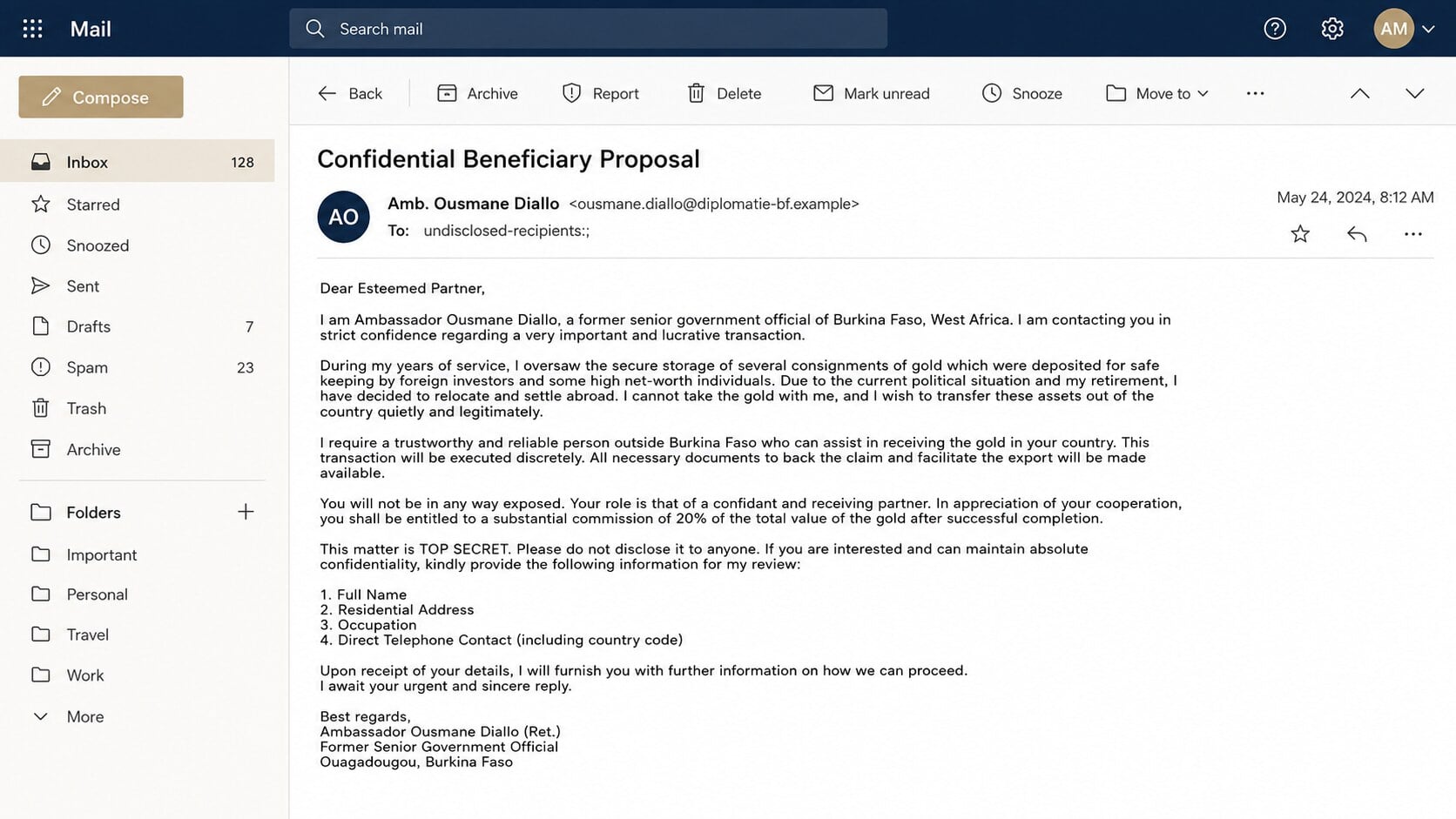
The Beneficiary of Gold Bars email scam claims a politically connected person needs outside help moving a valuable private consignment.
The sender may impersonate a current or former official and describe unrest, retirement, sanctions, inheritance, or confidentiality as reasons normal channels cannot be used.
The fortune is bait for information and advance payments
The first reply may only request a name, address, occupation, telephone number, and assurance of secrecy. Later demands become more sensitive.
Victims can be asked for passport copies, bank information, signatures, legal forms, or payments for clearance, insurance, taxes, storage, and delivery.
The operation grows through invented institutions
A supposed lawyer, bank officer, diplomat, security company, customs agent, or courier may join the conversation and confirm the same fictional consignment.
Each new character creates another reason for trust and another fee. They may be the same operator using different addresses and telephone numbers.
- An unsolicited stranger promises a large commission for little work.
- A public official’s identity is used without a verifiable official channel.
- The recipient is told to keep the proposal confidential.
- Personal and banking details are requested before any independent meeting.
- Documents and portal pages appear only after the recipient responds.
- Unexpected charges stand between the victim and the imaginary fortune.
Why Gold, Political Turmoil, and Secrecy Make a Powerful Story
Gold sounds portable, valuable, and difficult for ordinary people to verify. A storage certificate can appear meaningful without proving that any metal exists.
Political instability explains every suspicious detail in advance. It supposedly justifies private email, urgency, unusual intermediaries, and avoidance of official government channels.
The sender casts secrecy as a condition of safety. In practice, secrecy isolates the victim from relatives, banks, lawyers, and investigators who might recognize the fraud.
A commission changes the emotional frame. The recipient is encouraged to see an opportunity instead of an unsolicited request from an unknown person.
The story can also appeal to helpfulness. Some versions describe humanitarian projects, family safety, or public development alongside the private reward.
Those themes are flexible. Names, countries, amounts, and political events change, while the advance-fee structure remains remarkably stable.
No Real Official Needs a Random Email Beneficiary
Legitimate government assets, estates, diplomatic consignments, and commercial gold transfers require documented parties, regulated institutions, legal counsel, and verified ownership.
A stranger’s personal inbox is not a lawful shortcut around customs, sanctions, taxes, banking rules, or beneficial-ownership checks.
Real officials do not recruit unknown foreign recipients through bulk email and promise extraordinary commissions for lending their identities or accounts.
Using a bank account to receive money for another person can also create money-laundering exposure. “Beneficiary” does not remove the account holder’s responsibility.
If the proposal were genuine, the sender could use traceable professional representation. A demand for secrecy and off-record payment points in the opposite direction.
How the Beneficiary of Gold Bars Email Scam Works
Step 1: A personal-sounding proposal is sent in bulk
The message addresses the recipient as a trusted partner, even though no prior relationship exists.
It may claim the address was selected through a directory, business list, recommendation, or careful search for an honest foreign person.
The explanation makes random contact sound deliberate. In reality, large mailing lists allow the same proposal to reach thousands of recipients.
Step 2: A stolen identity supplies status
The sender may use the name of a politician, military officer, diplomat, banker, or wealthy family member.
Real biographical details can be copied from public reporting. Their accuracy does not connect the email account to the person being impersonated.
A title such as lieutenant colonel, ambassador, barrister, or finance director discourages ordinary questioning and makes the recipient feel specially chosen.
Step 3: The recipient is promised a lucrative share
The stranger says the recipient will receive a substantial share after allowing documents, a bank account, or a delivery record to use their name.
No investment risk is mentioned initially. The victim’s role sounds administrative, confidential, and temporary.
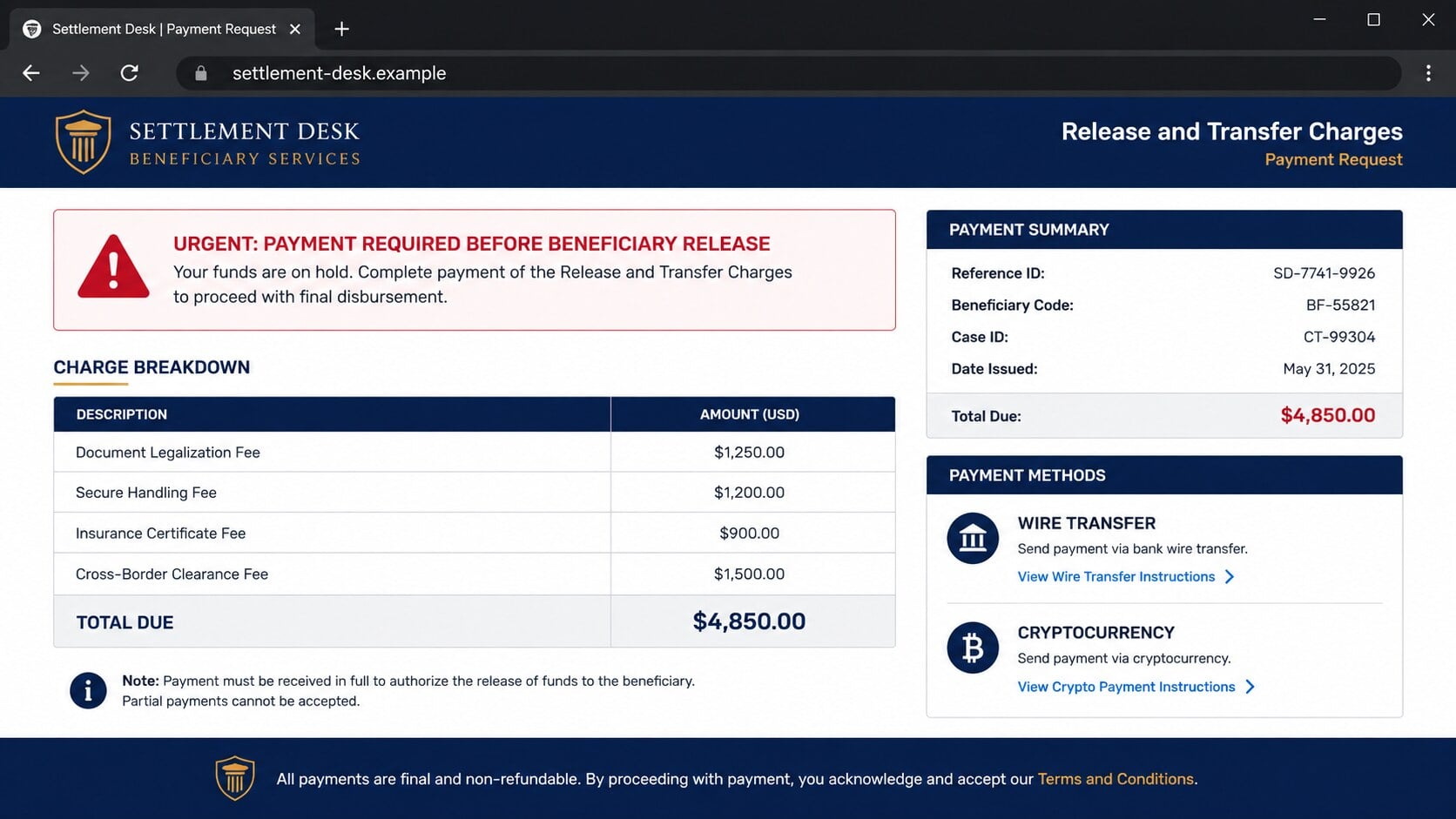
The promised reward makes later charges look small by comparison. A $4,850 fee can feel tolerable beside an imaginary fortune supposedly worth millions.
Step 4: Replies build commitment and collect identity data
The first response confirms that the address is active and that the recipient is willing to engage privately.
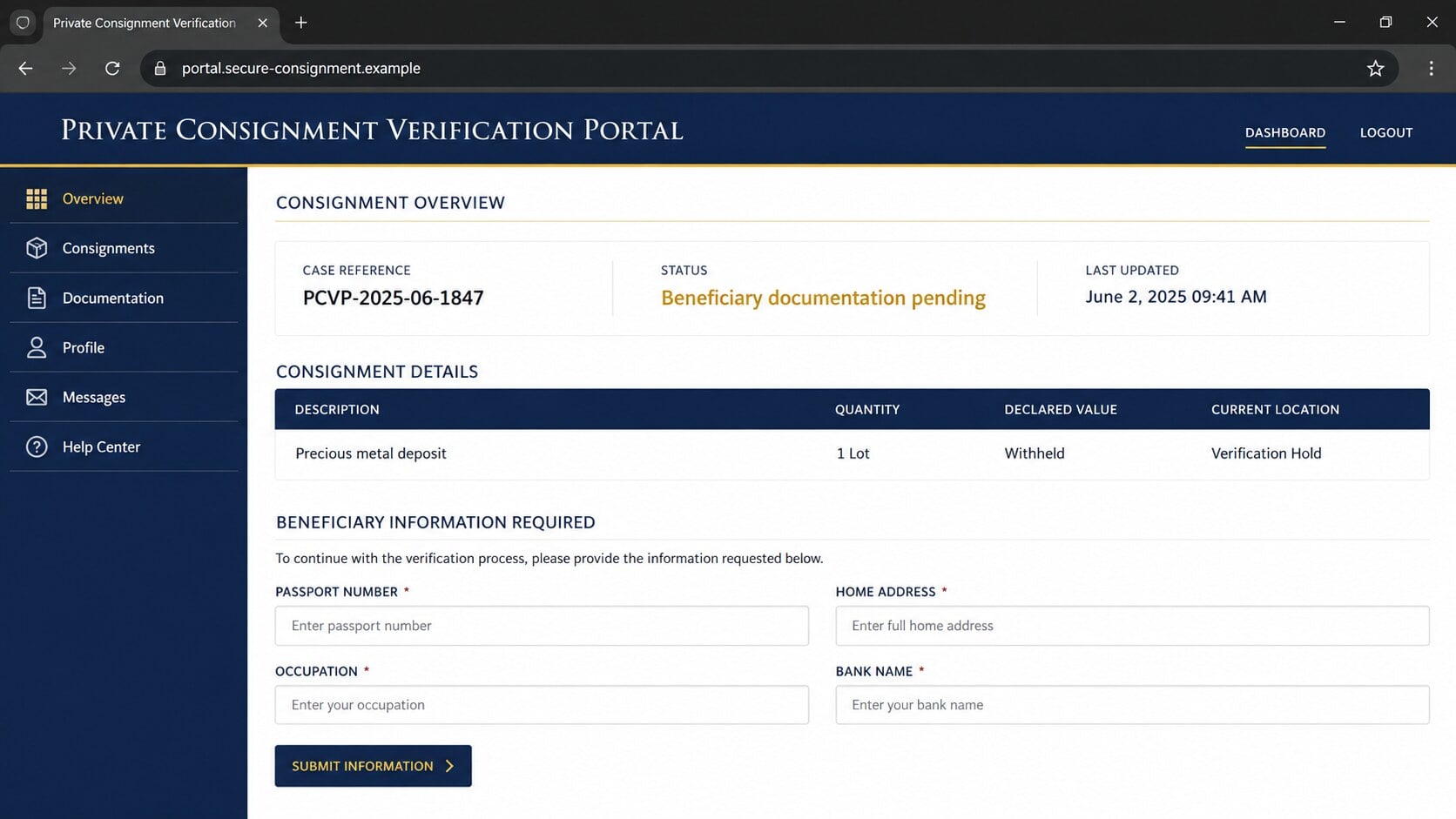
The operator then requests identity details, telephone contact, occupation, address, passport images, and banking information under the pretext of preparing beneficiary documents.
Every disclosure increases commitment. It also gives the criminal material for identity theft, personalized pressure, or future scam attempts.
Step 5: Documents and intermediaries make the fortune appear real
Victims may receive certificates, storage receipts, airway bills, bank letters, photographs, seals, identification cards, or links to fabricated tracking portals.
A new “lawyer” or “security company” may confirm the sender’s story. The additional contact creates the illusion of independent verification.
Documents can contain real organization names and copied addresses. Verification must use independently located contact details, not information printed inside the supplied files.
Step 6: An advance fee blocks the release
A problem suddenly appears. Customs clearance, insurance, legalization, storage, anti-money-laundering certification, courier handling, or a transfer permit supposedly requires payment.
The fee may be requested through wire transfer, cryptocurrency, money-transfer services, gift cards, or payment to an individual.
After one payment, another obstacle appears. The gold remains perpetually one certificate, tax, signature, or release code away.
Step 7: Pressure and recovery scams extend the loss
Operators may threaten storage penalties, confiscation, arrest, contract liability, or loss of the promised commission when the victim hesitates.
If payments stop, another person may claim to be an investigator who recovered the consignment. That “recovery” requires a fresh processing fee.
Identity documents and contact details can be reused months later. A different inheritance, compensation fund, lottery, or abandoned account may target the same victim.
Identity, Address, Contact, and Consignment Checks
The famous name is borrowed authority
Search the claimed person’s official channels and public office. Then compare them with the email domain, writing style, telephone code, and requested payment route.
Do not contact the address in the proposal to verify itself. A reply from the same operator is not independent confirmation.
The listed address may be copied or invented
A real ministry, bank, airport, or security-company address can be pasted into a fraudulent signature.
Call the organization using details from its independently located website or official directory. Ask for the named department and reference without sending documents.
Multiple contacts may be one criminal team
Different names do not guarantee different organizations. Examine writing patterns, time zones, reused documents, reply domains, and payment beneficiaries.
Legitimate banks and lawyers do not prove identity through free-email accounts or request confidential fees to unrelated personal accounts.
The consignment must be independently traceable
A portal created for the victim can display any status the operator chooses. A tracking number is useful only when verified with a real carrier.
Ownership, bar serials, assay records, storage contracts, insurance, customs documents, and beneficial ownership require professional verification before any transaction.
The Advance-Fee Pattern Behind the Offer
The scam is often called advance-fee fraud because the victim must pay before receiving a promised asset, reward, inheritance, loan, contract, or compensation.
The initial story can involve gold, cash, diamonds, diplomatic boxes, dormant accounts, or government funds. The money request is the stable component.
Fees are described as external requirements rather than payment to the sender. That separation helps the original contact pretend to remain generous.
The victim may receive a document showing that the fee is refundable. Such a statement has no value when the issuing institution is fictitious.
Criminals sometimes permit small delays or negotiate the amount. Flexibility is not proof of legitimacy; it keeps the victim engaged.
No final payment exists. A successful fee proves only that the victim can pay, which encourages the operator to invent a larger obstacle.
How Fake Paperwork Deepens the Commitment
Advance-fee operators understand that an official-looking document can feel more persuasive than another promise. They often introduce paperwork gradually as trust develops.
A certificate may carry seals, signatures, serial numbers, and legal language. None proves that the named authority issued it or that any gold exists.
Fake tracking portals add another layer. A moving status bar can claim that a consignment reached customs, entered inspection, or awaits one final payment.
The supposed lawyer, courier, banker, and government officer may be the same person using different accounts. Separate identities create an illusion of independent confirmation.
Victims sometimes receive staged telephone calls or edited identification. These materials answer emotional doubts without providing independently verifiable evidence.
Every new document also creates a reason for another fee. A clearance stamp, ownership transfer, insurance bond, or storage invoice becomes the next manufactured obstacle.
Do not verify paperwork through contact details printed on that paperwork. Find the institution independently, then ask whether the document number and employee are genuine.
A legitimate financial arrangement does not require a stranger to secretly receive treasure, misstate ownership, or pay escalating personal fees before seeing the asset.
Warning Signs in a Gold Beneficiary Proposal
- The sender is a stranger claiming exceptional trust without a meeting.
- A public official or wealthy family identity appears through an unofficial address.
- The asset must supposedly move outside normal legal and banking channels.
- You are offered a large commission for using your name or account.
- Secrecy is mandatory and independent advice is discouraged.
- Passport, address, banking, or signature information is requested early.
- Documents arrive from contacts introduced by the original sender.
- Release depends on taxes, clearance, storage, insurance, or legalization payments.
- Payment is directed to individuals, cryptocurrency, or difficult-to-reverse channels.
- Each paid obstacle is replaced by another urgent requirement.
Do not let impressive paperwork reverse the burden of proof. The person offering an extraordinary asset must establish legitimacy before receiving information or money.
An honest lawyer or bank can tolerate independent verification. A criminal operation needs the victim to remain inside the communication channel it controls.
What to Do if You Have Fallen Victim to This Scam
There is no shame in stopping after a reply or payment. These operations are designed to build trust gradually and exploit normal hope and helpfulness.
- Stop all communication and payments. Do not send another fee to preserve the deal, avoid a penalty, or unlock a refund.
- Contact the payment provider immediately. Ask whether a wire, transfer, card payment, or cryptocurrency withdrawal can be stopped or flagged.
- Notify your bank’s fraud team. Explain that beneficiary and identity information may have been exposed, not merely that a payment was disputed.
- Protect identity documents. Report compromised passport or identification copies to the issuing authority and follow its replacement guidance.
- Secure email and cloud accounts. Change reused passwords, revoke sessions, enable multifactor authentication, and inspect forwarding and recovery settings.
- Preserve complete evidence. Save emails, headers, chat logs, documents, account names, telephone numbers, wallet addresses, transaction IDs, and receipts.
- Report the impersonation. Notify the real public office, bank, lawyer, courier, or company whose identity appears in the scheme.
- File an official fraud report. Provide the timeline and payment details to the appropriate national fraud or cybercrime authority.
- Scan received files. Malwarebytes can detect malicious attachments or installers if the operation sent software disguised as documents or tracking tools.
- Block hostile destinations. AdGuard can reduce exposure to known scam pages and malicious advertising, but it cannot recover transferred money.
- Expect recovery impersonators. Do not pay anyone promising guaranteed recovery, secret law-enforcement access, or release of the same gold.
Is Your Device Infected? Run a Free Malware Scan
Slow performance, constant pop-ups, or strange behavior? These are classic signs of a malware infection. The fastest way to find out is to scan your device with Malwarebytes Free — one of the most trusted malware removal tools available.
The free version detects and removes the most common threats, including:
- Adware — the cause of those annoying pop-ups
- Browser hijackers — unwanted redirects and changed homepages
- Trojans and spyware — hidden programs stealing your data
- Potentially unwanted programs (PUPs) — software you never asked for
👉 Select your device below — Windows, Mac, or Android — then follow the simple steps to download Malwarebytes, scan your system, and remove any threats it finds. The scan usually takes 5 to 20 minutes.
Run a Malware Scan with Malwarebytes for Windows
Malwarebytes is one of the most popular and trusted anti-malware tools for Windows — and it’s completely free for removing infections. It catches threats that many antivirus programs miss, including adware, browser hijackers, and trojans. Follow the steps below to scan and clean your PC in just a few minutes.
Download Malwarebytes
Click the button below to download the latest version of Malwarebytes for Windows from the official source. The free version is all you need — it will scan your computer and remove adware, browser hijackers, and other malicious software at no cost.
Download MalwarebytesOfficial installer for Windows 11 and 10. Your download starts right away.Want real-time protection? See Malwarebytes Premium Malwarebytes Free for WindowsScans and removes malware at no cost
-
Install Malwarebytes
When the download finishes, open your Downloads folder and double-click the MBSetup file. If Windows shows a User Account Control pop-up, click “Yes” to allow the installation.

Follow the On-Screen Prompts to Install Malwarebytes
The setup wizard will walk you through a few quick screens:
-
Choose where you’re installing the program — “Personal Computer” or “Work Computer” — then click Next.

-
Malwarebytes will now install on your device. This usually takes under a minute.

-
When installation is complete, the “Welcome to Malwarebytes” screen will open automatically.

-
On the final screen, click Open Malwarebytes to launch the program.

-
Enable “Scan for Rootkits”
Before scanning, turn on rootkit detection so Malwarebytes can find even the most hidden threats. Click the Settings gear icon on the left side of the screen.

In the settings menu, find “Scan for rootkits” and click the toggle so it turns blue.

Done? Click “Dashboard” in the left pane to return to the main screen.
Start the Scan
Click the blue Scan button. Malwarebytes will automatically update its virus database and start checking your computer for malware.

-
Wait for the Scan to Finish
The scan checks your entire system for browser hijackers and other malicious programs, so it can take 5 to 20 minutes depending on your computer. Feel free to do something else — just check back occasionally to see the progress.

-
Quarantine the Detected Threats
When the scan is done, you’ll see a list of everything Malwarebytes found — malware, adware, and potentially unwanted programs. Click the “Quarantine” button to remove all of them at once.

Malwarebytes will now remove the malicious files and registry entries and move them safely into quarantine.

-
Restart Your Computer
Some threats can only be fully removed after a reboot. If Malwarebytes asks you to restart, click Yes. Once you’re logged back in, Malwarebytes has finished removing the threats it found.

That’s it — your Windows PC is now clean of trojans, adware, and other malware, and should be back to running smoothly.
If you are still having problems with your computer after completing these instructions, then please follow one of the steps:
- Run a computer scan with ESET Online Scanner
- Ask for help in our Windows Malware Removal Help & Support forum.
Run a Malware Scan with Malwarebytes for Mac
Malwarebytes for Mac is a free on-demand scanner that removes the malware other security software tends to miss — adware, browser hijackers, and unwanted programs included. Cleaning an infected Mac with Malwarebytes has always been completely free, and it’s our go-to recommendation. Follow the steps below to scan and clean your Mac in just a few minutes.
-
Download Malwarebytes for Mac
Click the button below to download the latest version of Malwarebytes for Mac.
Download MalwarebytesOfficial installer for macOS. Your download starts right away.Want real-time protection? See Malwarebytes PremiumMalwarebytes Free for MacScans and removes malware at no cost -
Open the Malwarebytes setup file
When the download finishes, open your Downloads folder and double-click the setup file to begin the installation.

-
Follow the On-Screen Prompts to Install Malwarebytes
The Malwarebytes for Mac Installer will guide you through a few quick screens. Click “Continue” and keep following the prompts until the installation completes.



When the installation is complete, Malwarebytes opens to the Welcome to Malwarebytes screen. Click “Get started“.
-
Select “Personal Computer” or “Work Computer”
Malwarebytes will ask what type of computer you’re installing it on. Click either Personal Computer or Work Computer, whichever applies.

-
Start the Scan
Click the “Scan” button. Malwarebytes will automatically update its detection database and begin checking your Mac for malware.

-
Wait for the Scan to Finish
Malwarebytes will scan your Mac for adware, browser hijackers, and other malicious programs. This can take a few minutes, so feel free to do something else — just check back occasionally to see the progress.

-
Quarantine the Detected Threats
When the scan is done, you’ll see a list of everything Malwarebytes found. Click the “Quarantine” button to remove all the threats at once.

-
Restart Your Mac
Malwarebytes will now remove all the malicious files it found. Some threats can only be fully removed after a reboot — if Malwarebytes asks you to restart, allow it. Once you’re logged back in, your Mac is clean.

That’s it — your Mac is now free of adware, rogue browser extensions, and other potentially harmful software.
If you are still experiencing problems while trying to remove a malicious program from your computer, please ask for help in our Mac Malware Removal Help & Support forum.
Run a Malware Scan with Malwarebytes for Android
Malwarebytes for Android automatically detects and removes dangerous threats like malware and ransomware so you don’t have to worry about your most-used device being compromised. Aggressive detection of adware and potentially unwanted programs keeps your Android phone or tablet running smooth.
-
Download Malwarebytes for Android.
You can download Malwarebytes for Android by clicking the link below.
Get Malwarebytes for AndroidOpens Google Play in a new tab.Want real-time protection? See Malwarebytes Premium for AndroidMalwarebytes for AndroidScans your phone and removes malware at no cost -
Install Malwarebytes for Android on your phone.
In the Google Play Store, tap “Install” to install Malwarebytes for Android on your device.

When the installation process has finished, tap “Open” to begin using Malwarebytes for Android. You can also open Malwarebytes by tapping on its icon in your phone menu or home screen.

-
Follow the on-screen prompts to complete the setup process
When Malwarebytes will open, you will see the Malwarebytes Setup Wizard which will guide you through a series of permissions and other setup options.
This is the first of two screens that explain the difference between the Premium and Free versions. Swipe this screen to continue.
Tap on “Got it” to proceed to the next step.
Malwarebytes for Android will now ask for a set of permissions that are required to scan your device and protect it from malware. Tap on “Give permission” to continue.
Tap on “Allow” to permit Malwarebytes to access the files on your phone.
-
Update database and run a scan with Malwarebytes for Android
You will now be prompted to update the Malwarebytes database and run a full system scan.

Click on “Update database” to update the Malwarebytes for Android definitions to the latest version, then click on “Run full scan” to perform a system scan.

-
Wait for the Malwarebytes scan to complete.
Malwarebytes will now start scanning your phone for adware and other malicious apps. This process can take a few minutes, so we suggest you do something else and periodically check on the status of the scan to see when it is finished.

-
Click on “Remove Selected”.
When the scan has been completed, you will be presented with a screen showing the malware infections that Malwarebytes for Android has detected. To remove the malicious apps that Malwarebytes has found, tap on the “Remove Selected” button.

-
Restart your phone.
Malwarebytes for Android will now remove all the malicious apps that it has found. To complete the malware removal process, Malwarebytes may ask you to restart your device.
That’s it — your Android phone is now clean — no more malicious apps, adware, or browser redirects.
If you are still having problems with your phone after completing these instructions, then please follow one of the steps:
- Restore your phone to factory settings by going to Settings > General management > Reset > Factory data reset.
- Ask for help in our Mobile Malware Removal Help & Support forum.
Stay Protected: Block Ads and Malicious Sites
Now that your device is clean, keep it that way. Most infections start with a malicious ad or a fake download button — so blocking them at the source is your best defense.
We recommend AdGuard, which blocks malicious ads, phishing pages, and dangerous redirects before they can reach you.
👉 Download AdGuard and browse safely
Tell a trusted person what happened. An outside perspective helps when the operator has spent days creating urgency, loyalty, and fear.
Monitor accounts and credit records because the information can support later identity fraud even when no further payment is made.
Frequently Asked Questions
Is the Beneficiary of Gold Bars email genuine?
No credible transaction begins by recruiting an unknown email recipient as a secret beneficiary. The structure matches advance-fee and identity-theft fraud.
Why would scammers use a real official’s name?
A real name supplies searchable authority. Public facts can be copied without giving the sender any connection to that person or office.
Can a storage certificate prove the gold exists?
Not by itself. Documents require independent verification with the actual issuer, regulated custodian, ownership records, insurance, and identifiable consignment information.
What if no fee has been requested yet?
Stop anyway. Advance-fee operations often collect trust and identity data before introducing clearance, legal, storage, insurance, or transfer charges.
Could I get in trouble for receiving the money?
Using an account for unknown funds can create serious legal and banking risks. Do not act as a beneficiary or intermediary for an unverified stranger.
Can a recovery company retrieve my payment?
Some regulated professionals provide legitimate help, but guarantees and upfront recovery fees are major warnings. Begin with the bank and official authorities.
The Bottom Line
The Beneficiary of Gold Bars email scam uses political authority, secrecy, and an enormous reward to recruit a stranger into an invented transaction.
The gold never needs to exist. Identity data and repeated advance fees provide the real value to the criminals running the correspondence.
Stop contact, call the payment provider, protect exposed documents, preserve evidence, and reject anyone demanding another fee to rescue the promised fortune.

Join the discussion
0 commentsShare your experience or ask a question about this article.
Discussion
Start the conversation
Have a question or something useful to share? Add the first comment.