

A copyright complaint against a browser extension can threaten years of work, customer trust, and an important source of income.
That pressure is exactly why a convincing Chrome Web Store removal notice deserves careful verification before any appeal begins.
Overview
The message targets people who publish browser extensions
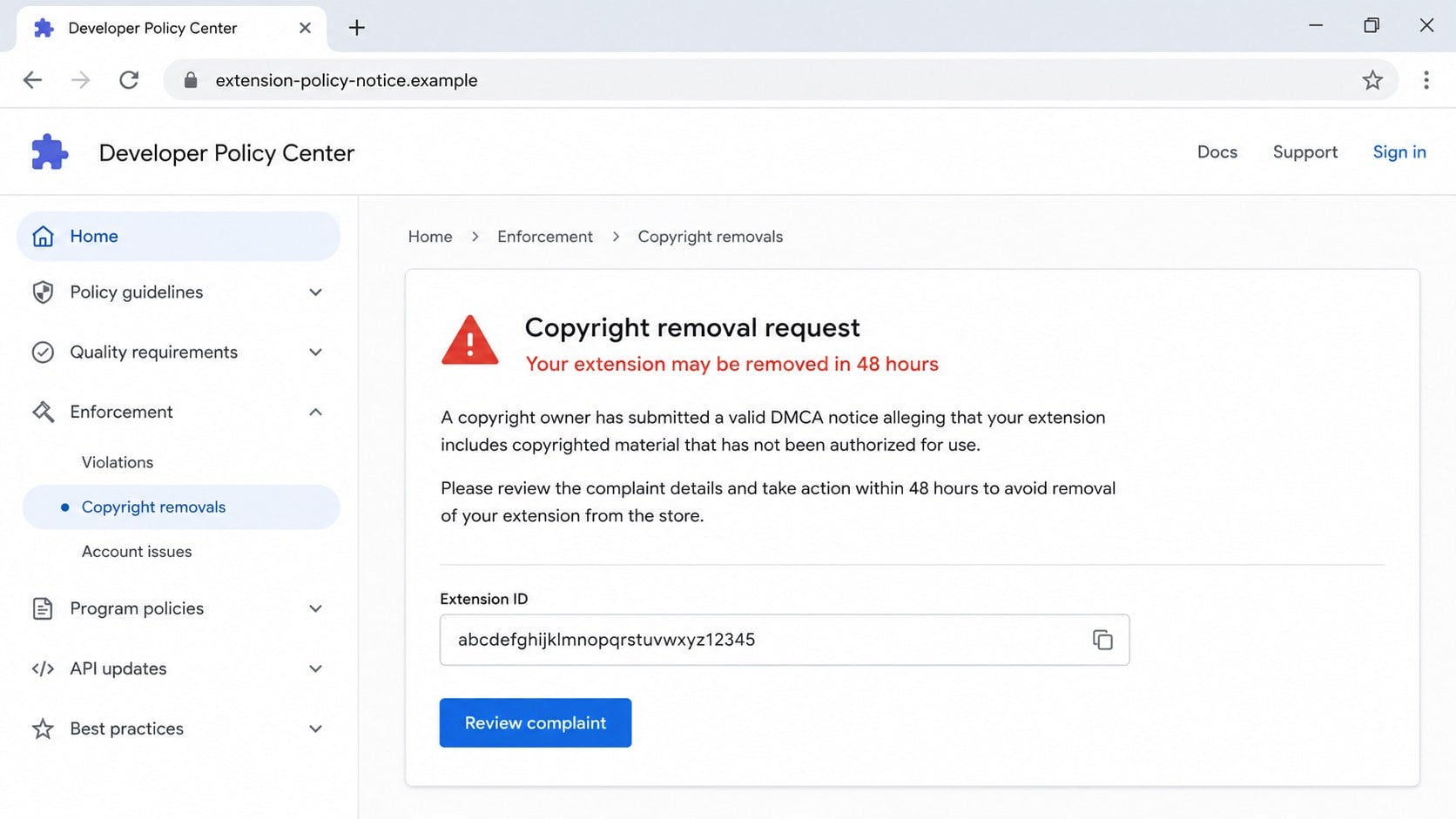
The campaign sends developers an urgent notice claiming their Chrome Web Store item faces removal over a copyright complaint.
A link opens a polished policy portal that imitates an official developer service.
The page requests the extension’s public identifier, then displays accurate store information to make the complaint appear genuine.
- The extension name and icon can be copied from public store data.
- A fabricated complaint record creates authority.
- A 48-hour timer pressures the developer.
- A counterfeit sign-in overlay steals Google credentials.
The fake portal personalizes itself after the visitor arrives
Unlike a crude login clone, the site may first ask which extension is affected.
Once given the listing address or identifier, it retrieves the real product name, icon, and other public details.
This live personalization can convince a developer that the portal already knows about an official case.
The appeal process is a path to account takeover
The counterfeit complaint form gathers names, contact details, declarations, and business information before requesting authentication.
A fake Google login window then appears inside the attacker’s page.
Credentials entered there can expose email, cloud files, developer services, and extension-management access.
Why Extension Developers Are Valuable Targets
A developer account can control software installed by thousands or millions of users.
If criminals obtain publishing access, they may try to upload a malicious update or alter listing information.
Even when store review blocks a harmful release, the account contains valuable operational details.
Email conversations, source archives, signing processes, analytics, payment records, and support contacts can support further attacks.
The mailbox linked to the account is particularly important.
It receives security notices and password-recovery messages for developer, hosting, code repository, and advertising services.
A successful theft can therefore reach far beyond one extension.
Criminals may also demand payment to return access or threaten to damage the project’s reputation.
Users trust extension updates because they arrive through an established store.
That supply-chain value makes publishers attractive phishing targets even when the extension itself earns little revenue.
How Public Store Data Makes the Complaint Look Personal
An extension identifier is not secret.
It appears in the public listing address and can be collected by anyone browsing the store.
The title, icon, description, version, publisher name, category, reviews, and installation count may also be publicly visible.
A phishing site can request the identifier and use automated queries to display those details seconds later.
The result feels like a private case file, although the information came from the same listing any visitor can see.
A complaint number can be generated locally and paired with a generic claimant name.
Dates and legal terminology complete the illusion.
Do not treat accurate product details as proof that a message came from the store operator.
Authentication depends on the registered domain, verified account dashboard, and official support records.
Public personalization demonstrates preparation, not authority.
The Fake Copyright Case
The portal may say copyrighted source code, branding, images, video, or written material appears in the extension without permission.
The allegation is often broad enough to frighten the publisher while remaining difficult to disprove immediately.
A countdown claims the item will be removed unless a counter-notification is filed within 48 hours.
Real disputes may have deadlines, so the legal framing does not sound impossible.
However, genuine enforcement should also appear inside the established developer dashboard or through confirmed support communication.
The fake page avoids that independent record.
It directs every question and response back into the attacker-controlled workflow.
Some forms include checkboxes acknowledging legal consequences.
These serious statements encourage the visitor to provide accurate identity details, which criminals can reuse during impersonation.
How the Chrome Web Store Copyright Scam Works
Step 1: A developer receives an urgent removal notice
The message may arrive through email, a contact address listed for support, a website form, or a professional social account.
It claims a complaint has already been accepted or opened against the extension.
The wording emphasizes suspension, removal, developer-policy violations, or loss of publishing privileges.
A short response deadline makes independent verification feel risky.
Step 2: The link opens an imitation policy center
The destination copies a clean developer-console layout, policy navigation, legal labels, and blue action buttons.
Its registered domain does not belong to Google, even when the path contains “Chrome,” “DMCA,” “extension,” or “policy.”
A padlock only means traffic is encrypted between the visitor and that counterfeit site.
It does not confirm who operates the page.
Step 3: The site asks for the extension URL or identifier
The request appears reasonable because an appeal must identify the disputed item.
After submission, the page can fetch the real listing name and icon from public information.
This creates the false impression that a private enforcement database recognized the case.
The victim has actually told the scam which public record to copy.
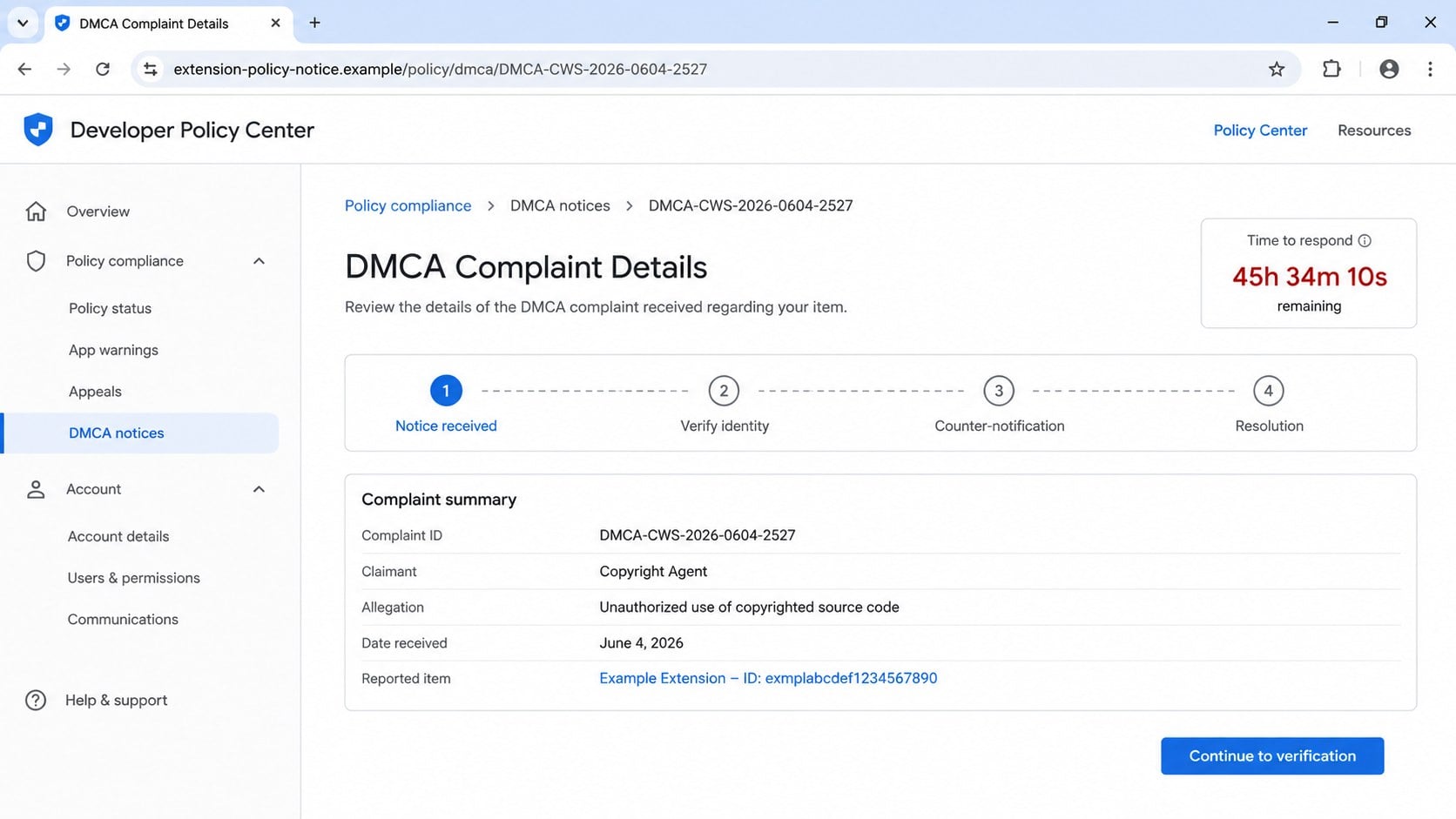
Step 4: A fabricated complaint and timer appear
The portal assigns a formal-looking reference number, claimant, allegation, date, and status.
A countdown may show fewer than 48 hours remaining and continue decreasing while the page is open.
Reloading or revisiting may reset the timer because no real deadline exists.
The apparent case record is webpage content controlled entirely by the attacker.
Step 5: The counter-notification form collects identity details
The developer is asked for a legal name, address, telephone number, country, business role, and explanation.
Legal declarations may require checkboxes or typed signatures.
This information can improve later impersonation of the publisher to store support, registrars, hosts, customers, or colleagues.
Completing several detailed fields also increases commitment to the process.
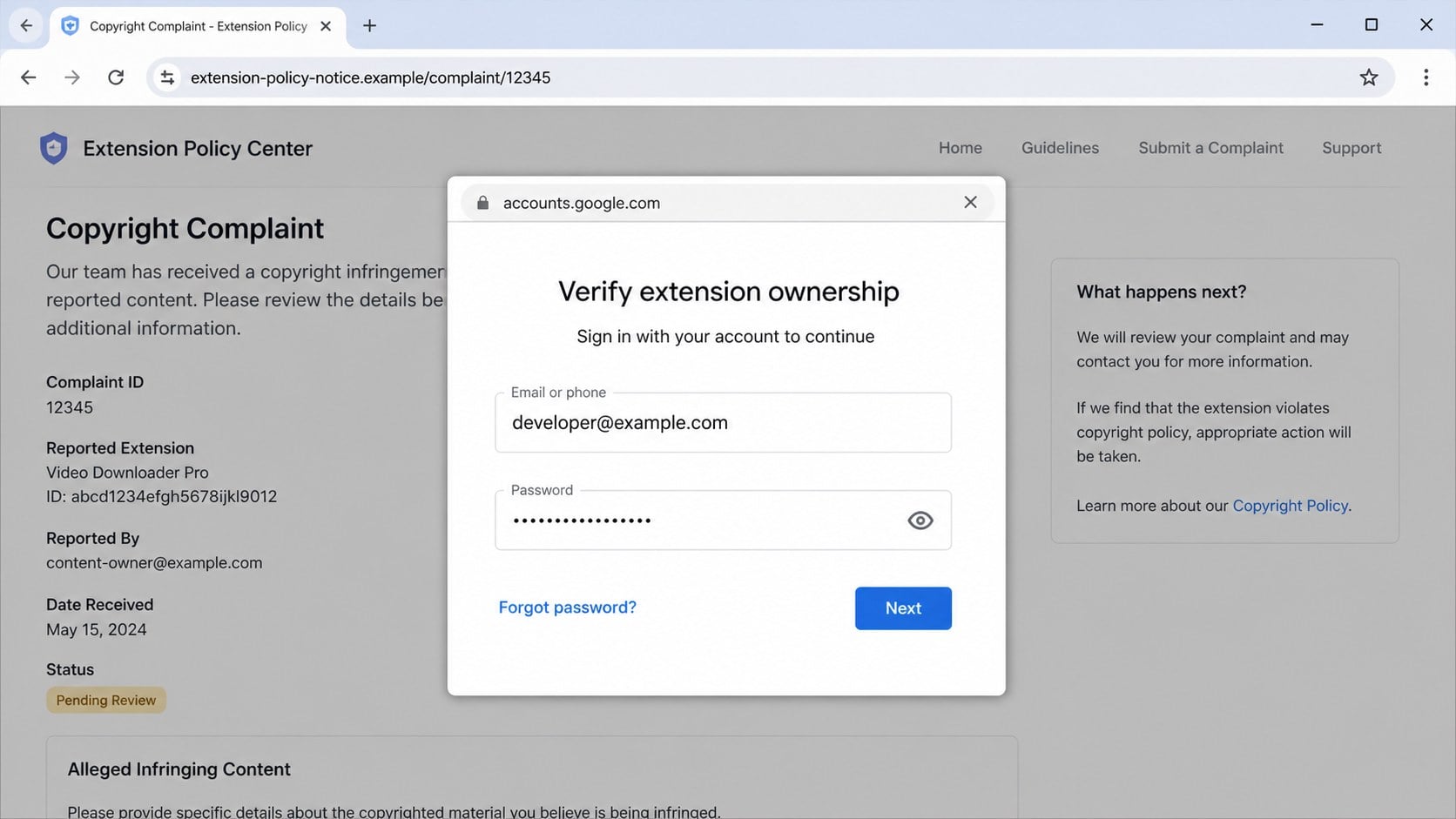
Step 6: A false Google sign-in window requests credentials
When the appeal is submitted, the page displays what looks like a separate Google authentication window.
It may include a miniature address bar showing a familiar account domain.
The window is actually drawn inside the phishing webpage, so its contents and displayed address are controlled by the criminal.
The outer browser address remains the decisive clue.
Step 7: The attacker uses the captured account access
Credentials may be tested immediately, and the victim can be asked for a one-time code or approval prompt.
Successful access can expose Gmail, Drive, developer consoles, saved contacts, and linked business services.
Criminals may change recovery details, create application passwords, steal files, or attempt an unauthorized extension update.
A second campaign can then target users or coworkers using information from the compromised account.
The Fake Browser Window Technique
The most convincing part of this campaign can be the sign-in overlay.
It resembles a separate browser window with its own title bar, padlock, close button, and account address.
However, modern webpages can draw rectangles, shadows, icons, and text that imitate browser chrome.
The apparent address bar inside the page is just an image or styled interface.
Try moving the supposed window beyond the edge of the browser.
A fake overlay remains trapped inside the original page or moves with it.
Opening the browser’s actual address information also reveals that the outer domain remains the attacker’s site.
Password managers provide another clue.
A well-configured manager should not automatically fill Google credentials on an unrelated registered domain.
Do not override that warning by copying the password manually.
How to Verify a Real Copyright Notice
Do not begin with the link in the message.
Open the Chrome Web Store developer dashboard through a bookmark or a known Google account route.
Check policy status, item warnings, communications, and support cases for the same extension and complaint.
A significant removal request should have an official record connected to the publisher account.
Review the email’s complete sender and reply information.
Compare authentication results and domains with previous legitimate developer notices retained in the mailbox.
Do not rely on the display name or copied logo.
If uncertainty remains, contact official developer support from the authenticated console.
Provide the suspicious message as evidence without opening its link again.
Ask whether the complaint identifier exists and whether any response deadline applies.
Protecting the Extension Publishing Chain
The developer account should use strong, unique authentication that is separate from personal browsing.
Hardware-backed security keys or passkeys provide stronger phishing resistance than codes that can be copied into a false page.
Limit publishing access to people who need it.
Remove old collaborators, review recovery accounts, and keep backup codes offline.
Use separate roles where the platform allows them, avoiding one shared account for development, support, and release management.
Keep a record of authorized versions, package hashes, release dates, and reviewers.
Unexpected changes then become easier to identify.
Monitor the public listing and user reviews for behavior that does not match the approved release.
Secure code repositories, build systems, signing material, domain registrars, and support mailboxes alongside the store account.
A protected dashboard cannot compensate for a compromised email or release pipeline.
If Credentials Were Entered
Use a trusted device and open the real Google account security page independently.
Change the password, revoke unfamiliar sessions, and review recent security events.
Remove unknown passkeys, application passwords, recovery methods, connected applications, and forwarding rules.
If a one-time code was submitted, assume the attacker may already have completed a session.
Inspect Gmail for filters that hide security messages or forward developer communication.
Review Drive sharing, deleted files, OAuth grants, and account delegates.
Then check the extension dashboard for new users, item changes, pending releases, altered listings, or support requests.
Contact developer support quickly if publishing access changed.
Inform collaborators through a separate trusted channel.
They may receive convincing messages from the compromised mailbox or account.
If an Unauthorized Extension Update Appeared
Treat the event as a possible supply-chain incident rather than an ordinary password problem.
Record the unauthorized version, publication time, permissions, package contents, and number of potentially affected users.
Contact the store’s security and developer-support channels immediately.
Do not upload competing emergency releases without coordinating if the attacker still controls the account.
Analyze the package in an isolated environment and identify network addresses, collected data, and changed permissions.
Notify organizational security, legal, and privacy teams when user information may have been exposed.
Prepare a clear user notice based on confirmed behavior.
Avoid minimizing the event or speculating beyond available evidence.
Rotate server credentials, API keys, and signing secrets accessible to the extension or build pipeline.
Continue monitoring because stolen publisher information may support copycat extensions and impersonation domains.
Why the 48-Hour Deadline Is So Effective
Developers know store enforcement can affect users and revenue quickly.
A 48-hour window feels long enough to be believable but short enough to discourage consultation.
The countdown also turns normal uncertainty into visible loss of time.
Victims may skip domain checks because every minute appears to reduce their chance of appeal.
A genuine deadline remains visible in the authenticated case record.
It does not exist only on a page reached through an unexpected message.
Take screenshots, close the site, and verify through the dashboard.
Those few minutes do not waive legitimate rights.
If the timer resets on another device or private window, it is part of the presentation rather than an account-specific deadline.
Urgency should increase verification, not replace it.
Complaint, Domain, Sign-In, and Developer Account Checks
Confirm the complaint in the real dashboard
Open the developer console independently and look for the extension, allegation, reference, deadline, and required response.
Contact verified support when no matching case appears.
- Do not use the message link.
- Compare official case records.
- Save the original headers.
- Ask support to confirm the identifier.
Read the registered domain
Words such as “policy,” “Chrome,” “DMCA,” and “developer” can appear on attacker-owned domains.
Check the actual registered domain in the outer browser address bar.
A padlock confirms encryption, not ownership or legitimacy.
Challenge the embedded sign-in window
A webpage can imitate a browser window and display a false account address inside it.
Observe whether the overlay remains confined to the page and whether the password manager refuses to fill credentials.
Close it without entering any information.
Audit the entire developer account
Review sessions, security methods, collaborators, app passwords, OAuth access, extension versions, listing changes, and pending submissions.
Also inspect the associated mailbox, repository, build service, hosting, and registrar.
Publishing security depends on every connected system.
What to Do if You Have Fallen Victim to This Scam
- Secure the Google account from a trusted device. Change its password, revoke unfamiliar sessions, and confirm that recovery addresses, telephone numbers, passkeys, and security keys remain yours.
- Remove persistence methods. Delete unknown application passwords, OAuth grants, mailbox delegates, filters, forwarding rules, and third-party connections created after the phishing attempt.
- Review the developer dashboard. Check collaborators, item ownership, listings, versions, permissions, pending releases, support cases, and account warnings for unauthorized changes.
- Contact official developer support. Report the phishing domain and request immediate help when access, ownership, or a published package changed.
- Protect the release pipeline. Rotate repository tokens, API keys, deployment credentials, signing secrets, server passwords, and other material available through the compromised account.
- Notify collaborators separately. Warn them that the stolen mailbox may send believable requests for codes, files, approvals, or emergency deployments.
- Investigate any unauthorized release. Preserve the package, version, publication time, permissions, network behavior, and affected-user estimate for a coordinated incident response.
- Scan relevant computers. If files were downloaded, use Malwarebytes to check development systems for stealers, remote-access tools, and malicious archives.
- Block known phishing routes. AdGuard can stop many reported domains and malicious advertisements, but direct dashboard verification remains essential for new sites.
- Replace reused credentials. Prioritize code hosting, cloud infrastructure, domain registrars, payment services, analytics, advertising, and support tools.
- Preserve and report the evidence. Keep message headers, URLs, screenshots, complaint details, submitted fields, login alerts, and support reference numbers.
Is Your Device Infected? Run a Free Malware Scan
Slow performance, constant pop-ups, or strange behavior? These are classic signs of a malware infection. The fastest way to find out is to scan your device with Malwarebytes Free — one of the most trusted malware removal tools available.
The free version detects and removes the most common threats, including:
- Adware — the cause of those annoying pop-ups
- Browser hijackers — unwanted redirects and changed homepages
- Trojans and spyware — hidden programs stealing your data
- Potentially unwanted programs (PUPs) — software you never asked for
👉 Select your device below — Windows, Mac, or Android — then follow the simple steps to download Malwarebytes, scan your system, and remove any threats it finds. The scan usually takes 5 to 20 minutes.
Run a Malware Scan with Malwarebytes for Windows
Malwarebytes is one of the most popular and trusted anti-malware tools for Windows — and it’s completely free for removing infections. It catches threats that many antivirus programs miss, including adware, browser hijackers, and trojans. Follow the steps below to scan and clean your PC in just a few minutes.
Download Malwarebytes
Click the button below to download the latest version of Malwarebytes for Windows from the official source. The free version is all you need — it will scan your computer and remove adware, browser hijackers, and other malicious software at no cost.
Download MalwarebytesOfficial installer for Windows 11 and 10. Your download starts right away.Want real-time protection? See Malwarebytes Premium Malwarebytes Free for WindowsScans and removes malware at no cost
-
Install Malwarebytes
When the download finishes, open your Downloads folder and double-click the MBSetup file. If Windows shows a User Account Control pop-up, click “Yes” to allow the installation.

Follow the On-Screen Prompts to Install Malwarebytes
The setup wizard will walk you through a few quick screens:
-
Choose where you’re installing the program — “Personal Computer” or “Work Computer” — then click Next.

-
Malwarebytes will now install on your device. This usually takes under a minute.

-
When installation is complete, the “Welcome to Malwarebytes” screen will open automatically.

-
On the final screen, click Open Malwarebytes to launch the program.

-
Enable “Scan for Rootkits”
Before scanning, turn on rootkit detection so Malwarebytes can find even the most hidden threats. Click the Settings gear icon on the left side of the screen.

In the settings menu, find “Scan for rootkits” and click the toggle so it turns blue.

Done? Click “Dashboard” in the left pane to return to the main screen.
Start the Scan
Click the blue Scan button. Malwarebytes will automatically update its virus database and start checking your computer for malware.

-
Wait for the Scan to Finish
The scan checks your entire system for browser hijackers and other malicious programs, so it can take 5 to 20 minutes depending on your computer. Feel free to do something else — just check back occasionally to see the progress.

-
Quarantine the Detected Threats
When the scan is done, you’ll see a list of everything Malwarebytes found — malware, adware, and potentially unwanted programs. Click the “Quarantine” button to remove all of them at once.

Malwarebytes will now remove the malicious files and registry entries and move them safely into quarantine.

-
Restart Your Computer
Some threats can only be fully removed after a reboot. If Malwarebytes asks you to restart, click Yes. Once you’re logged back in, Malwarebytes has finished removing the threats it found.

That’s it — your Windows PC is now clean of trojans, adware, and other malware, and should be back to running smoothly.
If you are still having problems with your computer after completing these instructions, then please follow one of the steps:
- Run a computer scan with ESET Online Scanner
- Ask for help in our Windows Malware Removal Help & Support forum.
Run a Malware Scan with Malwarebytes for Mac
Malwarebytes for Mac is a free on-demand scanner that removes the malware other security software tends to miss — adware, browser hijackers, and unwanted programs included. Cleaning an infected Mac with Malwarebytes has always been completely free, and it’s our go-to recommendation. Follow the steps below to scan and clean your Mac in just a few minutes.
-
Download Malwarebytes for Mac
Click the button below to download the latest version of Malwarebytes for Mac.
Download MalwarebytesOfficial installer for macOS. Your download starts right away.Want real-time protection? See Malwarebytes PremiumMalwarebytes Free for MacScans and removes malware at no cost -
Open the Malwarebytes setup file
When the download finishes, open your Downloads folder and double-click the setup file to begin the installation.

-
Follow the On-Screen Prompts to Install Malwarebytes
The Malwarebytes for Mac Installer will guide you through a few quick screens. Click “Continue” and keep following the prompts until the installation completes.



When the installation is complete, Malwarebytes opens to the Welcome to Malwarebytes screen. Click “Get started“.
-
Select “Personal Computer” or “Work Computer”
Malwarebytes will ask what type of computer you’re installing it on. Click either Personal Computer or Work Computer, whichever applies.

-
Start the Scan
Click the “Scan” button. Malwarebytes will automatically update its detection database and begin checking your Mac for malware.

-
Wait for the Scan to Finish
Malwarebytes will scan your Mac for adware, browser hijackers, and other malicious programs. This can take a few minutes, so feel free to do something else — just check back occasionally to see the progress.

-
Quarantine the Detected Threats
When the scan is done, you’ll see a list of everything Malwarebytes found. Click the “Quarantine” button to remove all the threats at once.

-
Restart Your Mac
Malwarebytes will now remove all the malicious files it found. Some threats can only be fully removed after a reboot — if Malwarebytes asks you to restart, allow it. Once you’re logged back in, your Mac is clean.

That’s it — your Mac is now free of adware, rogue browser extensions, and other potentially harmful software.
If you are still experiencing problems while trying to remove a malicious program from your computer, please ask for help in our Mac Malware Removal Help & Support forum.
Run a Malware Scan with Malwarebytes for Android
Malwarebytes for Android automatically detects and removes dangerous threats like malware and ransomware so you don’t have to worry about your most-used device being compromised. Aggressive detection of adware and potentially unwanted programs keeps your Android phone or tablet running smooth.
-
Download Malwarebytes for Android.
You can download Malwarebytes for Android by clicking the link below.
Get Malwarebytes for AndroidOpens Google Play in a new tab.Want real-time protection? See Malwarebytes Premium for AndroidMalwarebytes for AndroidScans your phone and removes malware at no cost -
Install Malwarebytes for Android on your phone.
In the Google Play Store, tap “Install” to install Malwarebytes for Android on your device.

When the installation process has finished, tap “Open” to begin using Malwarebytes for Android. You can also open Malwarebytes by tapping on its icon in your phone menu or home screen.

-
Follow the on-screen prompts to complete the setup process
When Malwarebytes will open, you will see the Malwarebytes Setup Wizard which will guide you through a series of permissions and other setup options.
This is the first of two screens that explain the difference between the Premium and Free versions. Swipe this screen to continue.
Tap on “Got it” to proceed to the next step.
Malwarebytes for Android will now ask for a set of permissions that are required to scan your device and protect it from malware. Tap on “Give permission” to continue.
Tap on “Allow” to permit Malwarebytes to access the files on your phone.
-
Update database and run a scan with Malwarebytes for Android
You will now be prompted to update the Malwarebytes database and run a full system scan.

Click on “Update database” to update the Malwarebytes for Android definitions to the latest version, then click on “Run full scan” to perform a system scan.

-
Wait for the Malwarebytes scan to complete.
Malwarebytes will now start scanning your phone for adware and other malicious apps. This process can take a few minutes, so we suggest you do something else and periodically check on the status of the scan to see when it is finished.

-
Click on “Remove Selected”.
When the scan has been completed, you will be presented with a screen showing the malware infections that Malwarebytes for Android has detected. To remove the malicious apps that Malwarebytes has found, tap on the “Remove Selected” button.

-
Restart your phone.
Malwarebytes for Android will now remove all the malicious apps that it has found. To complete the malware removal process, Malwarebytes may ask you to restart your device.
That’s it — your Android phone is now clean — no more malicious apps, adware, or browser redirects.
If you are still having problems with your phone after completing these instructions, then please follow one of the steps:
- Restore your phone to factory settings by going to Settings > General management > Reset > Factory data reset.
- Ask for help in our Mobile Malware Removal Help & Support forum.
Stay Protected: Block Ads and Malicious Sites
Now that your device is clean, keep it that way. Most infections start with a malicious ad or a fake download button — so blocking them at the source is your best defense.
We recommend AdGuard, which blocks malicious ads, phishing pages, and dangerous redirects before they can reach you.
👉 Download AdGuard and browse safely
Frequently Asked Questions
Is the copyright complaint real because it shows my extension name?
No. Names, icons, identifiers, versions, and descriptions can be copied from the public store listing.
Confirm the case inside the genuine developer dashboard.
Can Google remove an extension after a copyright complaint?
Platforms can enforce legitimate complaints and policies.
The possibility of real enforcement is why every notice must be verified through the authenticated console and official support.
Why does the fake portal ask for my extension identifier?
The identifier tells the site which public listing details to retrieve.
That personalization makes a fabricated complaint look connected to a private case database.
Is the small Google address bar inside the login window trustworthy?
No. The attacker’s page can draw a false browser window and place any address inside it.
Check the outer browser domain instead.
What if I entered a password but denied the sign-in alert?
Change the password immediately because it has been exposed.
Review sessions, recovery methods, application access, and developer activity even when the prompt was denied.
Could a compromised developer account affect extension users?
Yes. An attacker may attempt to publish a malicious update, alter the listing, or abuse trusted communication.
Prompt store support and incident review are essential.
The Bottom Line
The Chrome Web Store Copyright scam builds a convincing complaint from public extension data, then hides a credential-stealing sign-in form inside a counterfeit policy portal.
Verify every case through the real developer dashboard. If information was entered, secure Google access, inspect the publishing chain, and treat any unauthorized release as a serious incident.

Join the discussion
0 commentsShare your experience or ask a question about this article.
Discussion
Start the conversation
Have a question or something useful to share? Add the first comment.