

A Windows warning about an expired security certificate can look serious enough to stop everything. The page appears technical, urgent, and unusually specific.
Before downloading the proposed repair, take a closer look at what the browser is actually asking you to trust.
Overview
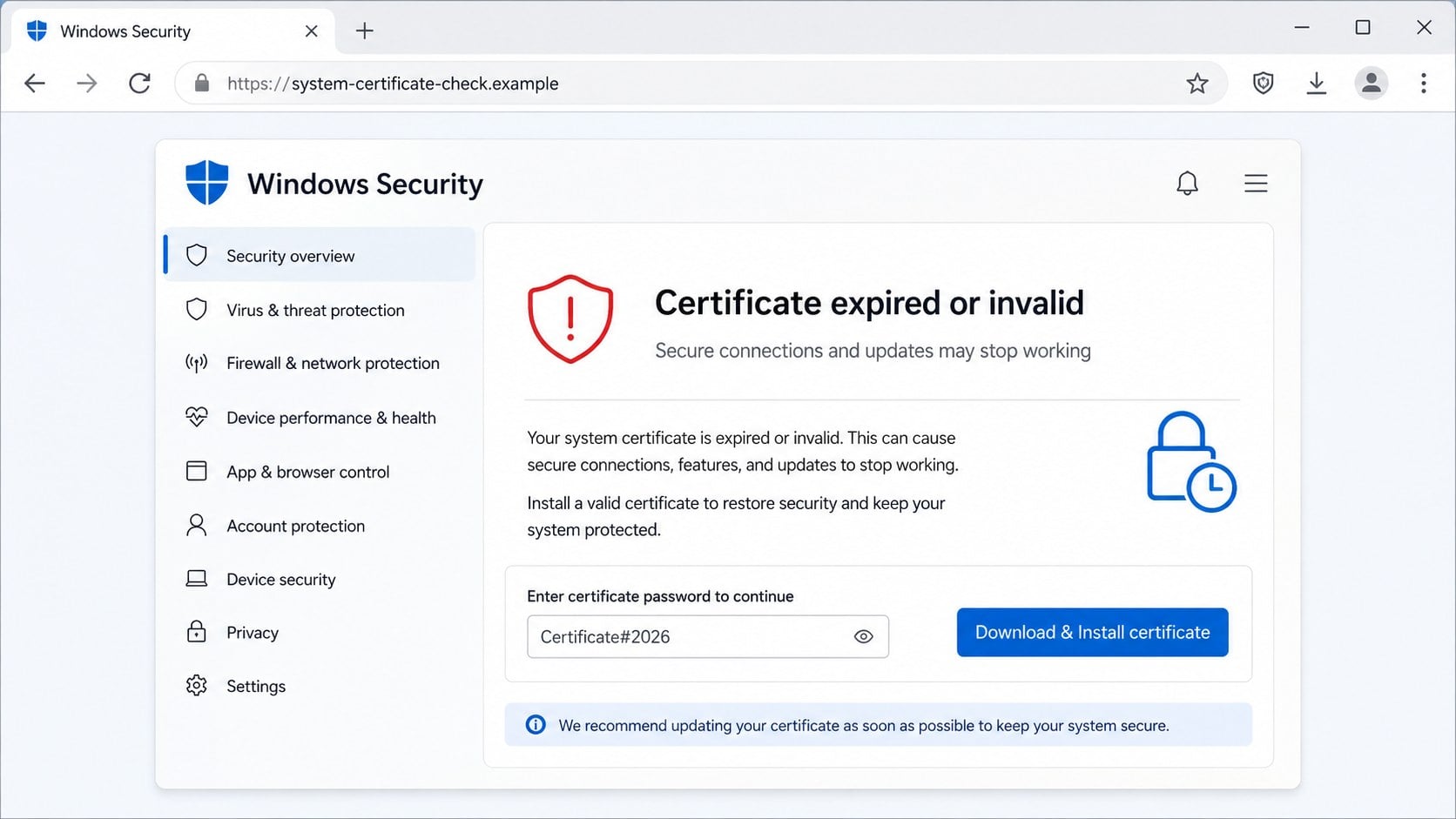
The warning pretends a routine certificate problem threatens the computer
The page announces that a Windows security certificate has expired or become invalid.
It claims the issue may prevent secure connections, expose information, or stop important services from working correctly.
A prominent download button offers an immediate certificate update, supposedly provided through a Microsoft-style runtime package.
- The notice appears inside a web browser, not Windows Settings.
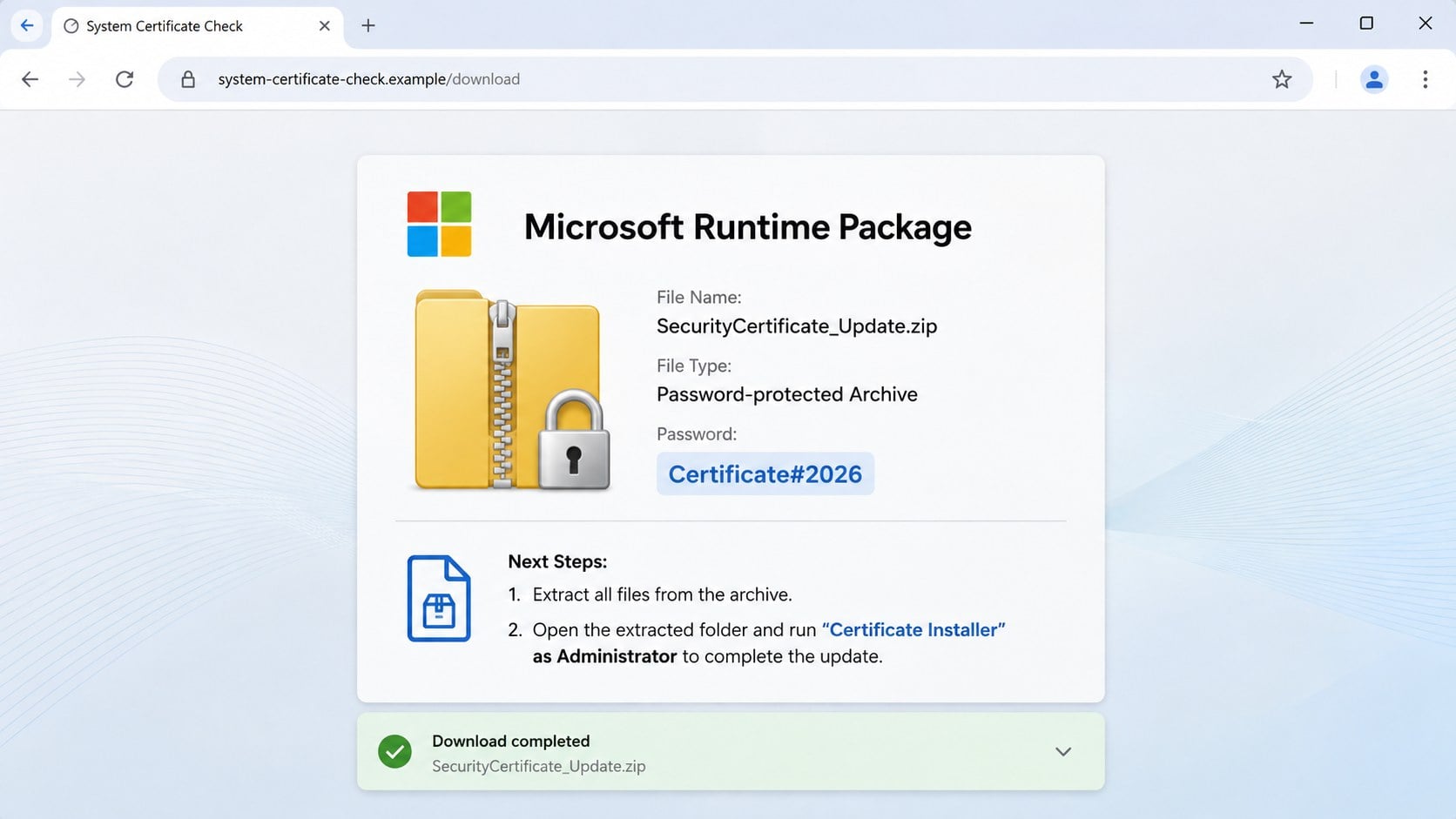
- The repair arrives as a password-protected archive.
- The extracted program is presented as a certificate installer.
- Running it can install the XWorm remote-access Trojan.
The page borrows familiar Windows language without Windows authority
Certificates are real security components, so the subject sounds plausible to many people.
However, an ordinary website cannot diagnose the certificate store for Windows and prescribe an executable repair through a random download.
Official certificate maintenance normally happens through Windows Update, trusted applications, browsers, or a verified organization’s technology team.
The supposed fix creates the danger described by the alert
The computer is not protected by opening the archive. The download is the point where a frightening web page becomes a malware incident.
Observed versions have delivered XWorm, a Trojan designed to give an operator extensive remote control over an infected Windows system.
The certificate story is therefore social engineering. Its job is to make an unfamiliar program feel necessary and safe.
Why the Certificate Story Sounds Believable
People regularly see certificate warnings when a website is misconfigured, a clock is wrong, or an encrypted connection cannot be verified.
Scammers borrow that genuine experience and move the responsibility from the website to the visitor’s entire computer.
The distinction is important. A browser may warn about one site’s certificate, but it does not normally prescribe a downloadable installer from that site.
Technical phrases such as “runtime package,” “security certificate,” and “administrator privileges” add a false sense of precision.
The page may also use Windows colors, shield icons, and orderly status panels to resemble a built-in security tool.
None of those visual details prove the browser page can inspect Windows or speak for Microsoft.
The urgent message narrows the victim’s attention to the button. It leaves little space to ask why a certificate needs a password-protected ZIP file.
That contradiction is one of the strongest warnings in the entire sequence.
What the Download May Contain
The offered file can be named like a security update, certificate package, or Windows runtime component.
Names and icons are inexpensive disguises. Windows does not verify a program merely because its filename contains familiar product terms.
The archive may include a password on the same page, such as a certificate-themed phrase followed by a year.
Password protection prevents some email gateways, browser services, and automated scanners from easily examining the contents before delivery.
After extraction, the victim sees an executable that appears to complete the repair.
The instructions may explicitly request “Run as administrator,” giving the program broader permission to change the system.
Once launched, the file can establish persistence, contact an attacker-controlled server, collect system details, and await commands.
The visible page may close or display a harmless completion message while the background infection remains active.
How the Windows Security Certificate Expired Scam Works
Step 1: A misleading advertisement or redirect opens the alert
The visitor may reach the page through a deceptive advertisement, compromised website, mistyped address, spam link, or unwanted browser notification.
Some redirects happen after clicking a play button, download link, CAPTCHA prompt, or “Allow” request on an unrelated page.
The sudden appearance makes the alert feel connected to something the computer just detected.
In reality, the website can show the same warning to almost every Windows visitor.
Step 2: The page invents a system-wide certificate failure
The landing page states that a certificate is expired, invalid, or missing.
It may warn that personal data, network traffic, browsing, or system services are at risk until the issue is corrected.
There is usually no meaningful scan. Browser scripts can display the operating system, time, language, or rough location without inspecting certificate health.
Those ordinary details are presented as evidence of a diagnosis that never occurred.
Step 3: A single button is framed as the official solution
The visitor is told to download and install a replacement certificate immediately.
The button may use reassuring terms such as “secure,” “verified,” “recommended,” or “Microsoft runtime package.”
A legitimate-looking filename reduces hesitation, especially when the alert claims normal browsing will remain unsafe without it.
No genuine Windows repair process begins because an unrelated website decided a local certificate expired.
Step 4: The site supplies a locked archive and its password
The download arrives as a ZIP or similar archive that cannot be inspected until the supplied password is entered.
The page may describe encryption as protection for the update, reversing the real purpose of the lock.
Providing the password separately helps the file pass through security systems that cannot automatically unpack encrypted content.
It also makes the procedure feel specialized, as though the victim received a protected official package.
Step 5: The victim extracts and runs the disguised executable
Inside the archive is a program with a certificate, updater, runtime, or installer name.
Instructions may request administrator rights, and Windows can show a normal permission prompt because the victim intentionally launched the file.
That prompt does not confirm the program is safe. It asks whether the chosen program may make changes.
Approving it can give the malware the access needed to create scheduled tasks, alter settings, or place files in protected locations.
Step 6: XWorm connects the infected computer to its operator
Observed files linked to this campaign have installed XWorm, a remote-access Trojan with surveillance and command capabilities.
The malware can collect device information, steal stored data, manipulate files, execute additional programs, and provide remote control.
Capabilities vary between builds and operator configurations, so a quiet computer should not be treated as a clean computer.
An intruder may wait, gather credentials, or deploy another payload later.
Step 7: Stolen access supports further fraud and compromise
Browser sessions, email accounts, saved passwords, cryptocurrency wallets, and workplace services may become targets after infection.
The attacker can use information from the computer to create convincing follow-up messages or impersonate the victim.
Remote access may also expose files belonging to family members, customers, employers, or business partners.
That broader risk is why an executed file requires more than deleting the original archive.
What XWorm Access Can Mean
A remote-access Trojan turns one program launch into an ongoing trust problem.
The operator may see the computer’s name, username, operating system, security tools, network address, and other identifying details.
Depending on the build, remote commands can search files, capture information, download more malware, or interfere with security software.
Stored browser sessions deserve special attention because they may provide access without immediately requesting a password again.
Email access can enable password resets across shopping, banking, cloud, and social accounts.
Work documents can expose customers, invoices, internal systems, and credentials that create obligations beyond the individual device.
An infected computer may also be used as a believable source for fraudulent messages sent to known contacts.
Do not measure the incident only by visible pop-ups or missing money.
The absence of obvious symptoms may simply mean the malware is operating quietly.
Containment, scanning, password replacement, and account review should happen in a deliberate order.
Why Password-Protected Archives Are a Red Flag
Encryption is useful for legitimate privacy, but unsolicited password-protected archives are repeatedly abused to hide malicious files from automated inspection.
The sender or website can place the password in plain sight while scanners remain unable to open the package automatically.
This technique is especially suspicious when the content is supposedly a public security update.
A genuine operating-system component does not need a visitor-specific secret printed beside its download button.
The extra extraction steps also move responsibility onto the victim.
Each click becomes a small commitment, making some people more likely to finish because they have already invested effort.
Security warnings during extraction may be dismissed as expected obstacles rather than meaningful alerts.
Treat a locked archive from an unexpected webpage as untrusted, even when its password and instructions look professionally presented.
How to Close the Alert Safely
Do not press the download button, enter the archive password, or follow instructions to run anything as administrator.
Close the browser tab. If the page blocks normal controls, close the browser window through the operating system.
Reopen the browser without restoring the suspicious tab.
Review download history and remove the archive if it arrived but was never opened.
Deleting an unexecuted download usually ends the immediate file risk, but investigate why the redirect appeared.
Check browser notification permissions for unfamiliar sites and remove suspicious extensions.
Clear saved site permissions and inspect recently installed applications when repeated redirects continue.
Run a security scan if the page appeared after opening a questionable installer or browser extension.
Do not telephone numbers displayed by a similar warning.
Microsoft does not diagnose a certificate problem through an unsolicited browser page and then require payment or remote support.
If the File Was Downloaded but Not Opened
A downloaded archive is different from an executed program.
If the ZIP remained unopened, delete it from Downloads and empty the recycle location after recording its name if reporting is needed.
If it was opened but the executable never ran, remove the extracted folder and scan the device.
Opening an archive generally does not execute every enclosed file automatically, although unusual archive exploits are possible on unpatched software.
Update Windows, the browser, and the archive utility through their built-in update mechanisms.
Check browser downloads to confirm that no second file arrived.
Do not submit the archive’s password or contents to random online services if the file may contain personal or workplace data.
When a business device is involved, notify the technology team before deleting evidence or disconnecting management tools.
They may need the filename, time, browser history, and security logs to assess exposure.
If the Installer Was Executed
Disconnect the computer from Wi-Fi and wired networking to reduce continued remote access.
Do not use the potentially infected system to change important passwords.
Use another trusted device for email, banking, password management, cloud storage, and workplace account recovery.
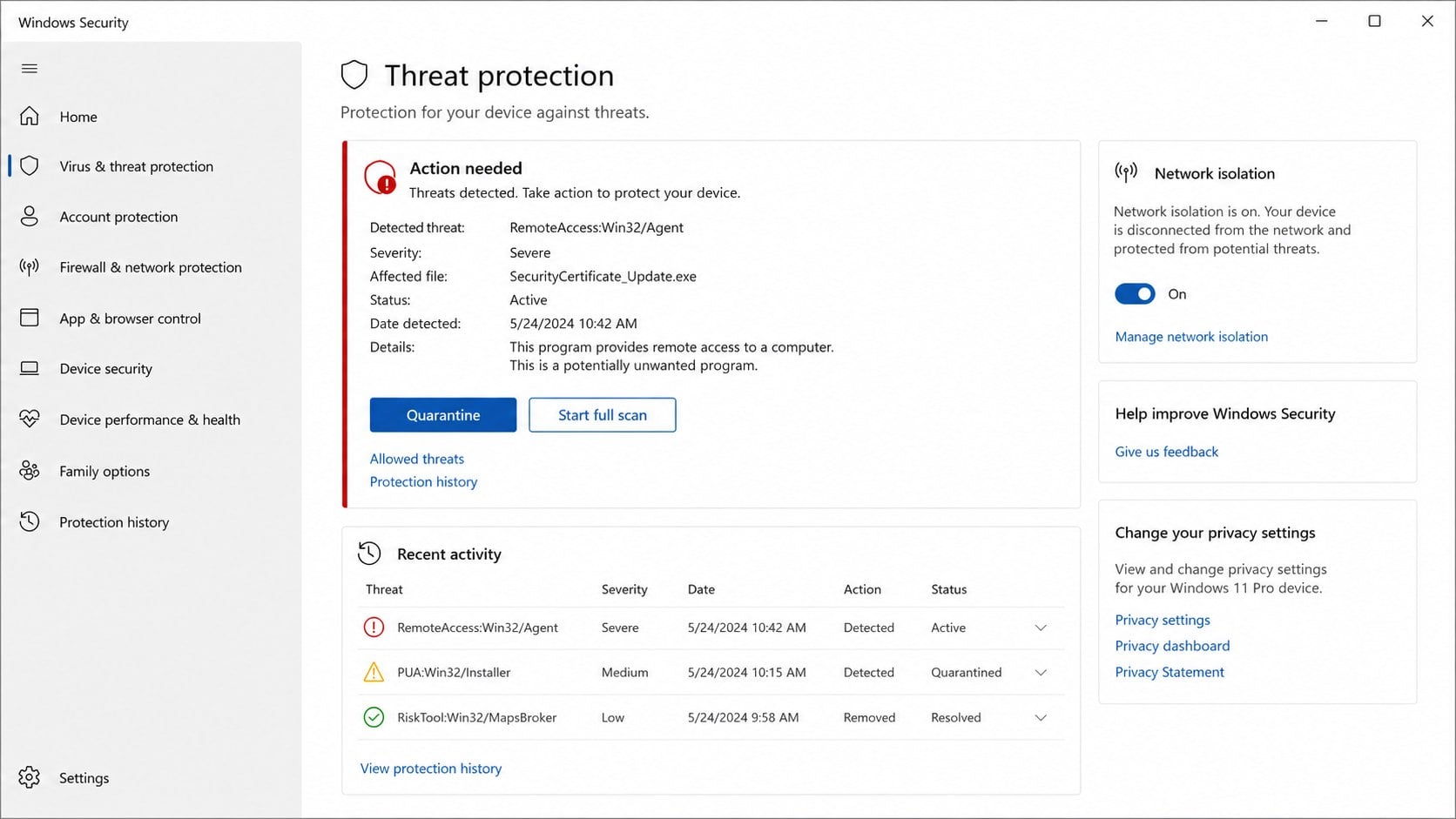
Run reputable security scans and preserve detection details before removing threats.
A serious remote-access infection may justify a professional assessment or a clean Windows reinstall, especially on a work or financial computer.
Changing passwords before the device is trusted can expose the new credentials to the same malware.
After cleanup, revoke active sessions and application passwords, not only the primary password.
Review multi-factor authentication methods for unfamiliar devices, telephone numbers, backup codes, or security keys.
Monitor financial accounts and email rules for changes made while the attacker had access.
Tell affected contacts if the compromised account sent files or unusual payment requests.
Page, Download, Certificate, and Device Checks
Identify where the warning is displayed
A message inside a browser tab is website content, even when it copies Windows controls and fills the entire screen.
Open Windows Security separately from the Start menu and compare its protection history.
- Check the browser address bar.
- Look for a matching Windows notification.
- Do not trust full-screen styling.
- Close the page before investigating.
Examine the proposed download
Certificate updates should not arrive as unexpected encrypted archives containing executables.
Check the filename, extension, digital signature, download source, and security scan result without launching the file.
An administrator instruction increases risk rather than establishing legitimacy.
Verify certificate issues through trusted tools
Use Windows Update, browser settings, or the affected organization’s verified support channel.
Correct an inaccurate system clock because wrong time settings can cause genuine certificate errors.
Do not install a certificate supplied by the same untrusted page making the accusation.
Check the device for evidence of execution
Review download times, extracted folders, running processes, startup items, scheduled tasks, installed applications, and security detections.
Unexpected outbound connections or disabled protection require prompt attention.
On managed equipment, let the security team preserve logs and decide the recovery method.
What to Do if You Have Fallen Victim to This Scam
- Disconnect the affected computer. Turn off Wi-Fi and unplug networking after an installer runs, reducing the malware’s ability to receive commands or send stolen data.
- Use a separate trusted device. Change email, banking, password-manager, cloud, cryptocurrency, and workplace passwords somewhere the suspected Trojan cannot observe.
- Run thorough security scans. Use Windows Security and Malwarebytes to detect XWorm, related loaders, information stealers, and persistence components.
- Quarantine detections before reconnecting. Save the threat names and affected paths, then follow the security tool’s remediation guidance and restart when requested.
- Consider a clean reinstall. A remote-access Trojan can make complete trust difficult, so professional reimaging may be safest for sensitive or business systems.
- Revoke active account sessions. Sign out other devices, remove unknown application access, replace backup codes, and verify every recovery address and telephone number.
- Inspect financial activity. Review cards, banks, payment services, investments, and cryptocurrency accounts for unfamiliar logins, beneficiaries, withdrawals, or purchases.
- Review the browser. Remove suspicious extensions and notification permissions, clear unwanted site settings, and let AdGuard block many known malicious redirect domains.
- Notify your employer when applicable. A personal-looking certificate alert on a work computer can expose company credentials, documents, customers, and internal networks.
- Warn contacts about impersonation. Tell people to ignore unexpected attachments, payment requests, or account messages sent from compromised email or social profiles.
- Preserve evidence and report it. Keep the page address, filenames, archive password, detection logs, timestamps, and screenshots for security teams or law enforcement.
Is Your Device Infected? Run a Free Malware Scan
Slow performance, constant pop-ups, or strange behavior? These are classic signs of a malware infection. The fastest way to find out is to scan your device with Malwarebytes Free — one of the most trusted malware removal tools available.
The free version detects and removes the most common threats, including:
- Adware — the cause of those annoying pop-ups
- Browser hijackers — unwanted redirects and changed homepages
- Trojans and spyware — hidden programs stealing your data
- Potentially unwanted programs (PUPs) — software you never asked for
👉 Select your device below — Windows, Mac, or Android — then follow the simple steps to download Malwarebytes, scan your system, and remove any threats it finds. The scan usually takes 5 to 20 minutes.
Run a Malware Scan with Malwarebytes for Windows
Malwarebytes is one of the most popular and trusted anti-malware tools for Windows — and it’s completely free for removing infections. It catches threats that many antivirus programs miss, including adware, browser hijackers, and trojans. Follow the steps below to scan and clean your PC in just a few minutes.
Download Malwarebytes
Click the button below to download the latest version of Malwarebytes for Windows from the official source. The free version is all you need — it will scan your computer and remove adware, browser hijackers, and other malicious software at no cost.
Download MalwarebytesOfficial installer for Windows 11 and 10. Your download starts right away.Want real-time protection? See Malwarebytes Premium Malwarebytes Free for WindowsScans and removes malware at no cost
-
Install Malwarebytes
When the download finishes, open your Downloads folder and double-click the MBSetup file. If Windows shows a User Account Control pop-up, click “Yes” to allow the installation.

Follow the On-Screen Prompts to Install Malwarebytes
The setup wizard will walk you through a few quick screens:
-
Choose where you’re installing the program — “Personal Computer” or “Work Computer” — then click Next.

-
Malwarebytes will now install on your device. This usually takes under a minute.

-
When installation is complete, the “Welcome to Malwarebytes” screen will open automatically.

-
On the final screen, click Open Malwarebytes to launch the program.

-
Enable “Scan for Rootkits”
Before scanning, turn on rootkit detection so Malwarebytes can find even the most hidden threats. Click the Settings gear icon on the left side of the screen.

In the settings menu, find “Scan for rootkits” and click the toggle so it turns blue.

Done? Click “Dashboard” in the left pane to return to the main screen.
Start the Scan
Click the blue Scan button. Malwarebytes will automatically update its virus database and start checking your computer for malware.

-
Wait for the Scan to Finish
The scan checks your entire system for browser hijackers and other malicious programs, so it can take 5 to 20 minutes depending on your computer. Feel free to do something else — just check back occasionally to see the progress.

-
Quarantine the Detected Threats
When the scan is done, you’ll see a list of everything Malwarebytes found — malware, adware, and potentially unwanted programs. Click the “Quarantine” button to remove all of them at once.

Malwarebytes will now remove the malicious files and registry entries and move them safely into quarantine.

-
Restart Your Computer
Some threats can only be fully removed after a reboot. If Malwarebytes asks you to restart, click Yes. Once you’re logged back in, Malwarebytes has finished removing the threats it found.

That’s it — your Windows PC is now clean of trojans, adware, and other malware, and should be back to running smoothly.
If you are still having problems with your computer after completing these instructions, then please follow one of the steps:
- Run a computer scan with ESET Online Scanner
- Ask for help in our Windows Malware Removal Help & Support forum.
Run a Malware Scan with Malwarebytes for Mac
Malwarebytes for Mac is a free on-demand scanner that removes the malware other security software tends to miss — adware, browser hijackers, and unwanted programs included. Cleaning an infected Mac with Malwarebytes has always been completely free, and it’s our go-to recommendation. Follow the steps below to scan and clean your Mac in just a few minutes.
-
Download Malwarebytes for Mac
Click the button below to download the latest version of Malwarebytes for Mac.
Download MalwarebytesOfficial installer for macOS. Your download starts right away.Want real-time protection? See Malwarebytes PremiumMalwarebytes Free for MacScans and removes malware at no cost -
Open the Malwarebytes setup file
When the download finishes, open your Downloads folder and double-click the setup file to begin the installation.

-
Follow the On-Screen Prompts to Install Malwarebytes
The Malwarebytes for Mac Installer will guide you through a few quick screens. Click “Continue” and keep following the prompts until the installation completes.



When the installation is complete, Malwarebytes opens to the Welcome to Malwarebytes screen. Click “Get started“.
-
Select “Personal Computer” or “Work Computer”
Malwarebytes will ask what type of computer you’re installing it on. Click either Personal Computer or Work Computer, whichever applies.

-
Start the Scan
Click the “Scan” button. Malwarebytes will automatically update its detection database and begin checking your Mac for malware.

-
Wait for the Scan to Finish
Malwarebytes will scan your Mac for adware, browser hijackers, and other malicious programs. This can take a few minutes, so feel free to do something else — just check back occasionally to see the progress.

-
Quarantine the Detected Threats
When the scan is done, you’ll see a list of everything Malwarebytes found. Click the “Quarantine” button to remove all the threats at once.

-
Restart Your Mac
Malwarebytes will now remove all the malicious files it found. Some threats can only be fully removed after a reboot — if Malwarebytes asks you to restart, allow it. Once you’re logged back in, your Mac is clean.

That’s it — your Mac is now free of adware, rogue browser extensions, and other potentially harmful software.
If you are still experiencing problems while trying to remove a malicious program from your computer, please ask for help in our Mac Malware Removal Help & Support forum.
Run a Malware Scan with Malwarebytes for Android
Malwarebytes for Android automatically detects and removes dangerous threats like malware and ransomware so you don’t have to worry about your most-used device being compromised. Aggressive detection of adware and potentially unwanted programs keeps your Android phone or tablet running smooth.
-
Download Malwarebytes for Android.
You can download Malwarebytes for Android by clicking the link below.
Get Malwarebytes for AndroidOpens Google Play in a new tab.Want real-time protection? See Malwarebytes Premium for AndroidMalwarebytes for AndroidScans your phone and removes malware at no cost -
Install Malwarebytes for Android on your phone.
In the Google Play Store, tap “Install” to install Malwarebytes for Android on your device.

When the installation process has finished, tap “Open” to begin using Malwarebytes for Android. You can also open Malwarebytes by tapping on its icon in your phone menu or home screen.

-
Follow the on-screen prompts to complete the setup process
When Malwarebytes will open, you will see the Malwarebytes Setup Wizard which will guide you through a series of permissions and other setup options.
This is the first of two screens that explain the difference between the Premium and Free versions. Swipe this screen to continue.
Tap on “Got it” to proceed to the next step.
Malwarebytes for Android will now ask for a set of permissions that are required to scan your device and protect it from malware. Tap on “Give permission” to continue.
Tap on “Allow” to permit Malwarebytes to access the files on your phone.
-
Update database and run a scan with Malwarebytes for Android
You will now be prompted to update the Malwarebytes database and run a full system scan.

Click on “Update database” to update the Malwarebytes for Android definitions to the latest version, then click on “Run full scan” to perform a system scan.

-
Wait for the Malwarebytes scan to complete.
Malwarebytes will now start scanning your phone for adware and other malicious apps. This process can take a few minutes, so we suggest you do something else and periodically check on the status of the scan to see when it is finished.

-
Click on “Remove Selected”.
When the scan has been completed, you will be presented with a screen showing the malware infections that Malwarebytes for Android has detected. To remove the malicious apps that Malwarebytes has found, tap on the “Remove Selected” button.

-
Restart your phone.
Malwarebytes for Android will now remove all the malicious apps that it has found. To complete the malware removal process, Malwarebytes may ask you to restart your device.
That’s it — your Android phone is now clean — no more malicious apps, adware, or browser redirects.
If you are still having problems with your phone after completing these instructions, then please follow one of the steps:
- Restore your phone to factory settings by going to Settings > General management > Reset > Factory data reset.
- Ask for help in our Mobile Malware Removal Help & Support forum.
Stay Protected: Block Ads and Malicious Sites
Now that your device is clean, keep it that way. Most infections start with a malicious ad or a fake download button — so blocking them at the source is your best defense.
We recommend AdGuard, which blocks malicious ads, phishing pages, and dangerous redirects before they can reach you.
👉 Download AdGuard and browse safely
Frequently Asked Questions
Can a website know that my Windows certificate expired?
An ordinary webpage cannot perform the system-wide diagnosis claimed by this alert.
It can show generic browser and device details, then present the same warning to many visitors.
Is the Microsoft Runtime Package in the alert genuine?
No. The familiar name and visual branding are part of the disguise.
Official Windows components should come through Windows Update or another verified Microsoft channel.
Why does the ZIP file need a password?
The password can stop automated security systems from inspecting the enclosed executable before delivery.
It does not make an unsolicited update private or trustworthy.
What is XWorm?
XWorm is a remote-access Trojan that can let an operator control a computer, collect information, manipulate files, and install additional threats.
Its exact behavior depends on the build and commands received.
Am I safe if I downloaded the archive but never ran it?
The greatest risk begins when the enclosed executable runs.
Delete unopened files, scan the computer, and investigate the redirect that delivered them.
Should I install another certificate to repair the problem?
Not from the suspicious page.
Verify any genuine certificate issue through Windows Update, the browser, or a trusted administrator who manages the affected service.
The Bottom Line
The Windows Security Certificate Expired scam turns a browser page into a fake system diagnosis, then uses a locked archive to deliver an XWorm installer.
Close the warning without downloading anything. If the program ran, isolate the computer, clean or rebuild it, and secure every account that may have been exposed.

Join the discussion
0 commentsShare your experience or ask a question about this article.
Discussion
Start the conversation
Have a question or something useful to share? Add the first comment.