

A message saying your investment account’s contact email changed can create instant panic, because that address often controls every later recovery attempt.
The Wealthsimple-themed warning invites a quick review, but the route behind that invitation matters more than the polished account summary.
Overview
The alert describes a high-impact profile change
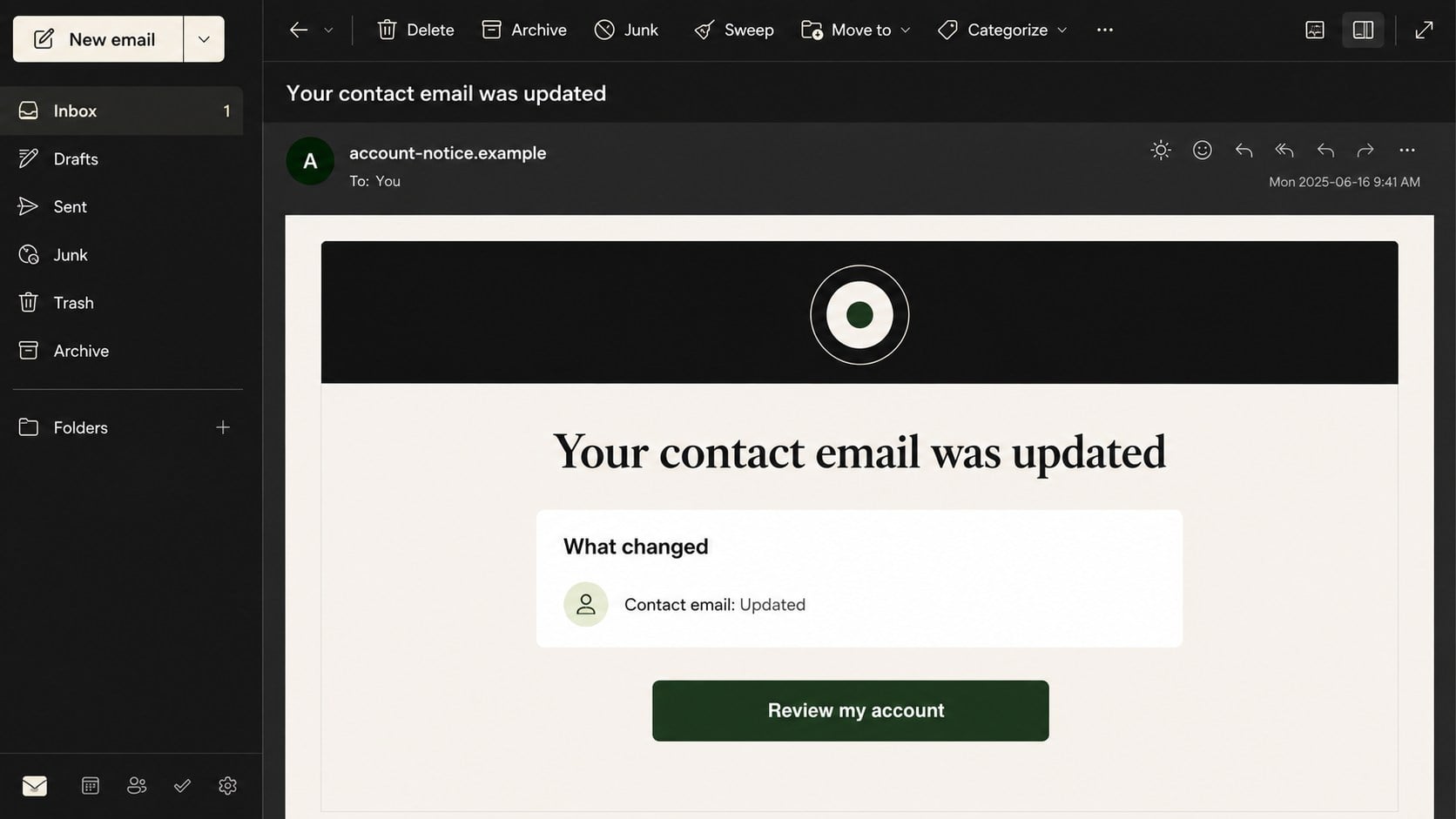
The email claims that the contact address attached to a Wealthsimple account was recently updated.
It says account details and notification settings remain unchanged, making the single contact modification look like a precise security event.
A “Review my account” button is presented for anyone who did not authorize the change.
- The subject announces an updated contact email.
- A compact change summary imitates account records.
- The recipient is told to act if the update was unauthorized.
- The review button can lead to credential theft.
The message attacks the fear of losing recovery access
Contact emails receive alerts, identity checks, statements, and password-reset messages, so an unauthorized change suggests somebody is taking control.
The recipient may click before checking whether the genuine investment application shows the same event.
That emotional reaction is the campaign’s main advantage.
Wealthsimple is being impersonated
The company is not connected with the fraudulent message or any unrelated page reached through it.
The observed destination later became unavailable, but the campaign’s purpose remains consistent with account or email credential phishing.
A dead link during later inspection does not make earlier submissions harmless.
Why a Contact Email Change Is Such an Effective Lure
Many security alerts describe an unfamiliar login. A contact change feels more final because it implies future warnings could go somewhere else.
The owner may fear that delaying even a few minutes will let an attacker reset the password and suppress notifications.
The message reinforces this concern by showing other settings as unchanged.
That narrow detail resembles a real audit record rather than a vague spam warning.
A personalized greeting can deepen the effect, but names and usernames may come from public profiles, breaches, or reused mailing data.
The safest reaction is still to avoid the embedded route.
Open the known Wealthsimple application or website independently and inspect the profile from there.
If the contact email truly changed, the account and support team will show evidence without relying on the suspicious button.
How the Wealthsimple Contact Email Update Scam Works
Step 1: A security alert lands in the target’s inbox
The campaign sends Wealthsimple-branded messages to Canadian users and broader address lists, regardless of confirmed customer status.
Financial interests, public profiles, advertising data, or earlier breaches may help criminals improve targeting.
Some recipients will use the platform, while others may wonder whether somebody opened an account in their name.
Both reactions can produce a click.
Step 2: The email frames the change as already completed
Instead of warning about an attempted update, the notice says the contact email “was updated.”
Past-tense wording suggests the victim is already behind the attacker and must recover access immediately.
A summary lists the contact email as changed while account details and notifications remain untouched.
This manufactured precision makes the alert feel connected to a real profile database.
Step 3: The review button redirects away from the service
The visible button can pass through a tracking address before reaching the final destination.
That site may use a newly created domain, compromised website, or public hosting platform.
Words such as “wealth,” “account,” “secure,” or “review” inside the address do not establish ownership.
The registered domain must belong to the service the page claims to represent.
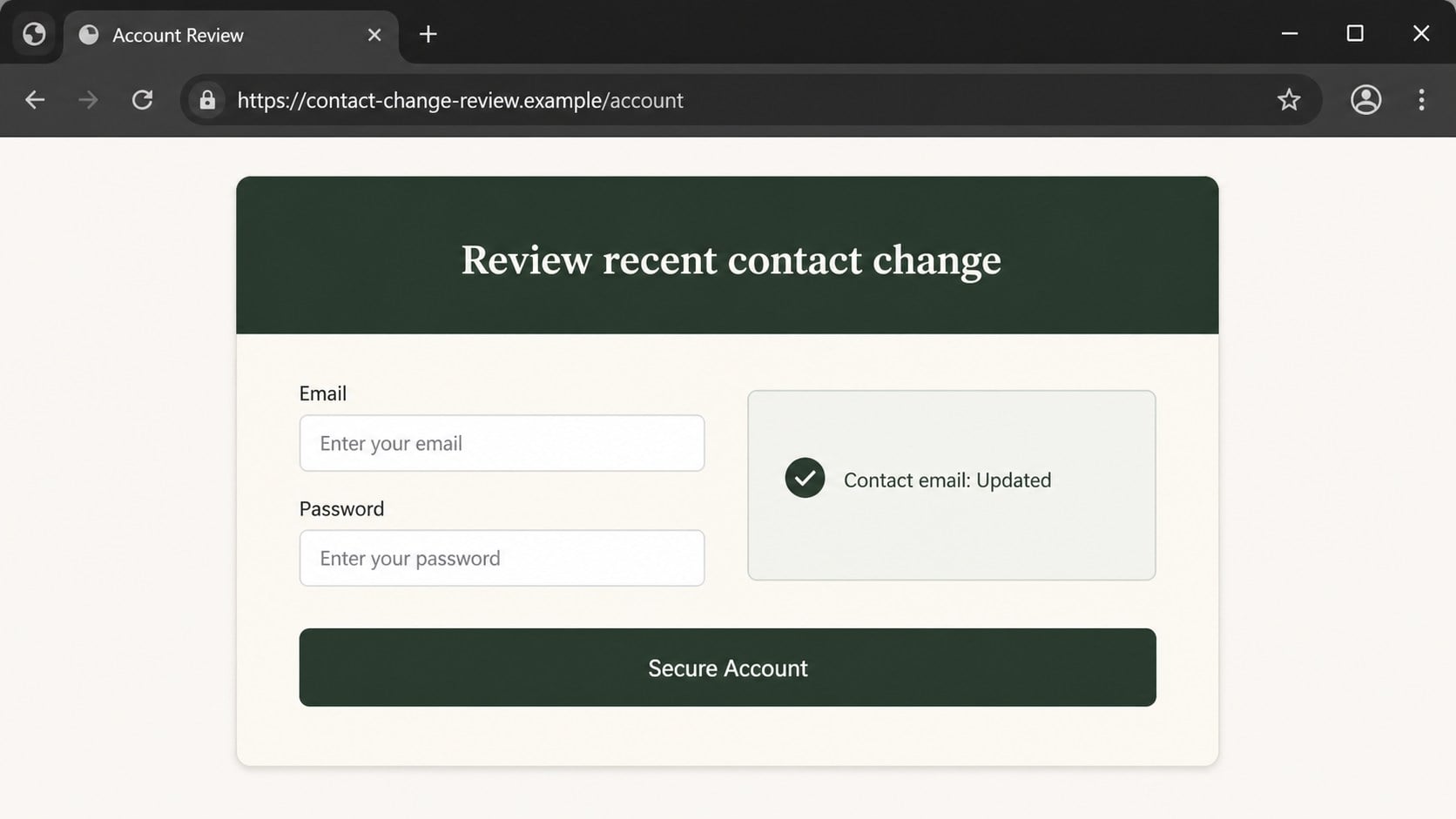
Step 4: A counterfeit review page asks for authentication
The landing page may imitate Wealthsimple or the recipient’s email provider.
An investment-themed version asks for account email and password to reverse or inspect the contact change.
An email-themed version claims mailbox verification is needed before the security notice can be opened.
Either route gives criminals credentials with valuable recovery power.
Step 5: Additional verification details are requested
The page may display a false error, request another password attempt, or ask for a one-time code.
Attackers can test details against the genuine service while the victim waits.
A real authentication code may then arrive, but entering it on the phishing page authorizes the attacker’s session.
Identity questions and telephone details can support later impersonation.
Step 6: Criminals pursue account and financial access
A successful login can reveal balances, holdings, transactions, tax documents, linked funding sources, and personal profile data.
The intruder may try to change recovery information, add a device, move funds, or create withdrawal instructions.
Even blocked transactions can expose enough information for a convincing support impersonation call.
Stolen email credentials also unlock password resets for unrelated services.
Step 7: The victim receives a more targeted second approach
Follow-up texts or calls may claim that security specialists detected the unauthorized contact change.
The caller can reference details taken from the phishing form or account.
They may request codes, remote access, cryptocurrency, or movement of assets into a supposedly protected account.
Legitimate support does not protect investments by directing customers to transfer assets to a stranger-controlled destination.
The Difference Between an Alert and Evidence
An email is a notification channel, not the authoritative record of the investment account.
The genuine profile page should show the current contact address and recent security activity.
Support can confirm whether a profile update occurred, when it happened, and what recovery steps are required.
The suspicious message provides only claims and a route controlled by its sender.
A username in the greeting may look personal, yet it does not establish access to the investment account.
Likewise, accurate company colors, legal wording, and formatting can be copied from genuine messages.
Look for independent evidence: a matching in-app alert, security log entry, support case, or verified contact-change confirmation.
If those records show no update, the email is attempting to create the event it claims already happened.
How to Check the Account Safely
Open the Wealthsimple application directly from the device, or use a bookmark created before the alert arrived.
Inspect profile details, security settings, active sessions, linked devices, and recent activity.
Check whether the current contact email still belongs to you and whether any unfamiliar telephone number appears.
Review withdrawal, deposit, transfer, and trading activity for instructions you did not create.
Contact Wealthsimple through the support route shown inside the genuine application or official website.
Do not reply to the suspicious message or use telephone numbers introduced by a follow-up caller.
Ask support whether a contact change was attempted and whether the account needs additional restrictions.
If you do not hold an account, report the impersonation and consider whether your identity information was used elsewhere.
Do not create an account through the email link merely to investigate.
Keep the original message until headers and destinations have been preserved for reporting.
What to Review Inside an Investment Account
Investment services contain information that may remain valuable even when immediate withdrawals are blocked.
Tax documents can expose names, addresses, identification details, account numbers, and financial history.
Holdings and balances help scammers tailor pressure, investment recovery offers, and cryptocurrency pitches.
Linked bank information can guide further phishing against the customer’s financial institution.
Review every new device, session, trusted browser, application connection, and recovery method.
Compare profile details with prior statements and saved records.
Examine pending transactions, not only completed ones. A blocked or scheduled transfer can indicate attempted abuse.
Check email and text alerts for changes that arrived before or after the phishing message.
If the mailbox password was entered, secure that inbox as a separate incident.
An attacker controlling email may delete investment alerts or reset access after the investment password changes.
Could the Scam Target Your Email Instead?
Yes. Some campaigns adapt their login page to the recipient’s email provider rather than copying the financial platform.
The operator may value the mailbox because it receives Wealthsimple notifications and recovery messages.
A captured email password can expose the investment account indirectly through password-reset functions.
It also reveals conversations, identity documents, bank alerts, and other services tied to the address.
When the fake page resembles Gmail, Outlook, or webmail, the email account requires immediate recovery.
Change its password, revoke sessions, inspect forwarding rules, and check recovery methods.
Then protect the investment account separately, even if its own password was never entered.
Criminals can use mailbox access to request that reset later.
Do not approve unexpected sign-ins simply because the approval screen names a familiar financial service.
Begin every authentication from the genuine application you opened yourself.
Why Timing Matters After a Credential Submission
An attacker can begin testing credentials within seconds, especially when an automated phishing kit forwards each entry immediately.
Fast action may prevent a valid password from becoming a completed session or profile change.
Contacting support early also creates a documented timestamp before disputed instructions settle.
Do not spend valuable time arguing with the sender, researching its claimed identity, or waiting for another alert.
Use a separate trusted device when the first device downloaded software or behaves unexpectedly.
If a transfer is pending, tell both the investment platform and receiving bank that fraud is suspected.
Keep confirmation numbers for every restriction, password change, transaction dispute, and identity-protection step.
Continue monitoring after recovery because criminals may reuse exposed personal details in a different campaign weeks later.
Sender, Profile Change, Domain, and Investment Account Checks
Read the complete sender information
Expand the From address, Reply-To field, and message authentication details before trusting the Wealthsimple display name.
Compare them with a verified statement or previous notification already confirmed through the application.
- Do not trust the display name alone.
- Check for unrelated reply addresses.
- Preserve headers before reporting.
- Avoid replying to test the sender.
Confirm whether the profile actually changed
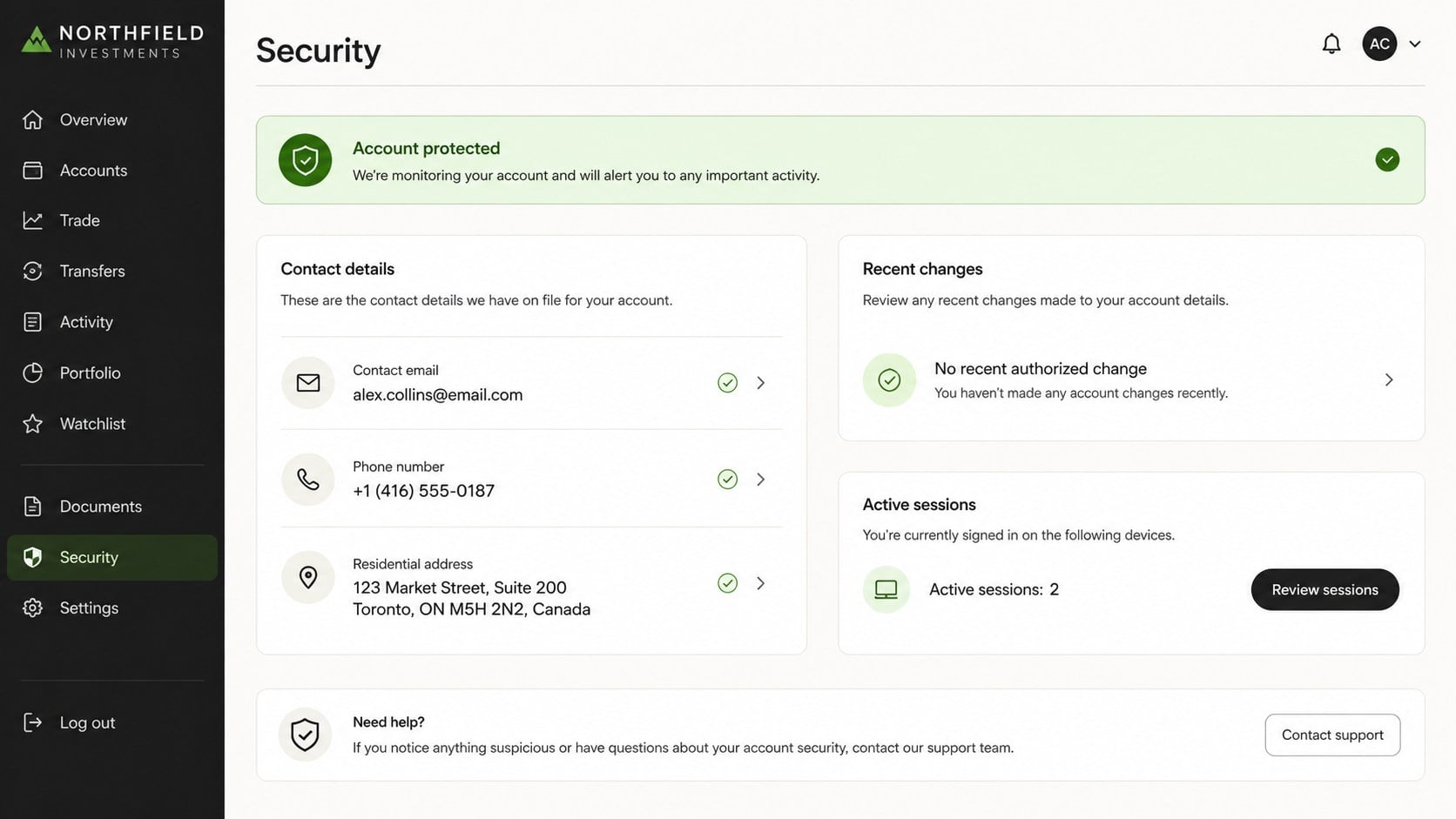
Open the real account independently and check the contact email, telephone number, address, and recovery settings.
Look for a matching security event and ask verified support to confirm its origin.
No change inside the account means the email’s central claim is false.
Evaluate the link and every requested field
A review page should remain on the established service domain and normal authentication route.
Do not provide passwords, one-time codes, tax identifiers, banking information, or identity documents to an unfamiliar address.
Close any page that requests remote-access software or asset transfers.
Inspect both the investment account and mailbox
Review devices, sessions, transactions, recovery options, connected funding sources, mail rules, and deleted security alerts.
Changing one password is incomplete when the attacker obtained credentials for the other account.
Ask support to record the incident even when no loss is visible.
What to Do if You Have Fallen Victim to This Scam
- Contact Wealthsimple through its genuine application or website. Explain which credentials and codes were submitted, then request immediate restrictions and an account-security review.
- Change the exposed password from a trusted device. Create a unique replacement and never reuse the compromised password on another financial or email service.
- Secure the associated mailbox. Change its credentials when necessary, sign out other sessions, inspect forwarding, and confirm that recovery information still belongs to you.
- Review every account change. Check contact details, trusted devices, active sessions, linked banks, beneficiaries, withdrawals, deposits, transfers, trades, and pending instructions.
- Cancel unauthorized activity quickly. Ask support and the linked bank what can be stopped, recalled, frozen, or disputed before settlement.
- Reject follow-up calls and codes. End unsolicited conversations, then call support using contact information from the genuine account.
- Protect your identity. If tax documents or personal identifiers were exposed, consider fraud alerts, credit monitoring, or a credit freeze where available.
- Scan when the page delivered a file. Malwarebytes can inspect the device for information stealers and unwanted changes after a download or installation.
- Add a web-filtering layer. AdGuard can block many reported phishing hosts, although a fresh campaign may use domains not yet categorized.
- Replace reused passwords elsewhere. Prioritize banking, cryptocurrency, tax, payroll, cloud, and social accounts that could support financial impersonation.
- Document and report everything. Save headers, URLs, screenshots, authentication prompts, support case numbers, transaction records, and contact attempts.
Is Your Device Infected? Run a Free Malware Scan
Slow performance, constant pop-ups, or strange behavior? These are classic signs of a malware infection. The fastest way to find out is to scan your device with Malwarebytes Free — one of the most trusted malware removal tools available.
The free version detects and removes the most common threats, including:
- Adware — the cause of those annoying pop-ups
- Browser hijackers — unwanted redirects and changed homepages
- Trojans and spyware — hidden programs stealing your data
- Potentially unwanted programs (PUPs) — software you never asked for
👉 Select your device below — Windows, Mac, or Android — then follow the simple steps to download Malwarebytes, scan your system, and remove any threats it finds. The scan usually takes 5 to 20 minutes.
Run a Malware Scan with Malwarebytes for Windows
Malwarebytes is one of the most popular and trusted anti-malware tools for Windows — and it’s completely free for removing infections. It catches threats that many antivirus programs miss, including adware, browser hijackers, and trojans. Follow the steps below to scan and clean your PC in just a few minutes.
Download Malwarebytes
Click the button below to download the latest version of Malwarebytes for Windows from the official source. The free version is all you need — it will scan your computer and remove adware, browser hijackers, and other malicious software at no cost.
Download MalwarebytesOfficial installer for Windows 11 and 10. Your download starts right away.Want real-time protection? See Malwarebytes Premium Malwarebytes Free for WindowsScans and removes malware at no cost
-
Install Malwarebytes
When the download finishes, open your Downloads folder and double-click the MBSetup file. If Windows shows a User Account Control pop-up, click “Yes” to allow the installation.

Follow the On-Screen Prompts to Install Malwarebytes
The setup wizard will walk you through a few quick screens:
-
Choose where you’re installing the program — “Personal Computer” or “Work Computer” — then click Next.

-
Malwarebytes will now install on your device. This usually takes under a minute.

-
When installation is complete, the “Welcome to Malwarebytes” screen will open automatically.

-
On the final screen, click Open Malwarebytes to launch the program.

-
Enable “Scan for Rootkits”
Before scanning, turn on rootkit detection so Malwarebytes can find even the most hidden threats. Click the Settings gear icon on the left side of the screen.

In the settings menu, find “Scan for rootkits” and click the toggle so it turns blue.

Done? Click “Dashboard” in the left pane to return to the main screen.
Start the Scan
Click the blue Scan button. Malwarebytes will automatically update its virus database and start checking your computer for malware.

-
Wait for the Scan to Finish
The scan checks your entire system for browser hijackers and other malicious programs, so it can take 5 to 20 minutes depending on your computer. Feel free to do something else — just check back occasionally to see the progress.

-
Quarantine the Detected Threats
When the scan is done, you’ll see a list of everything Malwarebytes found — malware, adware, and potentially unwanted programs. Click the “Quarantine” button to remove all of them at once.

Malwarebytes will now remove the malicious files and registry entries and move them safely into quarantine.

-
Restart Your Computer
Some threats can only be fully removed after a reboot. If Malwarebytes asks you to restart, click Yes. Once you’re logged back in, Malwarebytes has finished removing the threats it found.

That’s it — your Windows PC is now clean of trojans, adware, and other malware, and should be back to running smoothly.
If you are still having problems with your computer after completing these instructions, then please follow one of the steps:
- Run a computer scan with ESET Online Scanner
- Ask for help in our Windows Malware Removal Help & Support forum.
Run a Malware Scan with Malwarebytes for Mac
Malwarebytes for Mac is a free on-demand scanner that removes the malware other security software tends to miss — adware, browser hijackers, and unwanted programs included. Cleaning an infected Mac with Malwarebytes has always been completely free, and it’s our go-to recommendation. Follow the steps below to scan and clean your Mac in just a few minutes.
-
Download Malwarebytes for Mac
Click the button below to download the latest version of Malwarebytes for Mac.
Download MalwarebytesOfficial installer for macOS. Your download starts right away.Want real-time protection? See Malwarebytes PremiumMalwarebytes Free for MacScans and removes malware at no cost -
Open the Malwarebytes setup file
When the download finishes, open your Downloads folder and double-click the setup file to begin the installation.

-
Follow the On-Screen Prompts to Install Malwarebytes
The Malwarebytes for Mac Installer will guide you through a few quick screens. Click “Continue” and keep following the prompts until the installation completes.



When the installation is complete, Malwarebytes opens to the Welcome to Malwarebytes screen. Click “Get started“.
-
Select “Personal Computer” or “Work Computer”
Malwarebytes will ask what type of computer you’re installing it on. Click either Personal Computer or Work Computer, whichever applies.

-
Start the Scan
Click the “Scan” button. Malwarebytes will automatically update its detection database and begin checking your Mac for malware.

-
Wait for the Scan to Finish
Malwarebytes will scan your Mac for adware, browser hijackers, and other malicious programs. This can take a few minutes, so feel free to do something else — just check back occasionally to see the progress.

-
Quarantine the Detected Threats
When the scan is done, you’ll see a list of everything Malwarebytes found. Click the “Quarantine” button to remove all the threats at once.

-
Restart Your Mac
Malwarebytes will now remove all the malicious files it found. Some threats can only be fully removed after a reboot — if Malwarebytes asks you to restart, allow it. Once you’re logged back in, your Mac is clean.

That’s it — your Mac is now free of adware, rogue browser extensions, and other potentially harmful software.
If you are still experiencing problems while trying to remove a malicious program from your computer, please ask for help in our Mac Malware Removal Help & Support forum.
Run a Malware Scan with Malwarebytes for Android
Malwarebytes for Android automatically detects and removes dangerous threats like malware and ransomware so you don’t have to worry about your most-used device being compromised. Aggressive detection of adware and potentially unwanted programs keeps your Android phone or tablet running smooth.
-
Download Malwarebytes for Android.
You can download Malwarebytes for Android by clicking the link below.
Get Malwarebytes for AndroidOpens Google Play in a new tab.Want real-time protection? See Malwarebytes Premium for AndroidMalwarebytes for AndroidScans your phone and removes malware at no cost -
Install Malwarebytes for Android on your phone.
In the Google Play Store, tap “Install” to install Malwarebytes for Android on your device.

When the installation process has finished, tap “Open” to begin using Malwarebytes for Android. You can also open Malwarebytes by tapping on its icon in your phone menu or home screen.

-
Follow the on-screen prompts to complete the setup process
When Malwarebytes will open, you will see the Malwarebytes Setup Wizard which will guide you through a series of permissions and other setup options.
This is the first of two screens that explain the difference between the Premium and Free versions. Swipe this screen to continue.
Tap on “Got it” to proceed to the next step.
Malwarebytes for Android will now ask for a set of permissions that are required to scan your device and protect it from malware. Tap on “Give permission” to continue.
Tap on “Allow” to permit Malwarebytes to access the files on your phone.
-
Update database and run a scan with Malwarebytes for Android
You will now be prompted to update the Malwarebytes database and run a full system scan.

Click on “Update database” to update the Malwarebytes for Android definitions to the latest version, then click on “Run full scan” to perform a system scan.

-
Wait for the Malwarebytes scan to complete.
Malwarebytes will now start scanning your phone for adware and other malicious apps. This process can take a few minutes, so we suggest you do something else and periodically check on the status of the scan to see when it is finished.

-
Click on “Remove Selected”.
When the scan has been completed, you will be presented with a screen showing the malware infections that Malwarebytes for Android has detected. To remove the malicious apps that Malwarebytes has found, tap on the “Remove Selected” button.

-
Restart your phone.
Malwarebytes for Android will now remove all the malicious apps that it has found. To complete the malware removal process, Malwarebytes may ask you to restart your device.
That’s it — your Android phone is now clean — no more malicious apps, adware, or browser redirects.
If you are still having problems with your phone after completing these instructions, then please follow one of the steps:
- Restore your phone to factory settings by going to Settings > General management > Reset > Factory data reset.
- Ask for help in our Mobile Malware Removal Help & Support forum.
Stay Protected: Block Ads and Malicious Sites
Now that your device is clean, keep it that way. Most infections start with a malicious ad or a fake download button — so blocking them at the source is your best defense.
We recommend AdGuard, which blocks malicious ads, phishing pages, and dangerous redirects before they can reach you.
👉 Download AdGuard and browse safely
Frequently Asked Questions
Did Wealthsimple really change my contact email?
The phishing notice cannot answer that. Open the genuine account independently and inspect profile and security activity.
Verified support can confirm any real change.
Is Wealthsimple involved in this scam?
No. The brand is being impersonated to make the security warning credible.
An attacker-controlled page does not represent the legitimate platform.
Why does the email show other settings as unchanged?
The narrow change summary imitates an audit log and makes the message appear connected to a real account.
It remains ordinary email text until independently verified.
What if I do not have a Wealthsimple account?
Do not use the link. Report the message as phishing.
If it contains accurate personal information, monitor for identity misuse and other targeted attempts.
What if I entered my email password, not an investment password?
Recover the mailbox immediately and then protect the investment account.
Email access can enable password resets and hide security notifications.
Can I wait to see whether money moves?
No. Unauthorized access and profile changes can happen before a visible transaction.
Early contact gives the platform and bank more options to restrict activity.
The Bottom Line
The Wealthsimple Contact Email Update scam creates urgency by claiming the recovery address changed, then directs that concern toward a counterfeit authentication route.
Check the profile inside the genuine account, and secure investment, banking, and email access immediately when any information was submitted.

Join the discussion
0 commentsShare your experience or ask a question about this article.
Discussion
Start the conversation
Have a question or something useful to share? Add the first comment.