

An app promising to reveal another person’s calls, messages, and WhatsApp activity can feel like a shortcut to answers that normally remain private.
CallPhantom-style Android apps build their appeal around that curiosity, then place the most important result behind a payment screen.
Overview
The apps promise access they cannot legitimately provide
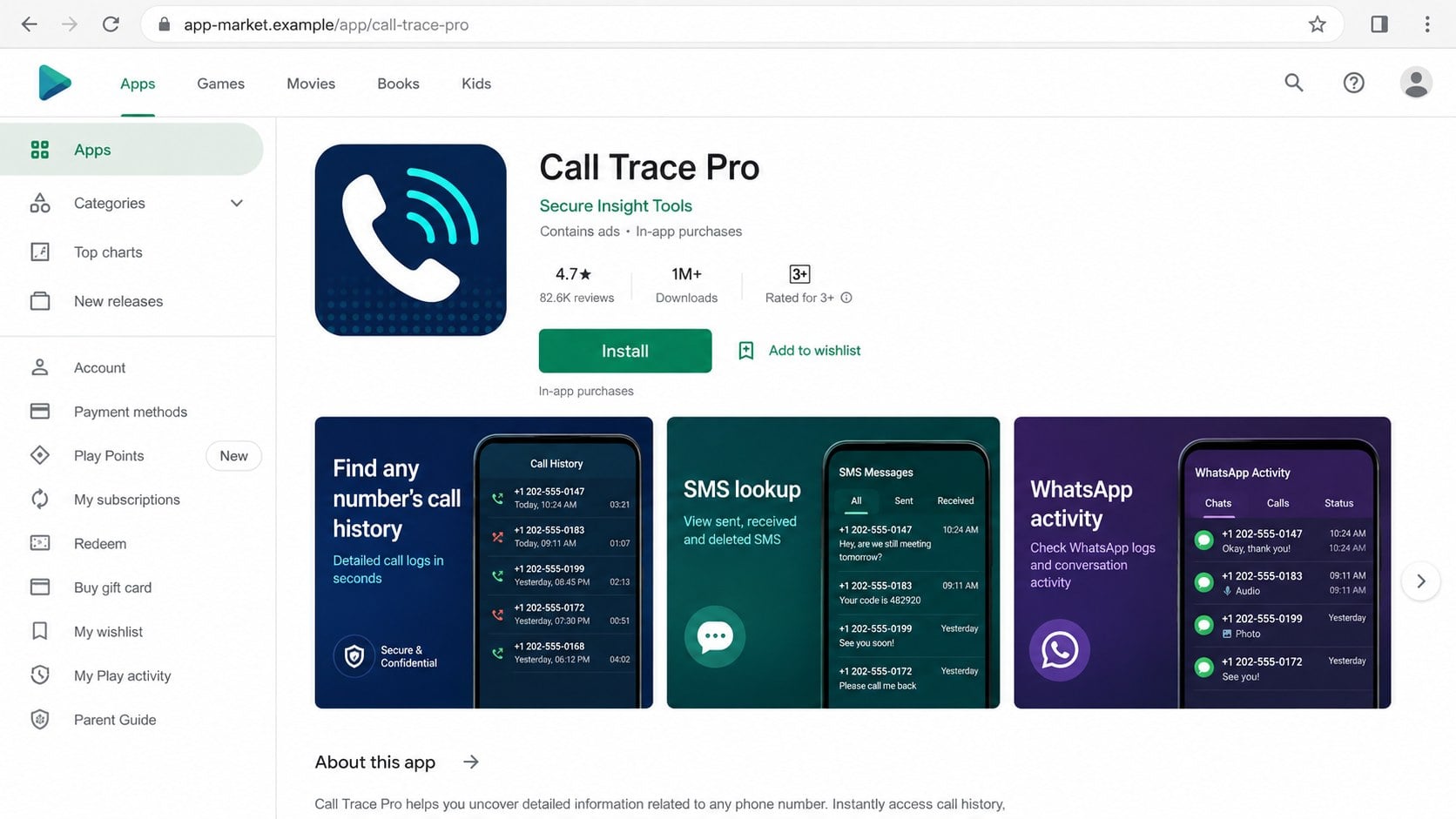
The CallPhantom operation used numerous Android apps claiming to uncover call logs, SMS records, WhatsApp activity, contacts, or location details for any telephone number.
That promise conflicts with basic mobile security and privacy boundaries.
An ordinary consumer app cannot remotely retrieve another person’s private communication history simply because a number was typed into a search box.
- The search appears to discover records quickly.
- Names and dates may be blurred as a teaser.
- Payment is required to unlock the report.
- Results can be random or hardcoded rather than real.
The operation spread across a large cluster of applications
Security researchers connected 28 fraudulent applications with this pattern.
Together, they accumulated more than 7.3 million downloads before removal, showing how official marketplace availability can still expose large audiences.
Names, icons, publishers, pricing, and payment routes varied, but the impossible surveillance promise remained recognizable.
The financial risk continues beyond one disappointing report
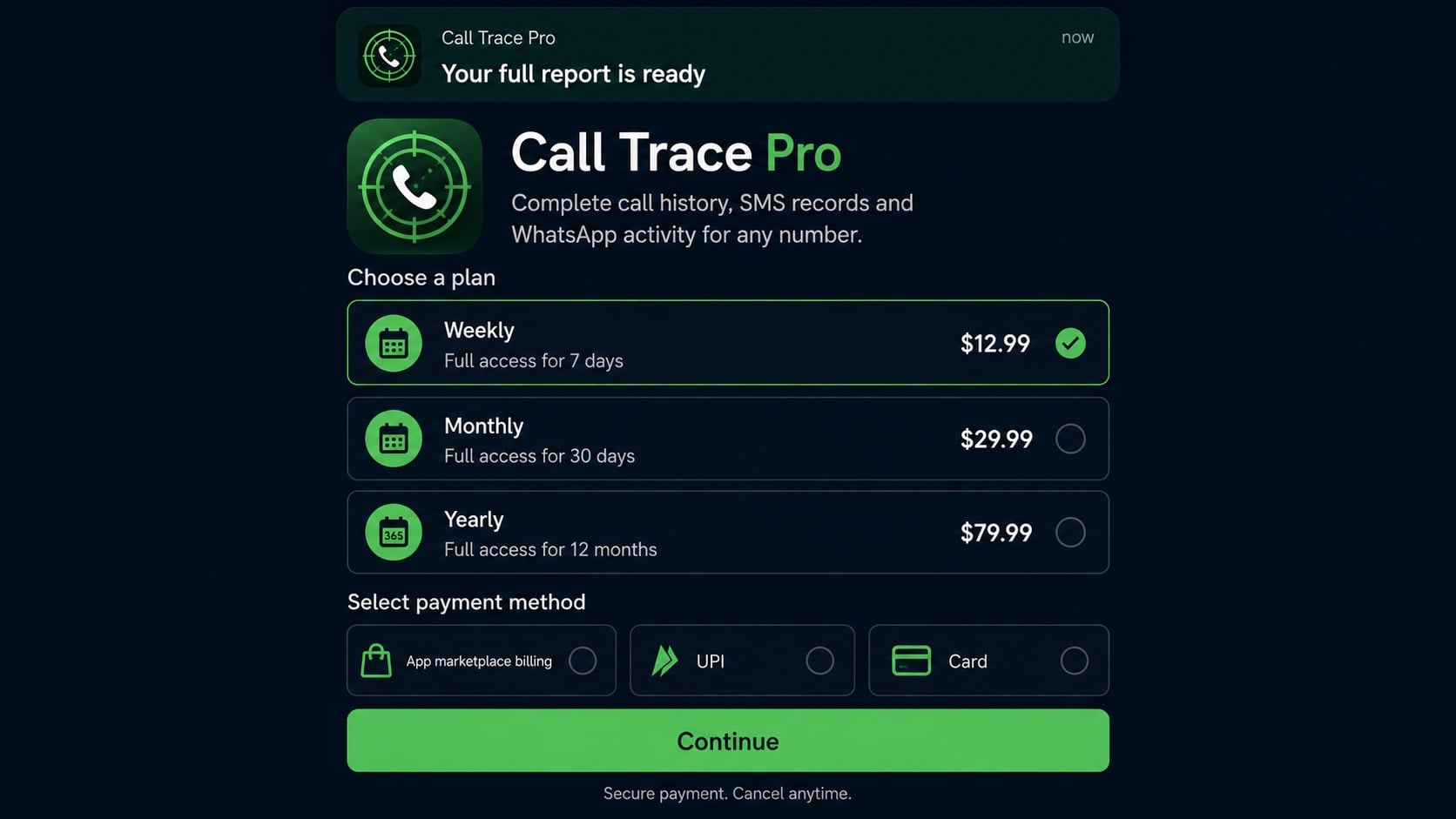
Some apps used familiar marketplace billing, while others opened third-party payment forms for cards or UPI transfers.
Weekly, monthly, or annual plans could create recurring charges for fabricated information.
External forms also raised the risk that payment details were being submitted outside normal marketplace protections.
What CallPhantom Refers To
CallPhantom is a research label for a connected family of deceptive Android applications, not necessarily the public name shown on every listing.
The apps appeared under different identities that suggested caller lookup, hidden history, message recovery, telephone tracking, or relationship monitoring.
Changing names lets an operator replace removed listings and test new advertising themes.
It also makes individual complaints look isolated when the underlying interface and payment behavior are shared.
Researchers identified common code, infrastructure, design patterns, and monetization methods across the cluster.
Some versions focused on Indian telephone numbers, using +91 as a visible default.
Others targeted broader Asia-Pacific audiences with localized prices and payment options.
The scale matters because millions of installations can create social proof.
A high download count describes distribution, not truthfulness.
Store removal after discovery also cannot reverse charges or erase payment information already submitted.
Why the Core Promise Is Technically Impossible
Call records and private messages are not stored in a public directory indexed by telephone number.
They belong to the device owner, telecommunications provider, or messaging service and are protected by authentication, permissions, encryption, and law.
An Android app can read some information on its own device only after receiving relevant operating-system permission.
That local access does not grant remote access to another person’s telephone.
WhatsApp communications use end-to-end encryption between participants.
A random lookup application cannot request a stranger’s message history from WhatsApp by entering a number.
Telephone carriers do not expose customer logs to anonymous app searches either.
Access normally requires the account holder’s verified login or a valid legal process.
Therefore, a report appearing seconds after a number is entered must come from somewhere else.
It may be fabricated, randomly assembled, reused from a template, or derived from unrelated public data.
How Fabricated Results Create Curiosity
The app does not need a complete believable report before payment.
It only needs enough ambiguity to make the user wonder whether the hidden information might be real.
A progress animation can claim databases, networks, or devices are being searched.
Then a results screen shows several blurred names, call types, message counts, or dates.
Common first names and plausible timestamps are difficult to disprove while concealed.
The user supplies the emotional context by imagining a partner, child, employee, or unknown caller behind the blur.
Some versions reveal one partial entry and lock everything else.
Others promise to send a completed report by email after payment.
Both designs postpone the moment when the claim can be evaluated.
By then, the operator already has money, contact details, or both.
How the CallPhantom Android Apps Scam Works
Step 1: An app listing advertises private lookup capabilities
The listing promises to reveal hidden calls, deleted messages, social activity, contact names, or live location using only a telephone number.
Images may show polished dashboards and precise-looking histories.
Descriptions use surveillance language while avoiding a clear explanation of where the data comes from.
Reviews, download counts, and marketplace badges can reduce normal suspicion.
Step 2: The user enters a target telephone number
The app invites the person to select a country code and type the number they want investigated.
Some versions request an email address, supposedly for report delivery.
The input makes the later screen feel personalized even if the number is never checked against a real source.
It can also collect contact details useful for marketing or follow-up fraud.
Step 3: A theatrical scan appears to find records
Progress bars cycle through labels such as carrier search, message analysis, call retrieval, or social lookup.
The process may take just long enough to resemble remote analysis.
No evidence shows the app obtained permission from the target device, carrier, or messaging account.
The animation is presentation, not proof of data access.
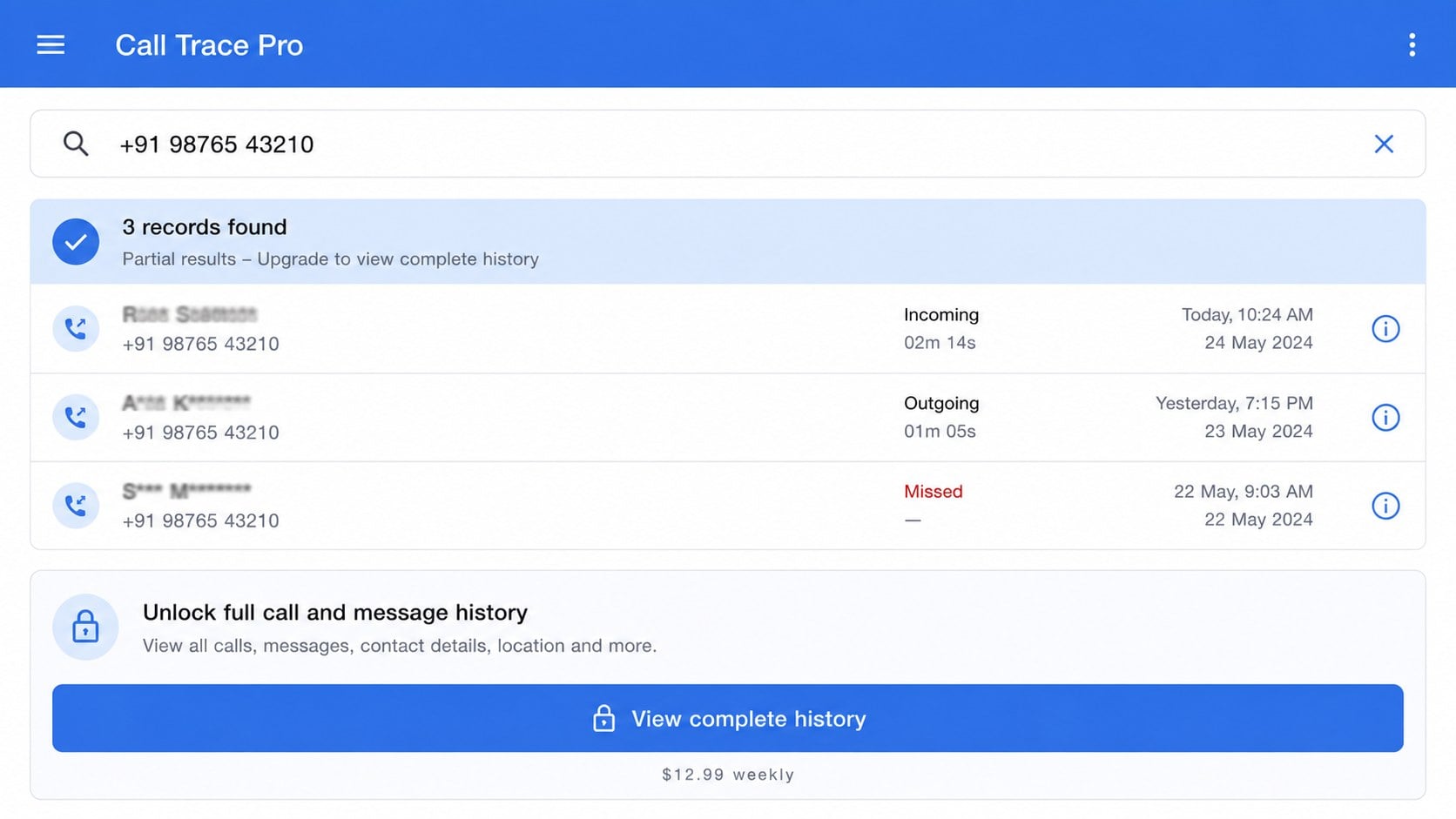
Step 4: Partial or invented information appears
The result screen may announce that several records were found.
Names are blurred, dates are generic, and call directions look plausible without being independently verifiable.
Researchers found results that were hardcoded or randomly generated rather than linked to the submitted number.
The hidden sections encourage the user to pay before testing accuracy.
Step 5: A subscription or report fee blocks the promised answer
The app presents weekly, monthly, annual, or one-time options, sometimes reaching roughly $80 depending on the plan and region.
A cheap-looking entry plan can renew frequently and become expensive over time.
Some screens use marketplace billing, while others open a web form for a card or UPI payment.
The switch to external payment reduces transparency and may limit platform dispute tools.
Step 6: Payment details pass through changing infrastructure
Researchers observed payment destinations that could be changed remotely through cloud configuration.
This flexibility lets the operator replace blocked pages without publishing an entirely new application.
An external form may request the card number, expiry, security code, name, telephone, and email.
Users cannot safely assume those details receive the protections of the official app marketplace.
Step 7: Fake reports and notifications keep the user engaged
After payment, the promised information may remain vague, inaccurate, delayed, or entirely fabricated.
Push notifications can announce that new calls, messages, or reports are ready.
These alerts draw the user back into the app and may promote another purchase or renewal.
The cycle monetizes curiosity without ever providing the impossible remote access advertised.
The Two Common Payment Paths
One app cluster used a partial-results model.
It displayed blurred call or message entries, then asked the user to unlock the complete history through a subscription.
Payment might use the marketplace’s normal billing system.
This can make cancellation possible through the user’s subscription settings, although the underlying result remains deceptive.
Another cluster promised report delivery by email.
It redirected users to an outside payment page where a card or UPI transfer was requested.
The external route can hide the real recipient behind generic descriptors or changing pages.
It may also collect complete payment credentials rather than using a tokenized marketplace transaction.
The distinction affects recovery.
Victims must determine whether billing belongs to the app marketplace, an identifiable merchant, a UPI recipient, or an unknown card processor.
Why Official App Store Availability Is Not Proof
Application marketplaces review software, but no review system catches every deceptive claim before publication.
Operators can show one behavior during review and load different content or payment destinations later.
Cloud configuration allows interfaces and links to change without replacing the installed package.
Large download numbers may accumulate before researchers, users, or marketplace teams connect complaints across many app names.
Positive reviews require context.
They may describe installation, interface design, or early expectations rather than successful access to accurate records.
Some review patterns can also be manipulated.
Read recent critical reviews for complaints about fabricated results, impossible cancellation, repeated charges, or unanswered support.
Check what the app actually needs to do.
No marketplace badge can grant a publisher lawful access to another person’s private calls and encrypted messages.
Privacy Risks Before Payment
A user can lose privacy even without completing a purchase.
The searched telephone number may identify another person who never consented to its submission.
The app can also collect the user’s device identifiers, network address, advertising identifiers, language, country, and usage behavior.
An email-report flow captures an address that can receive later promotions or phishing.
Permission requests deserve close attention.
An app promising remote data should not need broad local access to contacts, SMS, calls, files, accessibility features, or notifications.
Granting those permissions may expose information on the user’s own device while providing nothing about the target.
Check Android’s privacy dashboard for recent access.
Remove permissions before uninstalling, then review account and browser activity associated with external payment pages.
Inform the searched person when their contact information was submitted to a suspicious service.
Recurring Charges and Cancellation
Weekly plans deserve particular caution because a modest price can repeat more than four times during an average month.
The billing screen should clearly state frequency, trial length, renewal date, total, and cancellation process before confirmation.
If the purchase used marketplace billing, open the marketplace subscription manager rather than searching inside the deceptive app.
Cancel the plan and save the confirmation.
Uninstalling an application does not automatically cancel every subscription.
For external card payments, identify the statement descriptor and contact the issuer if the merchant cannot be reached.
Ask about blocking future recurring charges and replacing the card when full details were submitted to an unknown form.
For UPI transfers, contact the bank or payment provider promptly and report the recipient identifier.
Keep dates, amounts, transaction references, screenshots, and support attempts.
Those records help establish that the advertised report was not delivered as represented.
How to Judge Any Telephone Lookup App
Begin with the source of the claimed data.
A legitimate caller-identification service may use community labels or public business directories, but it should explain that limited purpose.
It cannot reveal private carrier records or encrypted chats belonging to a stranger.
Look for a real publisher identity, established support route, privacy policy, billing entity, and consistent website.
Compare the developer name across the listing, receipt, privacy terms, and card statement.
Check whether contact details answer specific questions about data sources and refunds.
Read the permission list against the advertised function.
An unexplained request for SMS, call logs, accessibility, or device administration can create additional danger.
Avoid any service that reveals meaningful results only after payment.
Claims of secret access, anonymous surveillance, or guaranteed message recovery should end the evaluation immediately.
What Parents and Partners Should Know
These applications often appeal to real fears about safety, infidelity, harassment, or an unknown caller.
That emotional context does not make the technical promise possible.
Parents should use transparent family-safety tools installed with appropriate consent and account controls.
They should not submit a child’s or another adult’s number to an unknown surveillance service.
Partners concerned about trust should avoid applications claiming invisible access to private communications.
Besides financial loss, secret monitoring can create legal, ethical, and personal safety problems.
For harassment or threats, preserve messages on the affected device and contact the carrier, platform, school, employer, or authorities as appropriate.
For an unknown caller, use carrier tools, device blocking, and reputable caller-identification features with clearly explained data sources.
A fabricated report can worsen a difficult situation by encouraging accusations based on invented names and dates.
Treat the app’s output as unreliable.
If the App Has Already Been Removed
Marketplace removal prevents new installations but does not necessarily erase an installed copy from every device.
Find the application in Android settings and review its permissions, battery use, data access, and installation source.
Remove permissions, uninstall it, and restart the device.
Then check the marketplace subscription page for active billing linked to the removed app.
Review browser history for outside payment pages and search email for receipts.
Removal also does not reverse information already submitted.
Monitor the card, bank, or UPI account and replace exposed credentials where necessary.
Watch for new app names making the same promise.
The operator can relaunch with different icons and wording while using similar code and infrastructure.
Judge the surveillance claim itself, not only the retired product name.
App, Claim, Billing, and Permission Checks
Test whether the promised access is technically credible
Ask which carrier, device, or messaging account authorized the app to obtain private records.
A telephone number alone does not provide that permission.
- Reject claims of universal call access.
- Do not trust blurred results.
- Demand a clear data source.
- Avoid secret surveillance promises.
Identify the developer and connected apps
Compare publisher names, privacy policies, support addresses, websites, interface designs, and payment pages.
Repeated templates under different brands can indicate a larger operation.
Download volume does not establish accuracy.
Read the complete billing route
Confirm whether payment uses marketplace billing, a web checkout, a card form, or UPI transfer.
Record the legal merchant, frequency, renewal date, trial terms, refund policy, and cancellation method.
Leave when those details conflict or remain hidden.
Audit device permissions and collected information
Review contacts, calls, SMS, files, notifications, accessibility, location, and device-administration access.
Remove anything unnecessary and inspect Android’s privacy dashboard.
The app may expose the user’s device while pretending to inspect somebody else’s.
What to Do if You Have Fallen Victim to This Scam
- Cancel the subscription where it was purchased. Use the marketplace subscription manager or verified merchant portal, then save the cancellation date and confirmation.
- Contact the payment provider. Report deceptive or undelivered services, ask about dispute rights, and block future recurring charges from the same recipient.
- Replace an exposed card when necessary. If details went into an unknown web form, ask the issuer about a new number and removal of merchant payment tokens.
- Report UPI transfers quickly. Contact the bank or payment application with the recipient identifier, transaction reference, amount, and time.
- Remove the app completely. Revoke its permissions, uninstall it, restart Android, and confirm it no longer appears under device administrators or accessibility services.
- Scan the Android device. Malwarebytes can check for related unwanted applications, malicious packages, and other threats installed outside the normal marketplace.
- Block repeat advertising routes. AdGuard can reduce exposure to known deceptive domains and malvertising, although renamed apps still require careful claim review.
- Secure submitted accounts. Change reused passwords, enable multi-factor authentication, and review email sessions when an external report or payment page requested login details.
- Monitor financial activity. Watch for small tests, weekly renewals, unfamiliar statement descriptors, and charges appearing under a different merchant name.
- Inform anyone whose number was submitted. Explain that a suspicious service received their contact information and that any generated history should be treated as fabricated.
- Preserve and report evidence. Keep the app name, publisher, listing, permissions, screenshots, receipts, payment addresses, notifications, and support correspondence.
Is Your Device Infected? Run a Free Malware Scan
Slow performance, constant pop-ups, or strange behavior? These are classic signs of a malware infection. The fastest way to find out is to scan your device with Malwarebytes Free — one of the most trusted malware removal tools available.
The free version detects and removes the most common threats, including:
- Adware — the cause of those annoying pop-ups
- Browser hijackers — unwanted redirects and changed homepages
- Trojans and spyware — hidden programs stealing your data
- Potentially unwanted programs (PUPs) — software you never asked for
👉 Select your device below — Windows, Mac, or Android — then follow the simple steps to download Malwarebytes, scan your system, and remove any threats it finds. The scan usually takes 5 to 20 minutes.
Run a Malware Scan with Malwarebytes for Windows
Malwarebytes is one of the most popular and trusted anti-malware tools for Windows — and it’s completely free for removing infections. It catches threats that many antivirus programs miss, including adware, browser hijackers, and trojans. Follow the steps below to scan and clean your PC in just a few minutes.
Download Malwarebytes
Click the button below to download the latest version of Malwarebytes for Windows from the official source. The free version is all you need — it will scan your computer and remove adware, browser hijackers, and other malicious software at no cost.
Download MalwarebytesOfficial installer for Windows 11 and 10. Your download starts right away.Want real-time protection? See Malwarebytes Premium Malwarebytes Free for WindowsScans and removes malware at no cost
-
Install Malwarebytes
When the download finishes, open your Downloads folder and double-click the MBSetup file. If Windows shows a User Account Control pop-up, click “Yes” to allow the installation.

Follow the On-Screen Prompts to Install Malwarebytes
The setup wizard will walk you through a few quick screens:
-
Choose where you’re installing the program — “Personal Computer” or “Work Computer” — then click Next.

-
Malwarebytes will now install on your device. This usually takes under a minute.

-
When installation is complete, the “Welcome to Malwarebytes” screen will open automatically.

-
On the final screen, click Open Malwarebytes to launch the program.

-
Enable “Scan for Rootkits”
Before scanning, turn on rootkit detection so Malwarebytes can find even the most hidden threats. Click the Settings gear icon on the left side of the screen.

In the settings menu, find “Scan for rootkits” and click the toggle so it turns blue.

Done? Click “Dashboard” in the left pane to return to the main screen.
Start the Scan
Click the blue Scan button. Malwarebytes will automatically update its virus database and start checking your computer for malware.

-
Wait for the Scan to Finish
The scan checks your entire system for browser hijackers and other malicious programs, so it can take 5 to 20 minutes depending on your computer. Feel free to do something else — just check back occasionally to see the progress.

-
Quarantine the Detected Threats
When the scan is done, you’ll see a list of everything Malwarebytes found — malware, adware, and potentially unwanted programs. Click the “Quarantine” button to remove all of them at once.

Malwarebytes will now remove the malicious files and registry entries and move them safely into quarantine.

-
Restart Your Computer
Some threats can only be fully removed after a reboot. If Malwarebytes asks you to restart, click Yes. Once you’re logged back in, Malwarebytes has finished removing the threats it found.

That’s it — your Windows PC is now clean of trojans, adware, and other malware, and should be back to running smoothly.
If you are still having problems with your computer after completing these instructions, then please follow one of the steps:
- Run a computer scan with ESET Online Scanner
- Ask for help in our Windows Malware Removal Help & Support forum.
Run a Malware Scan with Malwarebytes for Mac
Malwarebytes for Mac is a free on-demand scanner that removes the malware other security software tends to miss — adware, browser hijackers, and unwanted programs included. Cleaning an infected Mac with Malwarebytes has always been completely free, and it’s our go-to recommendation. Follow the steps below to scan and clean your Mac in just a few minutes.
-
Download Malwarebytes for Mac
Click the button below to download the latest version of Malwarebytes for Mac.
Download MalwarebytesOfficial installer for macOS. Your download starts right away.Want real-time protection? See Malwarebytes PremiumMalwarebytes Free for MacScans and removes malware at no cost -
Open the Malwarebytes setup file
When the download finishes, open your Downloads folder and double-click the setup file to begin the installation.

-
Follow the On-Screen Prompts to Install Malwarebytes
The Malwarebytes for Mac Installer will guide you through a few quick screens. Click “Continue” and keep following the prompts until the installation completes.



When the installation is complete, Malwarebytes opens to the Welcome to Malwarebytes screen. Click “Get started“.
-
Select “Personal Computer” or “Work Computer”
Malwarebytes will ask what type of computer you’re installing it on. Click either Personal Computer or Work Computer, whichever applies.

-
Start the Scan
Click the “Scan” button. Malwarebytes will automatically update its detection database and begin checking your Mac for malware.

-
Wait for the Scan to Finish
Malwarebytes will scan your Mac for adware, browser hijackers, and other malicious programs. This can take a few minutes, so feel free to do something else — just check back occasionally to see the progress.

-
Quarantine the Detected Threats
When the scan is done, you’ll see a list of everything Malwarebytes found. Click the “Quarantine” button to remove all the threats at once.

-
Restart Your Mac
Malwarebytes will now remove all the malicious files it found. Some threats can only be fully removed after a reboot — if Malwarebytes asks you to restart, allow it. Once you’re logged back in, your Mac is clean.

That’s it — your Mac is now free of adware, rogue browser extensions, and other potentially harmful software.
If you are still experiencing problems while trying to remove a malicious program from your computer, please ask for help in our Mac Malware Removal Help & Support forum.
Run a Malware Scan with Malwarebytes for Android
Malwarebytes for Android automatically detects and removes dangerous threats like malware and ransomware so you don’t have to worry about your most-used device being compromised. Aggressive detection of adware and potentially unwanted programs keeps your Android phone or tablet running smooth.
-
Download Malwarebytes for Android.
You can download Malwarebytes for Android by clicking the link below.
Get Malwarebytes for AndroidOpens Google Play in a new tab.Want real-time protection? See Malwarebytes Premium for AndroidMalwarebytes for AndroidScans your phone and removes malware at no cost -
Install Malwarebytes for Android on your phone.
In the Google Play Store, tap “Install” to install Malwarebytes for Android on your device.

When the installation process has finished, tap “Open” to begin using Malwarebytes for Android. You can also open Malwarebytes by tapping on its icon in your phone menu or home screen.

-
Follow the on-screen prompts to complete the setup process
When Malwarebytes will open, you will see the Malwarebytes Setup Wizard which will guide you through a series of permissions and other setup options.
This is the first of two screens that explain the difference between the Premium and Free versions. Swipe this screen to continue.
Tap on “Got it” to proceed to the next step.
Malwarebytes for Android will now ask for a set of permissions that are required to scan your device and protect it from malware. Tap on “Give permission” to continue.
Tap on “Allow” to permit Malwarebytes to access the files on your phone.
-
Update database and run a scan with Malwarebytes for Android
You will now be prompted to update the Malwarebytes database and run a full system scan.

Click on “Update database” to update the Malwarebytes for Android definitions to the latest version, then click on “Run full scan” to perform a system scan.

-
Wait for the Malwarebytes scan to complete.
Malwarebytes will now start scanning your phone for adware and other malicious apps. This process can take a few minutes, so we suggest you do something else and periodically check on the status of the scan to see when it is finished.

-
Click on “Remove Selected”.
When the scan has been completed, you will be presented with a screen showing the malware infections that Malwarebytes for Android has detected. To remove the malicious apps that Malwarebytes has found, tap on the “Remove Selected” button.

-
Restart your phone.
Malwarebytes for Android will now remove all the malicious apps that it has found. To complete the malware removal process, Malwarebytes may ask you to restart your device.
That’s it — your Android phone is now clean — no more malicious apps, adware, or browser redirects.
If you are still having problems with your phone after completing these instructions, then please follow one of the steps:
- Restore your phone to factory settings by going to Settings > General management > Reset > Factory data reset.
- Ask for help in our Mobile Malware Removal Help & Support forum.
Stay Protected: Block Ads and Malicious Sites
Now that your device is clean, keep it that way. Most infections start with a malicious ad or a fake download button — so blocking them at the source is your best defense.
We recommend AdGuard, which blocks malicious ads, phishing pages, and dangerous redirects before they can reach you.
👉 Download AdGuard and browse safely
Frequently Asked Questions
Can an Android app reveal anyone’s call history from a number?
No ordinary consumer app has that universal access.
Private call records require control of the device, authenticated carrier access, consent, or lawful authority.
Can the app read another person’s WhatsApp messages?
Not by entering a telephone number.
WhatsApp messages are protected by account security and end-to-end encryption between communicating devices.
Why did the app show real-looking names and dates?
Plausible entries can be hardcoded, randomly generated, or assembled from unrelated public information.
Blurred teasers prevent meaningful verification before payment.
Does uninstalling the app cancel its subscription?
Usually not.
Cancel separately through the marketplace or payment provider and retain confirmation that recurring billing ended.
Were CallPhantom apps available in an official marketplace?
Yes. Researchers connected 28 apps with more than 7.3 million combined downloads before removal.
Official availability did not make their surveillance claims possible.
What if I paid through an external card or UPI page?
Contact the card issuer, bank, or payment provider immediately.
Report the transaction, ask about disputes and recurring blocks, and monitor for later misuse.
The Bottom Line
CallPhantom-style apps sell an impossible promise: private call and message histories for any number, supported by fabricated results and carefully timed paywalls.
Do not pay to unlock the report. If you already did, cancel billing, protect the payment method, remove permissions, and treat every displayed record as unreliable.

Join the discussion
0 commentsShare your experience or ask a question about this article.
Discussion
Start the conversation
Have a question or something useful to share? Add the first comment.